Steps
- 1
Open the Amazon card
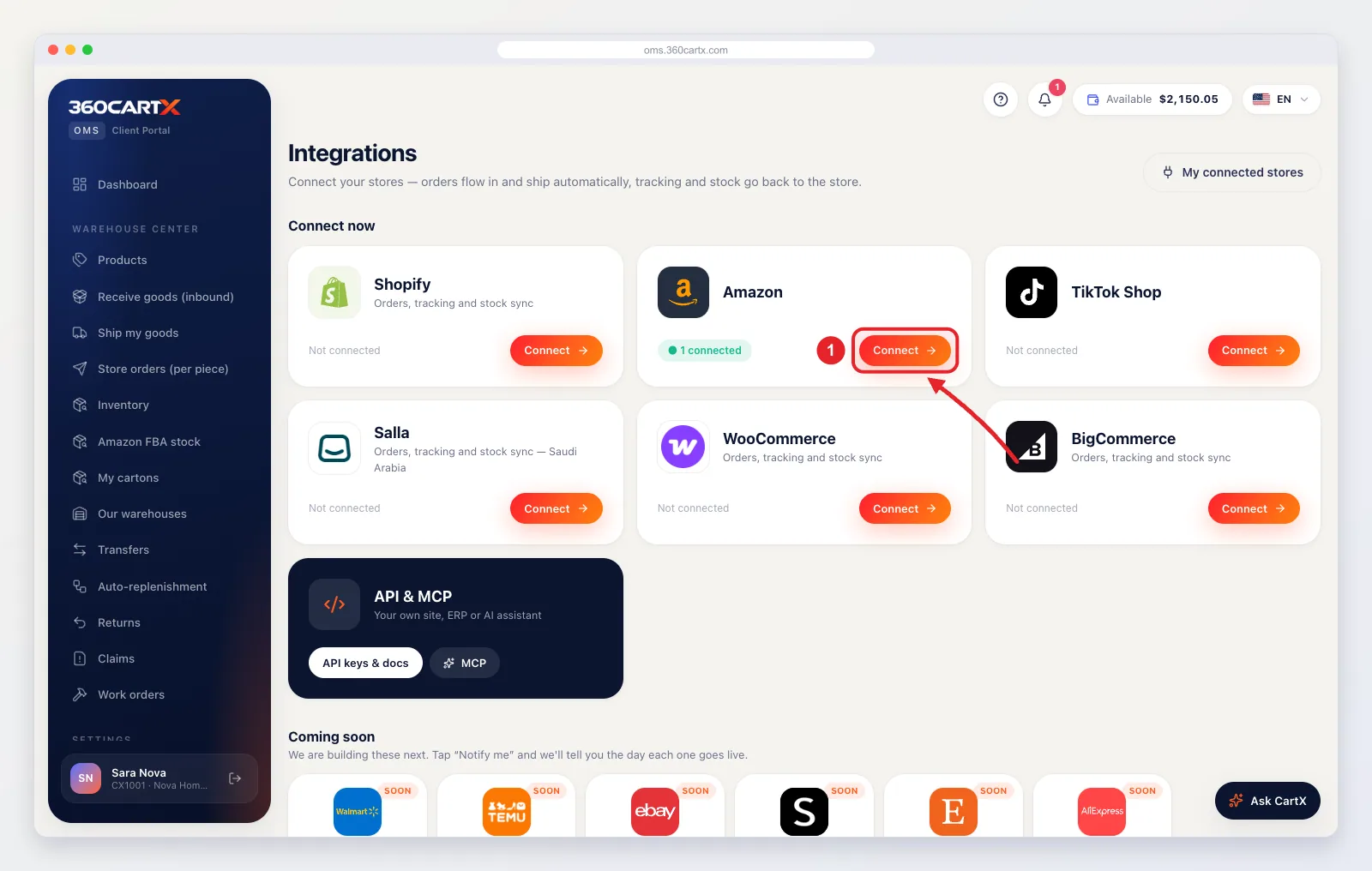
Go to Integrations and click Connect on the Amazon card, or open Connect a store and click the Amazon tile. Make sure your Amazon seller account is open in Seller Central in the same browser; it saves a sign-in.
- 2
Fill in the three fields
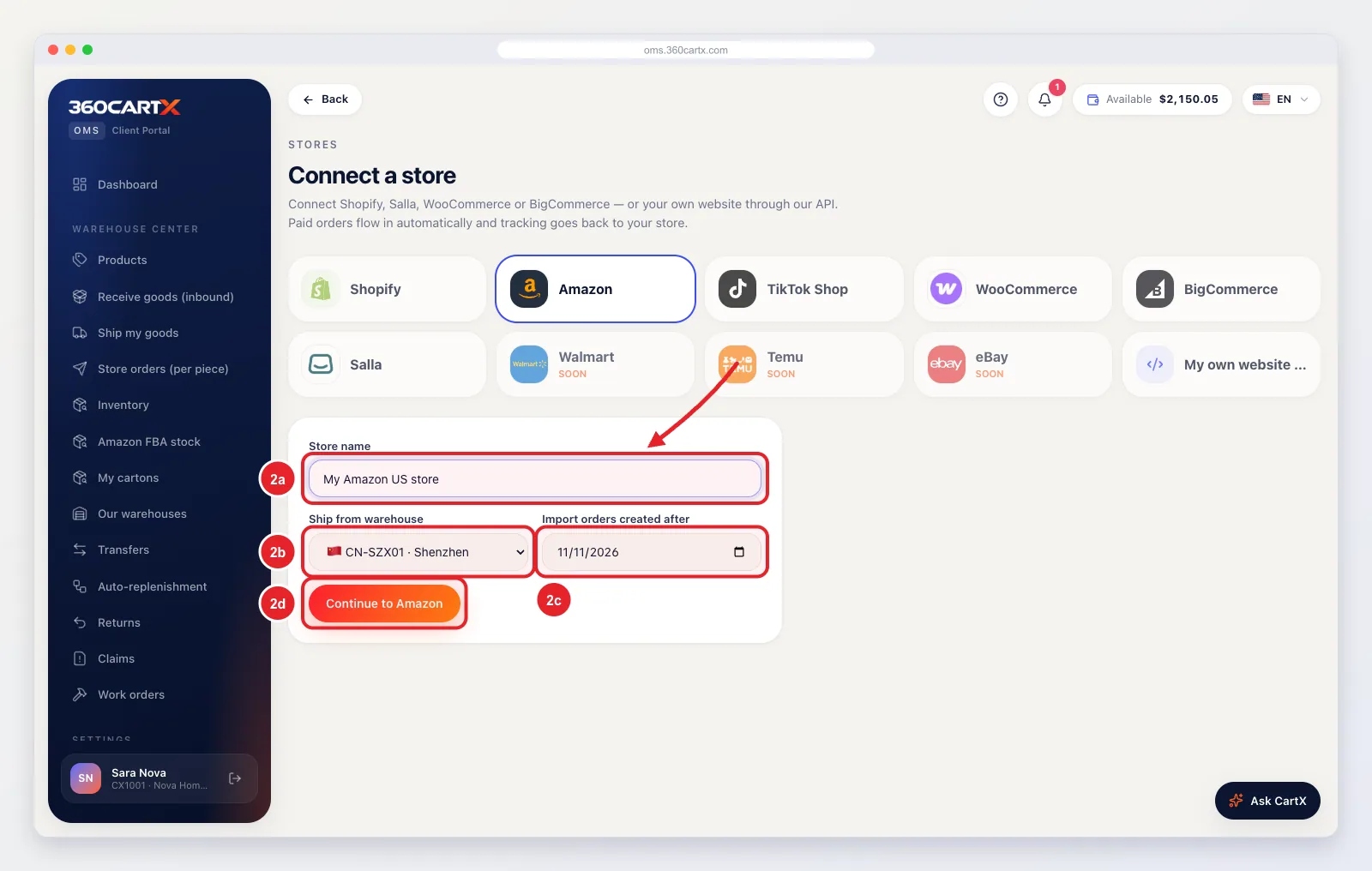
Store name: how you will see this store in 360CartX, for example My Amazon US store (2 to 60 characters). Ship from warehouse: the warehouse that ships the orders of this store, for example CN-SZX01 · Shenzhen. Import orders created after is shown on this form but Amazon always starts importing orders from the moment you connect. Then click Continue to Amazon.
- 2a Store name
- 2b Ship from warehouse
- 2c Import orders created after
- 2d Continue to Amazon
- 3
Approve 360CartX in Seller Central
Your browser goes to Seller Central (sellercentral.amazon.com) and Amazon shows its consent screen for the 360CartX app. Sign in if Amazon asks (Amazon decides who may authorise an app, normally the owner of the seller account), read the permissions and approve. 360CartX never sees your Amazon password. You have 10 minutes between clicking Continue to Amazon and approving.
- 4
Starting from Seller Central instead
You can also start from Amazon: open the 360CartX app in Seller Central and authorise it there. Amazon sends you to 360CartX first (this is the app's login address). Sign in to 360CartX, and the connection is created with the name Amazon and your first enabled warehouse, then Amazon asks for your approval.
- 5
You land on the store page
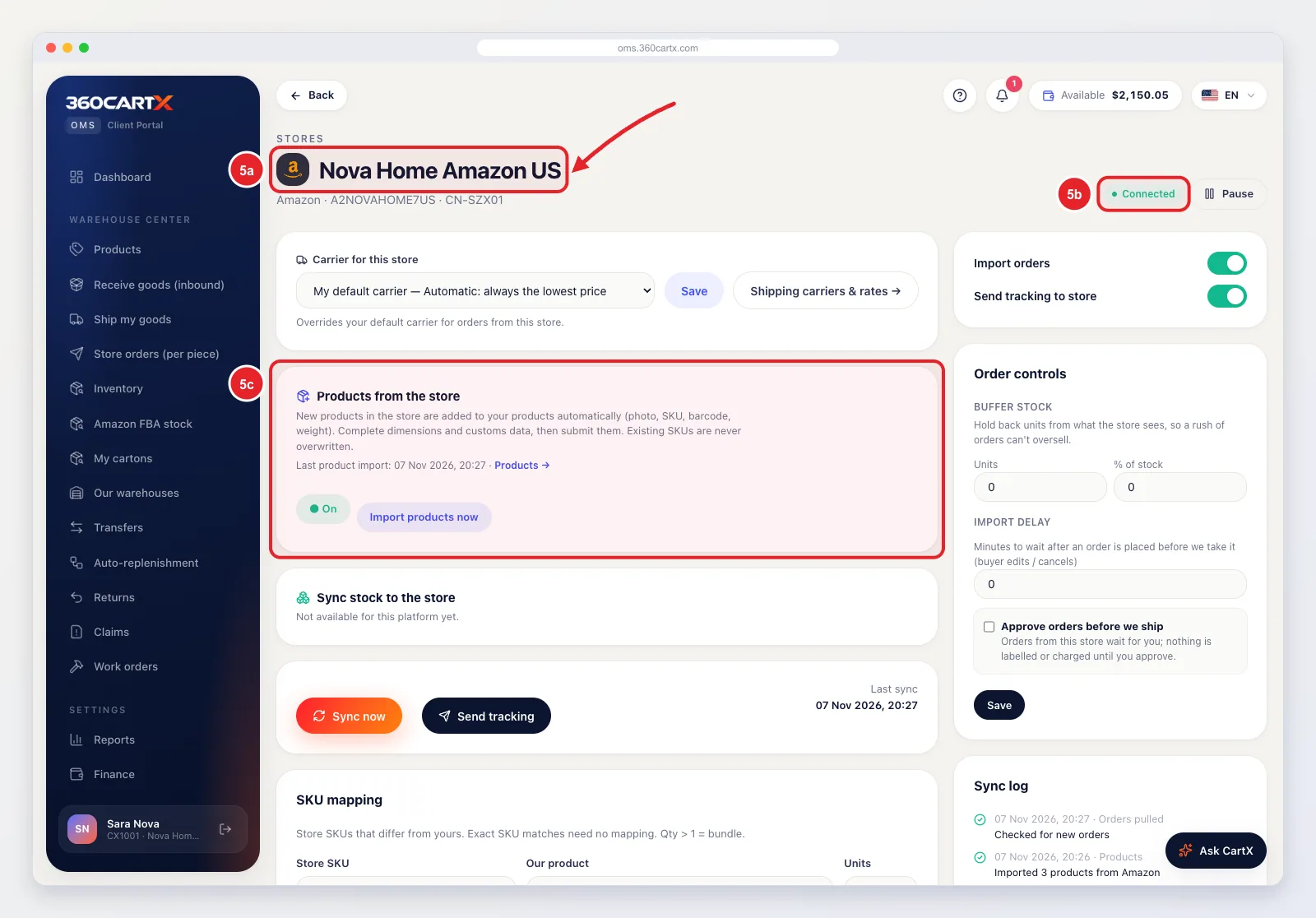
After you approve, Amazon sends you back to 360CartX. We exchange the one-time code for the store's tokens, keep them encrypted, and open the store page: the name, the status Connected and, in the grey line under it, Amazon plus your seller ID. The tokens renew themselves; you do not do anything. The first import of your listings starts at once.
- 5a Store name
- 5b Connected
- 5c Products from the store
- 6
Which Amazon is connected
North America only: Amazon.com, the United States marketplace (marketplace ID ATVPDKIKX0DER). Orders, listings and FBA stock are read for that marketplace. Other Amazon marketplaces, such as Canada, Mexico, the UK or Europe, are not read, even if the same seller account sells there.
- 7
Your listings become products
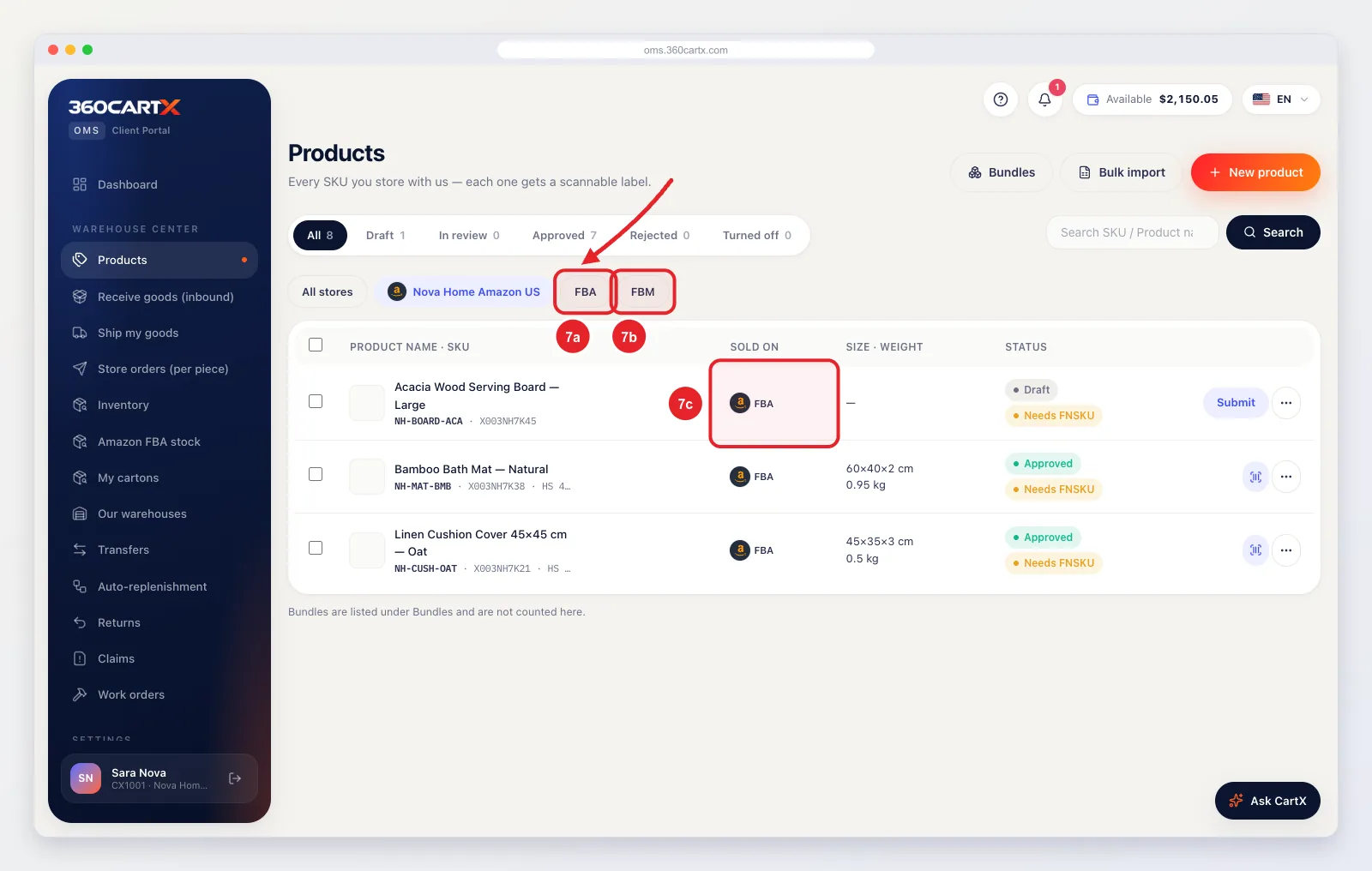
Each listing (SKU) comes in as a product in Draft: name, photo and, when the listing has a valid FNSKU that no other product of yours uses, the FNSKU. Amazon products have no 360CartX barcode, they use their FNSKU label. In Products the Sold on column shows Amazon with FBA or FBM, and once an Amazon store exists the buttons FBA and FBM filter the list. Existing SKUs are never overwritten, only empty fields are filled. Import runs when you connect, with Import products now on the store page, and about every 6 hours.
- 7a FBA filter
- 7b FBM filter
- 7c Sold on
- 8
FBA: Amazon ships
Fulfilled by Amazon (FBA) orders are packed and shipped by Amazon, so they are not imported. Use 360CartX to prepare cartons and send stock to Amazon (Ship my goods, To a platform warehouse), and open Amazon FBA stock to see the units inside Amazon's warehouses, read live from your store. Stock sync to the store is not available for Amazon.
- 9
FBM: you ship
Fulfilled by Merchant (FBM) orders that are Unshipped or Partially shipped are imported and a cancelled order cancels the parcel here while that is still possible. Amazon gives buyer names and addresses only to apps it has approved for that, and until it does, such orders wait on hold with the reason Buyer address not available: Amazon must approve shipping data access for this app. When the parcel ships, 360CartX confirms the shipment on Amazon with the carrier name and the tracking number (Send tracking to store on the store page).
- 10
Read the message
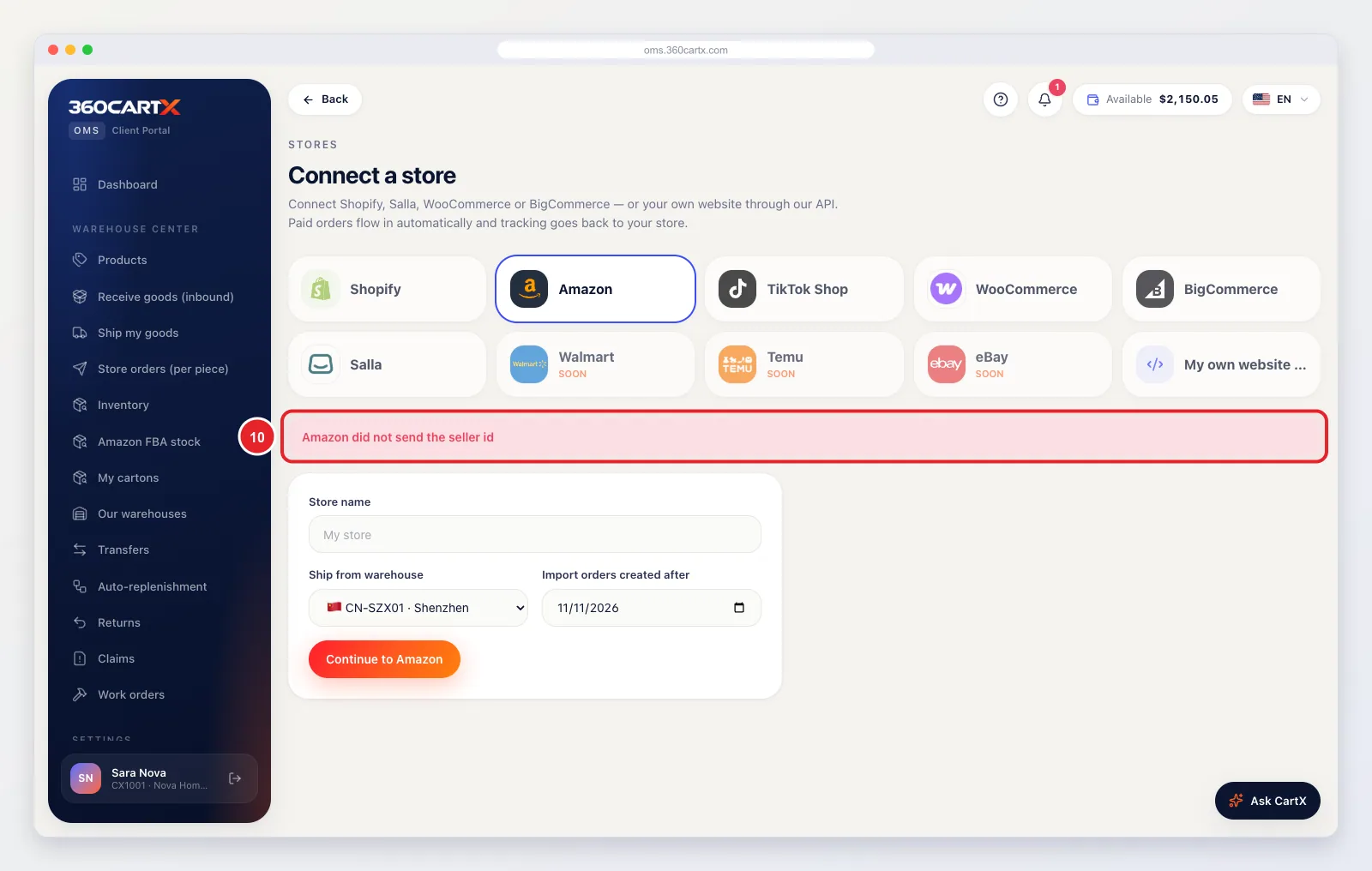
If something fails you come back to the connect page with a red message, for example Amazon did not send the seller id. The list under Problems says what each message means. Messages that appear later on the store page or on Amazon FBA stock are listed there too.
- 11
Stop the connection
Disconnect on the store page removes the saved tokens here. To remove 360CartX completely also withdraw its authorisation in Seller Central (Apps and Services, Manage Your Apps).
Terms in this article
Tips
- Amazon products are Draft until you complete the dimensions and customs data and submit them. FBM orders wait for approved products.
- Seeing no FBA stock or no listings right after connecting? The first import takes a short while: press Import products now on the store page.
- To send stock to an FBA warehouse, the product needs its FNSKU label: see the Ship my goods articles.
Common problems
The Amazon app is not configured yet
Connection through Amazon is not available for the moment. Contact support.
Choose a warehouse / Store name is required
Pick a Ship from warehouse and type a name of at least 2 characters, then click Continue to Amazon again.
Connection expired, try again
More than 10 minutes passed, or the browser dropped the cookie of the connection. Start again from Connect.
The store's answer could not be verified
The answer from Amazon did not match your connection request. Start again from Connect, in one browser tab.
Sign in again
You are not signed in to 360CartX, or a different user finished the connection. Sign in with the same user and connect again.
No authorization code / Access was not granted
Amazon did not approve, for example you declined the permissions. Connect again and approve.
Amazon did not send the seller id
Amazon's answer was incomplete. Connect again; if it repeats, contact support.
Amazon sign-in: ... Connect the store again
Amazon refused to exchange the code or to renew the tokens. Connect the store again. This also appears on the store page if renewal fails later.
Cannot reach Amazon: ...
Amazon did not answer. Wait a minute and try again.
Amazon refused this request. Check the app's approved roles or connect the store again
Amazon denied access to that data. Connect the store again to grant the permissions; if you removed the authorisation in Seller Central, authorise again.
Amazon rate limit reached. The next sync continues
Amazon limits how often we may ask. Nothing is lost: the next sync continues.
Buyer address not available: Amazon must approve shipping data access for this app
The order is on hold because Amazon has not given the app access to buyer addresses. Once access is granted, use Retry held orders on the store page.
Related articles
Updated 2026-11-11
Open a ticket from Support in your portal and our team will reply.