Steps
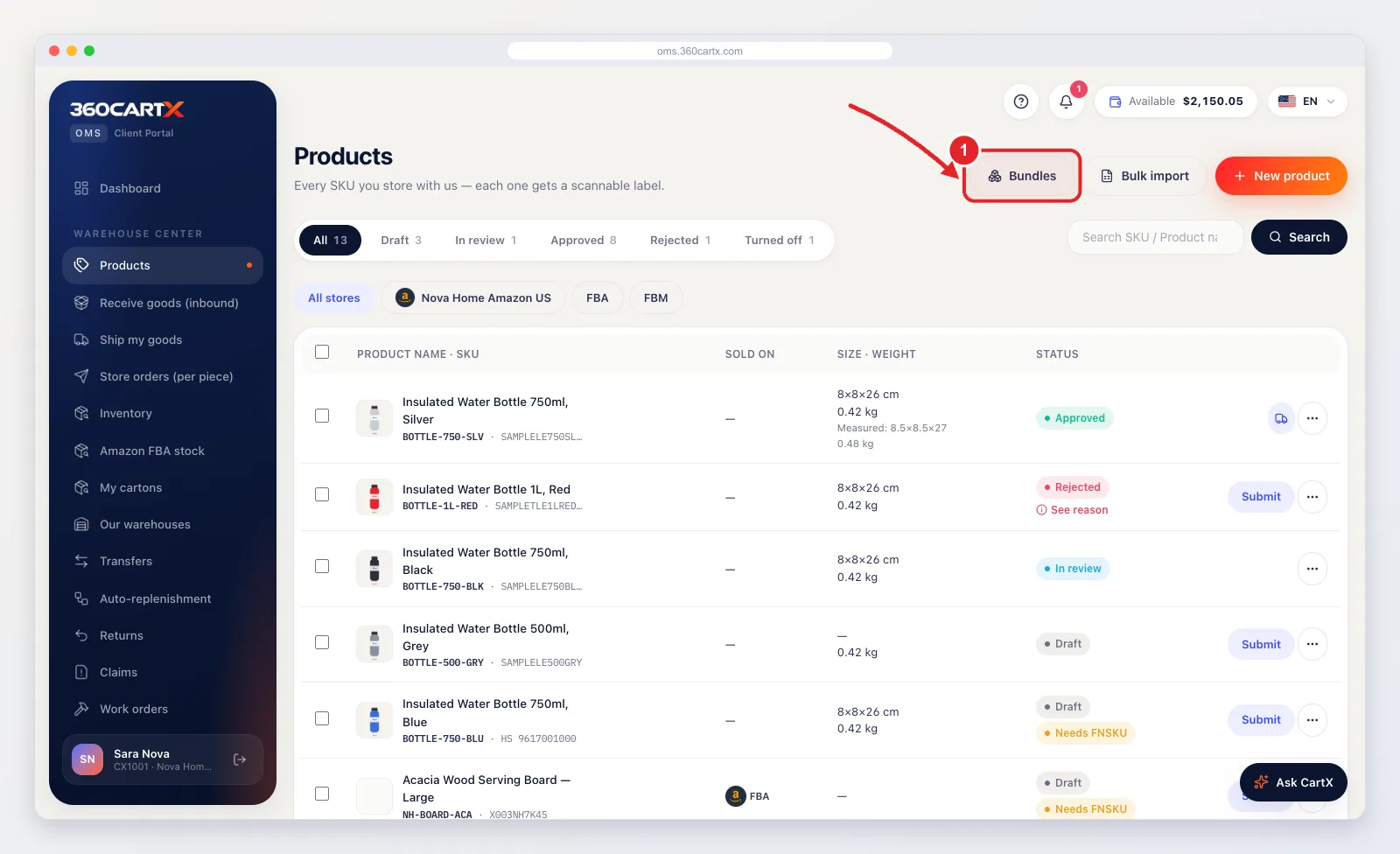
- 1
Open Bundles
On the Products page click Bundles. Bundles have their own page: they are not listed in the Products table and not counted in its tabs (a note under the table says so). Without any bundle the list says No bundles yet. The New bundle form is on the right.
- 2
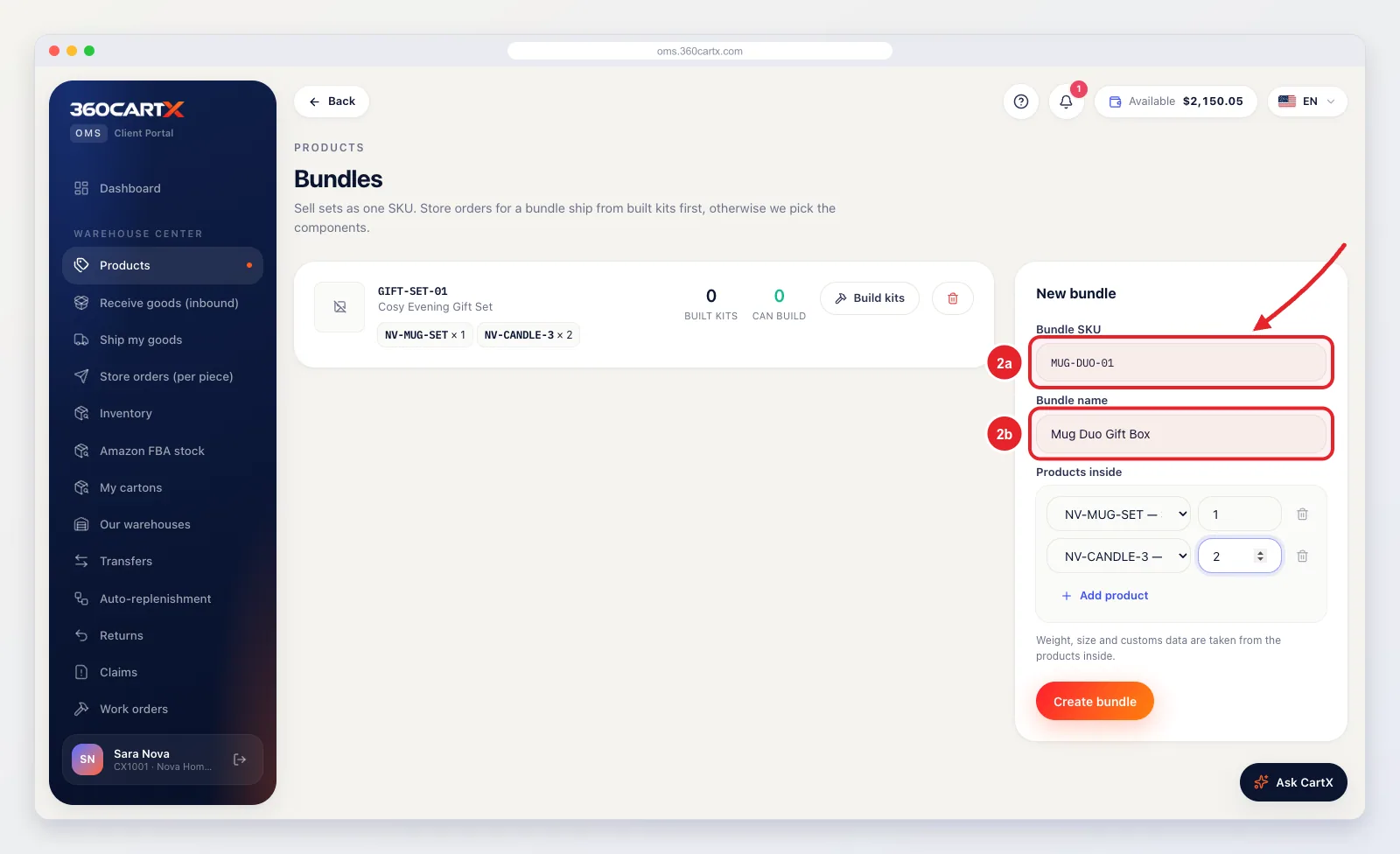
Bundle SKU and name
Bundle SKU is the code you sell the set under, for example MUG-DUO-01 (the same SKU as in your store). Bundle name is the name of the set, for example Mug Duo Gift Box. Both are required and the SKU must be new in your account.
- 2a Bundle SKU
- 2b Bundle name
- 3
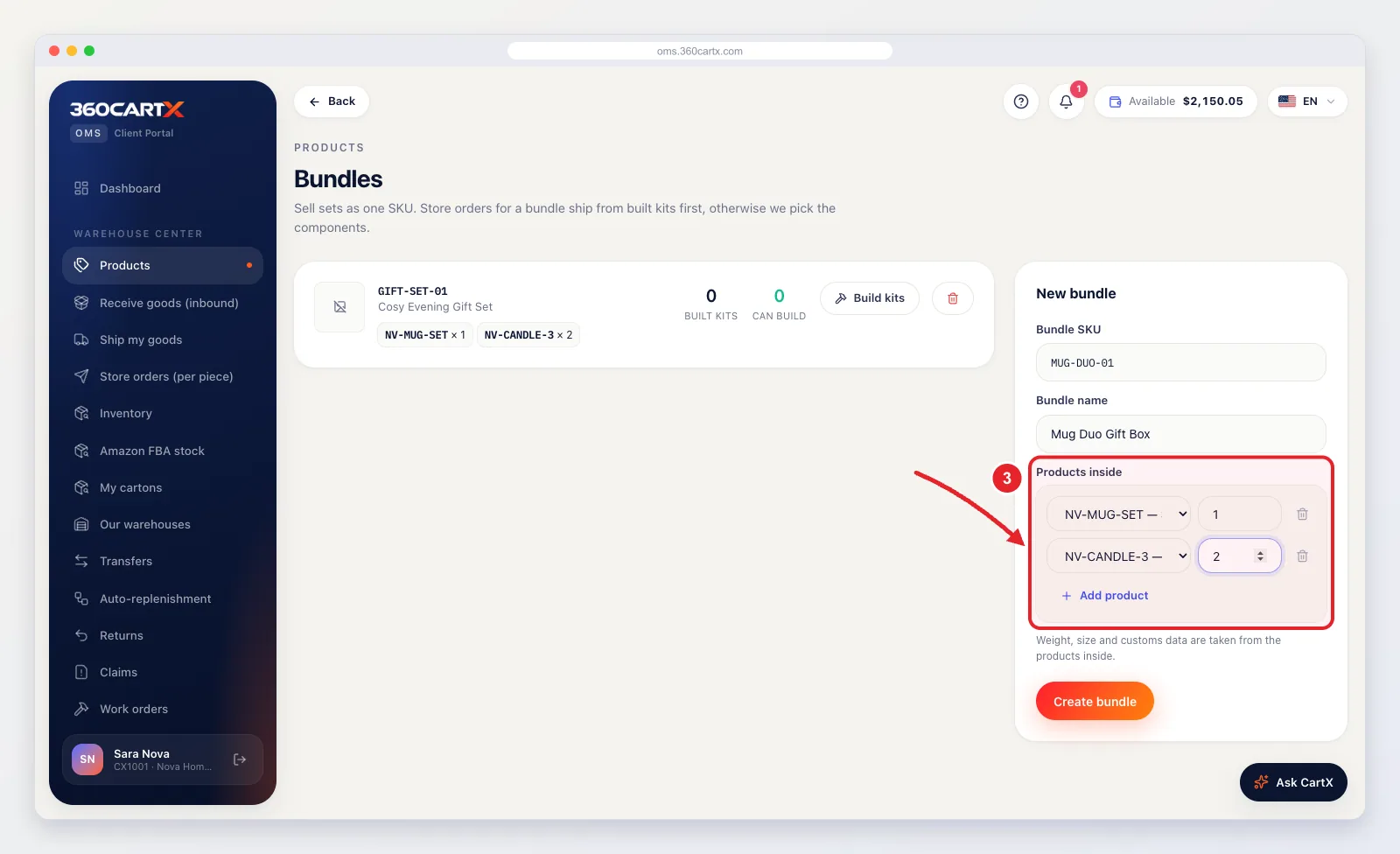
Choose the products inside
Under Products inside choose the first product in the list and its Qty per bundle, for example NV-MUG-SET × 1. Click Add product for each further product, for example NV-CANDLE-3 × 2. Only your approved products can be used, and a bundle needs at least two units in total. The bin icon removes a line.
- 4
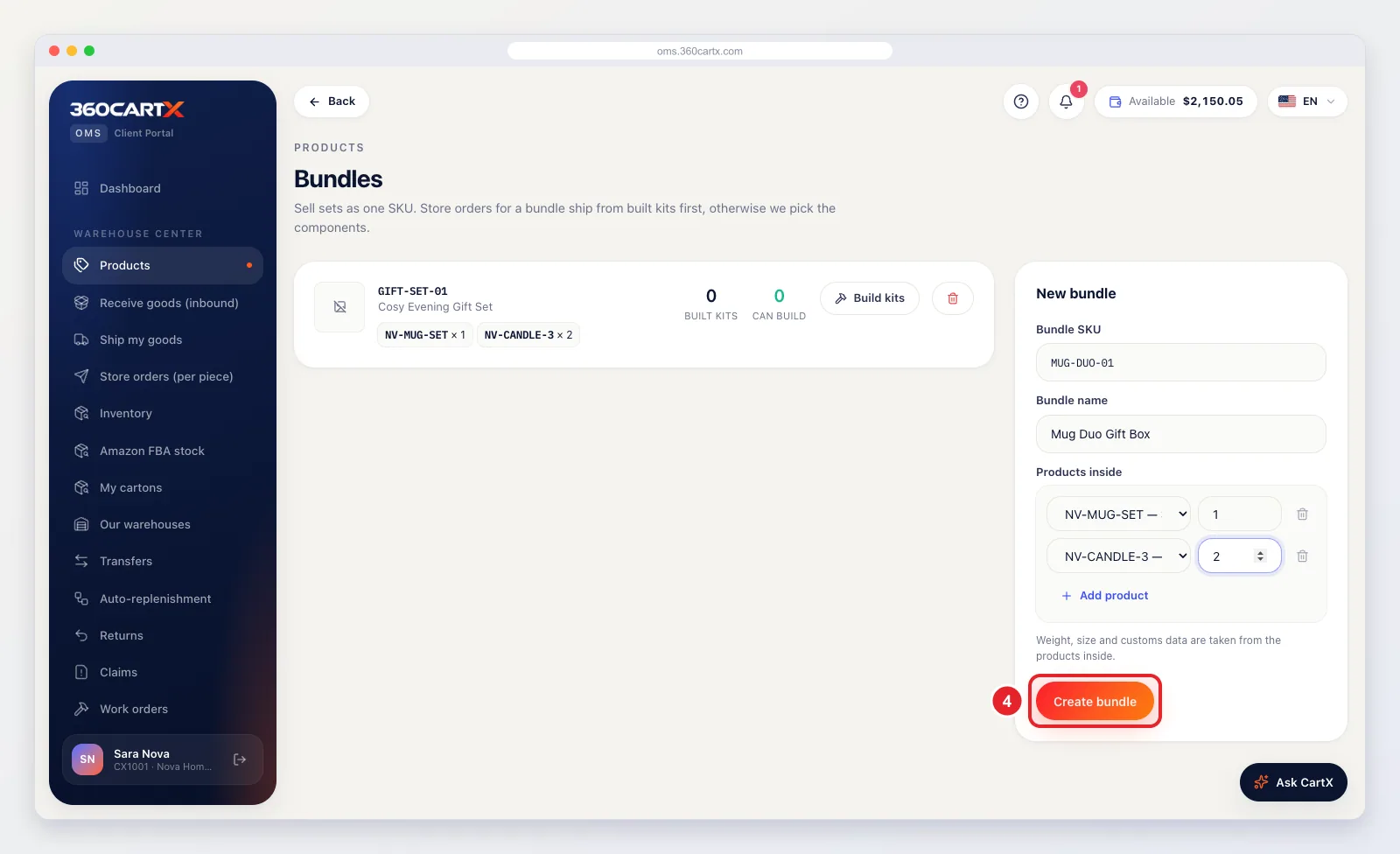
Click Create bundle
Click Create bundle. You see Bundle created and the set appears in the list. You do not enter a size, weight or customs data: they are taken from the products inside. A bundle is approved straight away.
- 5
Read the stock of a bundle
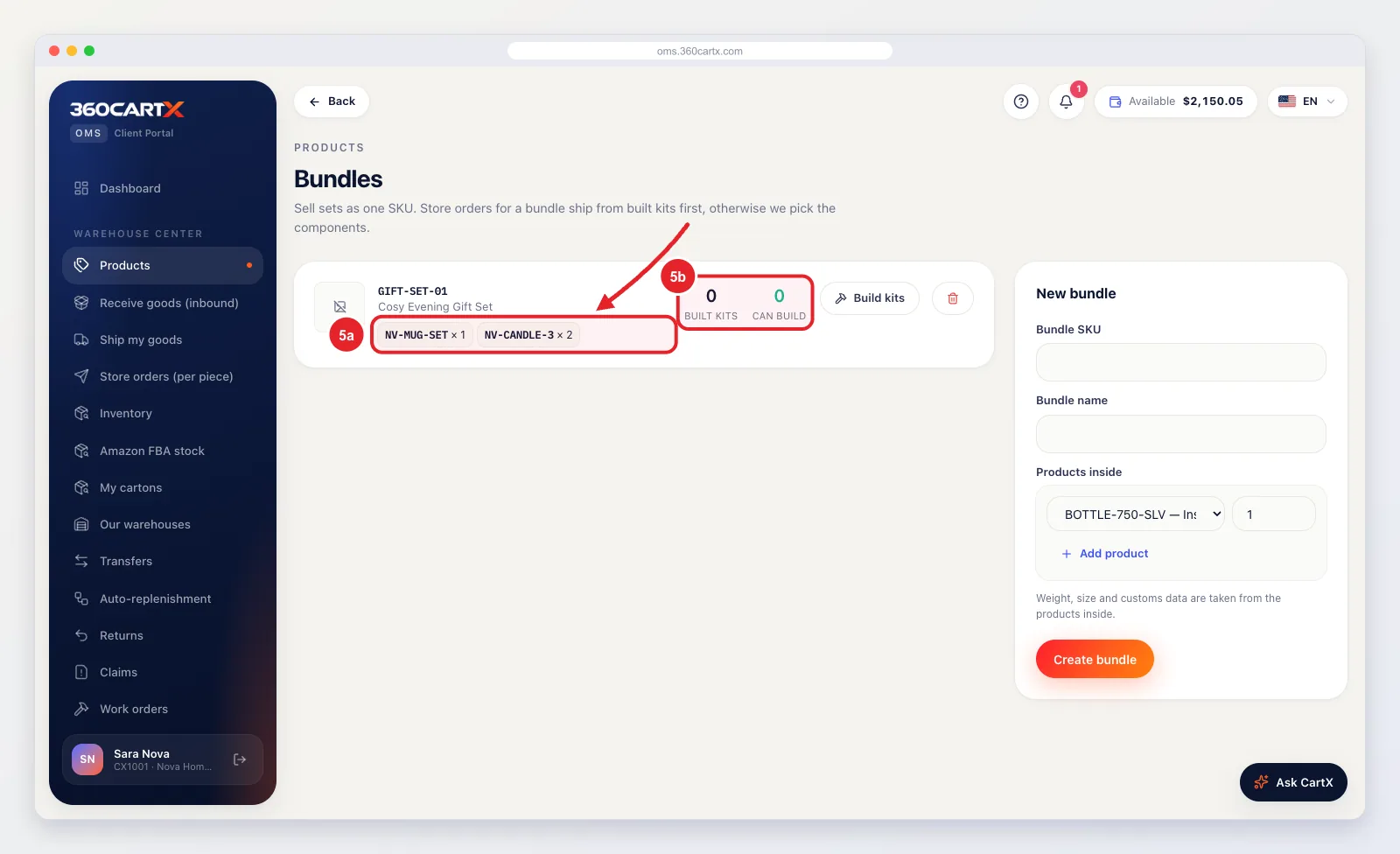
Each bundle lists the products inside with their quantity (for example NV-MUG-SET × 1, NV-CANDLE-3 × 2), Built kits (kits already assembled and on the shelf) and Can build (how many more kits the free stock of the products inside allows). With several warehouses, a small table shows both numbers per warehouse: kits are never built from products in two different warehouses.
- 5a Products inside
- 5b Built kits · Can build
- 6
Build kits in advance
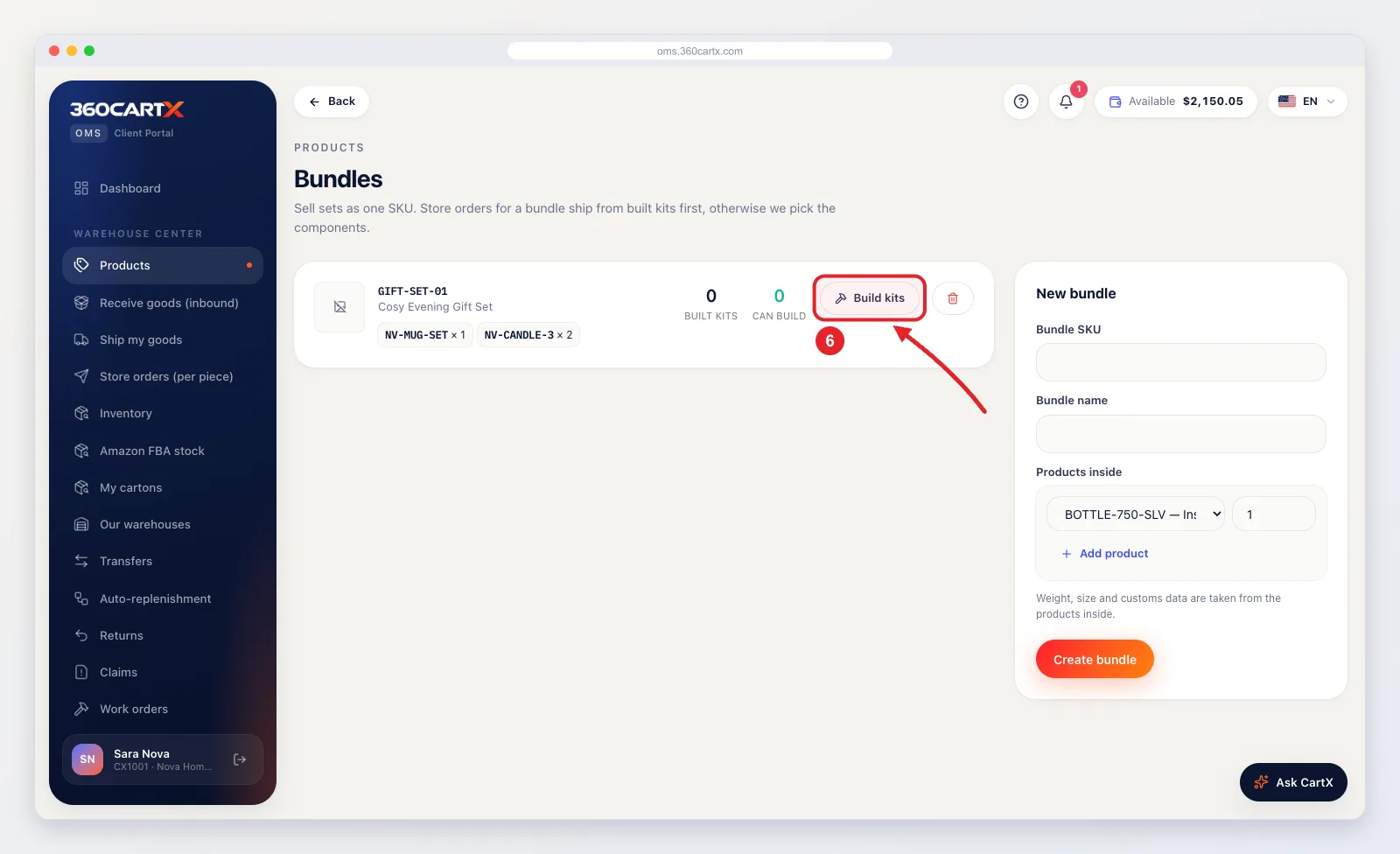
Click Build kits to open a Kitting work order for this bundle, in the warehouse where kits can be built. Our team assembles the kits so orders ship faster. This is optional: without built kits we pick the products inside for each order.
Terms in this article
- Kitting / bundle: Building sets that sell as one SKU.
- SKU: Your own product code.
Tips
- Connect the bundle SKU to your store listing: orders for the bundle then take stock from the products inside automatically.
- Delete a bundle with the bin icon on its card. Built kits in stock are not taken apart automatically: order a De-kitting (open bundles) work order first.
Common problems
A bundle needs at least two units
Add a second product, or set Qty per bundle to 2 or more.
Bundles can only contain your approved products (not other bundles)
Pick approved products only. A bundle cannot contain another bundle.
That SKU already exists
The bundle SKU is already used by a product or another bundle. Choose a new SKU.
My product is not in the list
Only approved, non-bundle products are offered. Wait for the product's review, or check its status in Products.
Related articles
Updated 2026-11-12
Open a ticket from Support in your portal and our team will reply.