Steps
- 1
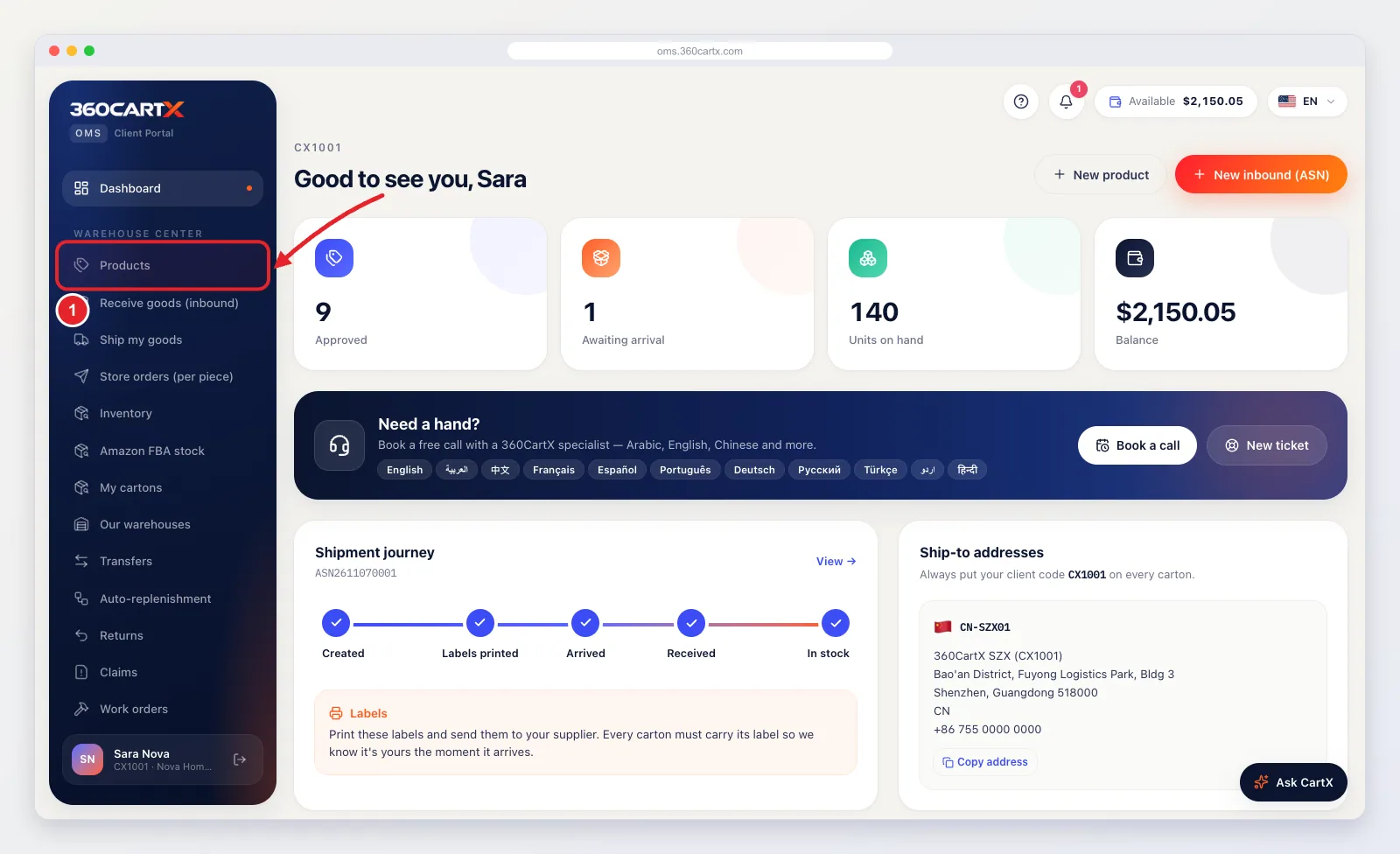
Open Products
Click Products under Warehouse Center in the left menu.
- 2
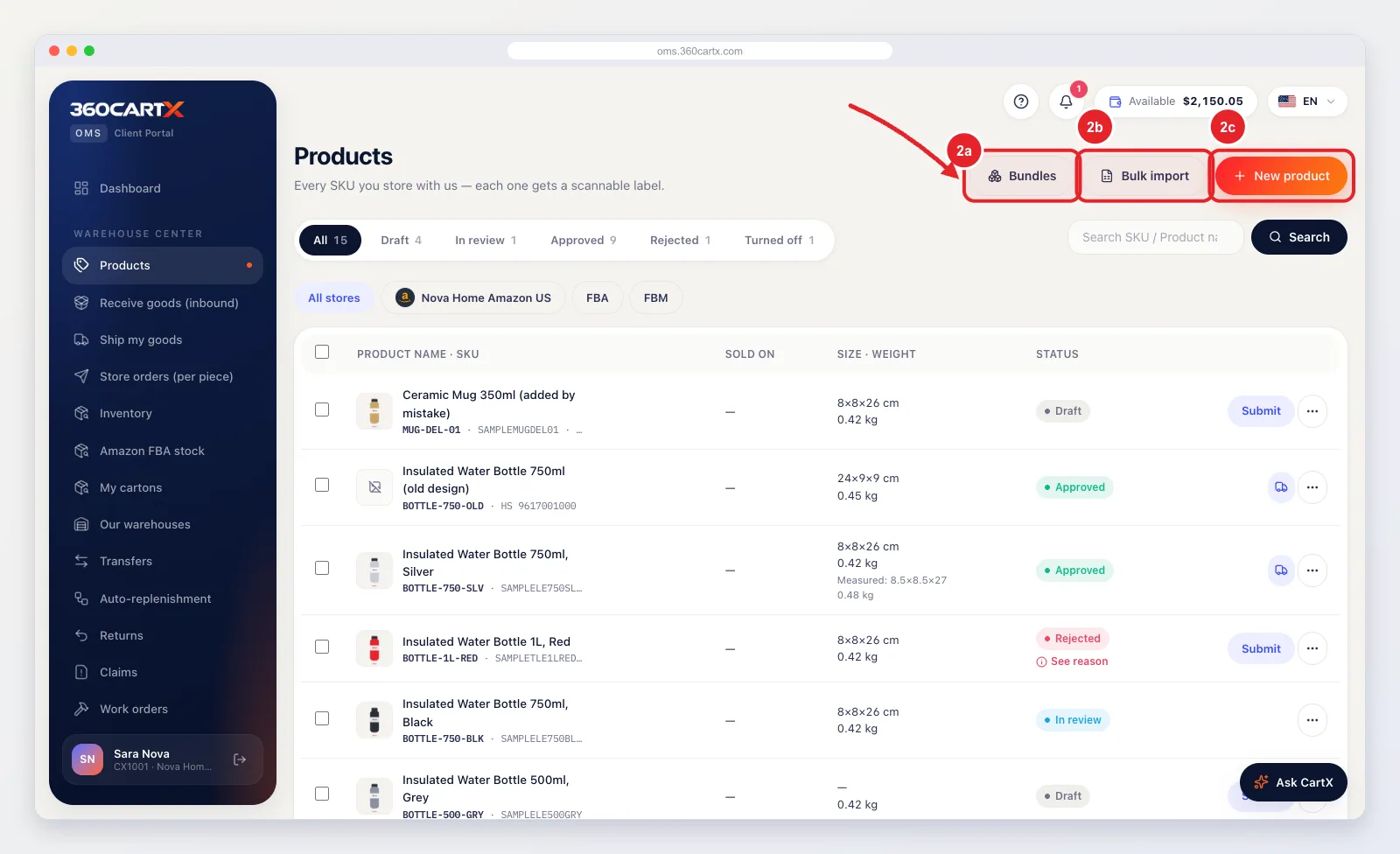
The three buttons at the top
Bundles opens your sets sold as one SKU. Bulk import adds or updates many products from an Excel file. New product opens the form to add one product.
- 2a Bundles
- 2b Bulk import
- 2c New product
- 3
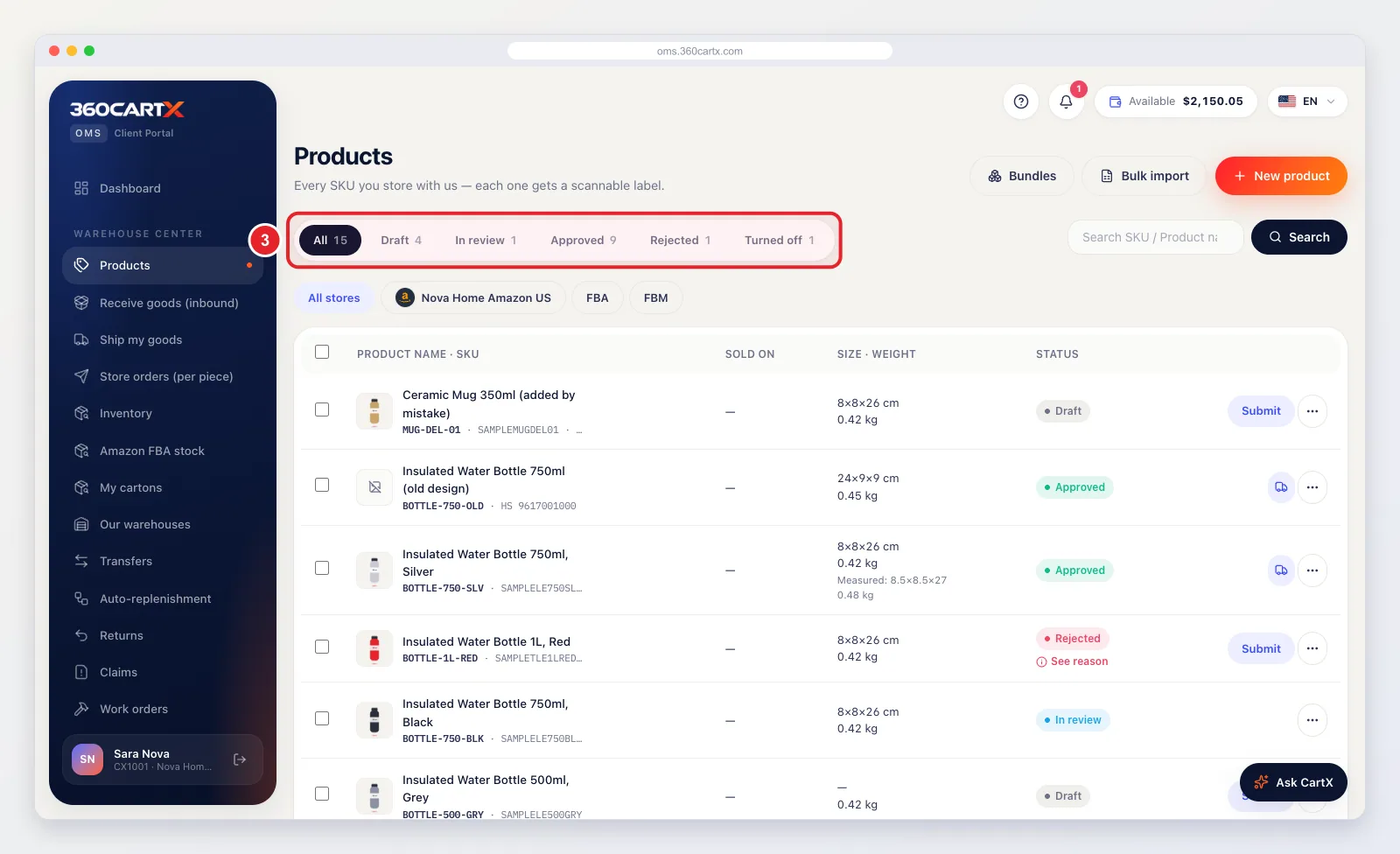
Filter by status
The tabs All, Draft, In review, Approved, Rejected and Turned off show how many products are in each status. Click a tab to see only those products. All shows every product except the turned-off ones. Bundles are not counted in any tab: they have their own page, and a note under the table says so.
- 4
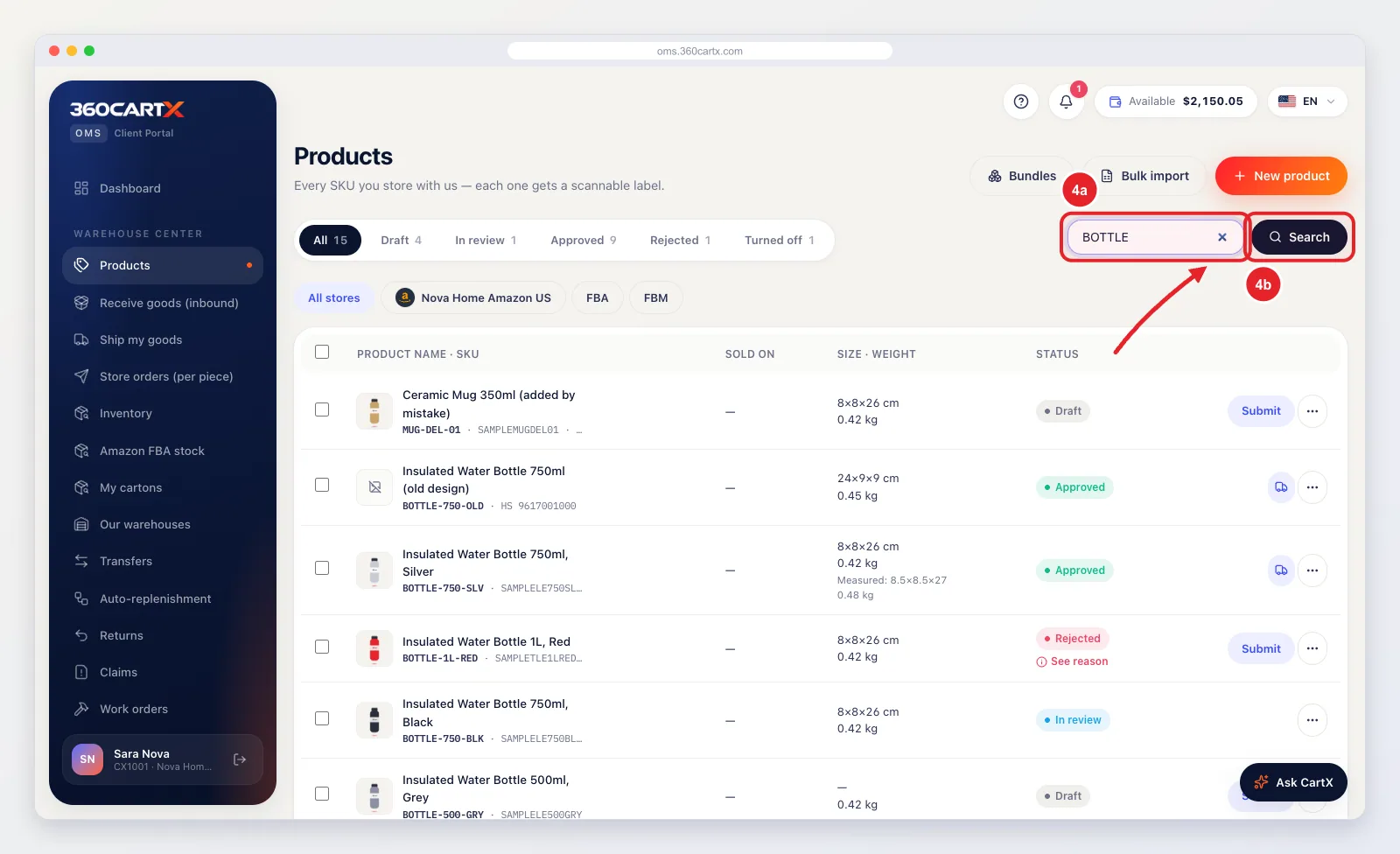
Search by SKU, name or barcode
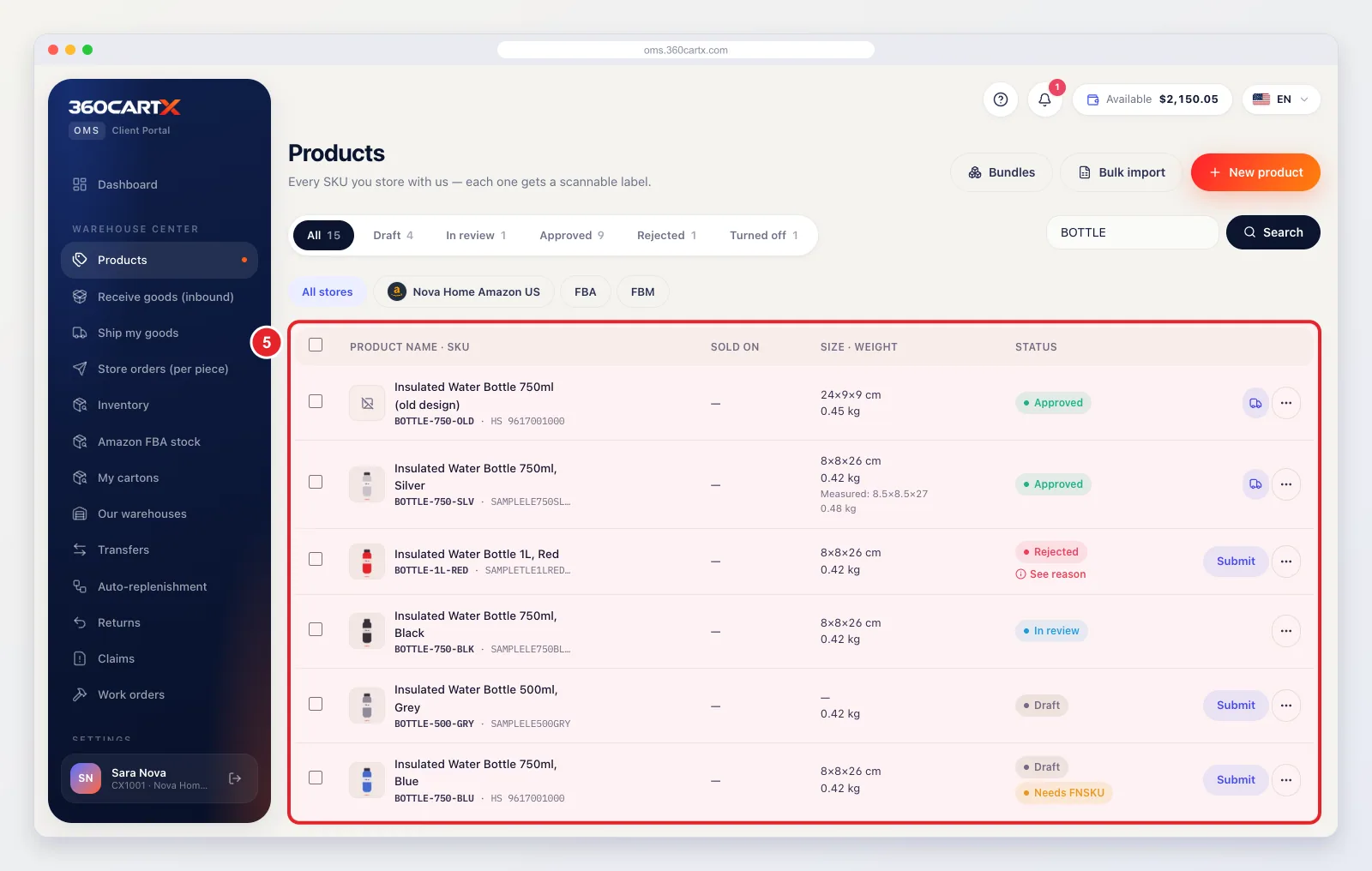
Type part of a SKU, product name or barcode in the search box, for example BOTTLE, and click Search (or press Enter). The search keeps the tab and store filter you chose.
- 4a Search box
- 4b Search
- 5
Read the table
Product name · SKU shows the photo, the name (long names wrap to two lines; hover the name to read all of it) and below it the SKU, the barcode and the HS code. Sold on shows the store logo and channel (for example FBA) of every store listing; hover a logo to see the store name and, for Amazon, the ASIN. A product you marked as Sold on Amazon (FBA) that has no store listing shows Amazon FBA there, and a product sold nowhere shows a dash. Size · weight shows the size (L×W×H cm) and weight (kg) you declared on two lines; once our warehouse has measured the product, a Measured line with its size and weight appears under them. Status shows the review status, the Needs FNSKU badge for Amazon products and, for rejected products, See reason. On a very wide screen a Created column appears too.
- 6
Row buttons
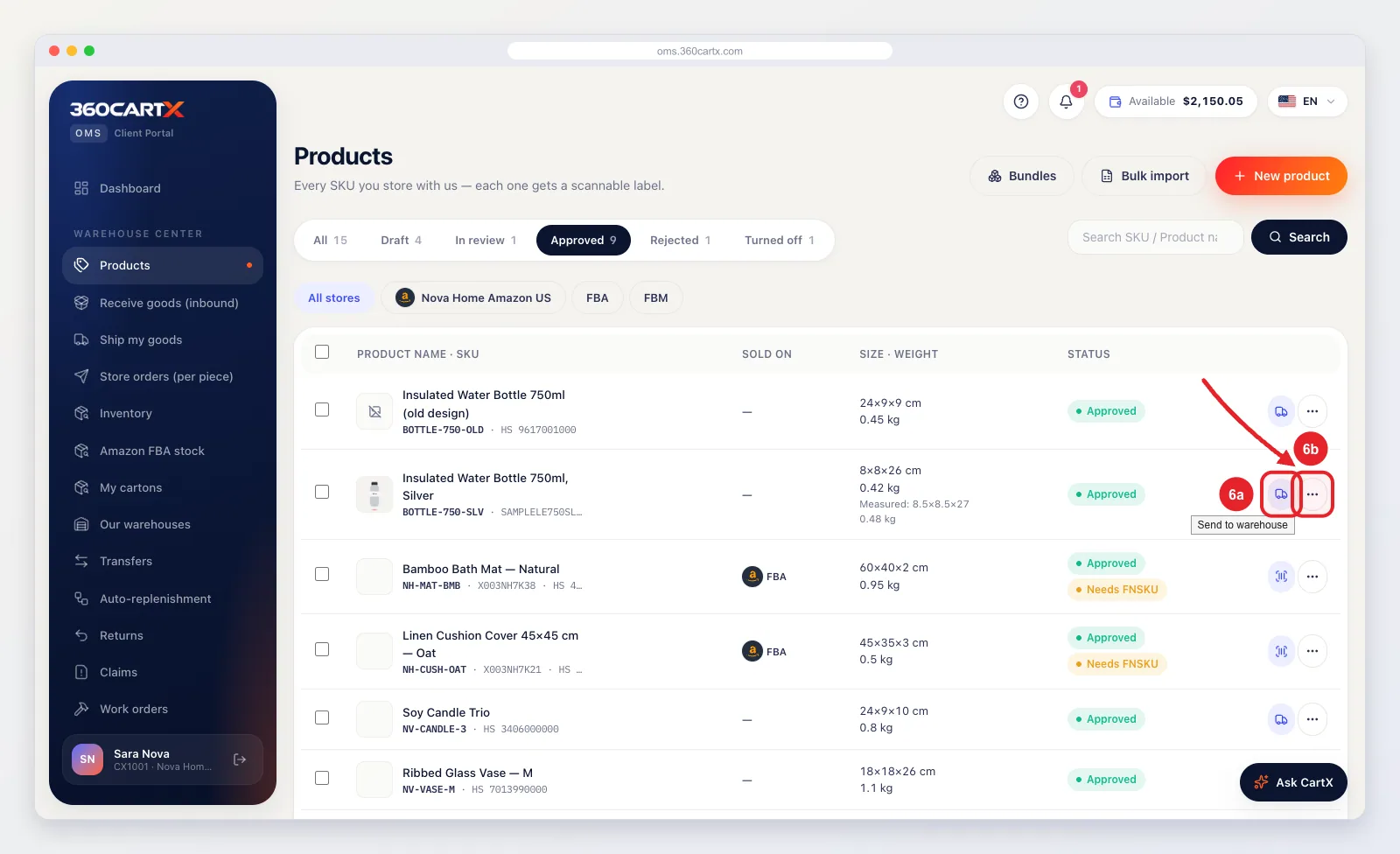
The buttons at the end of each row depend on the status, and only show an icon so the table fits a normal laptop screen: hover an icon to read its full name. Draft and rejected products have Submit. Approved products have the truck icon Send to warehouse (an approved Amazon product that still needs its FNSKU shows the barcode icon Save FNSKU instead). Every row ends with ⋯ More actions.
- 6a Send to warehouse
- 6b More actions
- 7
The ⋯ menu
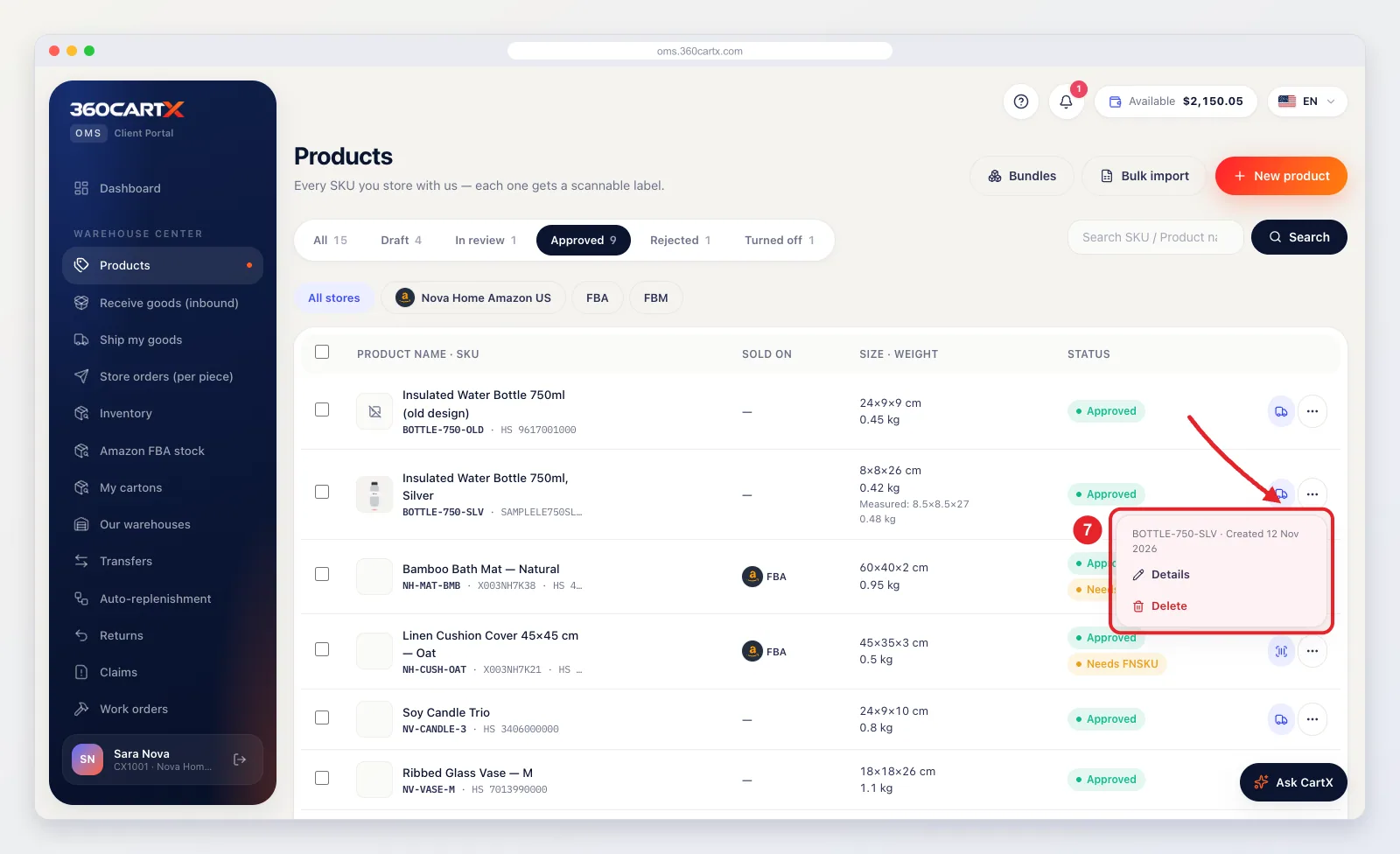
Click ⋯ to open the menu of the product. It starts with the SKU and the date the product was created. Edit opens the product page (Details for products that can no longer be edited). Amazon products that are in review or approved also have FNSKU, which shows FNSKU ✓ once the FNSKU is saved. The red Delete removes the product; see Delete a product.
- 8
Rejected products: See reason
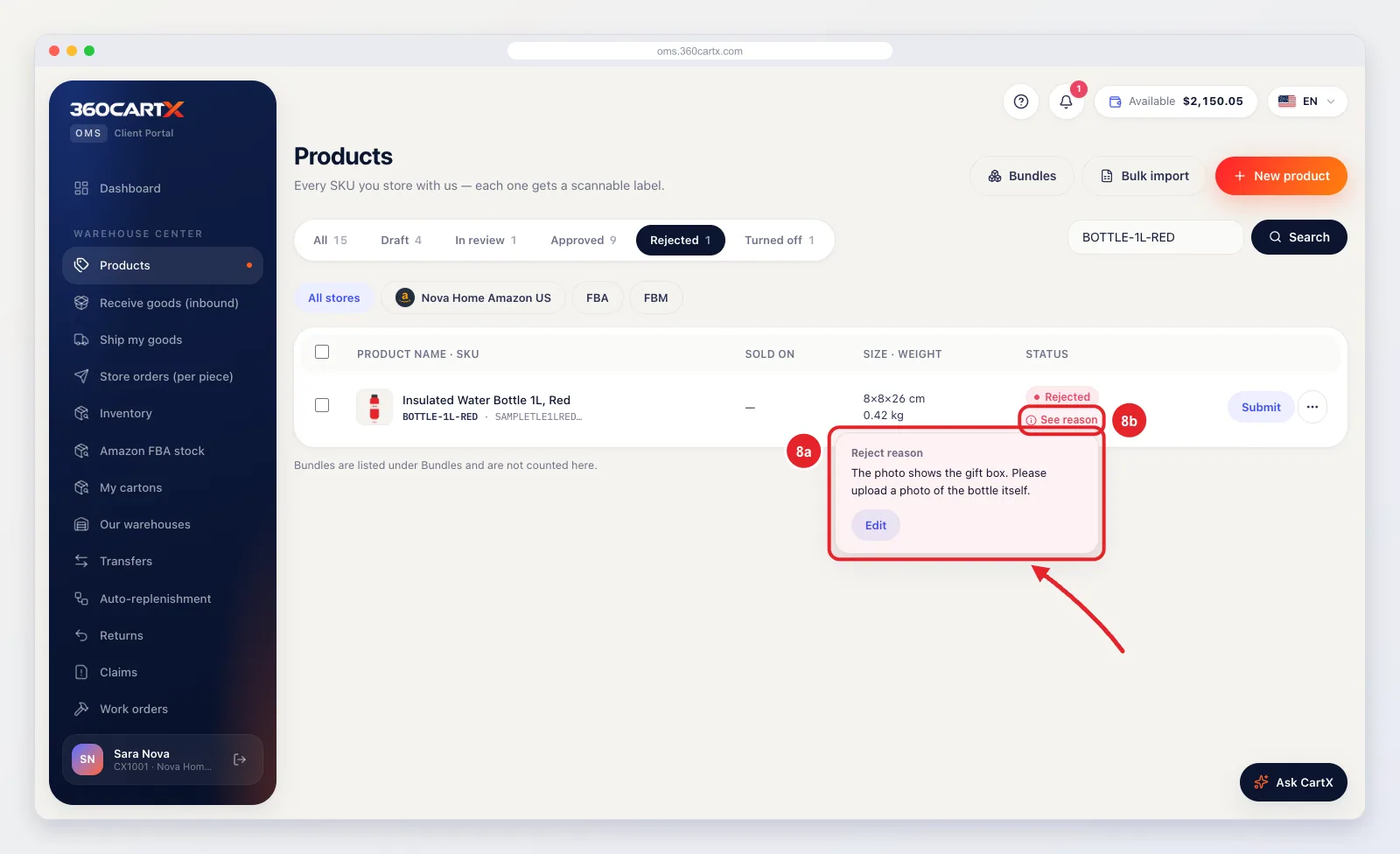
A rejected product shows a red See reason link under its status. Click it to read the Reject reason from our team in a small panel, with an Edit button that opens the product so you can fix it and submit it again.
- 8a Reject reason panel
- 8b See reason
- 9
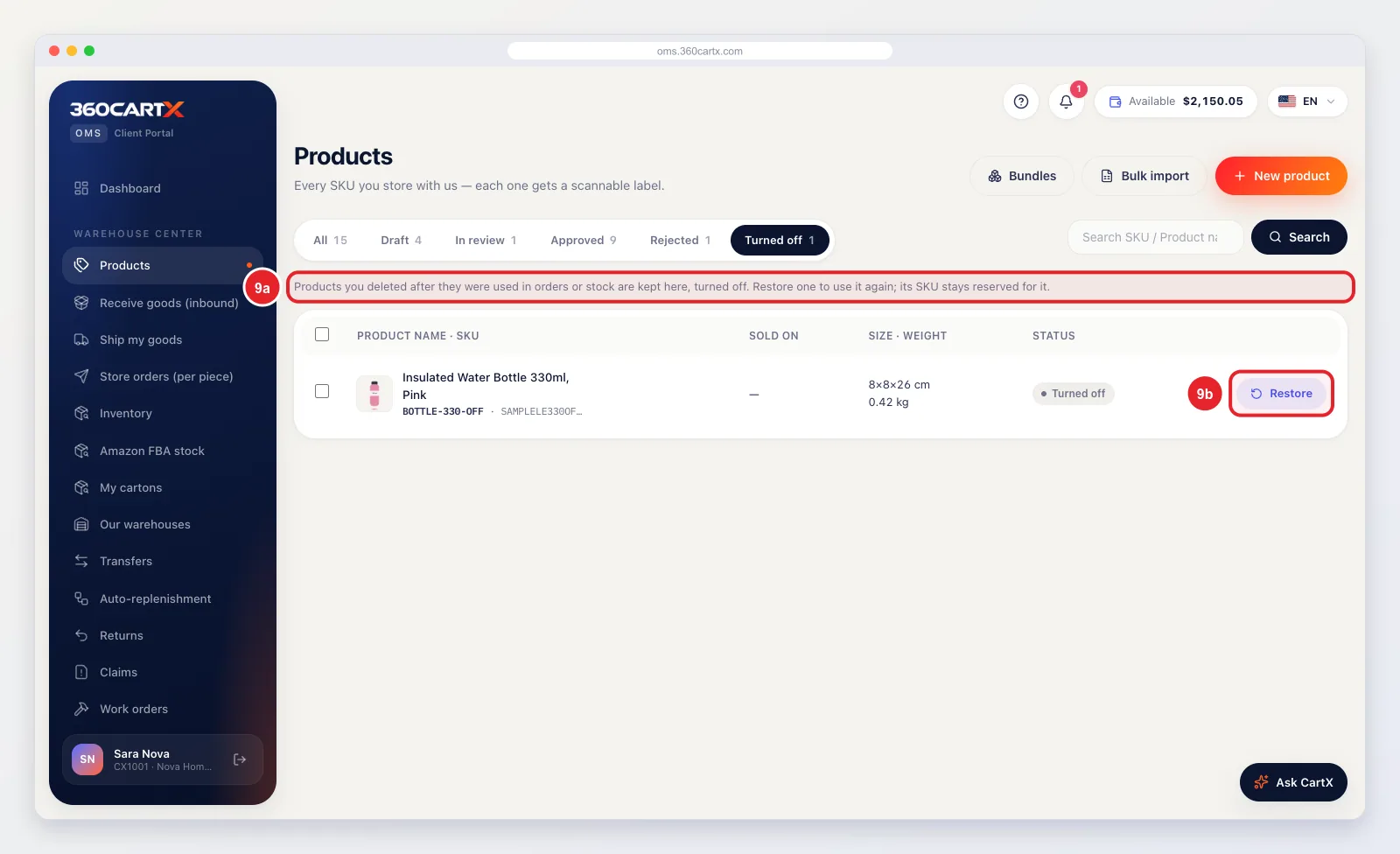
Turned off products
The Turned off tab keeps the products you deleted after they were used in orders or stock. Click Restore on a product to use it again: it goes back to the status it had, for example Approved. Its SKU stays reserved for it all the time.
- 9a Turned off note
- 9b Restore
- 10
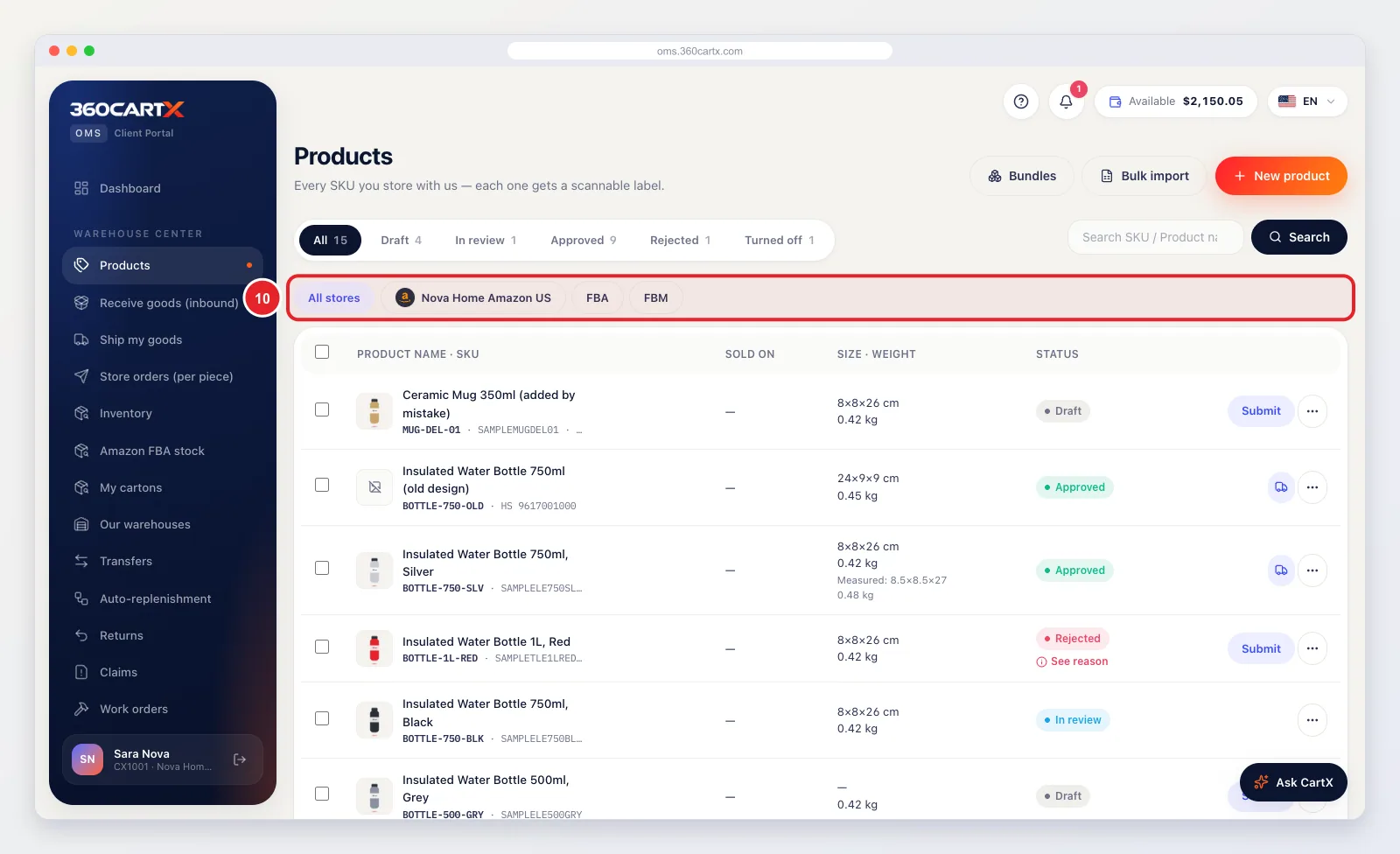
Filter by store and Amazon channel
When a store is connected, a row of buttons appears: All stores, one button per store, and FBA / FBM when an Amazon store is connected. Click a store to see only the products listed in it; click FBA to see only products sold through Fulfillment by Amazon. Click All stores to clear the filter. The row is hidden on the Turned off tab.
- 11
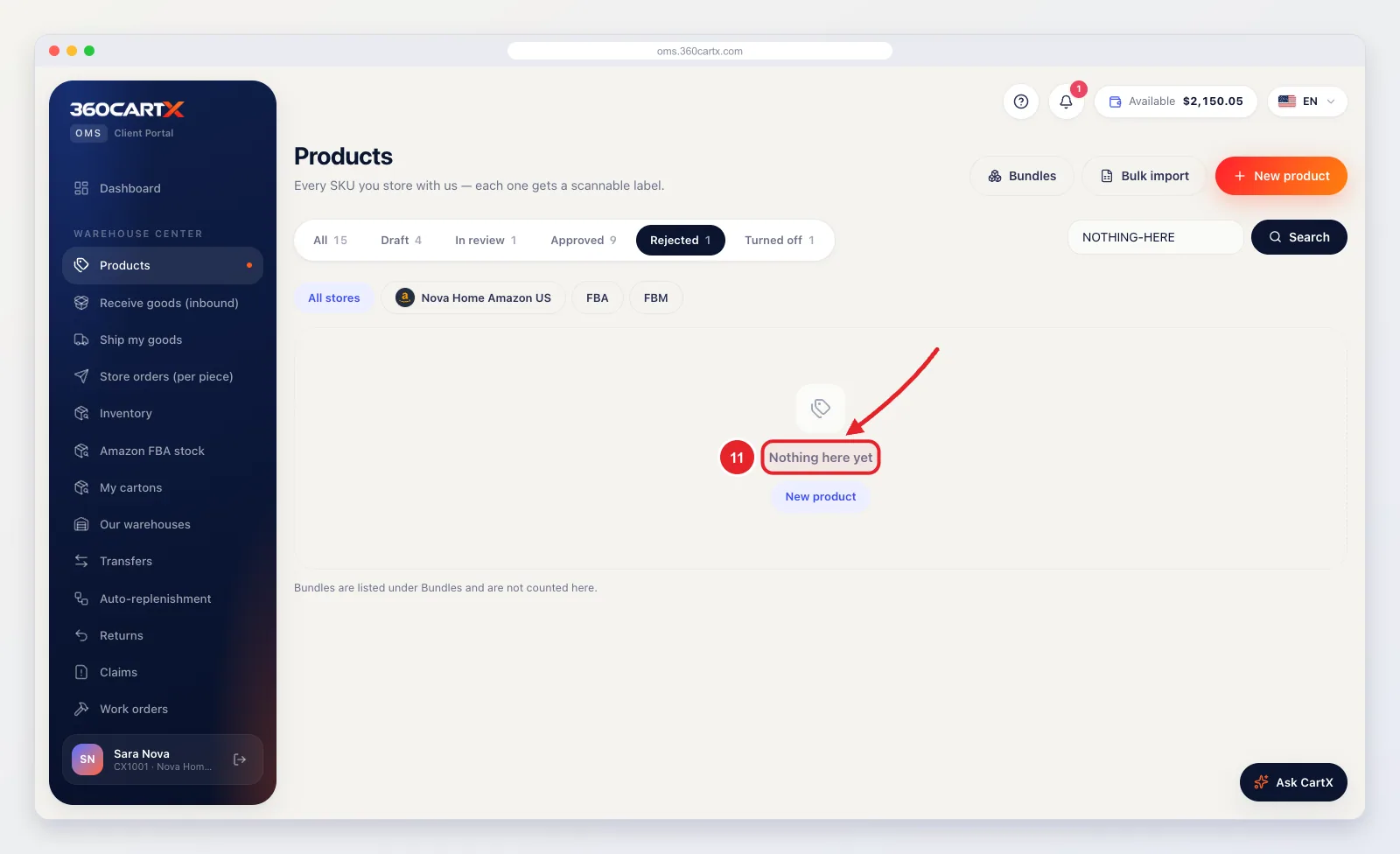
Nothing here yet
When no product matches the tab, search or filter, the page says Nothing here yet with a New product button. Check the tab and clear the search to see everything again.
Terms in this article
- SKU: Your own product code.
- ASIN: Amazon's ID of a listing.
- FBA / FBM: Fulfilled by Amazon vs fulfilled by you.
- Barcode (UPC / EAN): The scannable code printed on a product.
Tips
- Tick the boxes in the first column to print SKU labels for several products at once. See Print SKU labels.
- Products connected from a store (Shopify, Amazon and others) arrive as drafts to complete. See Products from your stores.
- Sizes are always shown in cm and kg here, even if you entered them in inch and lb.
- Can't see all the columns? The table scrolls sideways on a narrow window.
Common problems
I can't find a product I added
Check the tab: a draft only shows under All or Draft. A product you deleted after it was used is under Turned off, and a bundle is on the Bundles page, not here. Clear the search box and the store filter. Only the newest 300 products are listed, so search by SKU for older ones.
The FBA and FBM buttons are missing
They only appear when an Amazon store is connected under Integrations.
Related articles
Updated 2026-11-12
Open a ticket from Support in your portal and our team will reply.