Steps
- 1
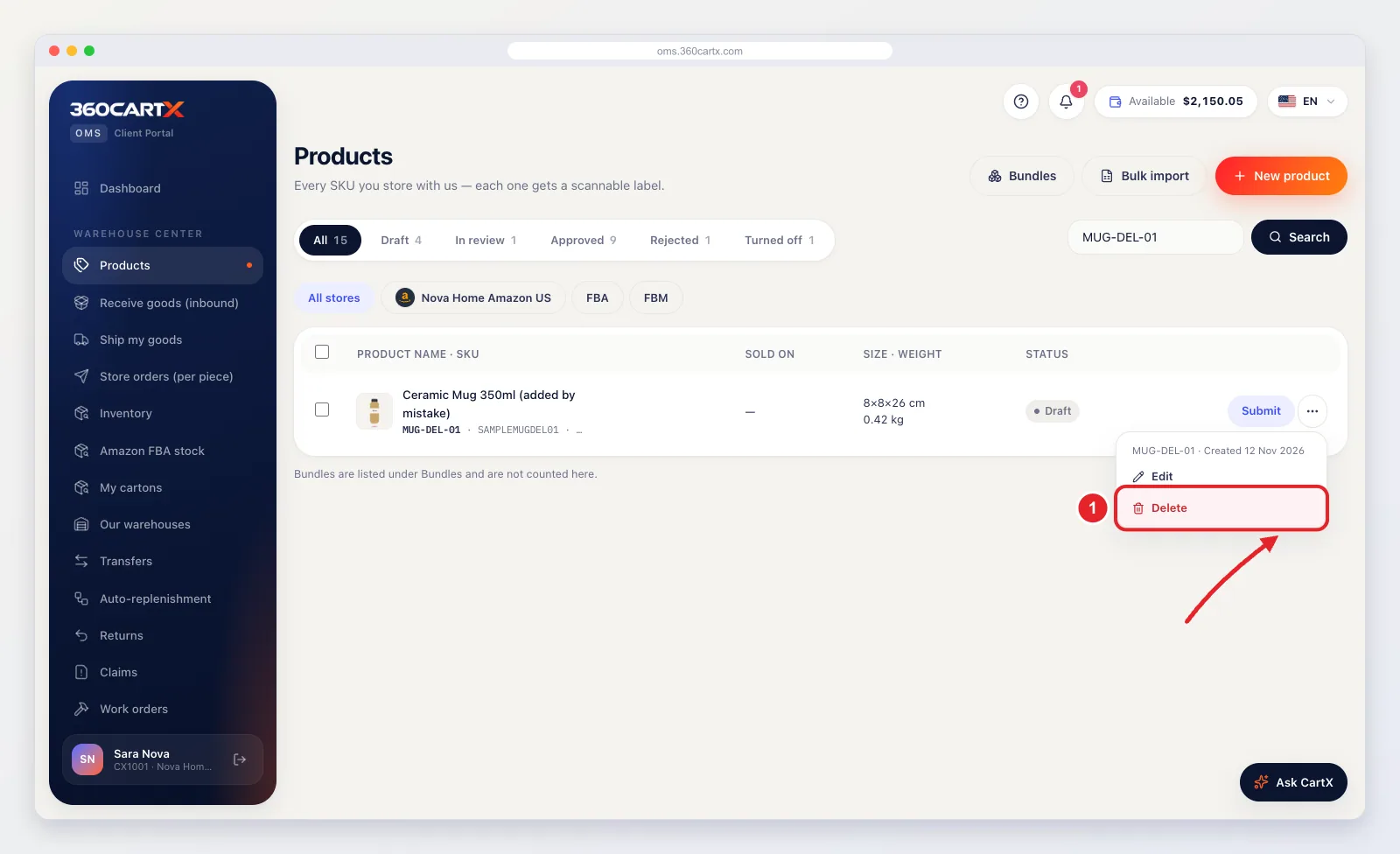
Open the ⋯ menu and choose Delete
In Products, find the product, for example with the search box (here MUG-DEL-01, a draft added by mistake), click ⋯ More actions at the end of its row and click the red Delete at the bottom of the menu. Your browser asks: Delete this product? If it was already used in orders or stock it can't be deleted: it is turned off instead, and you can restore it any time from the "Turned off" tab. Click OK to go on, or Cancel to keep the product.
- 2
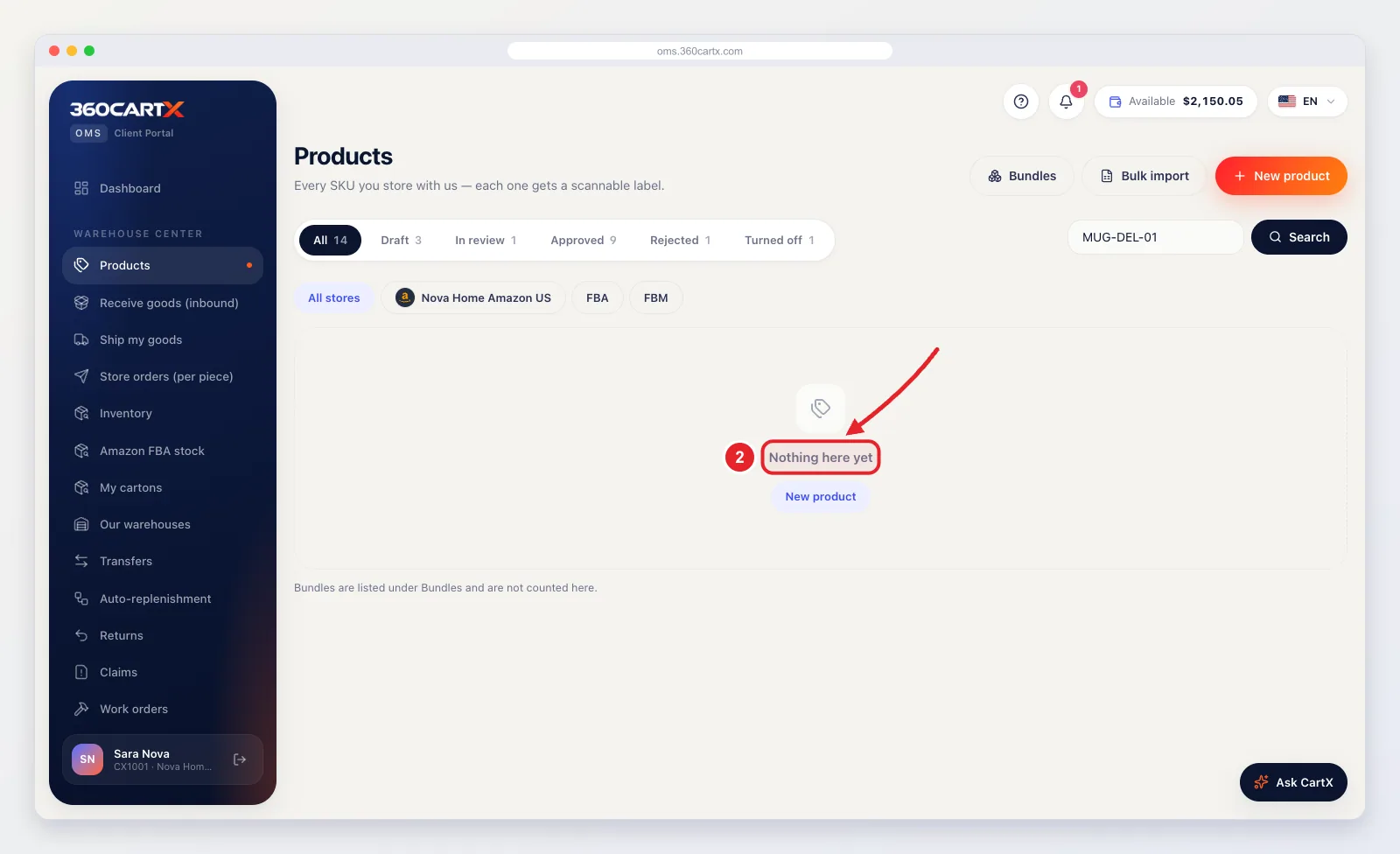
A product that was never used is deleted
The row disappears straight away; here the search for MUG-DEL-01 now finds Nothing here yet. The product is gone for good and its SKU can be used again.
- 3
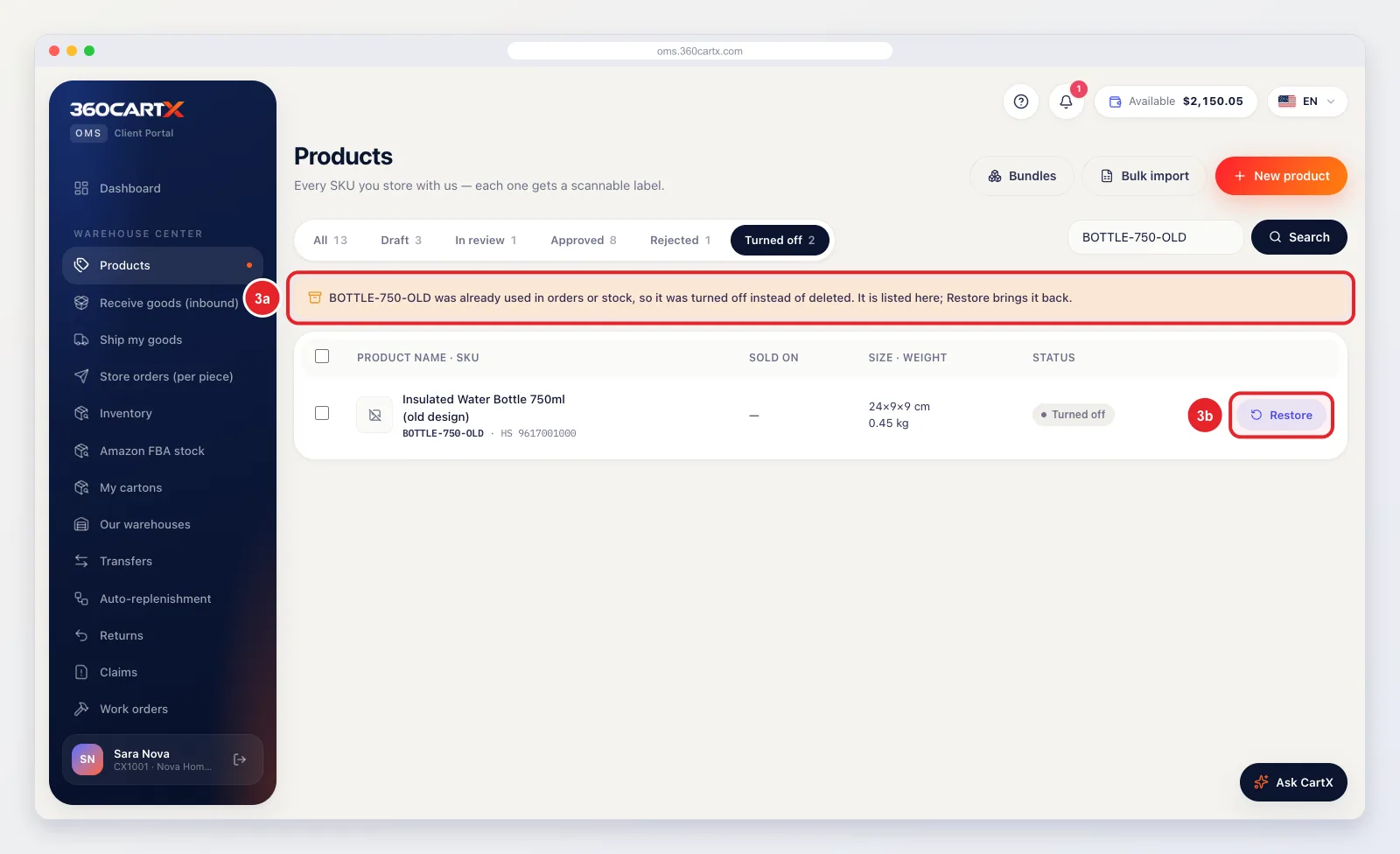
A product that was used is turned off
Try the same with a product that was already used, here BOTTLE-750-OLD, which is in a shipment. The page jumps to the Turned off tab with a yellow note: BOTTLE-750-OLD was already used in orders or stock, so it was turned off instead of deleted. It is listed here; Restore brings it back. A turned-off product can no longer be shipped in or ordered, but its history stays and its SKU stays reserved for it.
- 3a Note
- 3b Restore
- 4
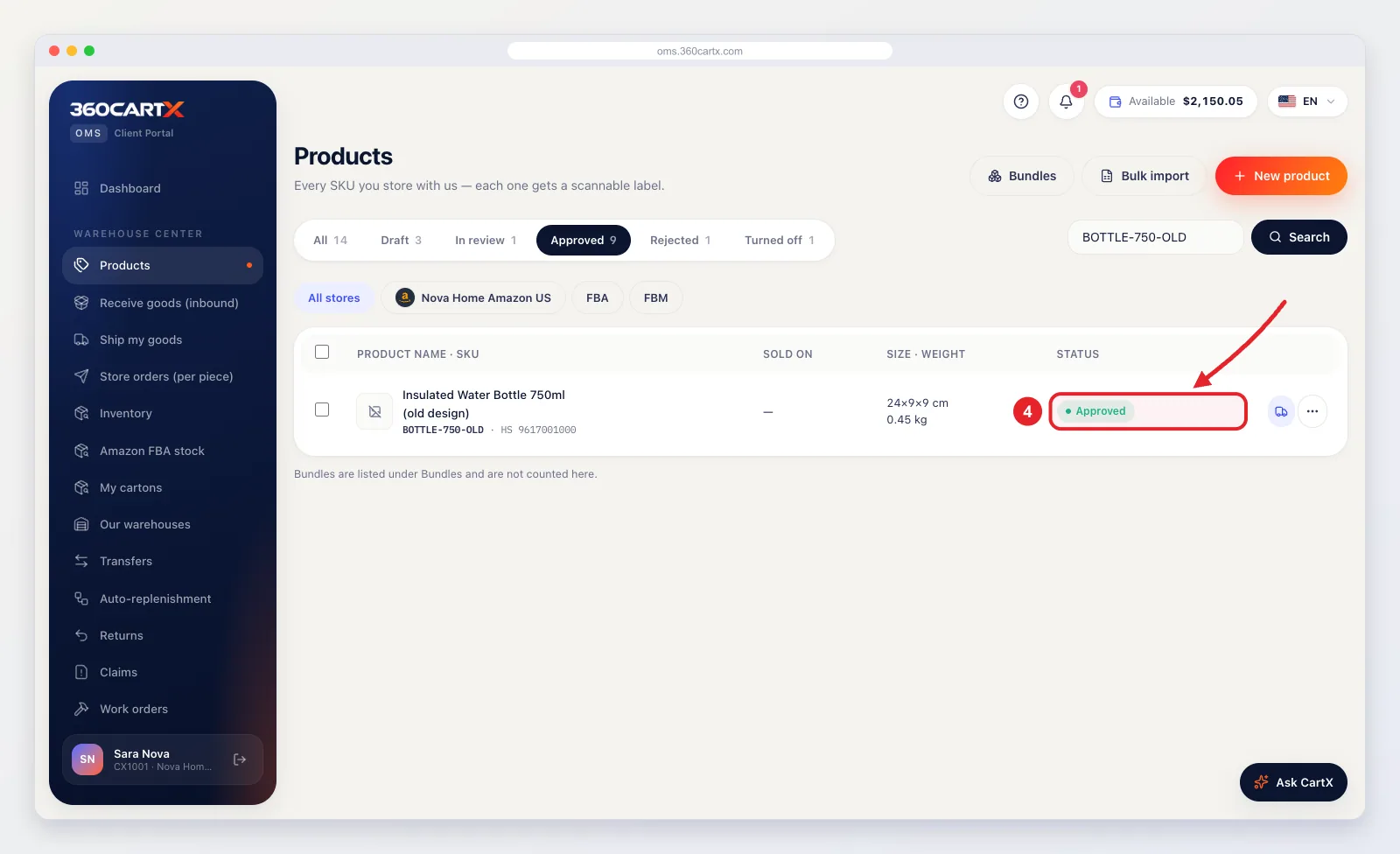
Restore a turned-off product
Click Restore in the Turned off tab. The product goes back to the status it had before, here Approved, and you land on that tab with the product selected. Everything works as before.
Tips
- Check Inventory before you delete a product that is in our warehouse: turning it off does not remove the stock.
- To delete a bundle, use the bin icon on the Bundles page.
- Delete is not shown for products that are already turned off: use Restore instead.
Common problems
I deleted the wrong product
If it was used, it is in the Turned off tab: click Restore. If it was never used it is gone: add it again with New product.
SKU … belongs to a product you turned off — restore it instead of creating it again
You tried to create a product with the SKU of a turned-off product. Click Restore it next to the message, or open the Turned off tab and click Restore.
Related articles
Updated 2026-11-12
Open a ticket from Support in your portal and our team will reply.