Steps
- 1
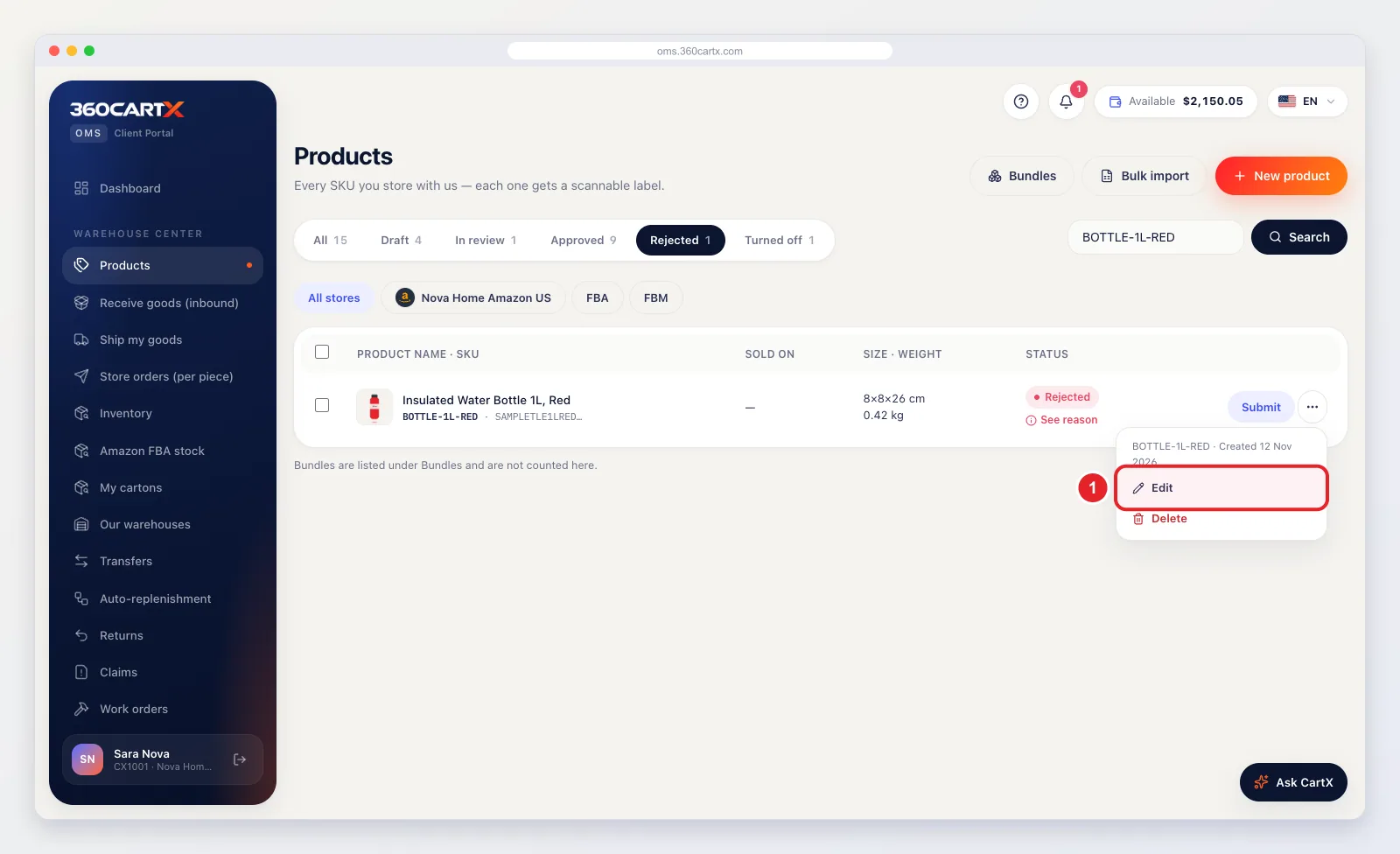
Click Edit
In Products, open the Draft or Rejected tab, click ⋯ at the end of the product's row and choose Edit. For a rejected product you can also click See reason and then Edit in the small panel.
- 2
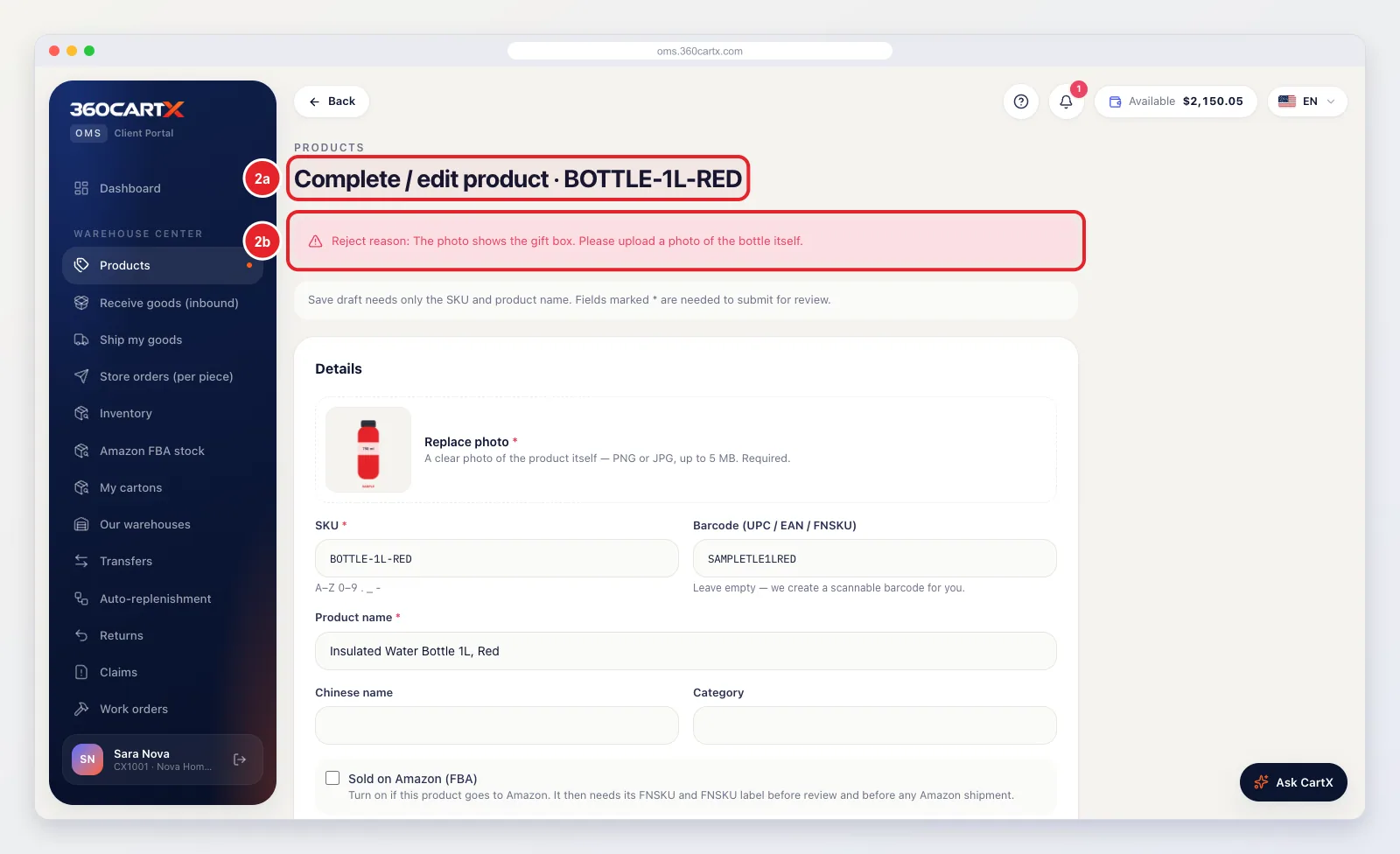
Read the reject reason
The page is called Complete / edit product with the SKU, for example Complete / edit product · BOTTLE-1L-RED. A red box shows the Reject reason from our team, for example The photo shows the gift box. Please upload a photo of the bottle itself.
- 2a Page title
- 2b Reject reason
- 3
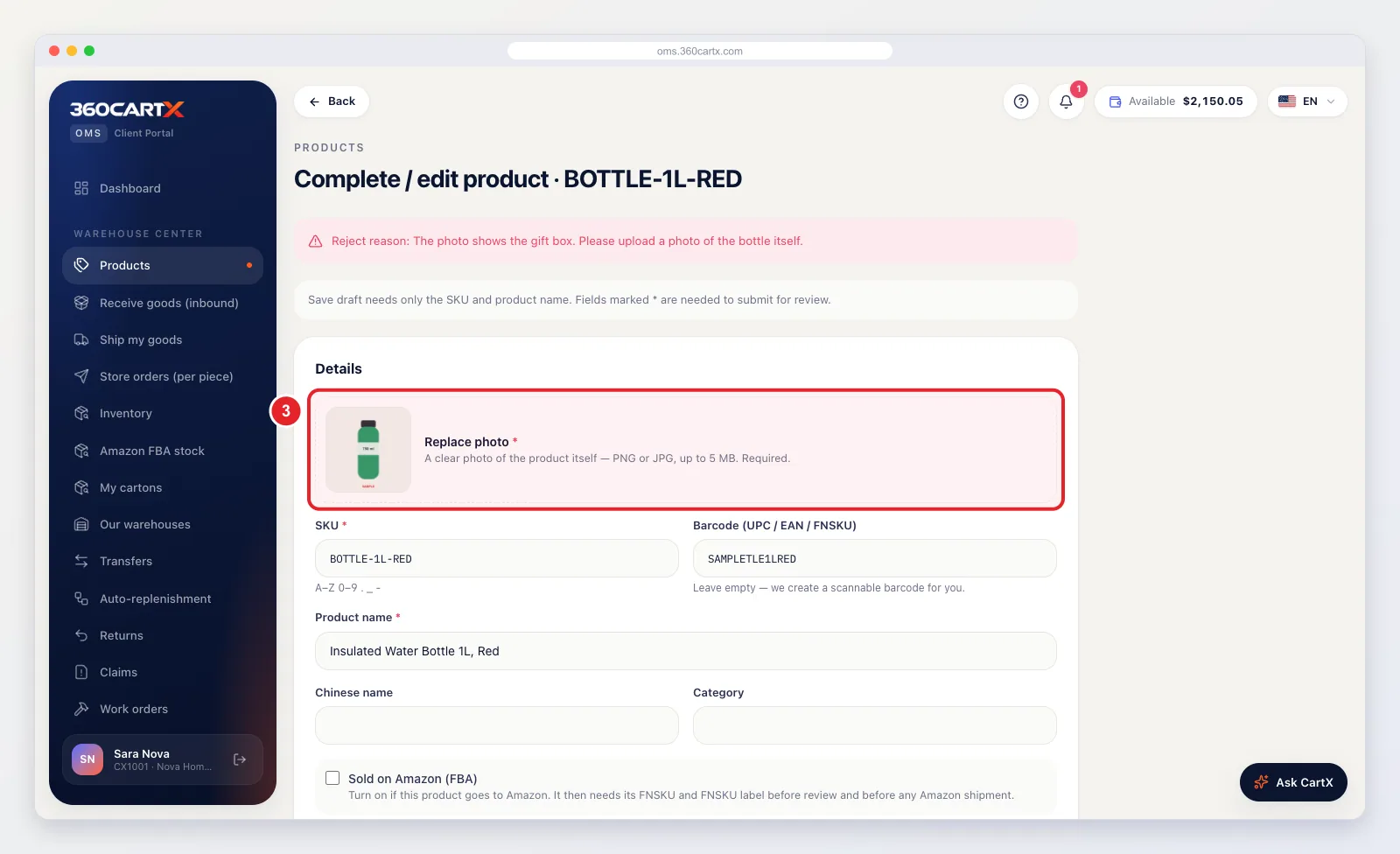
Fix what the reason says
Change the fields the reason mentions. Here: click Replace photo and choose a photo of the bottle itself. The form is the same as for a new product, with your current values filled in.
- 4
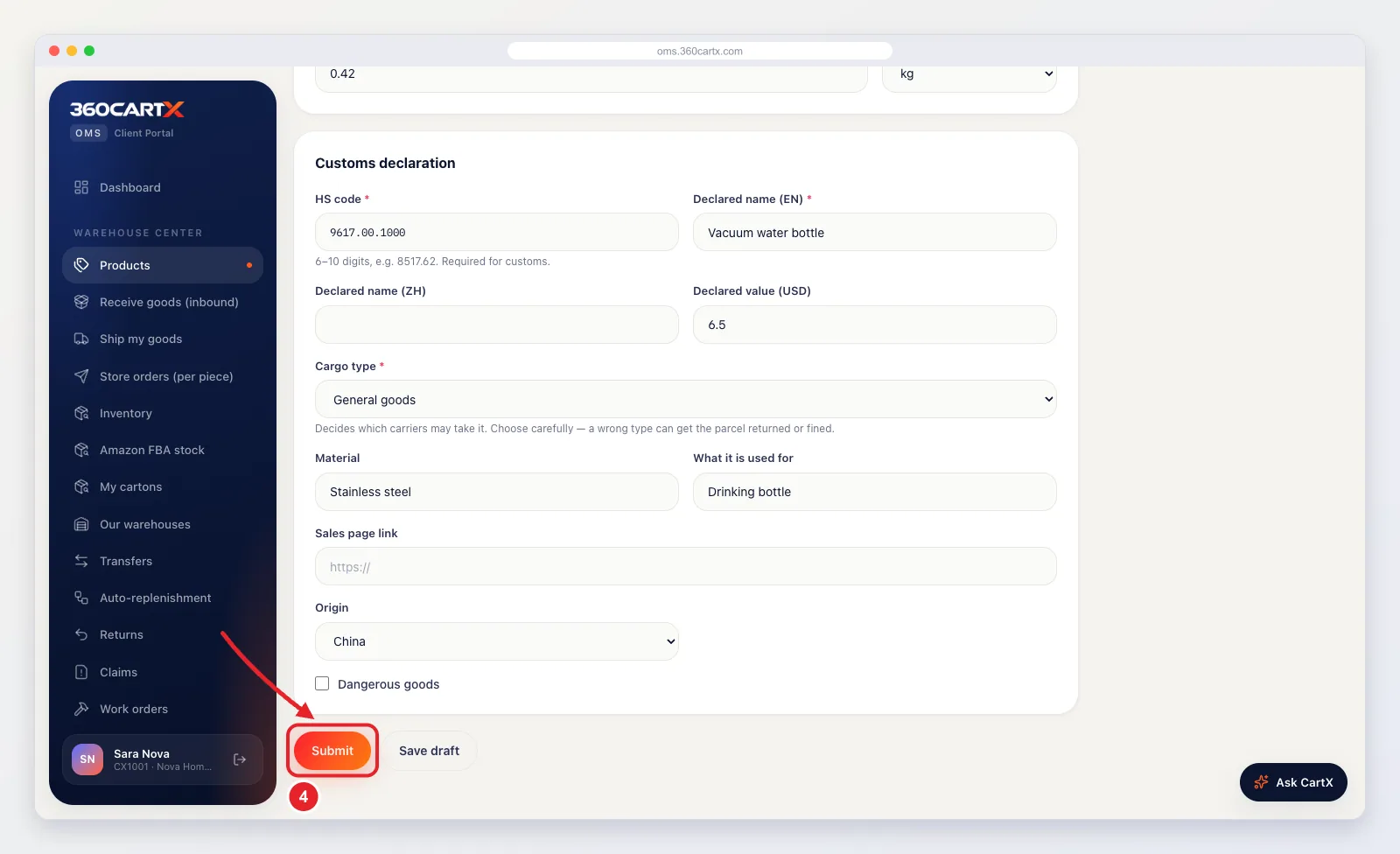
Submit again
Scroll down and click Submit. The product goes back to In review and the old reason disappears. Click Save draft instead to keep your changes without sending it yet: the product becomes a Draft and the reject reason stays on its page until you submit it.
- 5
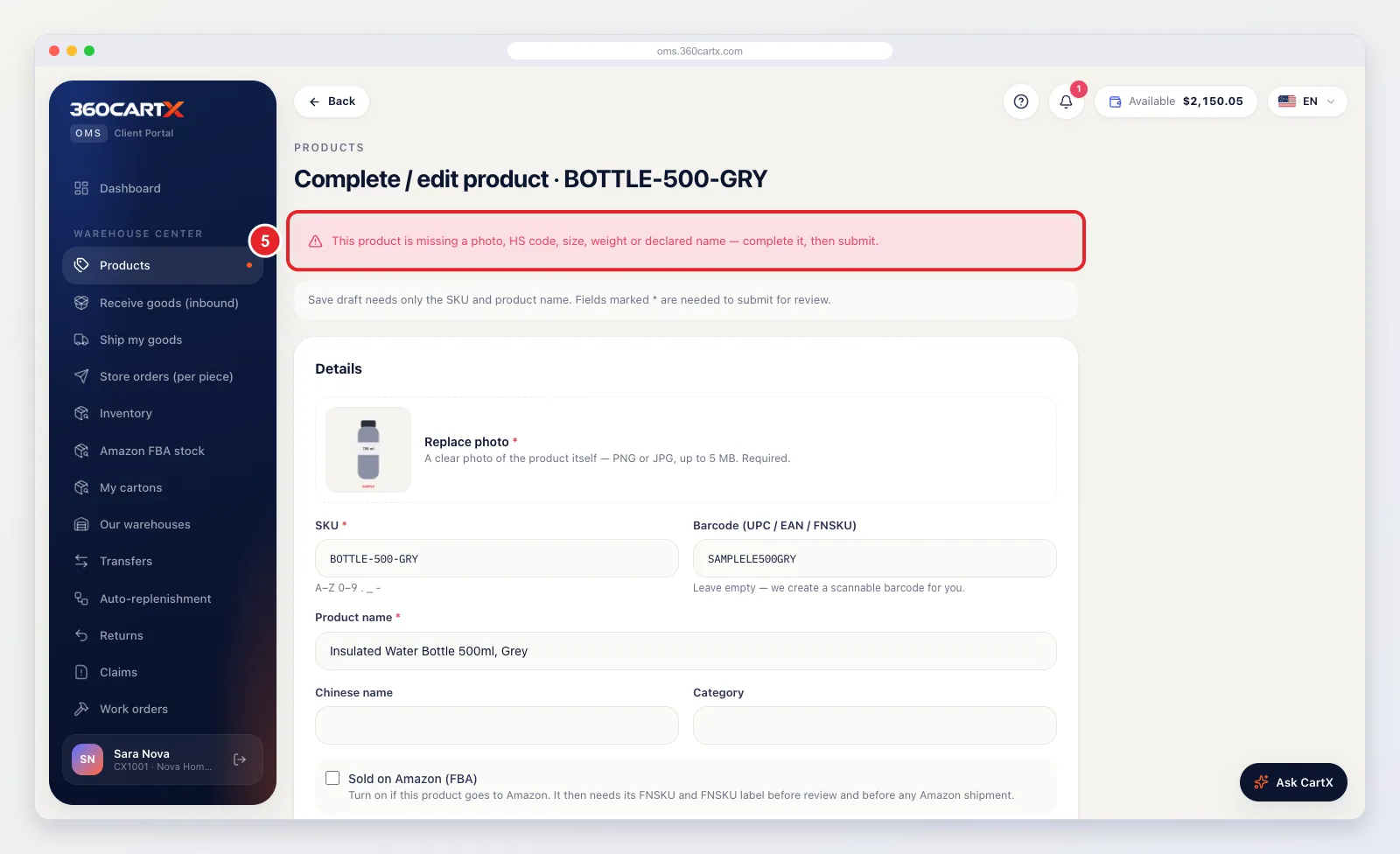
Missing details
If you click Submit in the list on a draft that is not complete, the product opens with: This product is missing a photo, HS code, size, weight or declared name — complete it, then submit. Fill in the missing fields and click Submit.
Tips
- The Amazon FNSKU box at the top of the page is for products you sell on Amazon. For Amazon products it is required before you can submit.
- In-review and approved products can no longer be edited. Their page only shows the Sold on Amazon (FBA) switch (with its own Save button) and, for Amazon products, the Amazon FNSKU box.
- In the form, tick Sold on Amazon (FBA) for a product that goes to Amazon: it then needs its FNSKU and label before it can be submitted.
Common problems
This product can no longer be edited
It was submitted or approved in the meantime. Contact support if a detail must still change.
Needs FNSKU: add the FNSKU and upload the FNSKU label (3x5) for … first
This is an Amazon product: save its FNSKU and label file in the Amazon FNSKU box at the top, then submit.
Related articles
Updated 2026-11-12
Open a ticket from Support in your portal and our team will reply.