Steps
- 1
See which store a product comes from
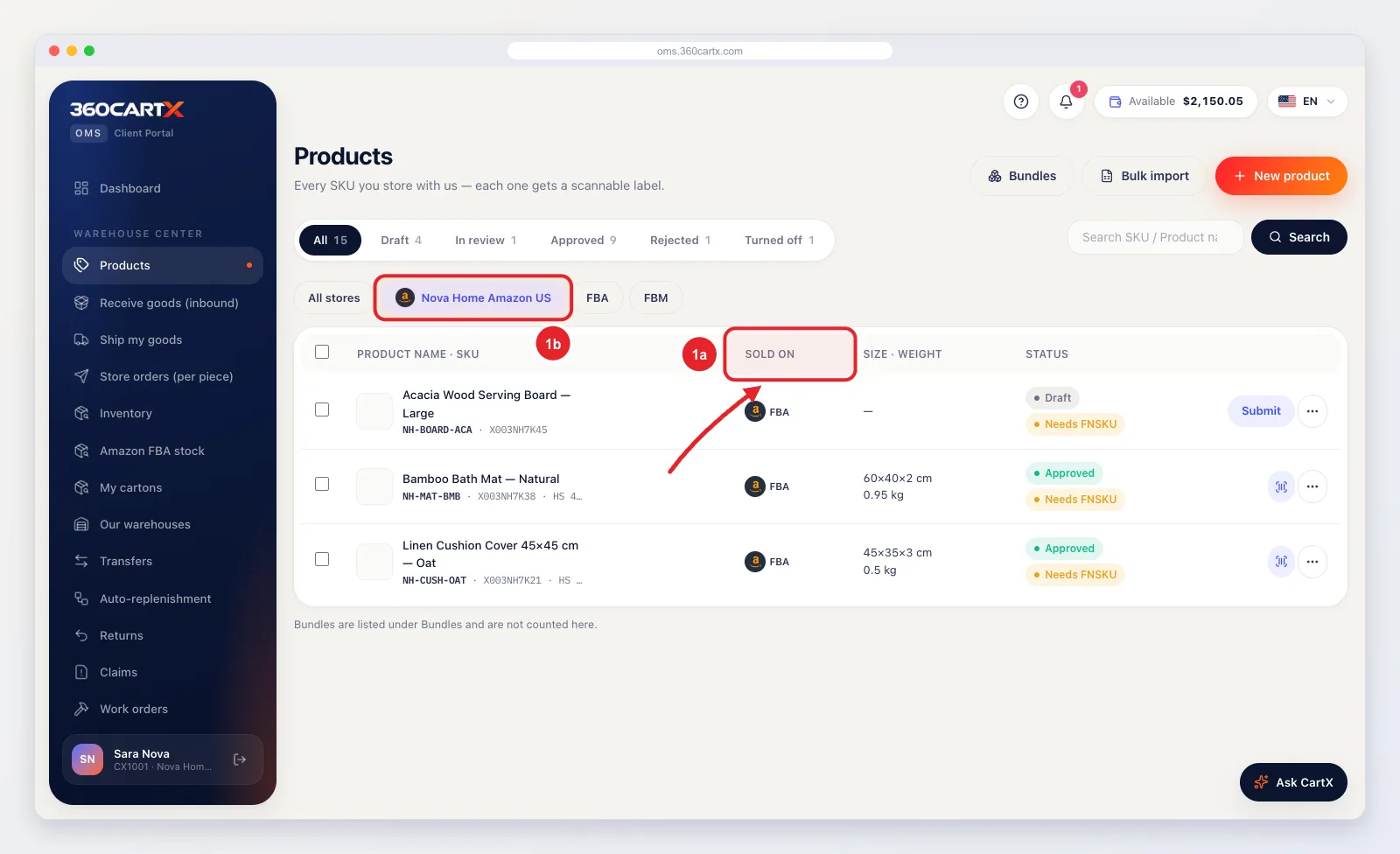
The Sold on column shows the logo of every store a product is listed in and its channel, for example FBA for Fulfillment by Amazon. Hover a logo to see the store name and, for Amazon, the ASIN. Click a store button above the table to see only that store's products.
- 1a Sold on
- 1b Store filter
- 2
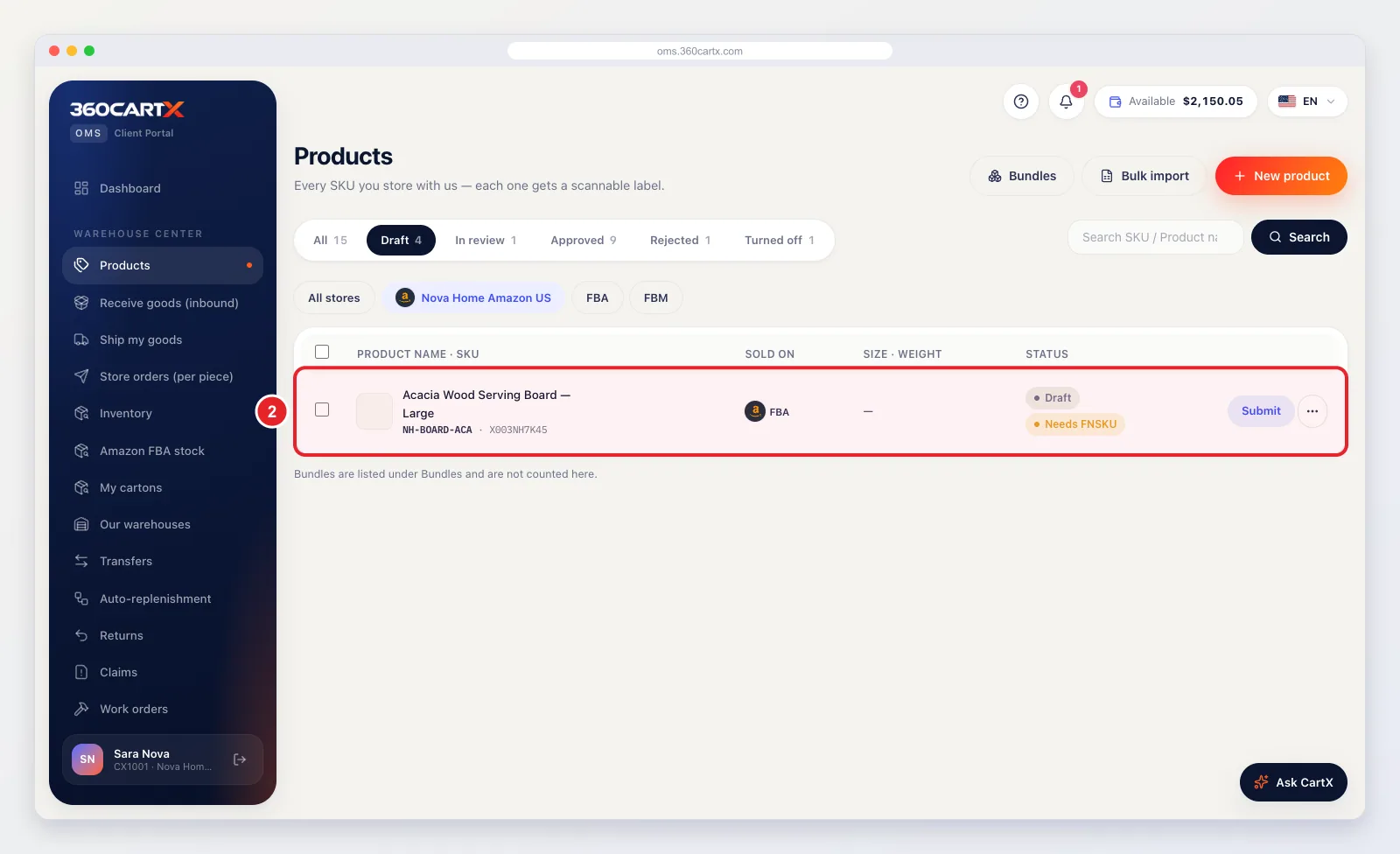
Find the drafts to complete
Open the Draft tab with the store selected. Imported products show Submit and the ⋯ menu (Edit is in the menu), and Amazon products also show the yellow Needs FNSKU badge under the status.
- 3
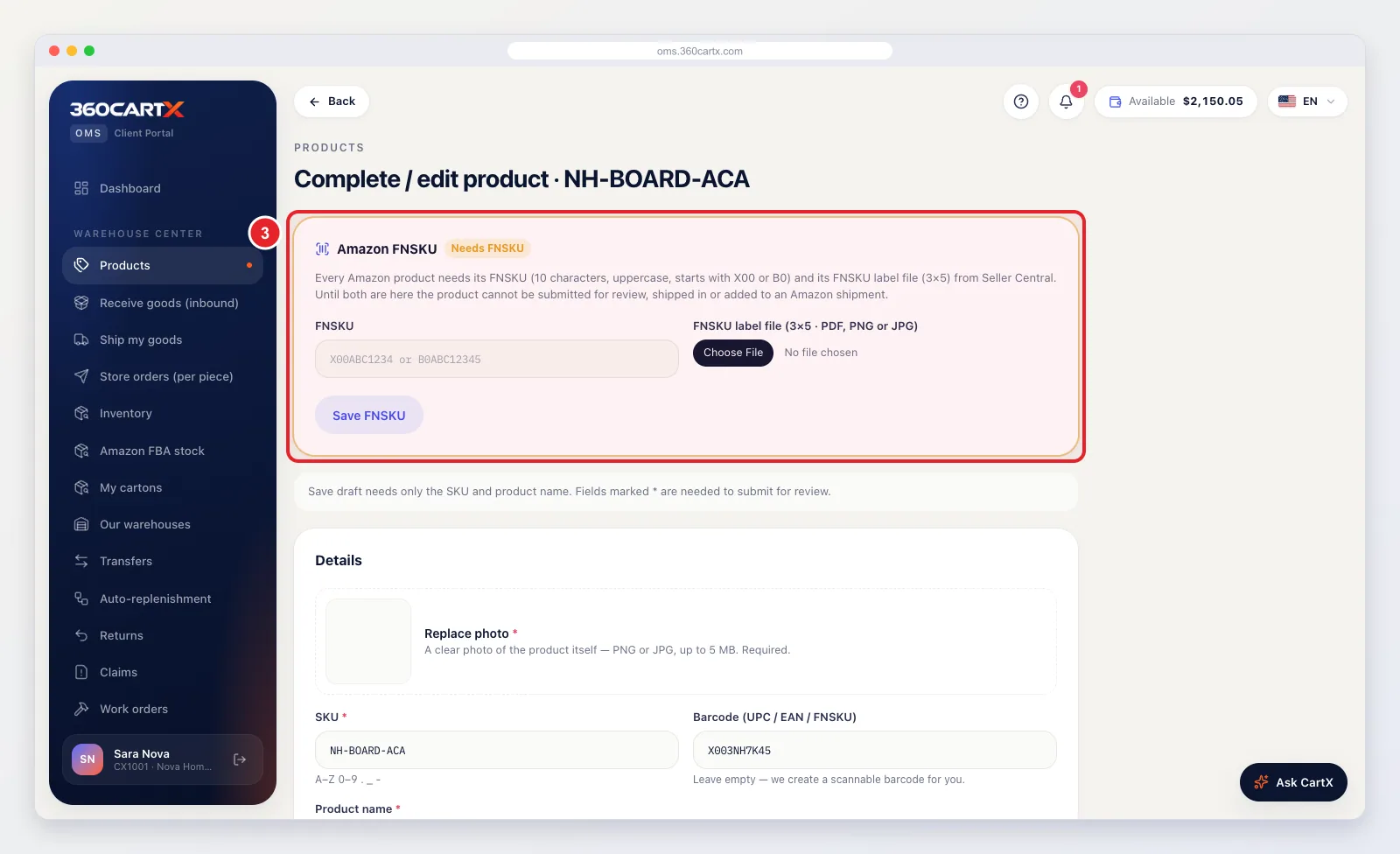
Amazon products: FNSKU first
Open the product with Edit in the ⋯ menu (or click Needs FNSKU). Amazon products have the Amazon FNSKU box at the top. The FNSKU is often already filled in from your Amazon listing; upload the 3×5 label file and click Save FNSKU. See Add the FNSKU and label file to an Amazon product.
- 4
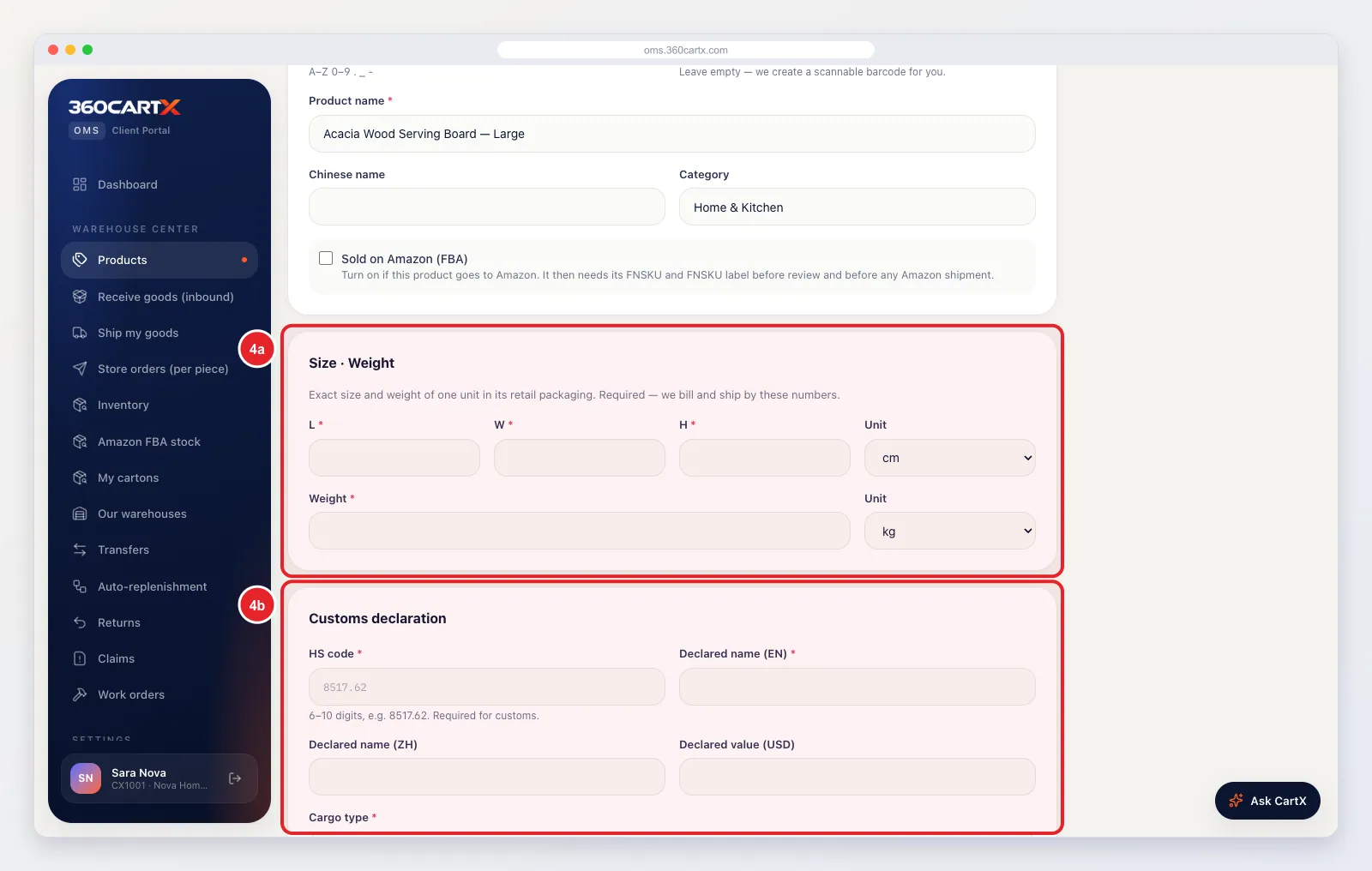
Complete size, weight and customs
From the store we take the name, barcode, photo, weight, category and (for English names) the declared name. Add what is missing: the size of one unit, the HS code, the cargo type and, if needed, a photo and the declared value. Then click Submit at the bottom of the form, or Save draft to keep your changes and finish later.
- 4a Size and weight
- 4b Customs declaration
Terms in this article
Tips
- Products are matched to store orders by SKU. Keep the same SKU in your store and in 360CartX.
- Imported products keep their store link: editing them here does not change your store listing.
- Many products to complete? Put their SKUs in the Excel template with the missing columns filled and use Bulk import: drafts with the same SKU are updated.
Common problems
A product from my store is missing
Products without a SKU in the store cannot be imported. Add a SKU in your store and sync the store again under Integrations.
A product photo is required (PNG or JPG, up to 5 MB)
The store's photo could not be used (it must be a public https image). Upload a photo on the product page.
Related articles
Updated 2026-11-12
Open a ticket from Support in your portal and our team will reply.