Steps
- 1
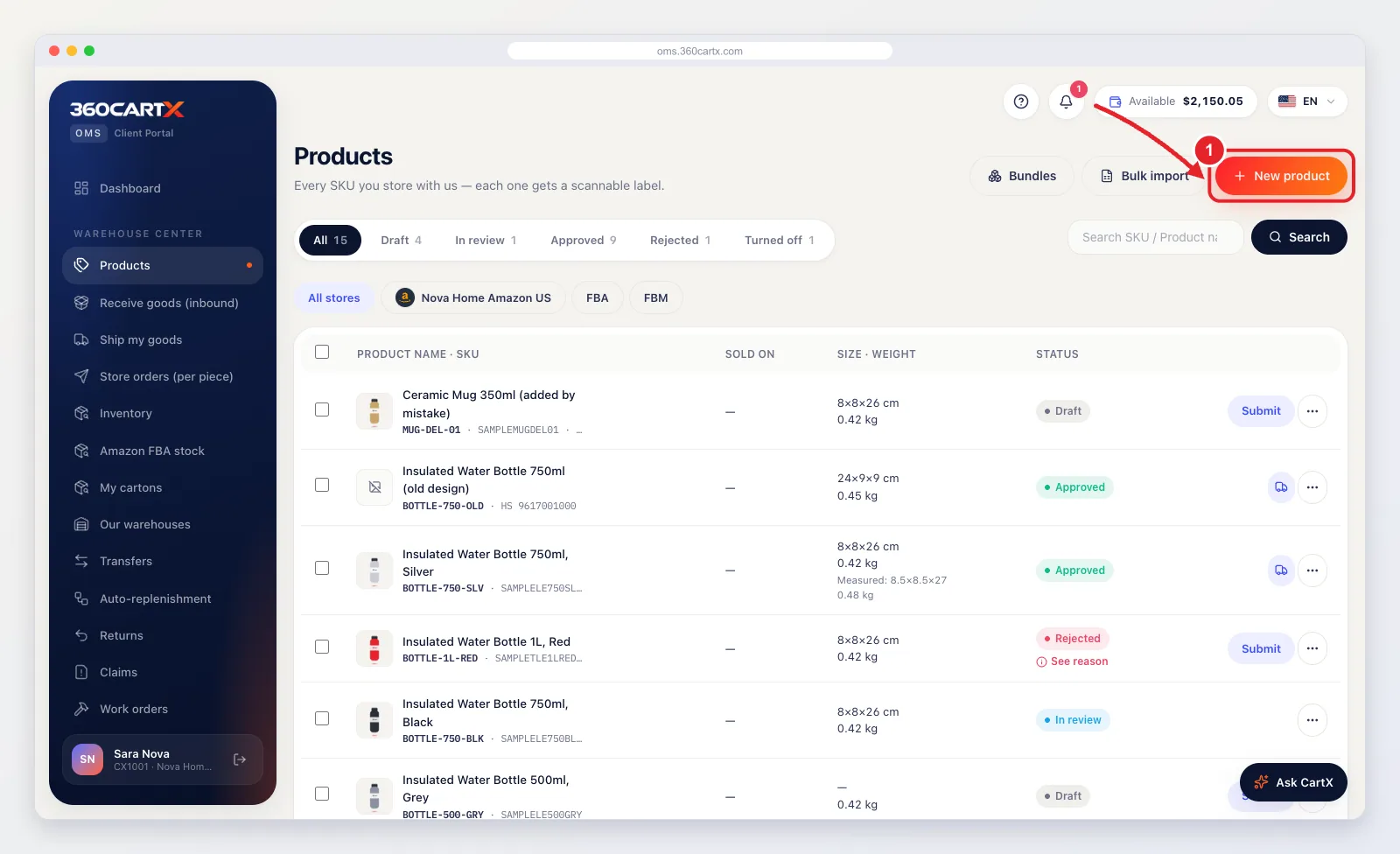
Click New product
On the Products page click New product (or New product on the dashboard). The page says Approve SKUs before they can be shipped in: our team checks each new product before you can ship it in. Under it a grey note reminds you: Save draft needs only the SKU and product name. Fields marked * are needed to submit for review.
- 2
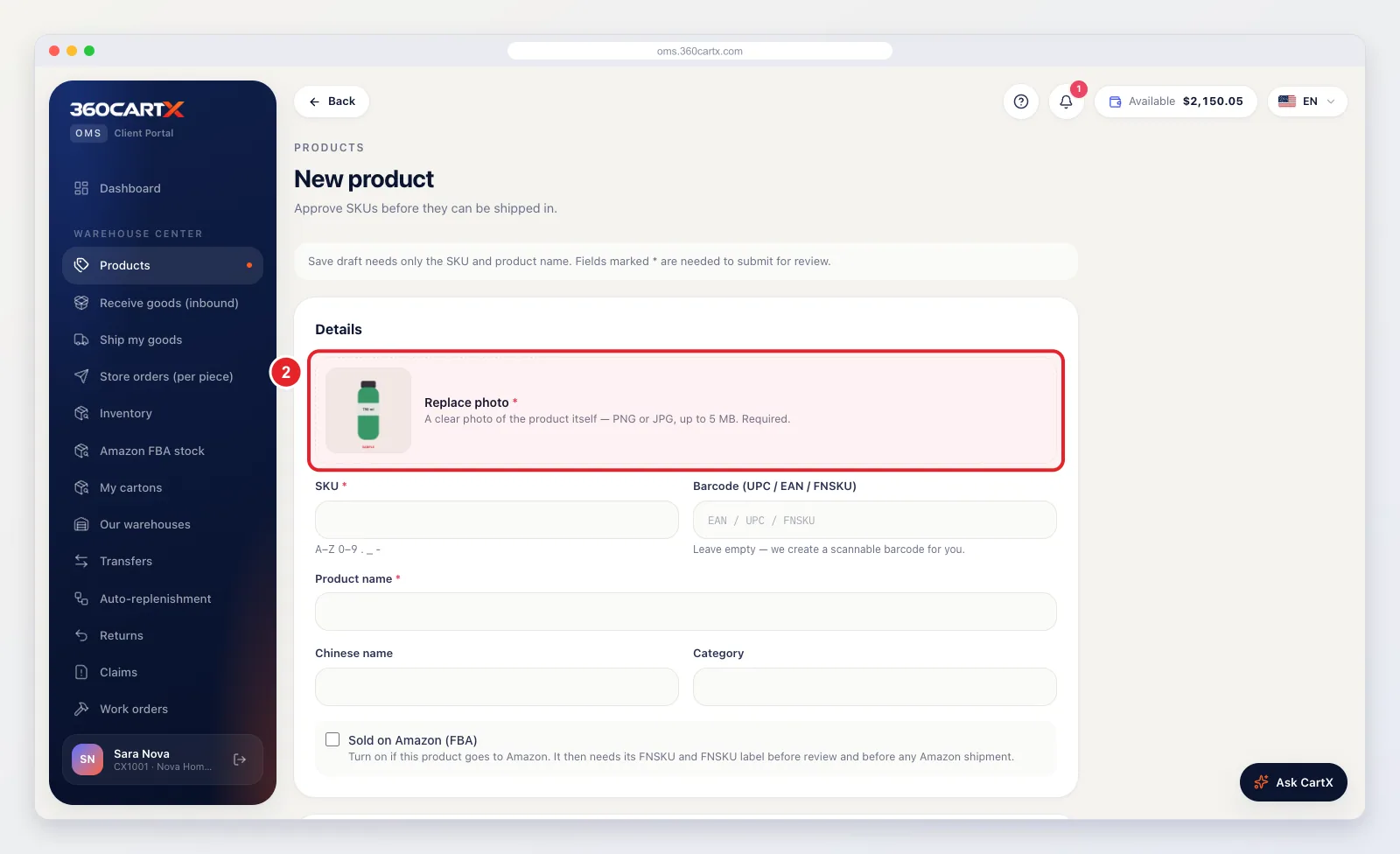
Add a photo of the product
Click the Product photo box and choose a clear photo of the product itself (not the box or a lifestyle picture), PNG or JPG up to 5 MB. A preview appears and the label changes to Replace photo. The photo is needed to submit the product; you can save a draft without it.
- 3
SKU, barcode, name and category
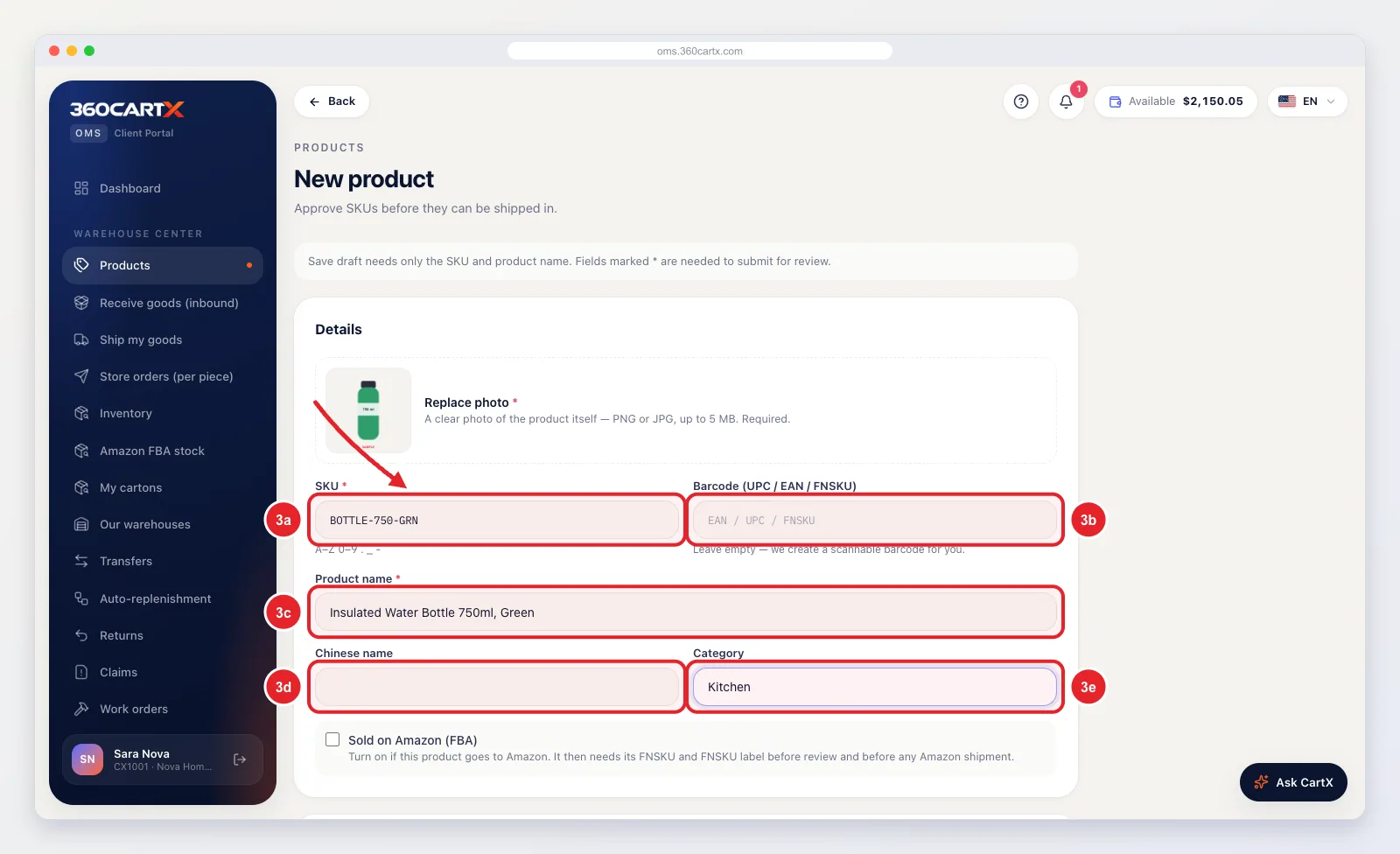
SKU: your own unique product code, using only letters, digits and . _ -, for example BOTTLE-750-GRN. Barcode (UPC / EAN / FNSKU): leave it empty and we create a scannable barcode for you, or enter the barcode already printed on the product. Product name: a clear name of 2 to 200 characters, for example Insulated Water Bottle 750ml, Green. Chinese name and Category are optional; the Chinese name helps our warehouse team.
- 3a SKU
- 3b Barcode
- 3c Product name
- 3d Chinese name
- 3e Category
- 4
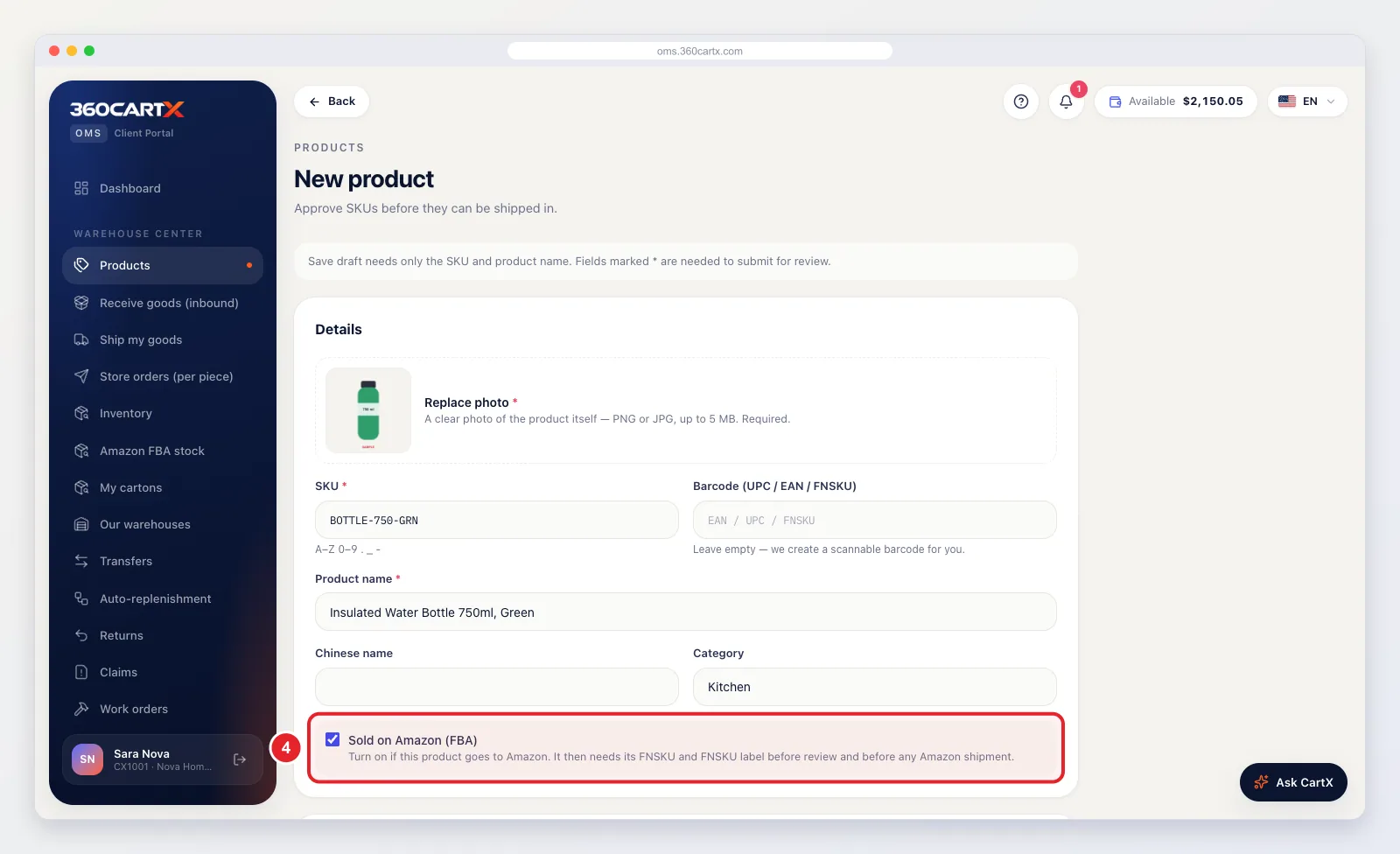
Sold on Amazon (FBA)
Tick Sold on Amazon (FBA) if this product goes to Amazon. It then needs its FNSKU and FNSKU label before review and before any Amazon shipment. Leave it unticked for products you do not sell on Amazon. You can change it later on the product page.
- 5
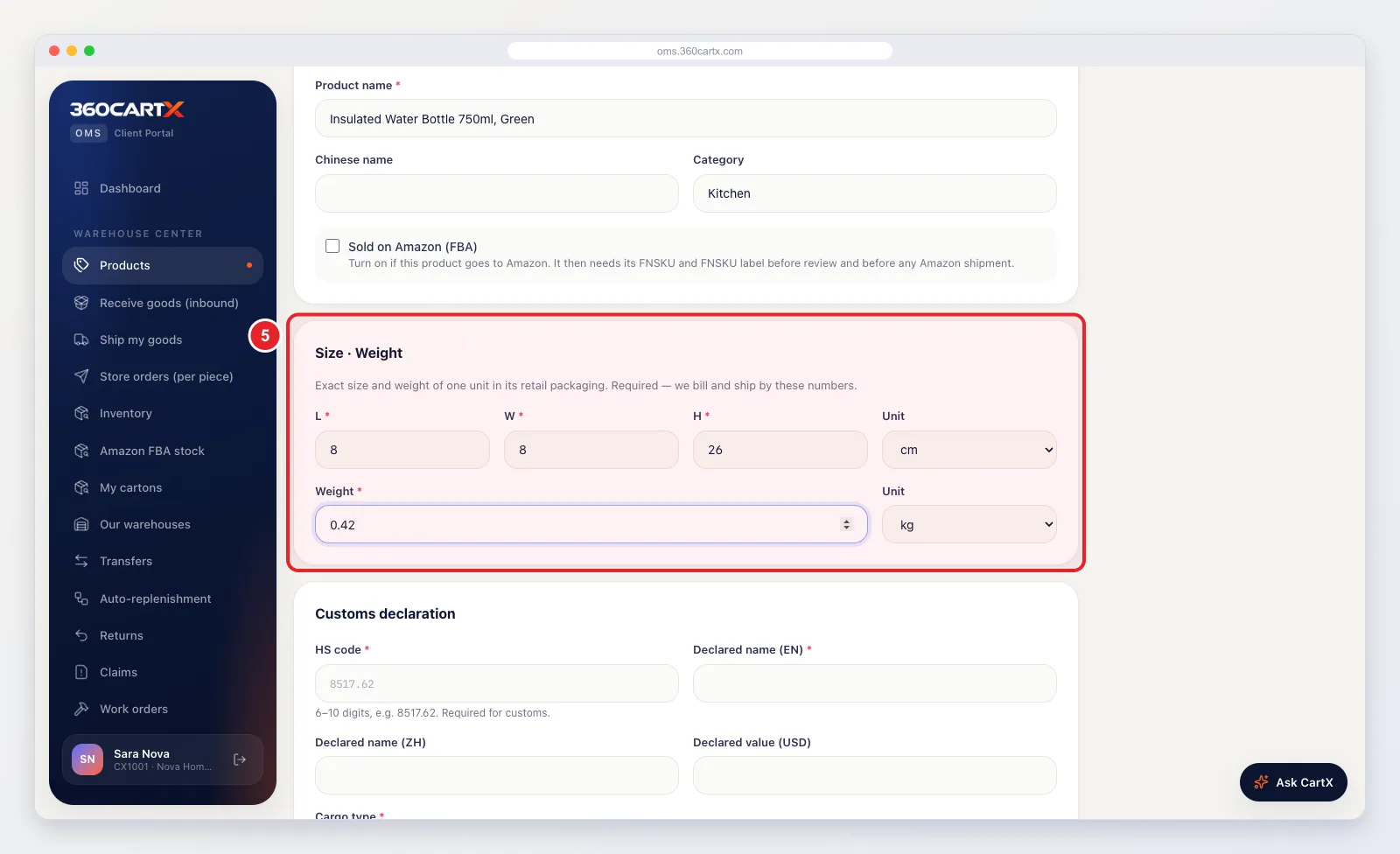
Size and weight of one unit
Enter the exact size of one unit in its retail packaging: L 8, W 8, H 26 with Unit cm (or inch), and the Weight 0.42 with Unit kg (or lb). All four numbers are needed to submit and must be above 0; a draft may leave them empty, but what you type must be a number above 0. Measure the packed unit: our team measures it again when it first arrives (see Why the warehouse measured size matters).
- 6
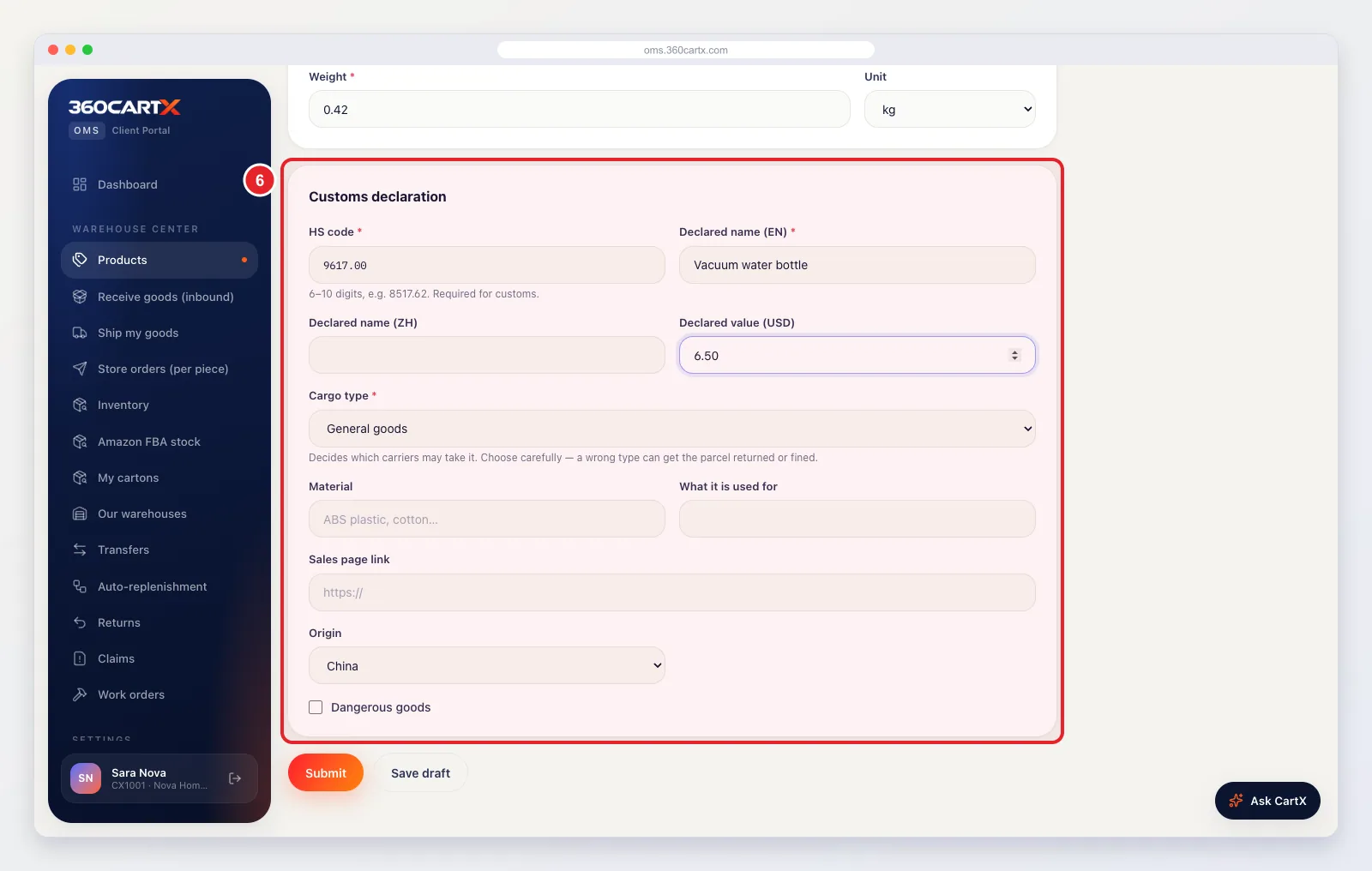
Customs declaration
HS code: 6 to 10 digits, for example 9617.00. Declared name (EN): what customs should read, for example Vacuum water bottle. Declared value (USD): the value of one unit, for example 6.50. Cargo type: General goods for most products; choose the right type for batteries, liquids, powders, magnets, cosmetics, sharp items or clothing. HS code, Declared name (EN) and Cargo type are needed to submit. The other fields (Declared name (ZH), Material, What it is used for, Sales page link, Origin, Dangerous goods) are explained in HS code and customs details.
- 7
Submit or save a draft
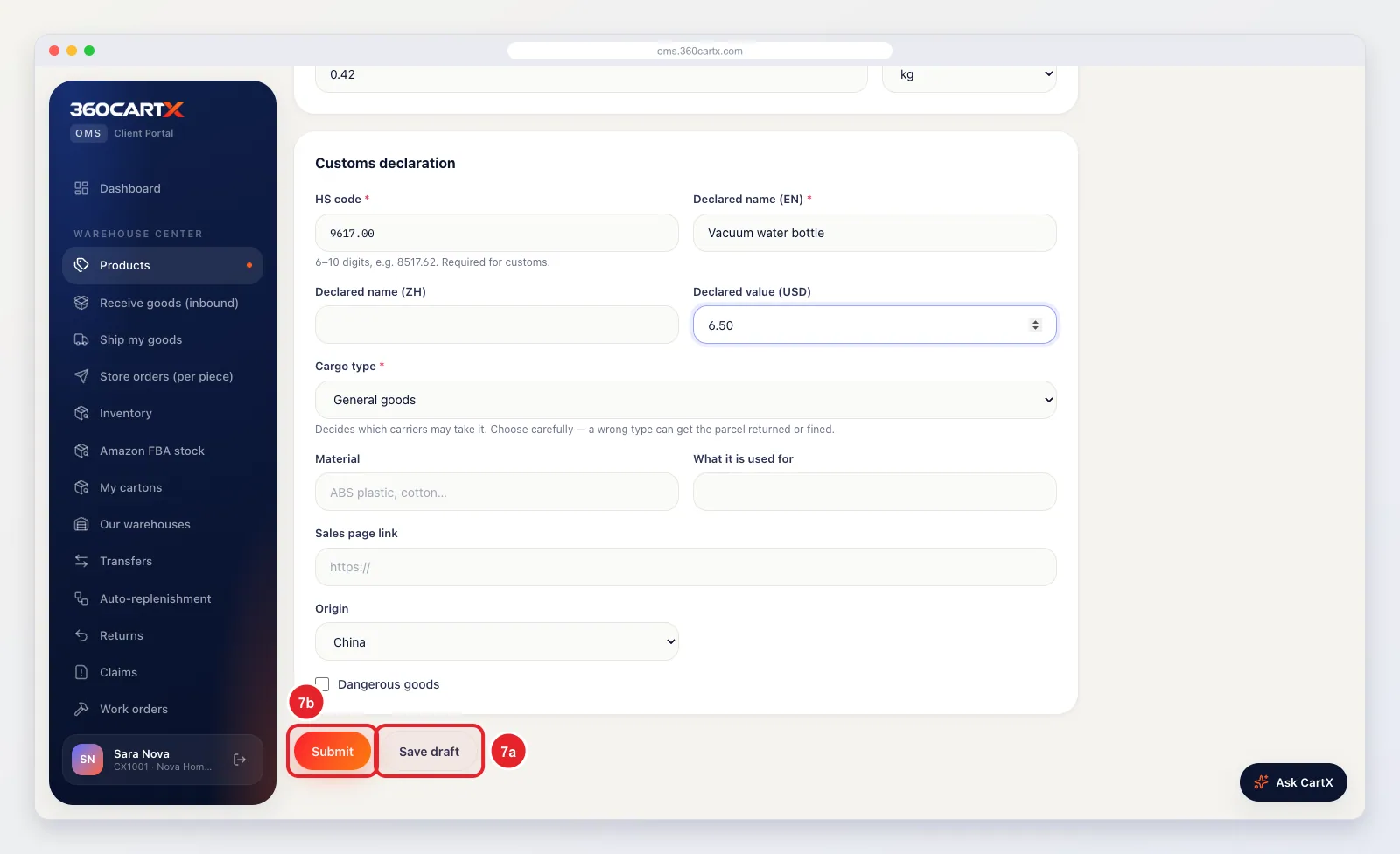
Click Submit to send the product for review: it appears under In review. Click Save draft to keep it without sending it: a draft needs only the SKU and the name, everything else can be completed later from the list. Submit checks the photo, size, weight, HS code, declared name and cargo type. Save draft only checks what you typed (for example an HS code must have 6 to 10 digits). You go back to the product list. If Sold on Amazon (FBA) is ticked and the product has no FNSKU yet, Submit saves it as a draft and opens the product page so you can add the FNSKU next.
- 7a Save draft
- 7b Submit
- 8
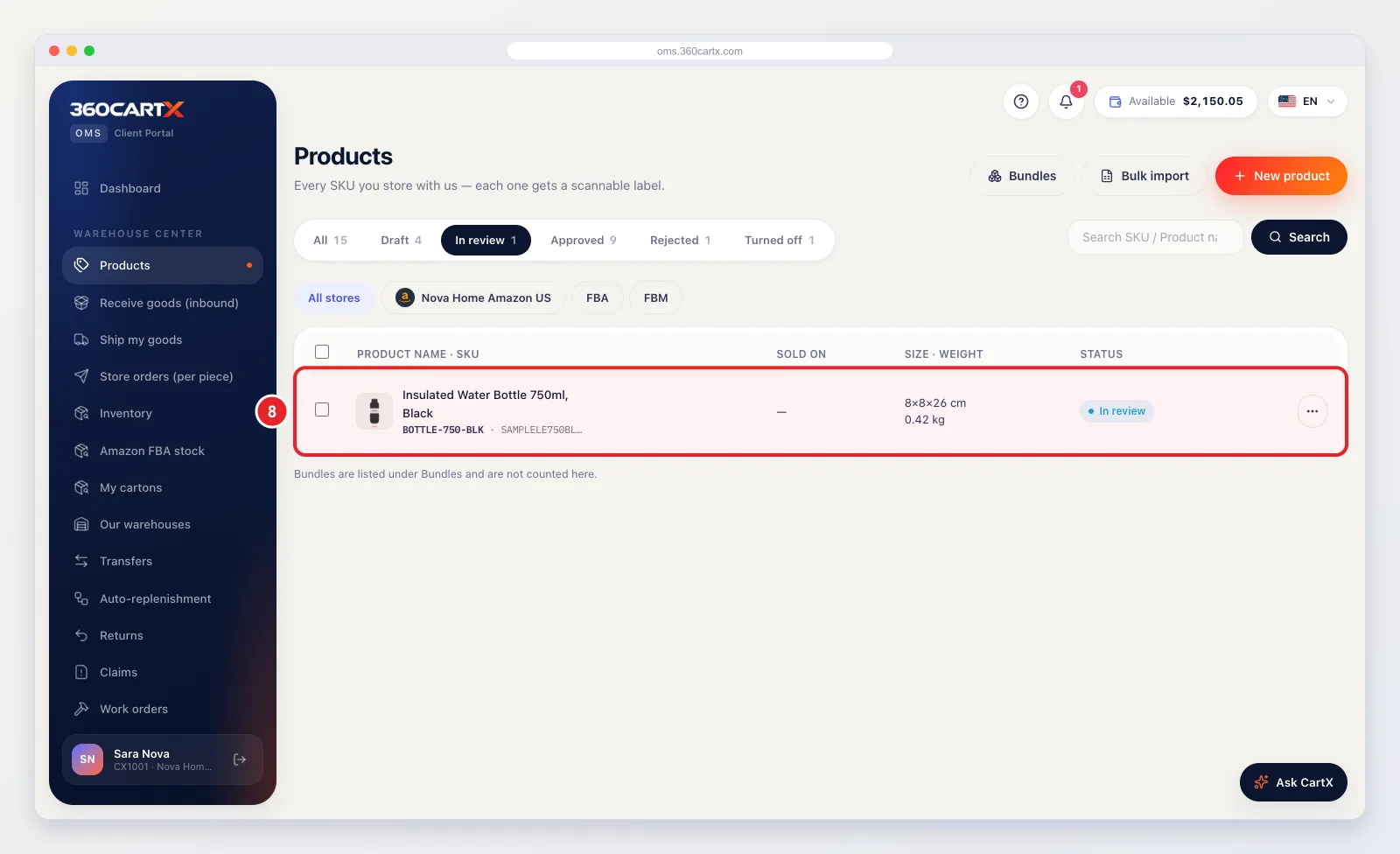
Wait for the review
A submitted product shows In review. Our team checks the photo, size and customs data and either approves it or rejects it with a reason you can fix. Once it is Approved you can send it to our warehouse.
- 9
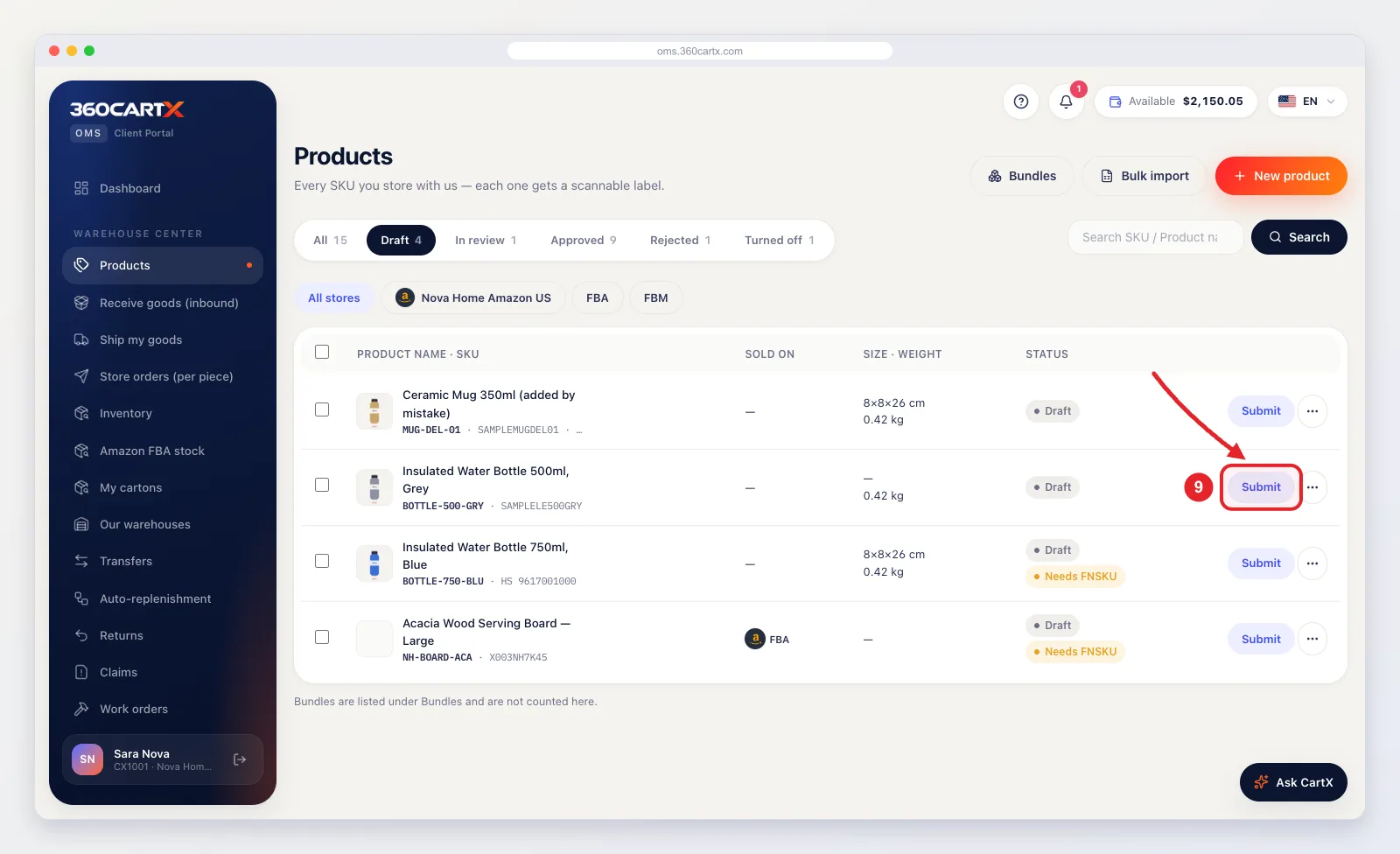
Submit a draft later
Drafts show a Submit button in the list, and Edit in the ⋯ menu. Click Submit to send a complete draft for review in one click; if something is missing, the product opens with a message telling you what to complete.
Terms in this article
- SKU: Your own product code.
- Barcode (UPC / EAN): The scannable code printed on a product.
- HS code: The customs tariff code of a product.
- Declared value: The value of the goods stated for customs, in USD.
- Cargo type: The kind of goods, which decides the carriers that accept it.
Tips
- Adding many products? Use Bulk import with the Excel template instead.
- Selling on Amazon? Products from your Amazon store also need the FNSKU and its 3×5 label before they can be submitted. See Add the FNSKU and label file to an Amazon product.
- You cannot change a product after it is submitted. Check the size, weight and HS code before you click Submit, or keep it as a draft while you check.
Common problems
SKU BOTTLE-750-GRN already exists
Each SKU can be used once in your account. Use another SKU, or find the existing product with the search box.
SKU … belongs to a product you turned off — restore it instead of creating it again
You deleted that product after it was used, so its SKU is kept for it. Click the Restore it link next to the message: it opens the Turned off tab on that SKU, where you click Restore.
SKU: letters, digits, . _ - only
Remove spaces and other characters such as / or #. Example: BOTTLE-750-GRN. A SKU can be up to 64 characters.
Product name must be at least 2 characters / Product name can be at most 200 characters
Use a name of 2 to 200 characters.
A product photo is required (PNG or JPG, up to 5 MB)
Add a photo before you click Submit; a draft can be saved without one. Photos larger than 5 MB or in other formats (HEIC, WEBP) are refused: export it as JPG first.
Length, width, height and weight are required (numbers above 0)
Shown by Submit. Fill in all three sizes and the weight, using a dot for decimals, for example 0.42.
Length, width, height and weight must be numbers above 0
Shown when a size or the weight you typed is 0, negative or not a number. Correct it, or empty the field when saving a draft.
HS code is required: 6–10 digits (e.g. 8517.62)
Shown by Submit. Enter at least the first 6 digits of the HS code; dots and spaces are allowed. Ask your supplier or freight forwarder if you are not sure. Save draft shows HS code: 6–10 digits when what you typed is not a valid code.
Declared name (EN) is required to submit
Fill in Declared name (EN), or click Save draft and complete it later.
Choose the cargo type
Pick a Cargo type from the list before you submit; General goods fits most products.
Needs FNSKU: add the FNSKU and upload the FNSKU label (3x5) for … first
An Amazon product cannot be submitted without its FNSKU and label. Add them in the Amazon FNSKU box, then submit.
Related articles
Updated 2026-11-12
Open a ticket from Support in your portal and our team will reply.