Steps
- 1
A draft: submit, cancel or delete
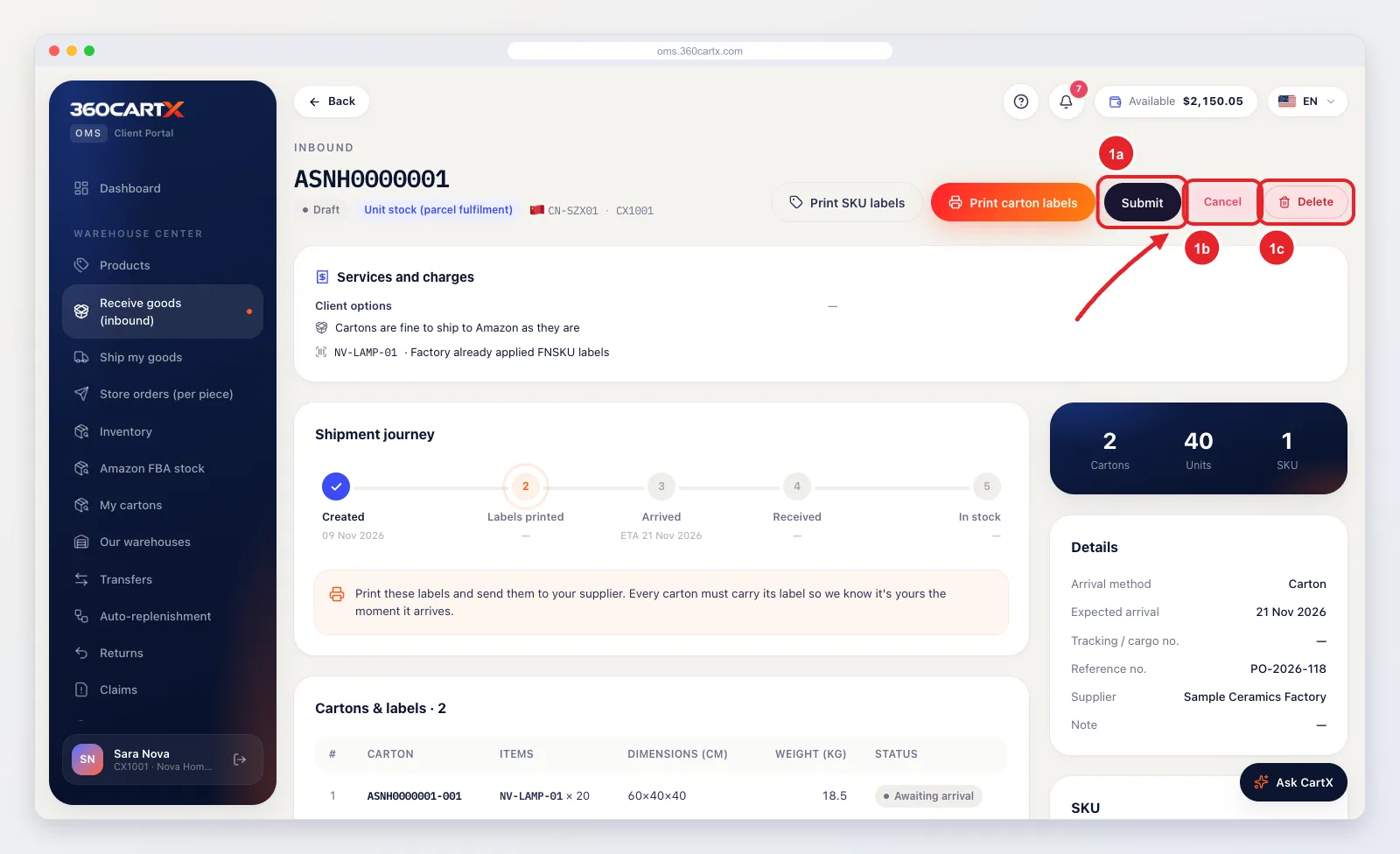
On a Draft, the top of the page has Submit (send it to the warehouse), Cancel (keep it in the list as Cancelled) and the red bin, Delete. Delete asks Delete this? This cannot be undone. and removes the draft completely.
- 1a Submit
- 1b Cancel
- 1c Delete
- 2
A submitted shipment: cancel
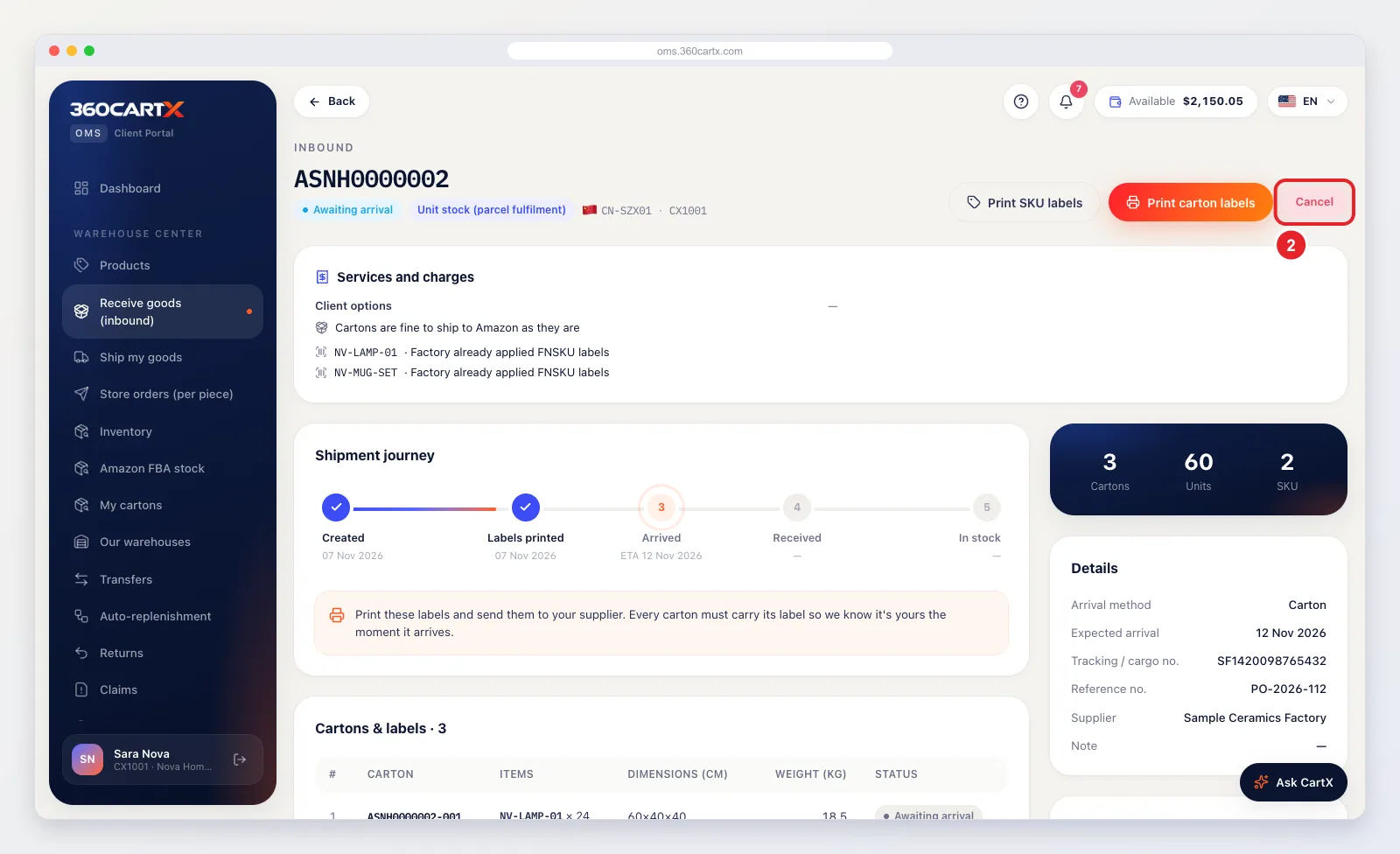
On a shipment Awaiting arrival, click Cancel. It is cancelled at once, without a confirmation, and our warehouse no longer expects it. Once the first carton has arrived (Receiving) the shipment can no longer be cancelled.
Tips
- Cancel and create a new shipment when the contents change a lot; the carton labels must match what is inside each carton.
- If goods of a cancelled shipment arrive anyway, they show up under Unidentified parcels, where you can claim them.
Common problems
The Cancel button is missing
The shipment has already arrived or been received. Open a ticket in Help & support if something is wrong with it.
I cancelled by mistake
A cancelled shipment cannot be reopened. Create a new one with the same cartons and print its new labels for your supplier.
Related articles
Updated 2026-11-09
Open a ticket from Support in your portal and our team will reply.