Steps
- 1
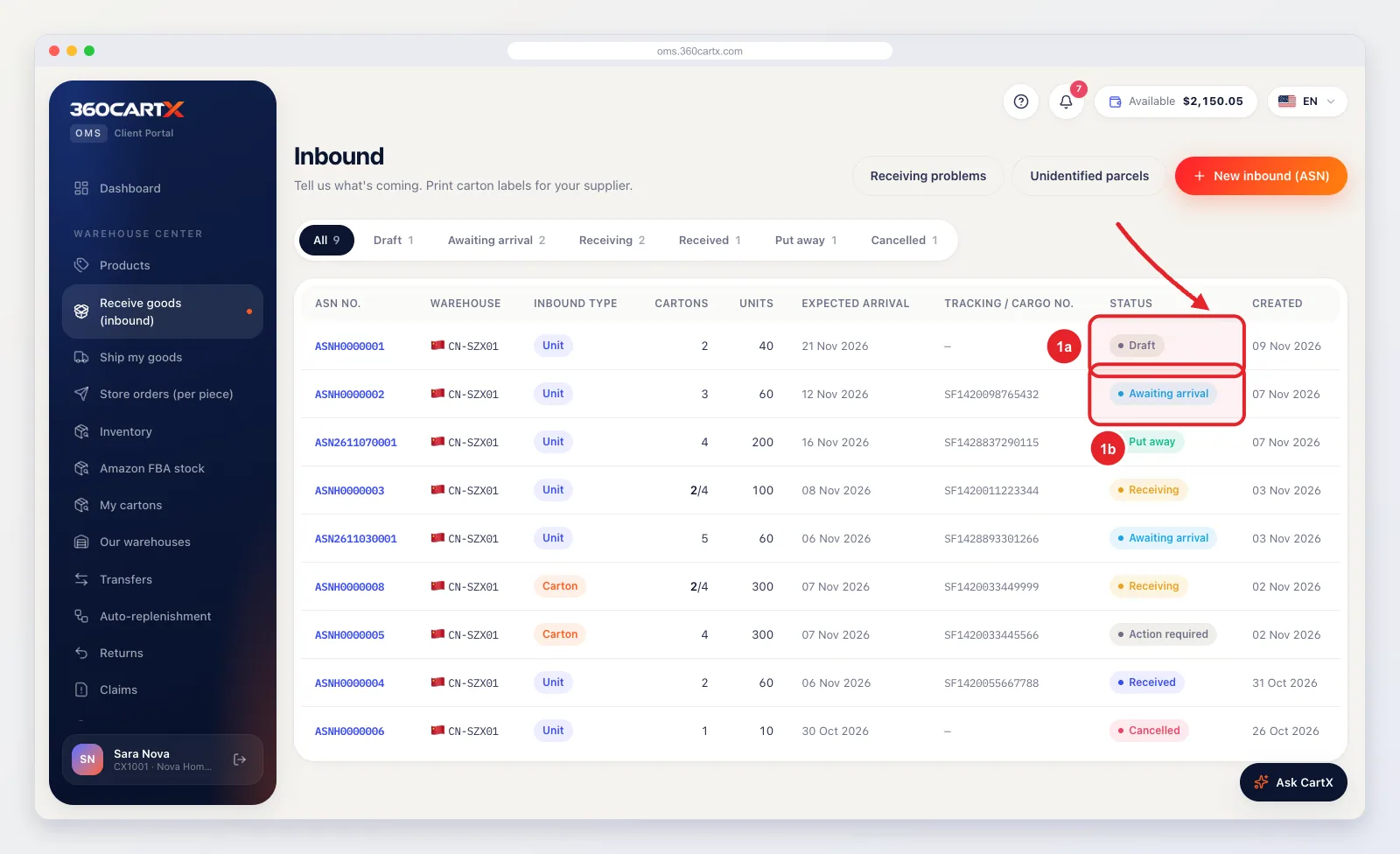
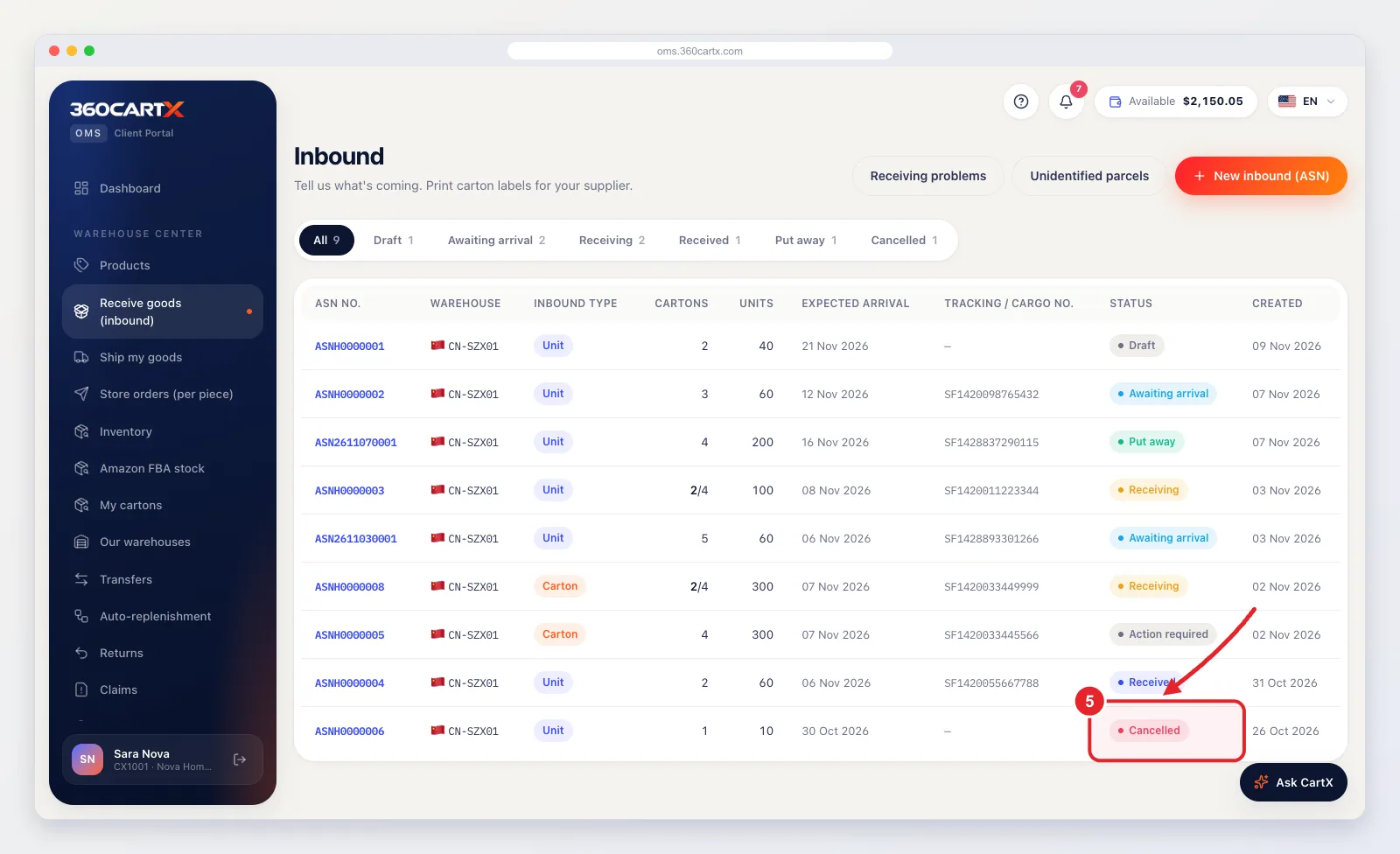
Draft and Awaiting arrival
Draft: saved but not sent to the warehouse; you can still submit, cancel or delete it. Awaiting arrival: submitted; we are waiting for the cartons. You can still cancel it until the first carton arrives.
- 1a Draft
- 1b Awaiting arrival
- 2
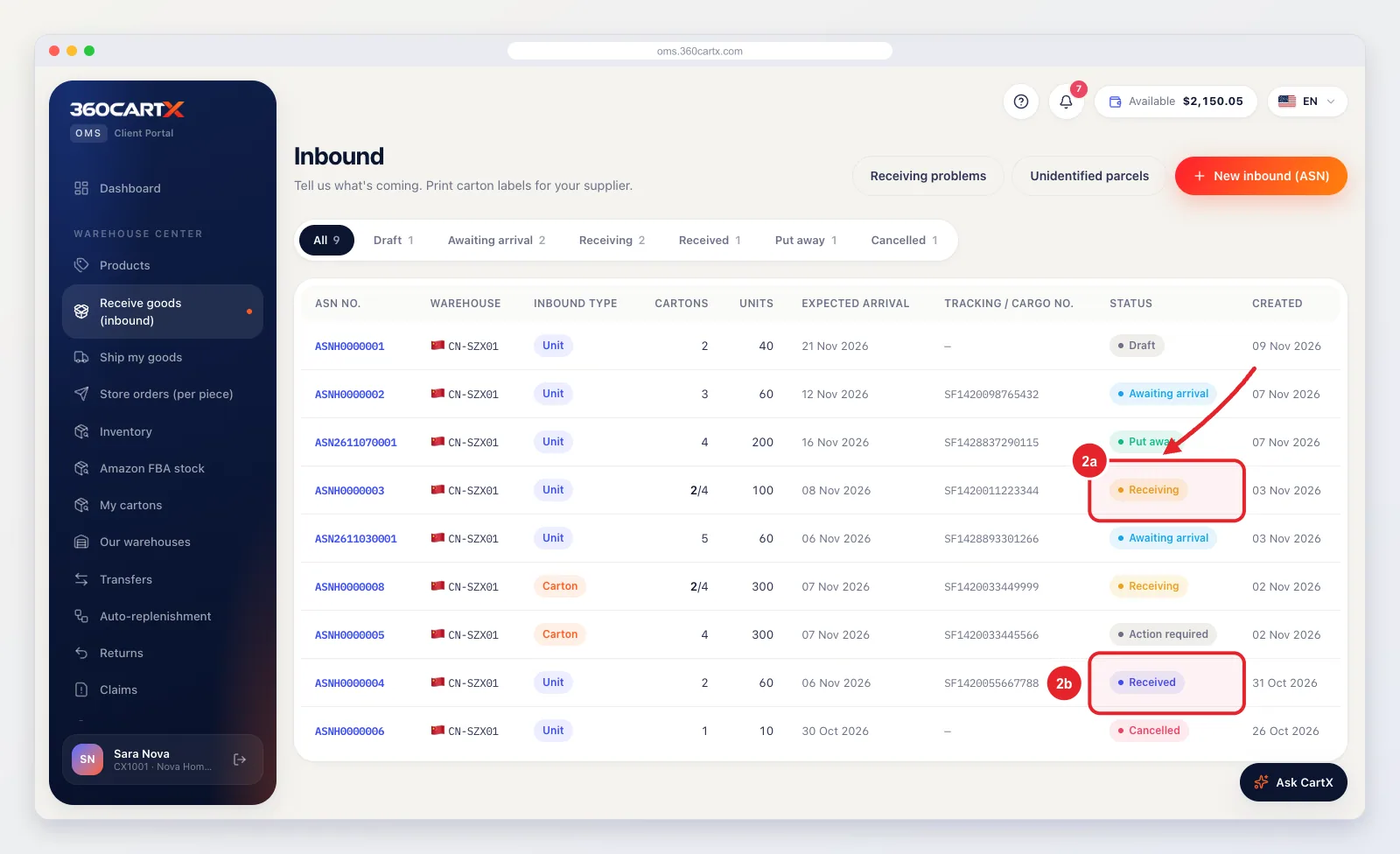
Receiving and Received
Receiving: the first carton was scanned at our dock and we are counting the cartons; the Cartons column shows how many have arrived, for example 2/4. Received: every carton is counted. Differences between what you declared and what we counted are listed under Receiving problems.
- 2a Receiving
- 2b Received
- 3
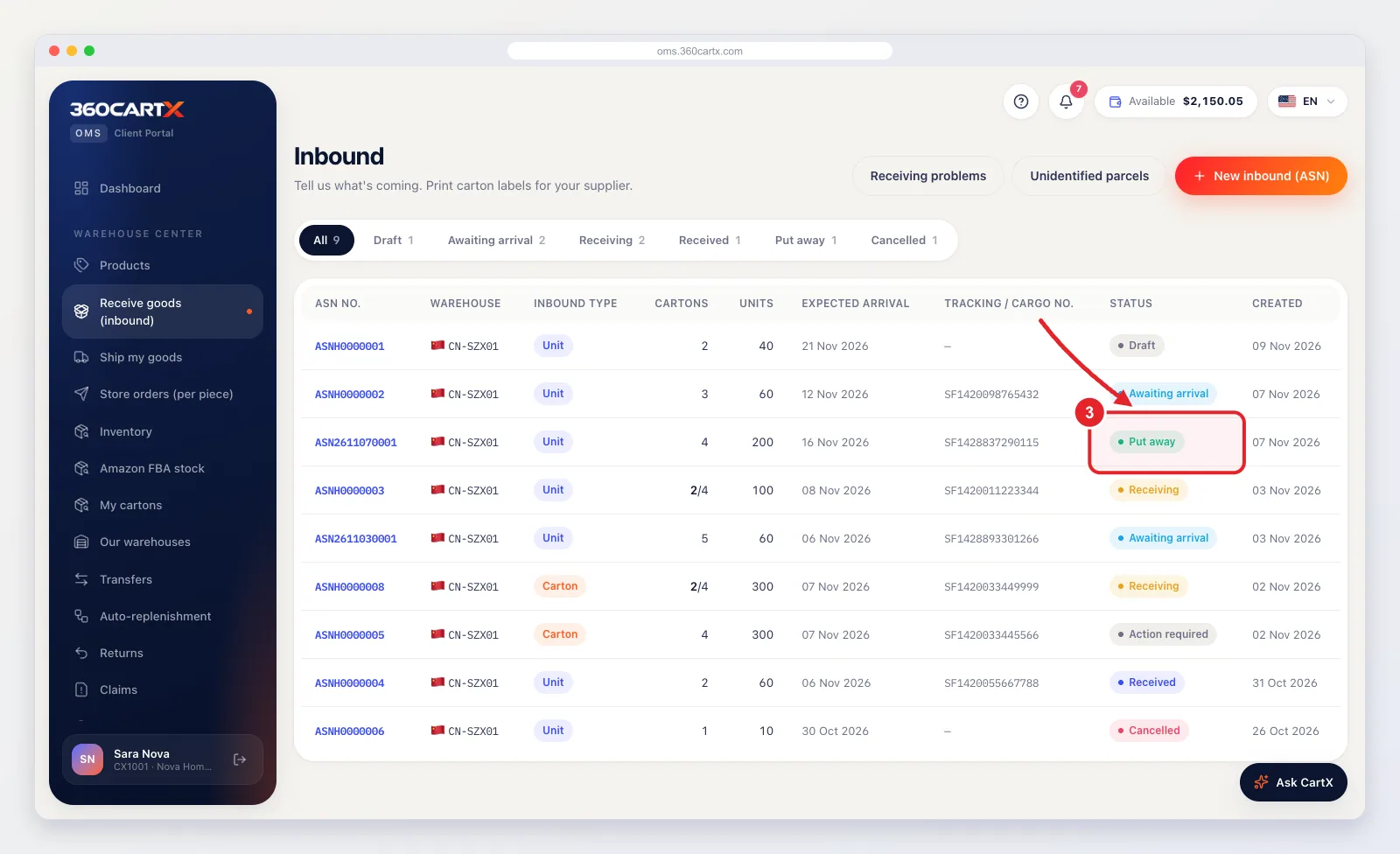
Put away
The goods are on the shelves. They count in Inventory and Units on hand and can be shipped.
- 4
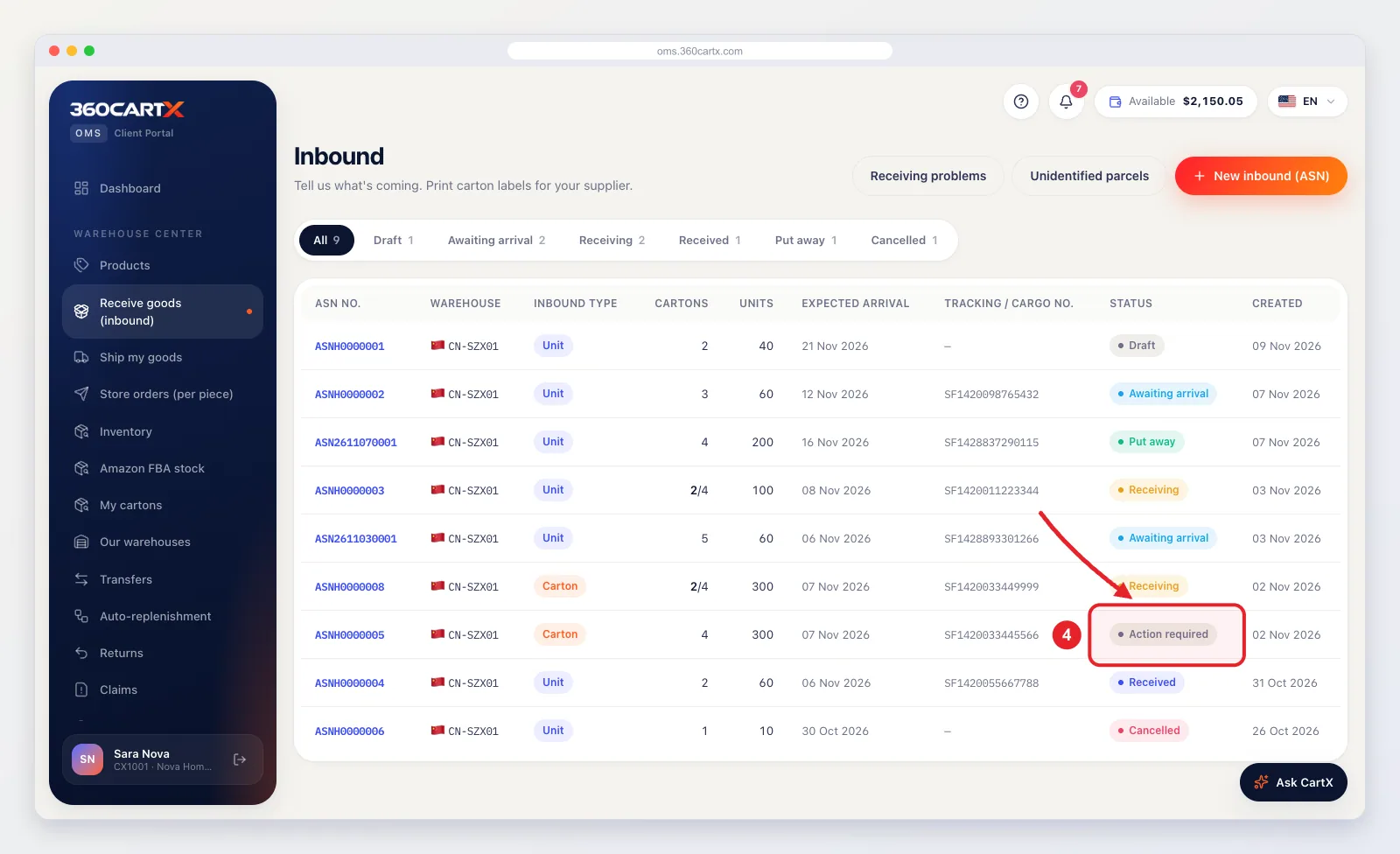
Action required
The shipment is on hold: our team found extra work you did not order, for example units without the FNSKU labels you said were on them, and you must pay for it before we continue. Nothing is received into stock until then. See Inbound on hold: Action required.
- 5
Cancelled
You (or our team) cancelled the shipment before it arrived. Nothing is expected any more. Create a new shipment if the goods are still coming.
Terms in this article
- ASN: Advance shipping notice: your inbound shipment record.
- Putaway: Placing received goods on the shelves, so they become stock.
- Dock-to-stock: Time from arrival at our dock to units on the shelf.
Tips
- You get a notification at each important step: arrival, every carton, differences, fully received and in stock.
- Action required shipments do not have their own tab: find them under All.
Common problems
The shipment stays on Receiving
Some cartons have not arrived or not been scanned yet. Check the Cartons & labels table on the shipment page to see which ones.
Related articles
Updated 2026-11-09
Open a ticket from Support in your portal and our team will reply.