Steps
- 1
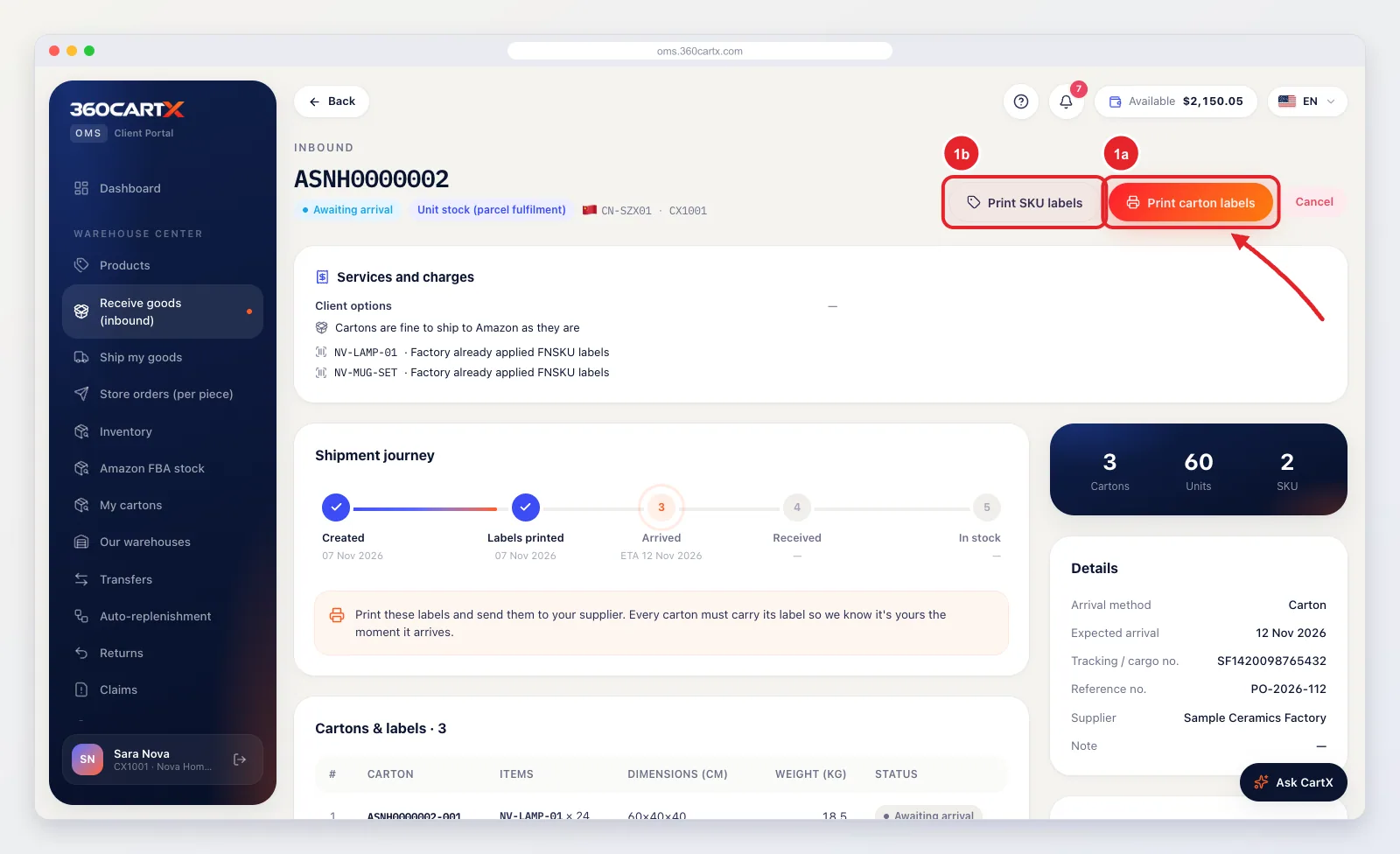
Open the shipment and click Print carton labels
Open the shipment from Receive goods (inbound) and click Print carton labels. Print SKU labels prints a barcode label for each product in the shipment (not for Amazon products, which carry their FNSKU label instead).
- 1a Print carton labels
- 1b Print SKU labels
- 2
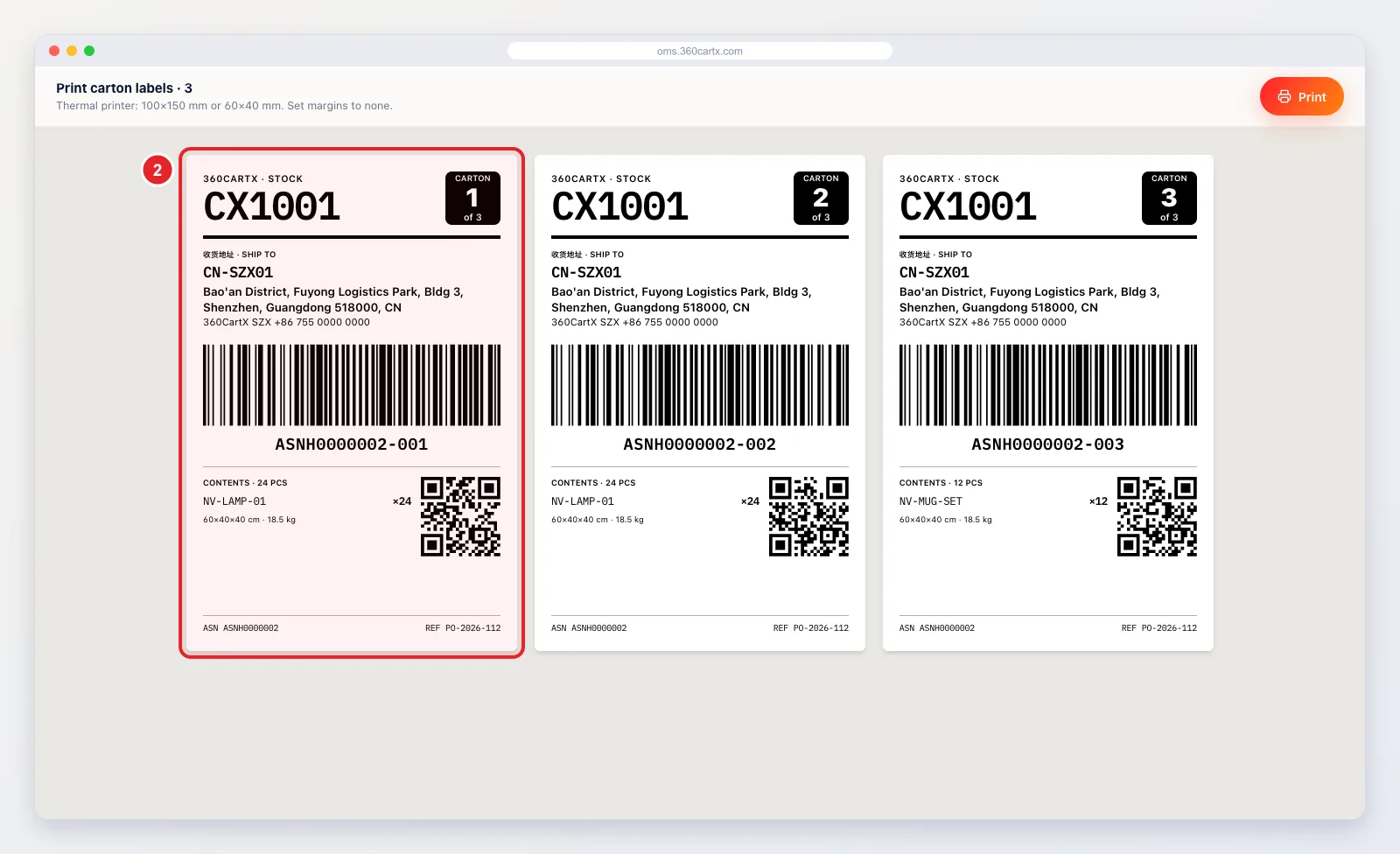
One label per carton
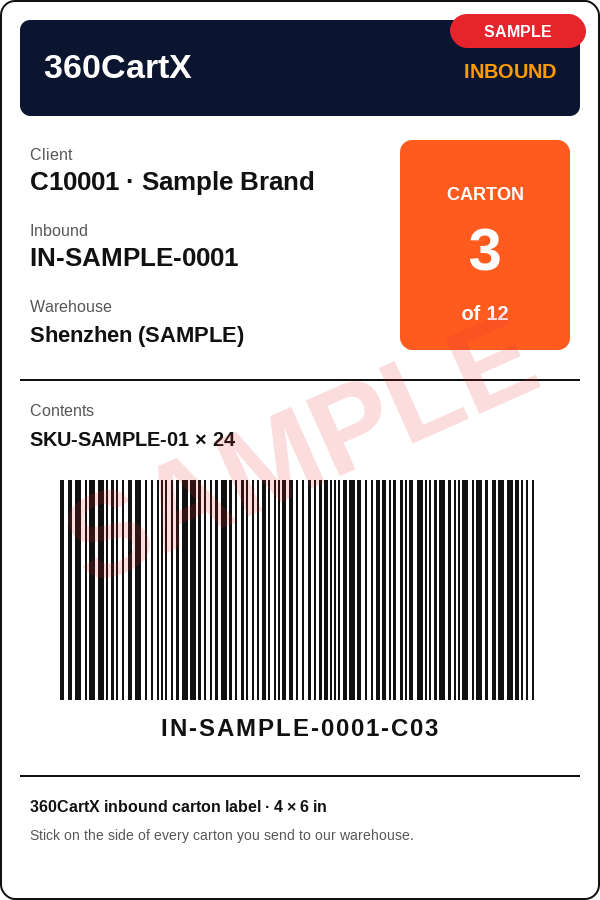
A page opens with one 100×150 mm (4×6 inch) label per carton: your client code, the carton number (for example 3 of 12), the carton barcode (ASN number and carton number, for example ASN2611090002-003), the contents with the number of pieces and a QR code. Print it on a thermal label printer, or on A4 and cut the labels, then stick one on the side of each carton (sample below).
- 3
Send the labels to your supplier
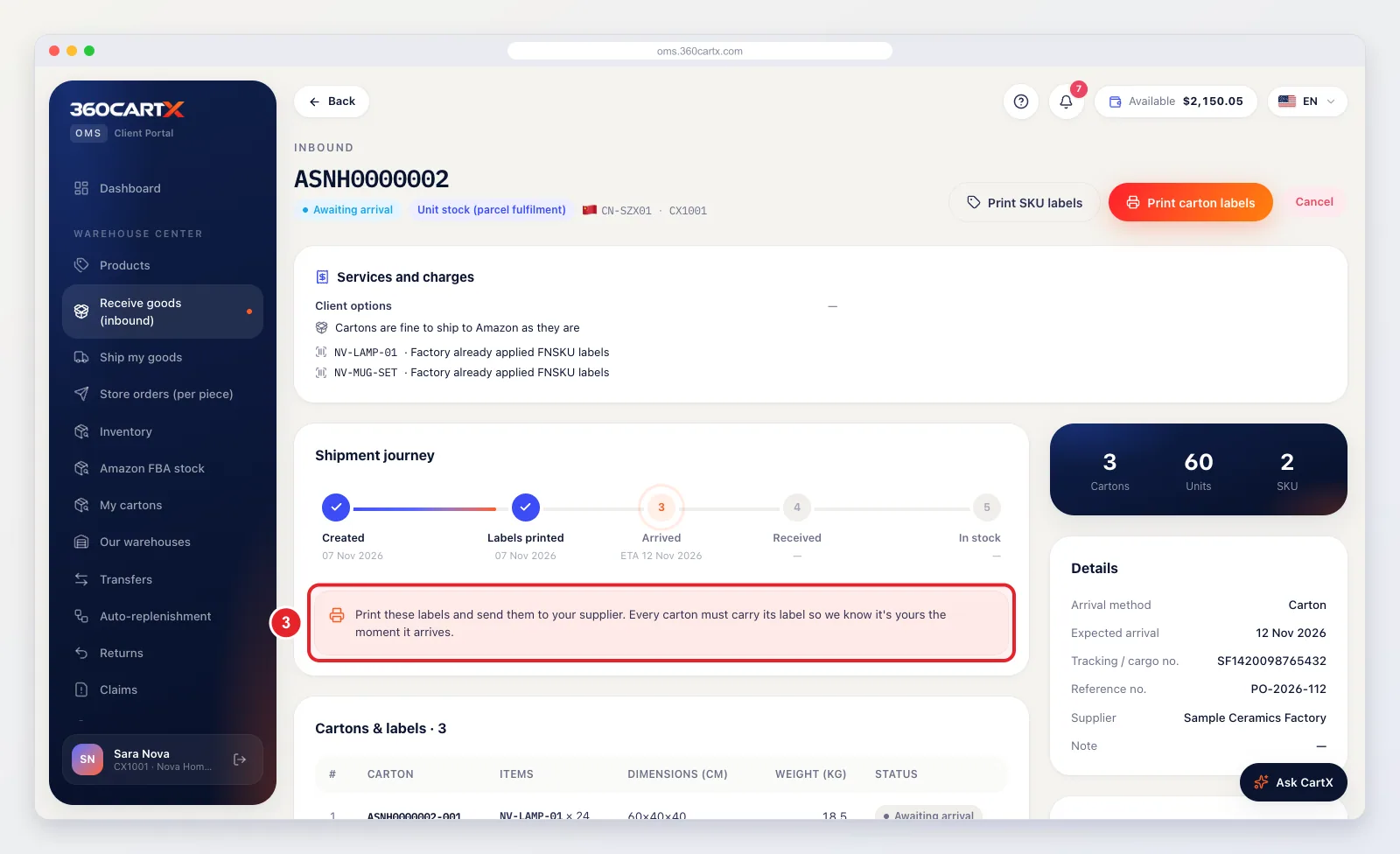
The shipment page reminds you: Print these labels and send them to your supplier. Every carton must carry its label so we know it's yours the moment it arrives. Email the PDF (print to PDF from the label page) to your supplier and ask them to stick the label for each carton on the matching carton, with the right contents inside.
Terms in this article
- ASN: Advance shipping notice: your inbound shipment record.
- Client code: Your account code, written on every carton.
Tips
- Stick the label on the side, not the top, so it stays visible when cartons are stacked.
- Each label belongs to one carton: do not copy the same label onto several cartons.
- Changed the contents? Cancel the shipment and create a new one so the labels match what is inside.
Common problems
My supplier cannot print 100×150 mm labels
Print the page on normal paper, cut the labels out and tape one firmly on each carton. Make sure the barcode is printed sharp and is not covered by tape.
Cartons arrived without labels
We may not be able to match them to your shipment straight away. They appear under Unidentified parcels, where you can claim them.
Related articles
Updated 2026-11-09
Open a ticket from Support in your portal and our team will reply.