Steps
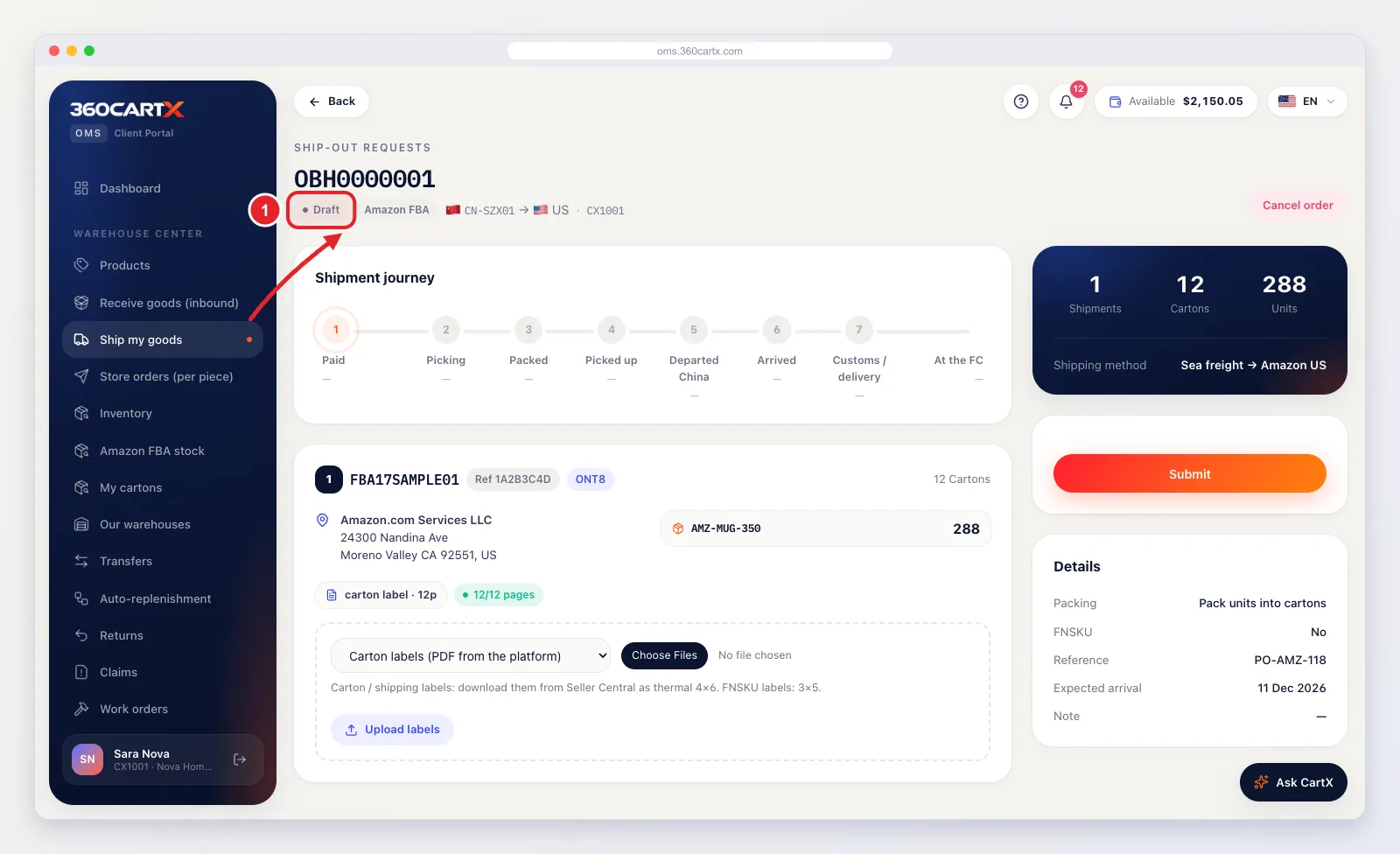
- 1
Draft
You saved the request without submitting it. Nothing is reserved and we do not see it. A draft cannot be edited: you can Submit it, Cancel it or add labels with Upload labels. To change the content, cancel the draft and create a new request.
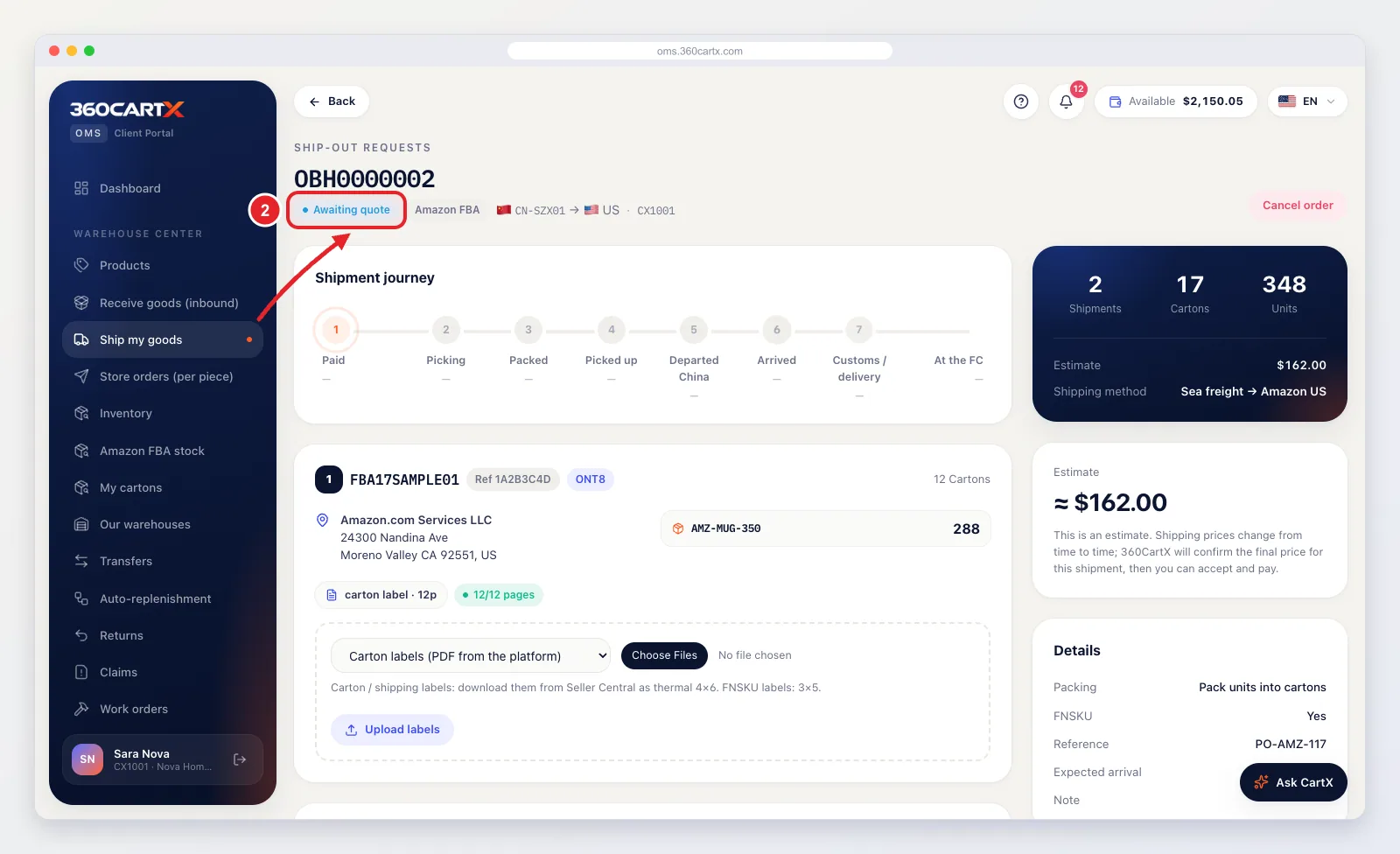
- 2
Awaiting quote
You submitted. Your stock is reserved and our team is preparing the final price. If you chose a priced shipping method, the request page shows Estimate ≈ and the note that 360CartX will confirm the final price. With Quote by our team there is no estimate. You can cancel.
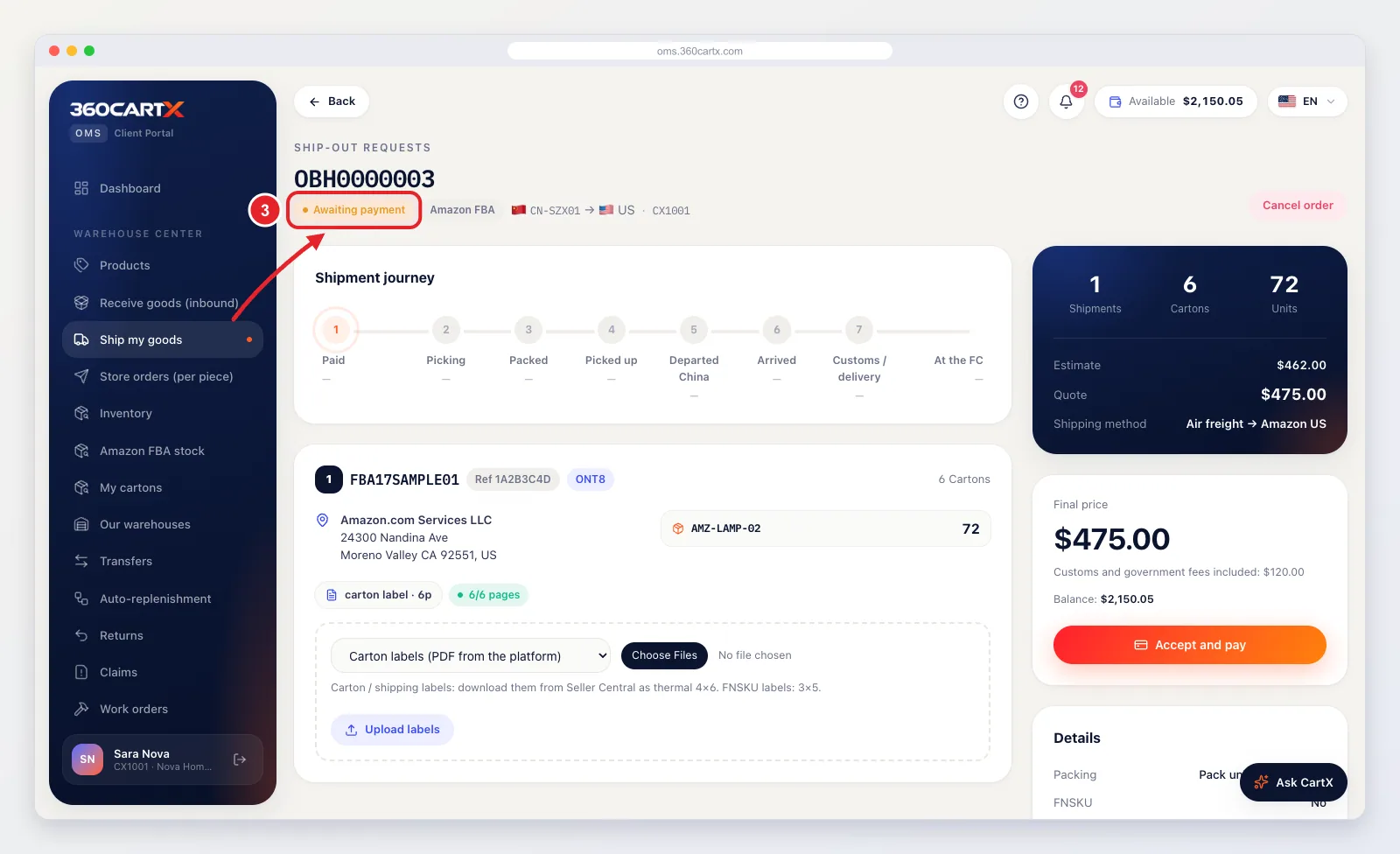
- 3
Awaiting payment
We confirmed the final price. You get a notification, and the request page shows Final price with the button Accept and pay (or Add funds by card to pay when your wallet balance is too low). Nothing moves until you pay. You can still cancel. See Accept and pay the final price.
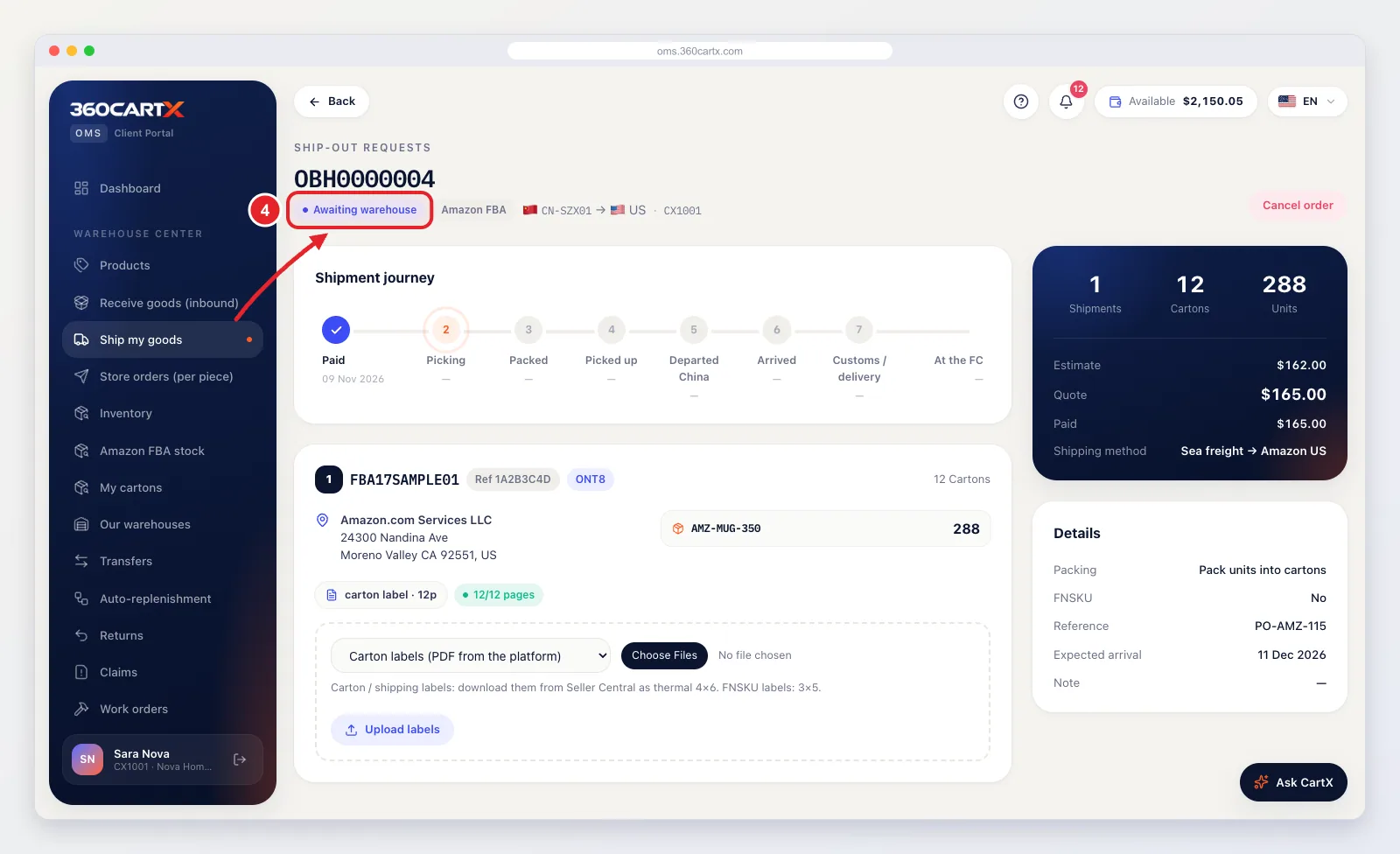
- 4
Awaiting warehouse
You paid from your wallet. The request waits in the warehouse queue. You can still cancel here: the amount is returned to your wallet and the stock is released.
- 5
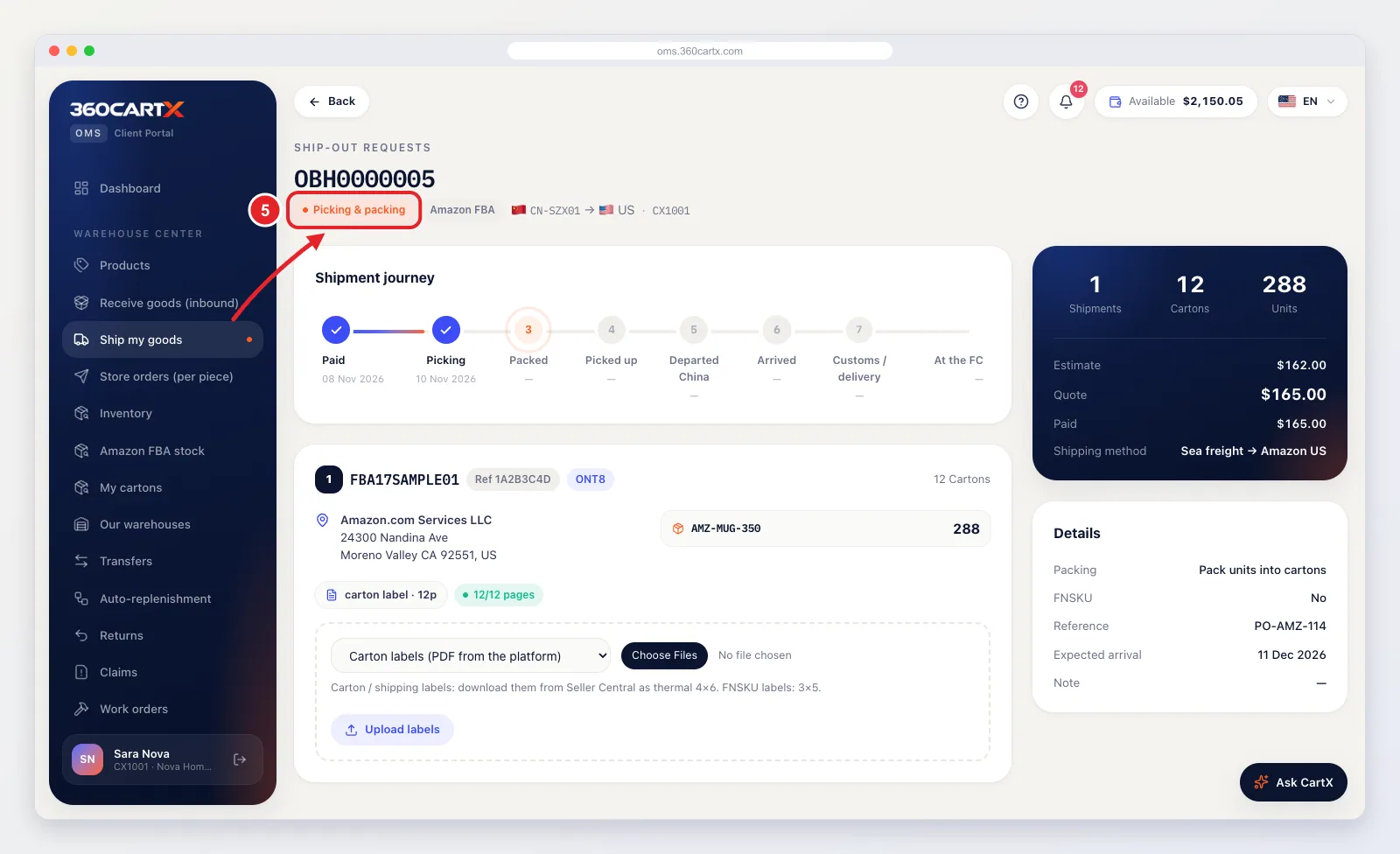
Picking & packing
The warehouse started: we take your goods from the shelves, pack them and put the labels on the cartons. From now on you cannot cancel yourself; contact support if you need to stop the request.
- 6
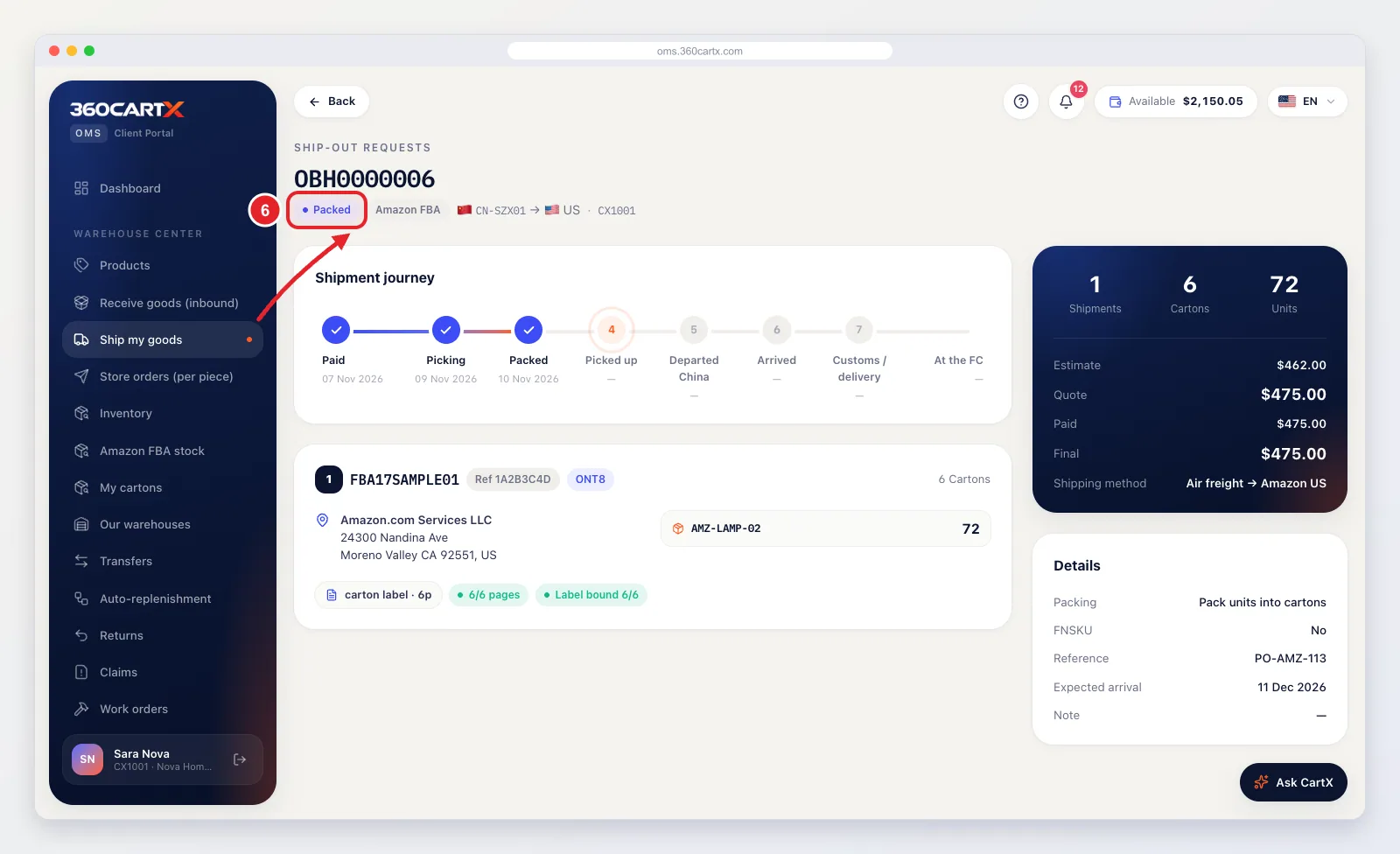
Packed
The cartons are packed, labelled and measured. You are told how many cartons were packed. The Upload labels box is gone: labels are locked.
- 7
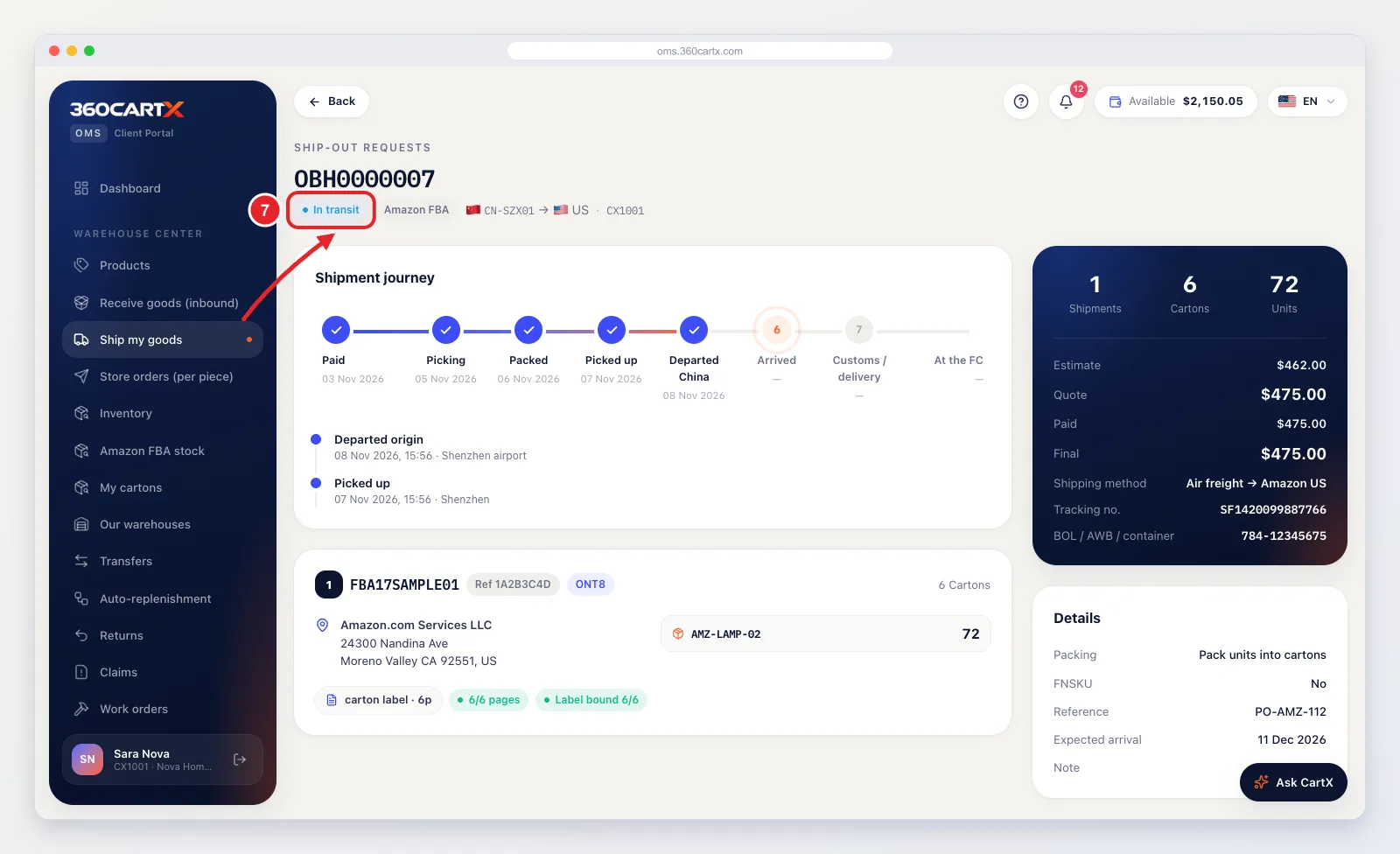
In transit
The shipment left our warehouse. The request page shows the Tracking no. and you get the notification shipped with the tracking number. The journey and the event list are updated as the carrier reports. See Track your shipment.
- 8
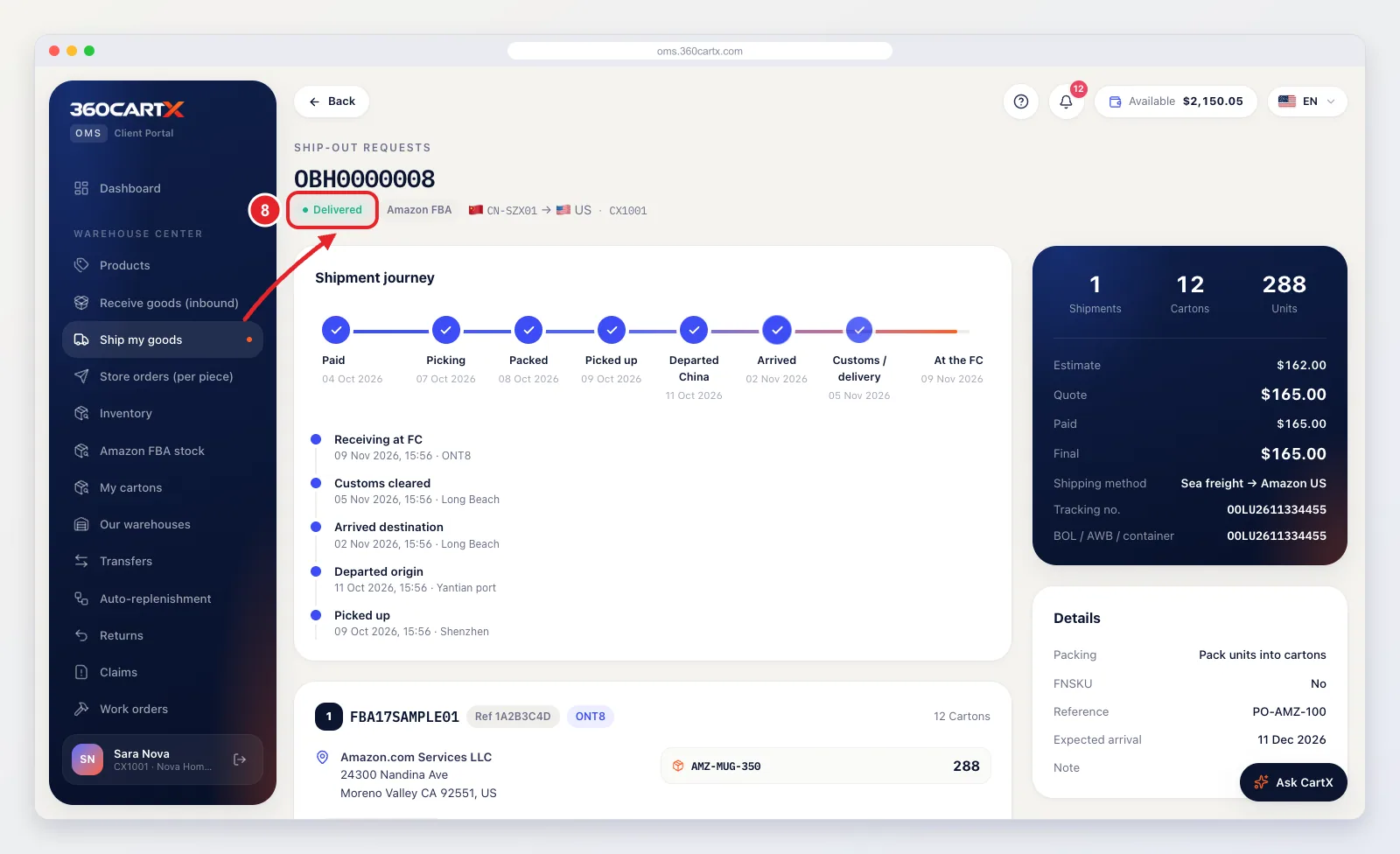
Delivered
The shipment reached its destination: the platform warehouse is receiving it (Delivered is also set when the platform has received or closed it) or the carrier delivered it to your address.
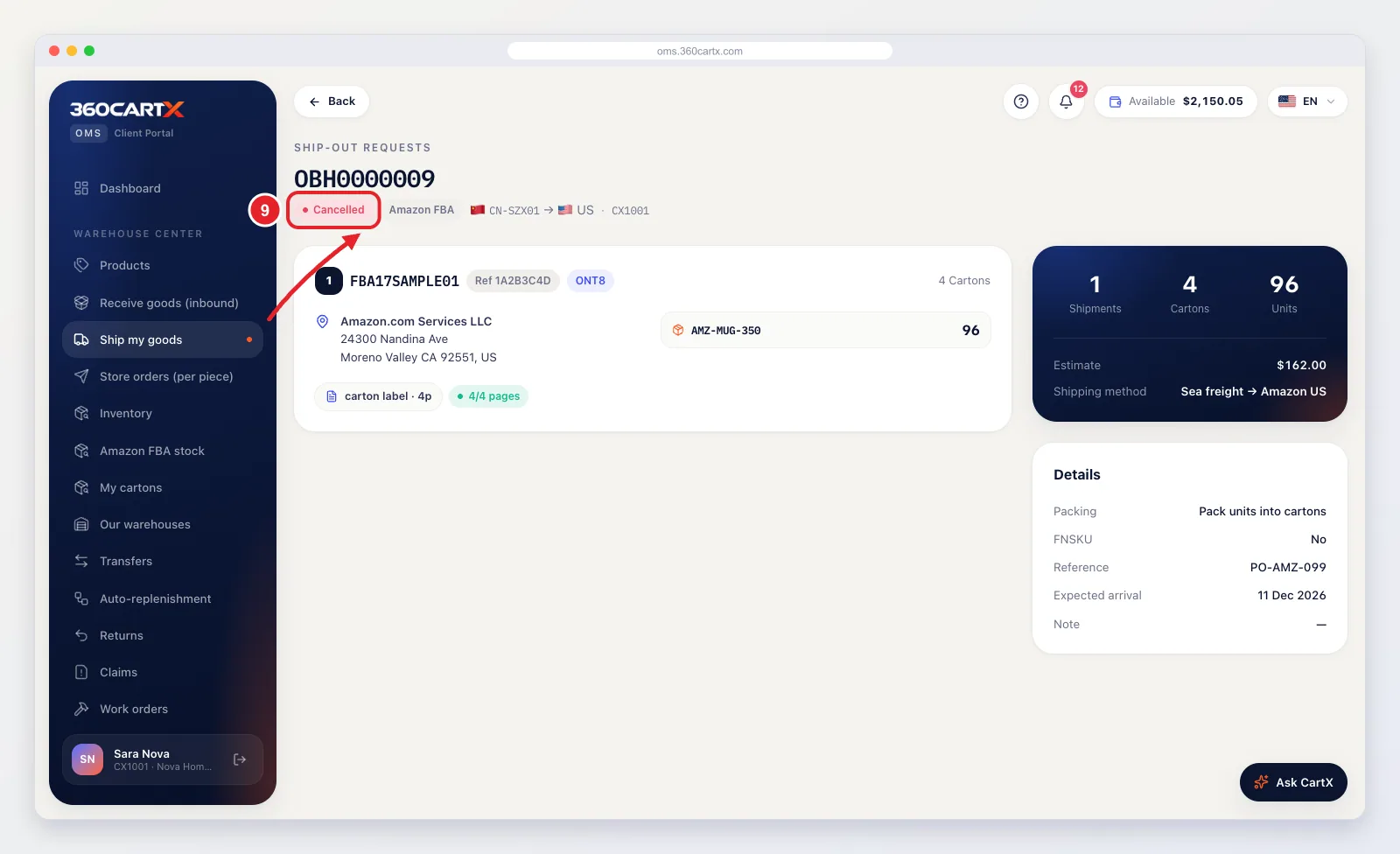
- 9
Cancelled
The request was cancelled by you or by the warehouse. Reserved stock and stored cartons are released and anything you paid goes back to your wallet. A cancelled request cannot be reopened: create a new one.
Tips
- The list tabs use the same names, so you can filter on each status. See Your ship-out requests.
- You get a notification for every step. See Notifications for your ship-out requests.
Common problems
My request has been Awaiting quote for a long time
Our team has not confirmed the price yet. Open a ticket in Help & support with the order number if it takes longer than expected.
The warehouse already started — contact support
You cannot cancel in Picking & packing or later. Open a ticket in Help & support.
Related articles
Updated 2026-11-11
Open a ticket from Support in your portal and our team will reply.