Steps
- 1
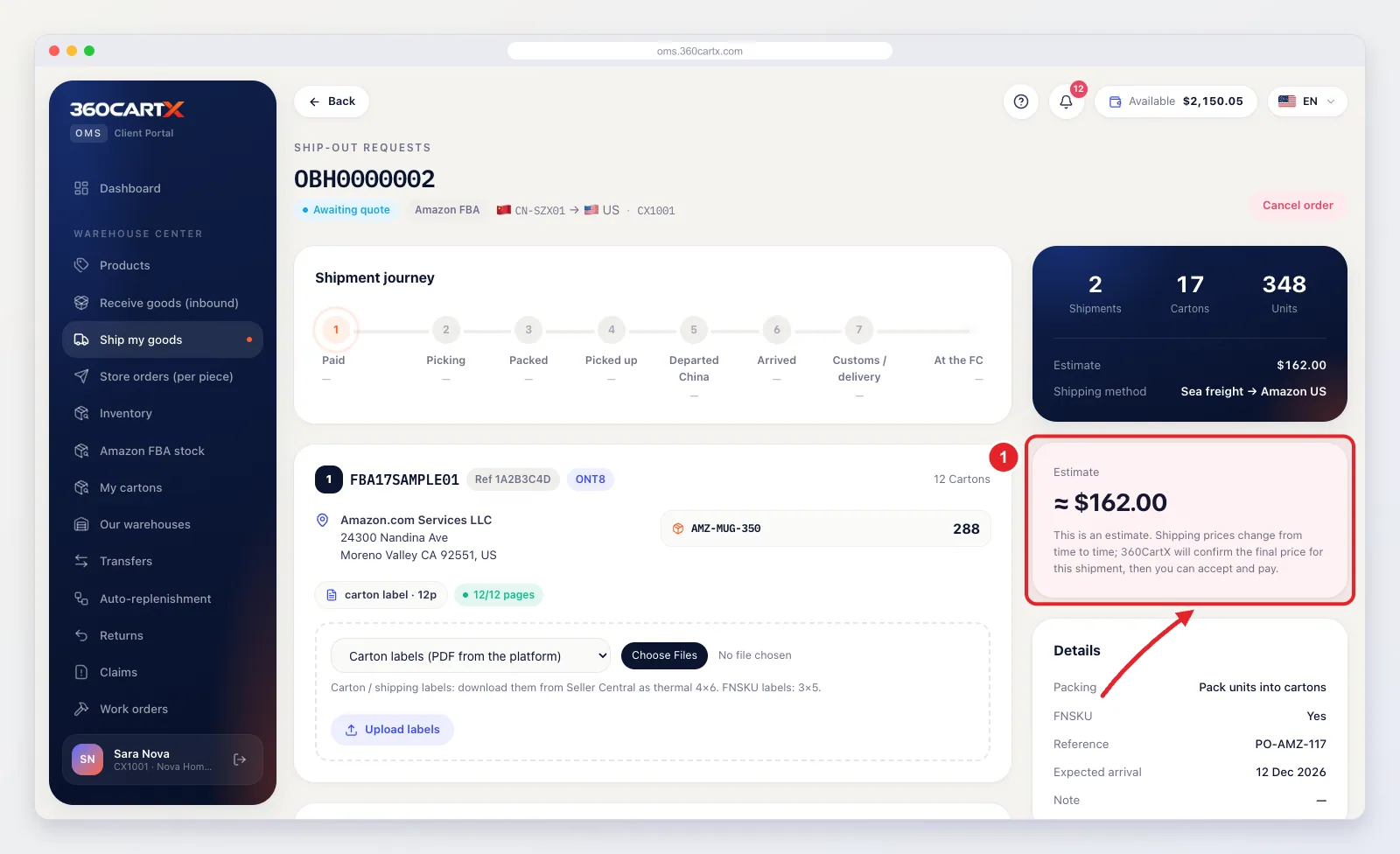
The estimate after Submit
When you chose a shipping method with a price, the request page shows Estimate ≈ with an amount in US dollars. It is an estimate: 360CartX confirms the final price. With Quote by our team there is no estimate.
- 2
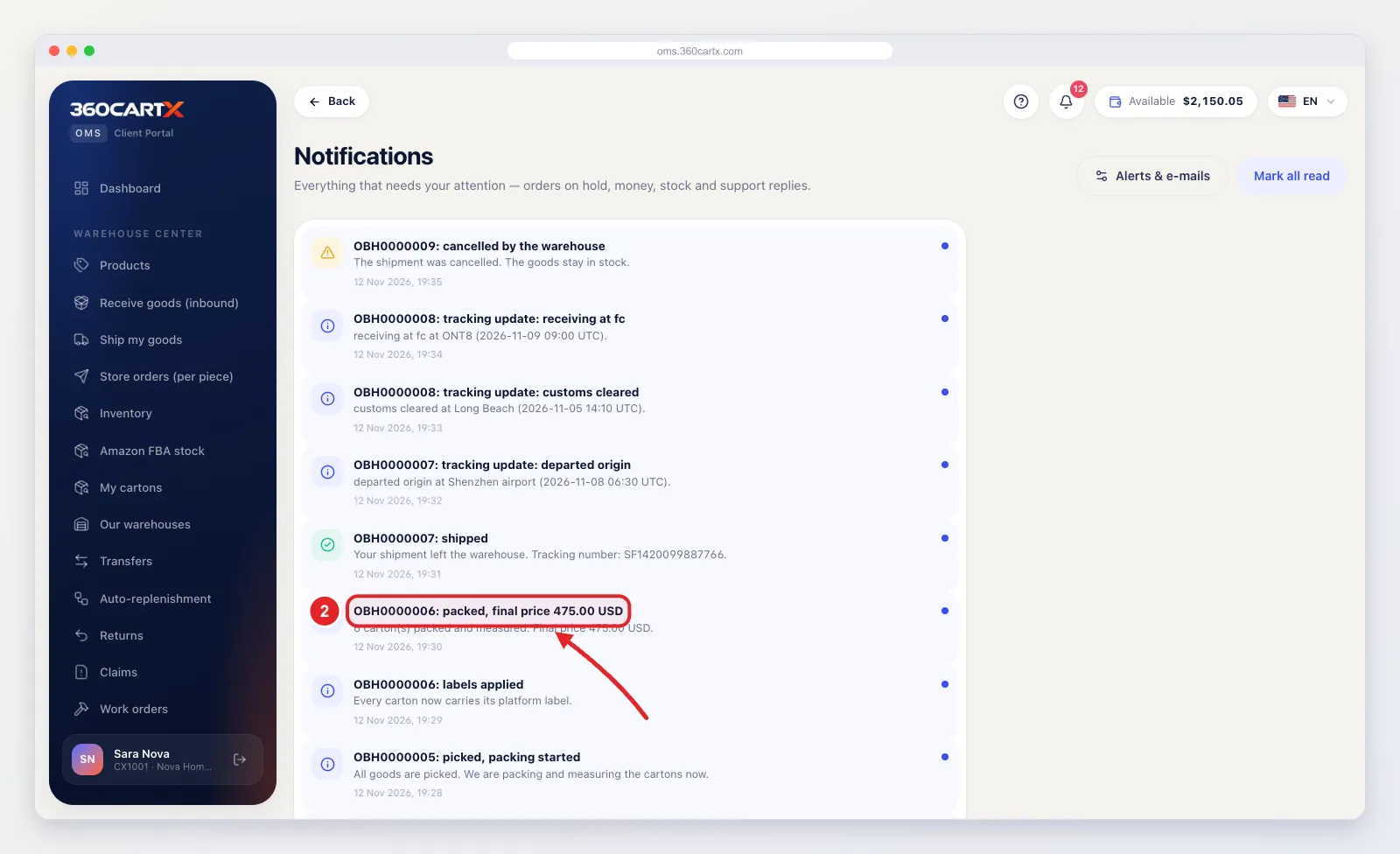
The final price notification
When our team confirms the price, the status becomes Awaiting payment and you get a notification with the order number and the price, followed by: Accept and pay from your wallet to start the shipment.
- 3
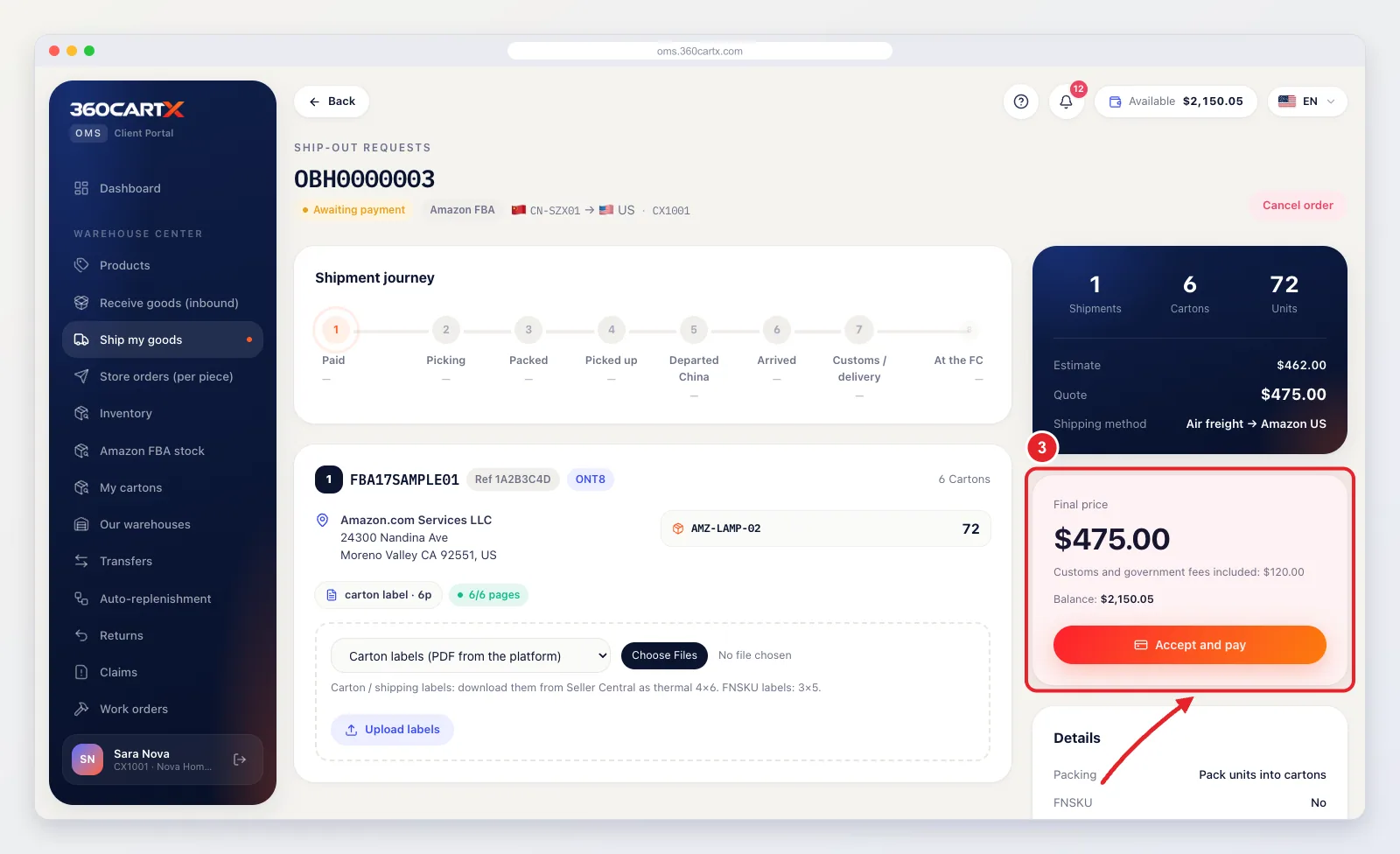
Check the final price
The request page shows Final price. If customs and government fees are part of it, the line Customs and government fees included shows them. Check the shipping method and the numbers of cartons and units on the left before you accept.
- 4
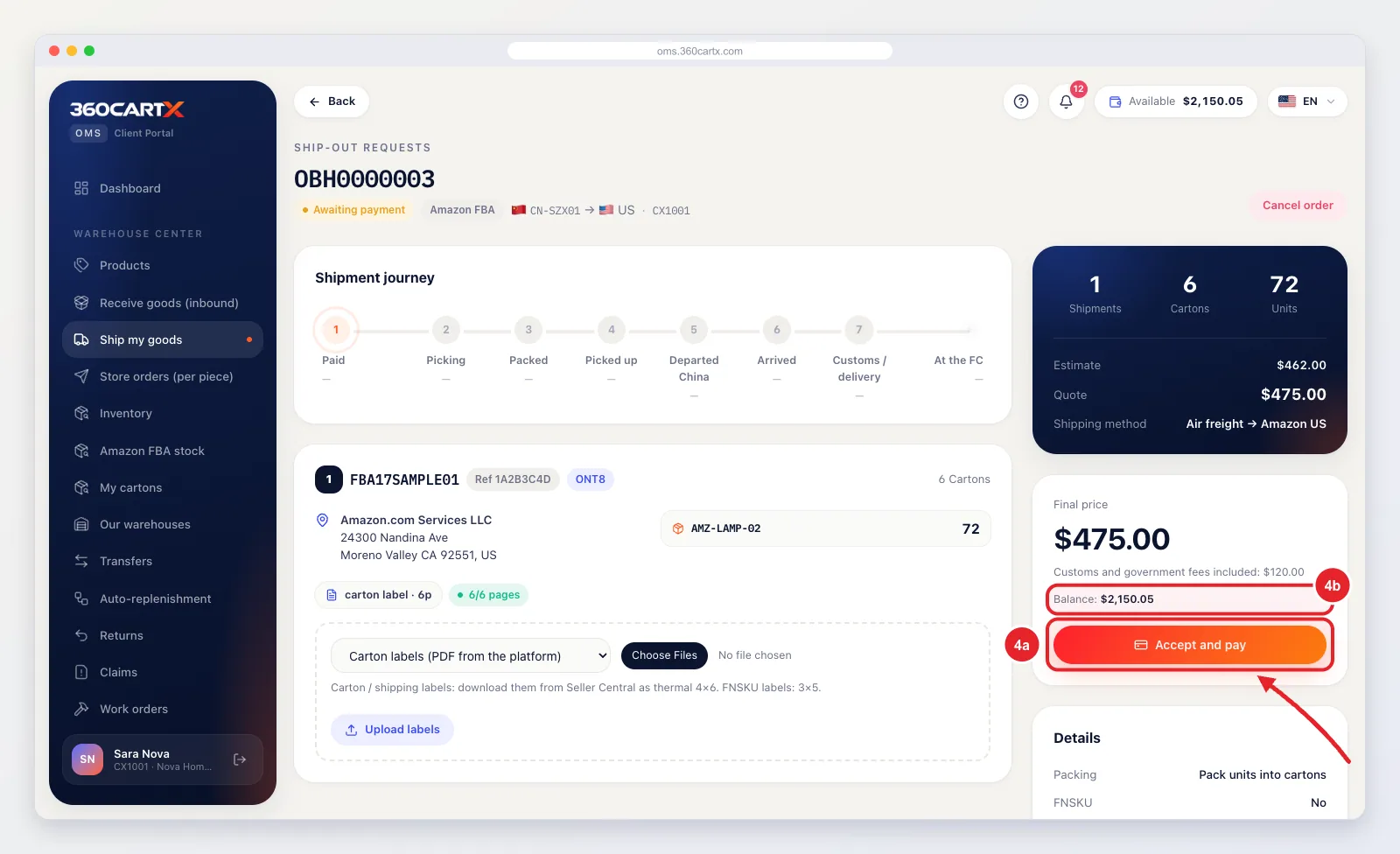
Accept and pay
Under the price you see your Balance. If it covers the price, click Accept and pay. The amount is taken from your wallet at once and the status becomes Awaiting warehouse.
- 4a Accept and pay
- 4b Balance
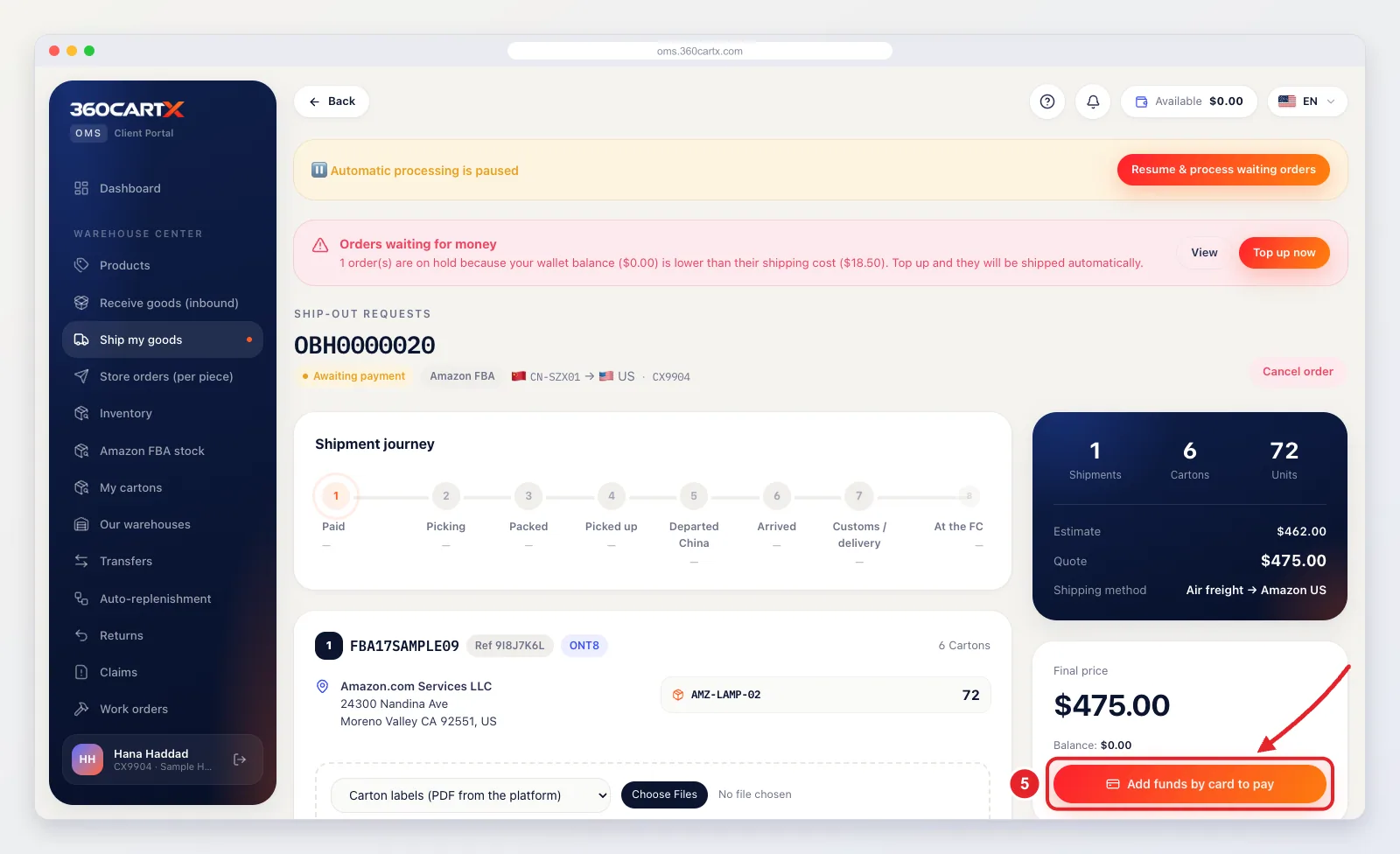
- 5
Not enough balance
If the wallet balance is lower than the price, the button is replaced by Add funds by card to pay. Click it to open Add funds.
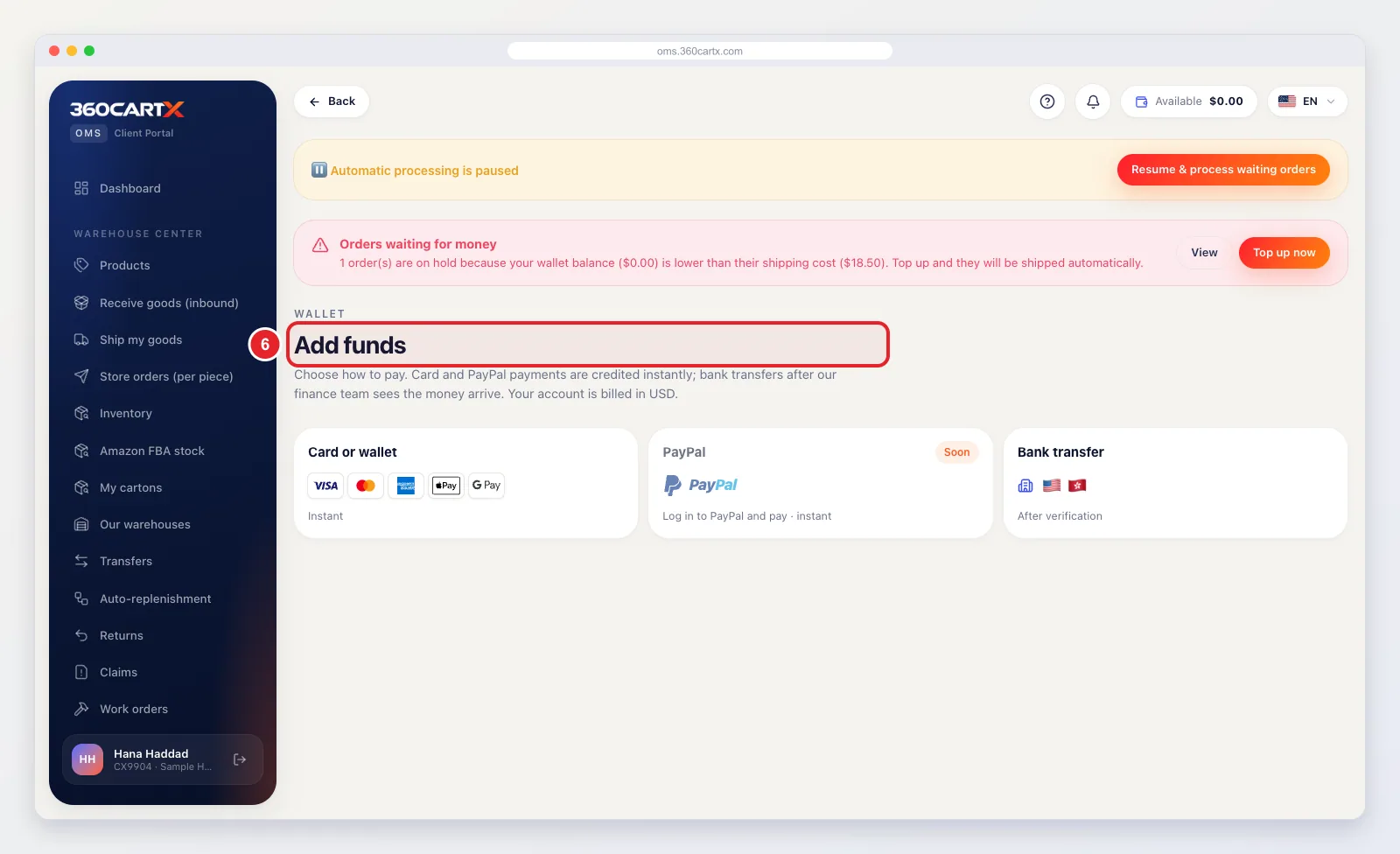
- 6
Add funds and come back
Add the amount by card, then open the request again and click Accept and pay. Funds that arrive by other methods are added after our team confirms them.
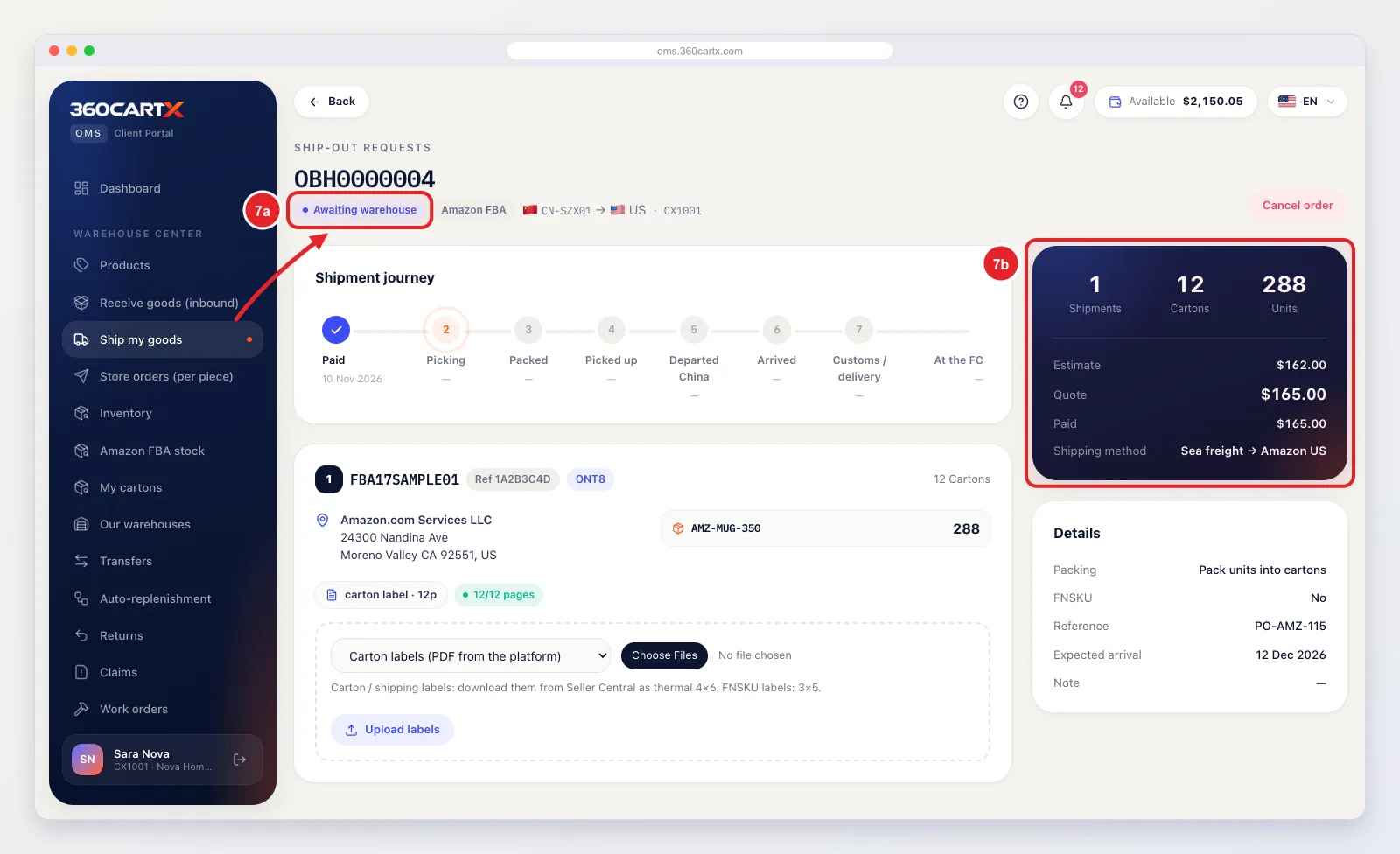
- 7
After you paid
The request is Awaiting warehouse and the aurora panel shows the amount in Paid. We now pick, pack, label and ship your goods.
- 7a Awaiting warehouse
- 7b Paid
Tips
- You can cancel until the warehouse starts picking, and a paid amount is returned to your wallet. See Cancel a ship-out request.
- After we weigh and measure the packed cartons, the final price notification may be followed by a message with the packed cartons and the price. Check the request page for the amount that applies.
- Prices and your balance are always in US dollars.
Common problems
Insufficient balance — please top up
Your wallet is below the price. Add funds, then click Accept and pay again.
Already paid
The request was paid before, maybe in another tab. Reload the page.
Nothing to pay
The request has no confirmed price yet or is not Awaiting payment. Wait for the final price notification.
Payment failed
Try again after reloading. If it repeats, open a ticket in Help & support with the order number.
Related articles
Updated 2026-11-11
Open a ticket from Support in your portal and our team will reply.