Steps
- 1
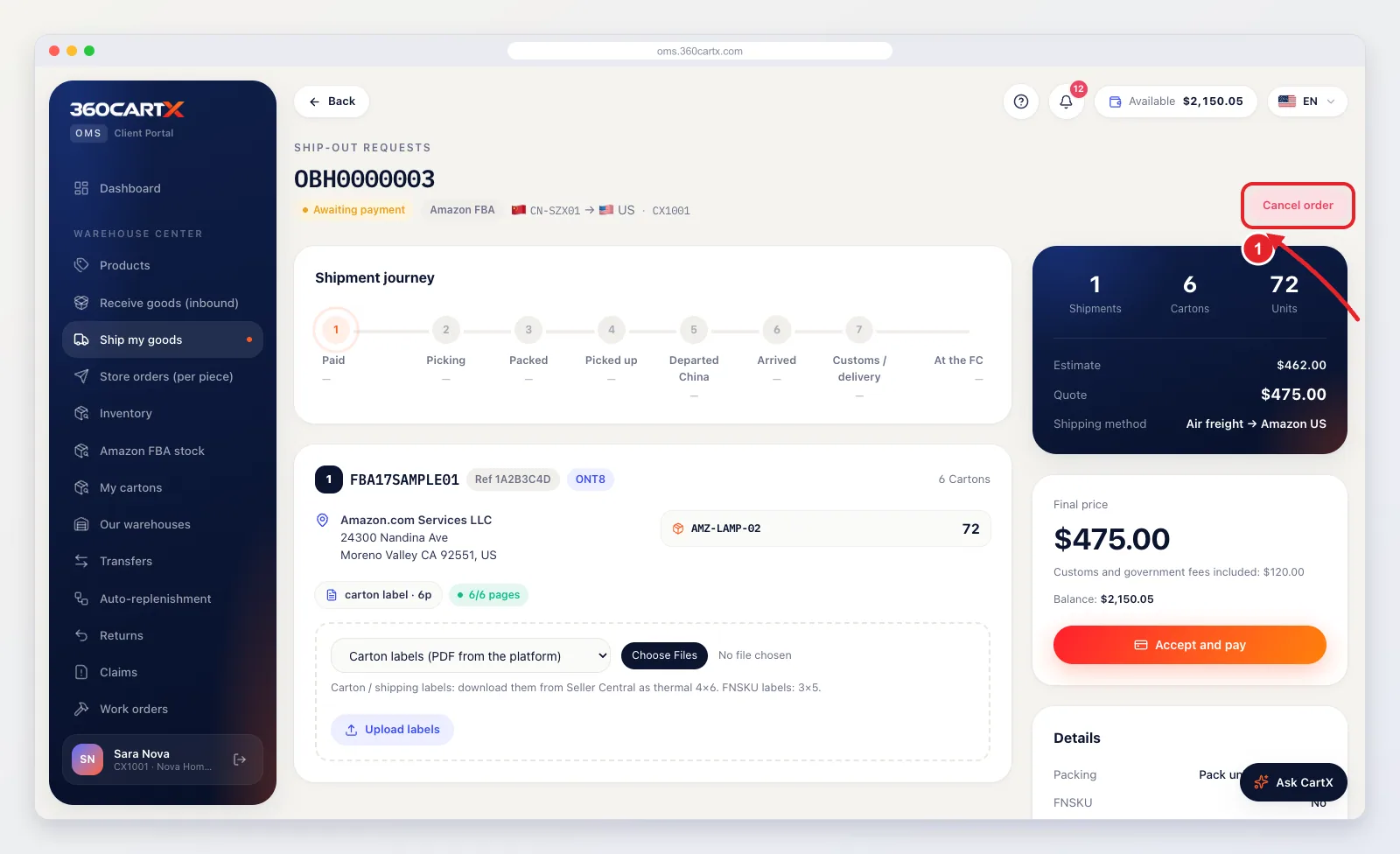
When the Cancel button appears
On the request page, Cancel is shown for Draft, Awaiting quote, Awaiting payment and Awaiting warehouse. Click it and confirm the question.
- 2
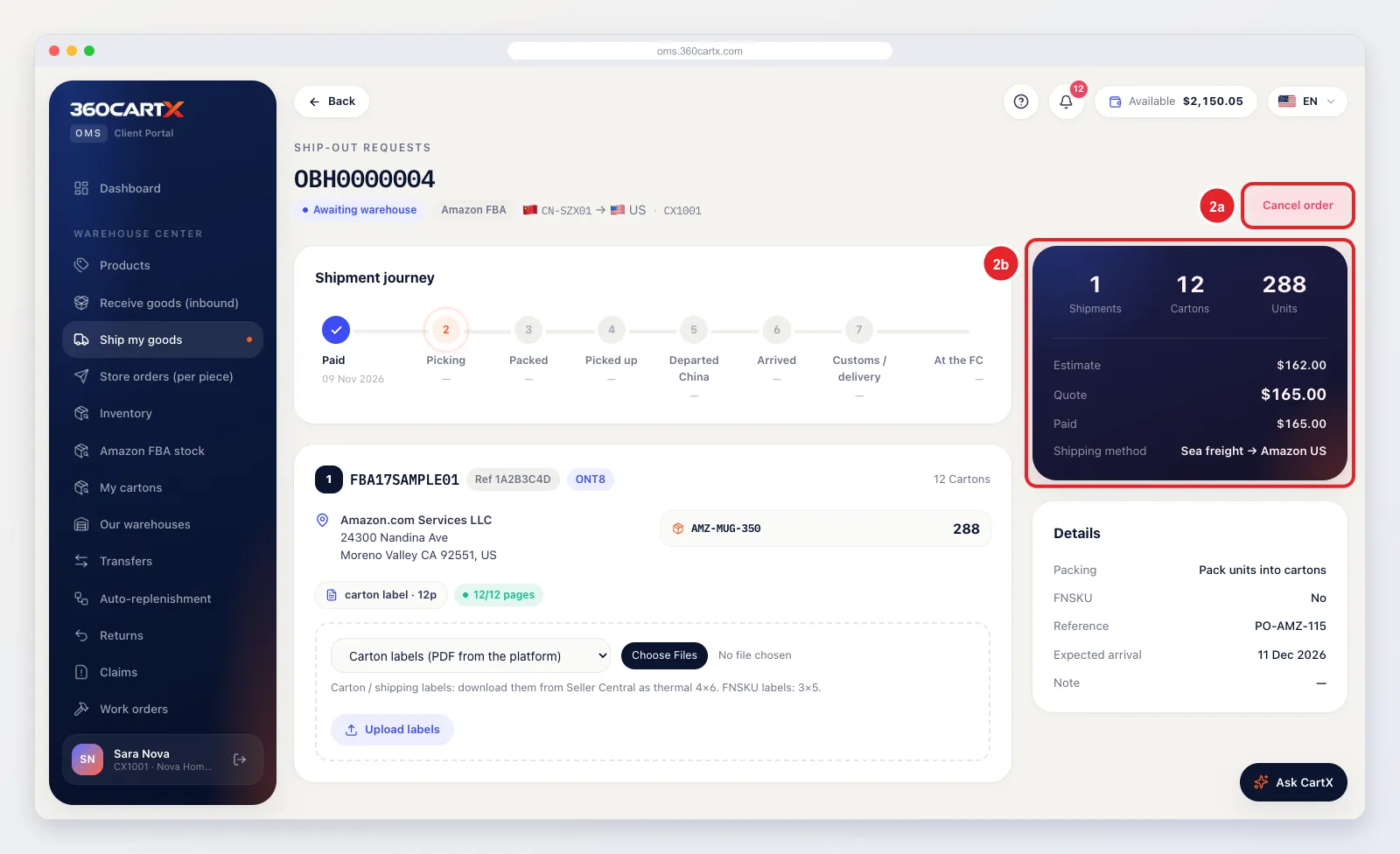
After you paid
In Awaiting warehouse you already paid. Cancelling returns the full amount to your wallet, releases the stock and puts any stored cartons back In stock.
- 2a Cancel
- 2b Paid
- 3
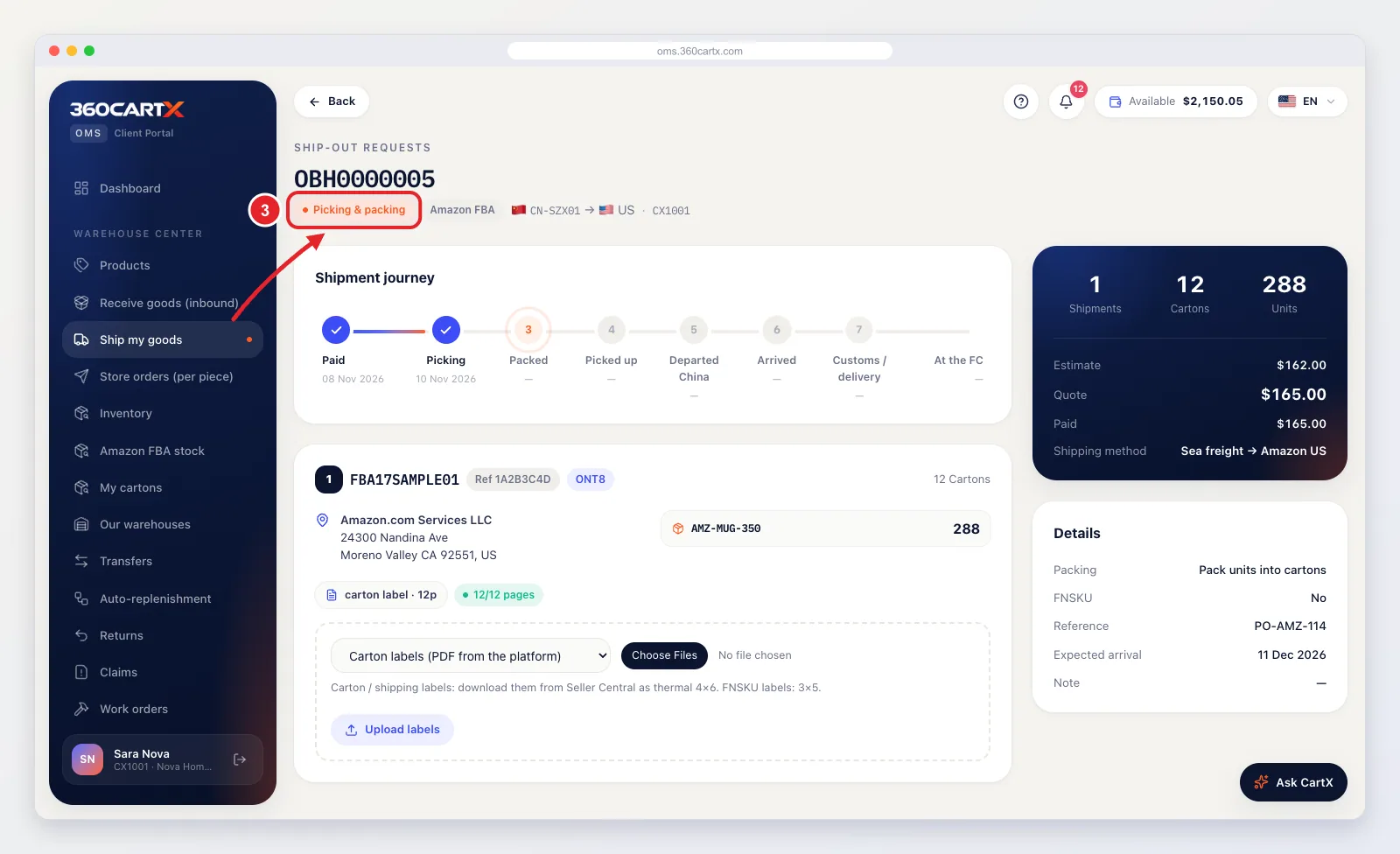
After the warehouse started
In Picking & packing, Packed, In transit and Delivered there is no Cancel button. If you try to cancel anyway you see: The warehouse already started — contact support. Open a ticket in Help & support with the order number.
- 4
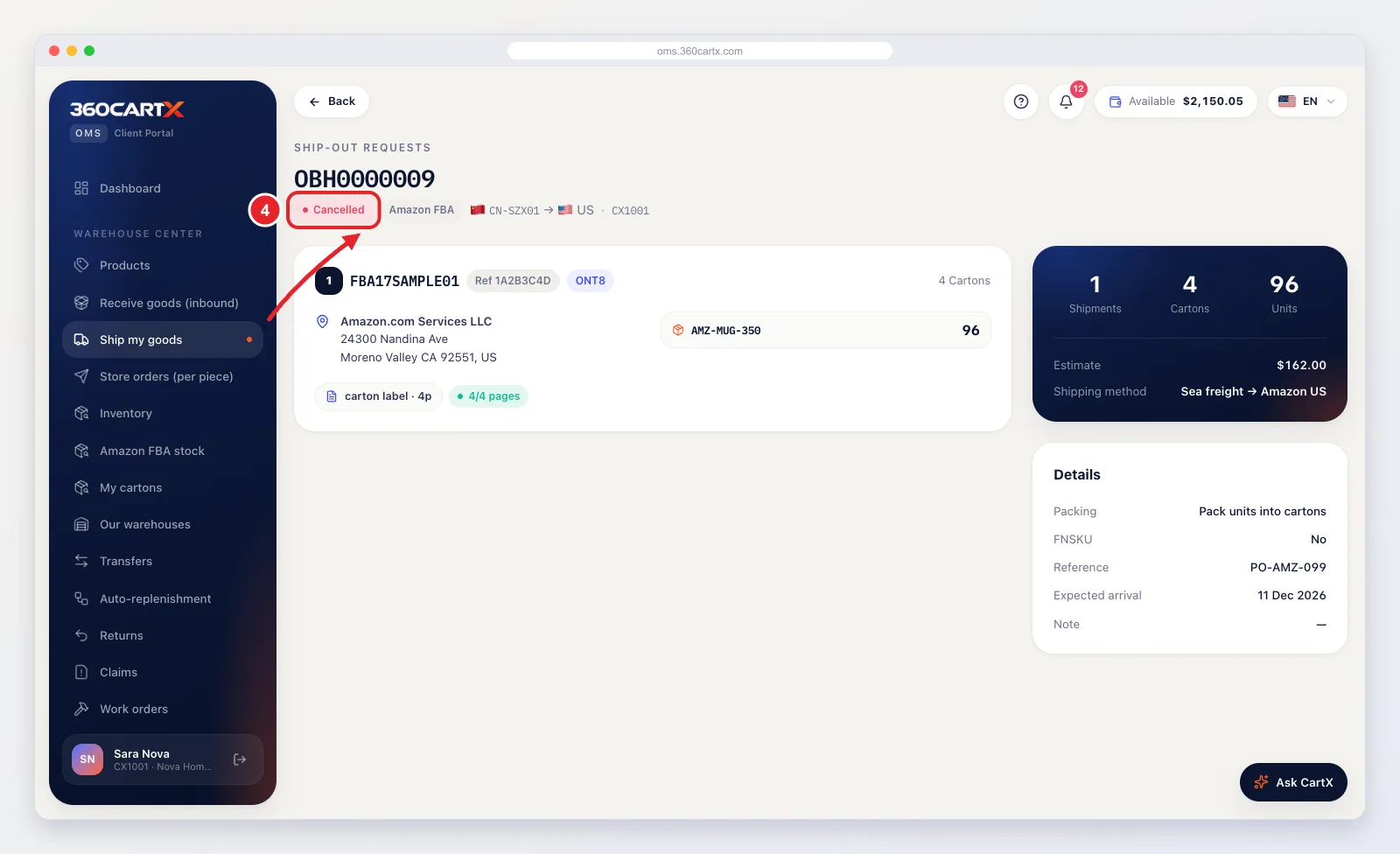
A cancelled request
The status shows Cancelled. It cannot be reopened: create a new request. If our warehouse cancels, you get the notification cancelled by the warehouse with the refund.
Tips
- Cancelling a Draft or a request that is not paid yet costs nothing.
- To change the content of a request, cancel it and create a new one: requests cannot be edited after you save them.
Common problems
The warehouse already started — contact support
Picking has begun. Open a ticket in Help & support; our team decides whether it can still be stopped.
Where is my refund?
A payment is returned to your wallet at once when you cancel. Check the wallet transactions.
Related articles
Updated 2026-11-11
Open a ticket from Support in your portal and our team will reply.