Steps
- 1
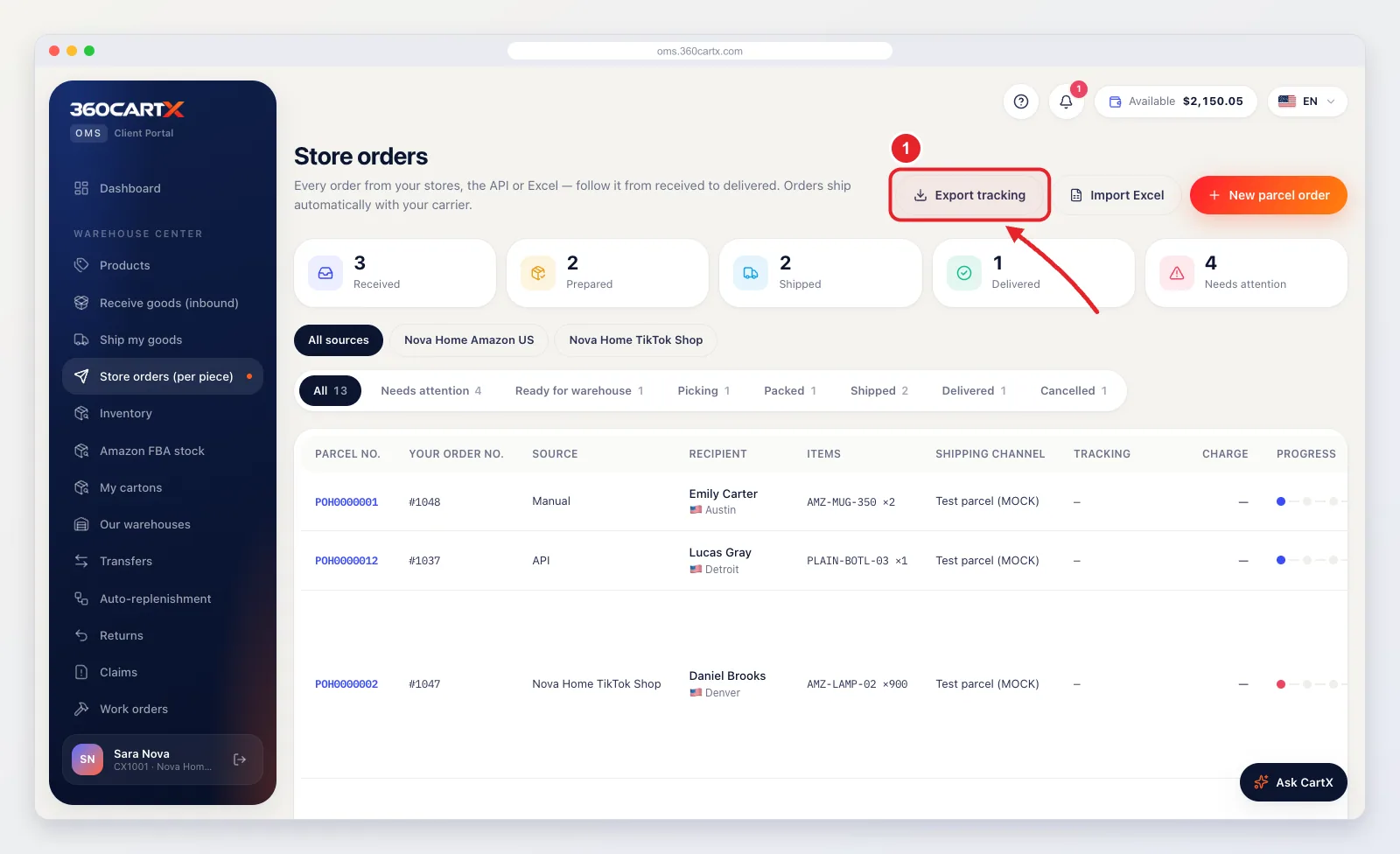
Click Export tracking
On Store orders click Export tracking at the top. A file named tracking-last-7d.csv is downloaded: the orders shipped in the last 7 days.
- 2
What is in the file
One row per shipped or delivered order with the columns OrderNo (your order number), ParcelNo, Carrier, TrackingNo, TrackingUrl (the carrier's tracking page) and ShippedAt in China time (UTC+8). The file opens in Excel and Google Sheets with the right characters.
- 3
Use it in your store
Upload the file in your store's bulk fulfilment tool, or copy OrderNo and TrackingNo. The OrderNo is the number you gave us (for store orders, the store's order number).
Tips
- The file covers the last 7 days. To get another period, add ?days=30 to the address of the download, for example /oms/parcels/tracking?days=30 (1 to 90 days).
- Only Shipped and Delivered orders are in the file.
Common problems
The file is empty
No order was shipped in the period. Orders still in the warehouse have no tracking number yet.
Related articles
Was this article helpful?
Updated 2026-11-11
Still need help?
Open a ticket from Support in your portal and our team will reply.