Steps
- 1
Your brand
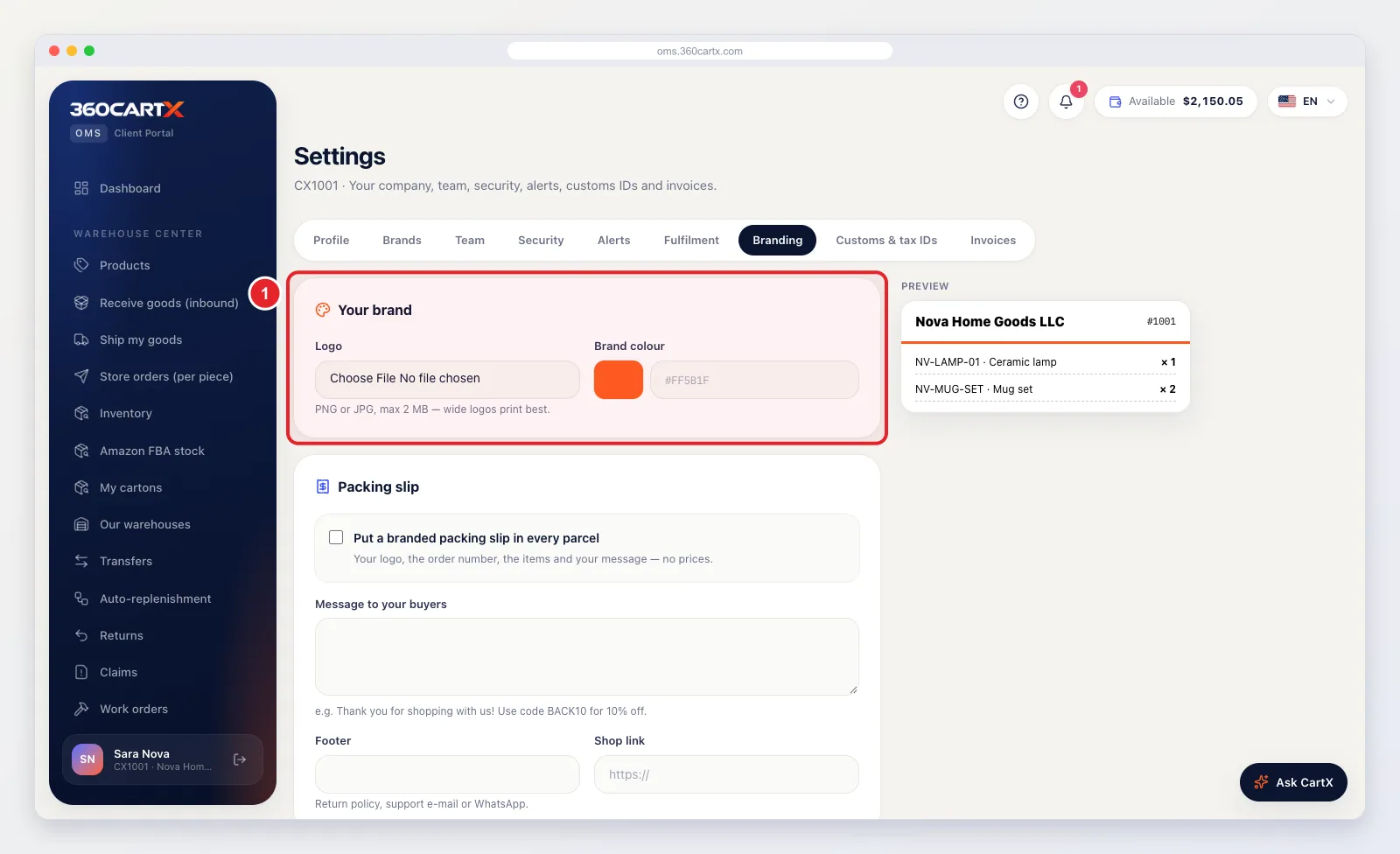
Open Settings, then the Branding tab. Under Your brand upload your Logo (PNG or JPG, 2 MB at most; wide logos print best) and type the Brand colour, for example #FF5B1F. Tick Remove the current logo to take it away.
- 2
Packing slip
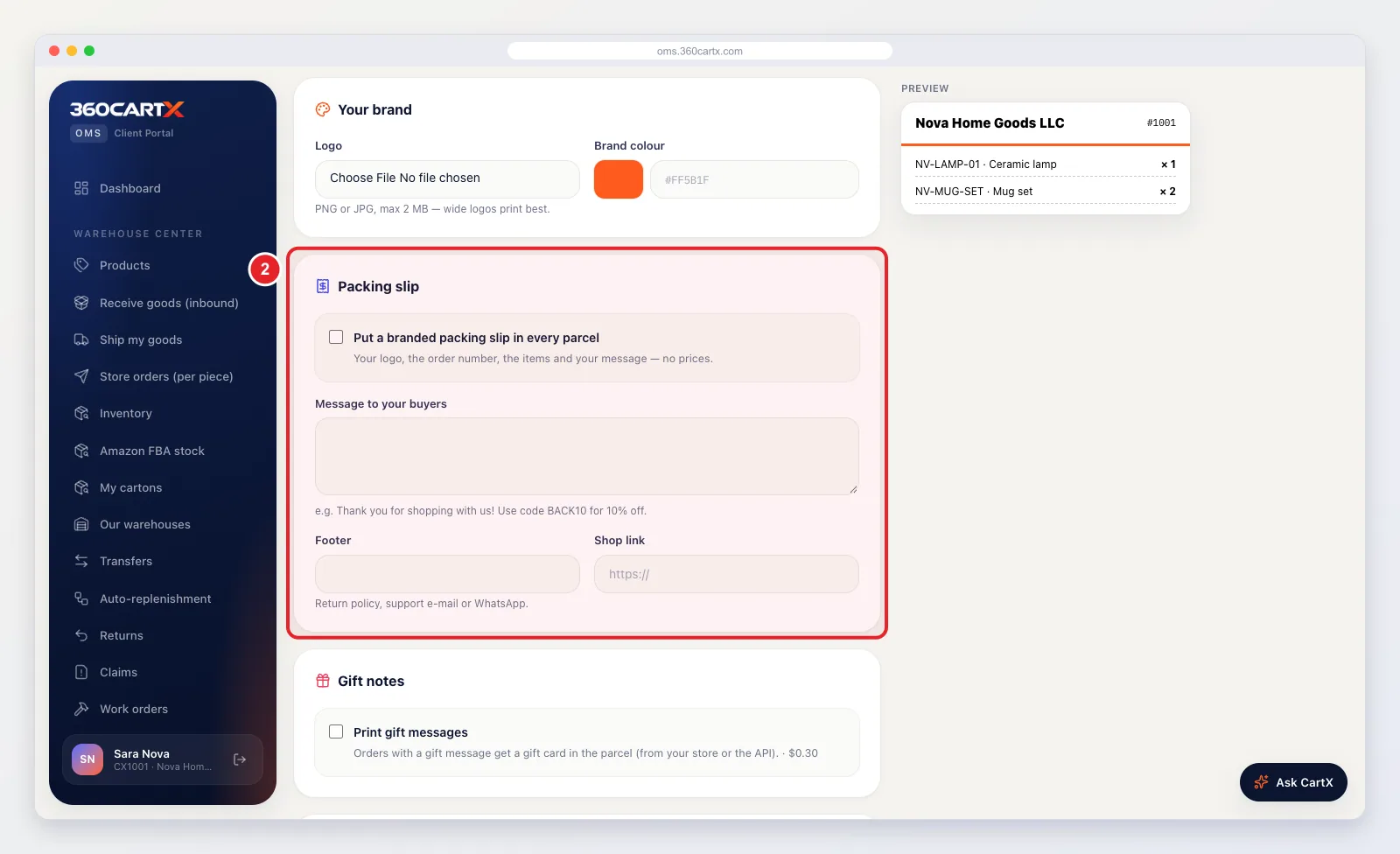
Switch on Put a branded packing slip in every parcel. The slip shows your logo, the order number, the items and your message, with no prices. Message to your buyers (up to 400 characters, for example Thank you for shopping with us!), Footer (return policy or support email, up to 300) and Shop link.
- 2a Packing slip switch
- 2b Message
- 2c Footer
- 3
Gift notes
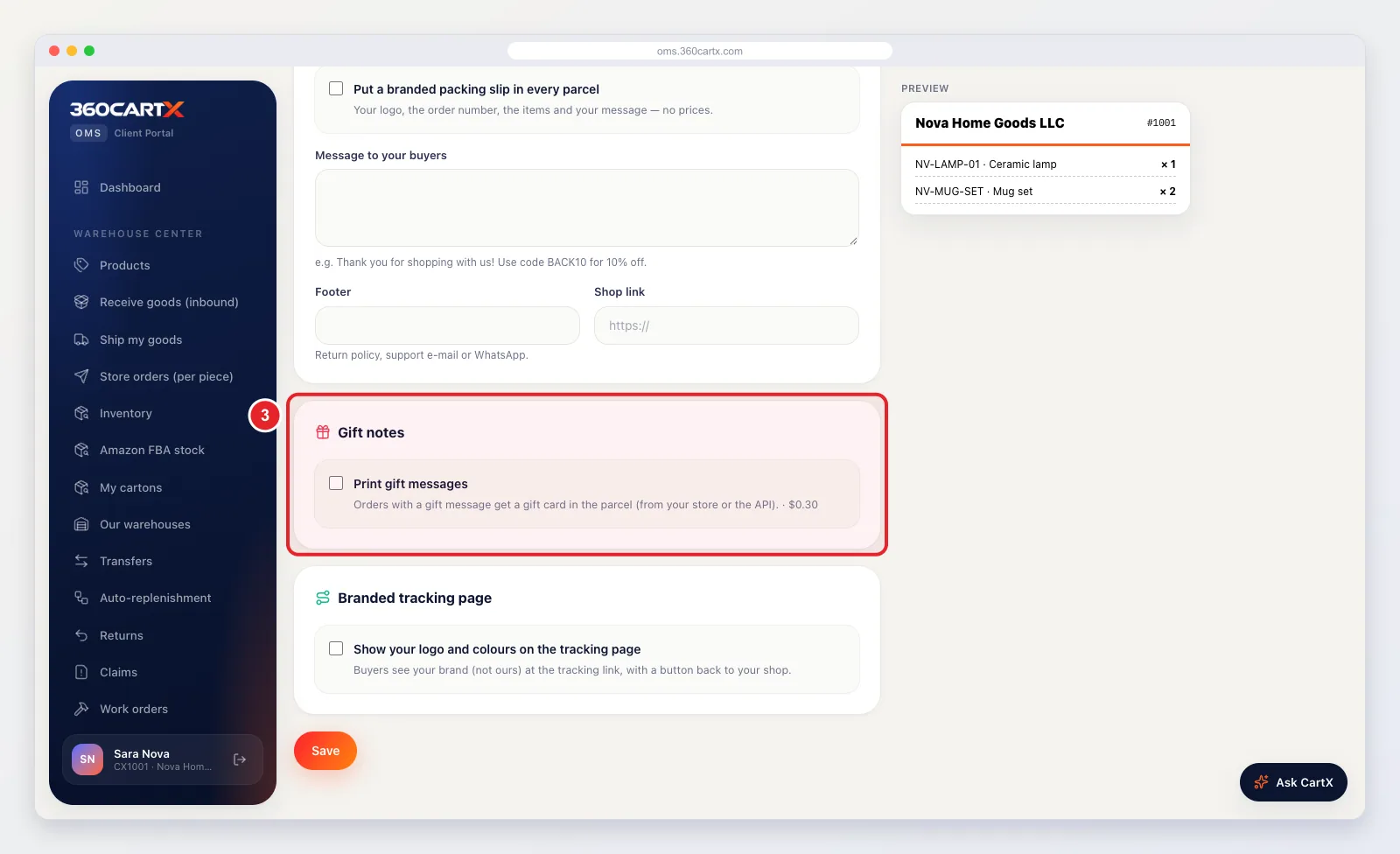
Switch on Print gift messages. Orders that carry a gift message get a gift card in the parcel. The message comes from your store or the API. A small fee can be shown next to the switch.
- 4
Branded tracking page
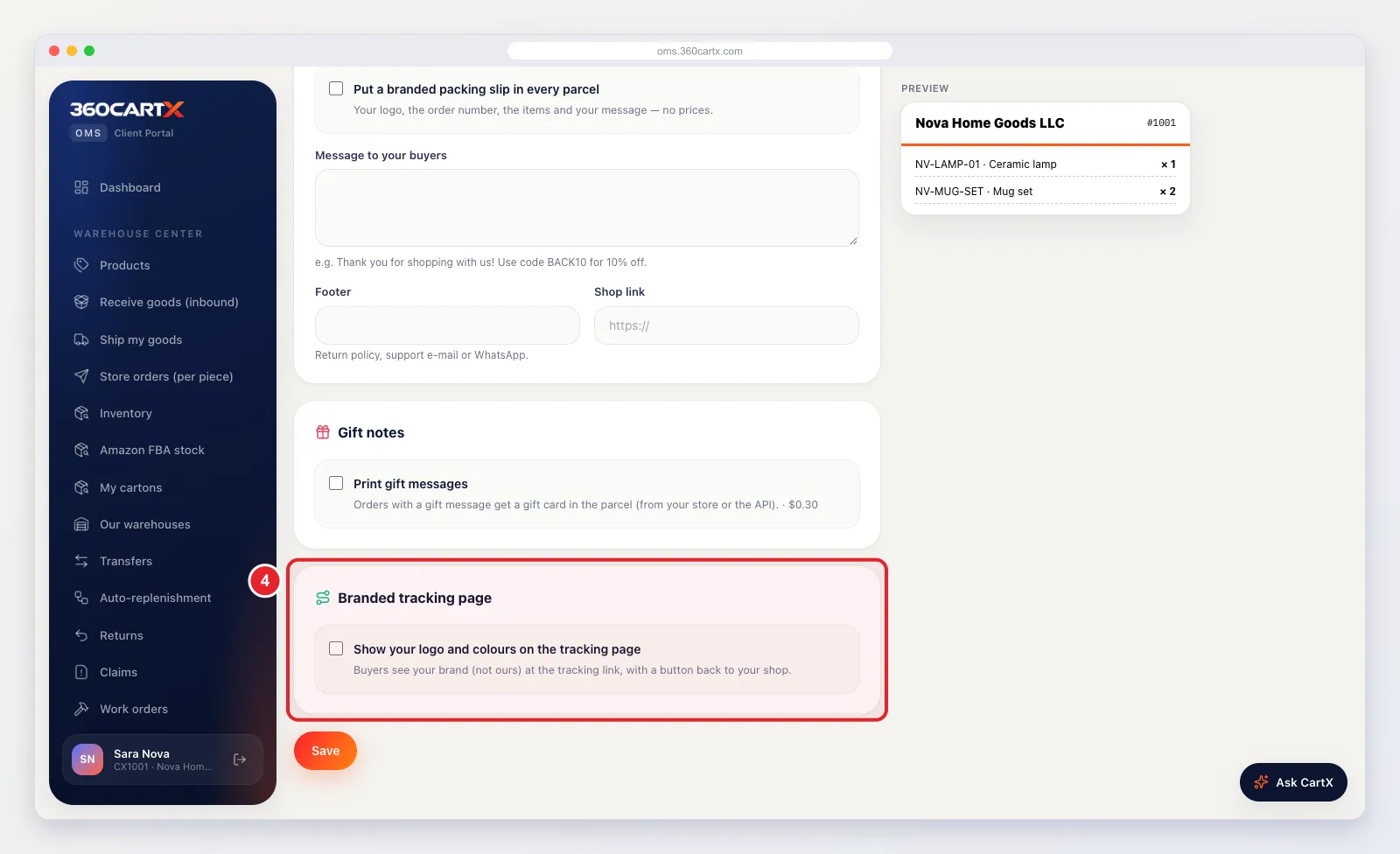
Switch on Show your logo and colours on the tracking page: buyers see your brand, not ours, at the tracking link, with a button back to your shop.
- 5
Gift message and signature on an order
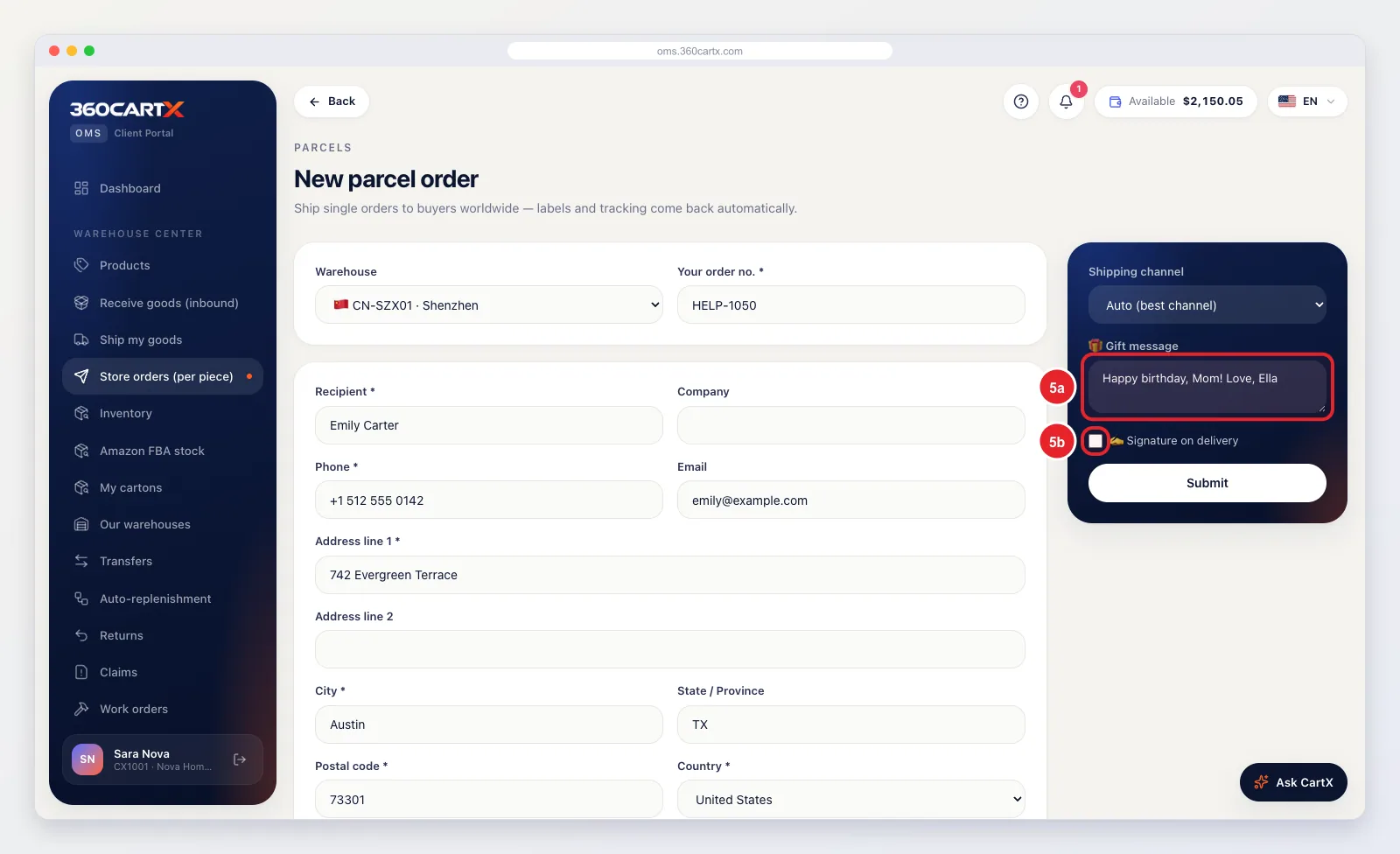
On New parcel order, the dark box has Gift message (300 characters at most) and Signature on delivery. The message is printed on the gift card only when Print gift messages is on.
- 5a Gift message
- 5b Signature on delivery
- 6
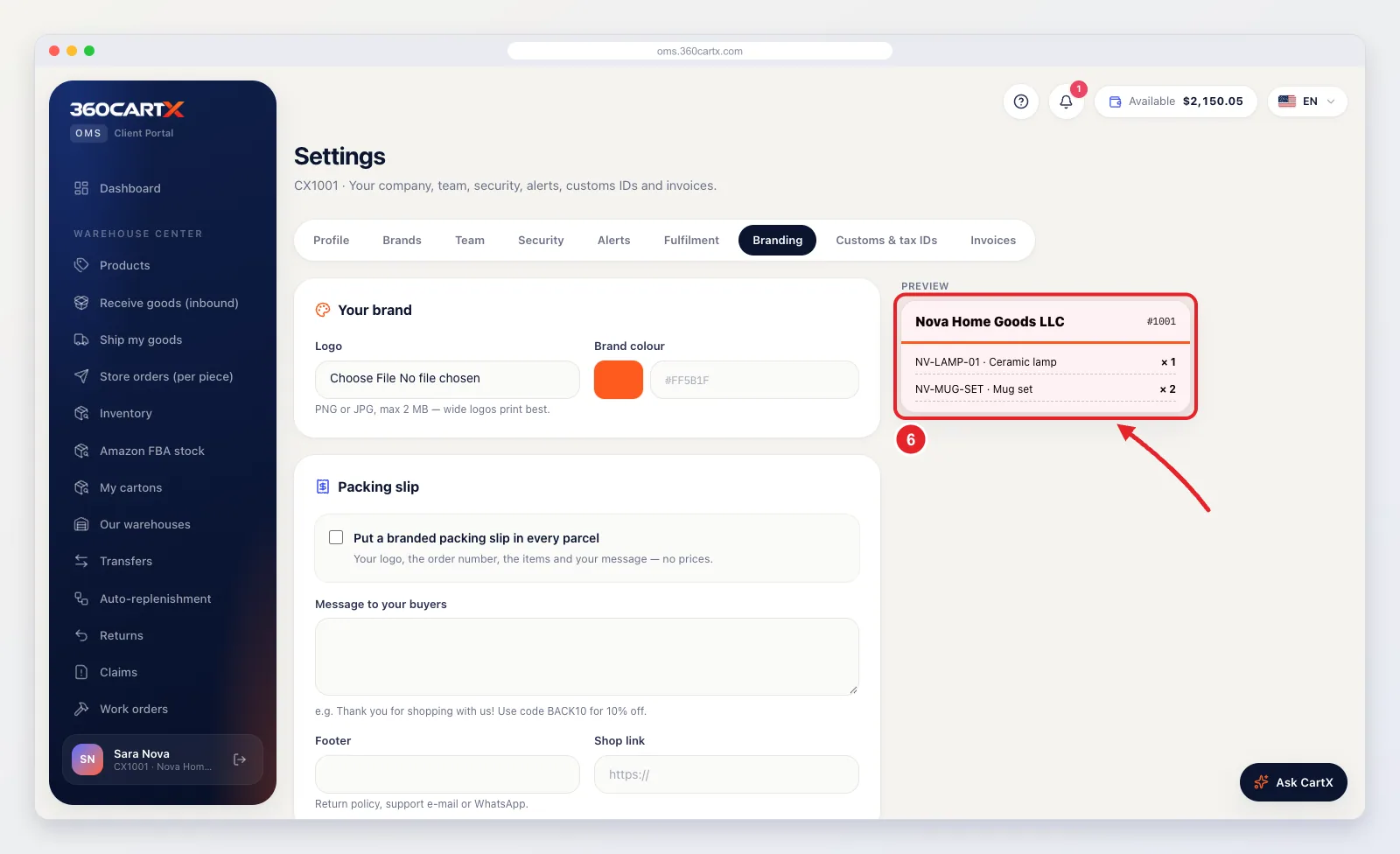
The preview
On the right of the Branding tab a preview of the slip shows your logo, colour, message, footer and a sample gift message. Check it before you save.
Tips
- The warehouse sees an alert on orders with a gift message (put the gift card in) and on orders that need a signature.
- Only owners and admins can change Branding.
Common problems
The gift message is not printed
Print gift messages is off. Switch it on in Settings → Branding. Orders already packed are not changed.
Related articles
Updated 2026-11-11
Open a ticket from Support in your portal and our team will reply.