Steps
- 1
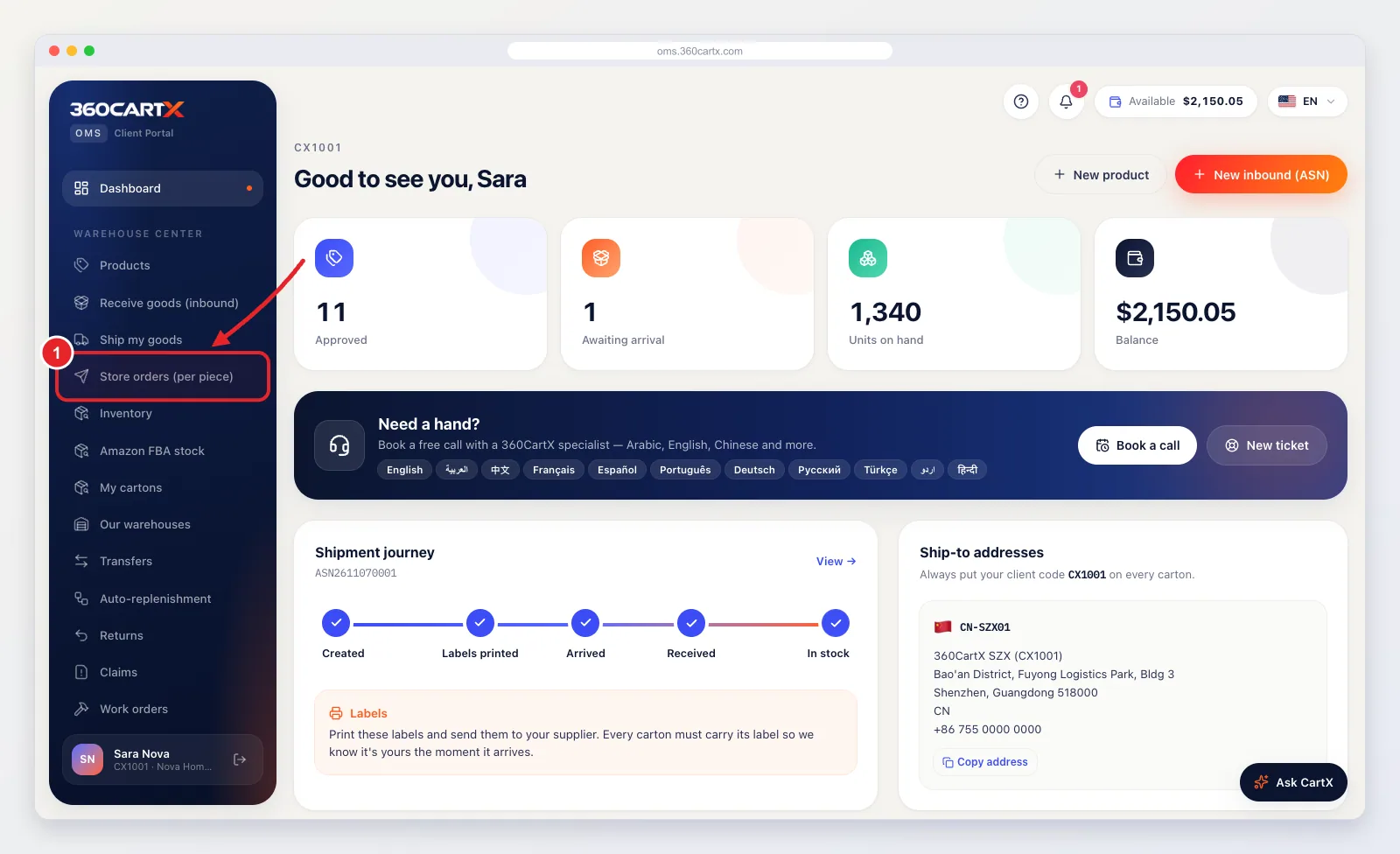
Open Store orders (per piece)
Click Store orders (per piece) under Warehouse Center in the left menu. The page is called Store orders and says: Every order from your stores, the API or Excel — follow it from received to delivered. Orders ship automatically with your carrier.
- 2
The three buttons
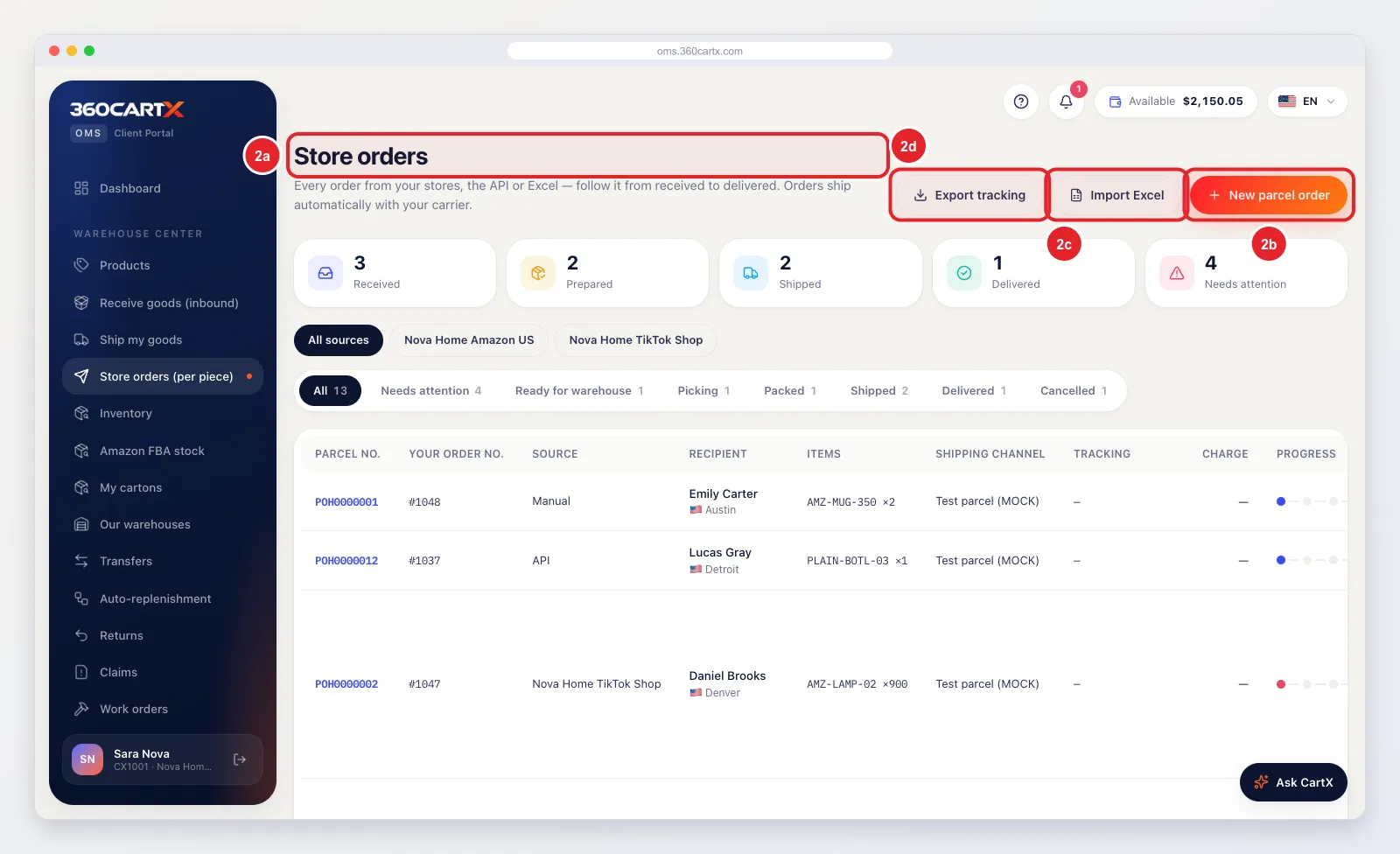
At the top right: Export tracking downloads a file with the tracking numbers of your shipped orders, Import Excel creates many orders from a spreadsheet, and New parcel order creates one order by hand.
- 2a Page title
- 2b New parcel order
- 2c Import Excel
- 2d Export tracking
- 3
The five stage cards
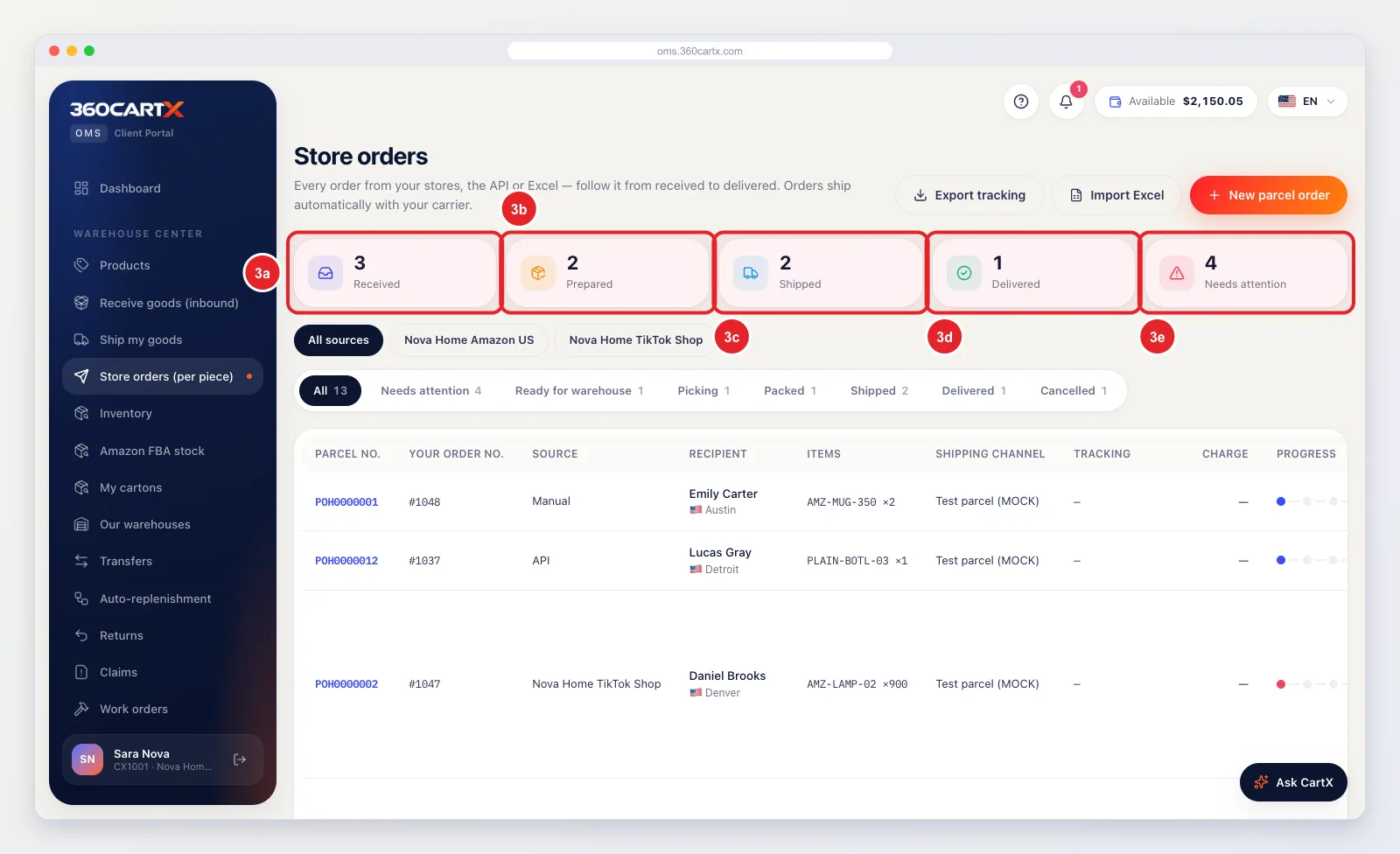
Each card shows how many orders are in a stage: Received (not yet in the warehouse), Prepared (being picked and packed), Shipped, Delivered and Needs attention. Click a card to open the list of that kind. Cancelled orders are in none of the cards.
- 3a Received
- 3b Prepared
- 3c Shipped
- 3d Delivered
- 3e Needs attention
- 4
Filter by store
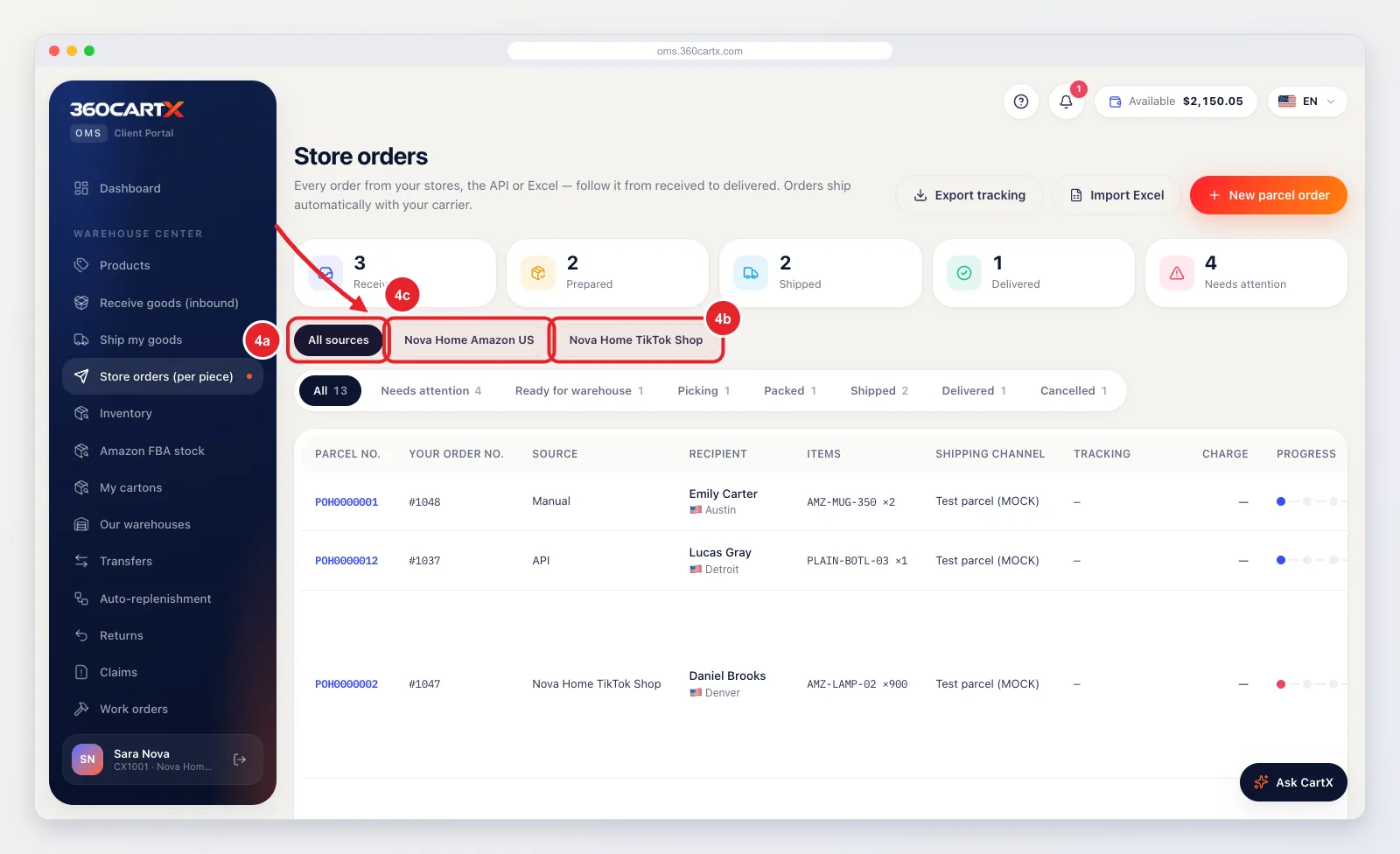
When you have connected stores, a row of buttons lists All sources and each store by name, for example Nova Home TikTok Shop. The row is not there if you have no store.
- 4a All sources
- 4b Store 1
- 4c Store 2
- 5
Only one store
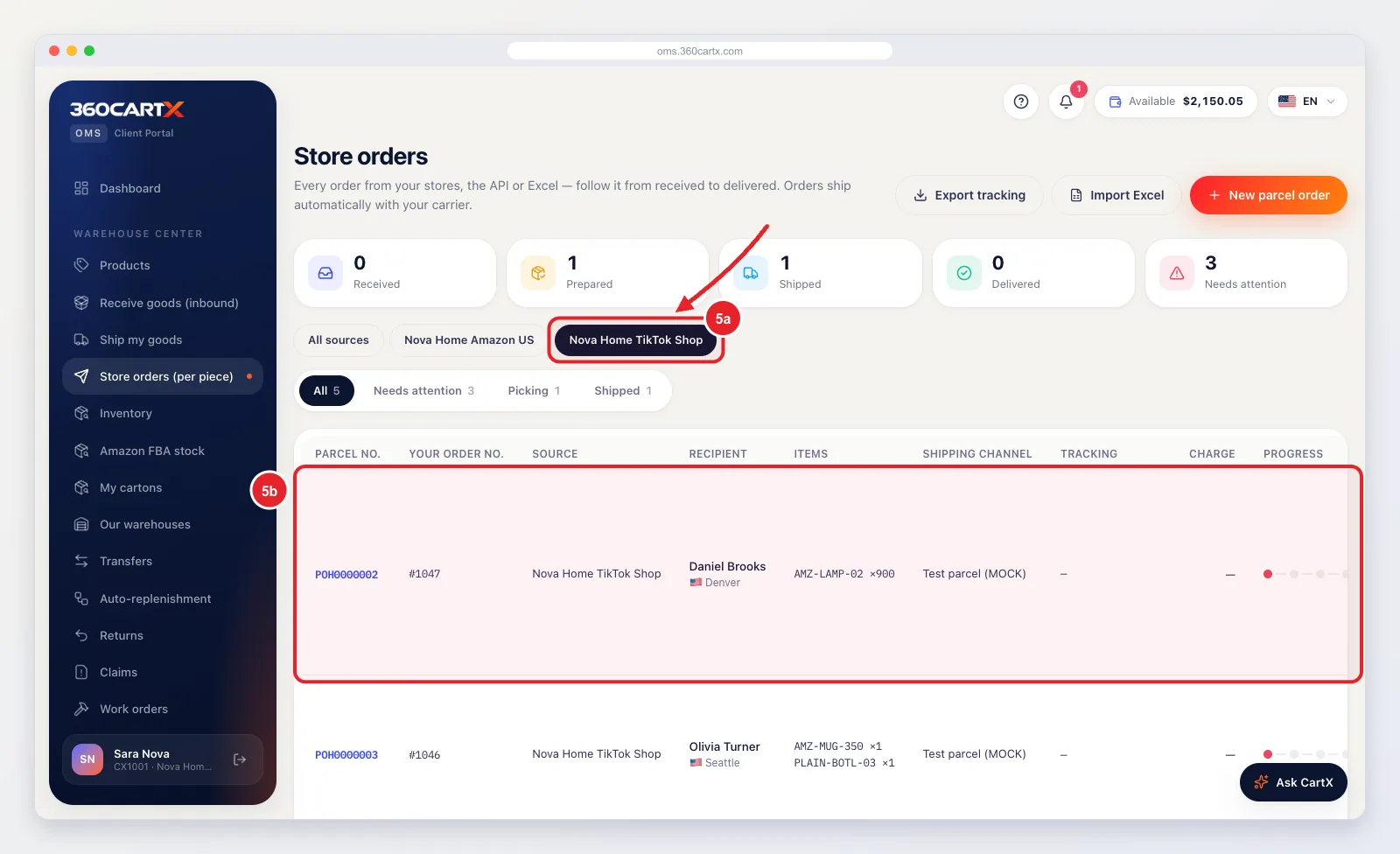
Click a store to see only its orders. The cards, the tabs and the table all follow the store you chose. Click All sources to see everything again.
- 5a Selected store
- 5b Its orders
- 6
The columns
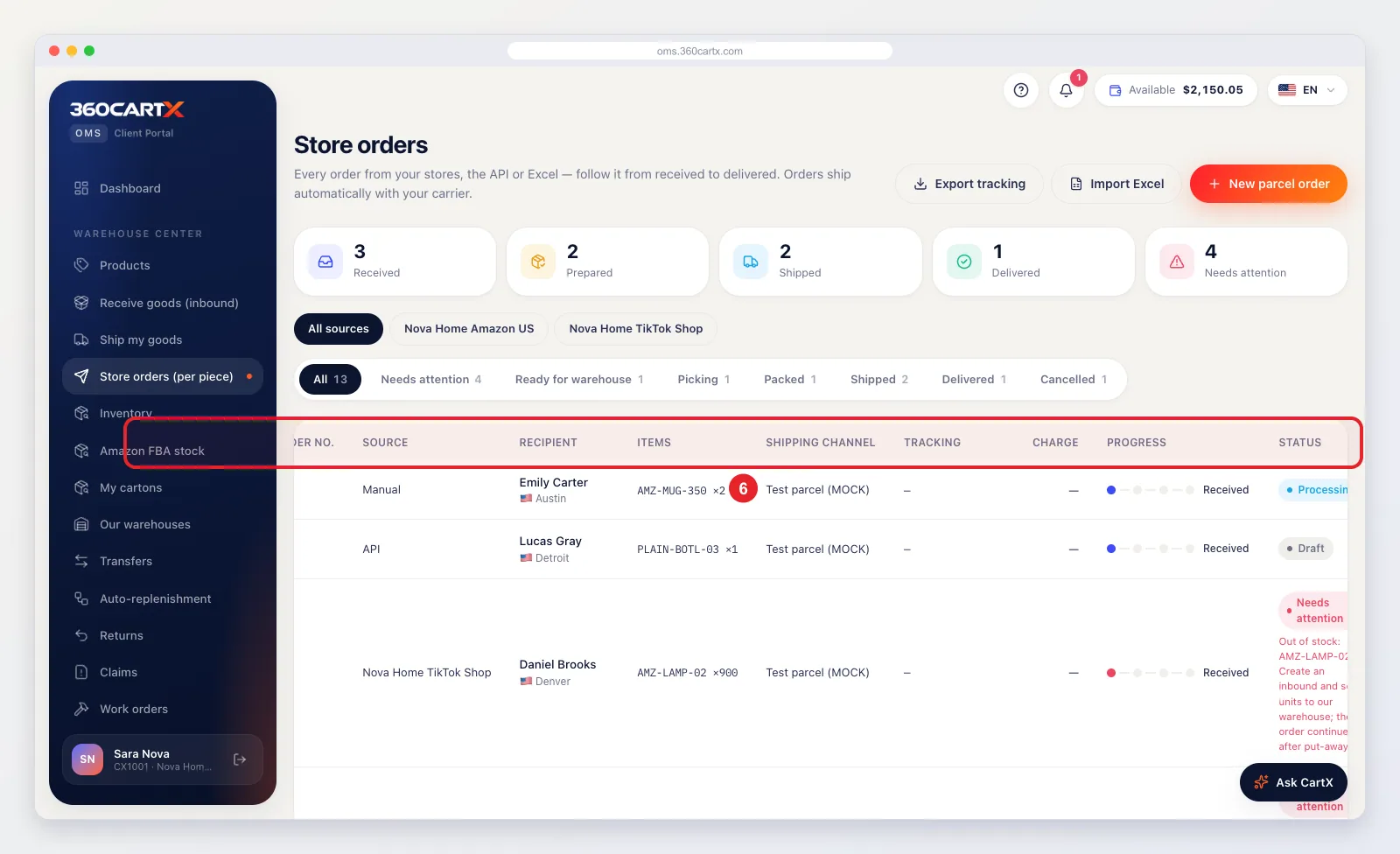
Parcel no., Your order no., Source, Recipient, Items, Shipping channel, Tracking, Charge, Progress, Status and Created. Orders are listed newest first, up to 300 at a time. Click the Parcel no. to open the order.
- 7
Read one row
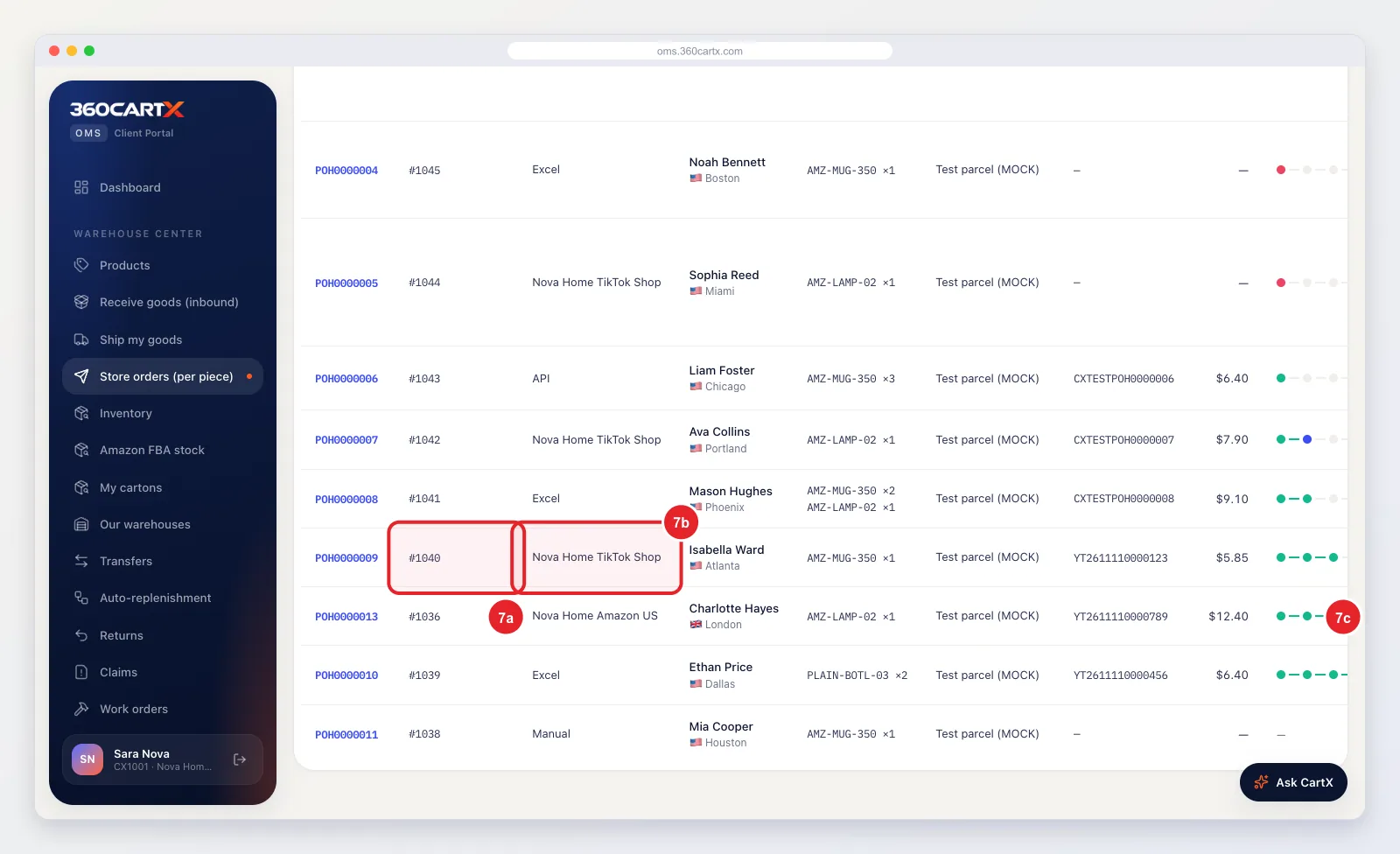
Your order no. is the number from your store, for example #1040. Source is the store name, or Manual, Excel or API. Charge is the price in US dollars and Tracking the carrier number; both are a dash until the label is bought. Progress shows the four stages Received, Prepared, Shipped and Delivered.
- 7a Your order no.
- 7b Source
- 7c Progress
- 8
A new account
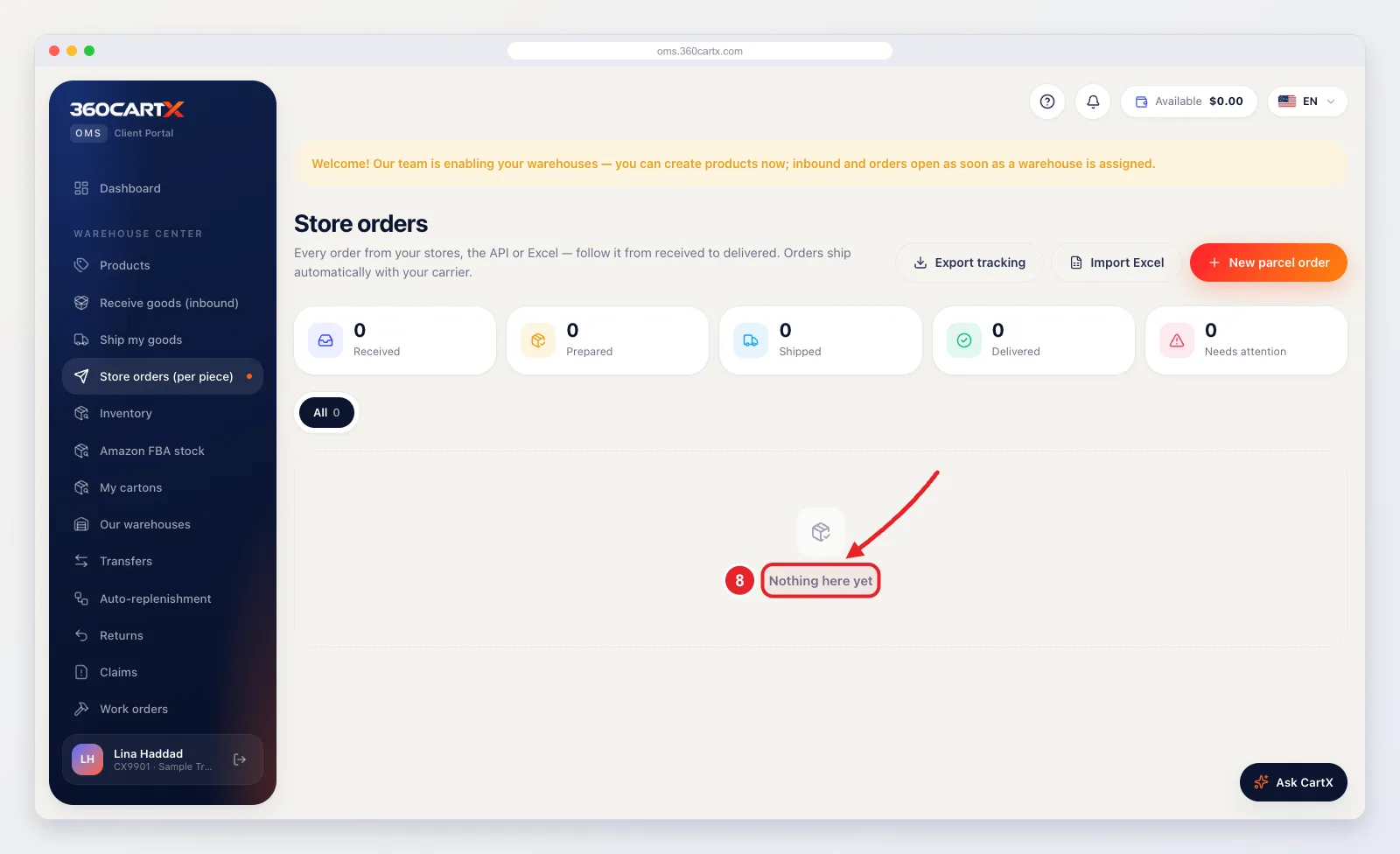
Before your first order the page shows Nothing here yet. Create an order by hand or connect a store.
Tips
- Use the status tabs above the table to filter. See Store order statuses explained.
- Anyone who opens the list or an order is recorded in the personal-data access log, because orders hold the buyer's name and address.
Common problems
The Received or Prepared card number is not the same as the list I get when I click it
The Received card counts every order that has not reached the warehouse yet, but opens only the Ready for warehouse orders. The Prepared card opens only Packed orders. Use the tabs under the cards to see the other statuses.
I do not see my store orders
Orders from a store appear after the store is connected and the import delay has passed. Open Integrations and check that the store shows no error.
Related articles
Updated 2026-11-11
Open a ticket from Support in your portal and our team will reply.