Steps
- 1
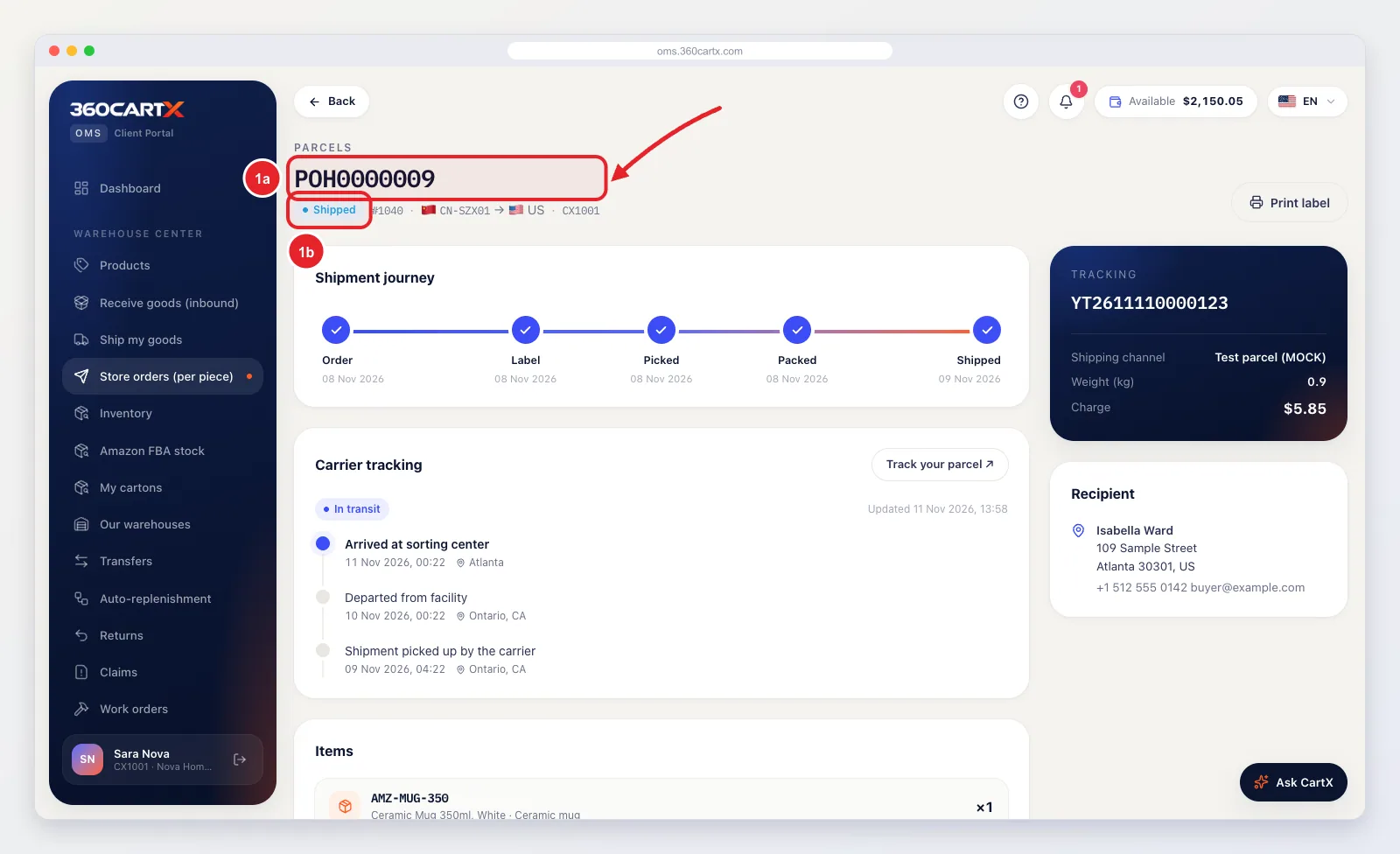
The title and the status
The title is the parcel number, for example POH0000009. Below it: the status, your order no. (#1040), the route from our warehouse to the buyer's country, and your client code. A Print label button appears once there is a tracking number.
- 1a Parcel number
- 1b Status
- 2
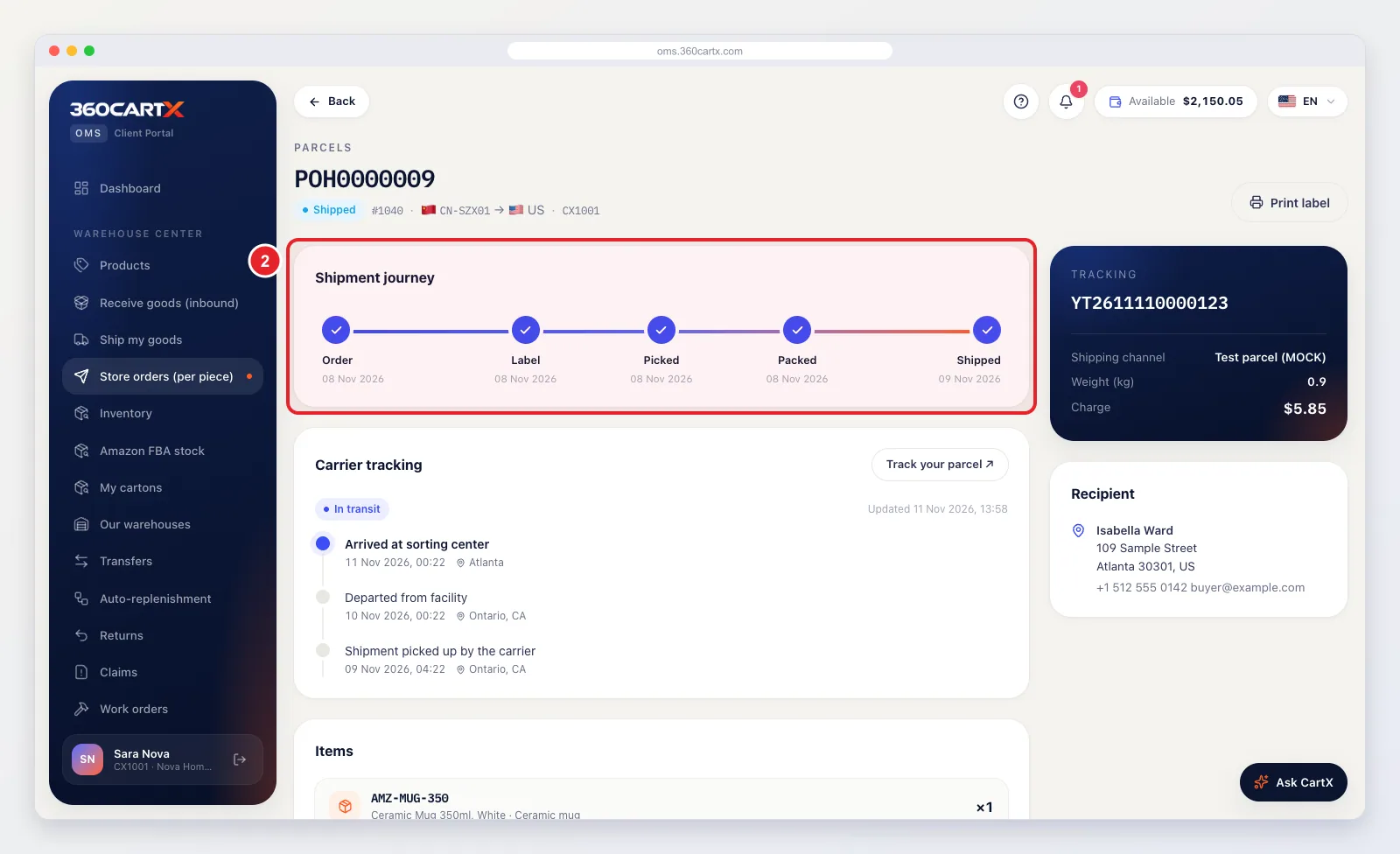
The journey
Five steps: Order, Label, Picked, Packed and Shipped, each with its date. The steps already done are filled in. A cancelled order has no journey.
- 3
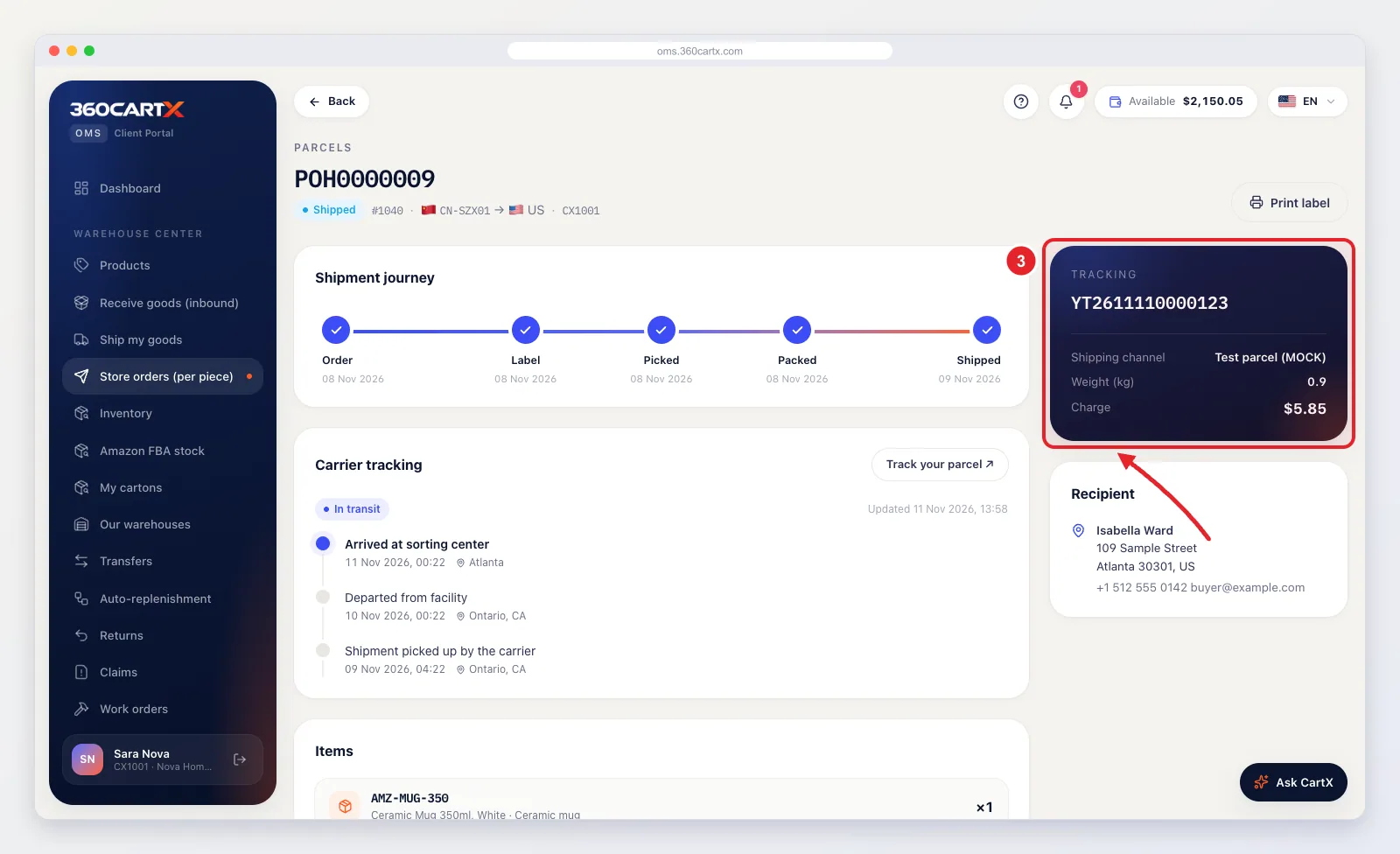
Tracking number and price
The dark box shows the Tracking number, the link to the carrier's own tracking page, the Shipping channel, the Weight in kg (a ~ in front means estimated) and the Charge, in US dollars. Before the label is bought it shows Estimate and a dash. Customs and government fees, if any, are shown inside it.
- 3a Tracking
- 3b Shipping channel
- 3c Charge
- 4
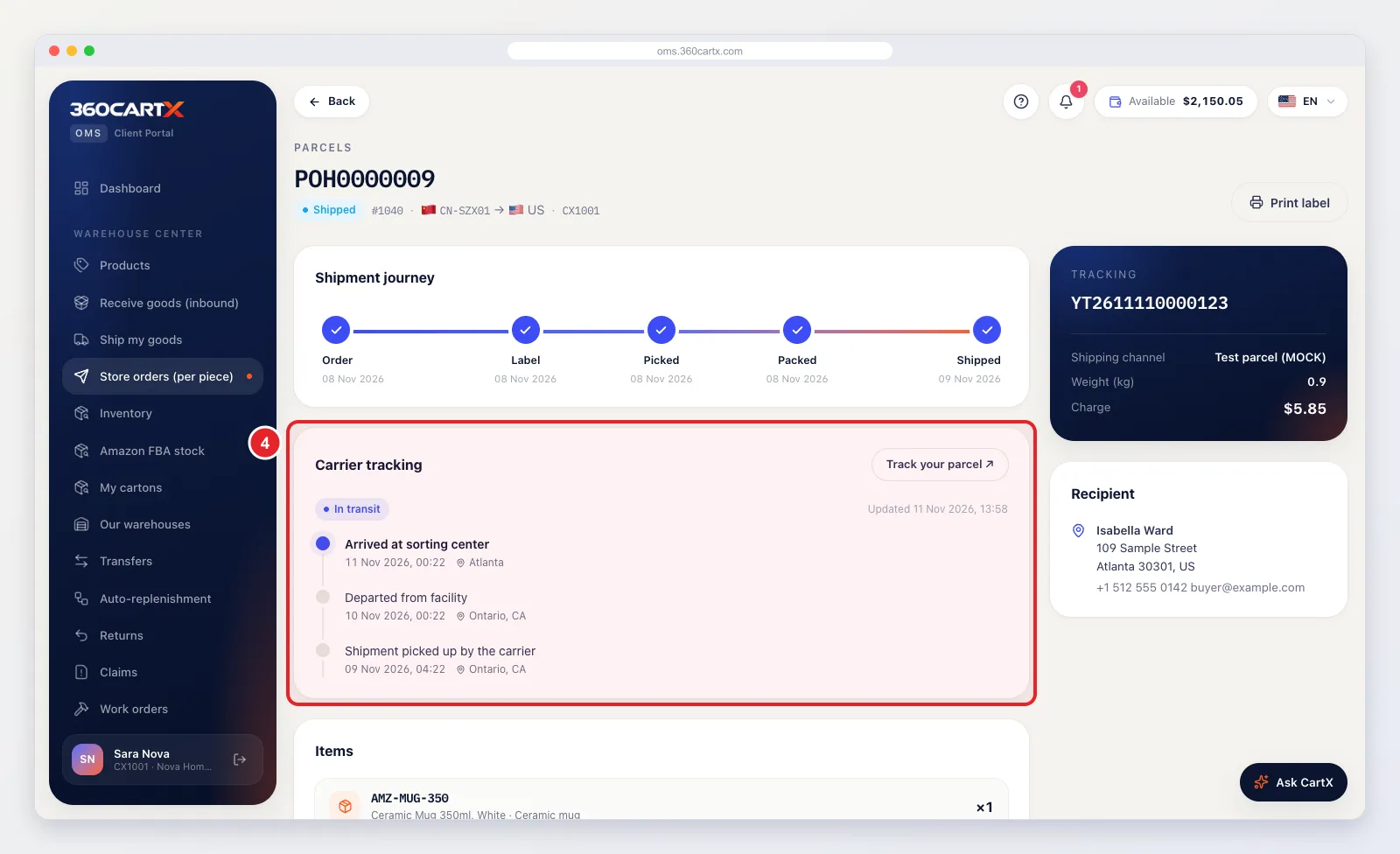
Carrier tracking events
From Shipped on, Carrier tracking lists every scan with date, place and text, newest first, the estimated delivery date and when it was last updated. Before the first scan it says Waiting for the first carrier scan.
- 5
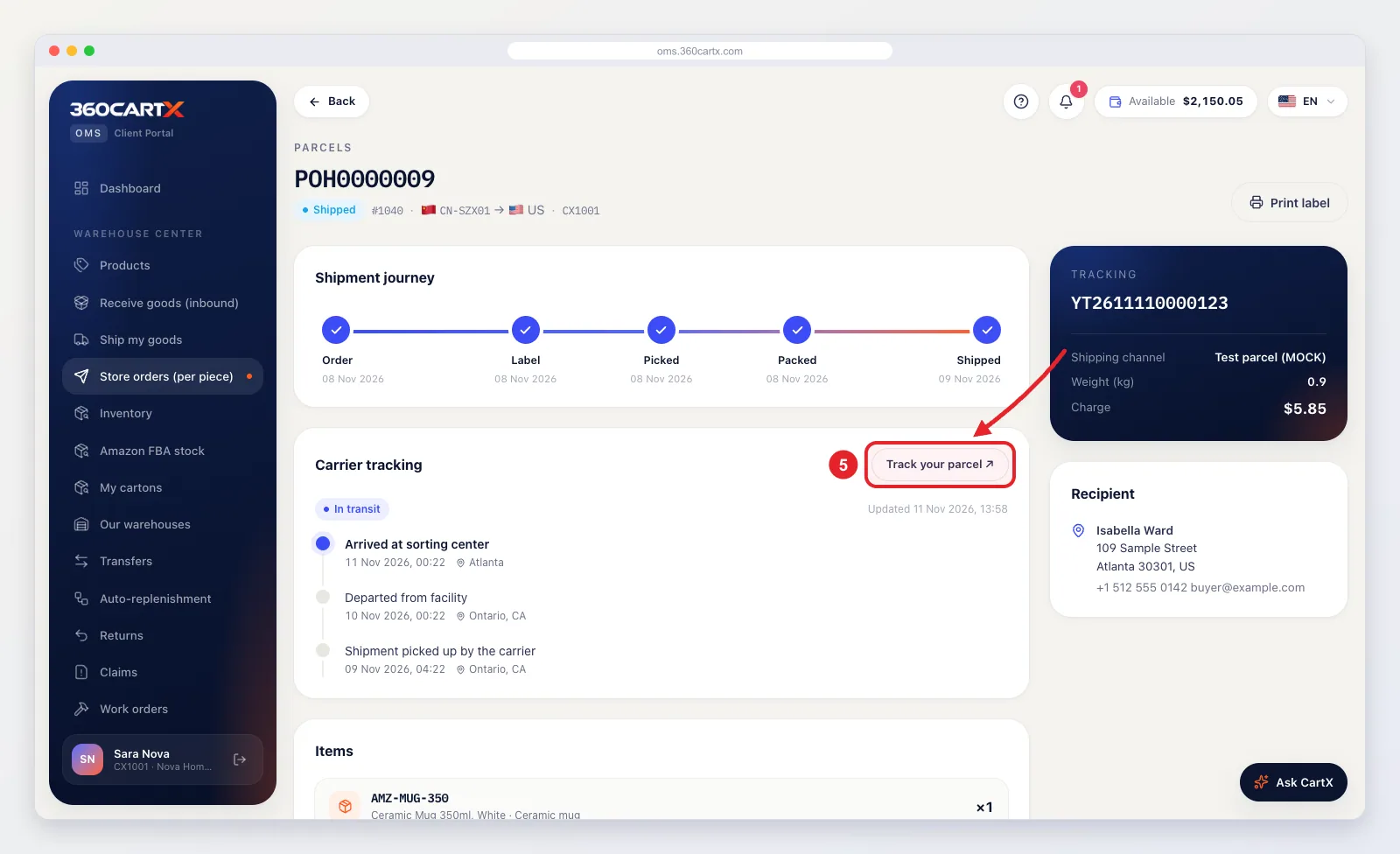
Share the public tracking page
Track your parcel opens a public page for this tracking number. Copy its link to your buyer: they see the events without signing in. With Branded tracking page on in Settings → Branding, the page shows your logo and colours.
- 6
Items and recipient
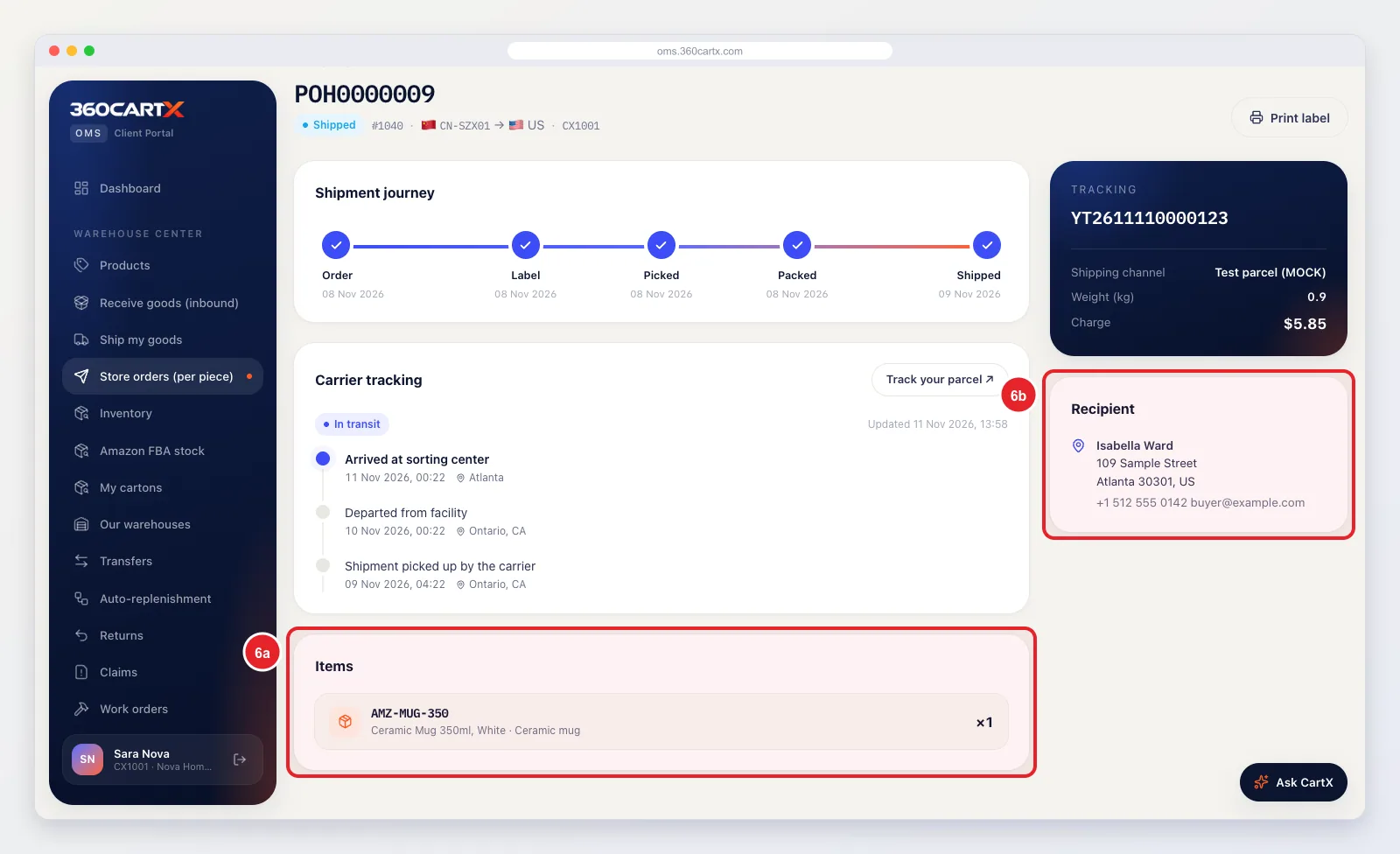
Items lists the SKU, name and quantity of every line; the dark chips show the shelf location each unit is taken from and turn green when picked. Recipient shows the name, company, address, phone and email.
- 6a Items
- 6b Recipient
- 7
The carrier's status words
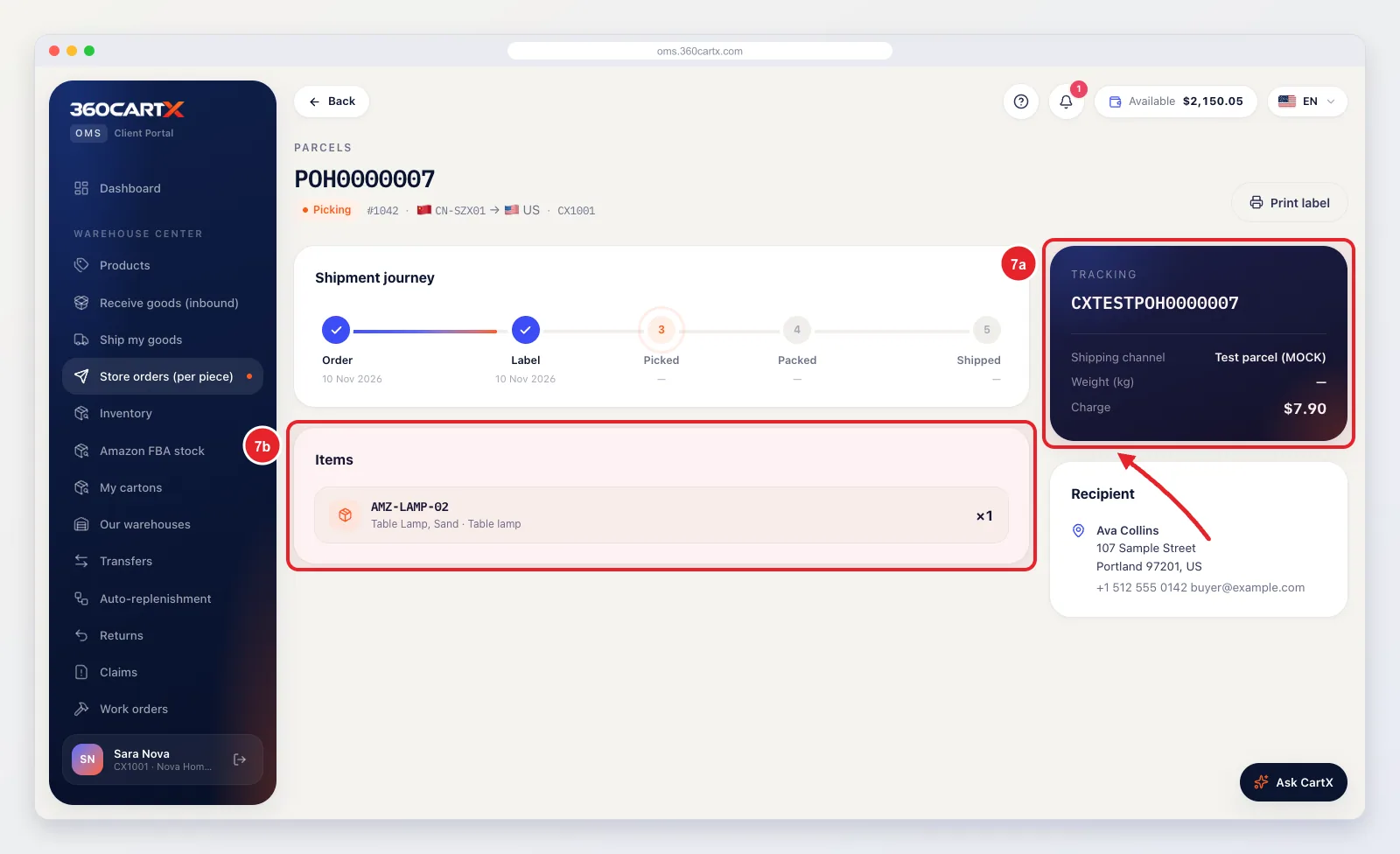
The status of the carrier is one of: Awaiting carrier, Info received, In transit, Out for delivery, Delivery attempt failed, Delivered, Ready for pickup, Exception and Tracking expired. When the order is in the warehouse the page shows the shelf locations instead.
- 7a Tracking number
- 7b Items
Tips
- New parcels appear in the carrier system within a few hours of dispatch: the first scan may take that long.
- Send the tracking numbers back to your store with Export tracking, or let the store connection do it automatically.
Common problems
Waiting for the first carrier scan
The parcel was handed to the carrier but has no scan yet. Wait a few hours.
Delivery attempt failed
The carrier could not deliver. Contact your buyer to check the address and phone; the carrier tries again or holds the parcel. Open a ticket in Help & support if it keeps failing.
Tracking expired
The carrier stopped updating this number. Use the carrier's link for the last status.
Related articles
Updated 2026-11-11
Open a ticket from Support in your portal and our team will reply.