Steps
- 1
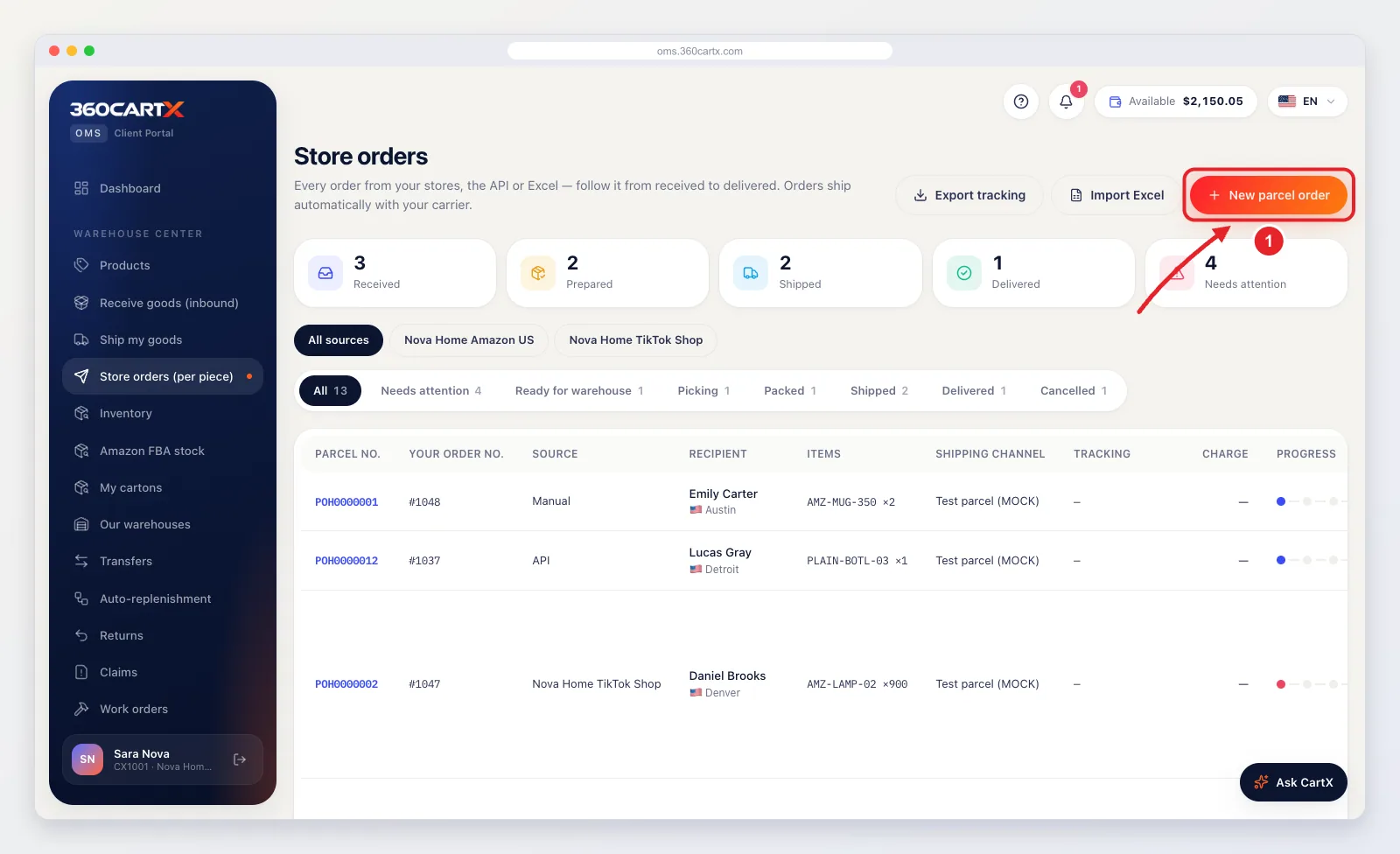
Click New parcel order
On Store orders click New parcel order at the top right. The form opens with the title New parcel order.
- 2
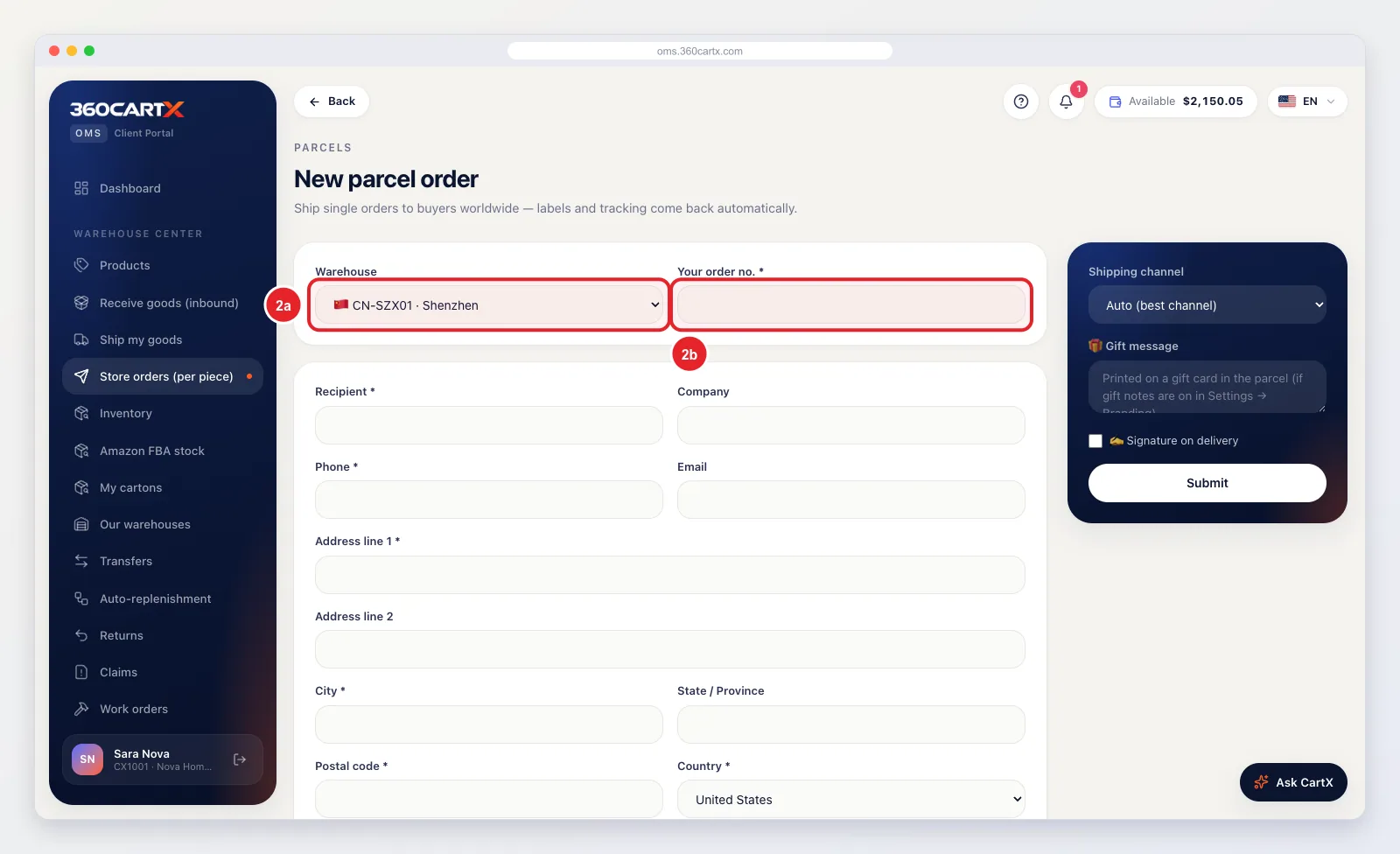
Warehouse and your order number
Warehouse is the warehouse that ships the order, for example US-LAX01 · Ontario; it lists only your active warehouses. Your order no. is your own reference, for example HELP-1050. It must be new: every order number can be used once.
- 2a Warehouse
- 2b Your order no.
- 3
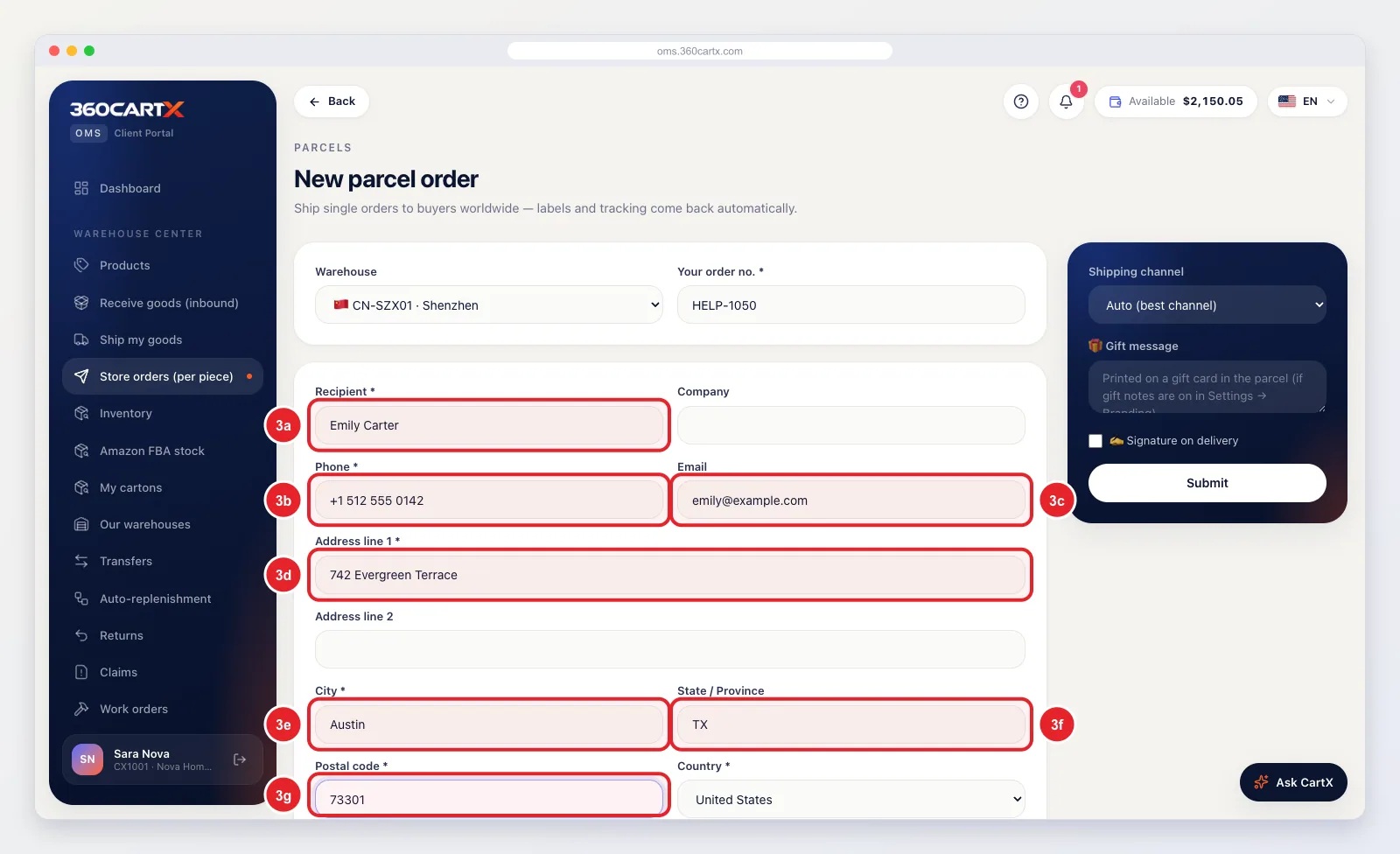
The buyer's address
Fill in Recipient (for example Emily Carter), Phone with the country code (+1 512 555 0142), optionally Email and Company, then Address line 1 (742 Evergreen Terrace), City (Austin), State / Province (TX) and Postal code (73301). Recipient, Phone, Address line 1, City, Postal code and Country are required.
- 3a Recipient
- 3b Phone
- 3c Email
- 3d Address
- 3e City
- 3f State
- 3g Postal code
- 4
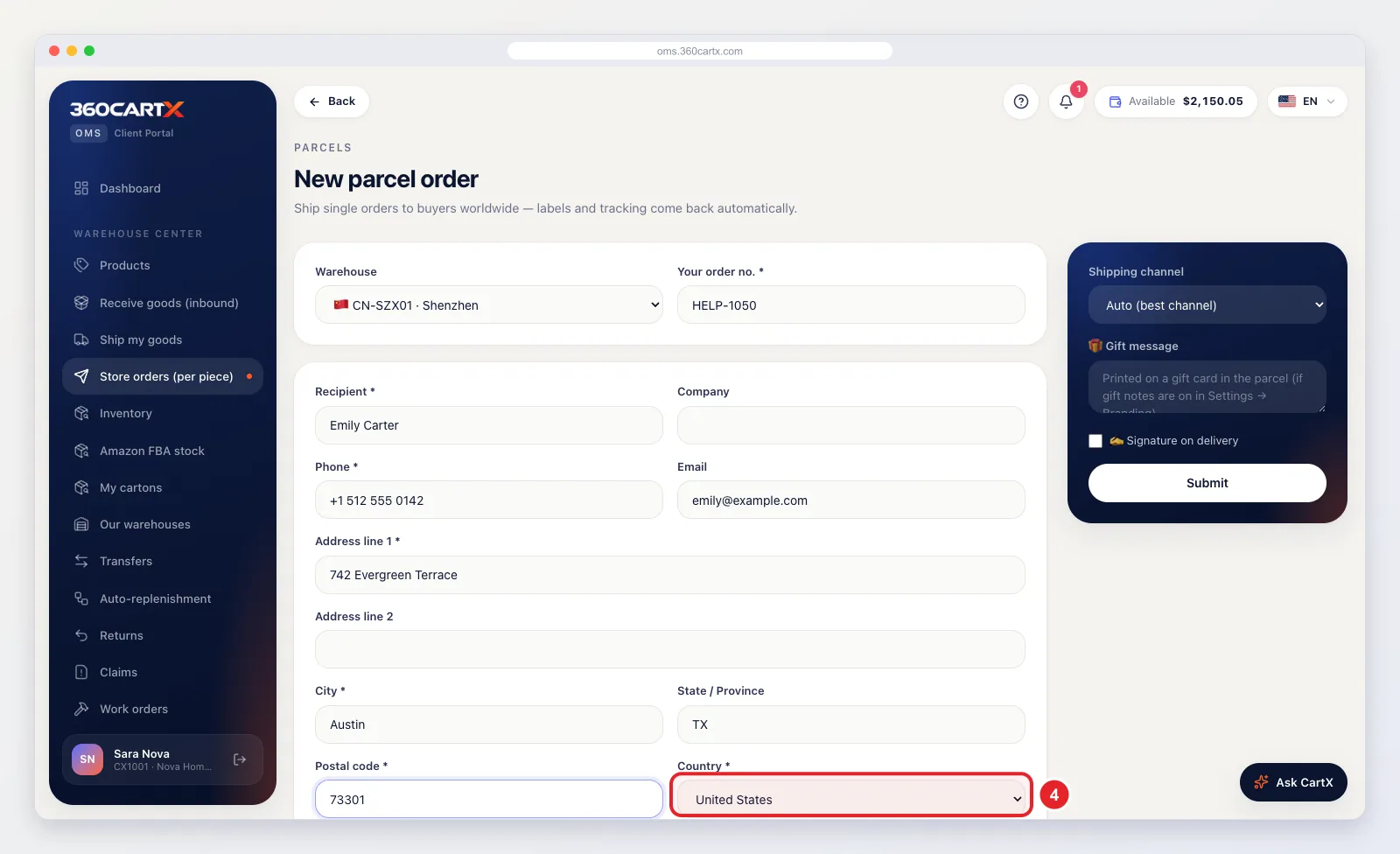
Choose the country
Country starts at United States. Every country is listed except China: orders go to buyers outside China. The shipping channels offered depend on this country.
- 5
Choose the items
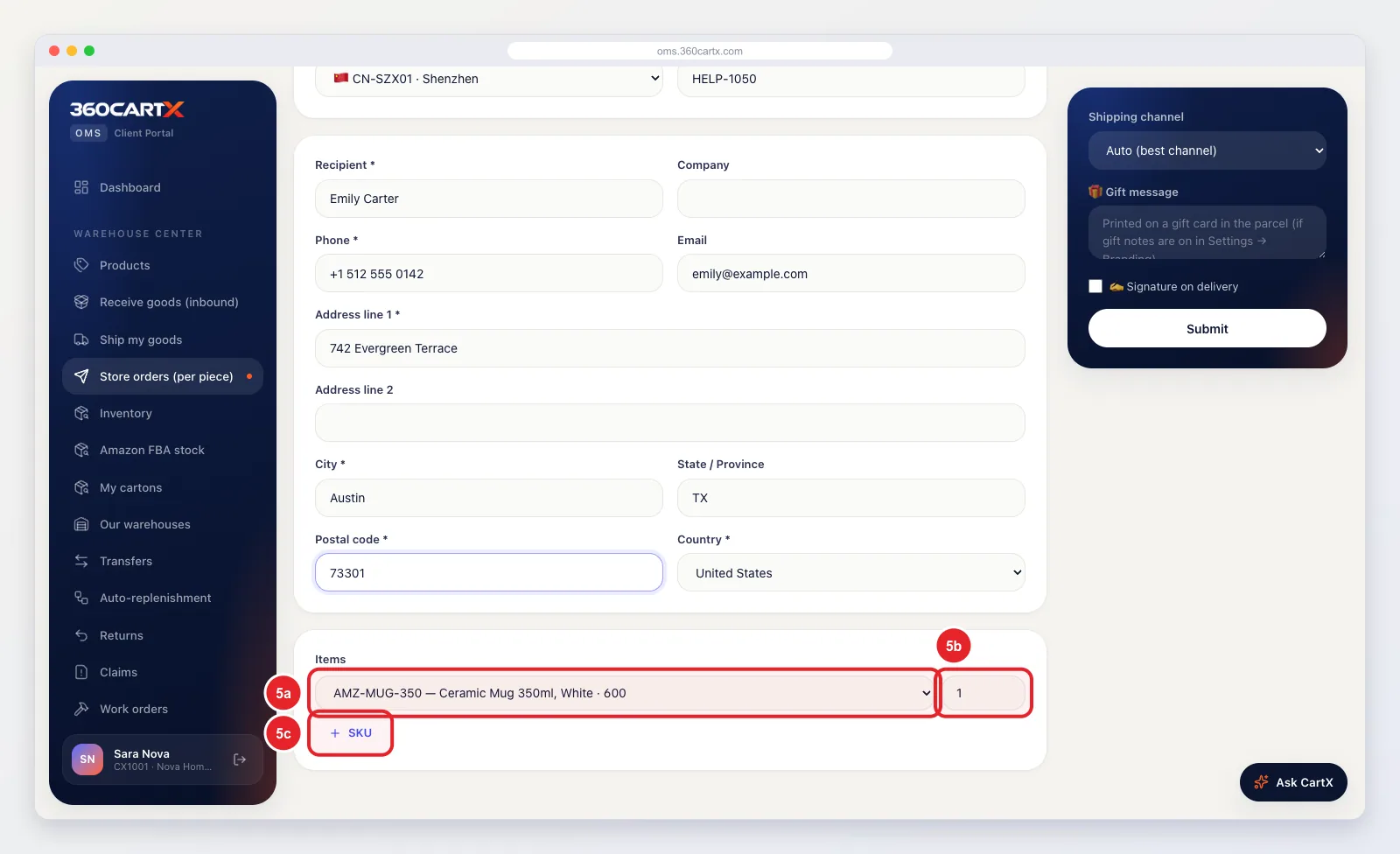
Under Items pick a product and type the quantity. Each product shows how many units are available in the chosen warehouse, for example AMZ-MUG-350 — Ceramic Mug 350ml, White · 600. Only approved products are listed. + SKU adds another product and the bin removes a line.
- 5a Product
- 5b Quantity
- 5c + SKU
- 6
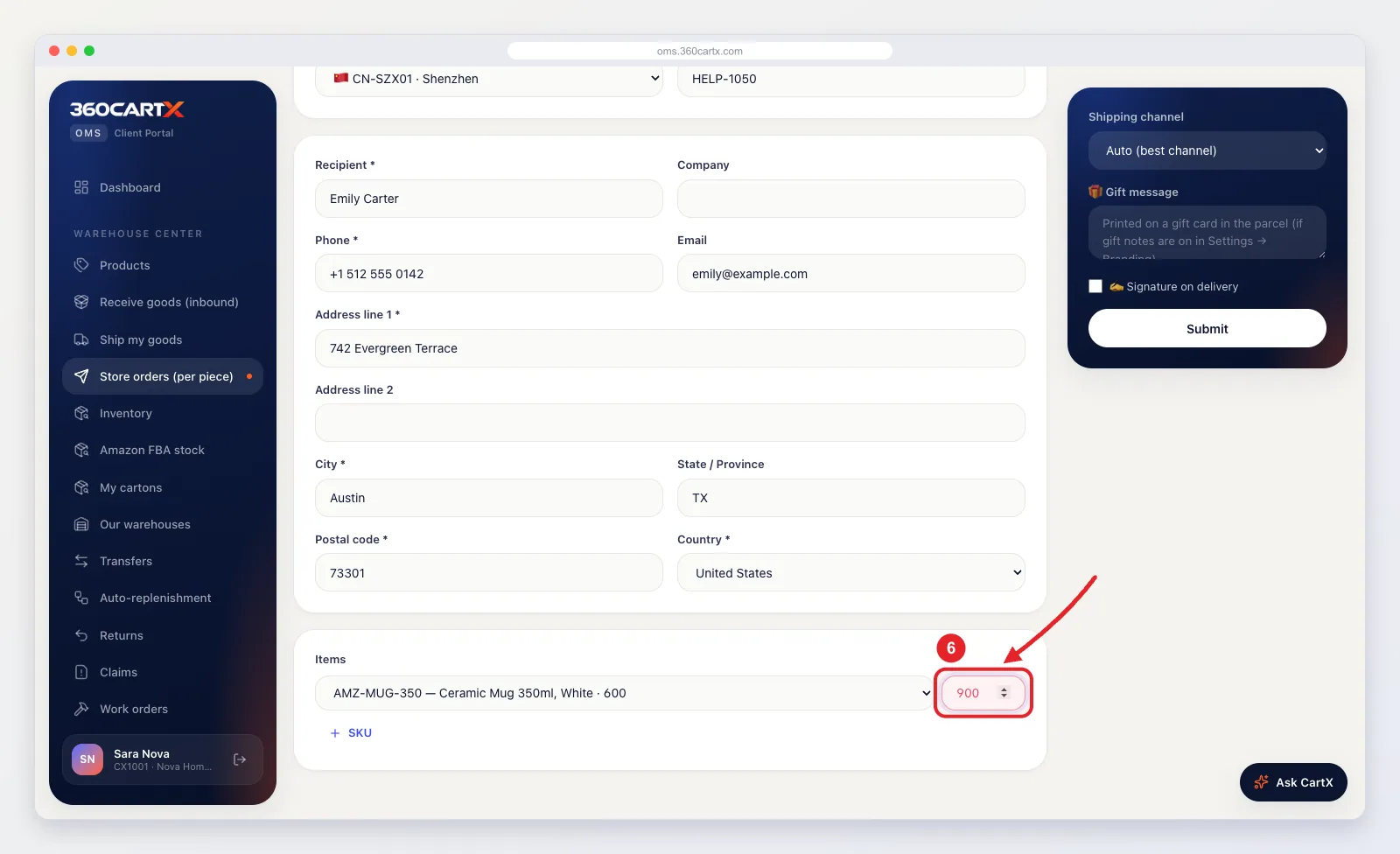
More than you have
If the quantity is higher than the available stock the number turns red. You can still send the order; it goes to Needs attention with Out of stock and continues when stock arrives (see Ship what is in stock now).
- 7
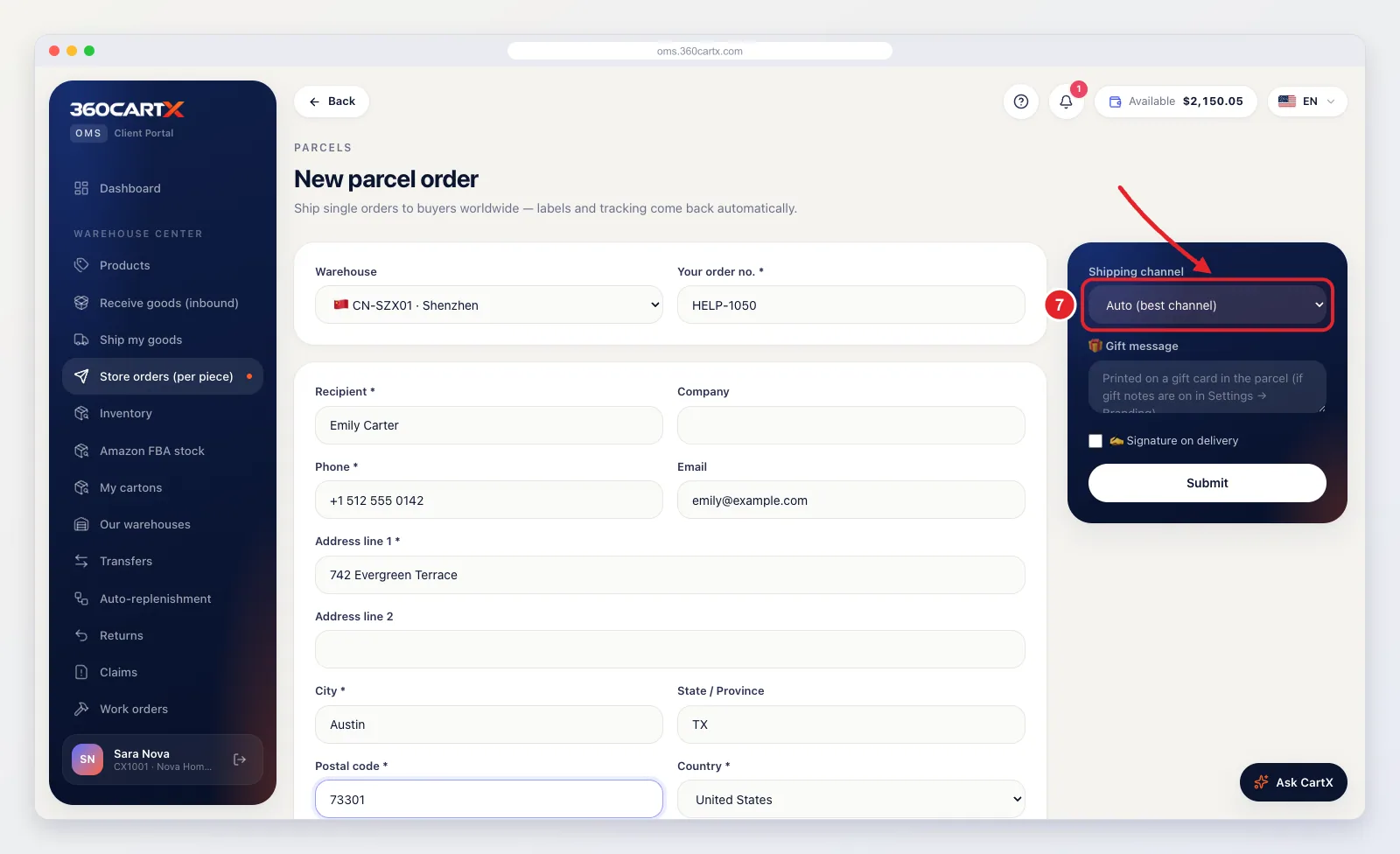
Shipping channel
In the dark box on the right, Shipping channel starts at Auto (best channel): we choose the carrier for this country and weight. You can pick a channel from the list instead. A channel marked (API pending) is not connected yet.
- 8
Gift message and signature
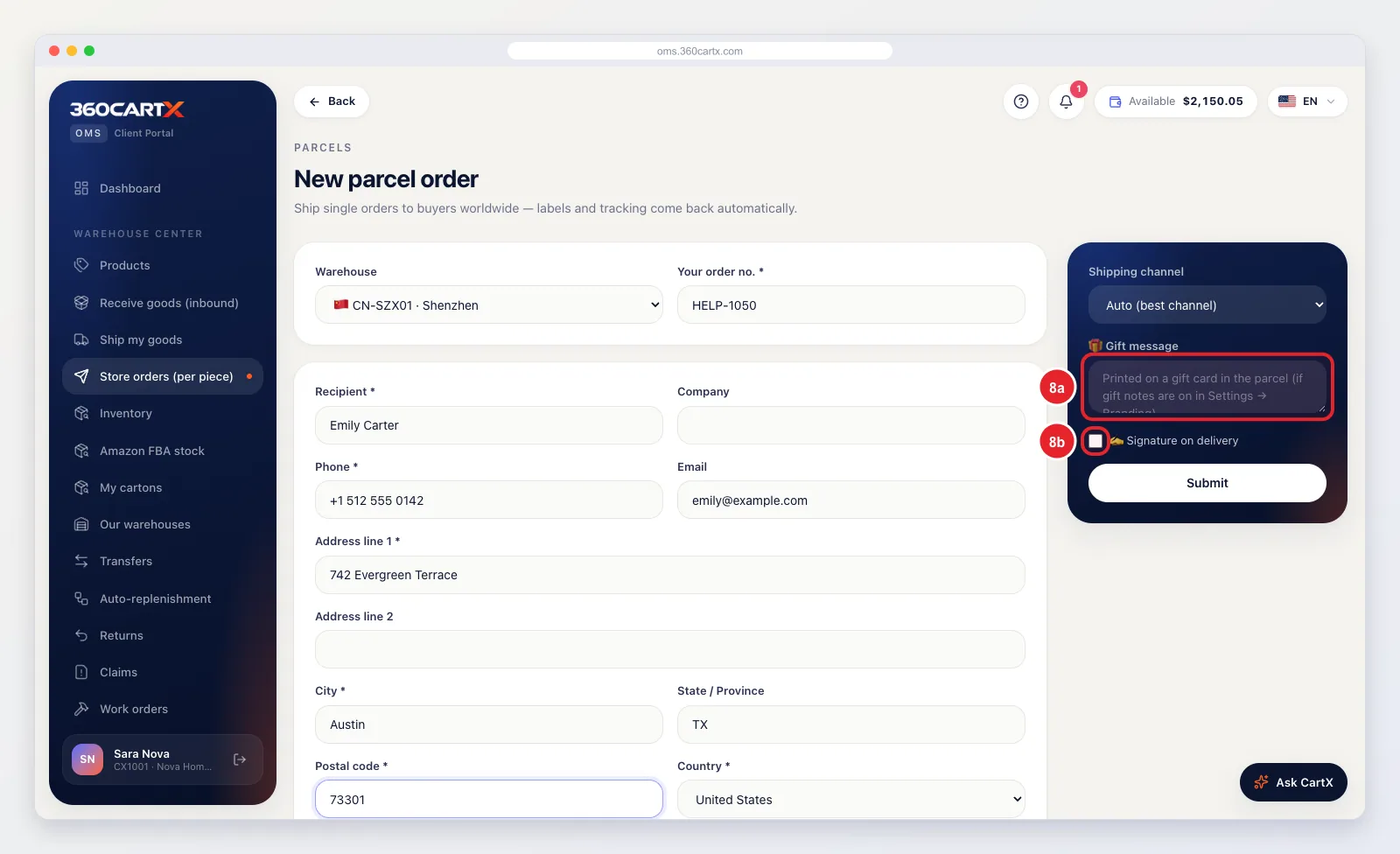
Gift message (up to 300 characters) is printed on a gift card in the parcel when Gift notes are on in Settings → Branding. Signature on delivery asks the carrier for the signature service.
- 8a Gift message
- 8b Signature on delivery
- 9
Submit and common errors
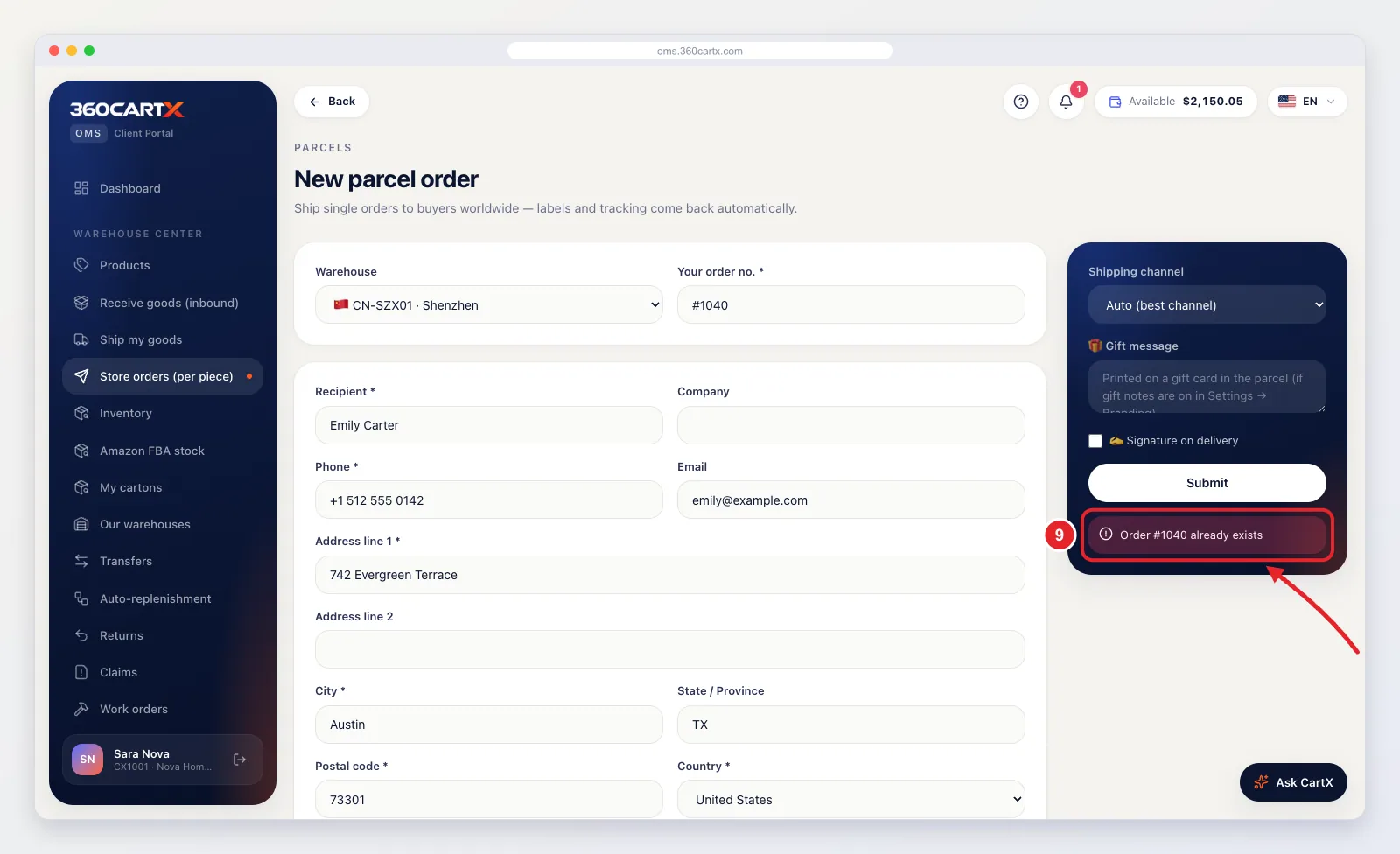
Click Submit. If something is wrong a red message appears in the dark box, for example Order #1040 already exists when the order number is taken. Fix it and press Submit again.
- 10
After Submit
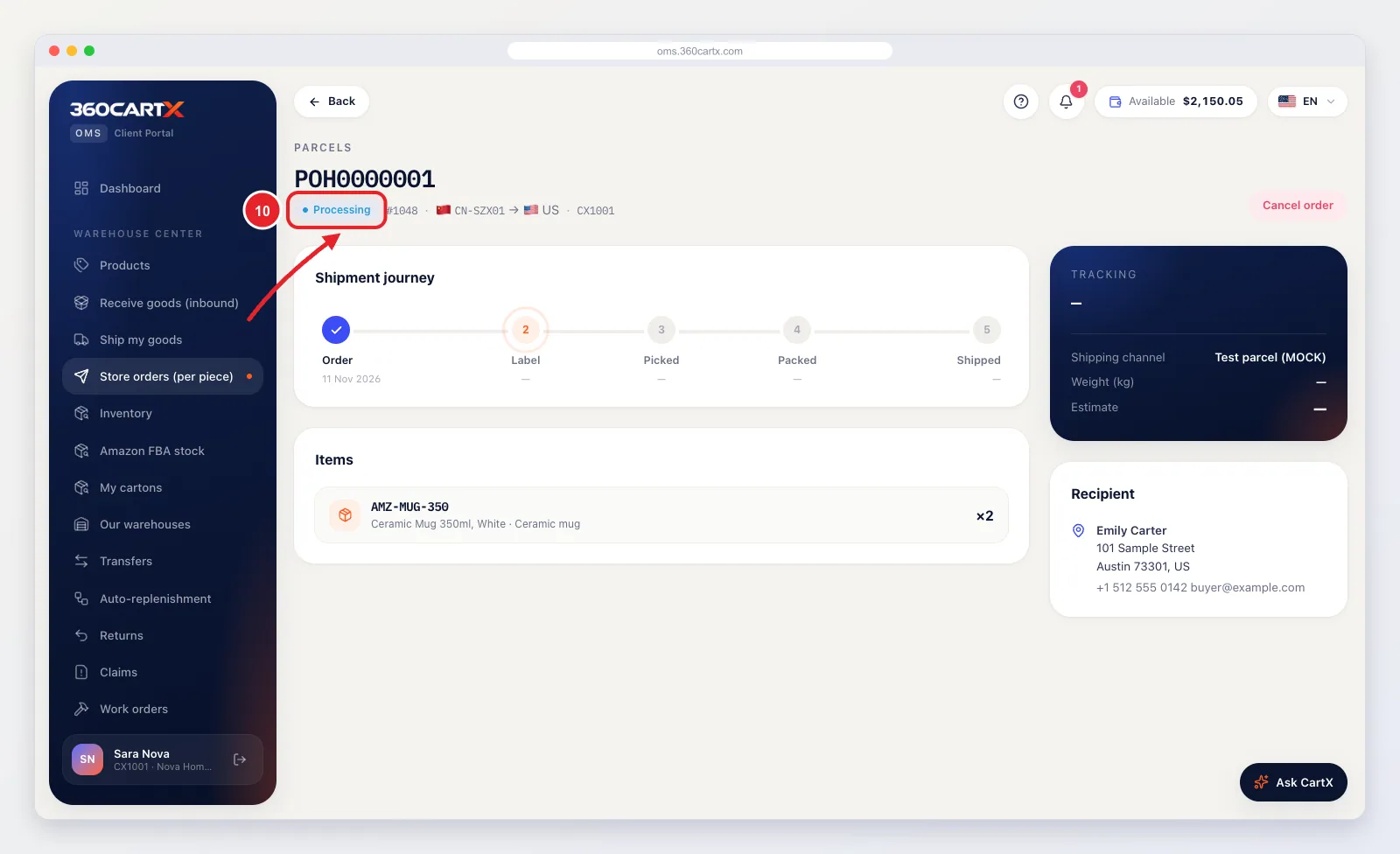
You land on the order page with the status Processing. In a few seconds we buy the label; the order becomes Ready for warehouse, or Needs attention with the reason. See Store order statuses explained.
Tips
- Add the buyer's phone number with the country code: carriers need it for delivery.
- The price of the label and handling is charged from your wallet in US dollars when the label is bought. See Orders waiting for a top-up if the balance is too low.
- Create many orders at once with Import Excel.
Common problems
Order #1040 already exists
Your order no. was used before. Use a new number.
Unknown product / Add at least one product
Choose at least one of your approved products. Products that are not approved yet are not in the list; open Products and submit them first.
Warehouse not allowed
The warehouse is not enabled for your account. Choose another one in the list.
Recipient is required / Address is required / City is required / Postal code is required / Phone is required
Fill in the field named in the message.
Related articles
Updated 2026-11-11
Open a ticket from Support in your portal and our team will reply.