Steps
- 1
Orders that wait for you
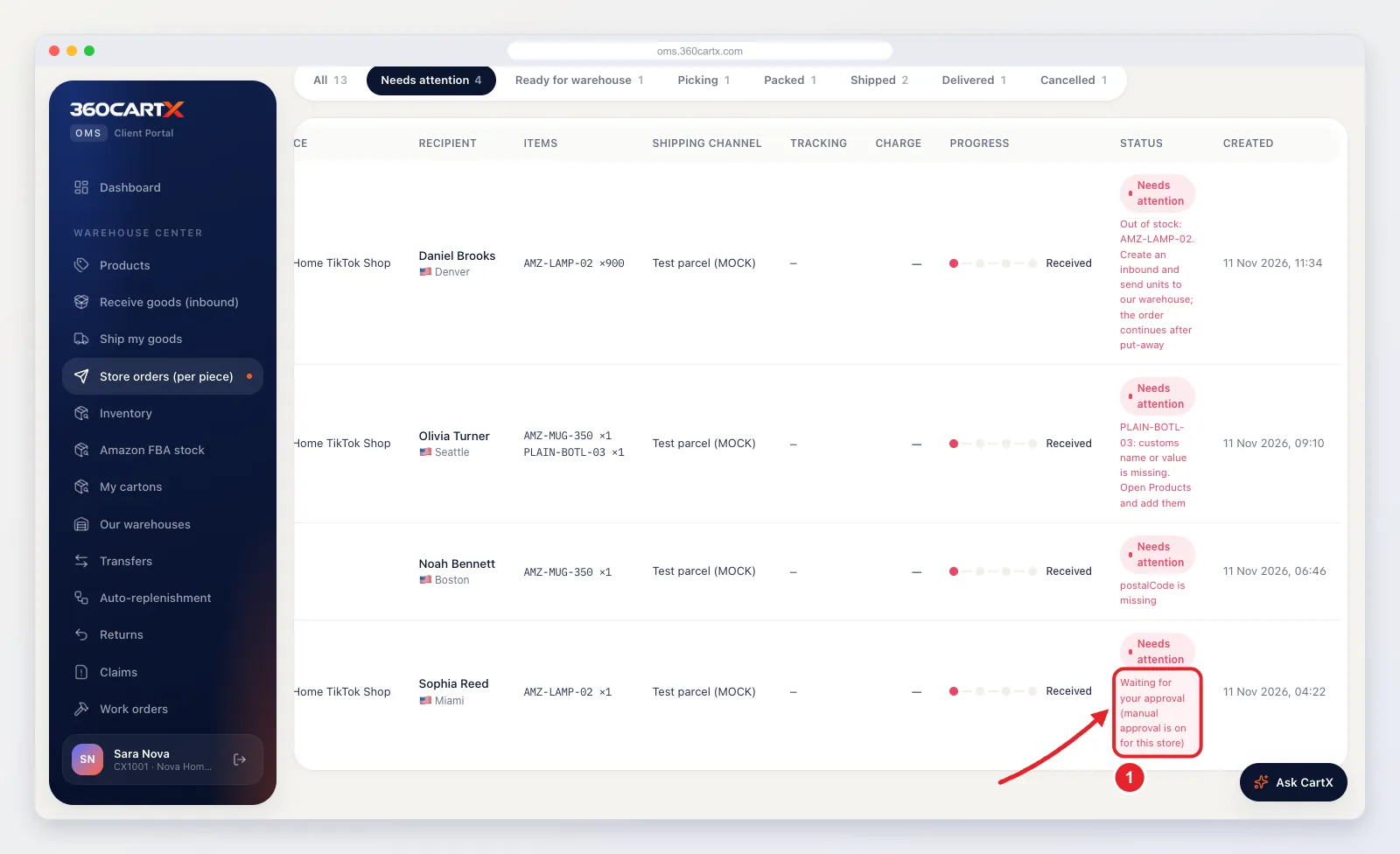
With manual approval on, every new order of that store appears on Needs attention. The reason says: Waiting for your approval (manual approval is on for this store).
- 2
Open the order
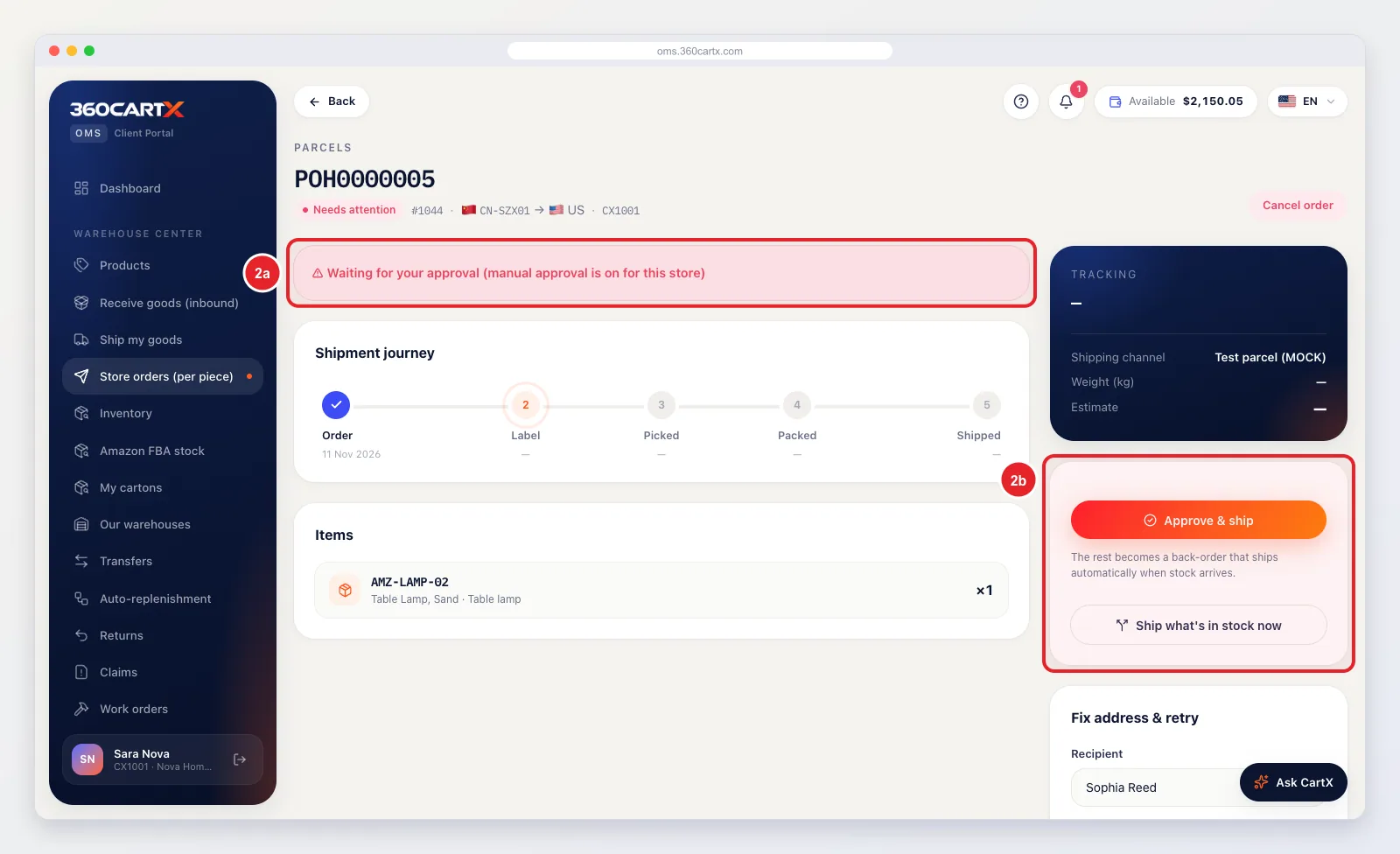
Click the Parcel no. The red box shows the reason and, on the right, the button Approve & ship takes the place of Retry.
- 2a Reason
- 2b Approve & ship
- 3
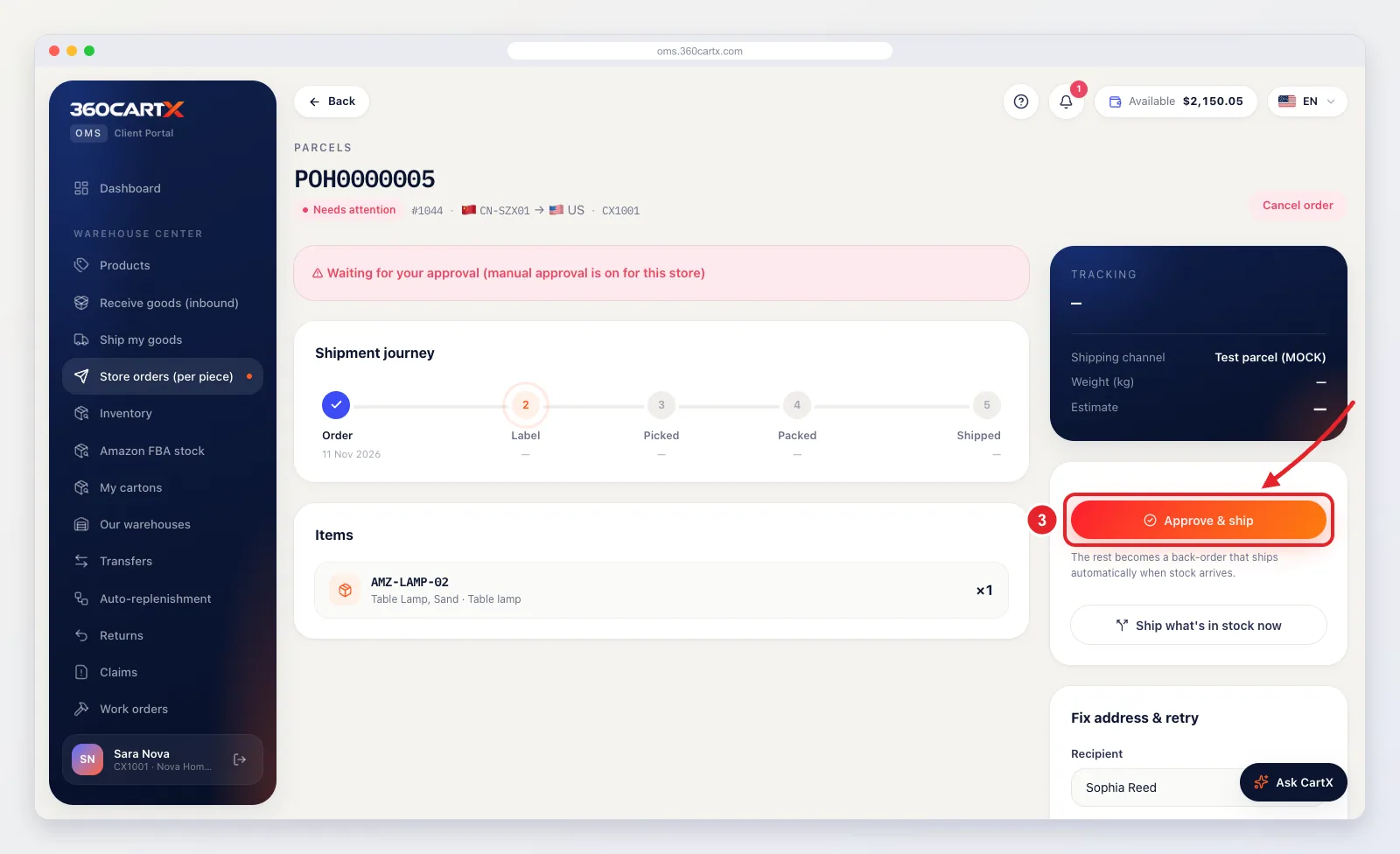
Approve & ship
Click Approve & ship. We release the hold and process the order at once: the label is bought, the stock reserved and the price charged from your wallet. The order becomes Ready for warehouse. Check the address and the items before you approve.
- 4
Approve all waiting orders of a store
In Integrations, open the store: its Order controls have the switch Approve orders before we ship (the note says: Orders from this store wait for you; nothing is labelled or charged until you approve) and the button Approve waiting orders, which approves up to 500 waiting orders of that store in one click. The message shows how many worked, for example 3/3.
Tips
- Orders from other stores and manual orders are not affected by the setting of one store.
- An approved order that cannot ship (for example because of the balance) moves to its own reason: Waiting for top-up or Out of stock.
Common problems
I approved but the order is still on Needs attention
The order was released, but something else stopped it. The new reason is written on the order.
Related articles
Updated 2026-11-11
Open a ticket from Support in your portal and our team will reply.