Steps
- 1
Look at the bell
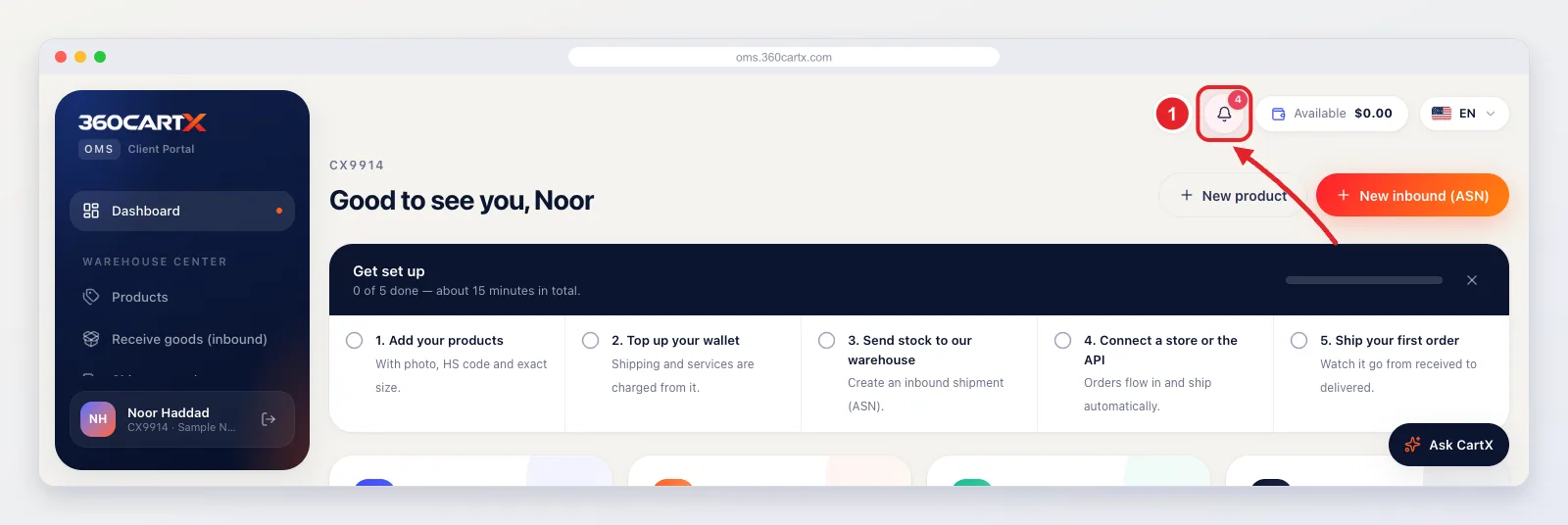
The bell is at the top right of every page, next to your wallet balance. A red number on it counts the notifications nobody has read yet (it shows 99+ when there are more than 99). No number means you are up to date.
- 2
Open the bell for the latest eight
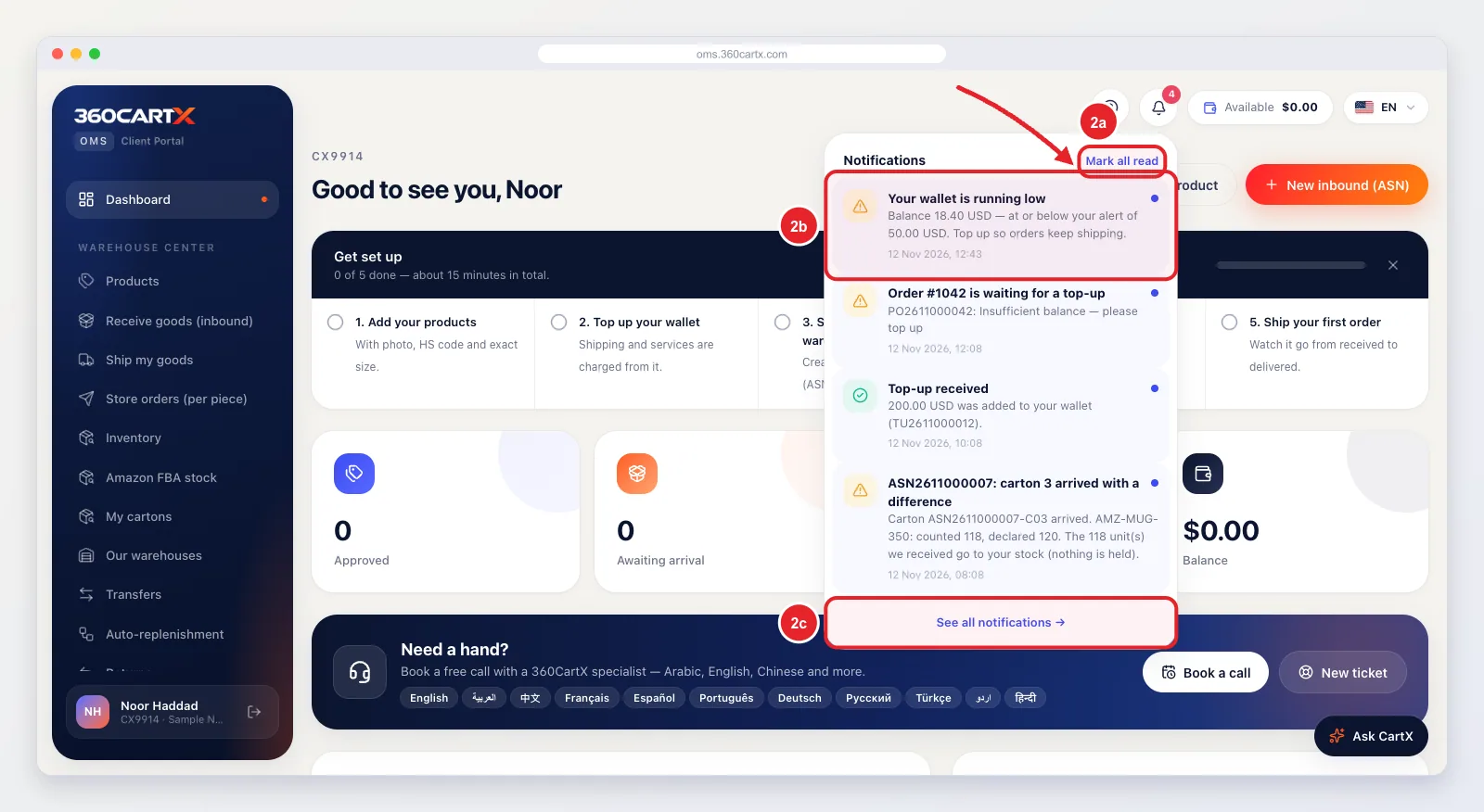
Click the bell to open a list with the latest 8 notifications, newest first. Unread ones are bold, with a light blue background. Click a notification to go straight to the page it is about, for example Finance for a top-up or Inventory for a low-stock alert. Mark all read (top right of the list) clears the red number. See all notifications at the bottom opens the full page.
- 2a Mark all read
- 2b A notification
- 2c See all notifications
- 3
The Notifications page keeps the last 200
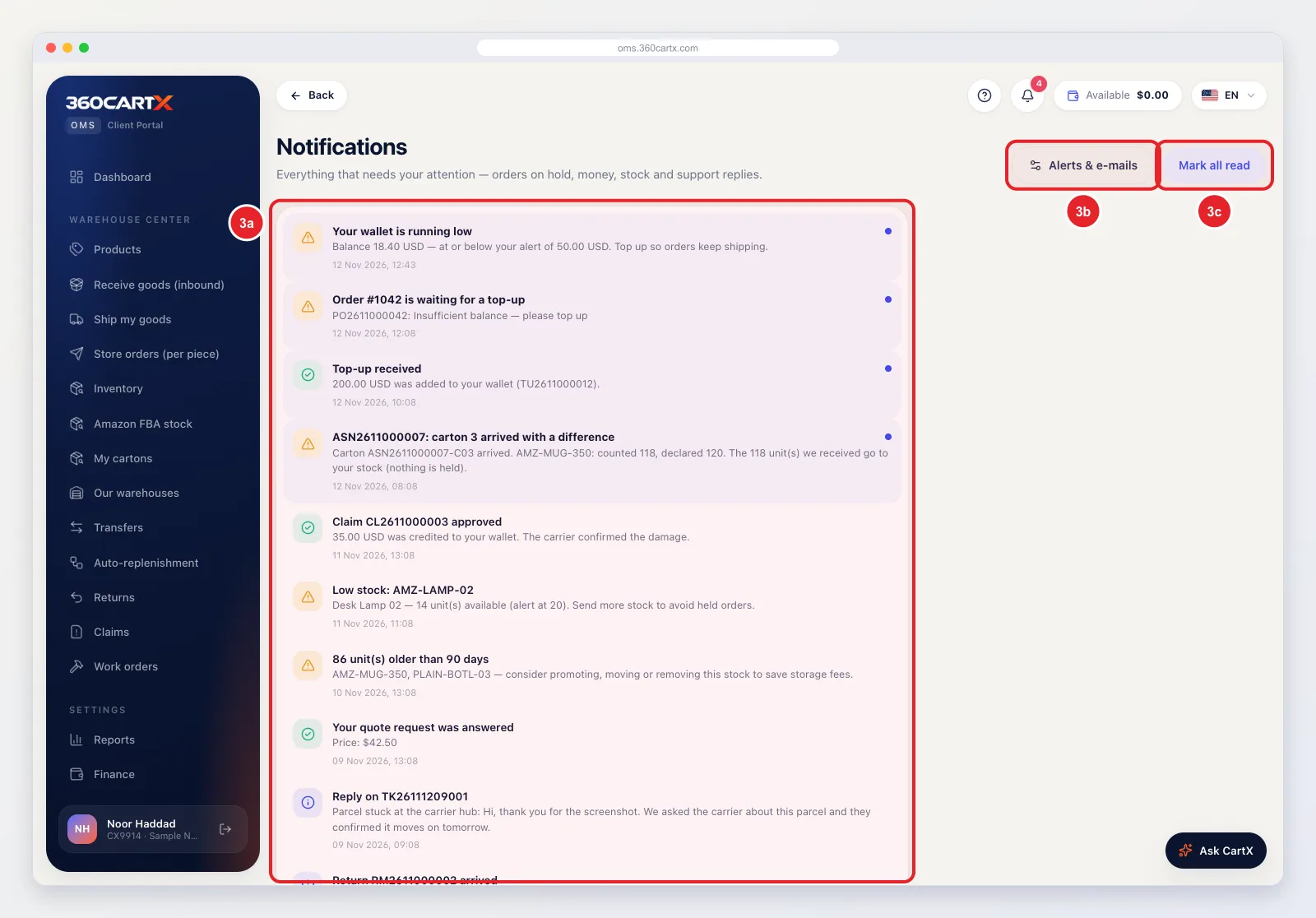
The page is called Notifications and lists up to your latest 200 notifications, newest first, each with its title, a short text and the date and time. Alerts & e-mails opens your alert settings, and Mark all read (shown only while something is unread) marks everything as read.
- 3a List
- 3b Alerts & e-mails
- 3c Mark all read
- 4
Unread and read
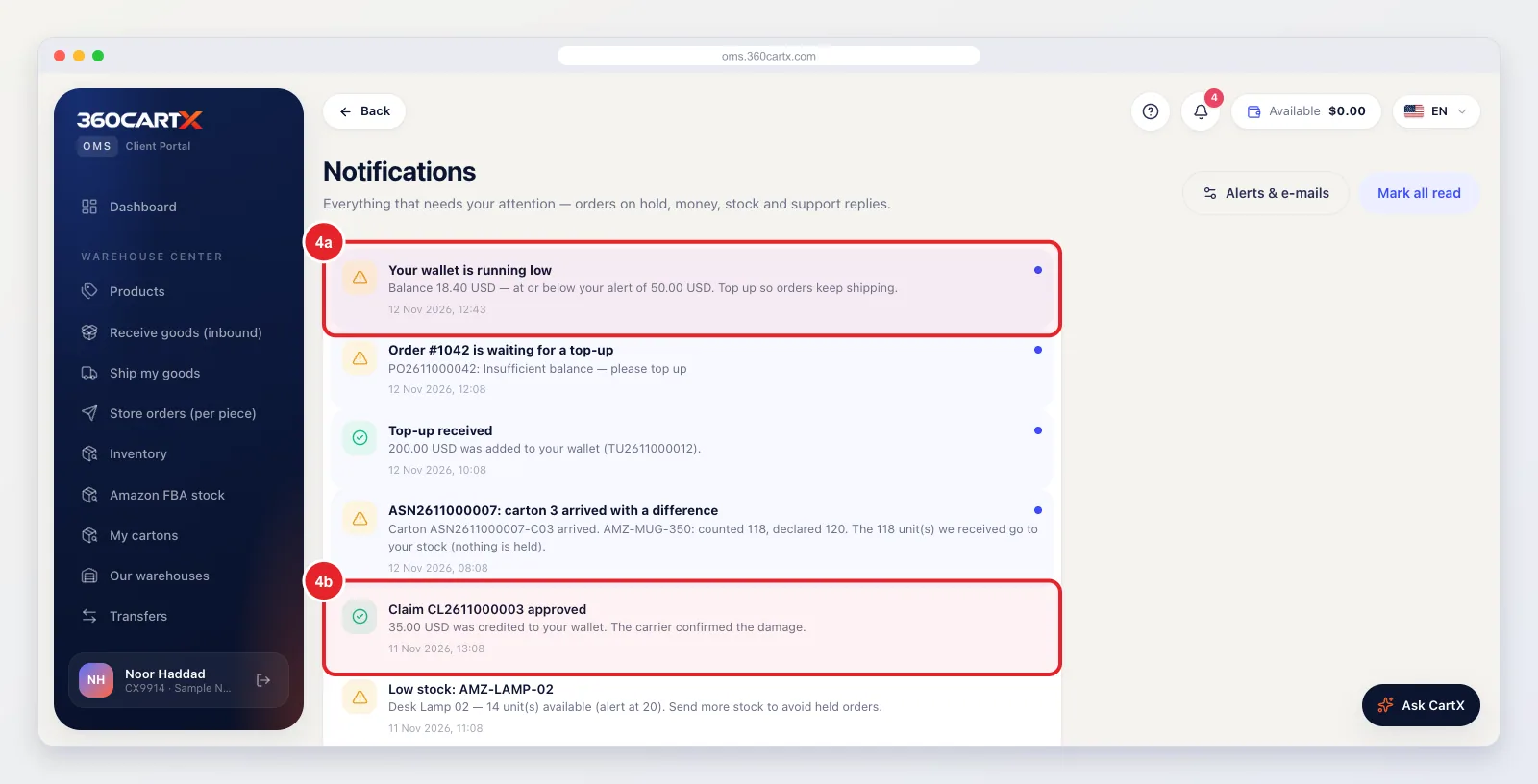
An unread notification has a blue dot on the right, a light blue background and a bold title. Once you click Mark all read it turns to normal weight with no dot, but it stays in the list. There is no delete button: old notifications simply move down the list. Marking as read is for the whole company: when one person clicks Mark all read, the red number clears for everybody.
- 4a Unread
- 4b Read
- 5
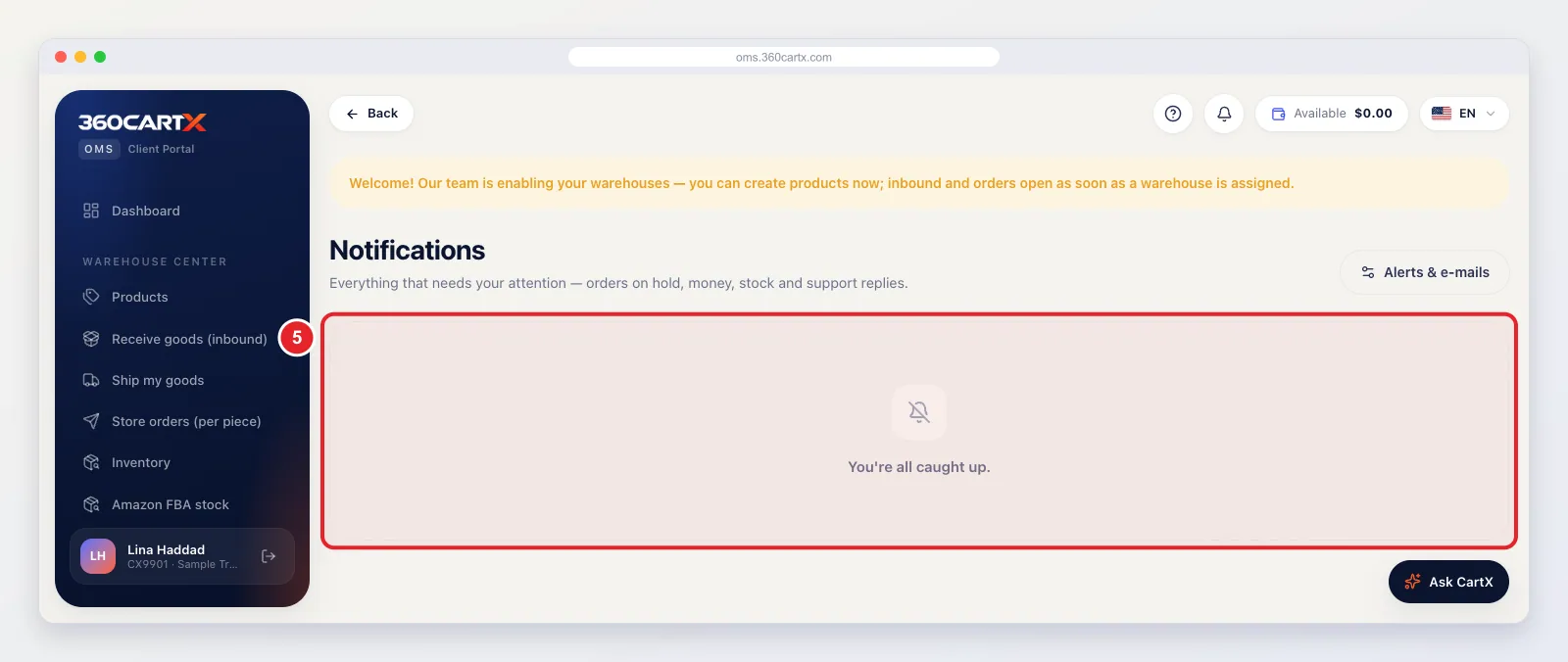
When there is nothing new
A new account with no notifications shows the message You're all caught up. instead of a list. The bell then has no number and its list shows the same message.
- 6
What each type of notification means
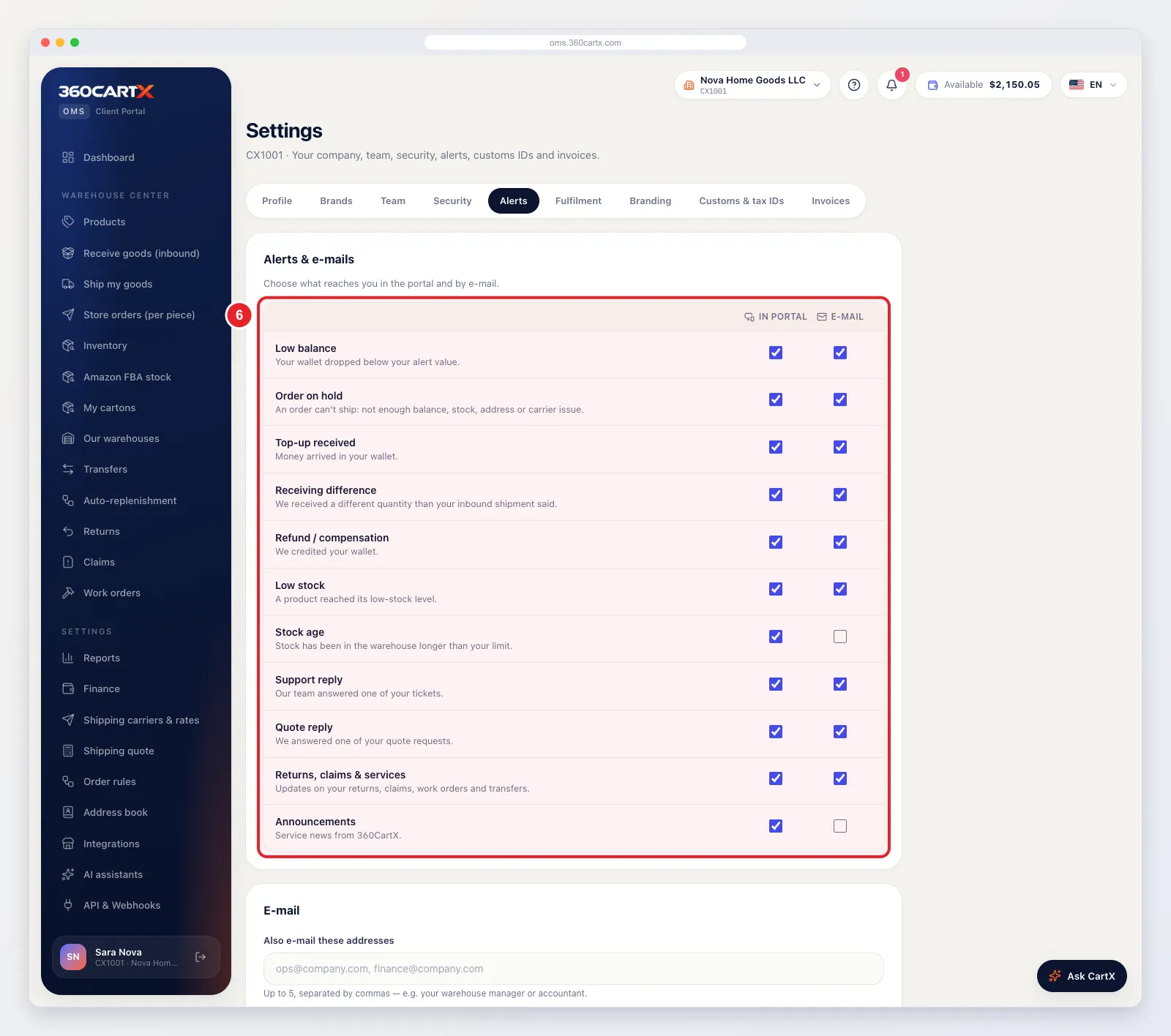
Your alert settings (Settings, Alerts) list the 11 types. Low balance: after a charge, your wallet is at or below your alert value (sent at most once a day). Order on hold: an order cannot ship (not enough balance, stock, address or carrier problem), a shipment needs your action, or a store connection has a problem. Top-up received: money arrived in your wallet. Receiving difference: we received a different quantity than your shipment said, or a receiving problem was opened or solved. Refund / compensation: we credited your wallet, for example an approved claim. Low stock: a product reached the low-stock level you set. Stock age: stock has been in the warehouse longer than your limit (a weekly summary). Quote reply: we answered a quote request or quoted a shipment. Support reply: our team answered a ticket or changed a call. Returns, claims & services: updates on returns, claims, work orders and transfers, and also on products, receiving and orders. Announcements: service news from 360CartX.
Tips
- Click the notification itself, not just the bell: it opens the order, shipment, ticket or page the message is about, so you can act at once.
- Choose how each type reaches you in Settings, Alerts: in the portal, by e-mail, or both. You can also add up to 5 extra e-mail addresses, for example your warehouse manager or accountant; they receive every type that has E-mail ticked.
- E-mails go to the owner, admins and finance users and to operators. Money and order alerts skip operators. Viewers and custom roles do not get e-mails.
- The Low balance alert uses the value you set in Settings, Alerts. With 0 the alert is off.
Common problems
The red number does not go away
Open Notifications and click Mark all read. The number counts unread notifications for the whole company, so a new one may also have arrived while you were reading.
I cannot find an old notification
The page shows the latest 200 only. Older ones are no longer listed. For orders, shipments and tickets, search in the page of that item instead.
I did not get an e-mail for a notification
Check Settings, Alerts: the E-mail box of that type must be ticked. Money and order alerts are not e-mailed to operators, and viewers and custom roles get no e-mails. Check the spam folder too.
I do not want a type of notification
Untick In portal and E-mail for that type in Settings, Alerts. Only the owner or an admin can change these settings.
Related articles
Updated 2026-11-12
Open a ticket from Support in your portal and our team will reply.