Steps
- 1
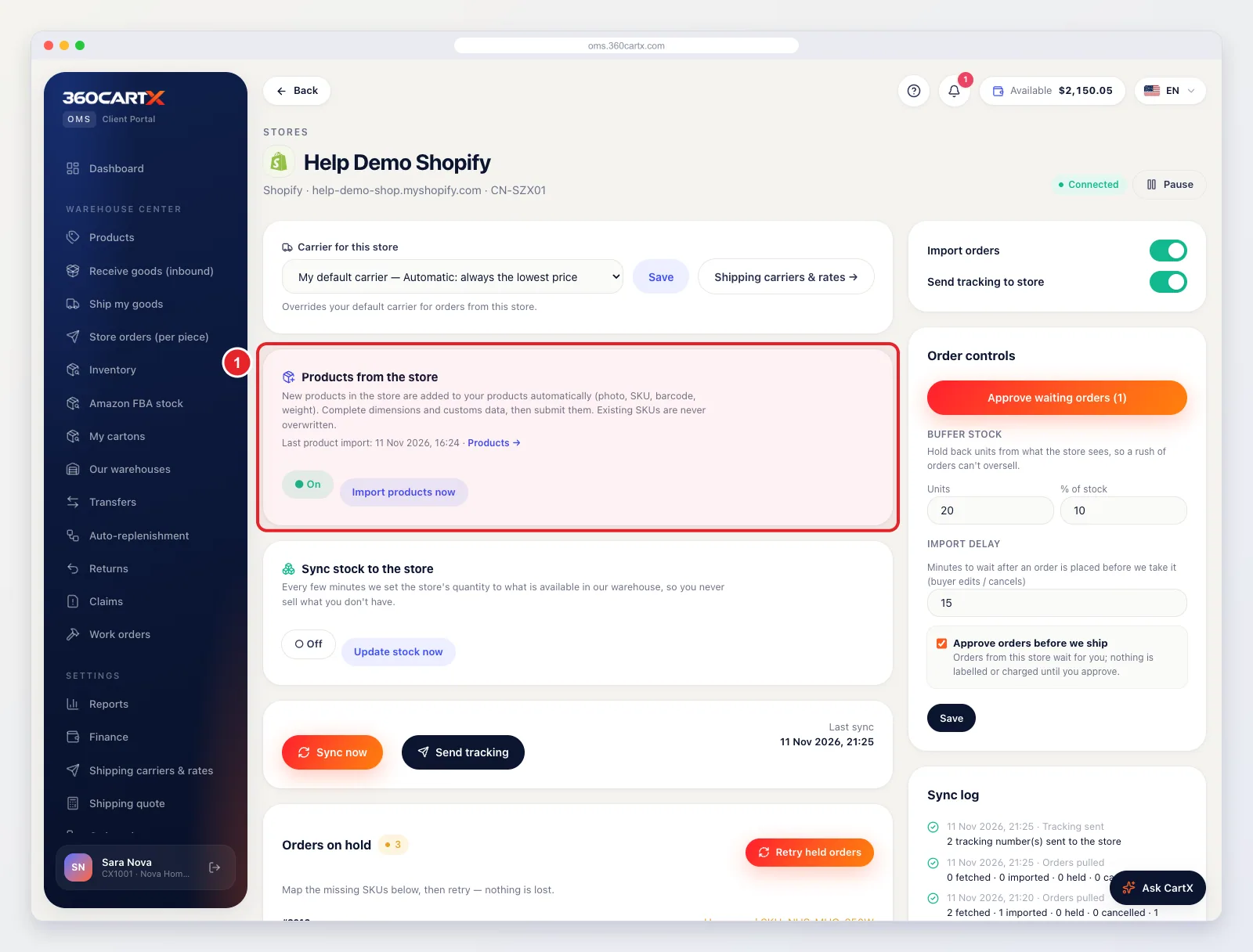
Find the box on the store page
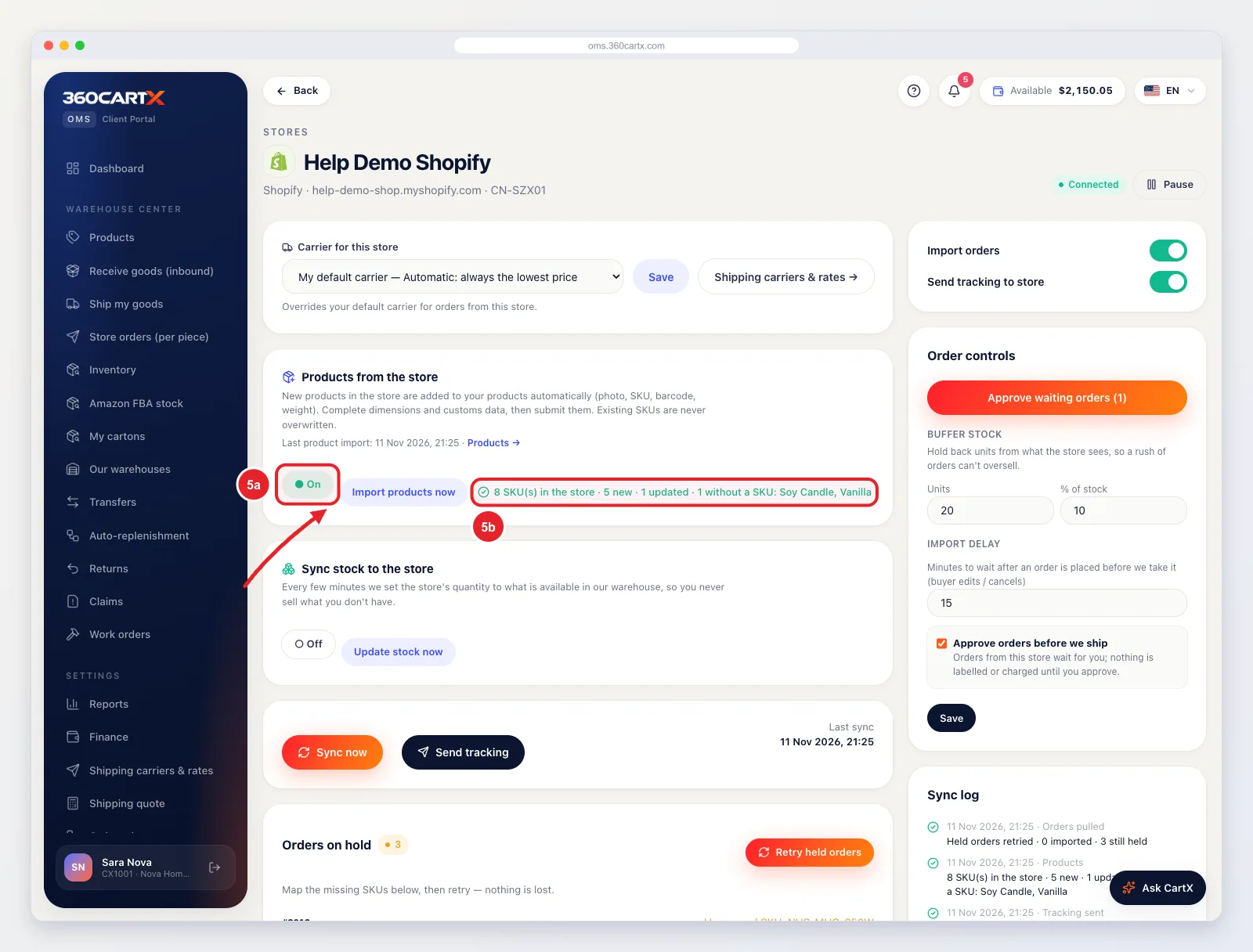
Open your store from Stores. The box Products from the store says: New products in the store are added to your products automatically (photo, SKU, barcode, weight). Complete dimensions and customs data, then submit them. Existing SKUs are never overwritten. Under it you see Last product import with the date and time, and a link Products.
- 2
The three controls
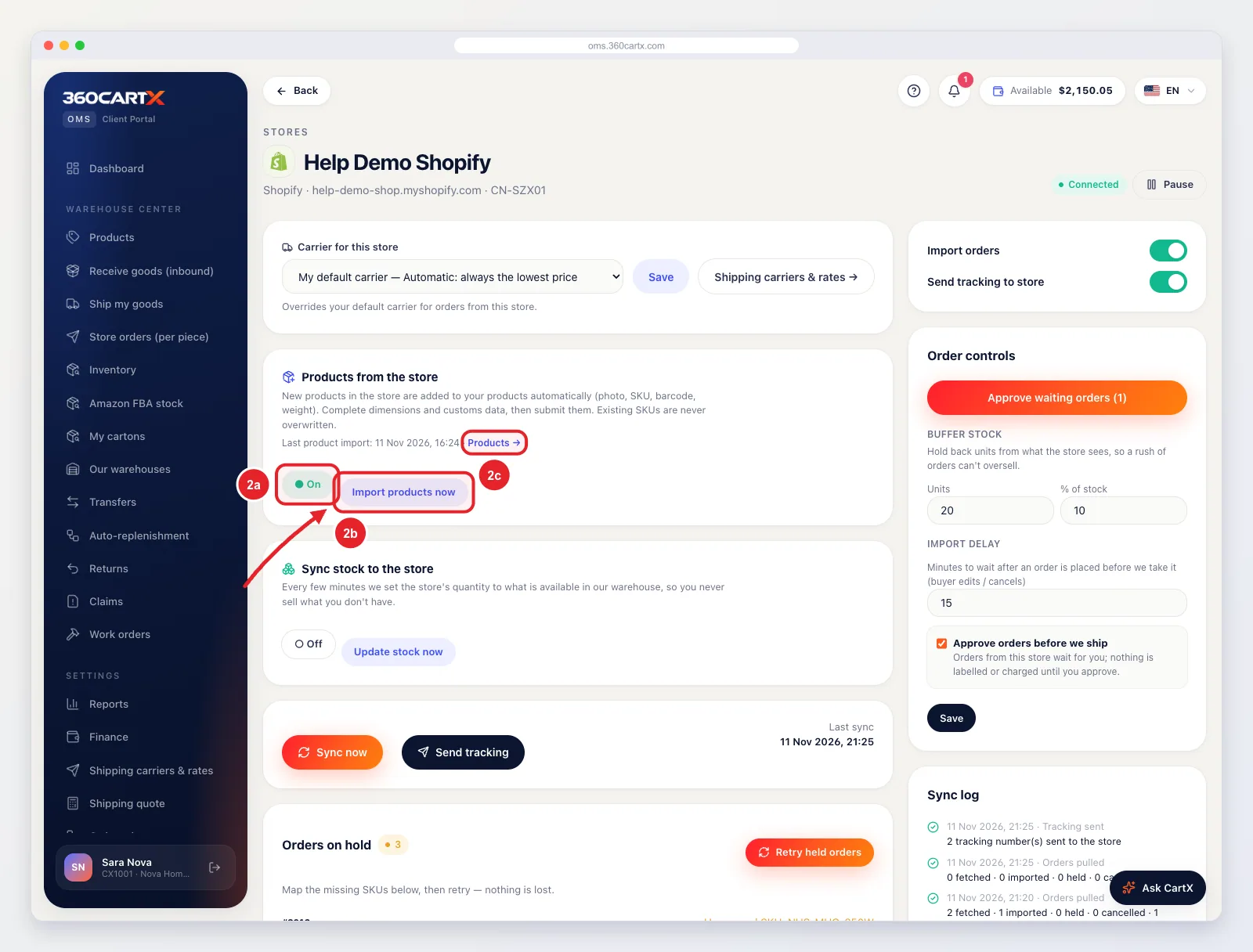
The On or Off button is the automatic import. Import products now runs it once, right now. The link Products opens your products list. With the switch On, the import runs when you connect, again about every 6 hours, and at once when Shopify tells us a product changed.
- 2a On / Off switch
- 2b Import products now
- 2c Products link
- 3
Turn the automatic import off
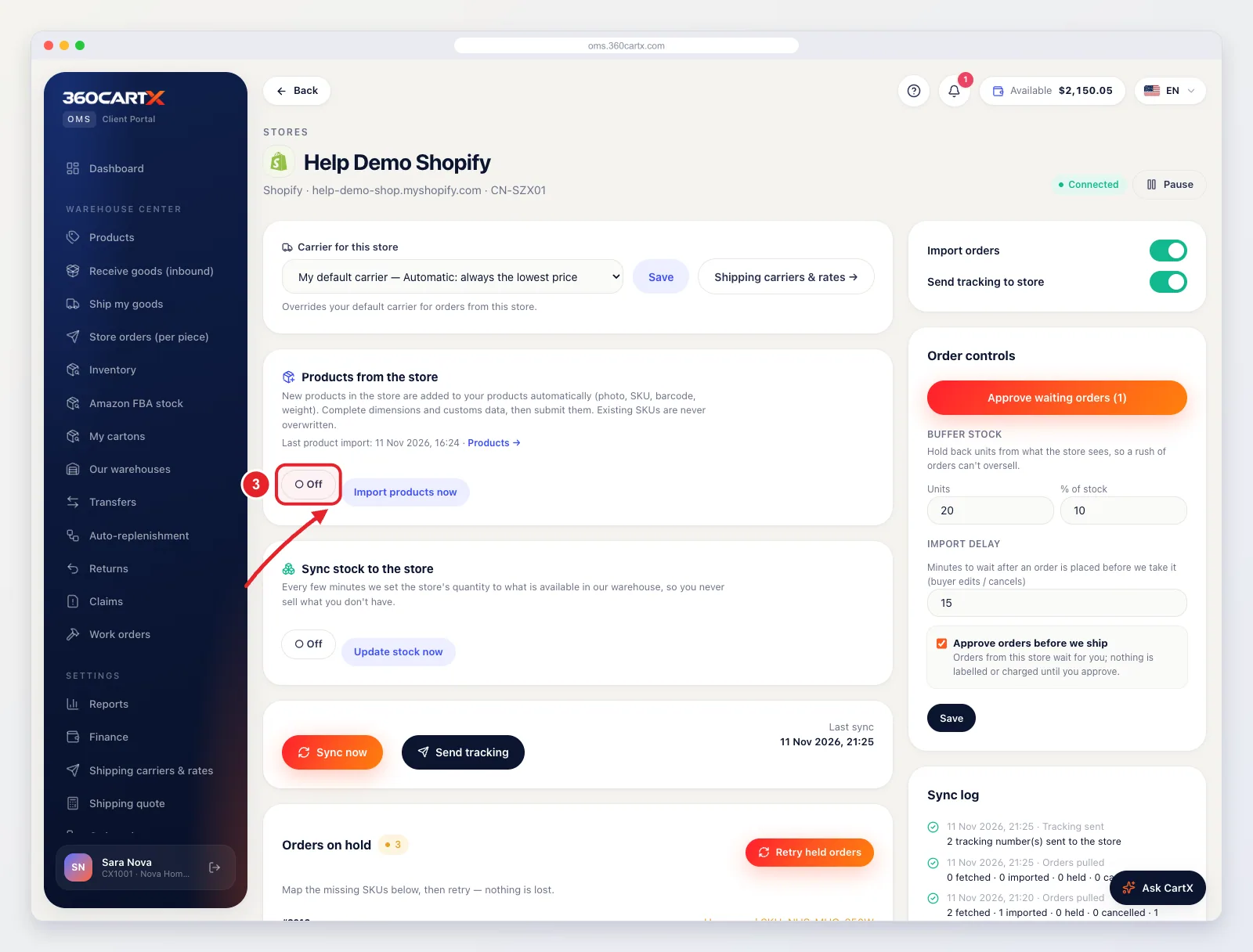
Click the green On button and it becomes a grey Off. No automatic imports run for this store until you switch it on again. Nothing that was already imported is removed.
- 4
Import now while it is off
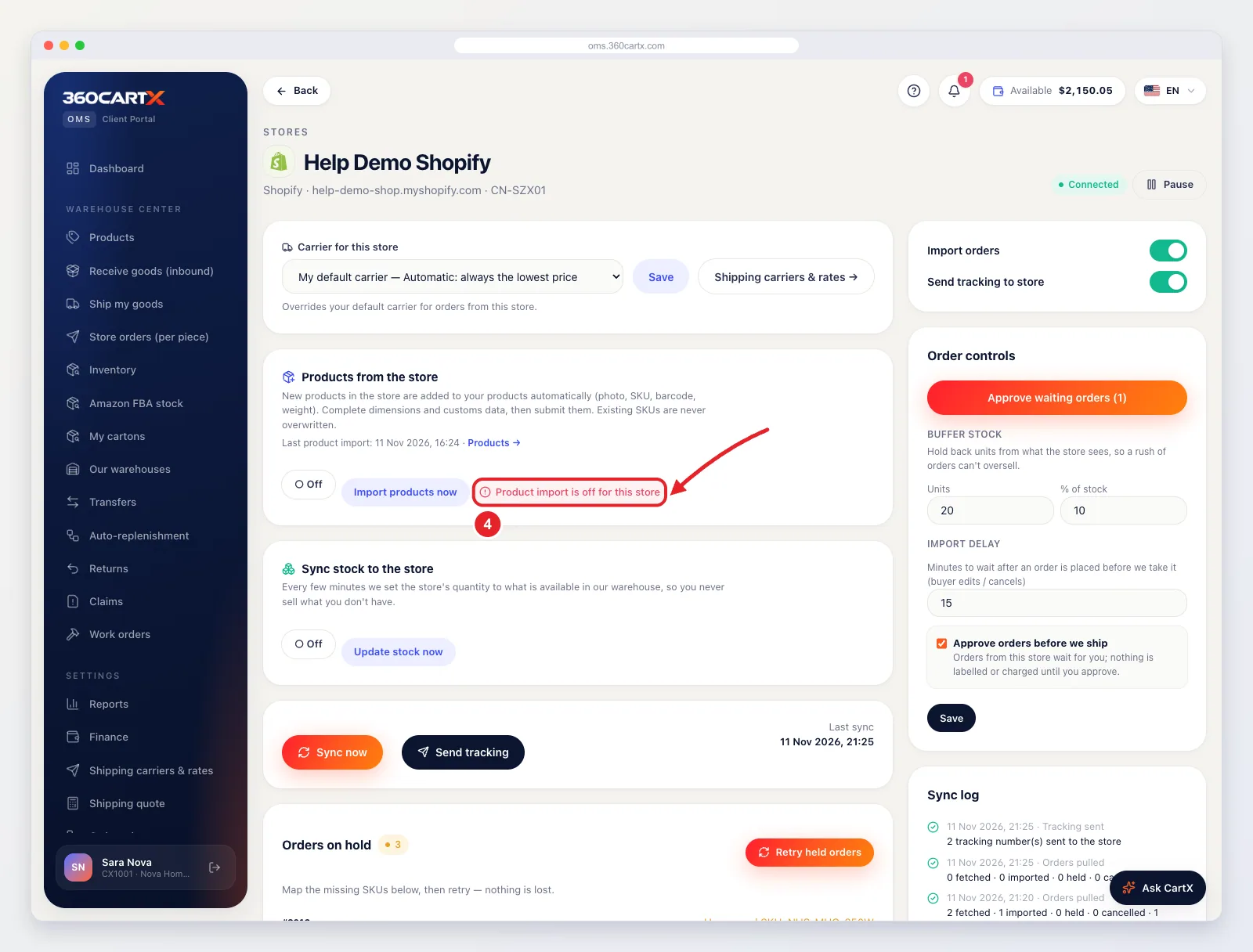
Import products now does not work while the switch is Off: a red message appears, Product import is off for this store. Switch it On first. The same button also answers Store is not connected when the store is Paused or disconnected.
- 5
Switch on and import
Click Off to turn it On, then click Import products now. After a few seconds a green line gives the result, for example 8 SKU(s) in the store · 5 new · 1 updated · 1 without a SKU: Soy Candle, Vanilla. SKU(s) in the store is every sellable item we found (each variant counts as one), new is how many products were created, updated is how many existing products got a missing detail filled in, and without a SKU lists variants that have no SKU (up to 3 names, then three dots). Those are not imported, and orders for them wait on hold until you map them. A SKU you already mapped to another product is skipped too.
- 5a On
- 5b Result line
- 6
Complete the drafts
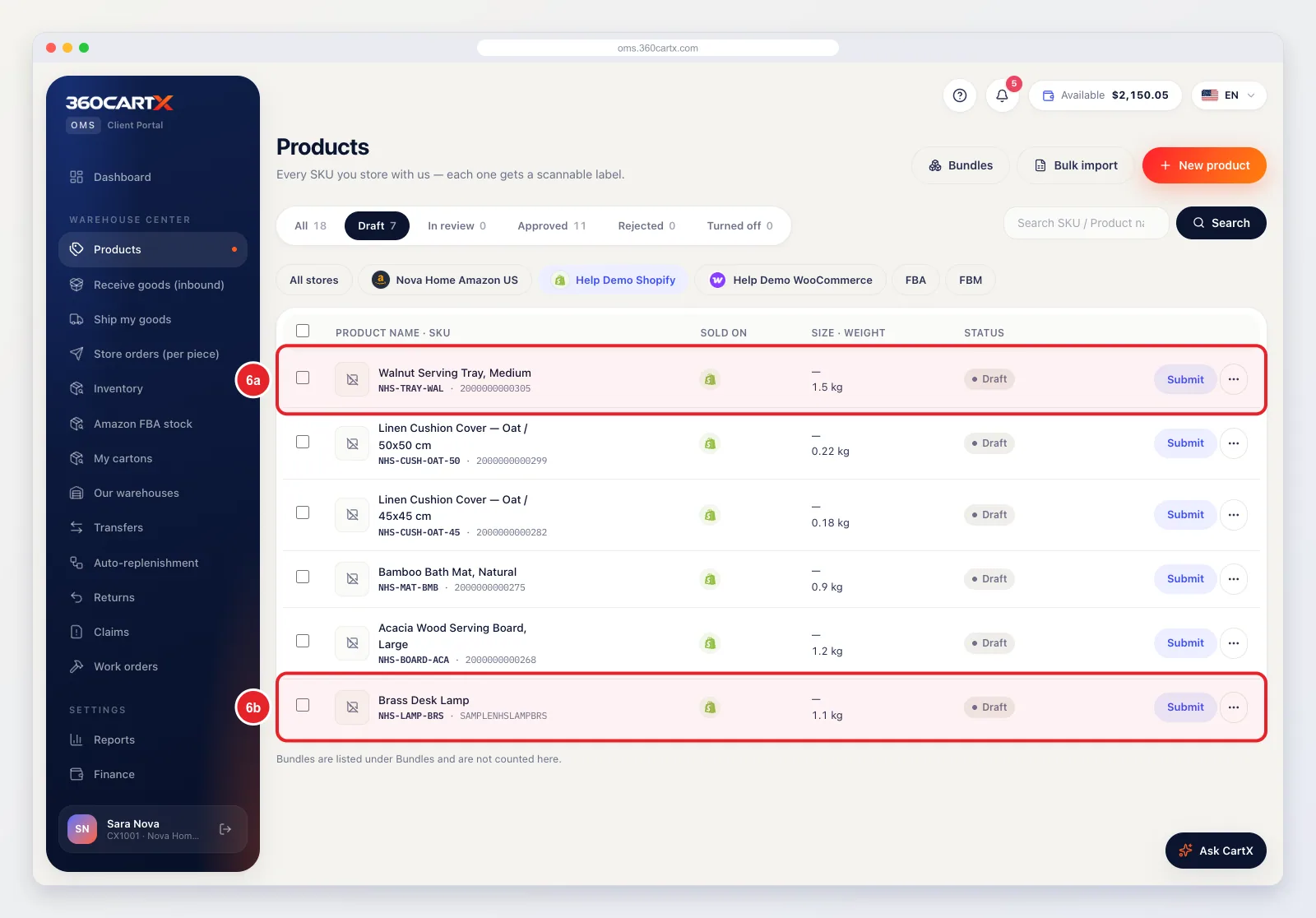
Open Products, tab Draft, and pick the store above the table. New products show the store's logo under Sold on and the status Draft. We take the name (a variant is named Product, Variant), the SKU, the barcode if there is one, the photo (only secure https links), the weight, the category and, when the name uses plain English letters, the declared name for customs. Add the size, HS code and declared value, then Submit. See Products from your stores. A product that already existed keeps what you typed: only empty details are filled, here the weight of Brass Desk Lamp, while its name stayed. Orders for a product can ship only once it is approved.
- 6a New product
- 6b Existing product, gaps filled
- 7
See it in the sync log
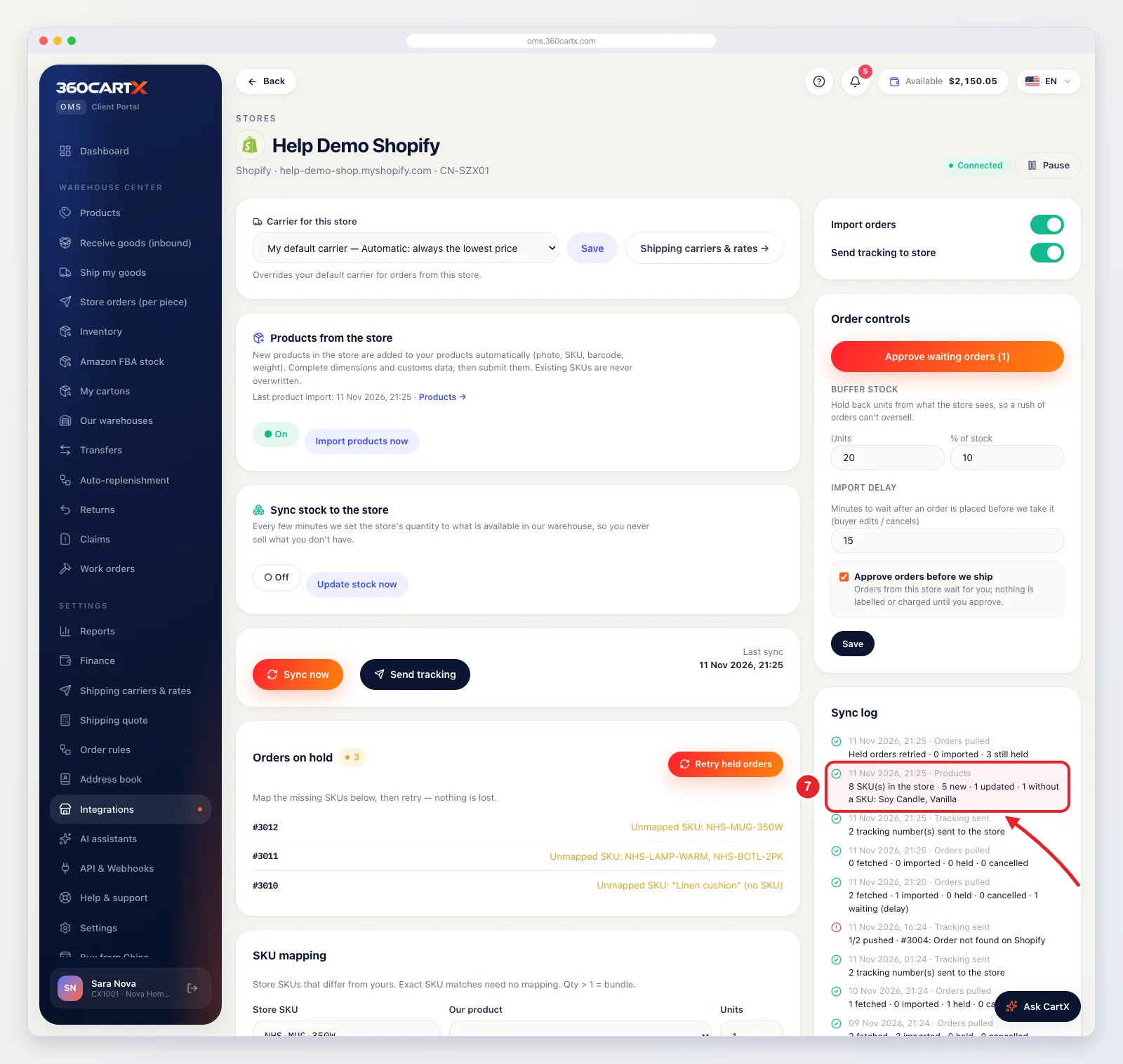
Each import writes a line of kind Products in the Sync log with the same result text, and a red one when it failed. When new products were created you also get a bell notification, for example 5 product(s) imported from Help Demo Shopify, and any orders that were on hold for an unknown SKU are tried again at once (the log shows Held orders retried).
Tips
- Keep the same SKU in your store and in 360CartX: SKUs are matched ignoring upper and lower case, and this is how orders find their product.
- A SKU longer than 64 characters is not imported. Shorten it in your store or map it by hand.
- A variant without a SKU is only reported. Give it a SKU in your store, then click Import products now.
- The import never changes your store. Editing a product here does not change its store listing.
- Amazon products can also bring their FNSKU from the listing. See Add the FNSKU and label file to an Amazon product.
Common problems
Product import is off for this store
The switch is Off. Click it to turn it On, then click Import products now again.
Store is not connected
The store is Paused or was disconnected. Click Resume, or connect the store again.
The red line under the box shows an error from the store
For example Access token rejected (401) or Cannot reach <address>. The same text stays under the box until the next import works. Fix the connection first, see Manage a connected store.
I do not see a product I expected
On Shopify, archived products and variants that do not need shipping (digital products) are not imported. A SKU you mapped is not imported as a product either. Check the Sync log line for the counts.
The number of new products is lower than the SKU count
Products that already exist, SKUs that appear twice in the store and SKUs you mapped are not created again.
Related articles
Updated 2026-11-11
Open a ticket from Support in your portal and our team will reply.