Steps
- 1
Find the box on the store page
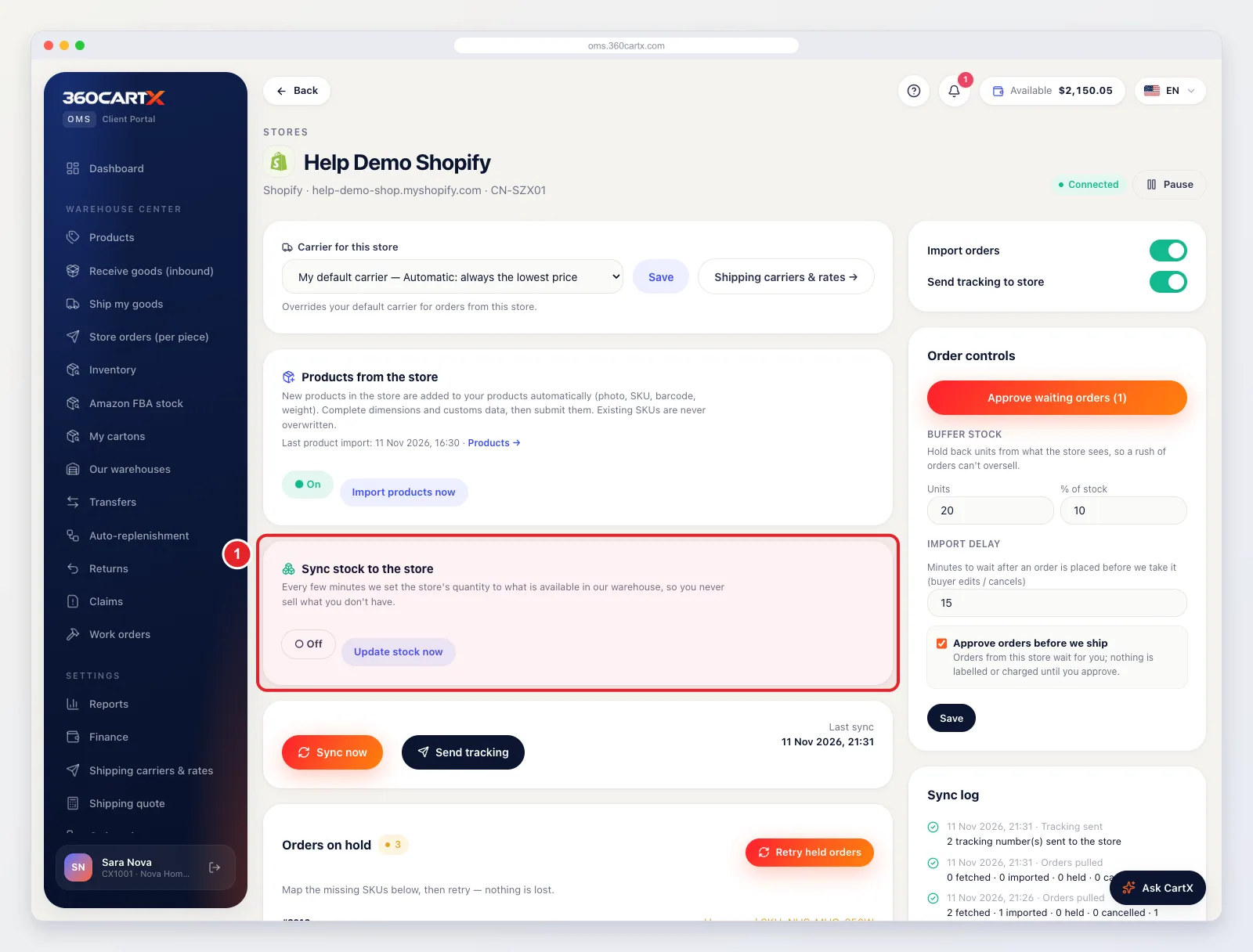
Open your store from Stores. The box Sync stock to the store says: Every few minutes we set the store's quantity to what is available in our warehouse, so you never sell what you don't have. A new store starts with the switch Off. Once a stock update has been sent, the box also shows Last stock update with its date.
- 2
Turn the sync on
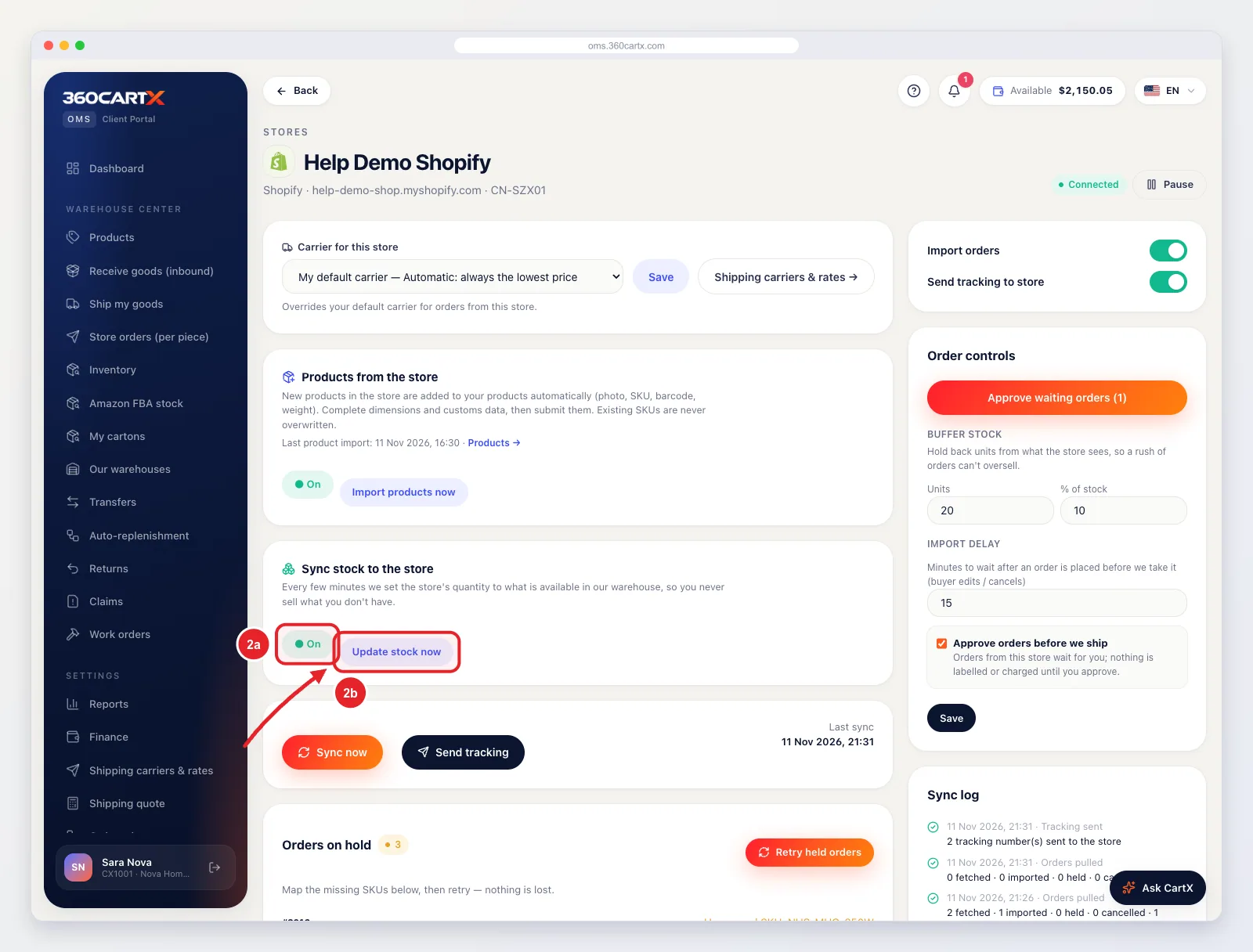
Click the grey Off button and it becomes the green On. From now on we compare your stock with the store every few minutes and send only the quantities that changed. Update stock now is the second button: it sends every quantity right now, and it also works while the switch is Off, so you can send the stock once without automatic updates.
- 2a On / Off switch
- 2b Update stock now
- 3
Send the stock now
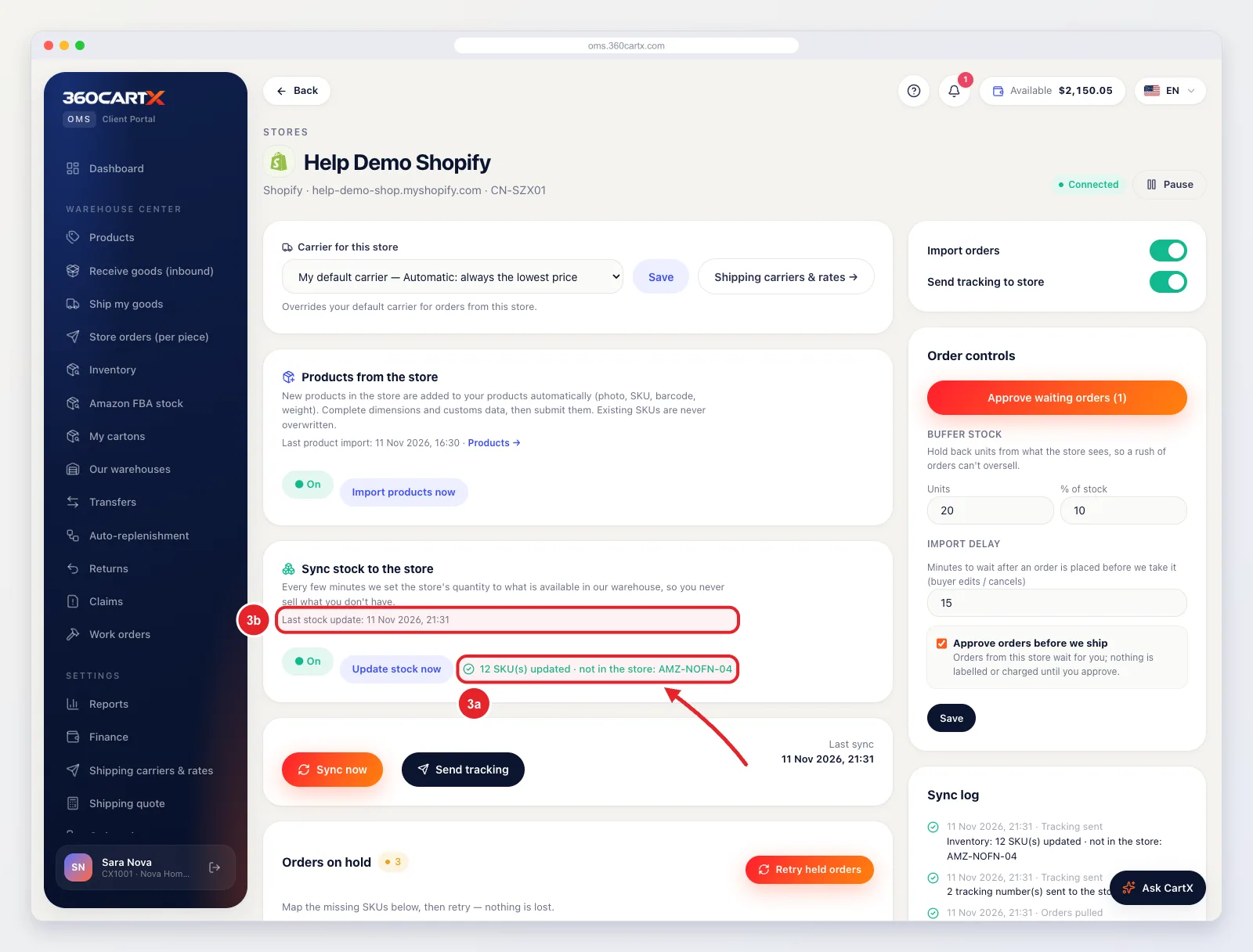
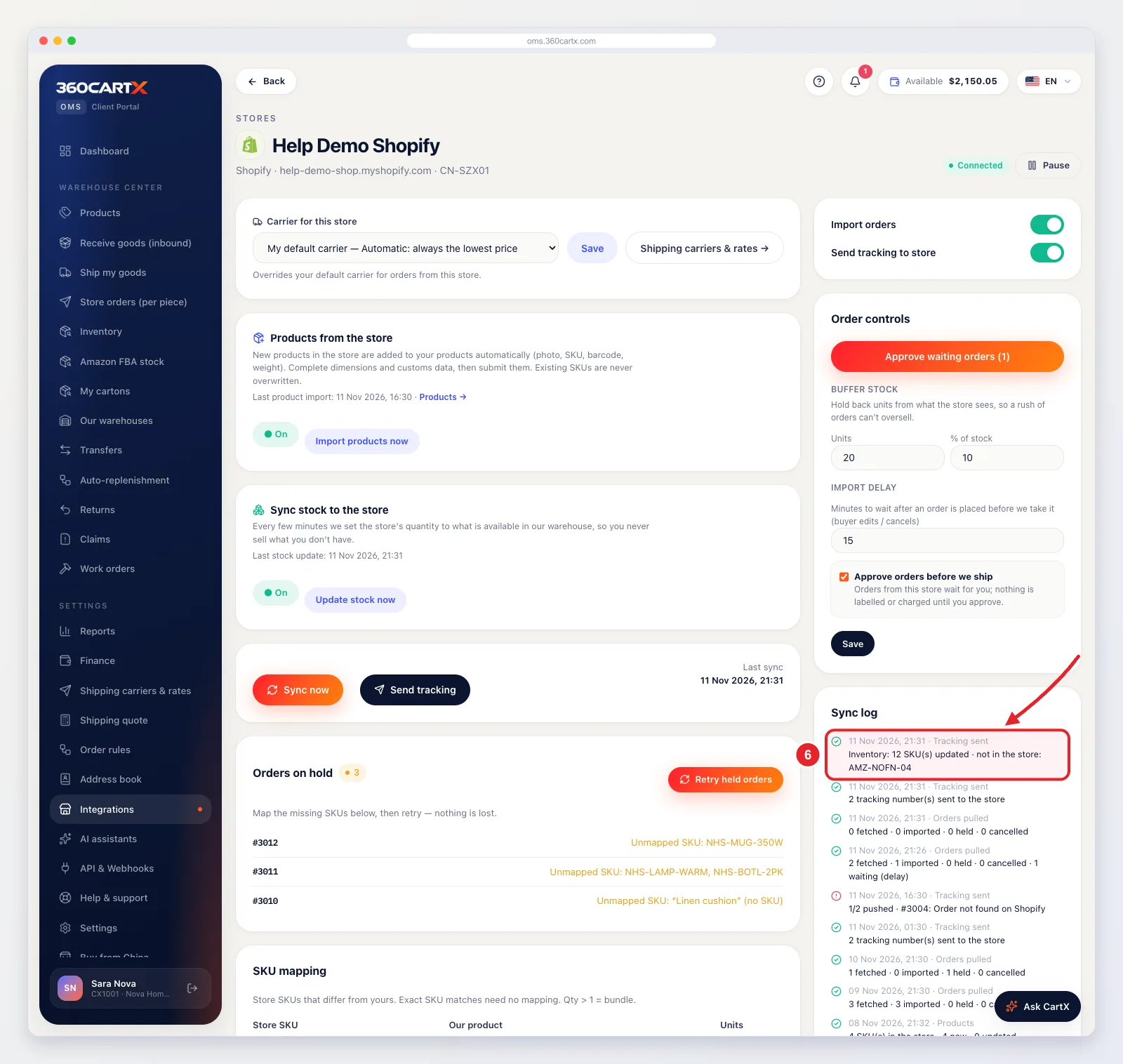
Click Update stock now. A green line gives the result, for example 12 SKU(s) updated · not in the store: AMZ-NOFN-04. SKU(s) updated is how many store SKUs received a new quantity. Not in the store lists SKUs of yours that the store does not have (the first 5, then three dots): create them in the store or ignore them. The line Last stock update shows the time.
- 3a Result line
- 3b Last stock update
- 4
Which quantity is sent
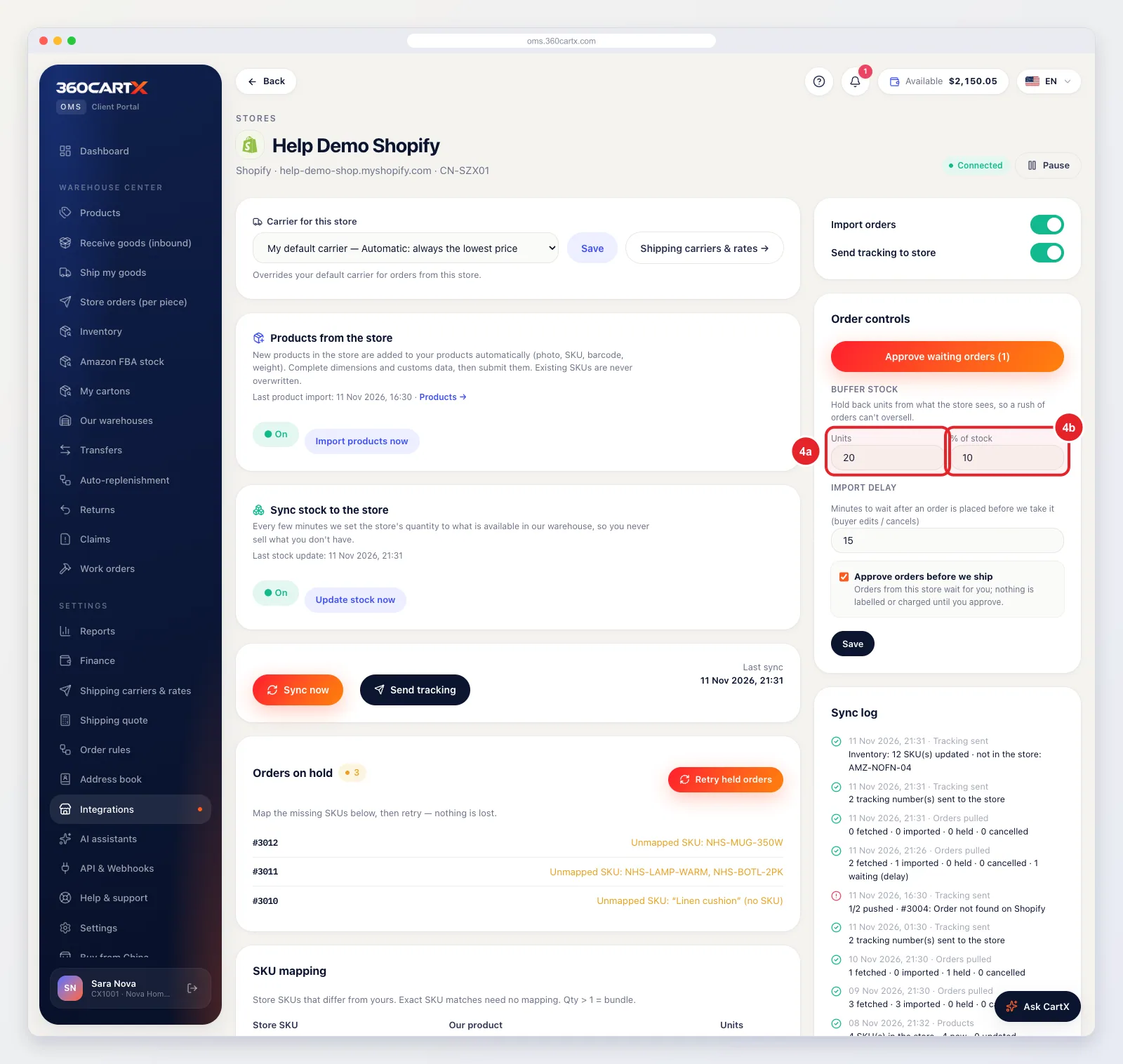
For each of your Approved products we send the units available in the warehouse that ships this store (shown in the header, for example CN-SZX01): the good stock in storage and picking bins minus what is reserved for orders. Damaged stock and goods not yet put away are not counted, and neither are other warehouses. Then the buffer is taken off: Order controls, Buffer stock removes the Units you set and the % of stock you set, never below 0. With 600 available, 20 units and 10 %, the store gets 600 minus 20 minus 60, which is 520. The store SKU must be the same as your SKU.
- 4a Buffer units
- 4b Buffer percent
- 5
Bundles and renamed SKUs
A store SKU you mapped to one of your products (see Map store SKUs and release held orders) gets the available quantity divided by the units of the mapping, rounded down. With a mapping NHS-MUG-TRIO to AMZ-MUG-350 times 3, the 520 mugs show 173 trios in the store. Draft, in review and rejected products are never sent.
- 6
Read the sync log
Every stock update writes a line in the Sync log that starts with Inventory:, for example Inventory: 12 SKU(s) updated · not in the store: AMZ-NOFN-04. The kind column on these lines reads Tracking sent: it is the same kind as tracking lines, only the text tells them apart. A red circle means the update failed and the message tells why.
- 7
When the update fails
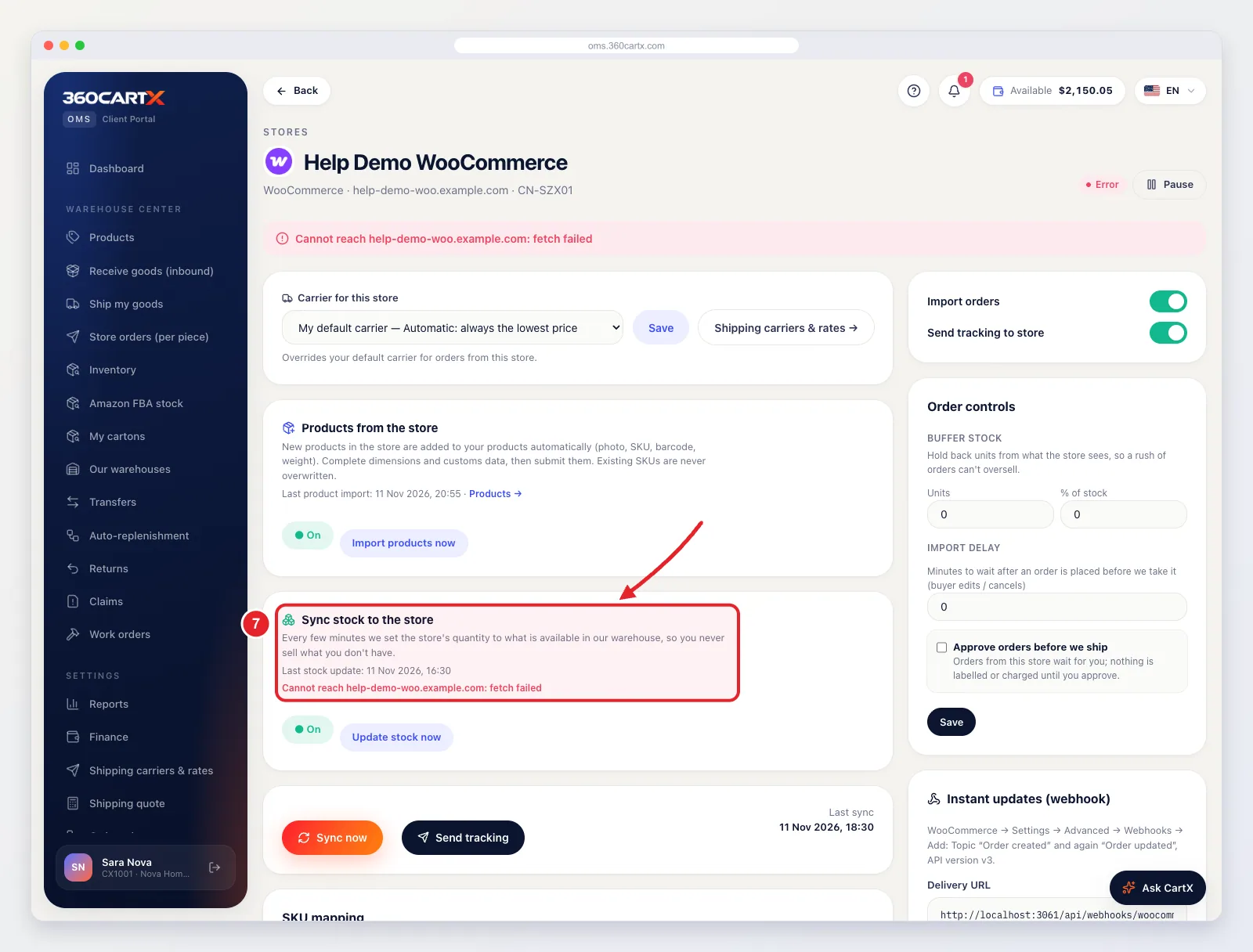
The reason stays in red under the box until the next update works, for example Cannot reach help-demo-woo.example.com: fetch failed. Other answers are Store is not connected (the store is Paused or disconnected: Resume it or connect again) and Shopify: no active location (your Shopify store has no active location to hold stock). The next run tries again.
- 8
Amazon and TikTok Shop
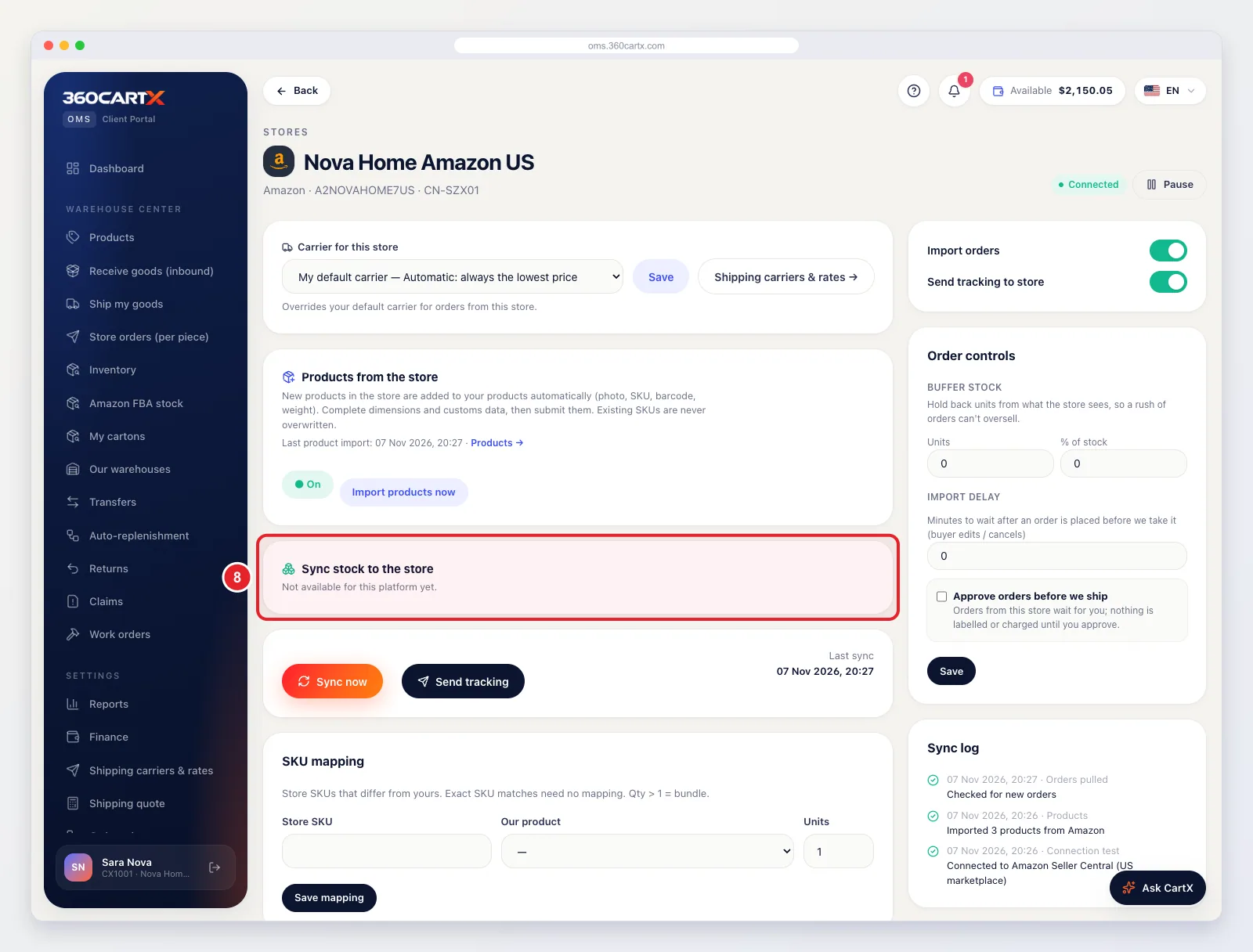
On an Amazon or TikTok Shop store the box says Not available for this platform yet and has no switch and no buttons. Amazon FBA stock is shown in the other direction, under Amazon FBA stock in the menu.
Terms in this article
- Buffer stock: Units held back from what your store sees.
- On hand / Reserved / Available: Units in stock, held for orders, and free to use.
Tips
- Turn on the buffer if you sell on several channels: a few units held back protect you from selling the last piece twice.
- Changing the switch or the buffer makes the next update send every quantity again, not only the changed ones.
- At most 300 changed SKUs are sent per run. A bigger catalogue is finished over the next runs.
- Stock only moves in the store after goods are received and put away, so a new product shows 0 until then. See Receive goods.
Common problems
not in the store: and a list of SKUs
The store has no variant with that SKU. Add the SKU to the product in your store, or map the store SKU to yours. Products you do not sell in this store can be ignored.
The store shows 0 but we have stock
Check that the product is Approved, that the stock is in the warehouse shown in the store header, that the goods are put away and not reserved, and that the buffer is not taking it all.
Store is not connected
The store is Paused or disconnected. Click Resume, or connect the store again.
Access token rejected, reconnect the store
The store refused our permission. For Shopify the app needs the inventory and location permissions: connect again with one click, or give the custom app read_inventory, write_inventory and read_locations.
I cannot find the switch
Amazon and TikTok Shop stores have none. The box says Not available for this platform yet.
Related articles
Updated 2026-11-11
Open a ticket from Support in your portal and our team will reply.