Steps
- 1
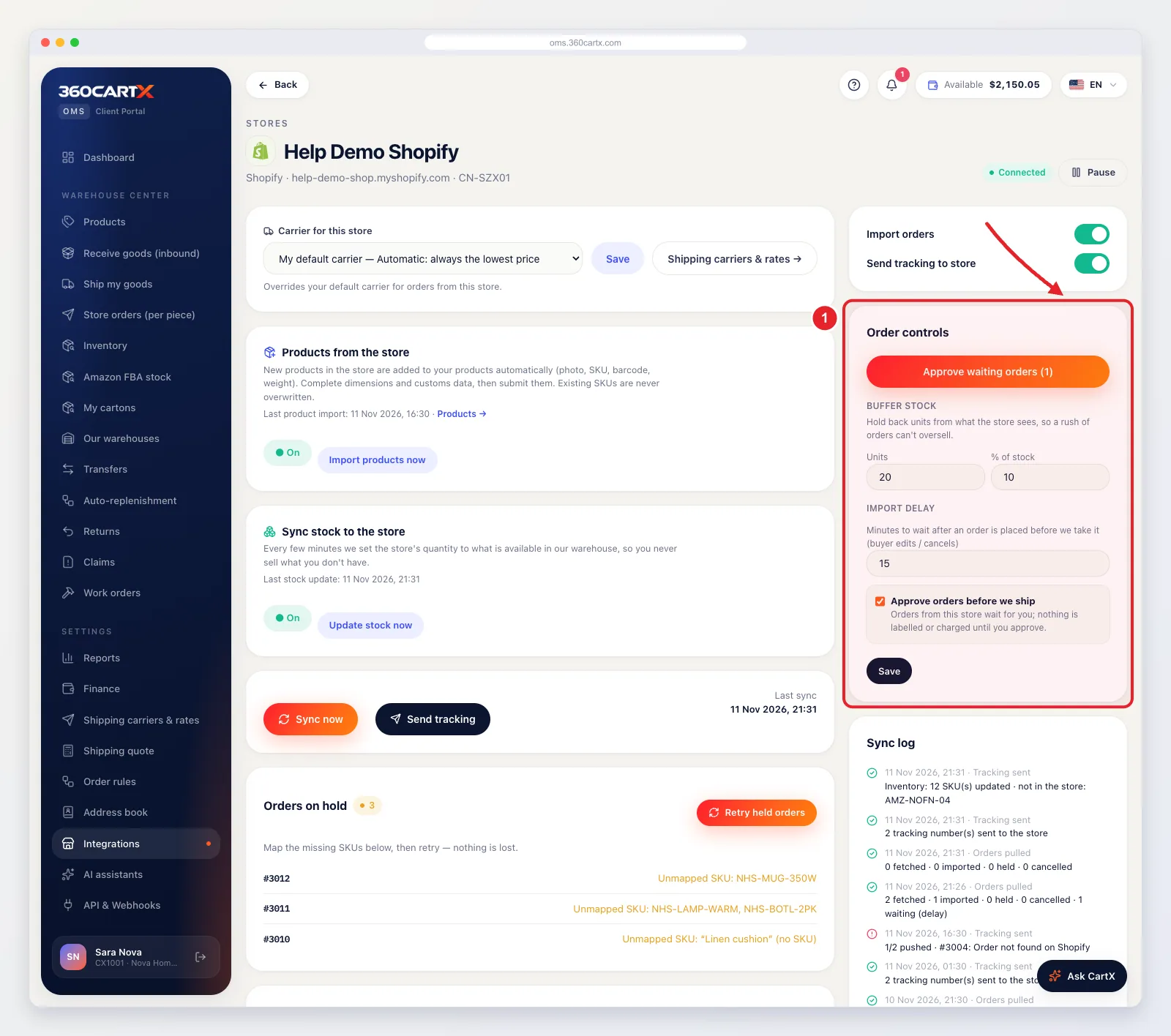
Open the Order controls box
Open your store from Stores. Order controls is in the right column, under the two switches. When some orders wait for your approval, a big button Approve waiting orders and the number of those orders is at the top of the box. Below it are the fields Buffer stock, Import delay and the tick box Approve orders before we ship, then Save.
- 2
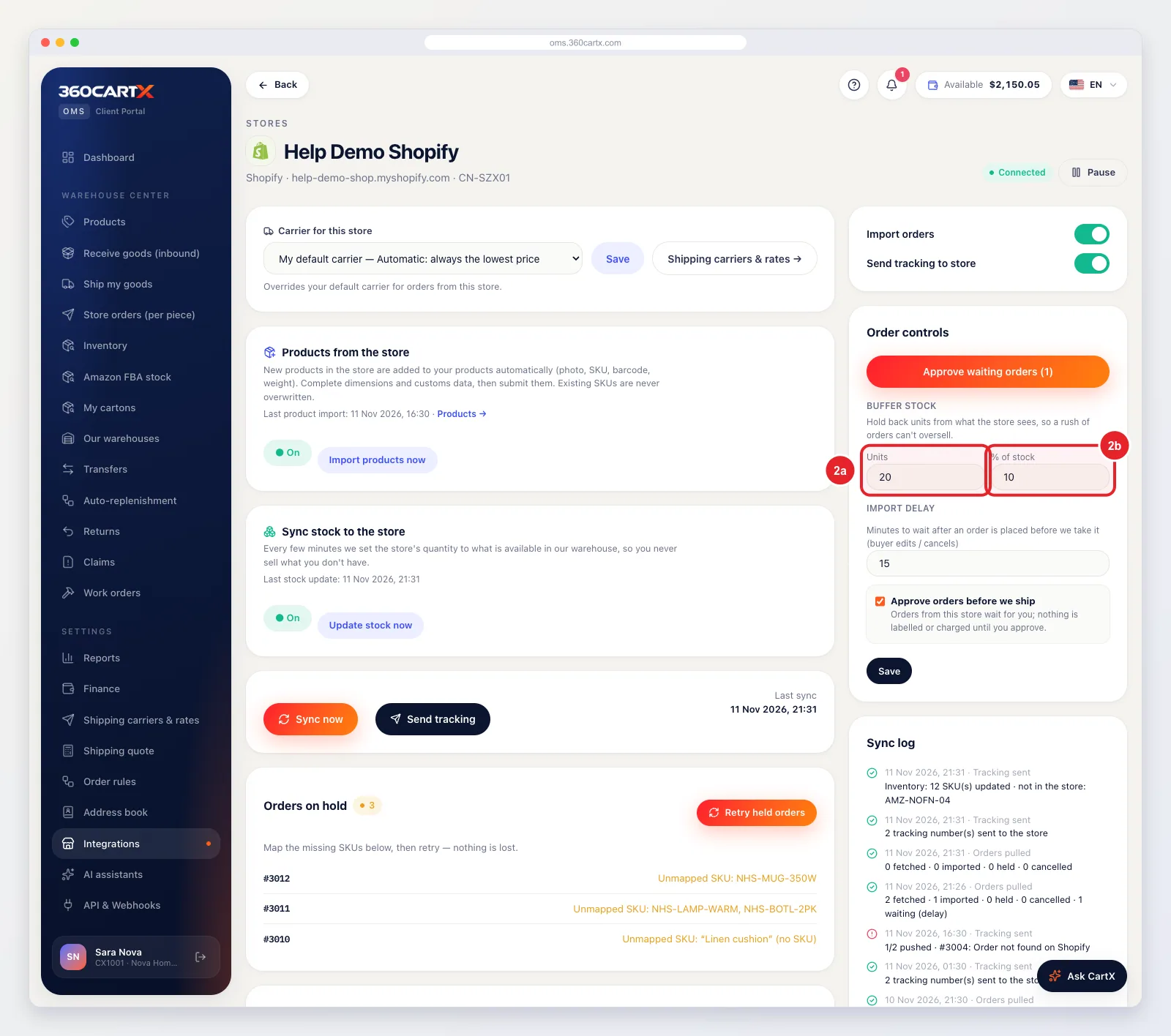
Buffer stock
The text says: Hold back units from what the store sees, so a rush of orders can't oversell. Units is a number of pieces kept back for every product, and % of stock is a share of the stock kept back (0 to 90). We take both off the quantity we send to the store: quantity sent = available minus Units minus the percentage, never below 0. With 600 available, Units 20 and 10 %, the store shows 600 minus 20 minus 60, which is 520. Your real stock does not change, only what the store sees.
- 2a Units
- 2b % of stock
- 3
Where the buffer works
The buffer is used by stock sync, so it matters for Shopify, WooCommerce and BigCommerce, the platforms that receive stock from us. Amazon and TikTok Shop do not receive stock, so the buffer does nothing there. After you save new values the next stock update sends every quantity again. See Keep store stock in sync.
- 4
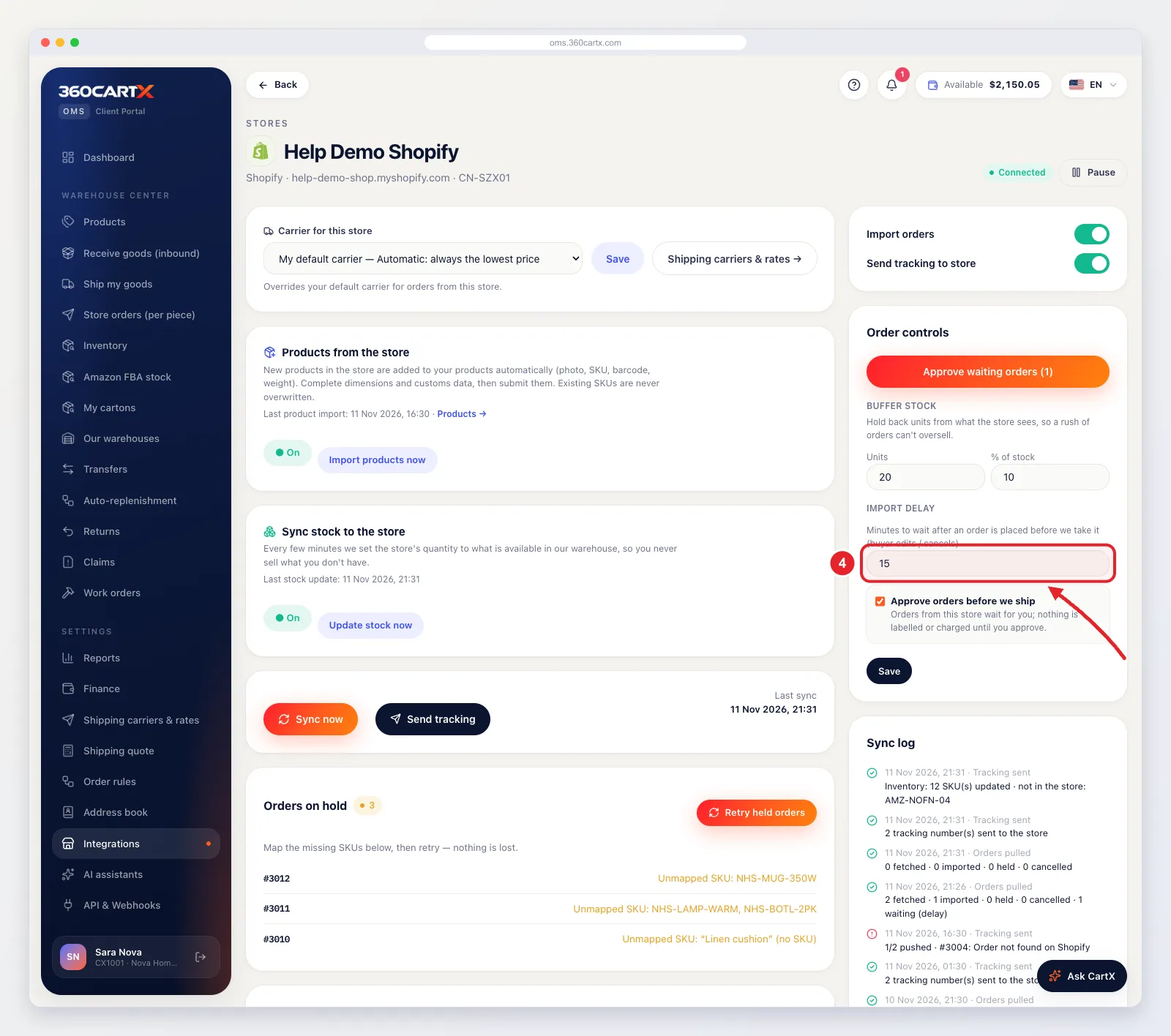
Import delay
The text says: Minutes to wait after an order is placed before we take it (buyer edits / cancels). The field takes 0 to 1440 minutes (a whole day), and 0 means we import at once. An order younger than the delay is left alone and taken at the first sync after the delay has passed. The sync result then says, for example, 1 waiting (delay). If the buyer cancels meanwhile, the order is never imported.
- 5
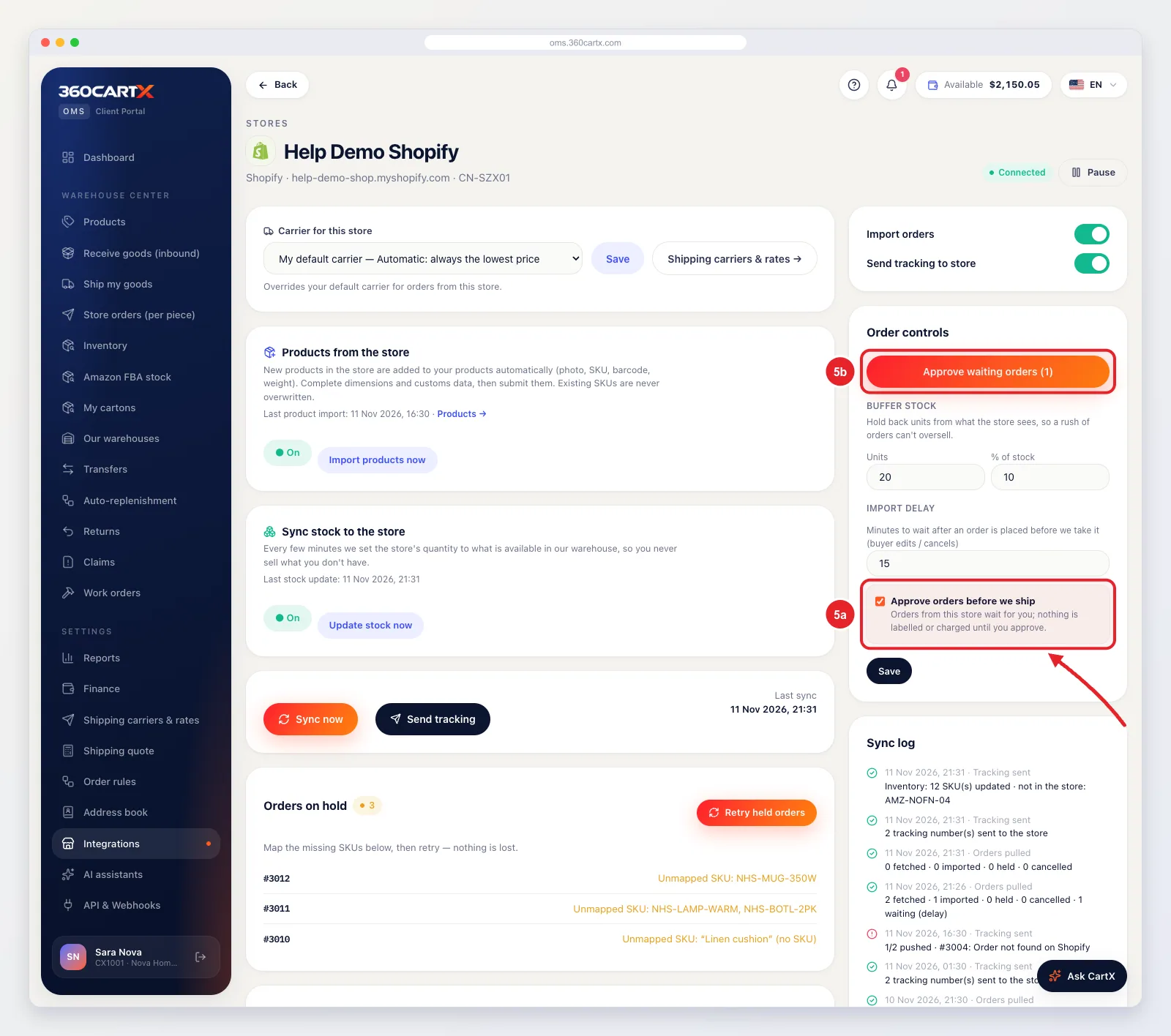
Approve orders before we ship
Tick this box to check every new order of this store yourself. The note says: Orders from this store wait for you; nothing is labelled or charged until you approve. The orders are imported but stop on Needs attention with the reason Waiting for your approval (manual approval is on for this store). Approve waiting orders approves all of them in one click and shows Approved followed by how many worked, for example 1/1. Approving buys the label, reserves the stock and charges your wallet, exactly as for an automatic order.
- 5a Approve orders before we ship
- 5b Approve waiting orders
- 6
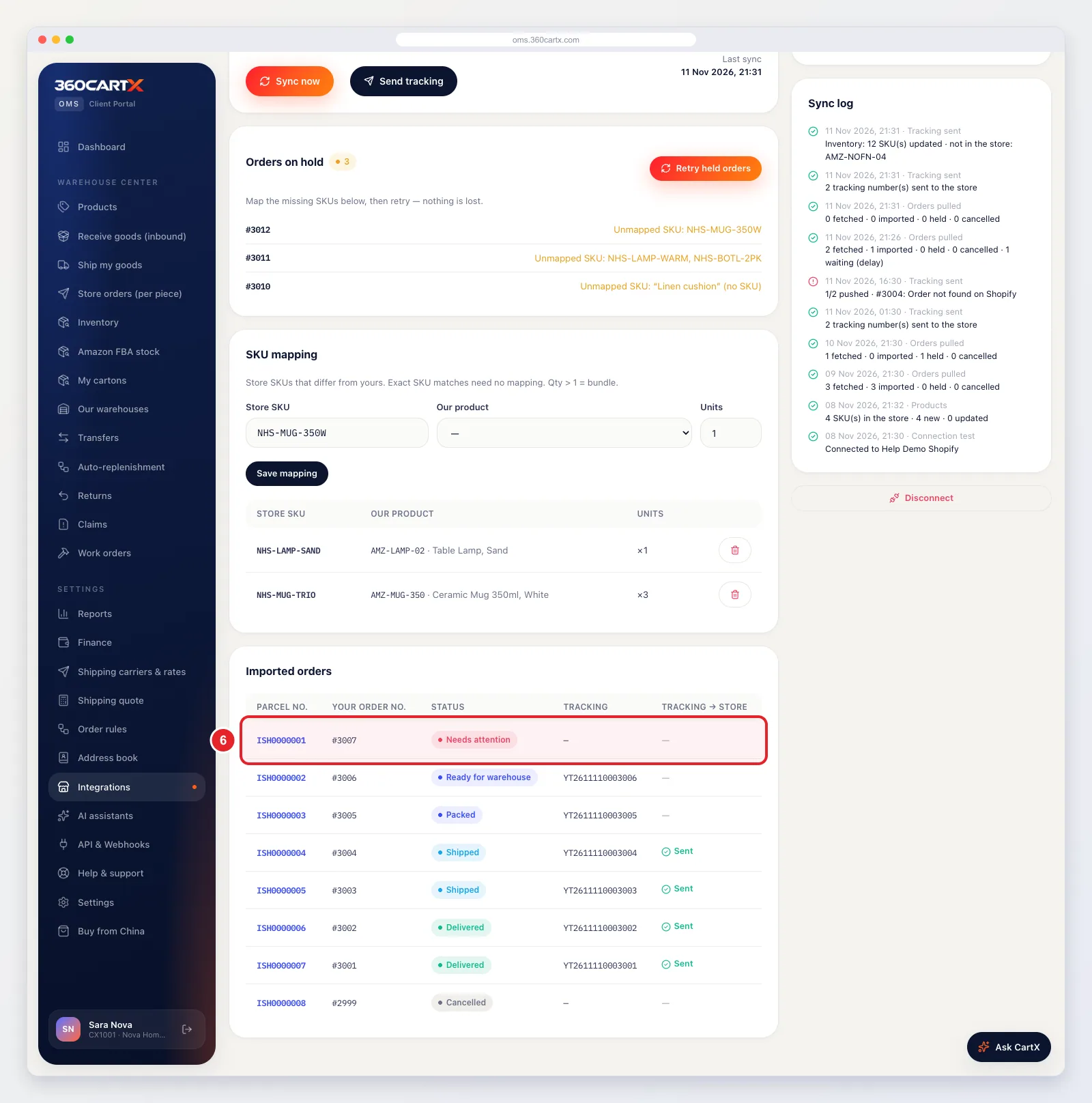
Waiting orders in the table
In Imported orders the waiting order shows the status Needs attention. Click its Parcel no. to open it: it has the button Approve & ship for that single order. See Approve orders before they ship. Switching the tick box off later does not release orders that already wait: approve them with the button.
- 7
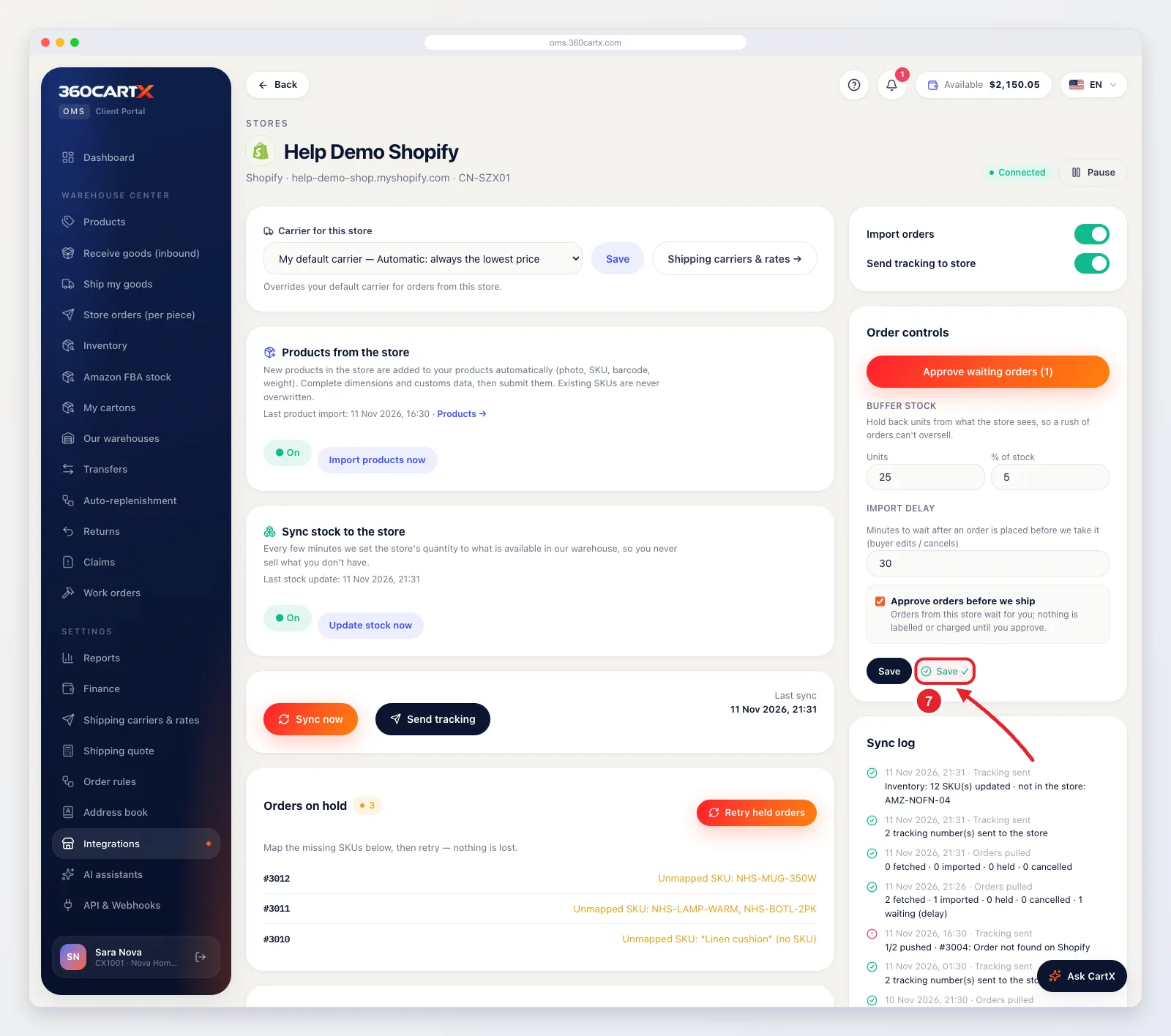
Save
Change the fields and click Save. A green Save with a tick appears when it worked. The new values apply from the next sync and the next stock update. They never change orders that were already imported.
Terms in this article
- Buffer stock: Units held back from what your store sees.
Tips
- Start with a small buffer such as 2 units or 5 % if the same stock is on sale on another channel.
- Use the import delay if buyers often change their address right after paying: 10 to 15 minutes is usually enough.
- Turn on manual approval for a new store while you test it, then turn it off when the first orders look right.
- Numbers outside the range are corrected when you save: a negative number becomes 0 and a percentage above 90 becomes 90.
Common problems
My orders do not ship by themselves any more
Approve orders before we ship is ticked. Untick it and approve the orders that already wait.
The store shows less stock than I have
The buffer is taking units off on purpose. Lower Units and % of stock, save, and click Update stock now.
A new order does not appear for a while
The import delay holds it back. Look for the note waiting (delay) in the Sync log, or set the delay to 0.
I approved but the order is still on Needs attention
The order was released but something else stopped it, for example the balance or the stock. The new reason is written on the order.
Related articles
Updated 2026-11-11
Open a ticket from Support in your portal and our team will reply.