Steps
- 1
Open Amazon FBA stock
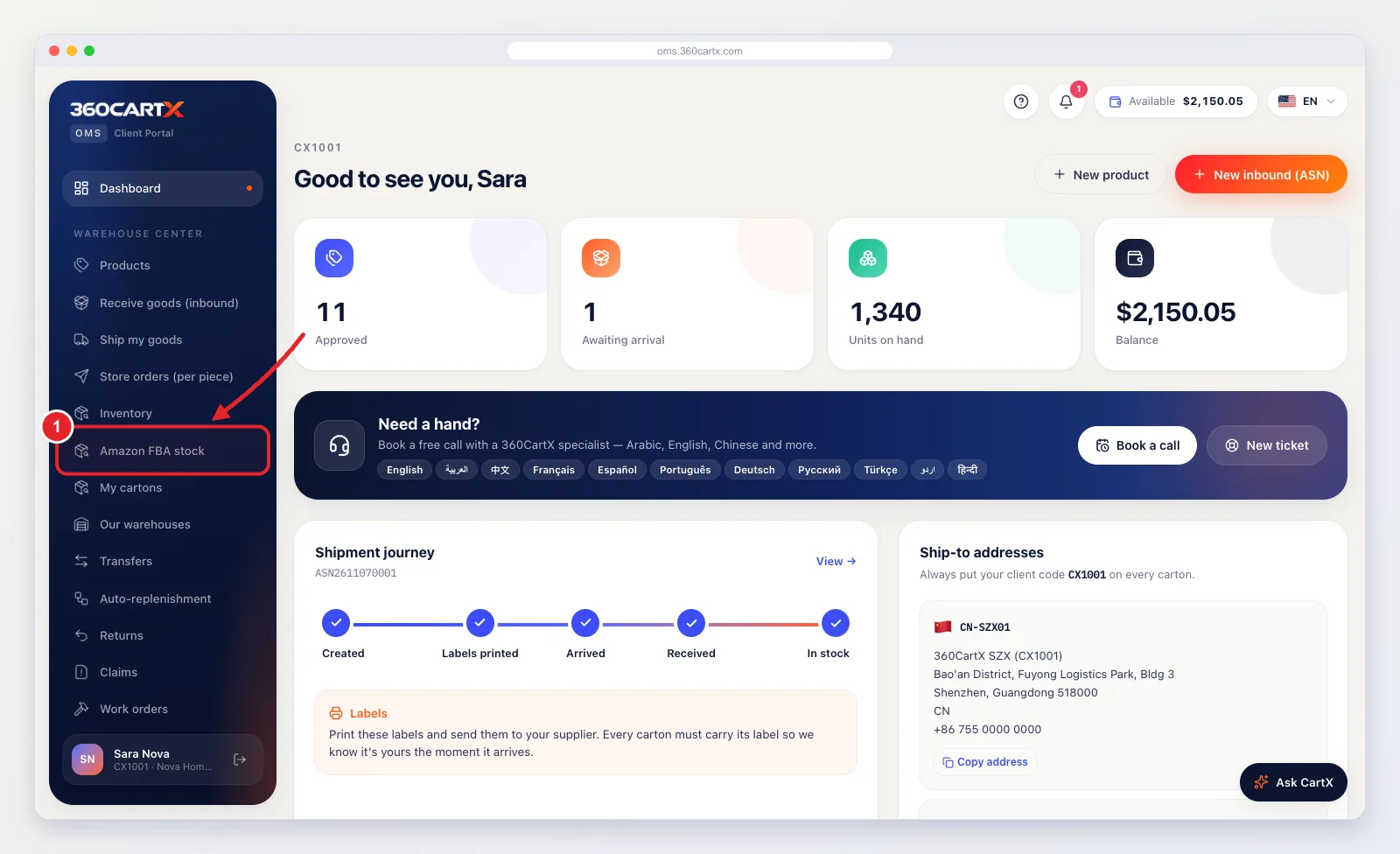
Click Amazon FBA stock under Warehouse Center in the left menu.
- 2
Connect your Amazon store first
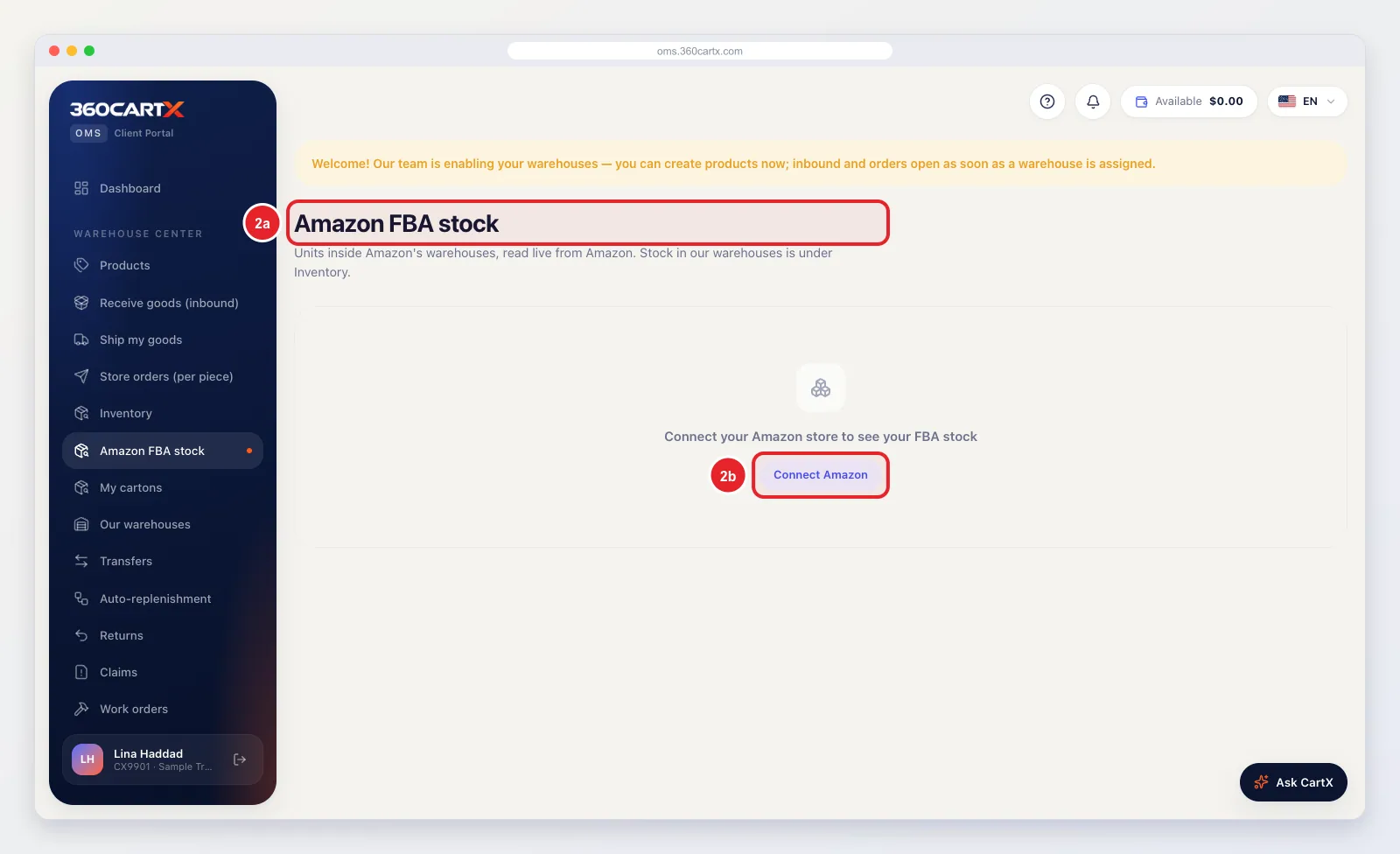
Without a connected Amazon store the page says Connect your Amazon store to see your FBA stock, with the button Connect Amazon. The connection is done under Integrations, see Connect Amazon.
- 2a Page title
- 2b Connect Amazon
- 3
One table per Amazon store
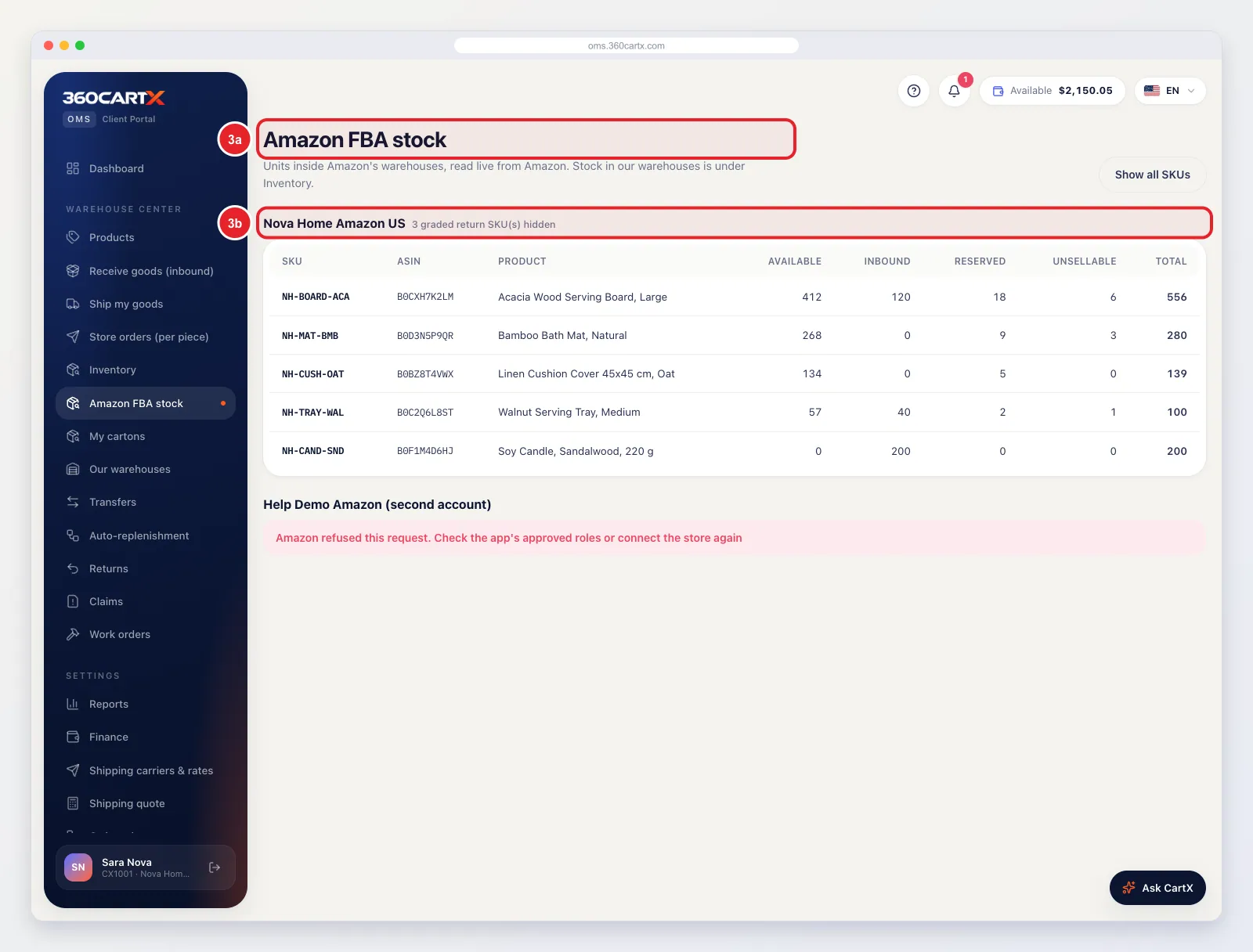
With a connected store the page is titled Amazon FBA stock and says: Units inside Amazon's warehouses, read live from Amazon. Stock in our warehouses is under Inventory. Each connected Amazon store has its own table under its name (here Nova Home Amazon US). A store you paused is not listed.
- 3a Page title
- 3b Store name
- 4
The columns
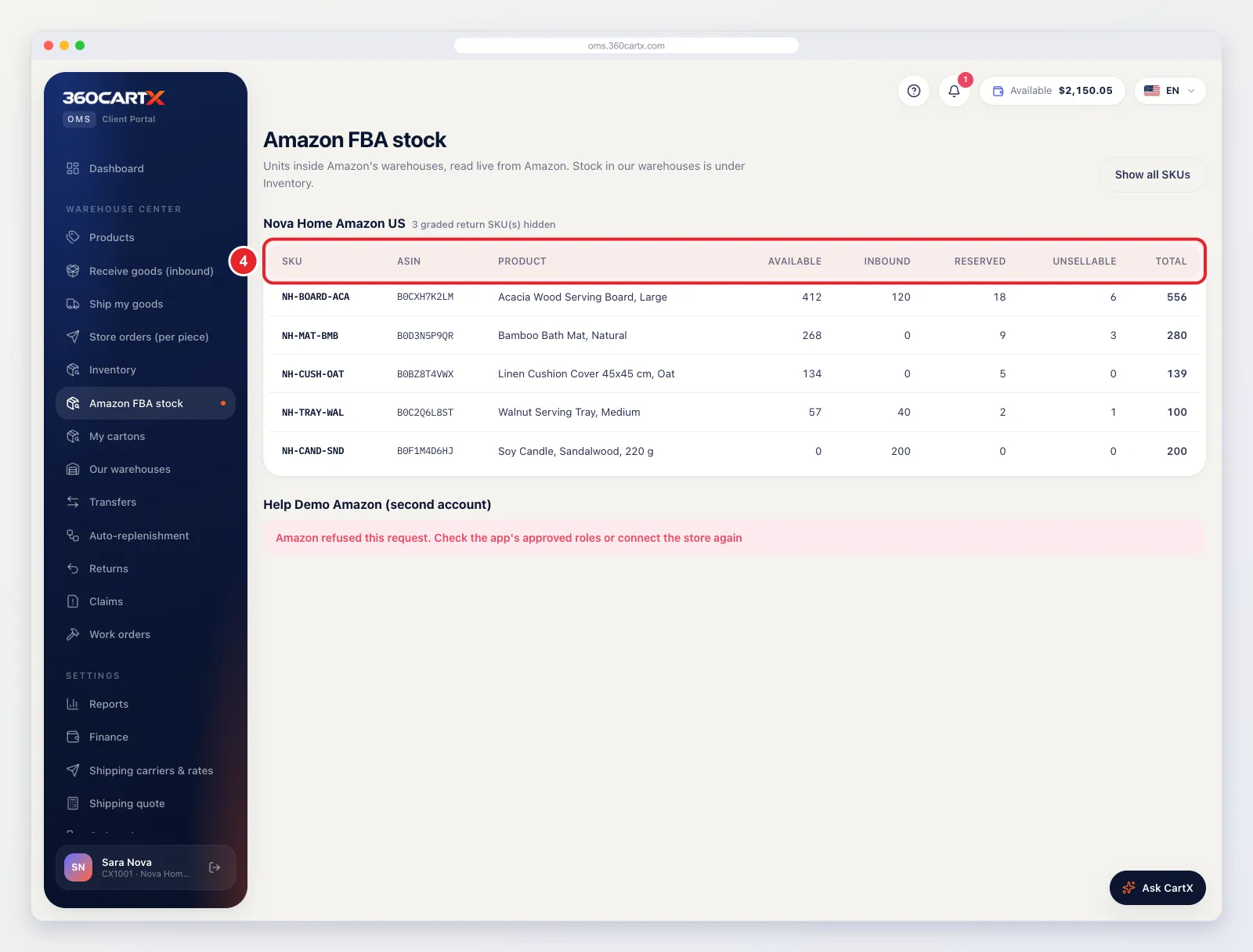
SKU, ASIN, Product, Available (units Amazon can sell now), Inbound (units on their way to Amazon: working, shipped and receiving added together), Reserved (held for orders or Amazon processing), Unsellable (damaged, expired or customer-damaged) and Total, the total Amazon reports for the SKU.
- 5
Graded returns are hidden
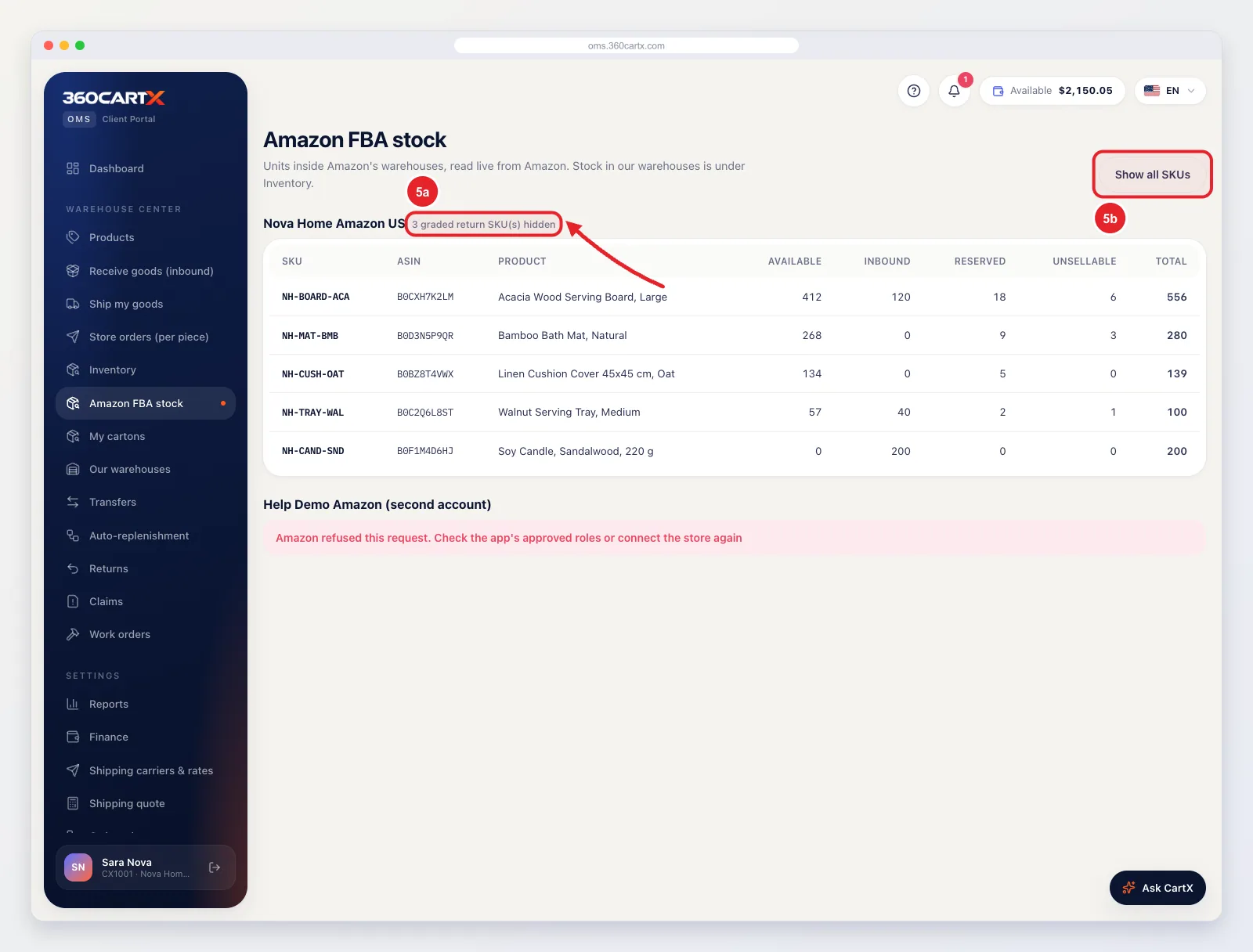
SKUs that begin with amzn.gr. are created by Amazon for graded returns and are not your catalogue. They are hidden, and a note next to the store name says how many (here 3 graded return SKU(s) hidden). The button Show all SKUs shows them.
- 5a Hidden note
- 5b Show all SKUs
- 6
Show them, hide them again
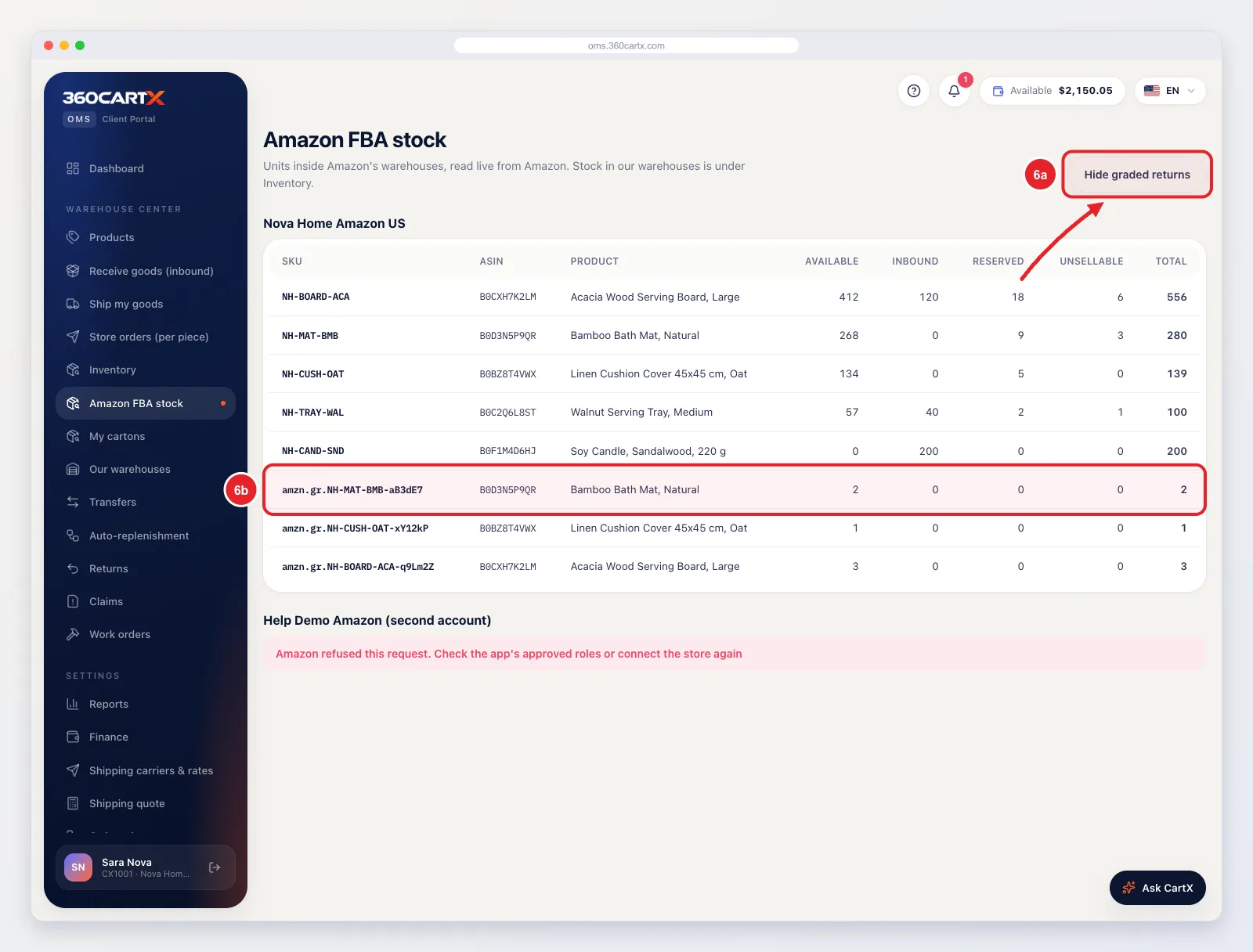
After Show all SKUs the graded return SKUs are listed with the others (here amzn.gr.NH-BOARD-ACA-q9Lm2Z) and the button now says Hide graded returns. Click it to hide them again.
- 6a Hide graded returns
- 6b Graded return SKU
- 7
If Amazon refuses
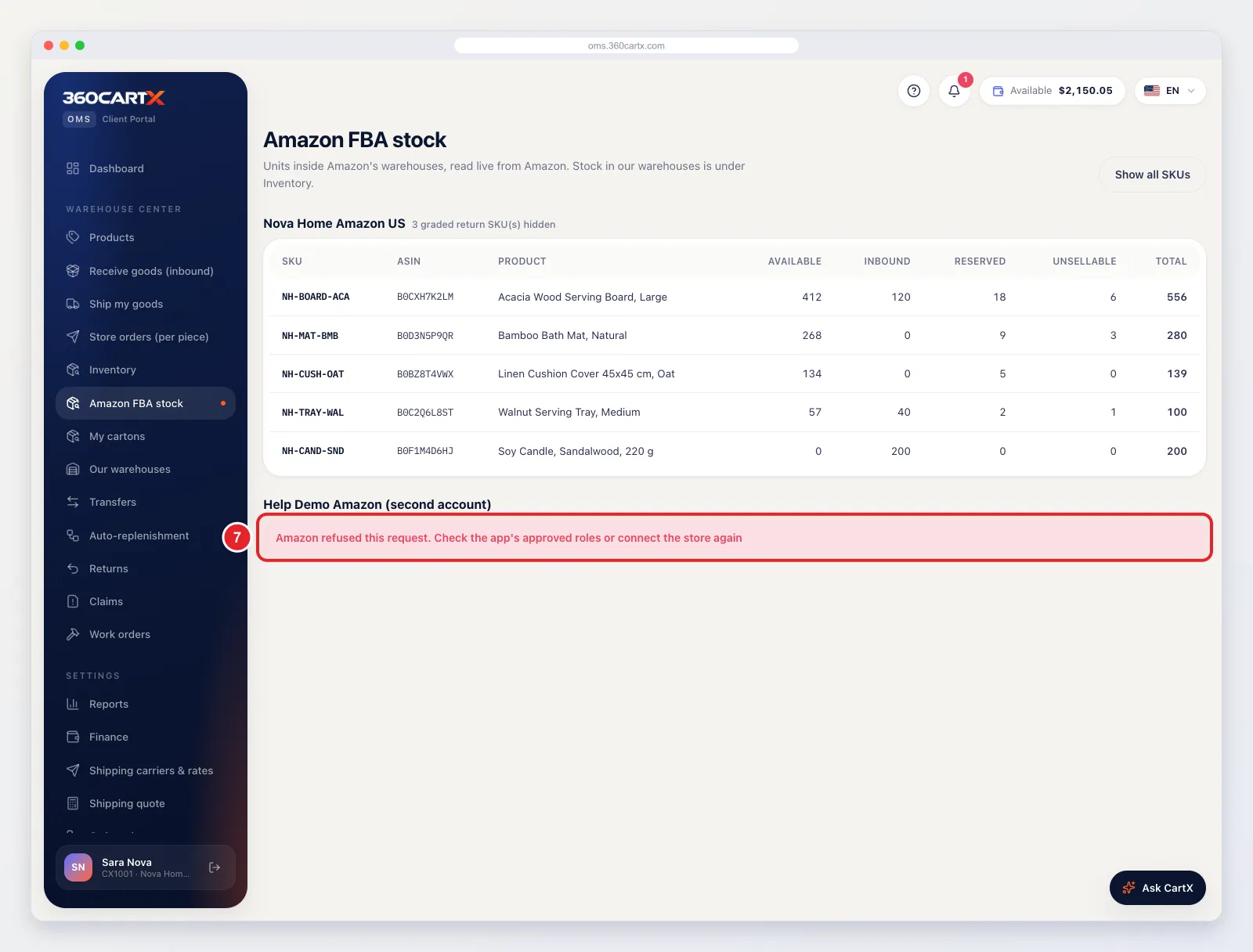
When Amazon cannot be reached or refuses a store's request, a red message replaces that store's table. Here the second store shows Amazon refused this request. Check the app's approved roles or connect the store again. Other stores on the page are not affected. When Amazon cannot be reached at all the message reads Cannot reach Amazon: followed by the reason. When Amazon answers with nothing the page says No FBA stock found.
Terms in this article
Tips
- To send more stock to Amazon use Ship my goods → To a platform warehouse.
- The numbers are Amazon's, read at the moment you open the page; they are not stored by us. Only the marketplace of your connected store is read.
Common problems
Amazon refused this request. Check the app's approved roles or connect the store again
Amazon said no to the inventory request. Connect the store again (Integrations → Amazon) so the permissions are granted again. If it stays, contact support.
Cannot reach Amazon
The connection to Amazon failed or timed out. Wait a minute and reload the page.
Amazon rate limit reached. The next sync continues
Amazon limits how often we may ask. Wait a little and reload.
Amazon sign-in: ... Connect the store again
The saved permission of the store could not be renewed. Connect the store again under Integrations.
My stock is not in the table
Only the marketplace of the connected store is read (Amazon.com, United States). Check that the right store is connected.
Related articles
Updated 2026-11-11
Open a ticket from Support in your portal and our team will reply.