Steps
- 1
Open Bulk import
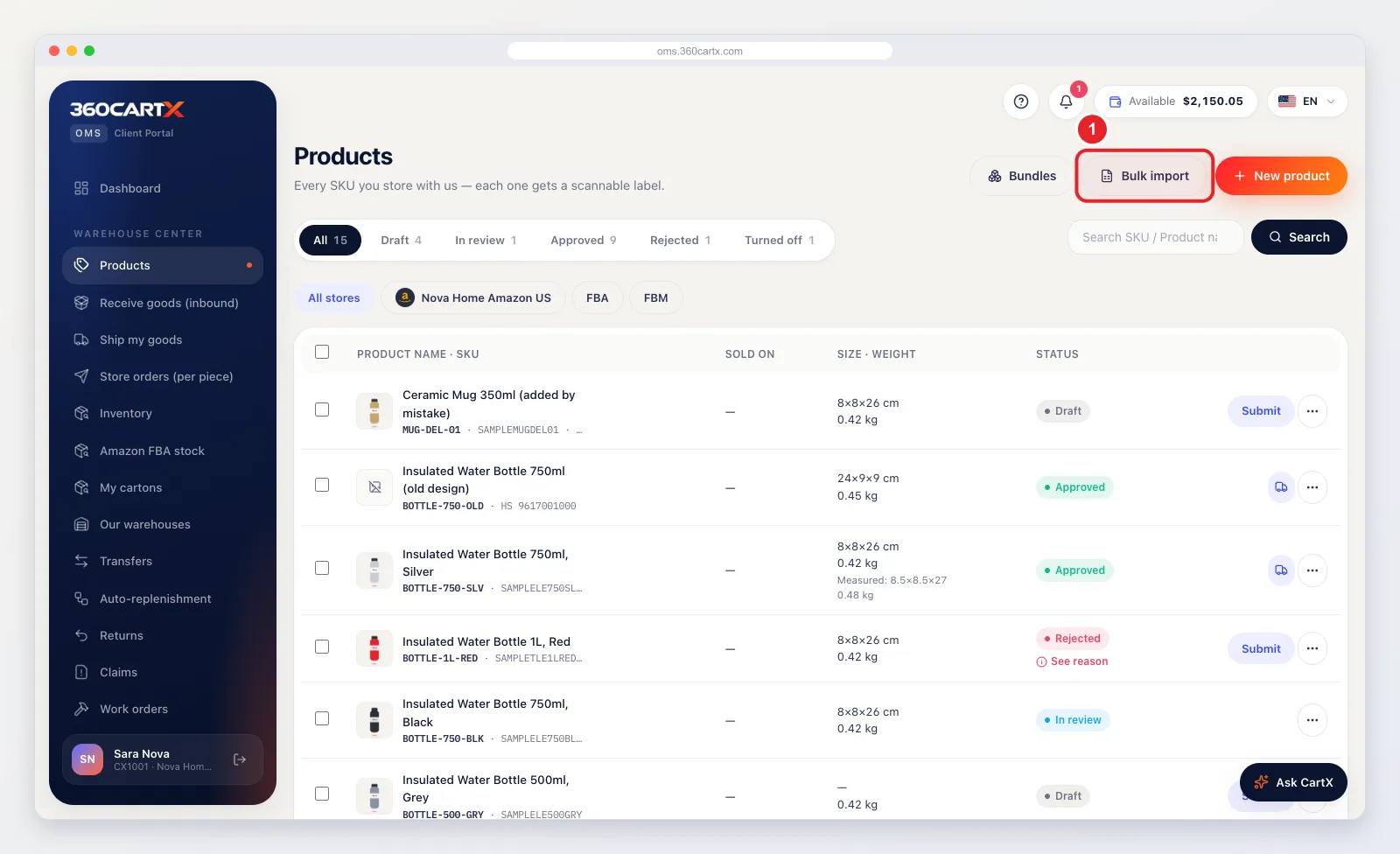
On the Products page click Bulk import.
- 2
Download the template
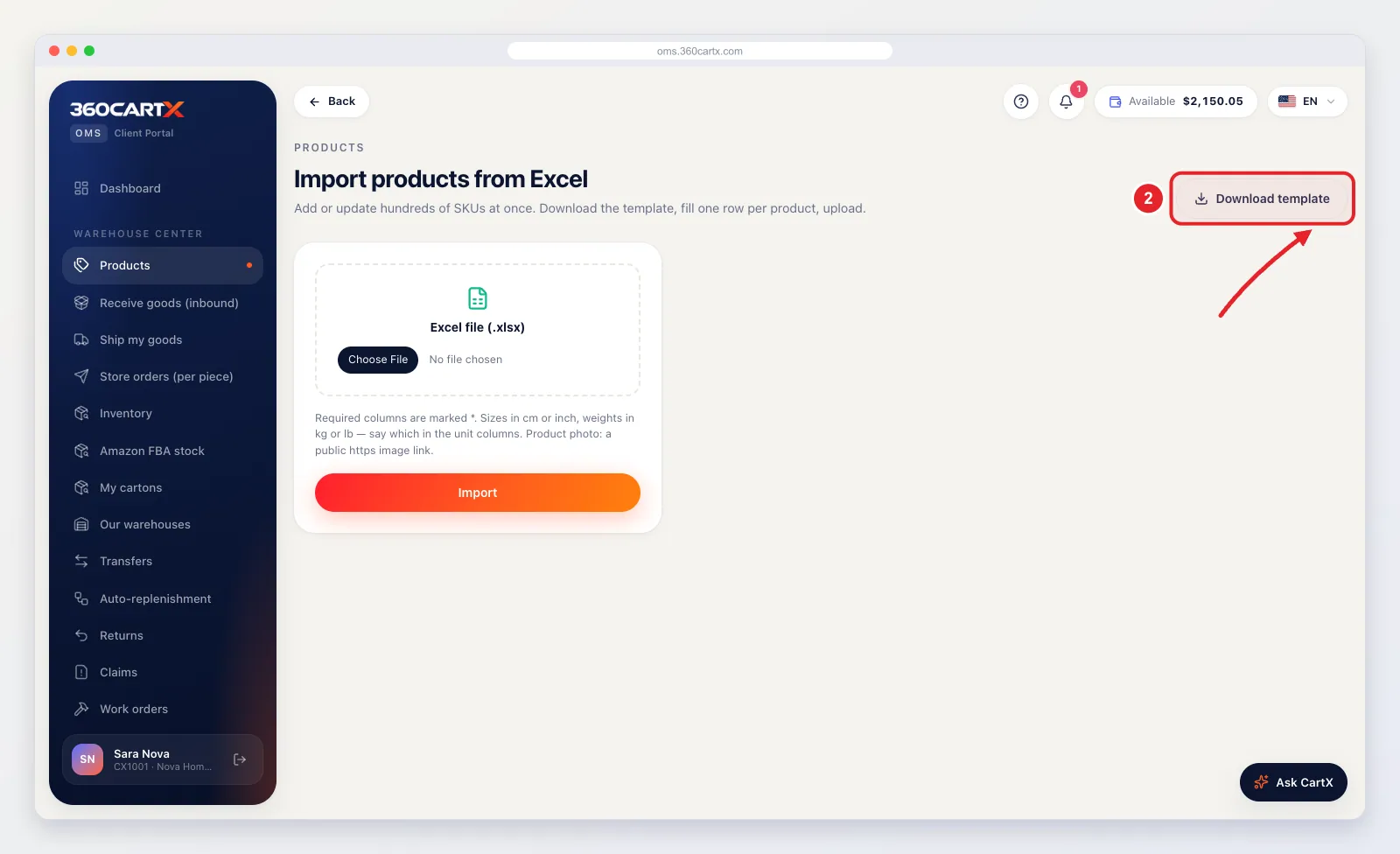
Click Download template. The file 360cartx-products-template.xlsx has one example row and these columns (* = required): SKU*, Product name*, Chinese name, Barcode (empty = automatic), Category, Length*, Width*, Height*, Size unit* (cm/in), Weight*, Weight unit* (kg/lb), HS code*, Cargo type*, Declared name EN*, Declared name ZH, Declared value USD, Origin country, Material, Usage, Photo link* (https), Sales link, Sold on Amazon FBA (yes/no). The second sheet, Cargo types, lists the codes to use: GENERAL, BATTERY_IN, BATTERY_WITH, BATTERY_ONLY, LIQUID, POWDER, MAGNETIC, COSMETIC, SHARP, CLOTHING.
- 3
Fill in and upload the file
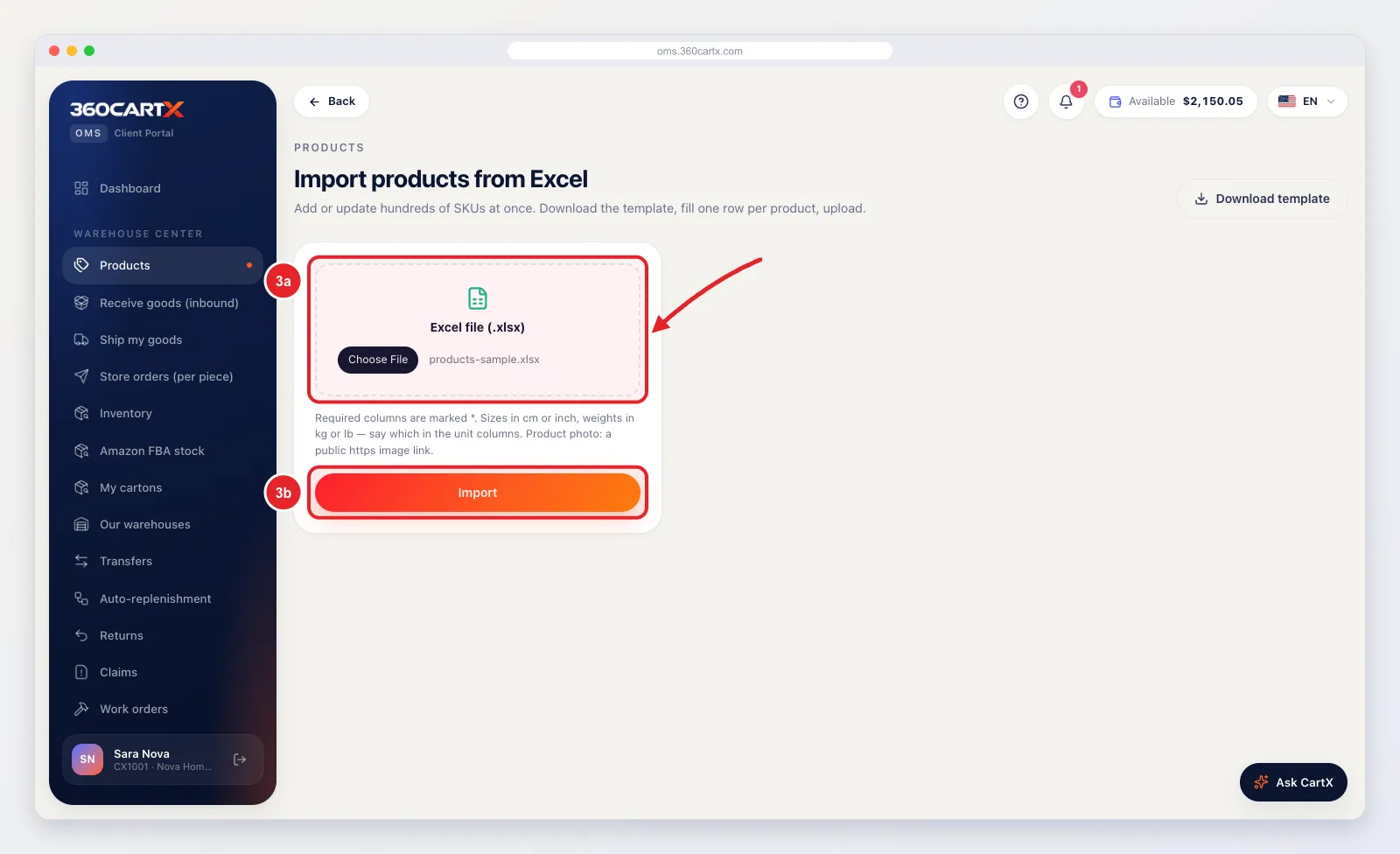
Fill one row per product, for example MUG-350-WHT · Ceramic Mug 350ml, White · 12 · 9 · 10 · cm · 0.38 · kg · 6912.00 · GENERAL · Ceramic mug · 3.2 · CN · https://example.com/mug-white.jpg · no. Keep the header row as it is. Cargo type is required on every row: leave it empty and the row is skipped. In the last column write yes for a product that goes to Amazon (see Add the FNSKU and label file to an Amazon product), or no or nothing for the others. Click the Excel file (.xlsx) box, choose your file and click Import.
- 3a Excel file (.xlsx)
- 3b Import
- 4
Read the result
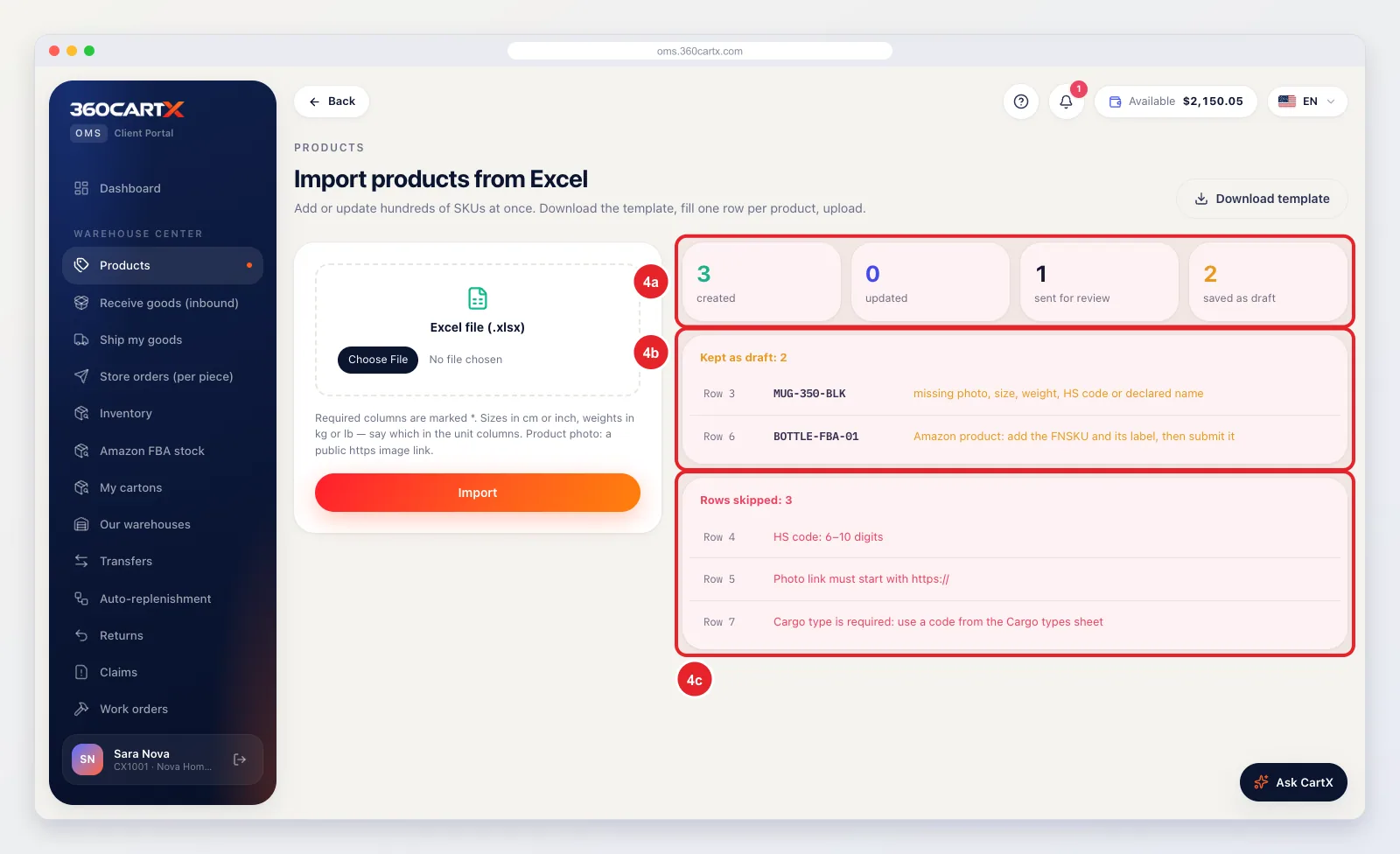
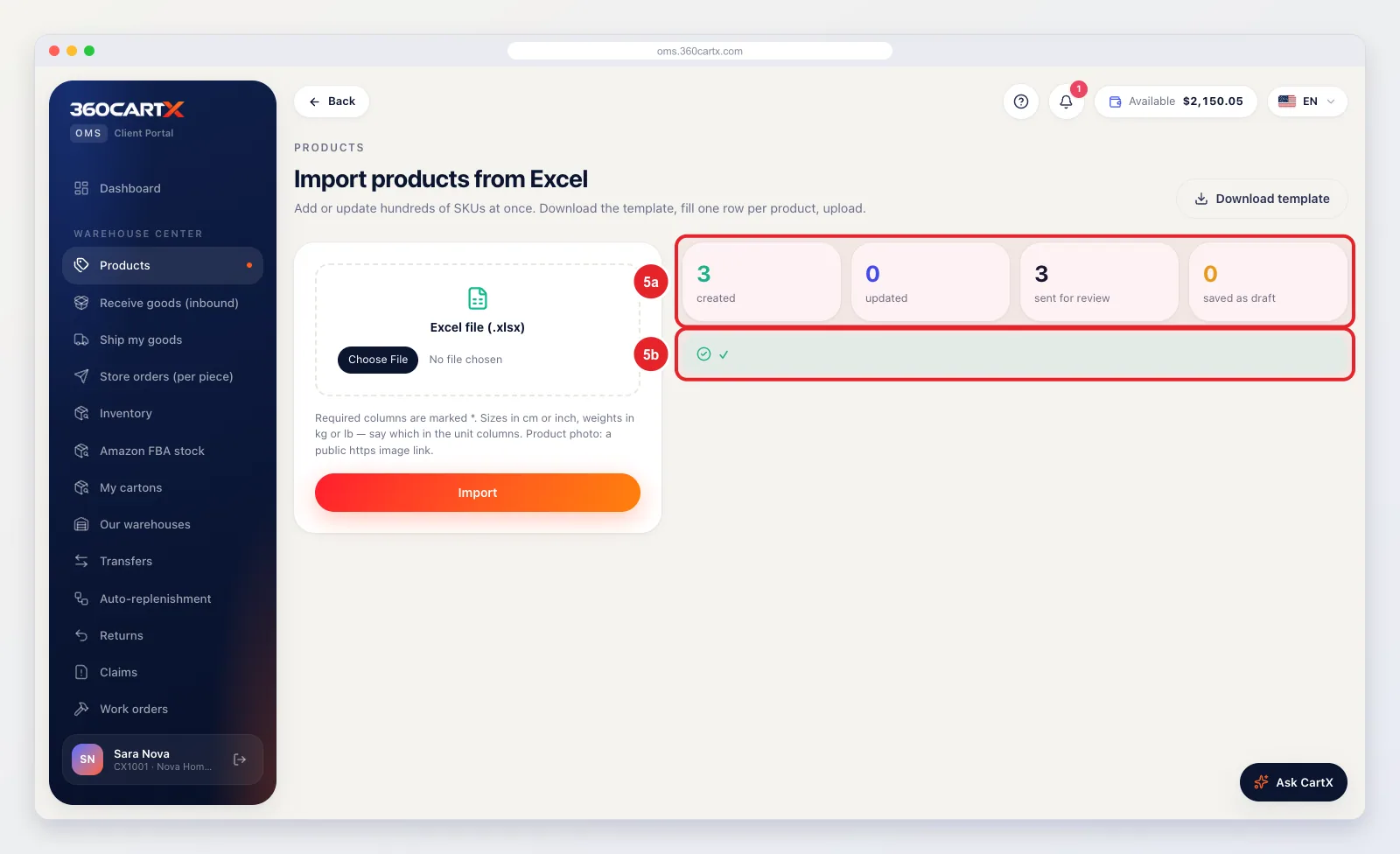
Four numbers show what happened. Every imported row is counted once as created (new SKU) or updated (an existing draft or rejected product), and once as sent for review (complete rows) or saved as draft (rows that were saved but not sent). Under them, Kept as draft lists each draft row with the reason: missing photo, size, weight, HS code or declared name, or Amazon product: add the FNSKU and its label, then submit it. Rows skipped lists every row that was not imported at all, with its row number and the reason, for example Row 4 · HS code: 6–10 digits, Row 5 · Photo link must start with https:// and Row 7 · Cargo type is required: use a code from the Cargo types sheet. Complete the drafts later in Products → Draft.
- 4a Result
- 4b Kept as draft
- 4c Rows skipped
- 5
Fix the skipped rows and import them again
Correct the skipped rows, for example HS code 9405.21, a photo link starting with https:// and the cargo type GENERAL, and import them again. When every row is imported you see a green tick instead of Rows skipped. Leave out rows that were already sent for review: they are skipped with … is already submitted — it can't be changed by import.
- 5a Result
- 5b All rows imported
Terms in this article
- SKU: Your own product code.
- HS code: The customs tariff code of a product.
- Cargo type: The kind of goods, which decides the carriers that accept it.
Tips
- Up to 5,000 rows and 10 MB per file.
- Approved and in-review products are never changed by an import, so re-importing the same file is safe.
- The photo must be a public https link to an image file (for example from your store's product page), not a file on your computer.
- Sizes can be in cm or inch and weights in kg or lb: write the unit in the unit columns. The Cargo type is never guessed: a row without it is skipped.
- Product names must have 2 to 200 characters.
Common problems
Choose the Excel file
Click the Excel file (.xlsx) box and pick your file before clicking Import.
File larger than 10 MB
Split the file into smaller files, or remove extra sheets and images from it.
Could not read this file — use the .xlsx template
Save the file as Excel Workbook (.xlsx), not .xls or .csv, and keep the template's header row.
Use the template: SKU and Product name columns are missing
The first row must contain the template's column names. Copy your data into a fresh template.
SKU: letters, digits, . _ - only / Product name is required
Check that row: the SKU has spaces or symbols, or the name is empty.
Cargo type is required: use a code from the Cargo types sheet
The Cargo type cell of that row is empty. Write one of the codes from the Cargo types sheet, for example GENERAL.
Cargo type must be one of GENERAL, BATTERY_IN, …
Use a code from the Cargo types sheet, not the English name.
Product name must be at least 2 characters / Product name can be at most 200 characters
Shorten or complete the name of that row.
… is already approved — it can't be changed by import
Approved or in-review SKUs are skipped. Contact support to change an approved product.
… is already discarded — it can't be changed by import
The SKU belongs to a product you turned off. Open Products → Turned off and click Restore, then import again if it is a draft or rejected product.
Related articles
Updated 2026-11-12
Open a ticket from Support in your portal and our team will reply.