Steps
- 1
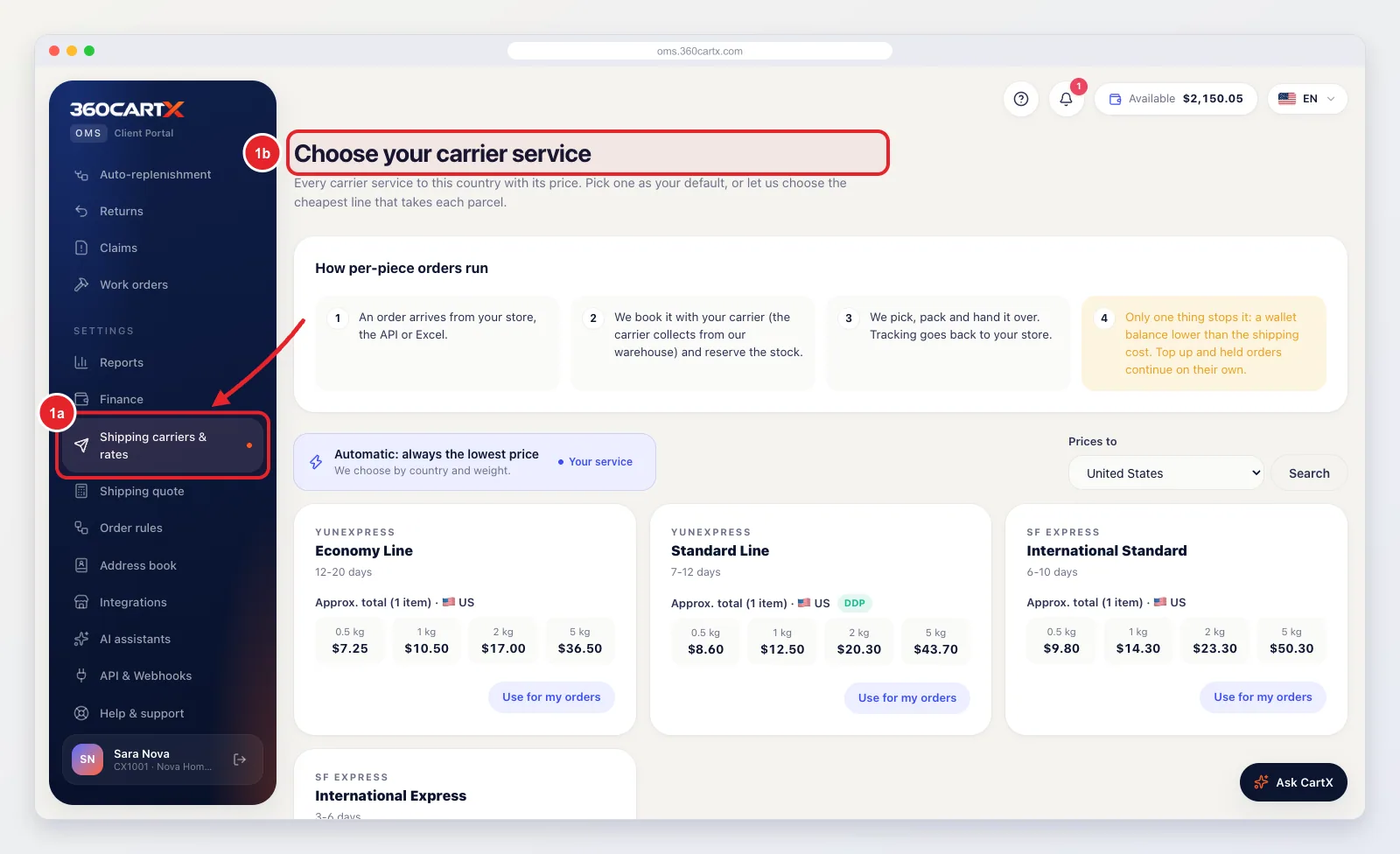
Open Shipping carriers & rates
Click Shipping carriers & rates in the left menu. The page is called Choose your carrier service. It lists every carrier service we can use for parcels to one country, with its price. Pick one as your default, or let us choose the cheapest line that takes each parcel.
- 1a Menu item
- 1b Page title
- 2
Read how per-piece orders run
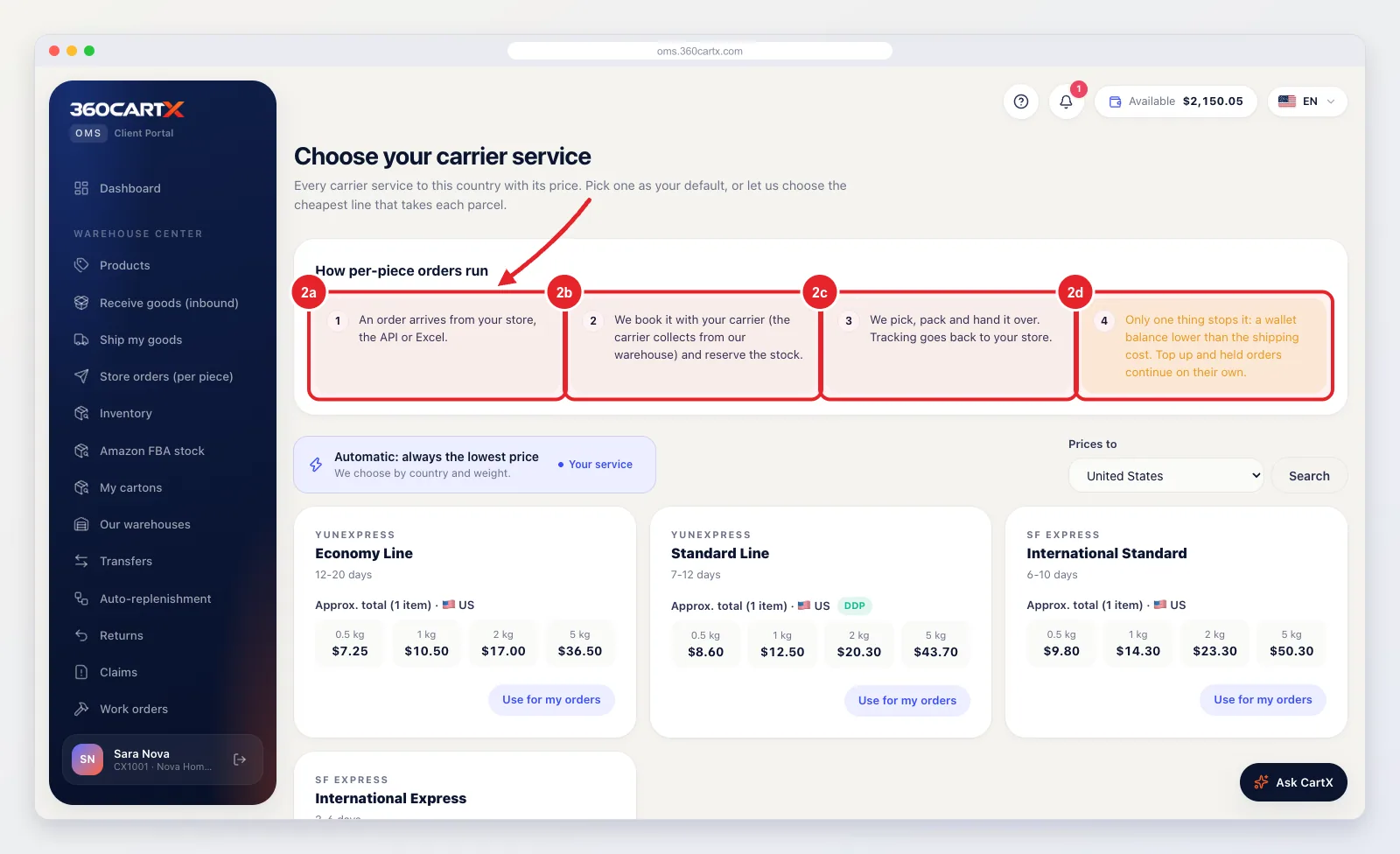
The four boxes under How per-piece orders run explain the flow. 1: an order arrives from your store, the API or Excel. 2: we book it with your carrier (the carrier collects from our warehouse) and reserve the stock. 3: we pick, pack and hand it over, and tracking goes back to your store. 4: only one thing stops it, a wallet balance lower than the shipping cost. Top up and held orders continue on their own. Nobody has to approve an order for it to ship.
- 2a Order arrives
- 2b Booked and reserved
- 2c Picked, packed, handed over
- 2d Only a low balance stops it
- 3
Choose the destination country
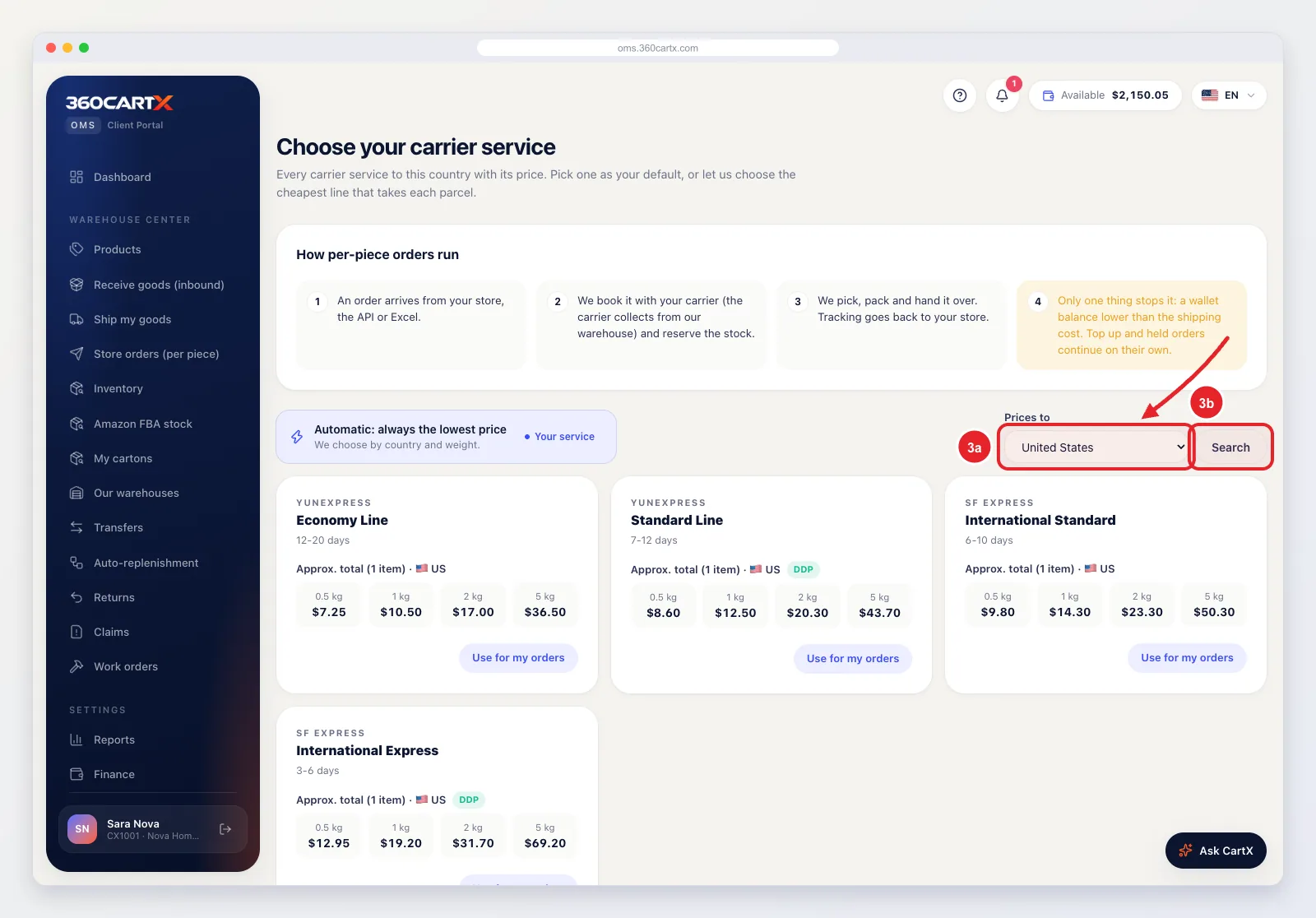
Prices to shows the country the example prices are for. It starts on United States. Choose another country in the list and click Search. The cards change to the services that go to that country, with that country's prices. Choose the country where most of your buyers live.
- 3a Prices to
- 3b Search
- 4
Read a carrier card
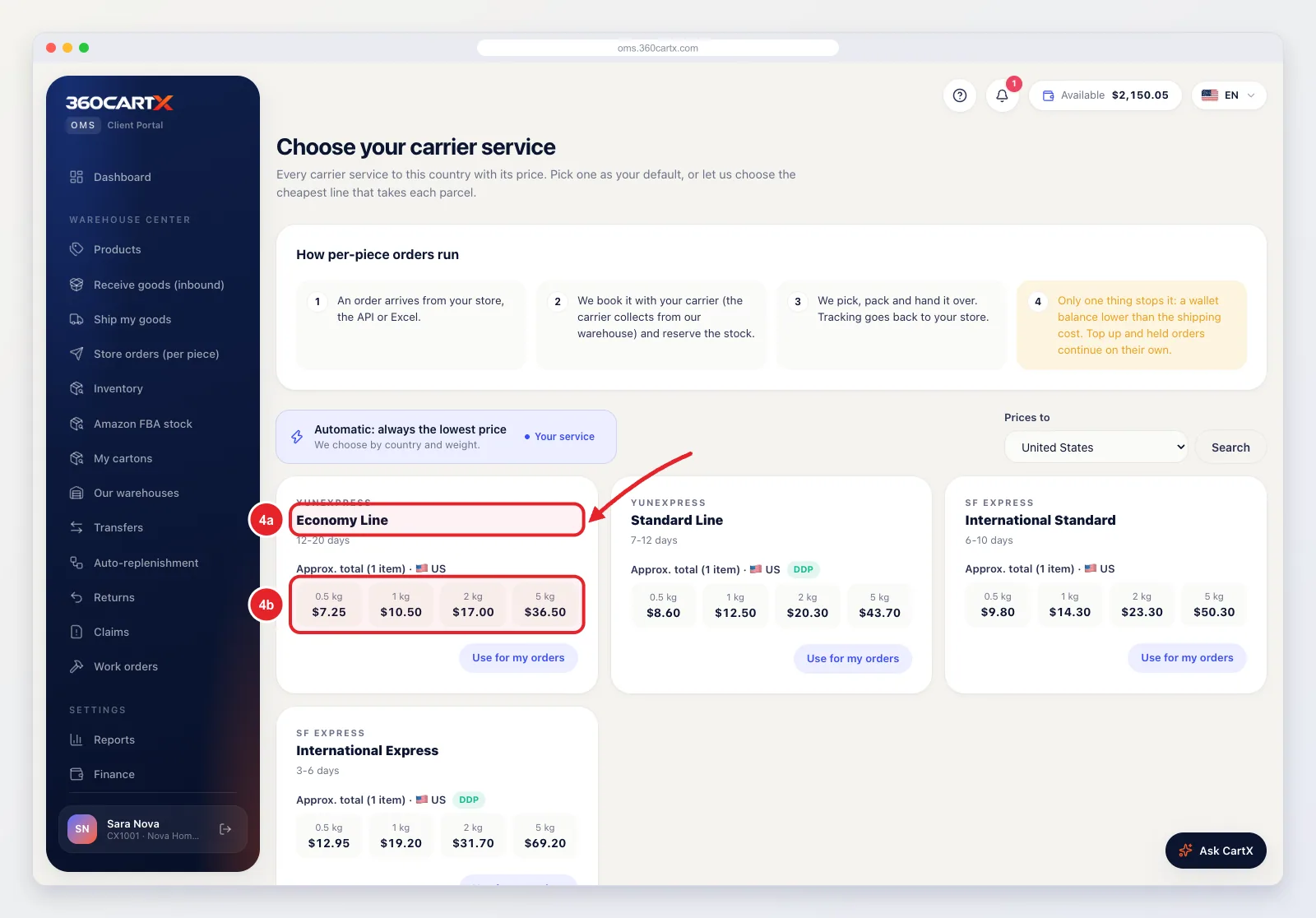
Each card is one service. At the top you see the carrier in small capitals (here YunExpress), under it the service name, such as Economy Line, and the transit time in days. Under Approx. total (1 item) are four example prices for a parcel of 0.5 kg, 1 kg, 2 kg and 5 kg. The price includes postage and our pick and pack for one item. A dash means the service does not take that weight. Cards are sorted from the lowest price for 0.5 kg.
- 4a Service name
- 4b Example prices
- 5
Use this service for my orders
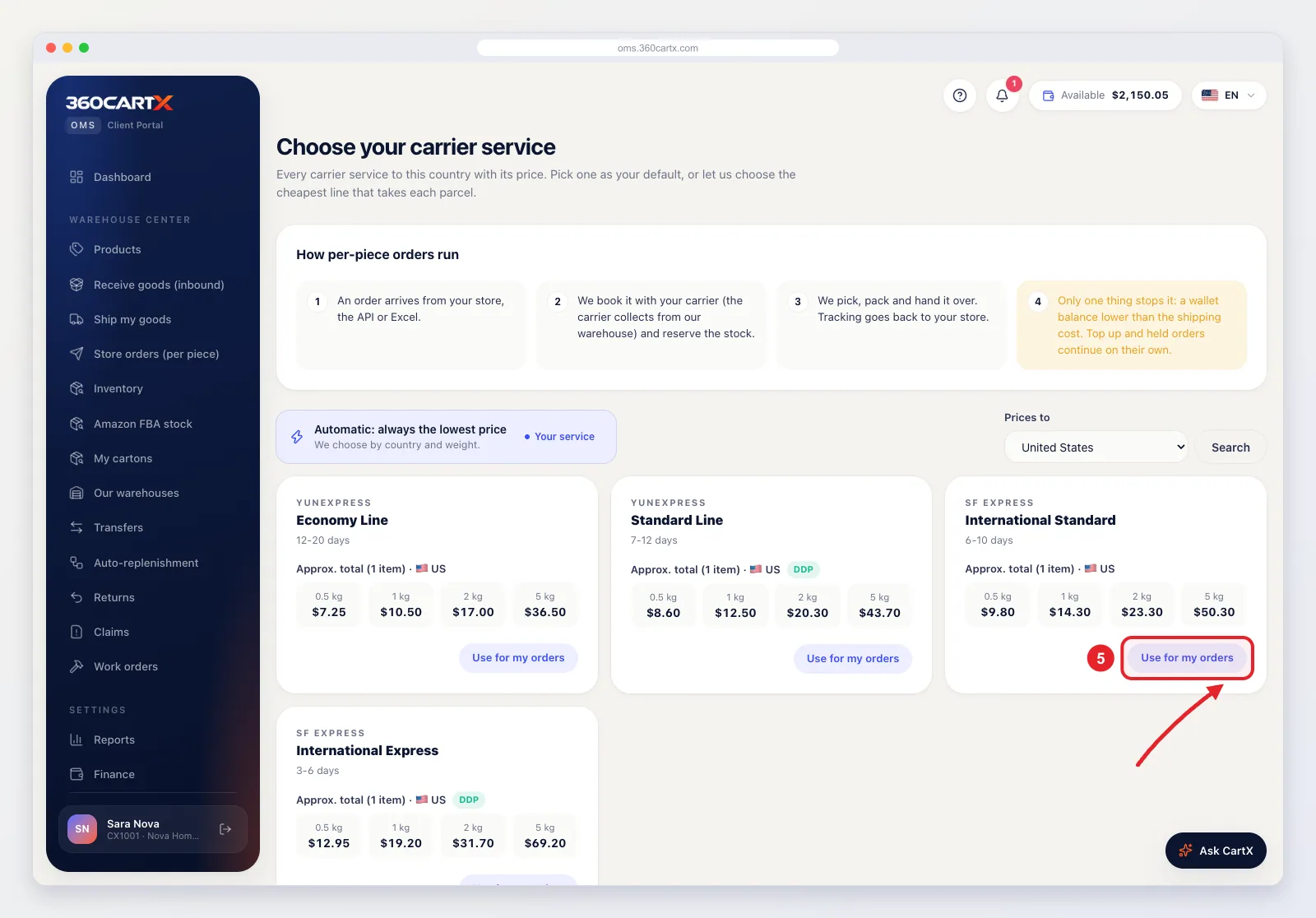
Click Use for my orders on the card you want. From now on new store orders ship with this carrier service. Nothing else to confirm. Only owners, admins and team members with Shipping access can change it. Viewers see the page without the buttons.
- 6
Your service
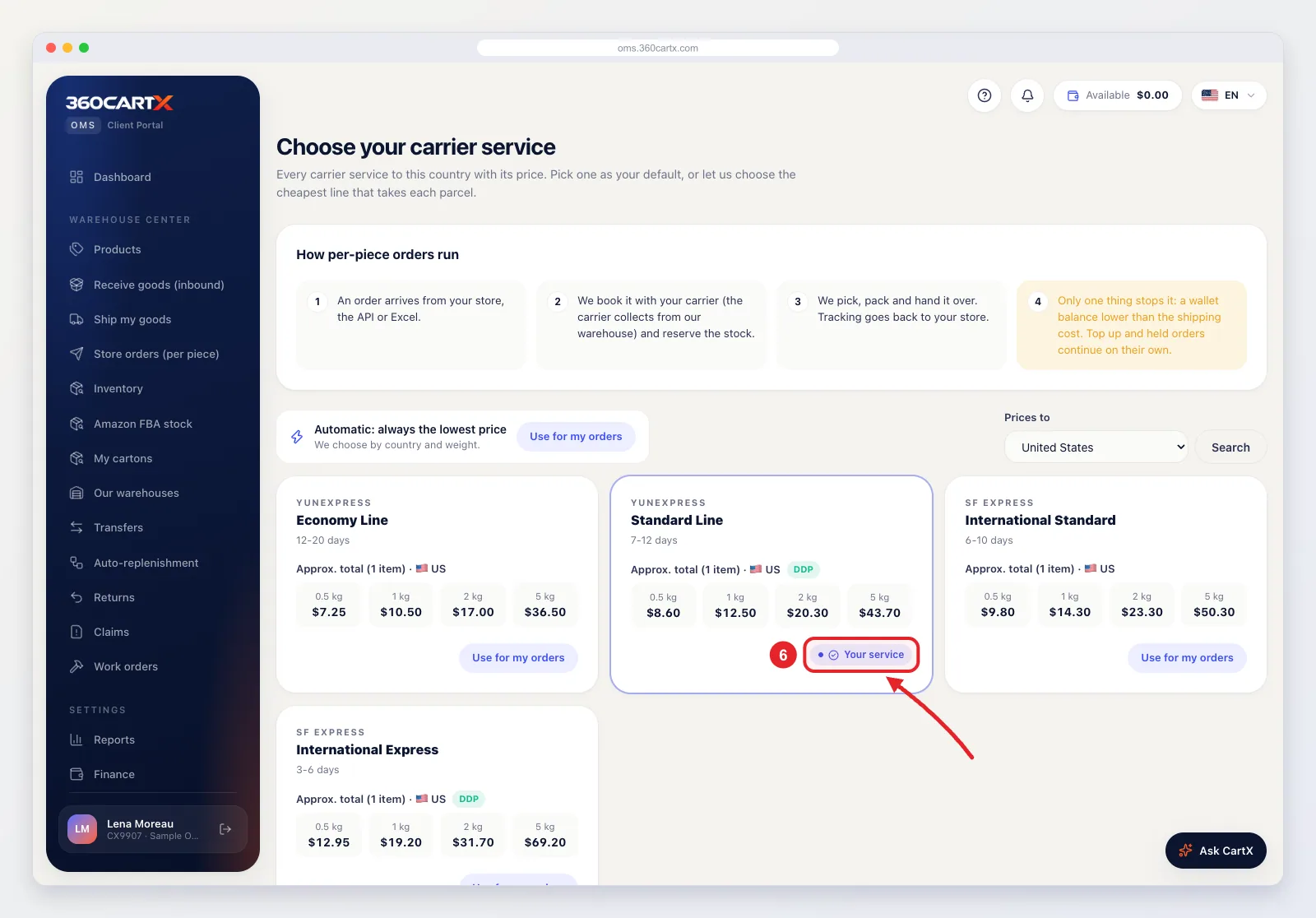
The chosen card gets a blue outline and the badge Your service. A store can also have its own carrier, set on the store page, and that one wins for orders from that store. Your default is used for every other order.
- 7
Or let us choose: Automatic
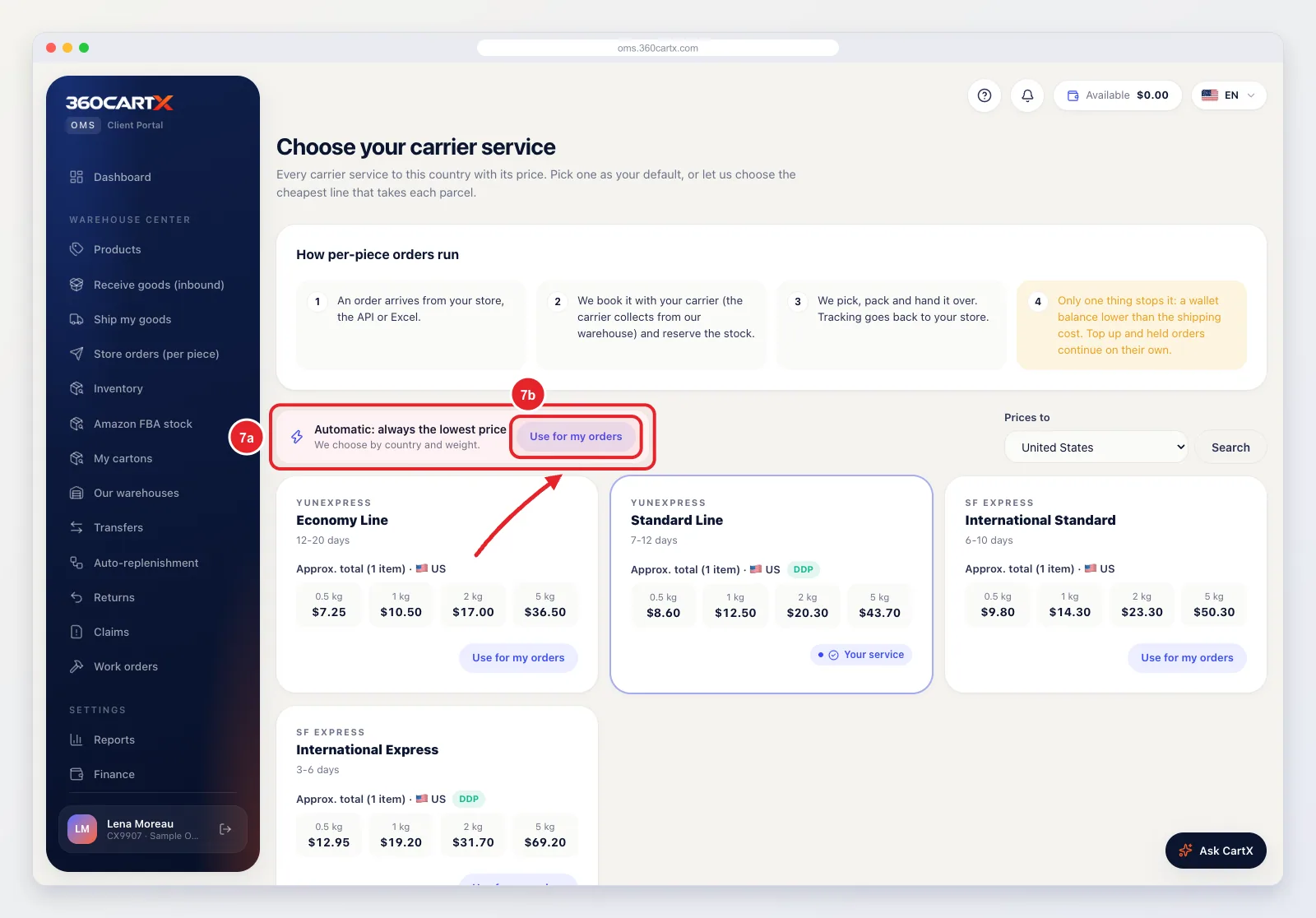
The box at the top, Automatic: always the lowest price, says: We choose by country and weight. Click Use for my orders in this box and each order goes with the cheapest service that takes its country and weight. When Automatic is on, the box shows Your service instead of the button. Choosing a card turns Automatic off.
- 7a Automatic box
- 7b Use for my orders
- 8
When no carrier is available
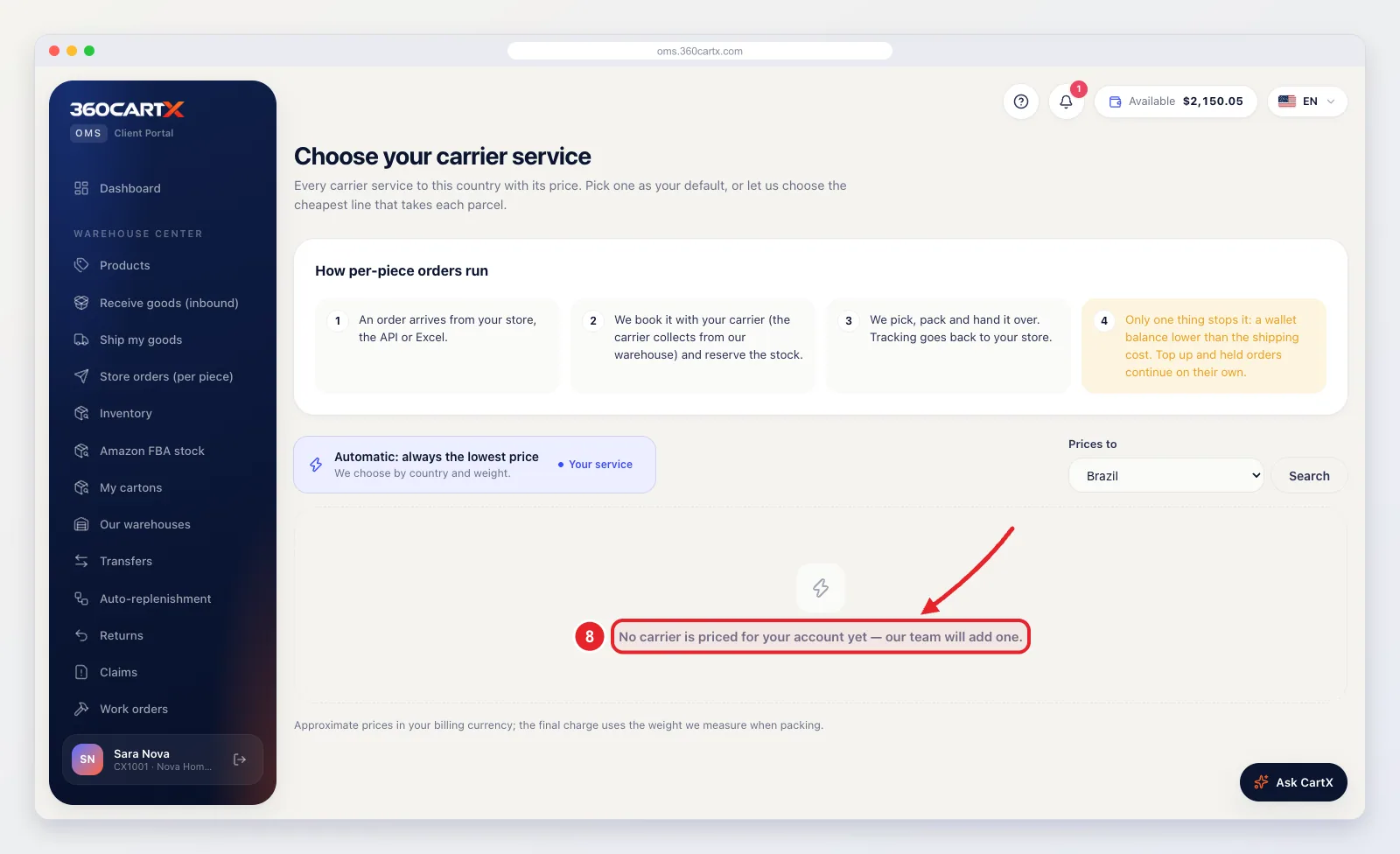
If no service is priced for the country you chose, the page says: No carrier is priced for your account yet, our team will add one. Try another country, or contact support and tell us where you need to ship. We add services for you.
Terms in this article
- DDP: Delivered duty paid: duties are in the price.
Tips
- Prices on the page are approximate. The final charge uses the weight we measure when we pack the parcel.
- Not sure which to pick? Leave Automatic on. You always pay the lowest price that takes the parcel, and you can look at the Shipping quote page for a full comparison of one parcel.
- Look for the DDP badge when your buyers should not pay anything on delivery. See DDP: duties included.
- If your balance is lower than the shipping cost, the order waits and then ships by itself after you top up.
Common problems
I changed my carrier but an order still went with the old one
The change applies to new orders. Also check the store page: a carrier set for one store wins over your default for that store.
I do not see the Use for my orders buttons
Your role cannot change it. Ask an owner or admin of your account. Viewers can read the page only.
A price shows a dash
That service does not take a parcel of that weight. Choose another service or use the Shipping quote page for heavier parcels.
My country is not in the list
The list has every destination except China. A country with no carrier shows the No carrier is priced message, contact support and we add one.
Related articles
Updated 2026-11-11
Open a ticket from Support in your portal and our team will reply.