Steps
- 1
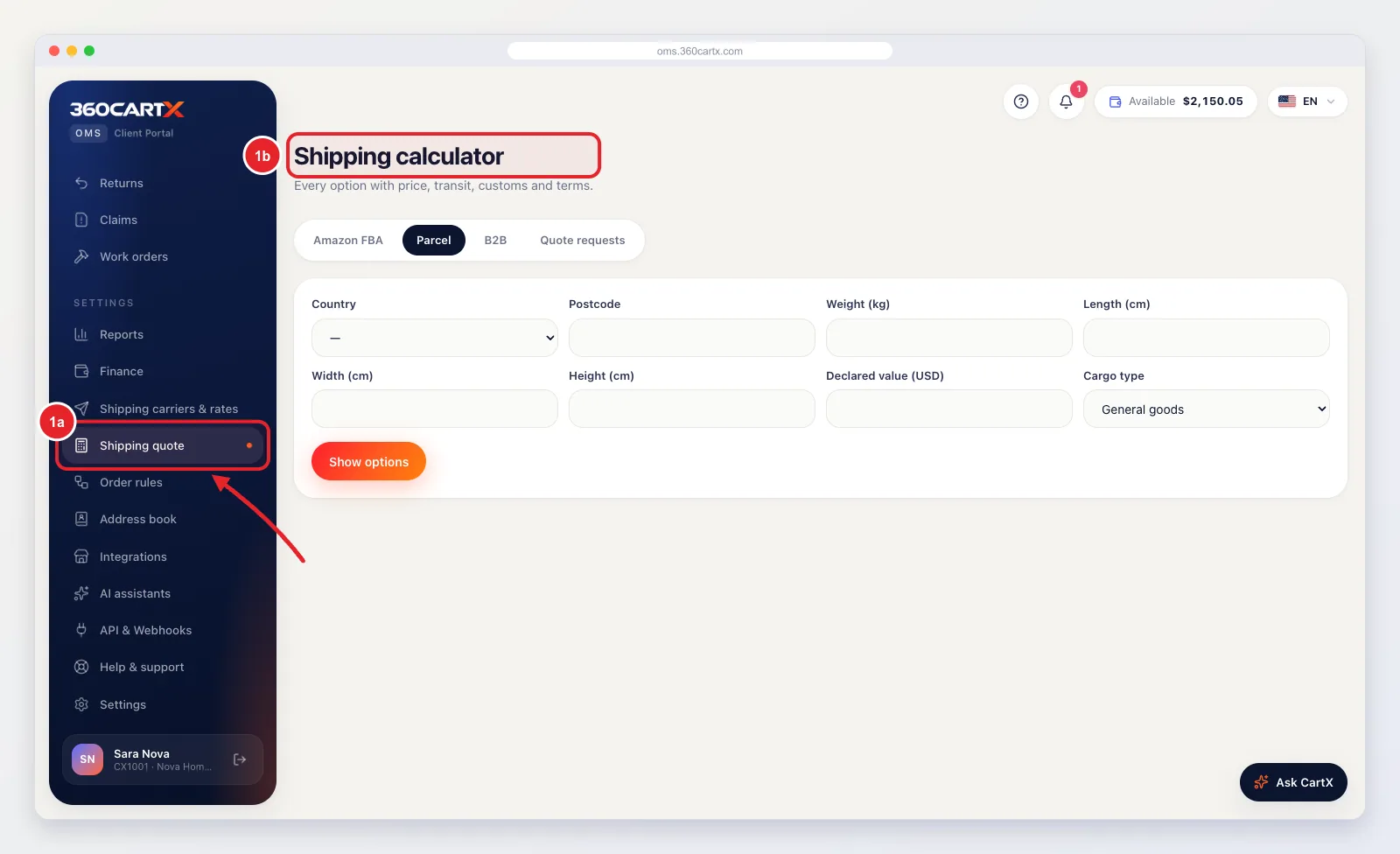
Open Shipping quote
Click Shipping quote in the left menu. The page is called Shipping calculator and says: Every option with price, transit, customs and terms. It opens on the Parcel tab.
- 1a Menu item
- 1b Page title
- 2
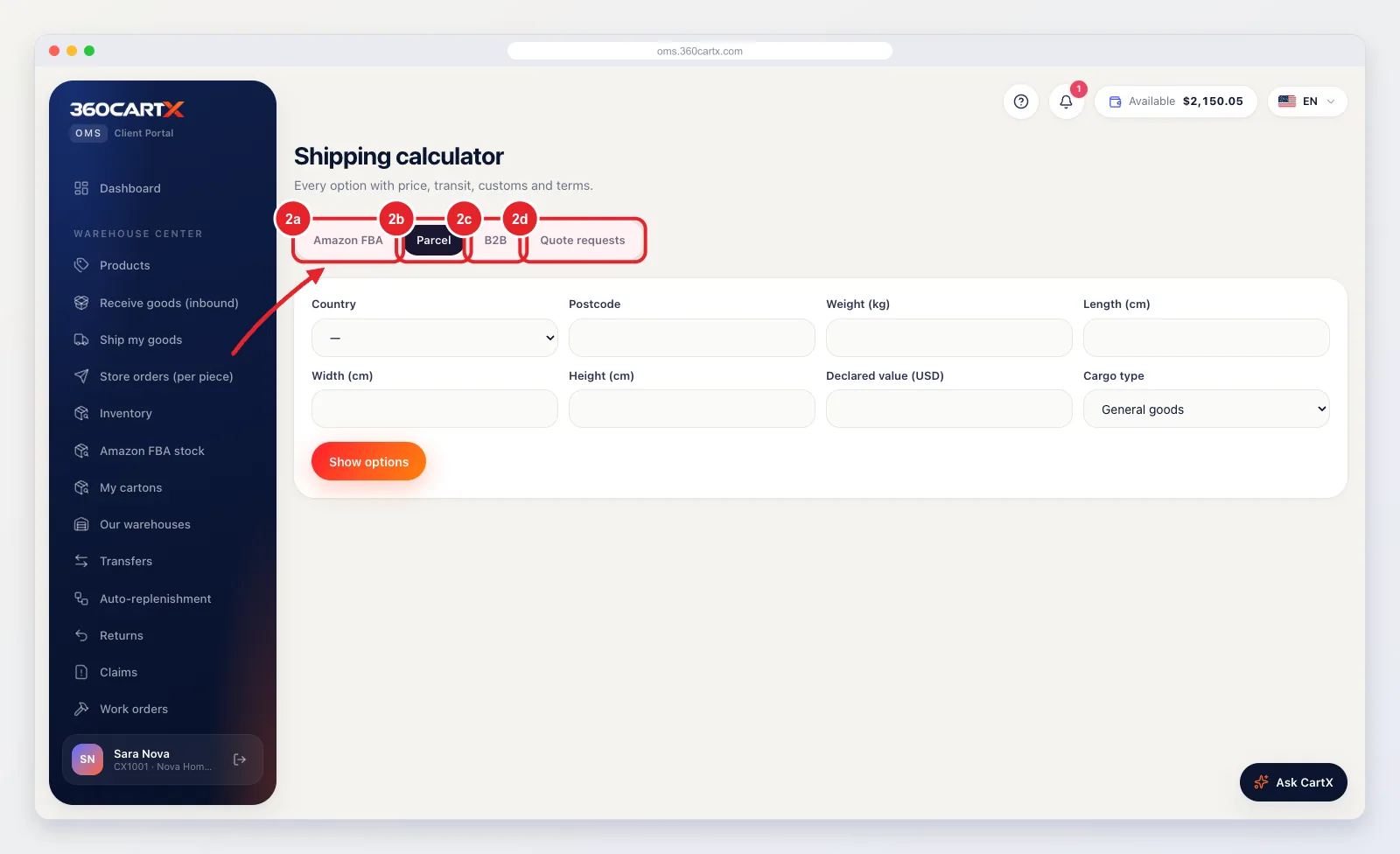
Pick the tab for your shipment
The four tabs are Amazon FBA (cartons going to an Amazon fulfilment centre), Parcel (one parcel to a buyer), B2B (container and pallet freight, priced on request) and Quote requests (the requests you sent and our replies). Each tab has its own form. See the articles for each tab, linked below.
- 2a Amazon FBA
- 2b Parcel
- 2c B2B
- 2d Quote requests
- 3
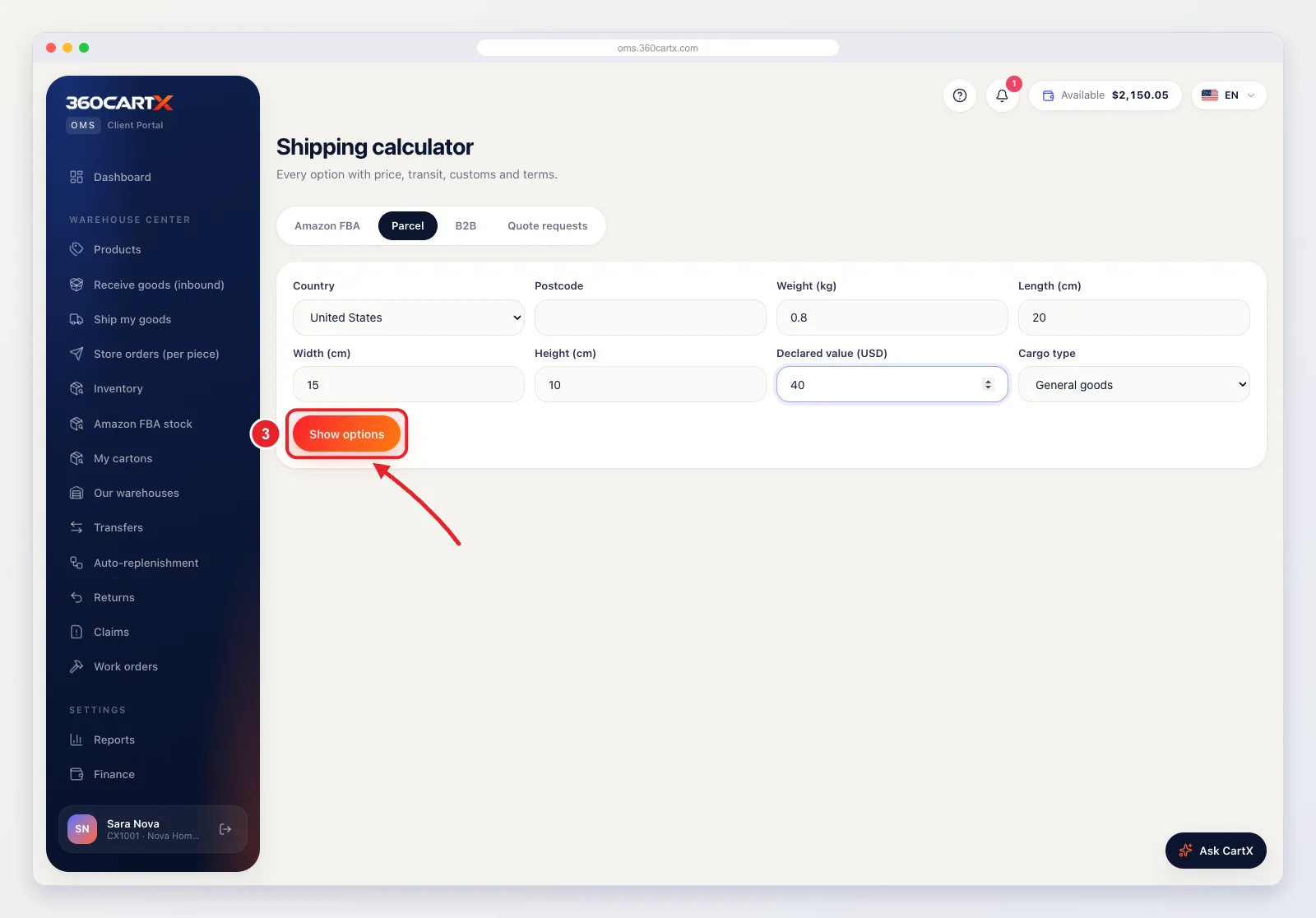
Fill the form and click Show options
Enter the details of your shipment and click Show options. The calculator checks every carrier service that can take it. It does not book or charge anything: it only shows prices. If something is missing, a red message tells you what to fix, for example Choose a country.
- 4
Read an option
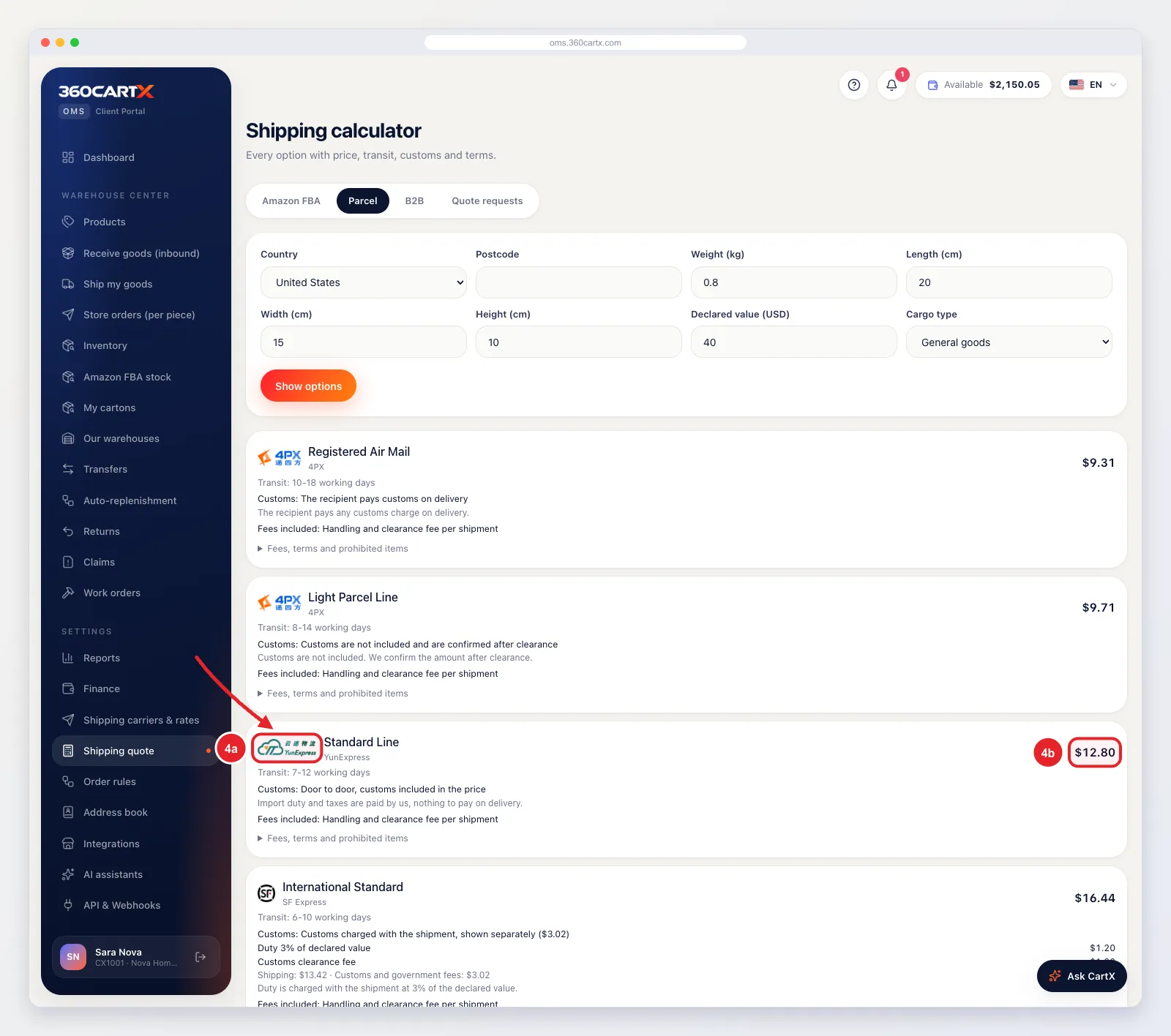
Every option is one card. At the left you see the carrier with its official logo, the service name under the carrier's own name (for example Standard Line) and the carrier below it. At the right is the total price in USD. Under the name are Transit, the time the carrier quotes for this destination, and Customs, which tells you who pays customs (see DDP: duties included). Fees included lists what is already in the price. Cards are sorted from the lowest price.
- 4a Carrier logo
- 4b Price in USD
- 5
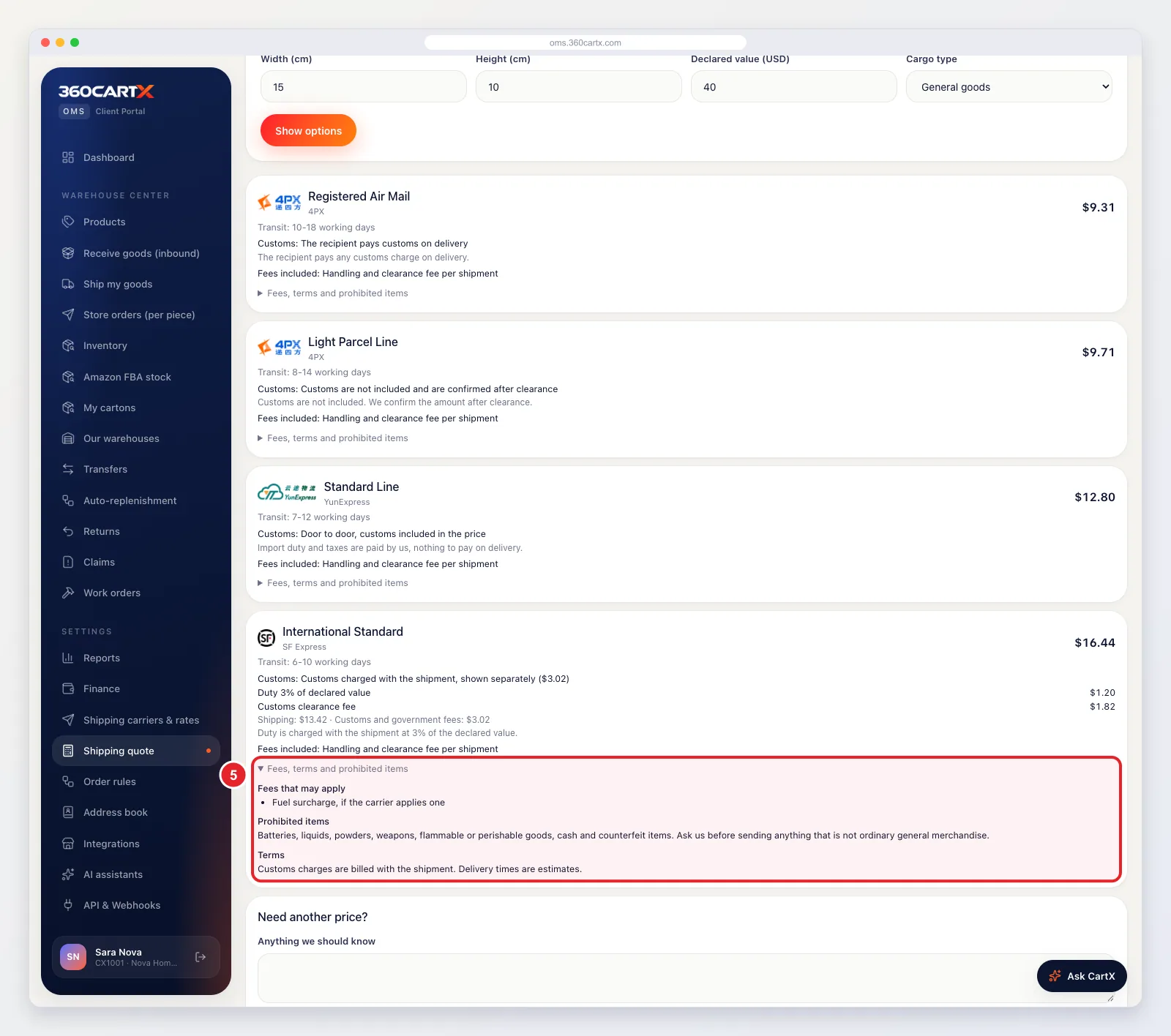
Open Fees, terms and prohibited items
Click Fees, terms and prohibited items on a card to open it. Fees that may apply lists extra charges the carrier can add, for example for a remote area. They are not in the price. Prohibited items lists what the service does not carry, and Terms has the carrier's conditions. Read them before you send.
- 6
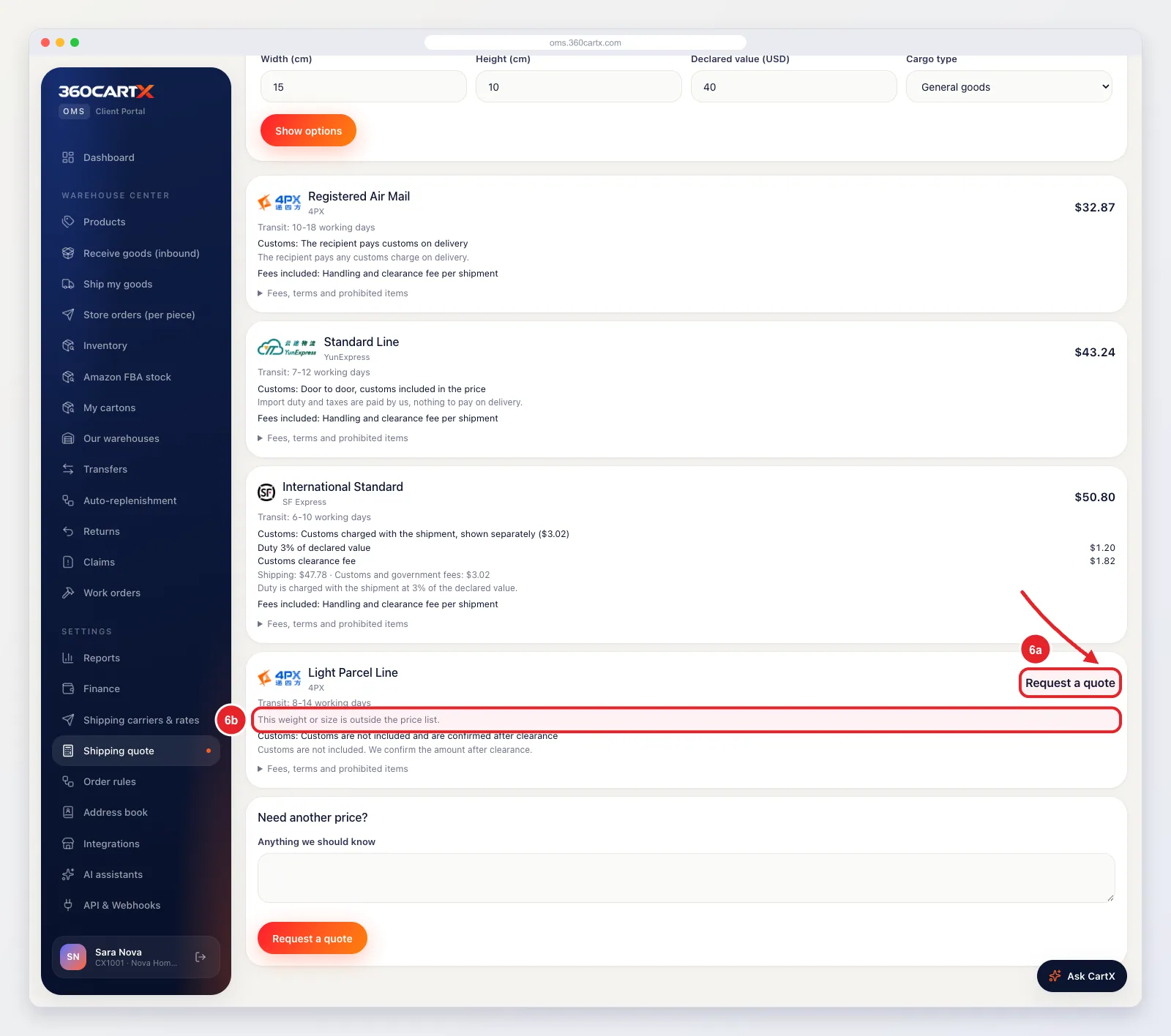
Options priced on request
When a service cannot give you a price for this shipment, its card shows Request a quote instead of an amount and says why. For example: This weight or size is outside the price list. Other reasons you may see: We need a valid postcode to price this area. Enter the postcode to price this option. The declared value is above this service's limit. This route is suspended for now. Send us a request and we reply with a price (see Request a quote and see replies).
- 6a Request a quote
- 6b Reason
- 7
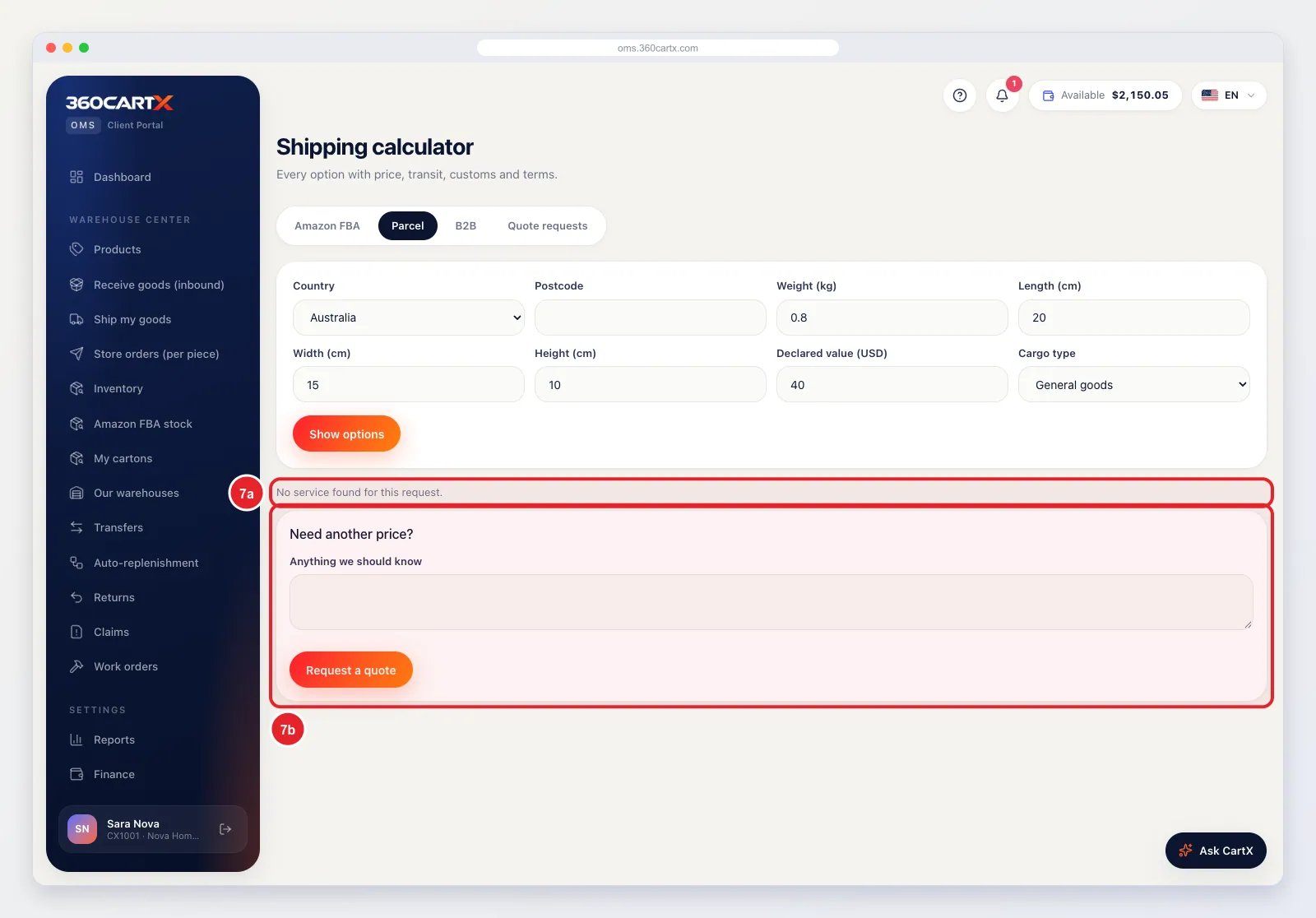
No service found
If no carrier can take the shipment, the page says: No service found for this request. Check the country, the weight and the size. Under the message the card Need another price? lets you send us a request.
- 7a No service found
- 7b Need another price?
Terms in this article
- DDP: Delivered duty paid: duties are in the price.
- Chargeable / volumetric weight: The weight carriers bill: the larger of real and volume weight.
- Declared value: The value of the goods stated for customs, in USD.
Tips
- The calculator shows prices in US dollars only. A price with Customs included means the buyer pays nothing at the door.
- Prices are for planning. The final charge uses the weight and size we measure when we pack your goods.
- The prices you see apply to your account. They can differ from a price a colleague sees if your account has special terms.
Common problems
Show options says Choose a country
Pick the destination country in the list first. The country list is empty by default on the Parcel and B2B tabs.
A message says Weight is not valid
Enter the weight in kilograms with a dot, for example 0.8. The weight has to be above zero. Length, width and height are in centimetres and are not valid when negative.
I see fewer options than I expected
Each service has its own limits: weight, size, value and cargo type. A service that cannot take your shipment is not shown, or is shown as Request a quote with the reason.
The calculator found no service for my country
Send a request from the card Need another price? and we look for one.
Related articles
Updated 2026-11-11
Open a ticket from Support in your portal and our team will reply.