Steps
- 1
Open the calls tab
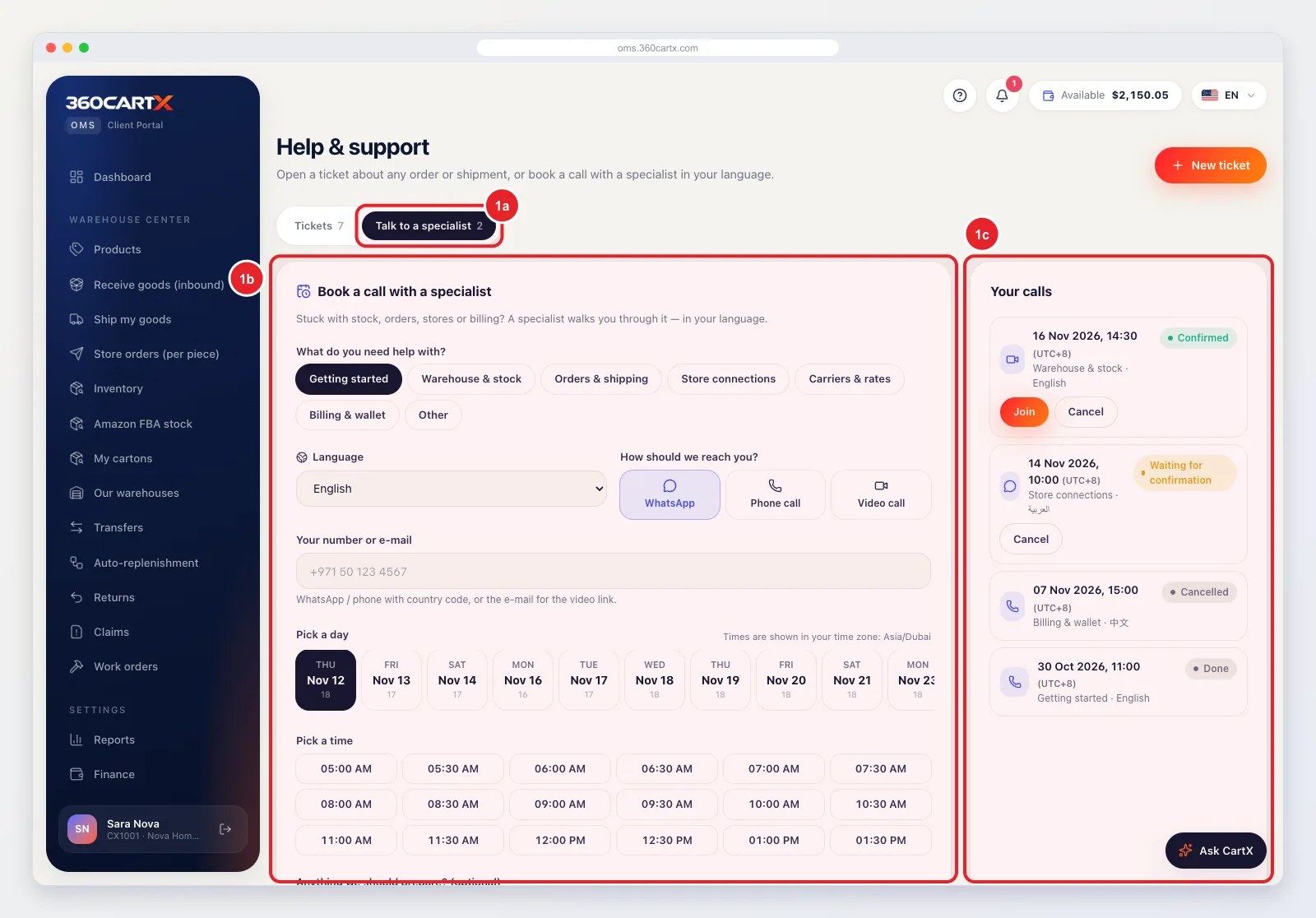
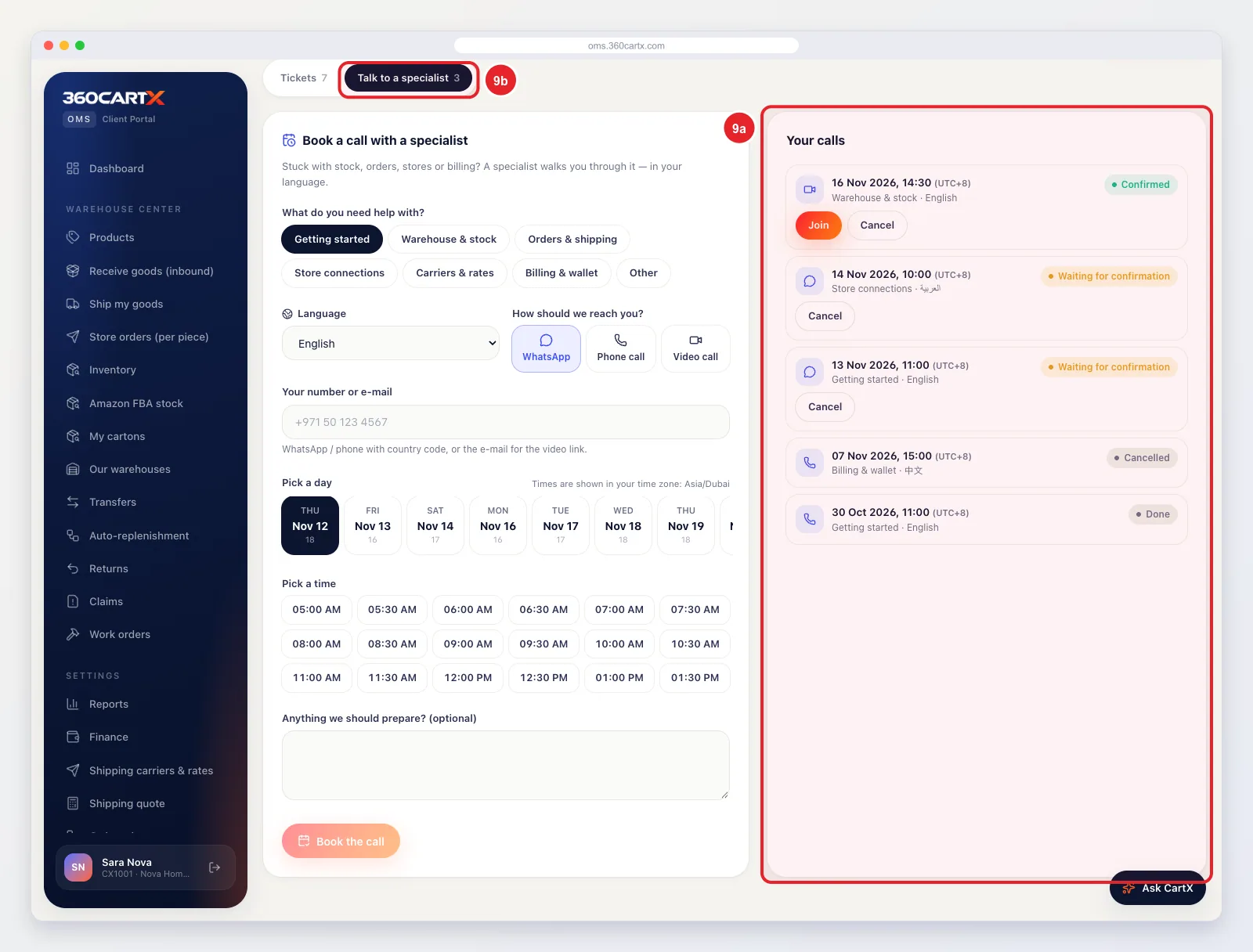
In Help & support click the tab Talk to a specialist (the number next to it counts your upcoming calls). On the left is the form Book a call with a specialist, under the line Stuck with stock, orders, stores or billing? A specialist walks you through it, in your language. On the right is the list Your calls with everything you booked so far.
- 1a Talk to a specialist
- 1b Booking form
- 1c Your calls
- 2
Choose the topic and the language
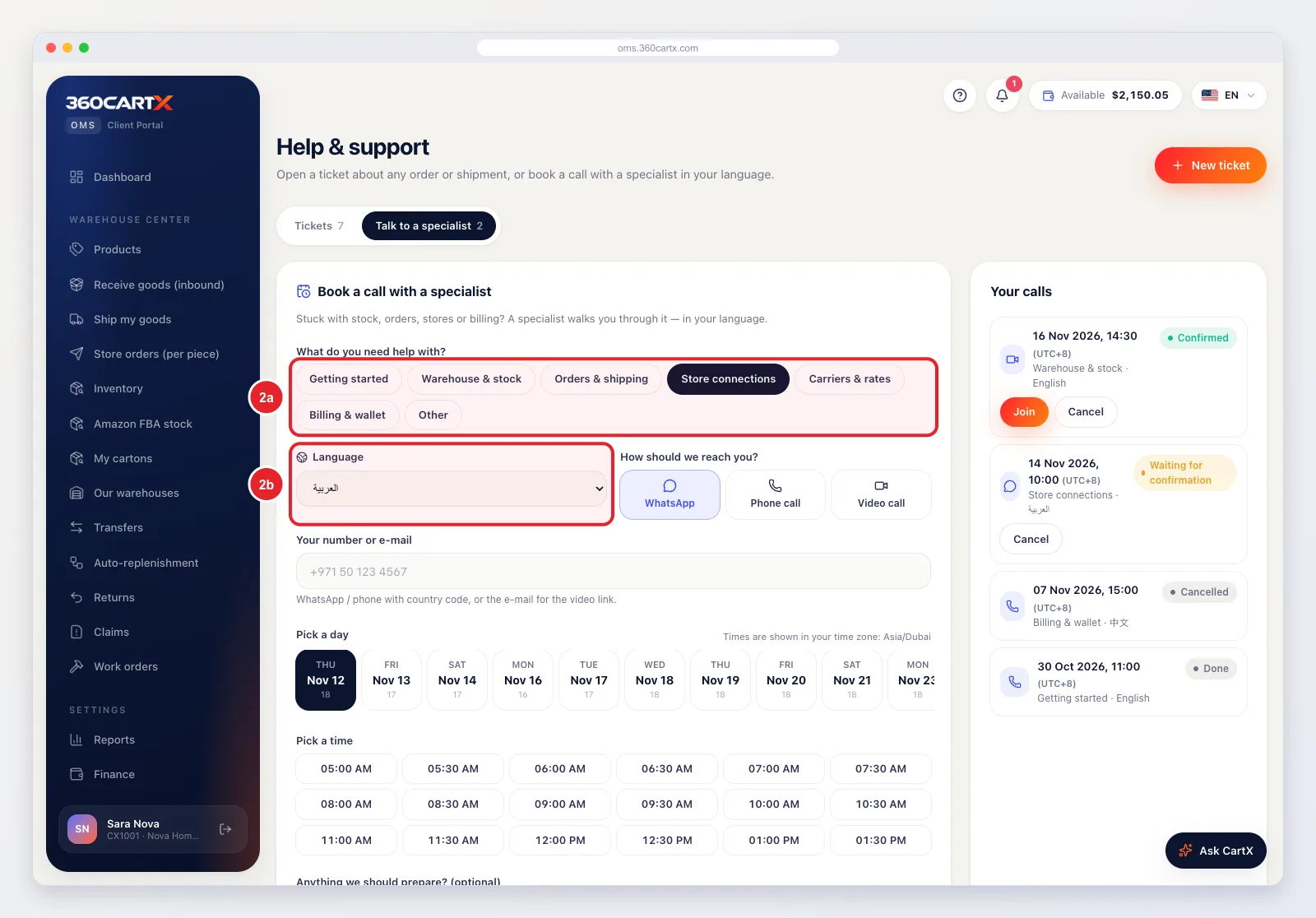
What do you need help with? offers seven topics as buttons: Getting started, Warehouse & stock, Orders & shipping, Store connections, Carriers & rates, Billing & wallet and Other. Click the one that fits (the chosen one turns dark) so we send the right specialist. Language is a list of eleven languages, each written in its own script: English, العربية, 中文, Français, Español, Português, Deutsch, Русский, Türkçe, اردو and हिन्दी. It starts on the language of your portal; here Arabic was picked.
- 2a Topic
- 2b Language
- 3
Choose how we reach you
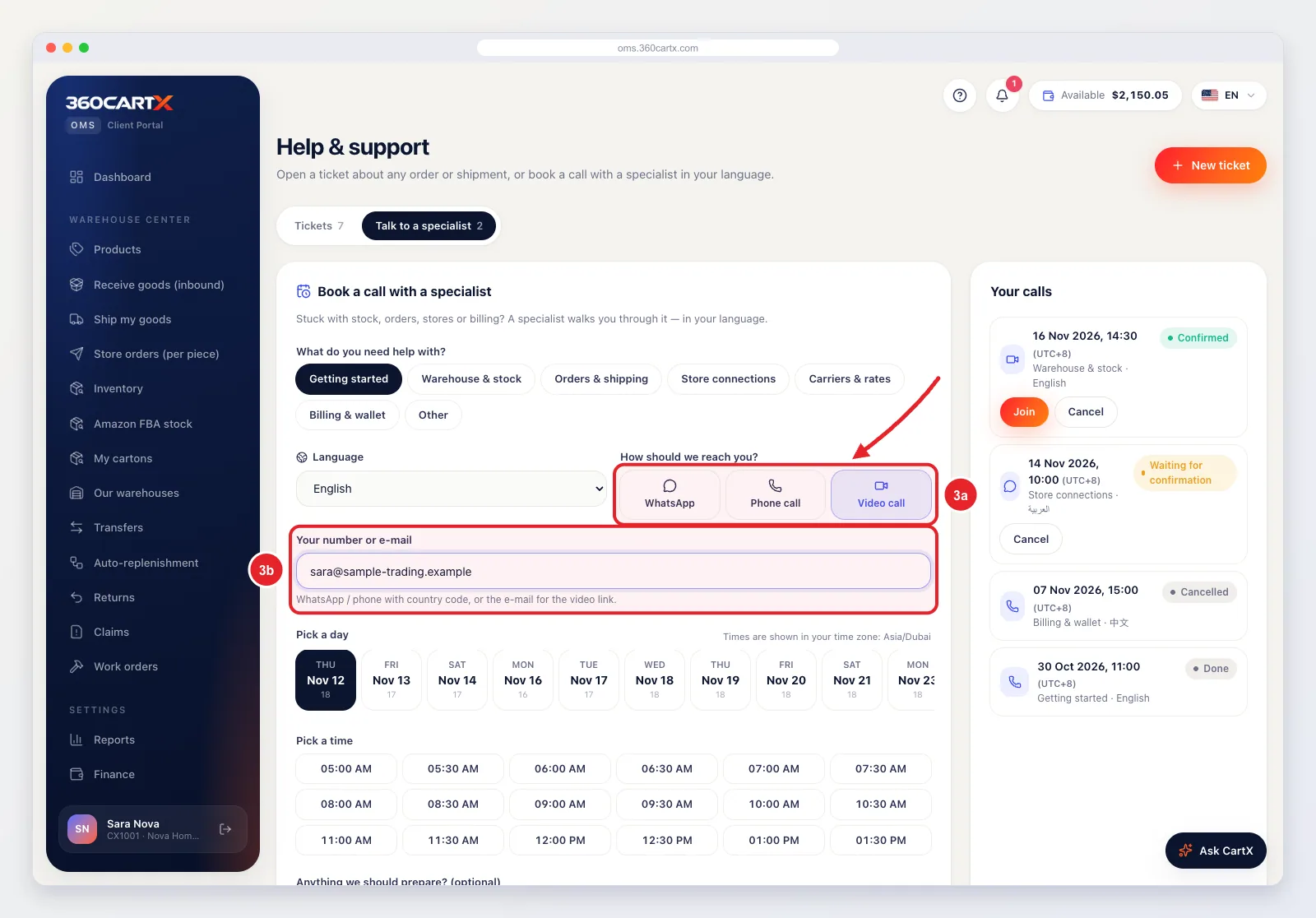
Under How should we reach you? click WhatsApp, Phone call or Video call. Then type Your number or e-mail: for WhatsApp or a phone call give the number with the country code, for a video call give the e-mail address where we send the meeting link. The box needs at least 5 characters and takes up to 80.
- 3a WhatsApp, Phone call, Video call
- 3b Number or e-mail
- 4
Pick a day and a time
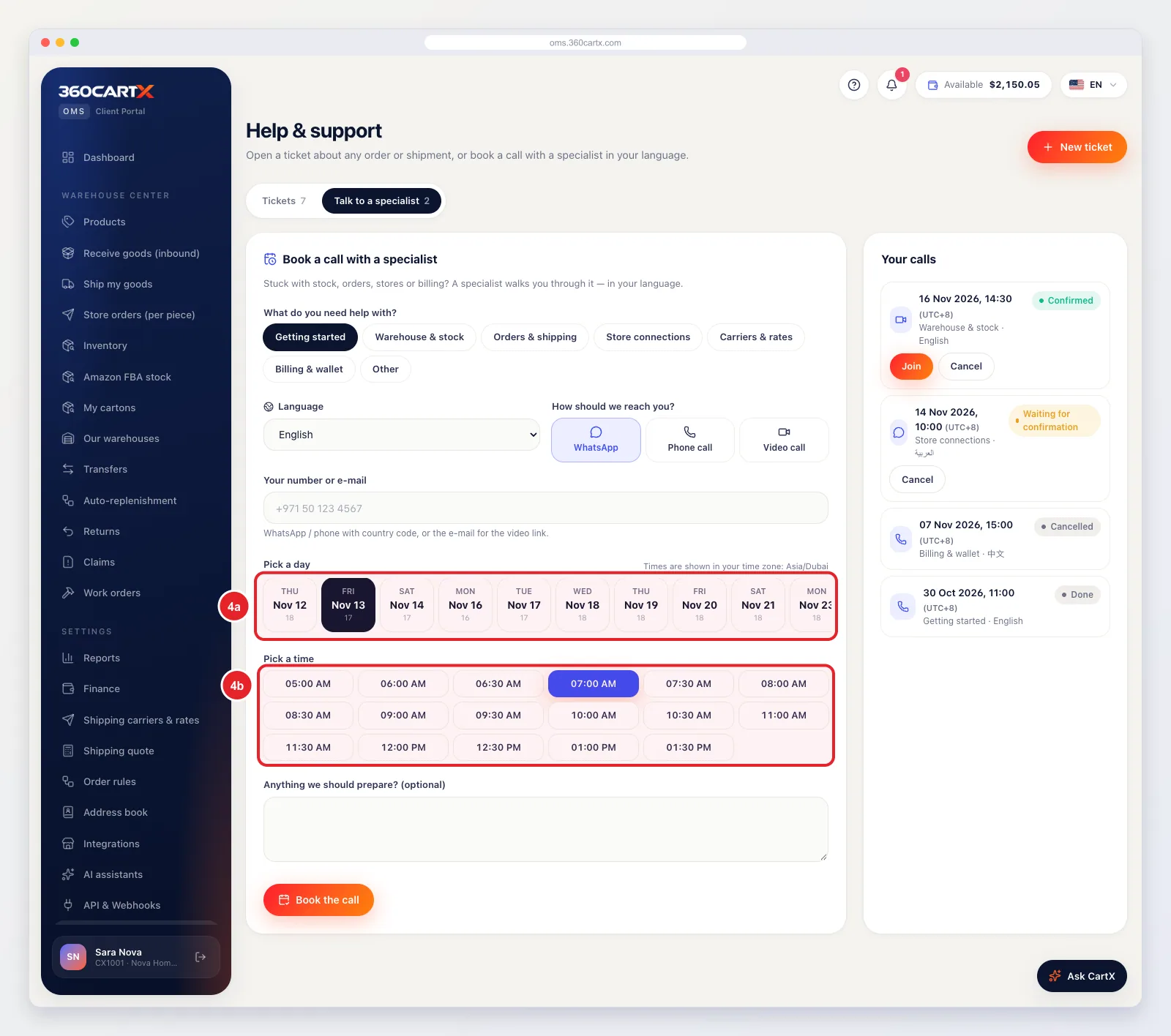
Under Pick a day, scroll the row of days. Each button shows the weekday, the date and how many free times that day has. Then click a time under Pick a time. Times are shown in your own time zone, the line above them says Times are shown in your time zone and names it. Our specialists work Monday to Saturday from 09:00 to 18:00 China time (UTC+8), in slots of 30 minutes, and you can book from 2 hours ahead up to 21 days ahead. Times that someone else already booked are not shown.
- 4a Days
- 4b Times
- 5
Add notes and book
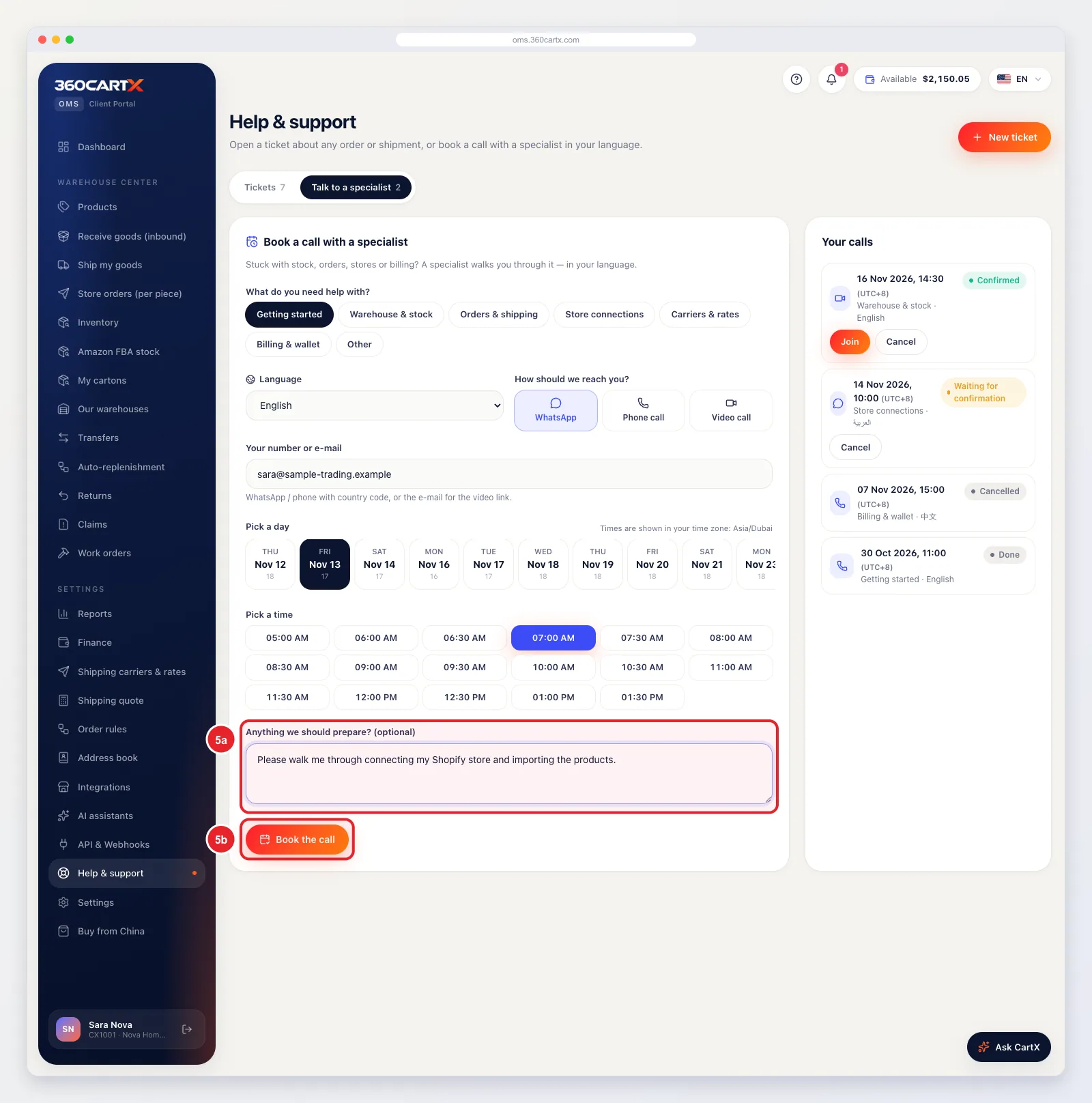
In Anything we should prepare? (optional) write what you want to cover, up to 1500 characters, for example the store or the order number. The Book the call button cannot be clicked until you have chosen a time. Then click it.
- 5a Notes
- 5b Book the call
- 6
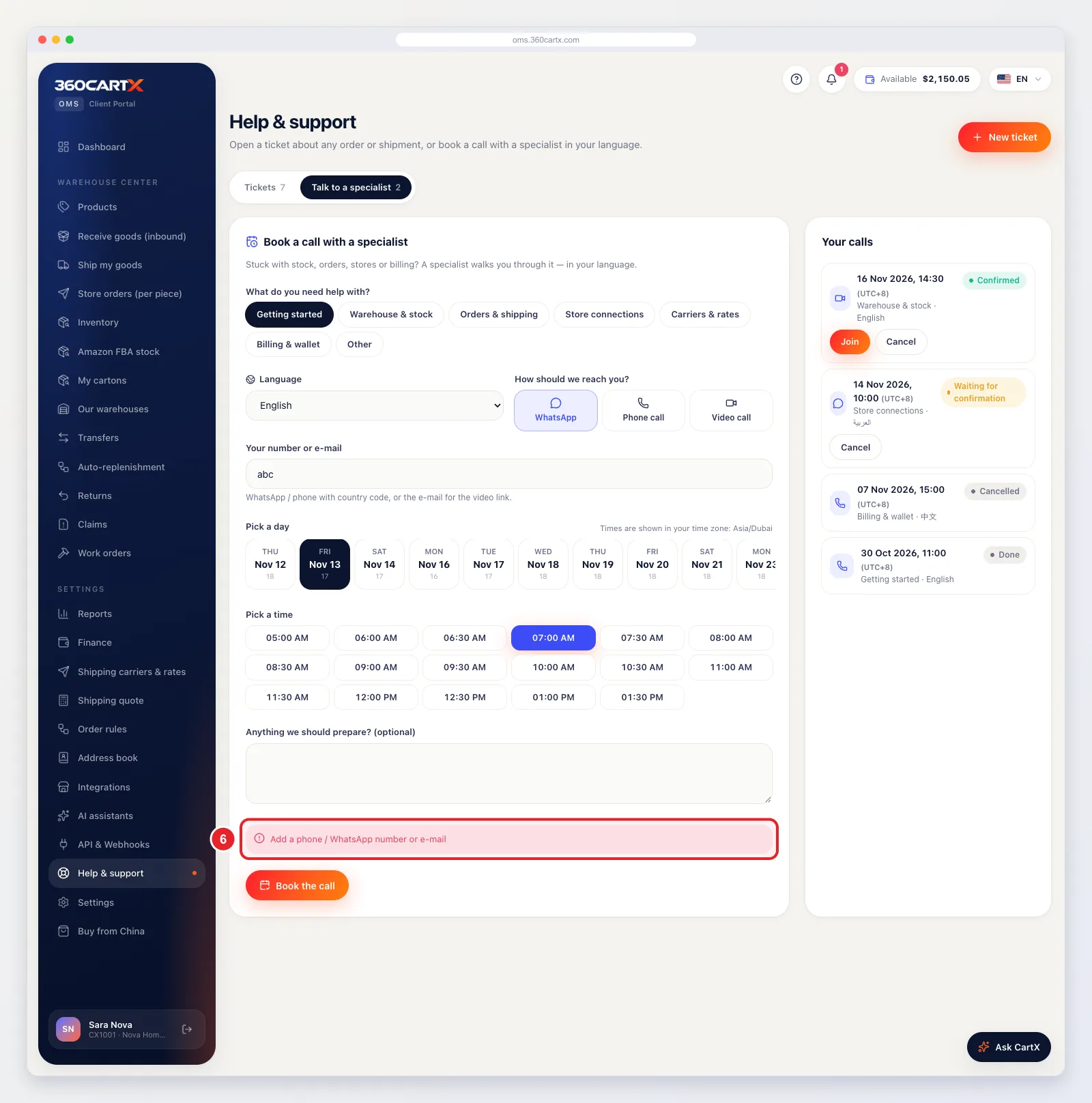
If the contact is too short
A number or e-mail with fewer than 5 characters is refused with the red message Add a phone / WhatsApp number or e-mail above the button. Nothing is booked; correct the contact and click Book the call again.
- 7
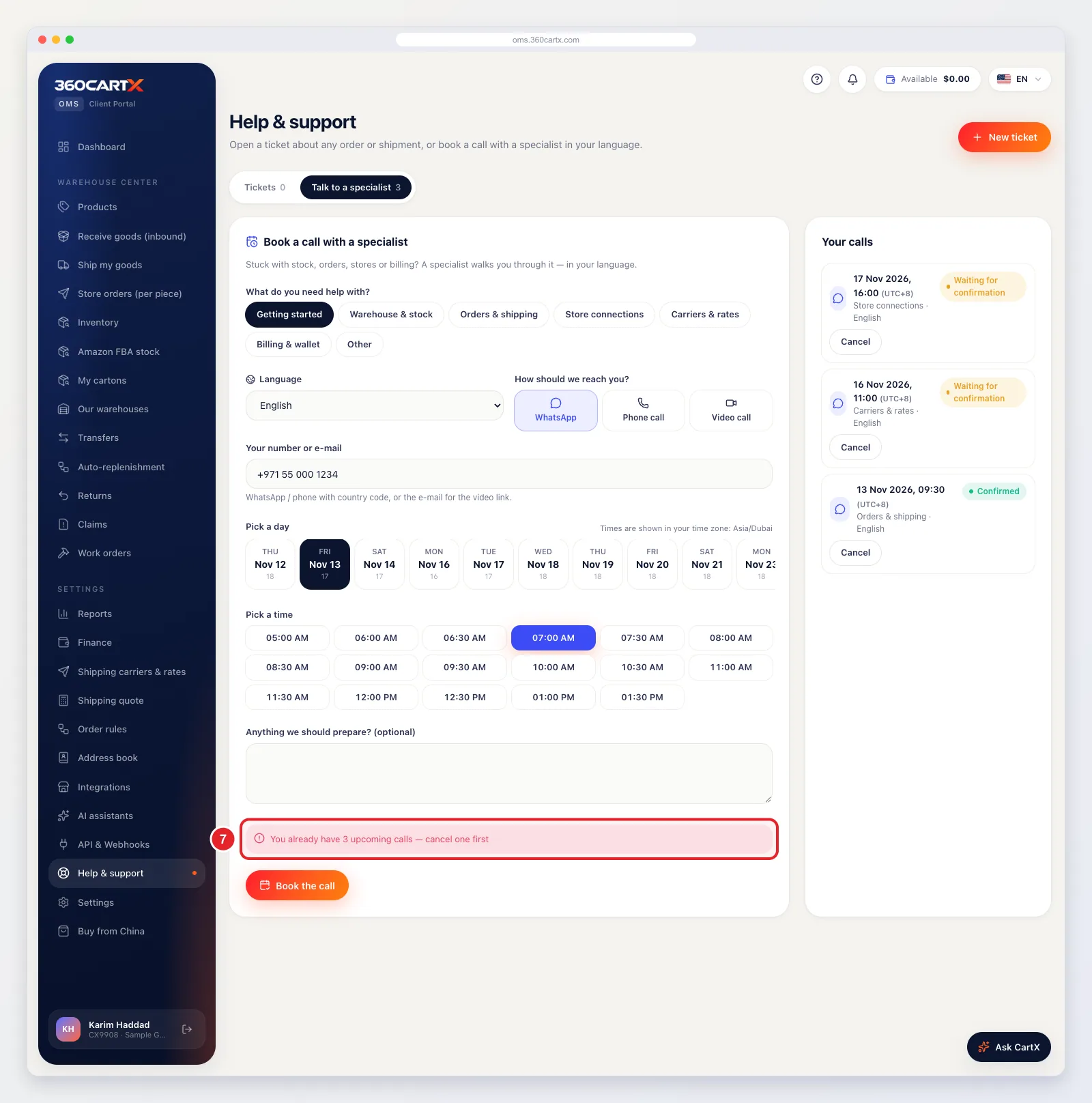
If you already have 3 calls
You can have at most 3 upcoming calls (waiting for confirmation or confirmed). With three booked, the next booking is refused with You already have 3 upcoming calls and the advice to cancel one first. Cancel one of your calls in the list, then book again. If someone else takes your time while you are filling the form you get That time was just taken and the advice to pick another.
- 8
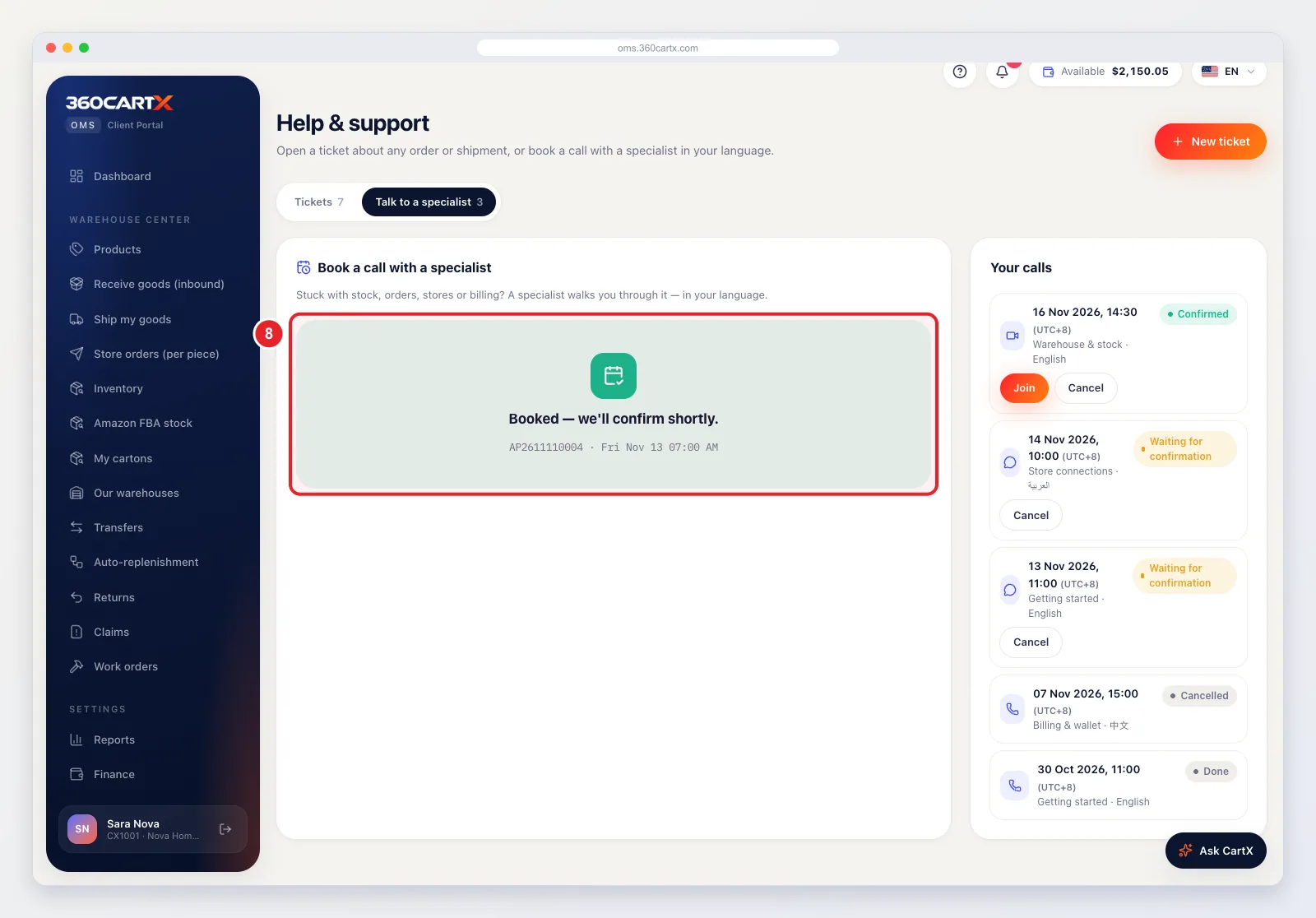
Booked
The form is replaced by a green box: Booked and we'll confirm shortly, with the call number (it starts with AP) and the day and time you chose. Our team is told about your booking at once. Nothing is charged: calls are free.
- 9
Your calls
The list on the right shows your latest 20 calls, newest call time first. Each card has a channel icon (WhatsApp, phone or video), the day and time, the topic and the language, and a status badge. The time on the cards is China time and is marked (UTC+8), which can differ from the time you picked in your own zone. In this example the time picked in Dubai was 07:00 AM, and the card shows 11:00 (UTC+8).
- 9a Your calls
- 9b Tab count
- 10
Read one call
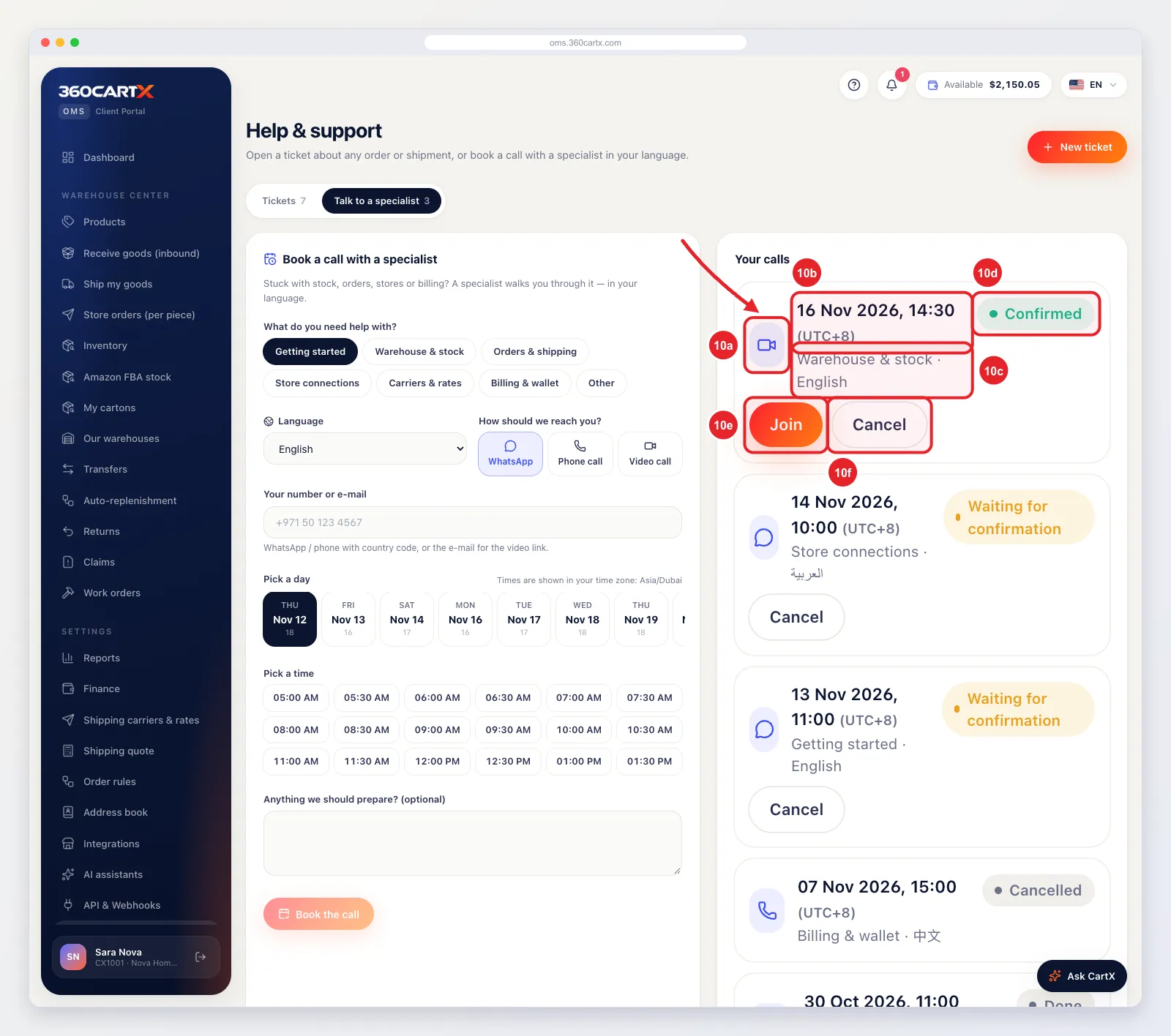
A card has the channel icon, the day and time with (UTC+8), the topic and the language, and the status badge. A confirmed video call has a Join button that opens the meeting link in a new tab. A call that is waiting or confirmed and still in the future also has a Cancel button.
- 10a Channel
- 10b Day and time
- 10c Topic and language
- 10d Status
- 10e Join
- 10f Cancel
- 11
The four statuses
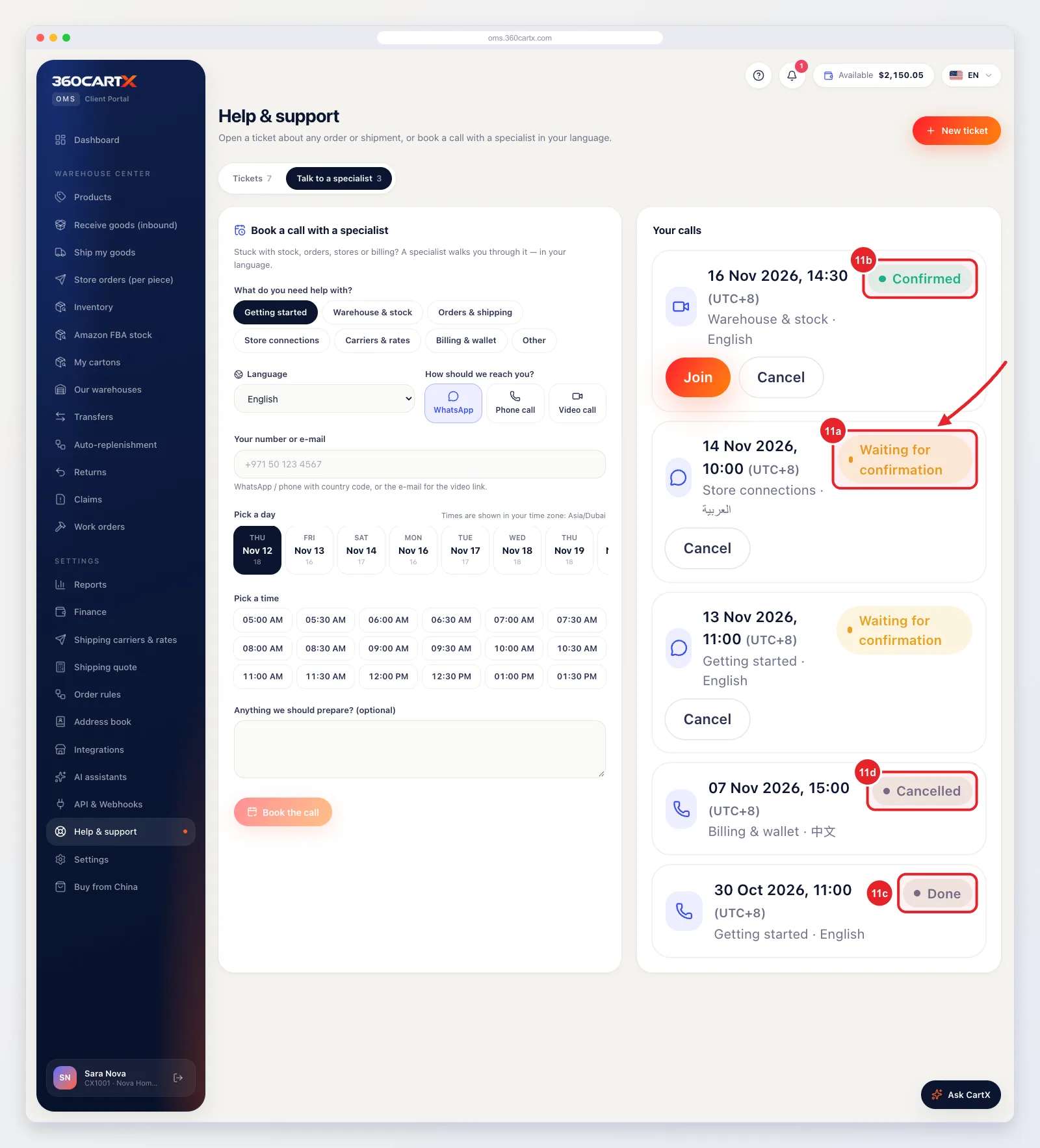
Waiting for confirmation (amber): you have booked and our team has not confirmed yet. Confirmed (green): our team confirmed; you get a notification saying who will contact you and where (on the video link, or on the number or e-mail you gave). Done (grey): the call took place. Cancelled (grey): you cancelled it, or our team did, in which case the notification gives the reason and asks you to book another time.
- 11a Waiting for confirmation
- 11b Confirmed
- 11c Done
- 11d Cancelled
Tips
- The earliest time you can book is 2 hours ahead, but an earlier request gives our team more time to confirm it. The dashboard card Need a hand? shows Next call with its status.
- For a video call give an e-mail address you read. The meeting link is added by our team when it confirms, and appears as Join on the card.
- To change the time, cancel the call and book another. Cancel acts at once and does not ask for confirmation.
- Your portal language is the starting language of the form. Change it in the header if you want another default (see Change the language).
Common problems
Add a phone / WhatsApp number or e-mail
The contact has fewer than 5 characters. Type your full number with the country code, or your e-mail address.
You already have 3 upcoming calls
Cancel a call that you no longer need in Your calls, then book again.
That time was just taken
Someone else booked the same time while you were filling the form. Reload the page and pick another time.
I cannot click Book the call
You have not chosen a time yet. Click one of the times under Pick a time.
I see no days or times
There is no free time in the next 21 days, or the page was opened long ago. Reload it; if it stays empty, open a ticket.
My call is still Waiting for confirmation and the time has passed
Our team has not confirmed it. The card keeps its status and has no Cancel button any more. Open a ticket and we will arrange a new time.
The Join button is missing on a video call
The link is added when our team confirms the call. While the card says Waiting for confirmation there is no link yet.
Related articles
Updated 2026-11-11
Open a ticket from Support in your portal and our team will reply.