Steps
- 1
Open the address book
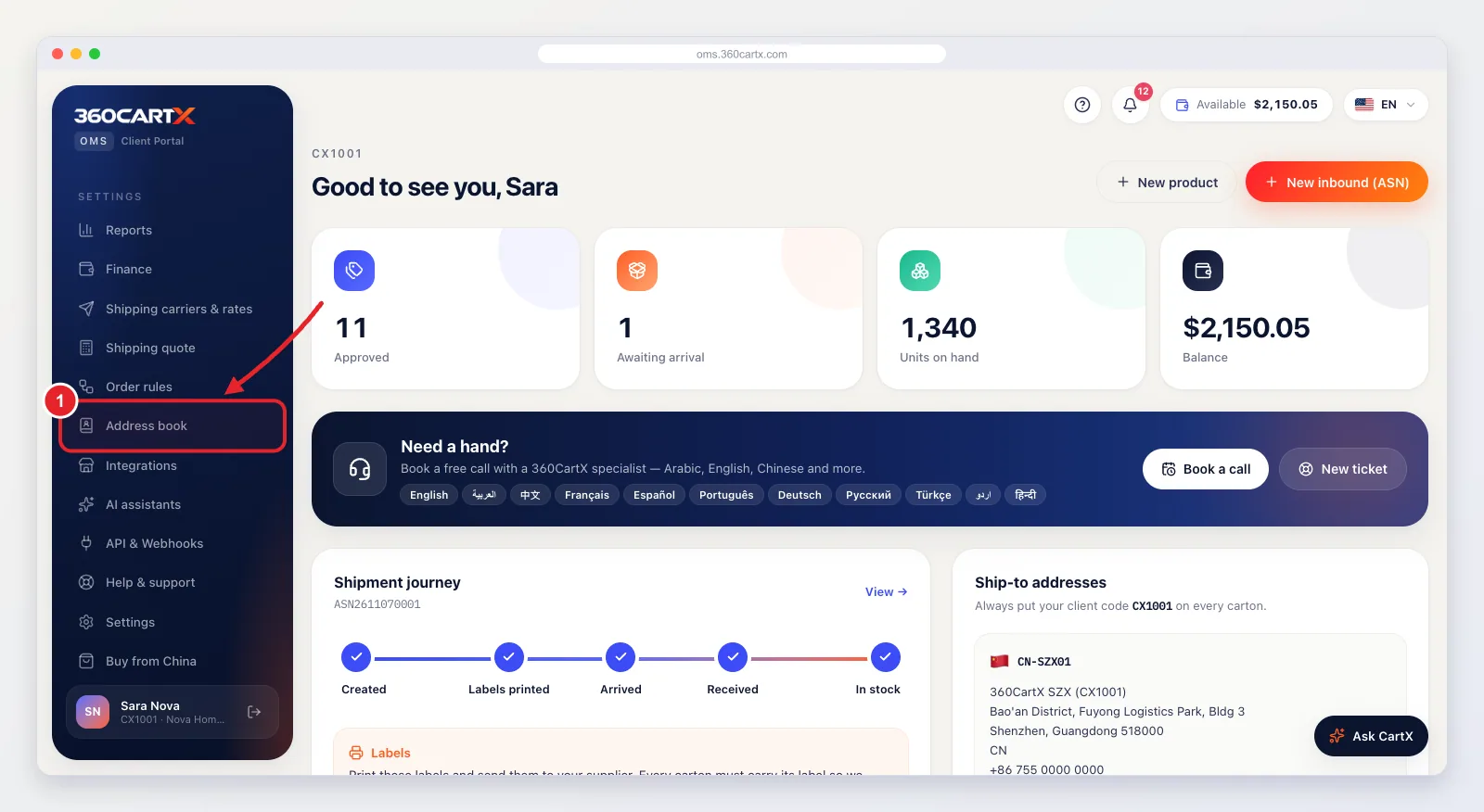
Click Address book in the left menu (in the same group as Order rules and Settings). The page is called Address book with the line Saved recipients for B2B shipments, your factory, office, retail stores, other warehouses.
- 2
Your saved addresses
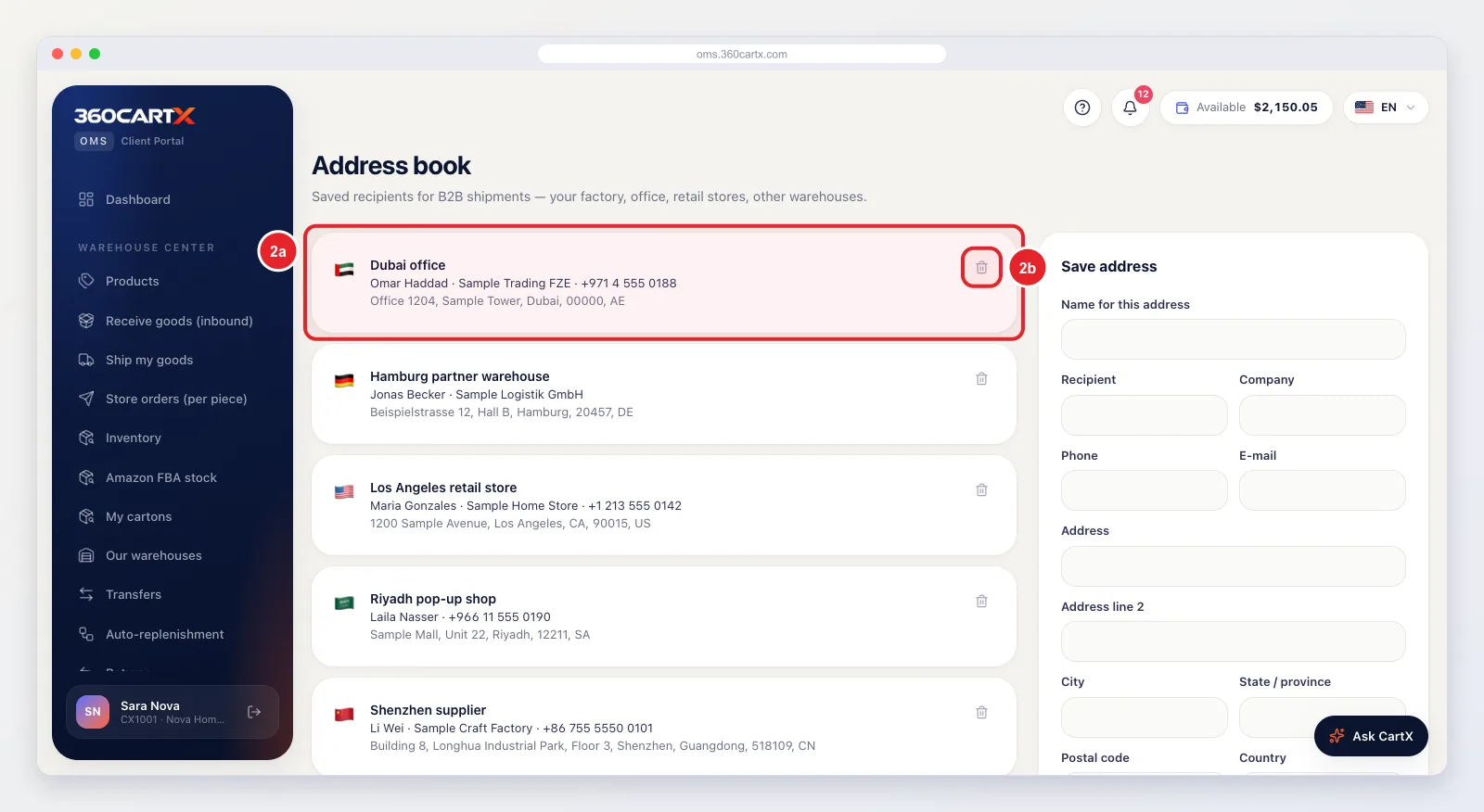
Each saved address is a card, sorted by name from A to Z. The flag of the country comes first, then the name you gave the address in bold, then the recipient (with company and phone when you saved them) and the full address on one grey line: address, address line 2, city, state or province, postal code and the country code. The e-mail you saved is kept but not shown on the card. The bin icon on the right deletes the address at once, without asking.
- 2a Address name
- 2b Delete icon
- 3
Add an address
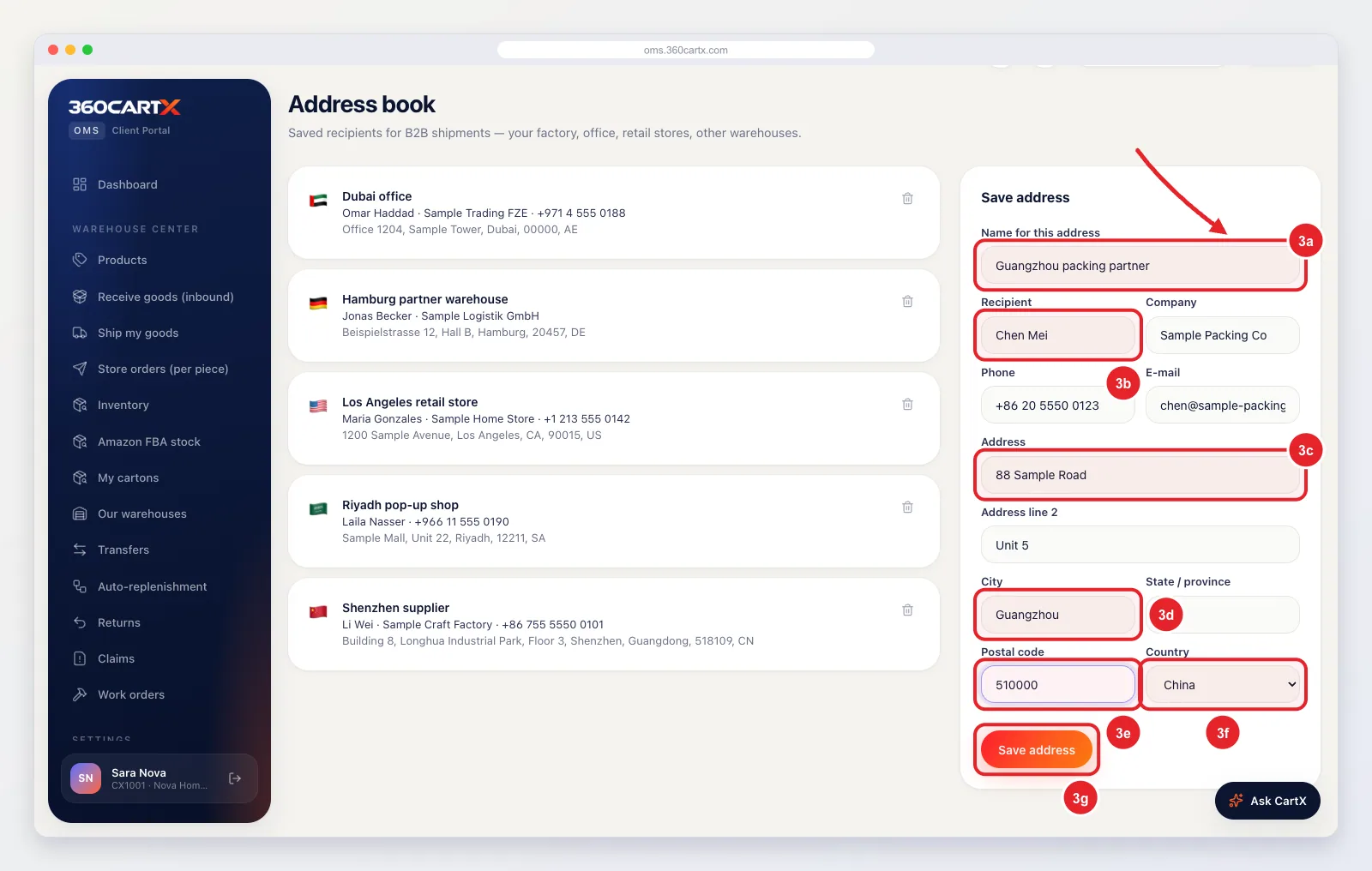
The form on the right is called Save address. Fill in Name for this address (only you see it, for example Guangzhou packing partner), Recipient, Address, City and Postal code, which are required. Company, Phone, E-mail, Address line 2 and State / province are optional. Choose the Country from the list (it starts on China). Then click Save address. The form clears and a green Saved appears; the new card is added to the list.
- 3a Name for this address
- 3b Recipient
- 3c Address
- 3d City
- 3e Postal code
- 3f Country
- 3g Save address
- 4
If something is missing or too short
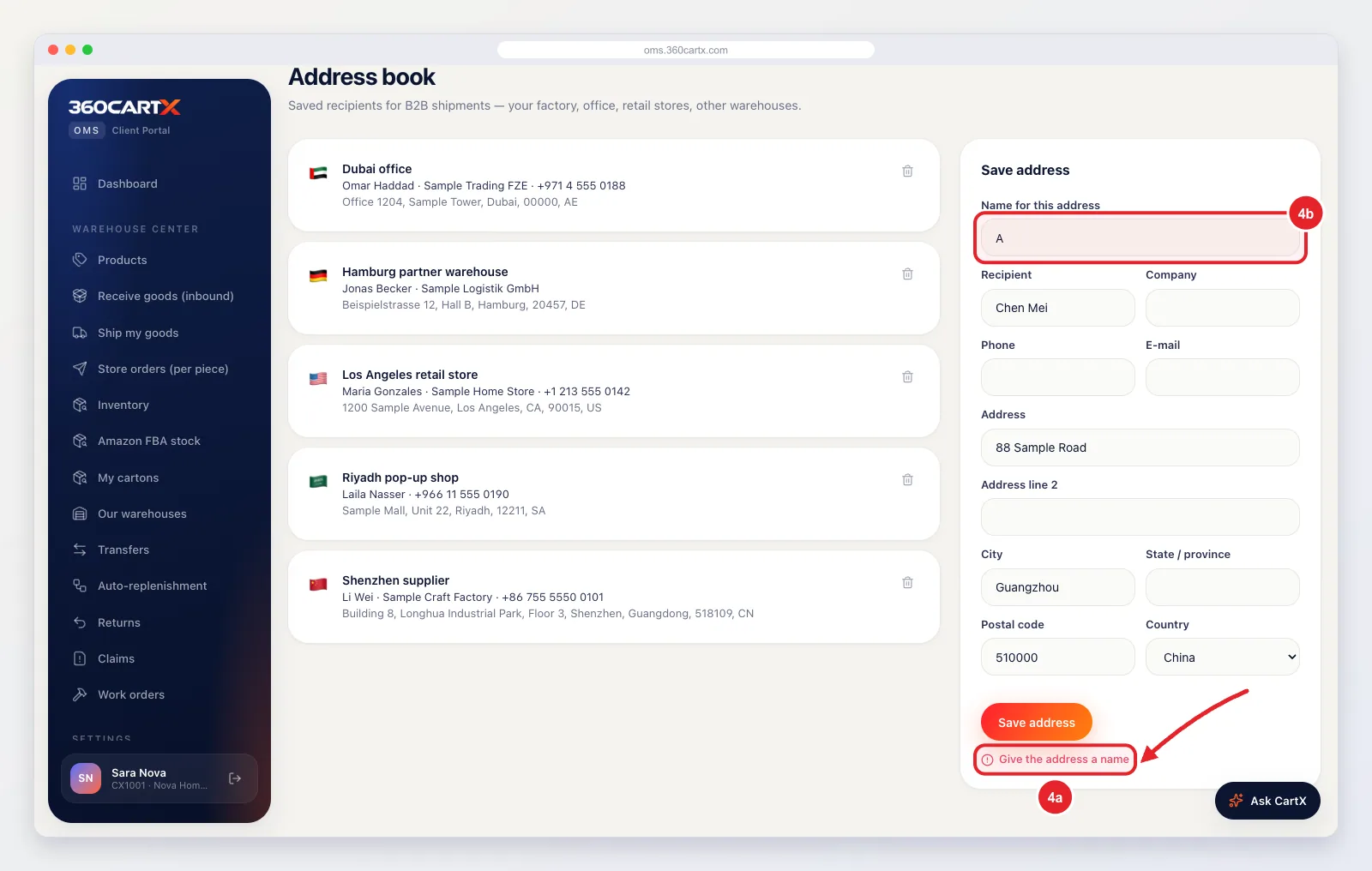
The server checks the fields and shows a red message next to the button. The name needs at least 2 characters: Give the address a name. The other messages are Recipient is required, Address is required, City is required and Postal code is required. Nothing is saved until the form is right. A full address book (300 addresses) says Address book is full (300): delete one you no longer use first.
- 4a Error message
- 4b Name
- 5
Use an address when you ship
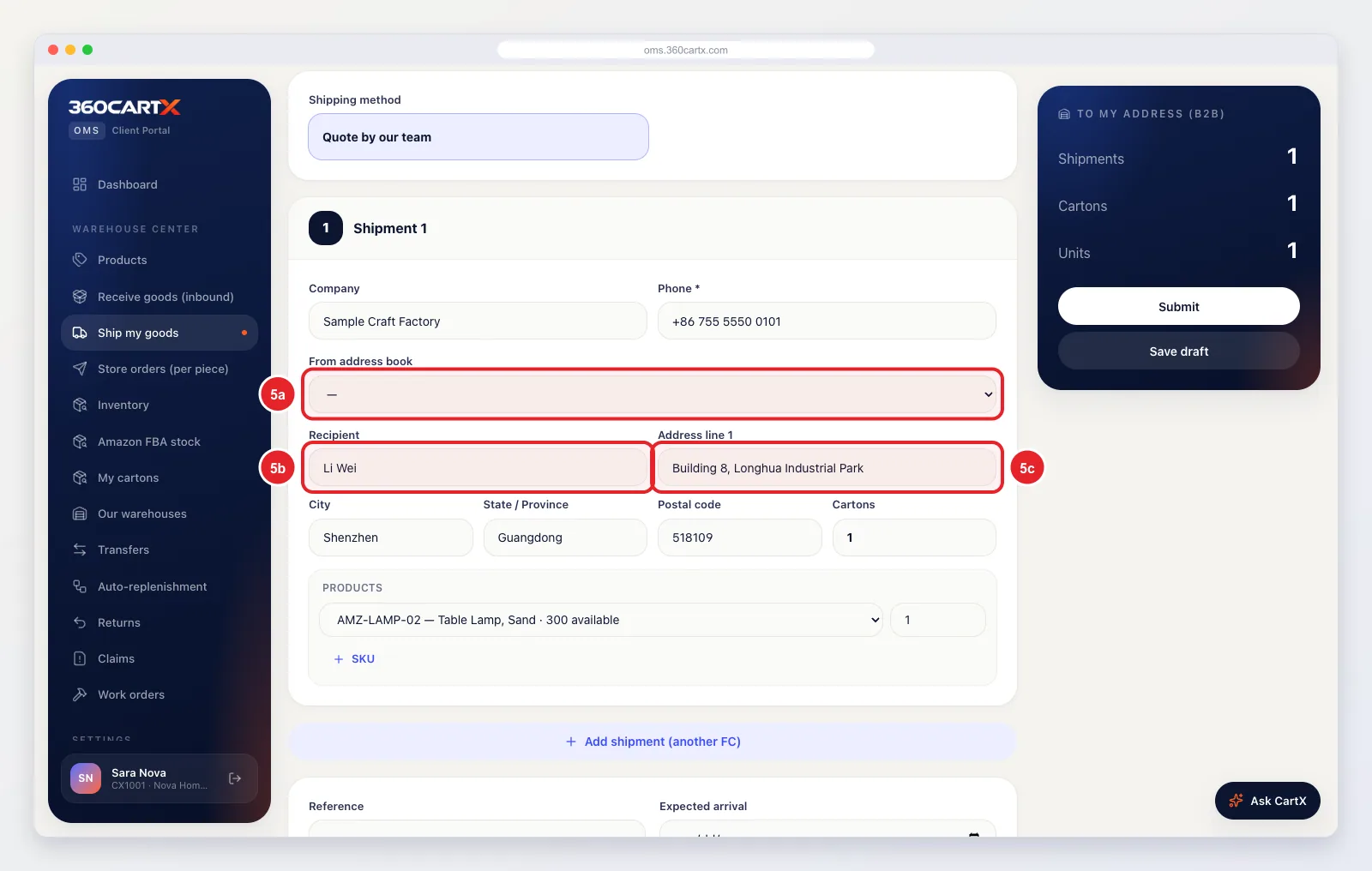
Open Ship my goods and choose To my address (B2B). Once you have at least one saved address, each shipment has a list From address book. Pick one (shown as the name, then the city and country code) and the recipient, company, phone, address lines, city, state and postal code are filled in for you (the list itself goes back to a dash, look at the fields below it). The destination country is not copied: choose it at the top of the form first, in Destination. See Ship goods to your own address.
- 5a From address book
- 5b Recipient
- 5c Address
- 6
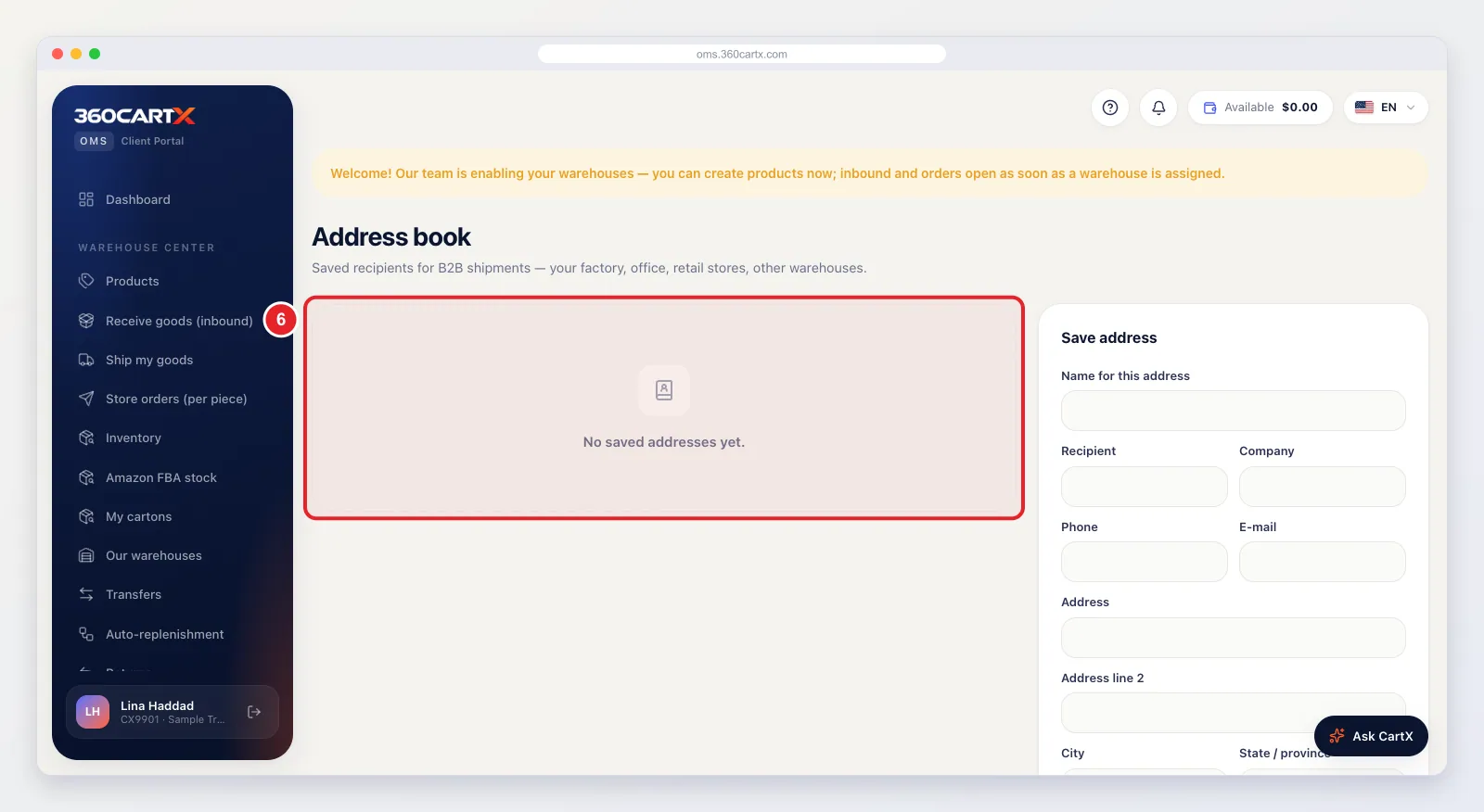
Before you save your first address
A new account shows No saved addresses yet. in the list area. The form is ready on the right. The From address book list in the shipping form only appears once you have saved an address.
Tips
- Name addresses by what they are, not by who: Shenzhen supplier, LA retail store. The list is sorted by name, so a clear prefix keeps related places together.
- There is no edit button. To change an address, delete it and save it again with the right details.
- Deleting an address from the book never changes shipments you already created with it: their address was copied into the shipment.
- The address book is shared by everybody in your company, so a team member can use an address you saved. Owners, admins and operators can add and delete addresses, and so can a custom role that has View + edit on Bulk / B2B shipments. Finance users and viewers can open the page, but their changes are refused.
- The address book is only used for shipments to your own address. Orders from your stores and parcels to your buyers take the buyer's address from the order.
Common problems
Give the address a name
The name must have at least 2 characters. Use something you will recognise, such as Shenzhen supplier.
Recipient is required / Address is required / City is required / Postal code is required
Fill in the field named in the message. Company, phone, e-mail, address line 2 and state are optional.
Address book is full (300)
Delete addresses you no longer use, then save again.
The From address book list is missing when I ship
It is only shown for shipments To my address (B2B), and only after you saved at least one address.
Your role can't do this
Your role cannot change the address book. Ask the owner or an admin.
Related articles
Updated 2026-11-12
Open a ticket from Support in your portal and our team will reply.