Steps
- 1
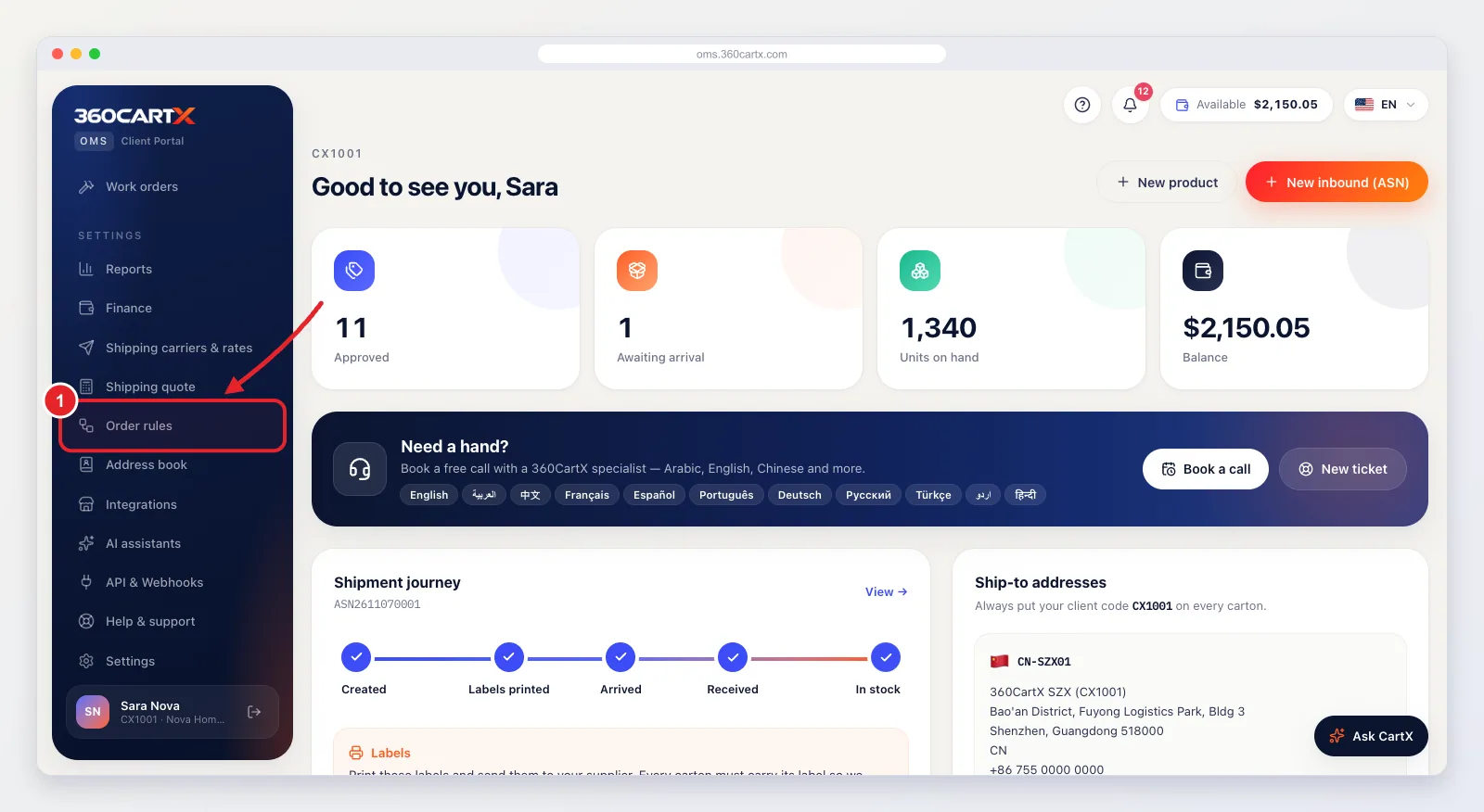
Open Order rules
Click Order rules in the left menu (between Shipping quote and Address book). The page is called Order rules with the line Automate every new order: ship from the right warehouse, pick the carrier, add a gift or flyer, no clicks.
- 2
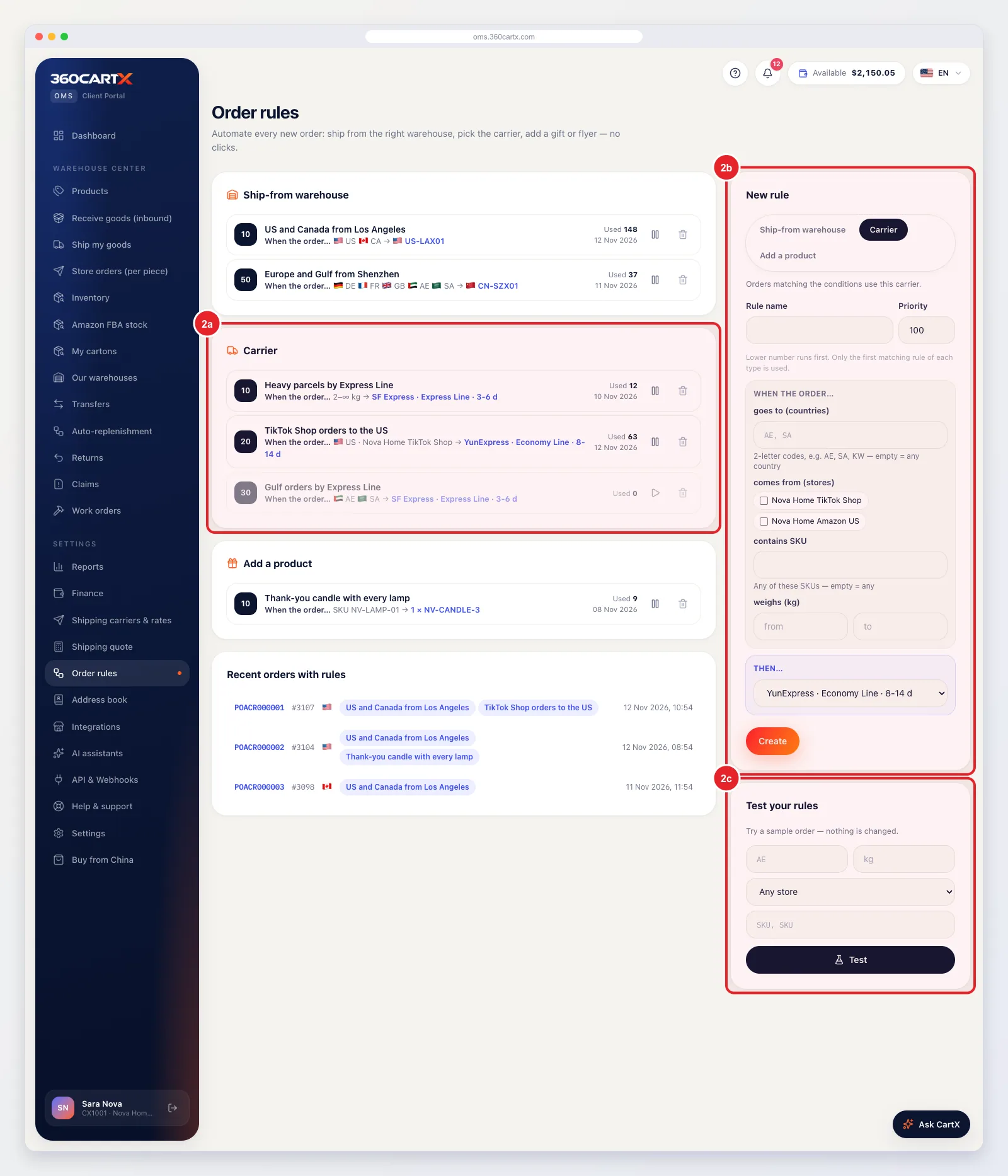
The page: rules, new rule, test
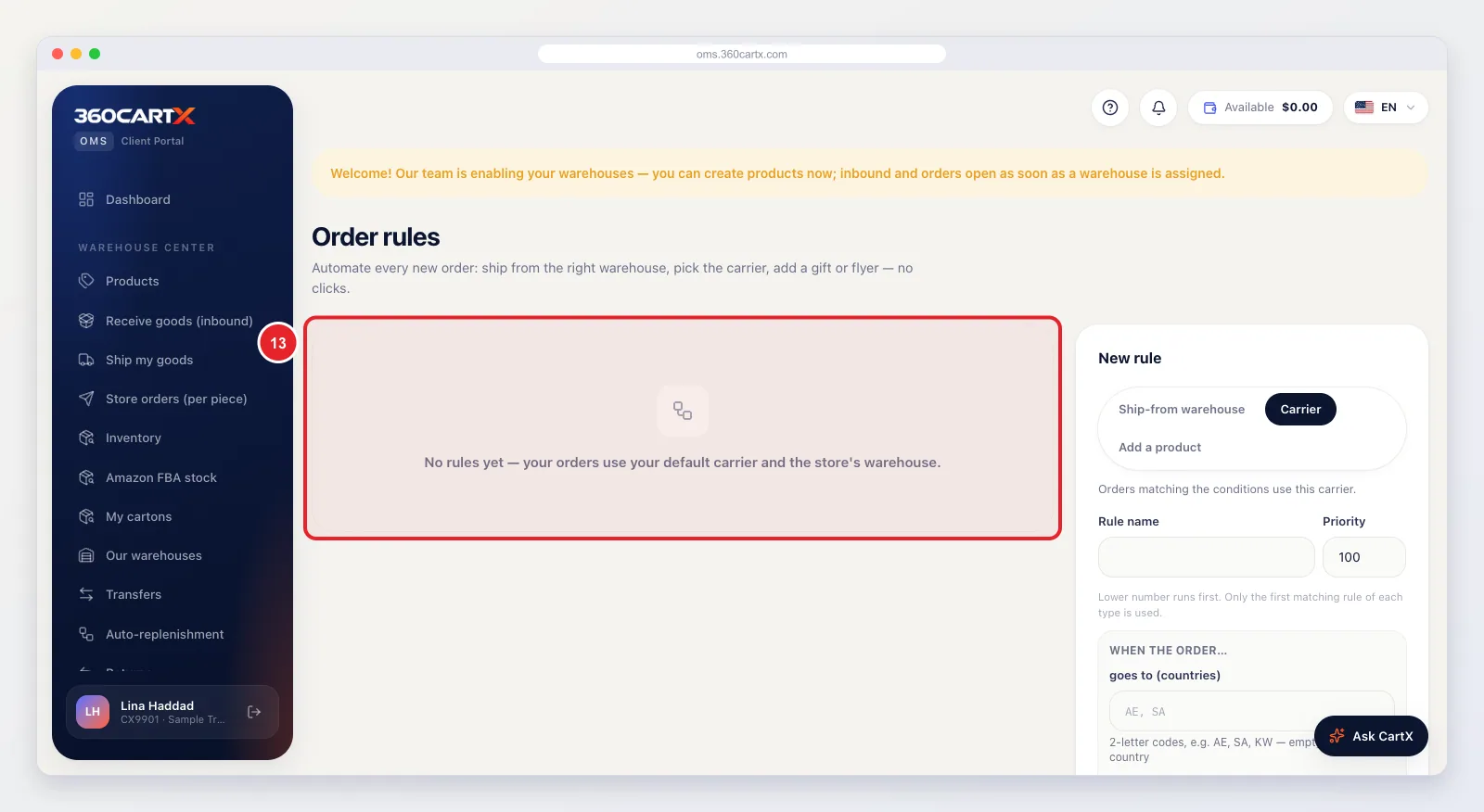
On the left are your rules, grouped by type, each group in its own card: Ship-from warehouse, Carrier and Add a product (a group only appears when you have a rule of that type). On the right are two cards: New rule, where you create a rule, and Test your rules. With no rules the left side says No rules yet, your orders use your default carrier and the store's warehouse.
- 2a Rules of one type
- 2b New rule
- 2c Test your rules
- 3
Read one rule
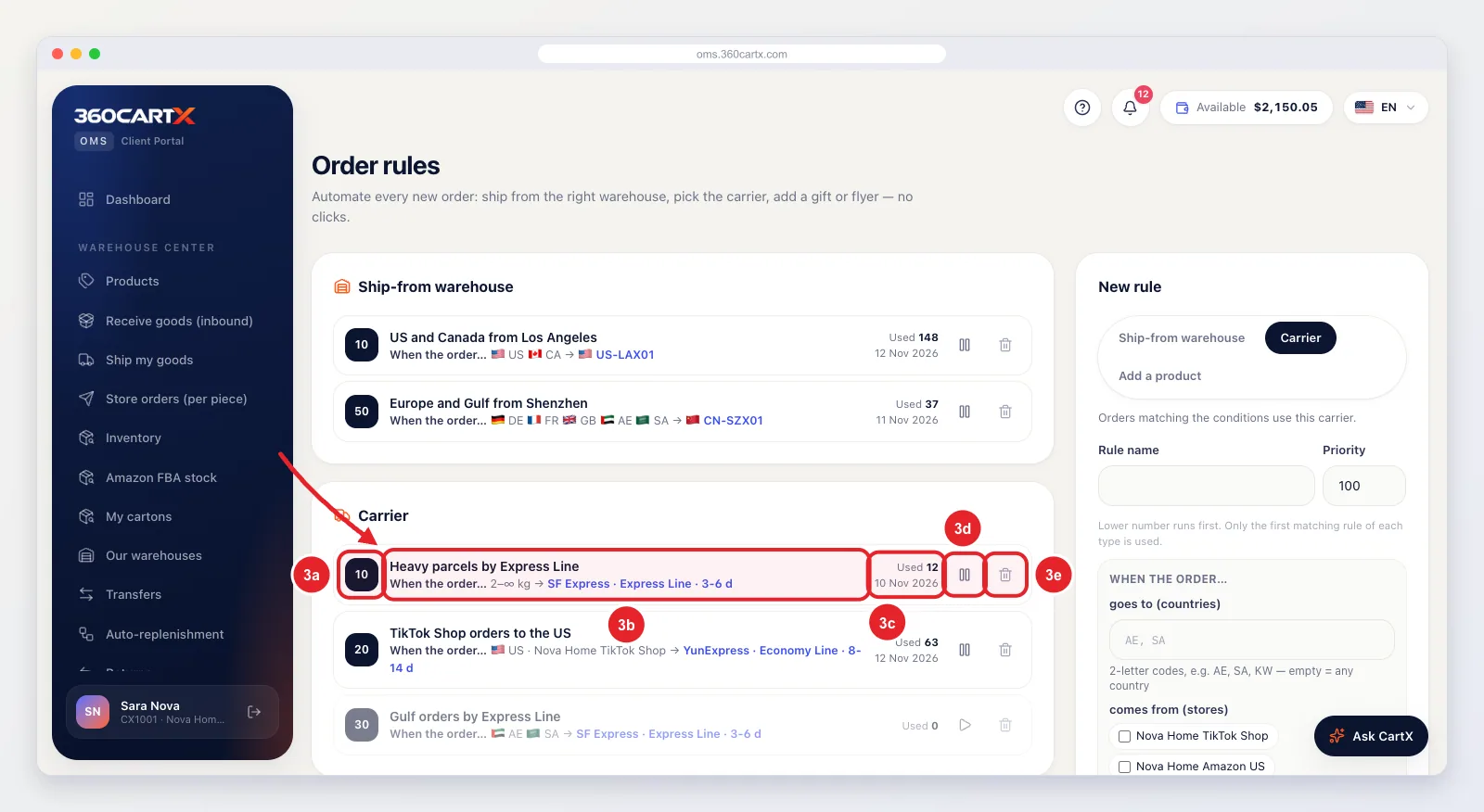
A rule is one line. The dark square on the left is its priority number. Next to it are the rule's name and its meaning: When the order… followed by the conditions, an arrow, and the result in blue (here, Heavy parcels by Express Line: any order of 2 kg or more goes with the Express Line carrier). On the right, Used shows how many times the rule has been applied to an order, with the date of the last time. The pause button turns the rule off without deleting it, and the bin deletes it at once, without asking. Conditions are shown as flags and country codes, store names, SKU and a weight range in kg.
- 3a Priority
- 3b Name and meaning
- 3c Used count and last date
- 3d Pause button
- 3e Delete button
- 4
A paused rule
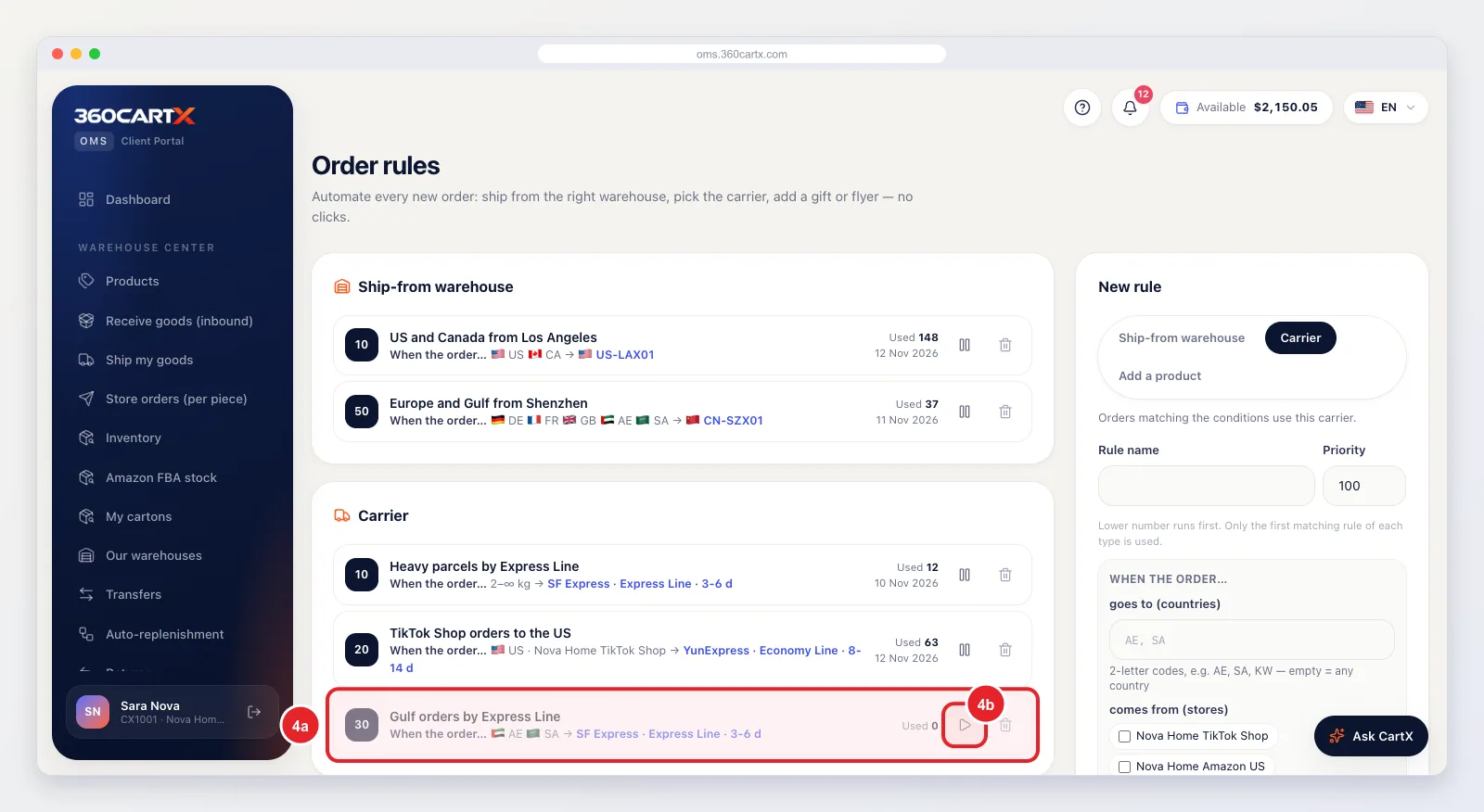
A paused rule is shown faded and is never applied. Click its play button to switch it on again. Pausing is the safe way to try an order flow without a rule you may want back.
- 4a Paused rule
- 4b Play button
- 5
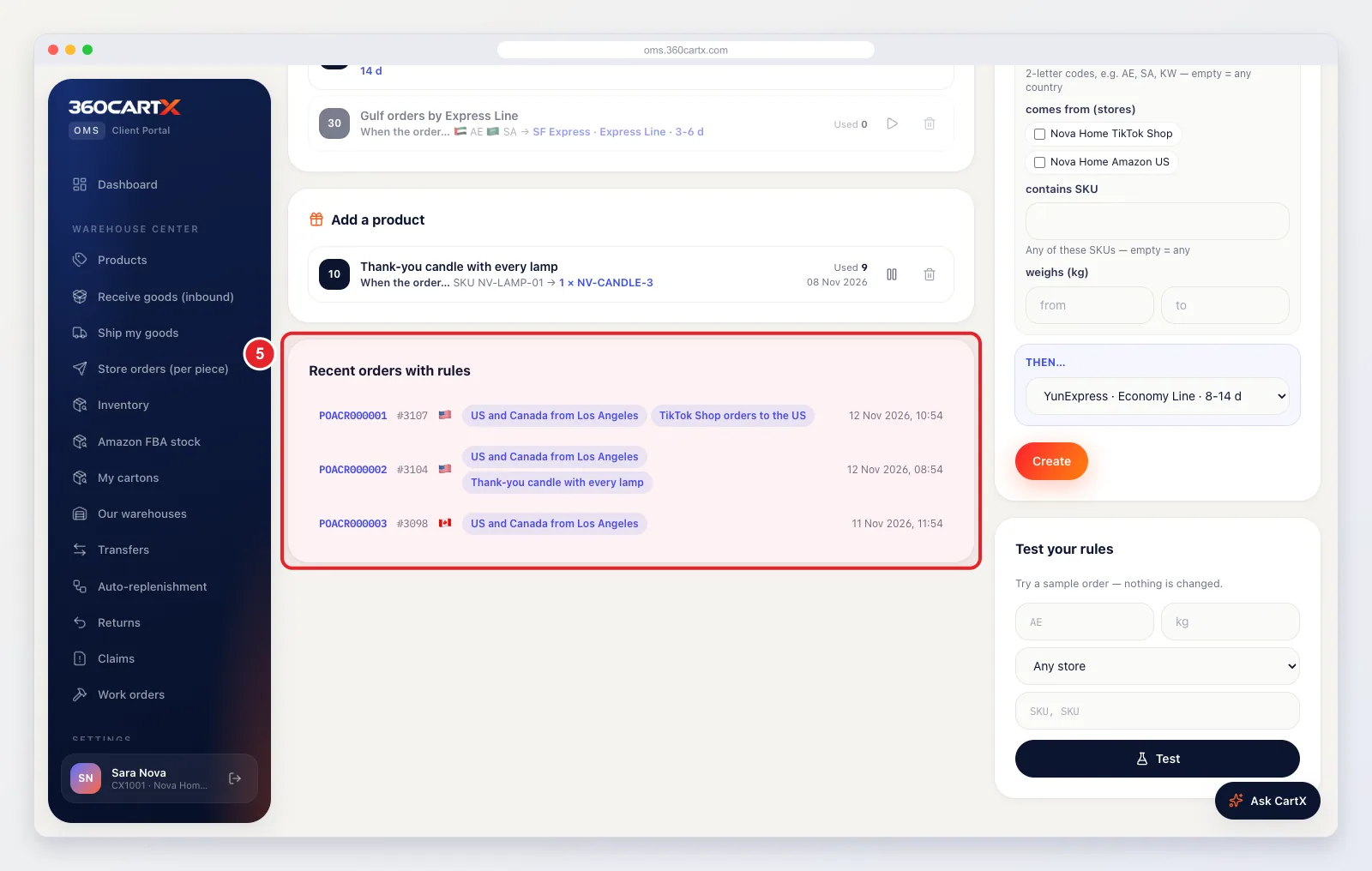
Recent orders with rules
Under your rules, the card Recent orders with rules lists your latest orders that had at least one rule applied: the order number, your store's order reference, the destination flag, one blue label for every rule that fired, and the date. Click a line to open the order. The card is only shown once a rule was applied to an order.
- 6
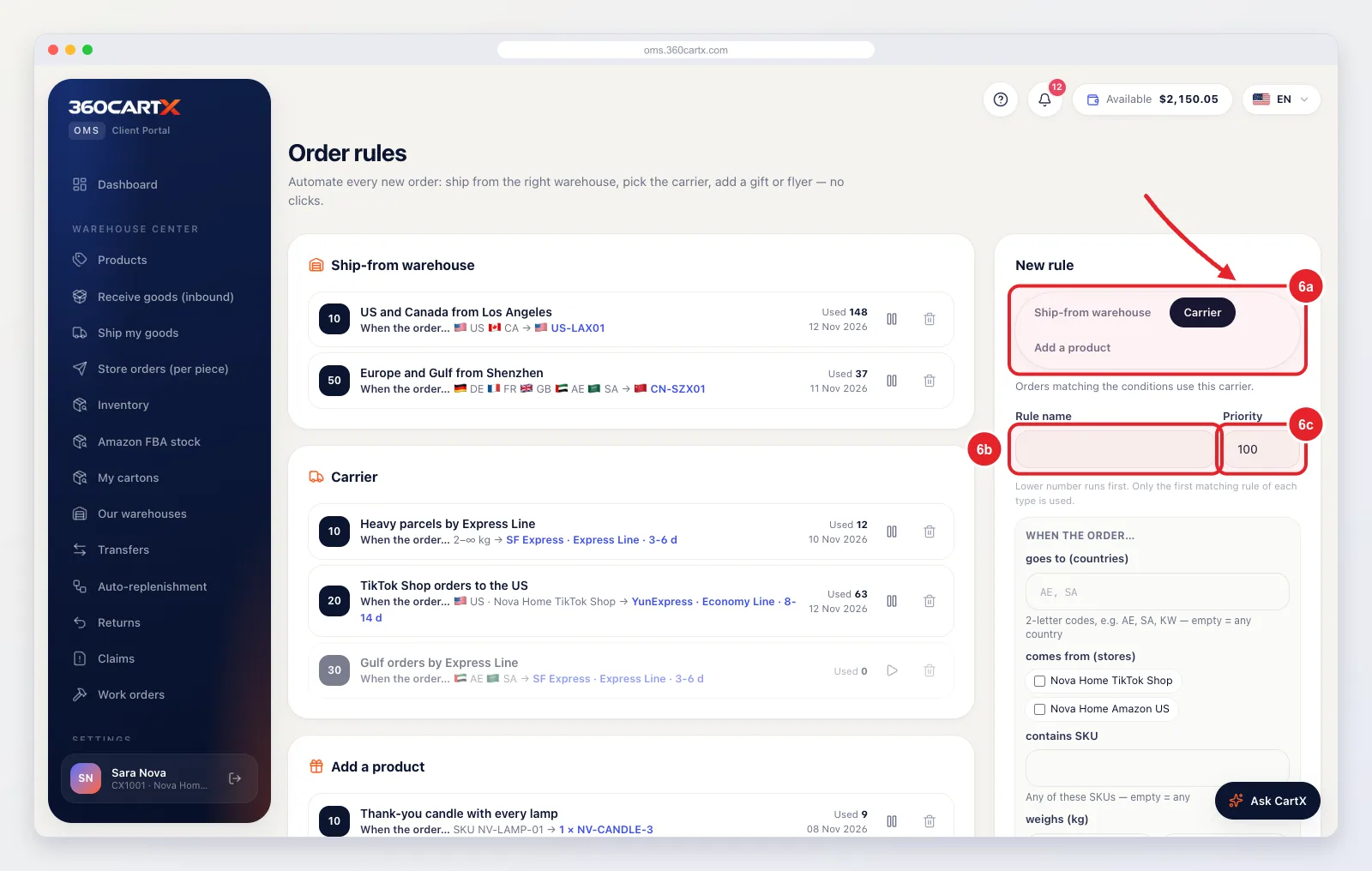
Choose the type of the new rule
In New rule, the three tabs choose the type: Ship-from warehouse, Carrier and Add a product. A line under the tabs explains each: Orders to these countries ship from this warehouse, Orders matching the conditions use this carrier, and Add a product (thank-you card, gift, flyer) to matching orders, only when it is in stock. Every type has a Rule name and a Priority (1 to 999, 100 is the start value). The hint says: Lower number runs first. Only the first matching rule of each type is used.
- 6a Types
- 6b Rule name
- 6c Priority
- 7
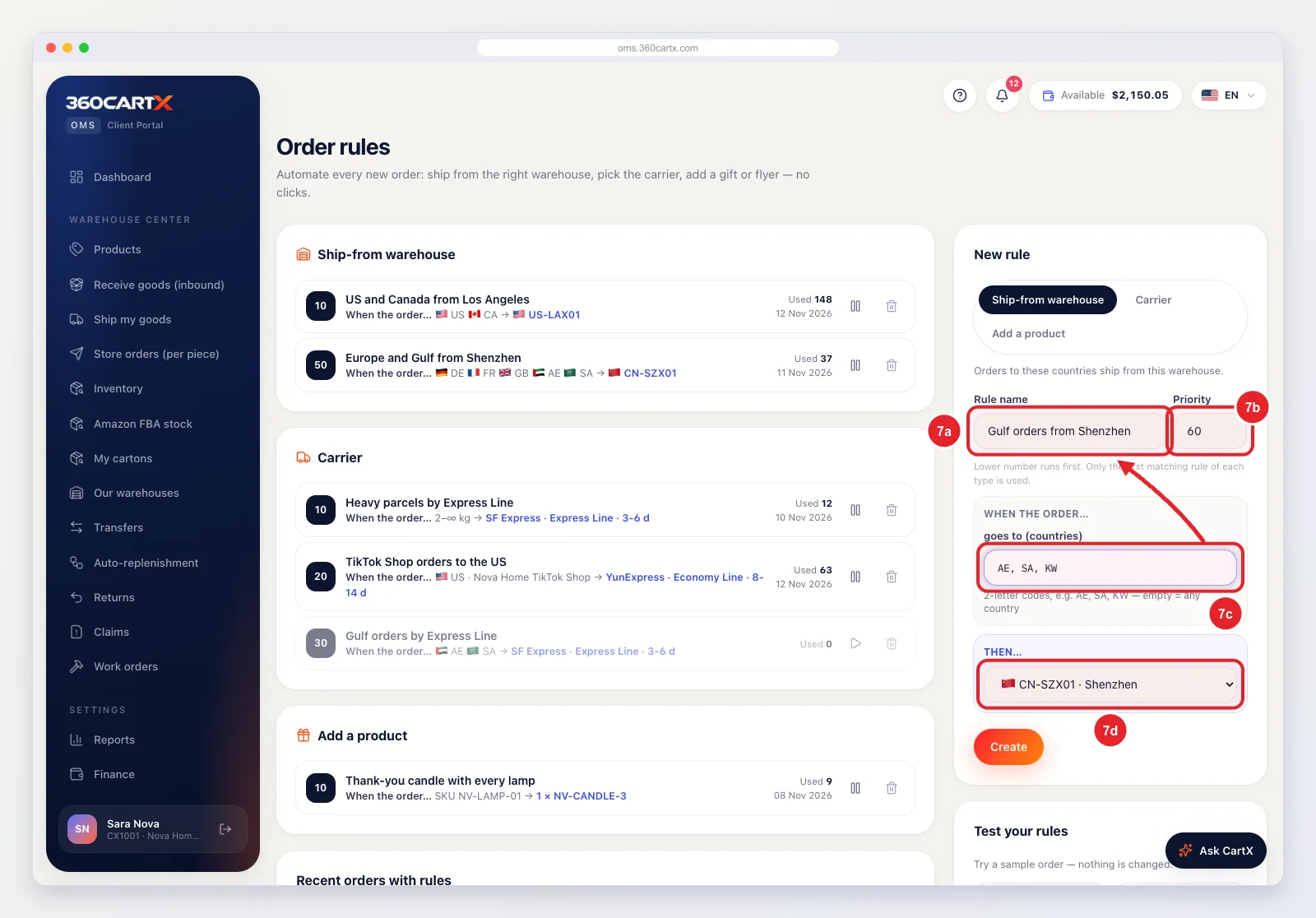
A ship-from warehouse rule
Under When the order…, type the destination countries in goes to (countries): 2-letter codes separated by commas, for example AE, SA, KW. For this type the countries are required. Under Then…, ship from lists the warehouses that are switched on for your account. The rule says: every order to these countries is created in that warehouse, and its stock is taken from there. A warehouse rule only has the country condition.
- 7a Rule name
- 7b Priority
- 7c Countries
- 7d Warehouse
- 8
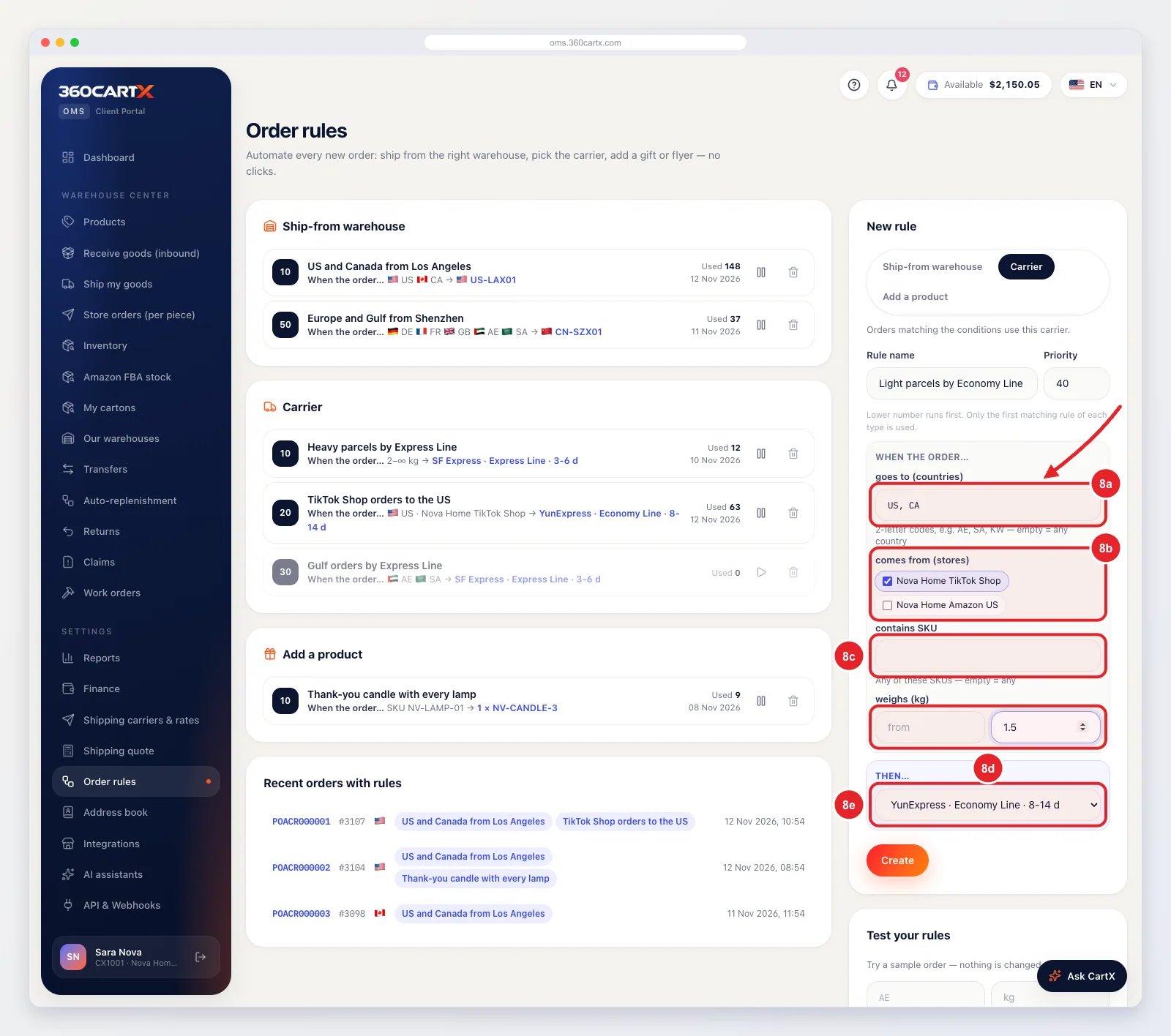
A carrier rule
A carrier rule can combine four conditions, all optional: goes to (countries), comes from (stores), which shows a tick box for each of your stores, contains SKU (any of these SKUs, separated by commas) and weighs (kg) with from and to boxes. An empty condition matches everything. Under Then…, use carrier lists the carrier lines with the transit time. The weight is the estimated weight of the parcel from your products. A carrier chosen on the order itself, or by a mapping in Settings, Fulfilment, always wins over a carrier rule.
- 8a Countries
- 8b Stores
- 8c SKUs
- 8d Weight (from, to)
- 8e Carrier
- 9
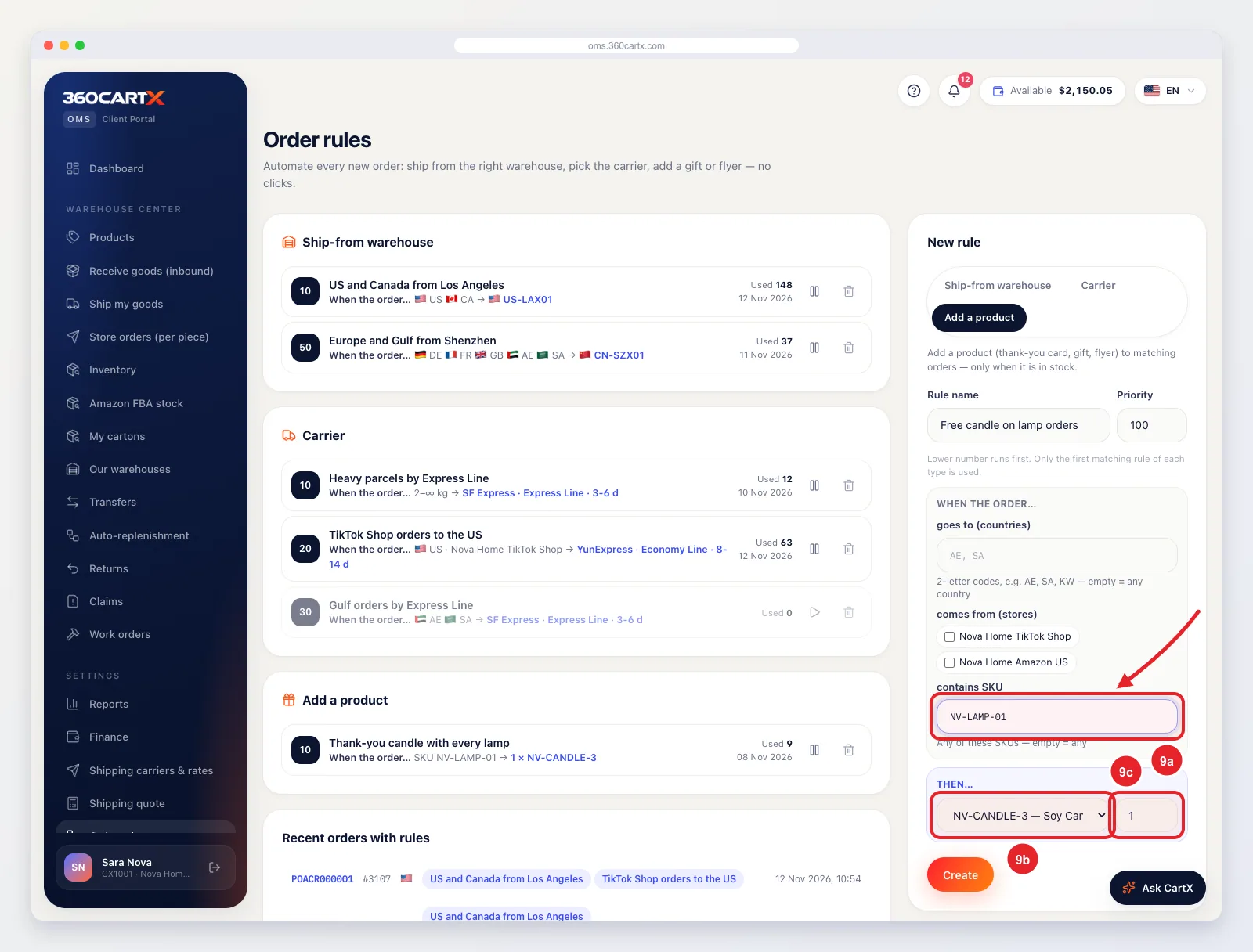
An Add a product rule
This rule adds a product to the parcel, for example a thank-you card or a free sample. Set the conditions (countries, stores, SKUs), choose the product in add product (only your approved products are listed) and the quantity in qty, from 1 to 10. The product is only added when it is in stock in the warehouse that ships the order and is not already in the order. An insert never blocks an order: if there is no stock for it, the order ships without it.
- 9a SKU condition
- 9b Product
- 9c Quantity
- 10
Create the rule
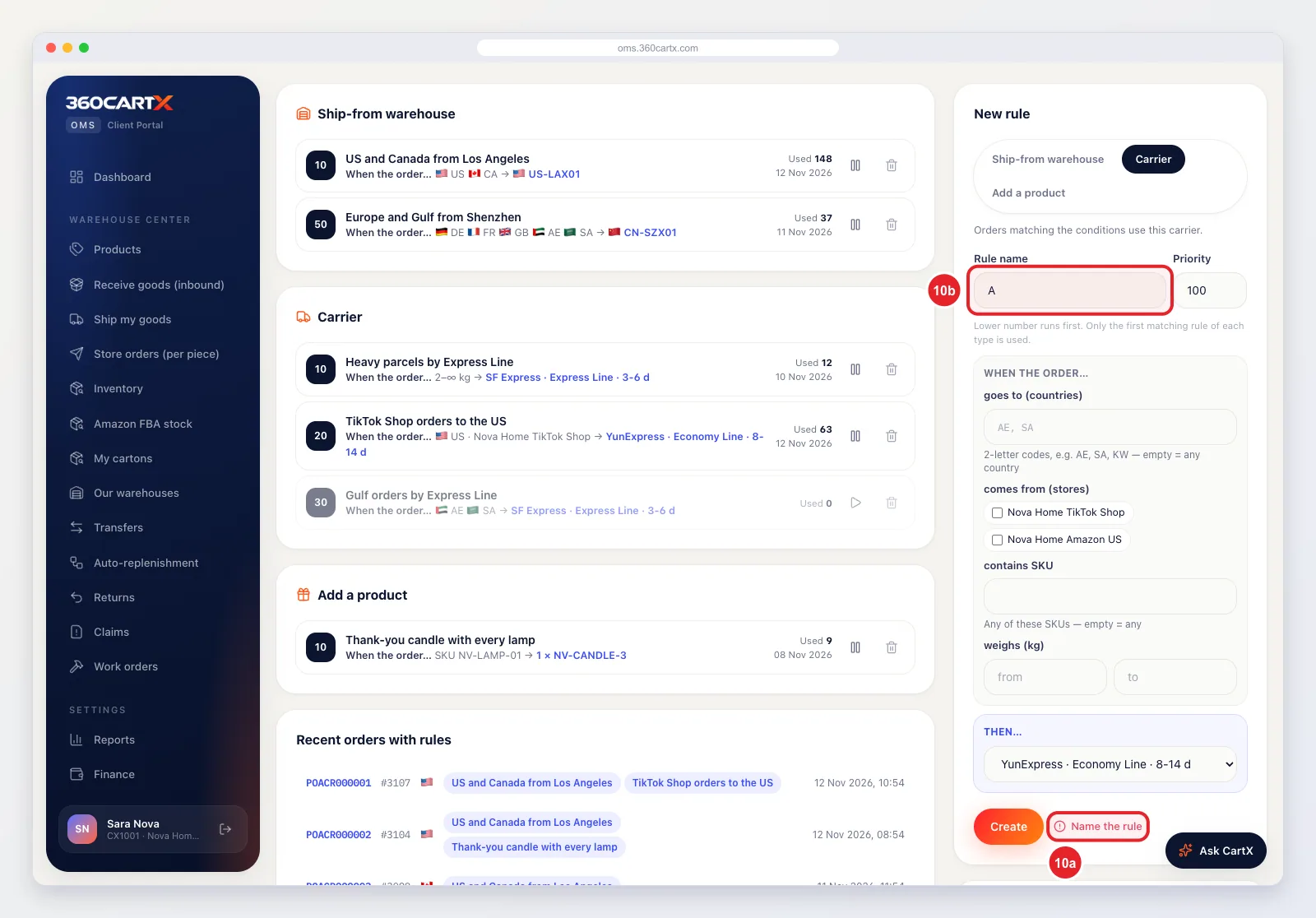
Click Create. The rule appears in its group on the left and the form clears. There is no Edit button: to change a rule, delete it and create it again. You can have up to 100 rules. If the name is shorter than 2 characters, you see the red message Name the rule. The other messages are Choose one of your warehouses, A warehouse rule needs destination countries, Choose a carrier and Choose the product to add.
- 10a Error message
- 10b Rule name
- 11
Test your rules
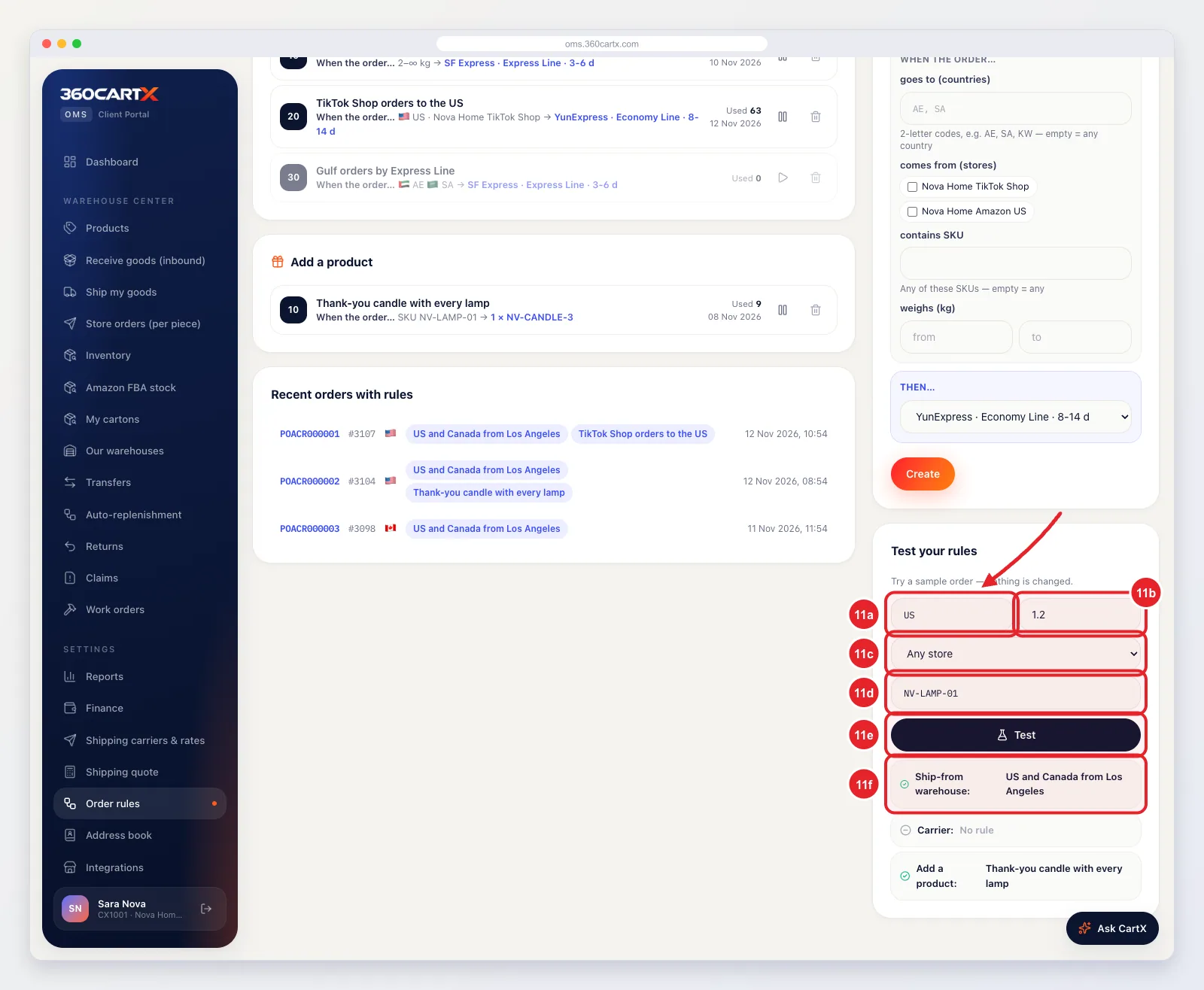
In Test your rules, describe a sample order: a 2-letter Destination (for example US), the weight in kg (empty means 0.5 kg), a store (Any store is the default) and SKUs. Click Test. Nothing is changed. For each type you see what would happen: the name of the rule it would use, or No rule. Here, a US order of 1.2 kg with SKU NV-LAMP-01 would ship from Los Angeles and get a free candle, but no carrier rule applies, so the default carrier is used. A destination that is not two letters gets Choose a destination.
- 11a Country
- 11b Weight
- 11c Store
- 11d SKUs
- 11e Test
- 11f Result
- 12
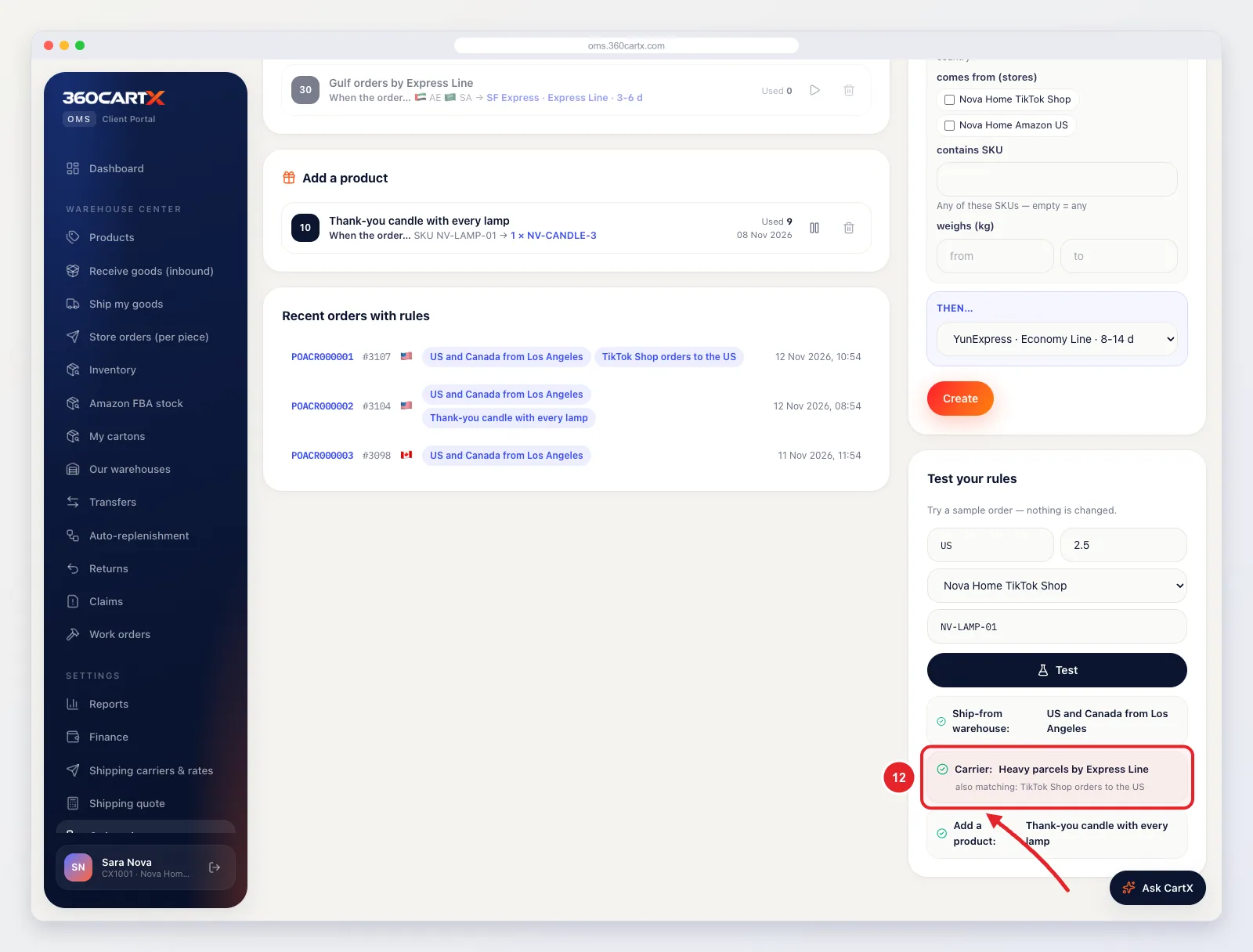
When more than one rule matches
Several rules of one type can match the same order. The one with the lowest priority number is used, and the others are listed under it as also matching. Here a 2.5 kg order from the TikTok store matches two carrier rules; Heavy parcels by Express Line has the lower priority number (10 against 20) and wins. Change a priority by creating the rule again with another number.
- 13
Before you have any rule
A new account shows No rules yet, your orders use your default carrier and the store's warehouse. Until you add a rule, every order is handled the usual way.
Tips
- Start with one rule, test it, then add more. The Test card shows exactly what the rule would do for a sample order.
- Give each rule a clear name. The name appears in Recent orders with rules and on the order, so you can see why an order was shipped from a warehouse or with a carrier.
- Only the first matching rule of each type is used, so put the most specific rules at a low number (they run first) and a general catch-all at a higher number such as 100.
- The store condition works for orders that come from a connected store. Orders you create by hand, upload in Excel or send through the API have no store, so a rule that requires a store does not match them.
- Rules never change an order that already exists. They run once, when the order is created.
- Owners, admins and operators can create, pause and delete rules, and so can a custom role that has View + edit on Store orders & rules. Finance users and viewers can open the page, but their changes are refused.
Common problems
Name the rule
The rule name needs at least 2 characters.
A warehouse rule needs destination countries
Type at least one 2-letter country code in goes to (countries), for example AE.
Choose one of your warehouses
The warehouse is not switched on for your account. Pick one from the list, or enable more warehouses first (see Enable a warehouse).
Choose a carrier / Choose the product to add
The carrier or the product you picked is no longer available. Reload the page and pick again. Only approved products can be added.
Up to 100 rules
Delete rules you no longer need before adding new ones.
Choose a destination
In Test your rules, the destination must be a 2-letter country code such as US. An empty box is stopped by your browser first.
My rule does not seem to apply
Check that it is not paused (faded). Use Test your rules with the same country, store, SKUs and weight. Remember that a carrier on the order or in a shipping option mapping wins over a carrier rule, and that a lower priority number of another rule of the same type wins.
My free gift was not added
The product is only added when it is in stock in the shipping warehouse and not already in the order. Check its stock in Inventory.
Related articles
Updated 2026-11-12
Open a ticket from Support in your portal and our team will reply.