Steps
- 1
Open Settings, Profile
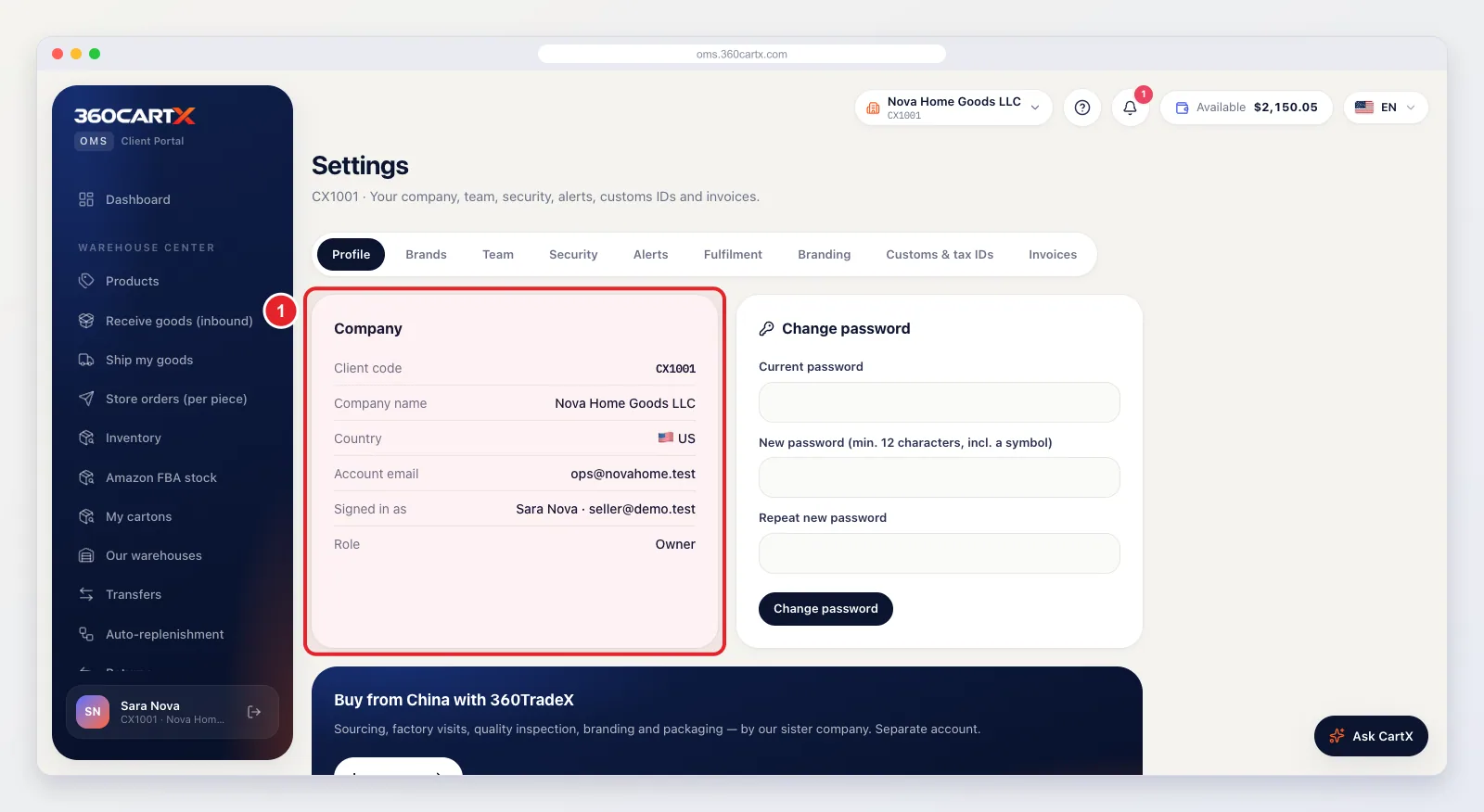
Click Settings in the left menu. The Profile tab opens first. The left card, Company, lists who and what this account is. The right card changes your password.
- 2
Read the company card
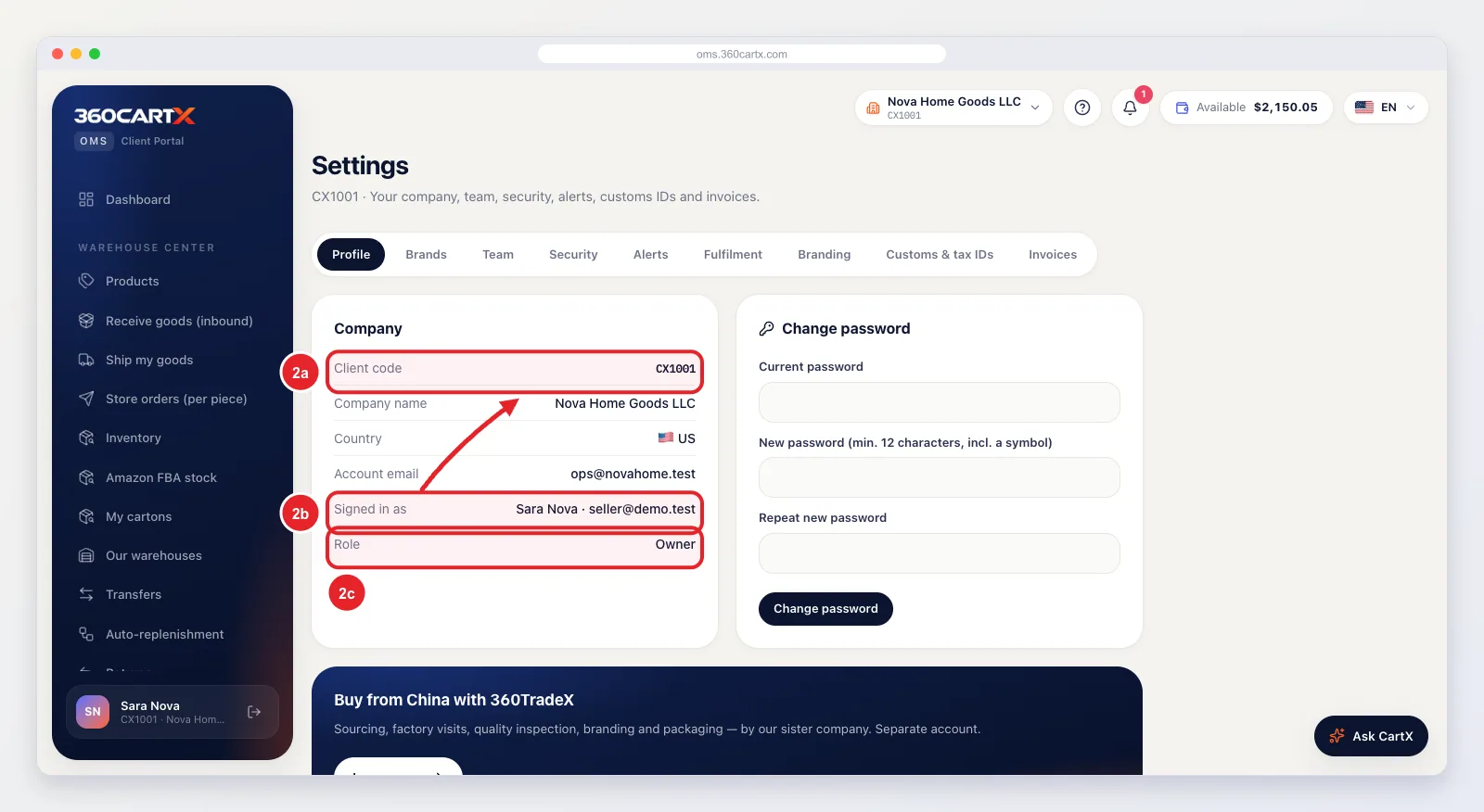
Client code is the code of your account (for example CX1001): quote it when you write to support. Company name, Country and Account email are the details of the company. Signed in as shows your own name and sign-in e-mail. Role is your role in the team: Owner, Admin, Operator, Finance, Viewer or Custom. These details cannot be edited here. To correct the company name, the country or the account e-mail, open a support ticket with the topic Account.
- 2a Client code
- 2b Signed in as
- 2c Role
- 3
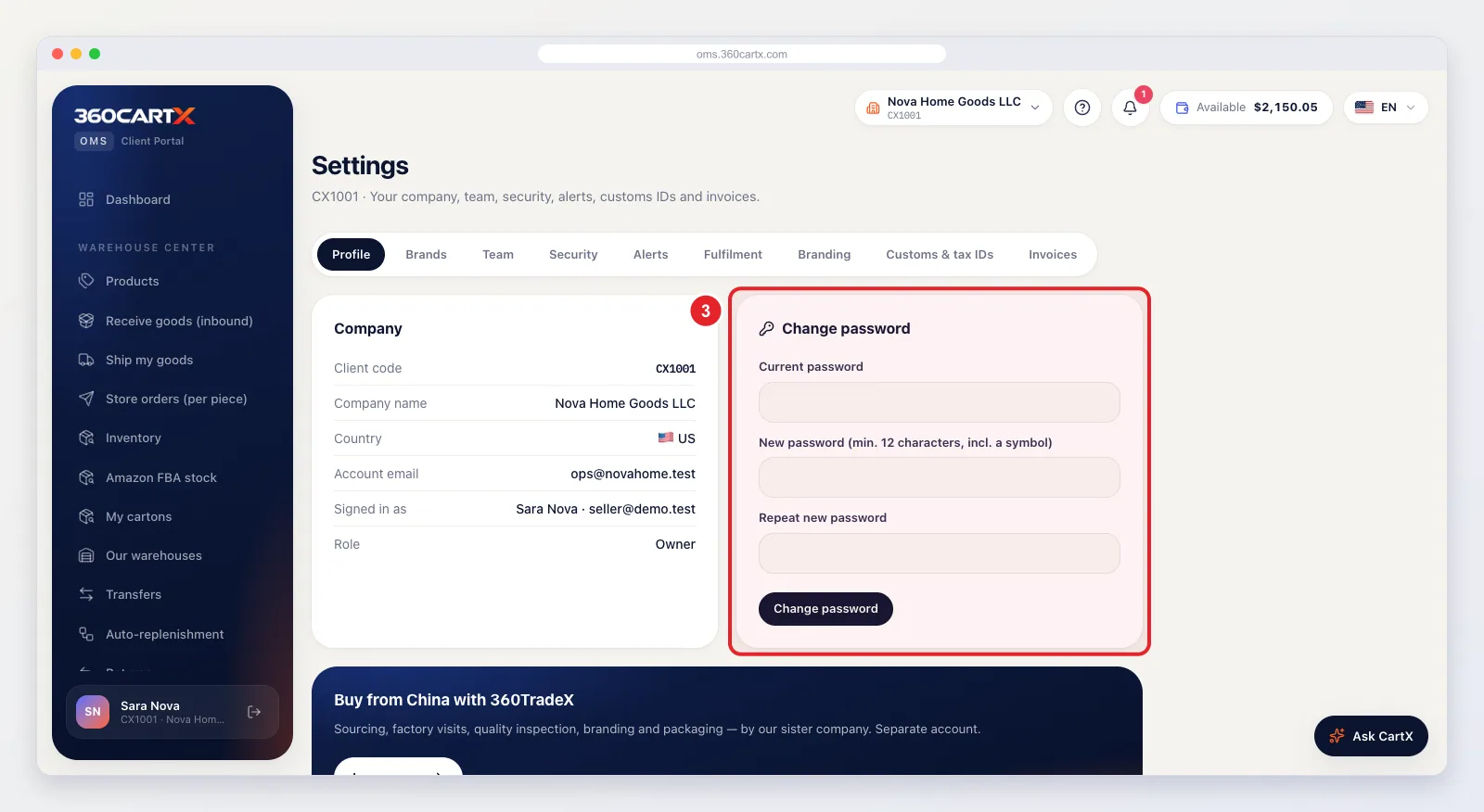
Find the Change password card
The card Change password has three boxes: Current password, New password (min. 12 characters, incl. a symbol) and Repeat new password. The same card is also on the Security tab. Password rules: at least 12 characters, at least one character that is not a letter or a number (for example ! # $ or a space), at most 200 characters. The new password must differ from the current one.
- 4
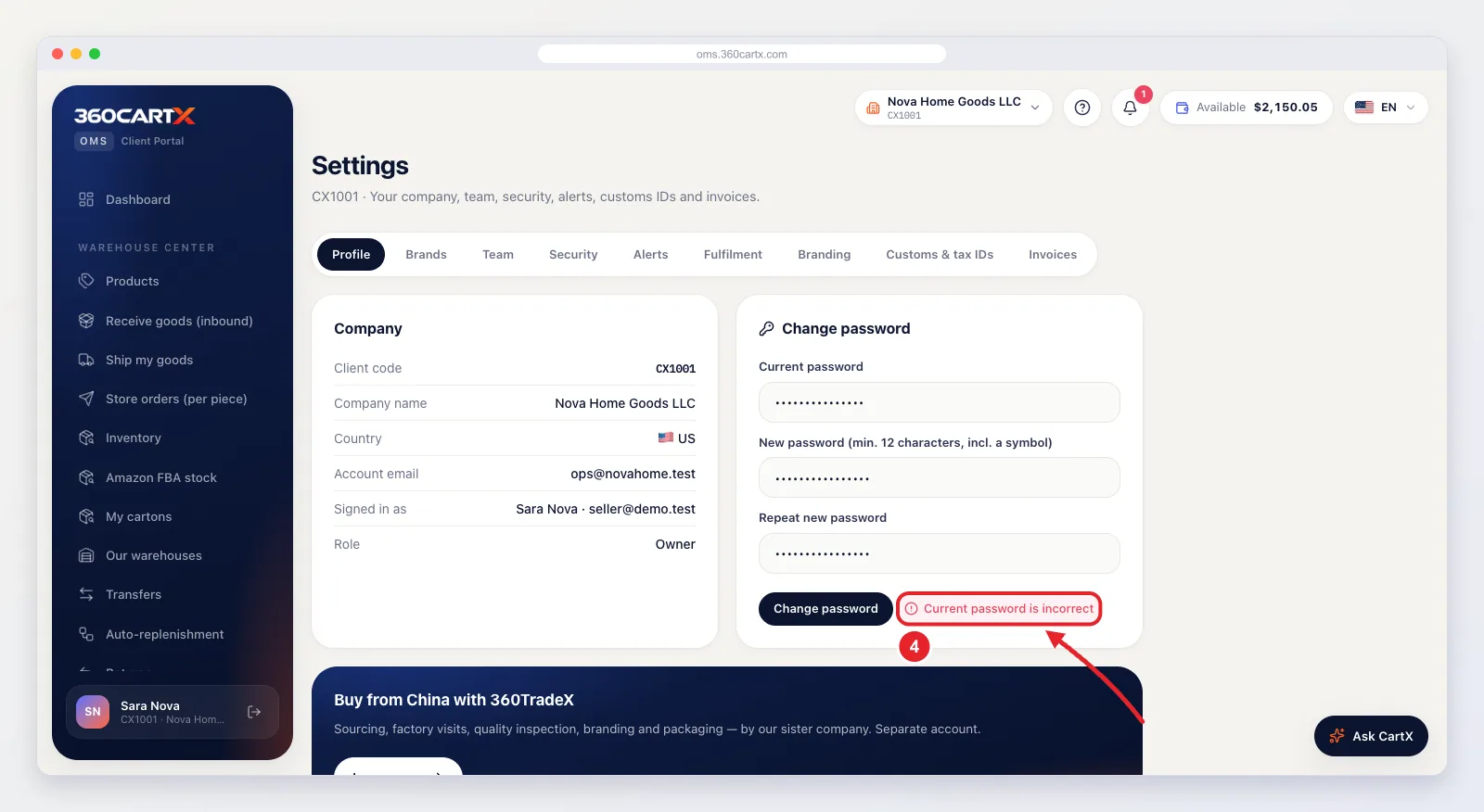
A wrong current password is refused
Type your current password, then the new password twice, and click Change password. If the current password is not right, the red message Current password is incorrect appears next to the button, and nothing changes. Your text stays in the boxes. Here a made-up old password was typed.
- 5
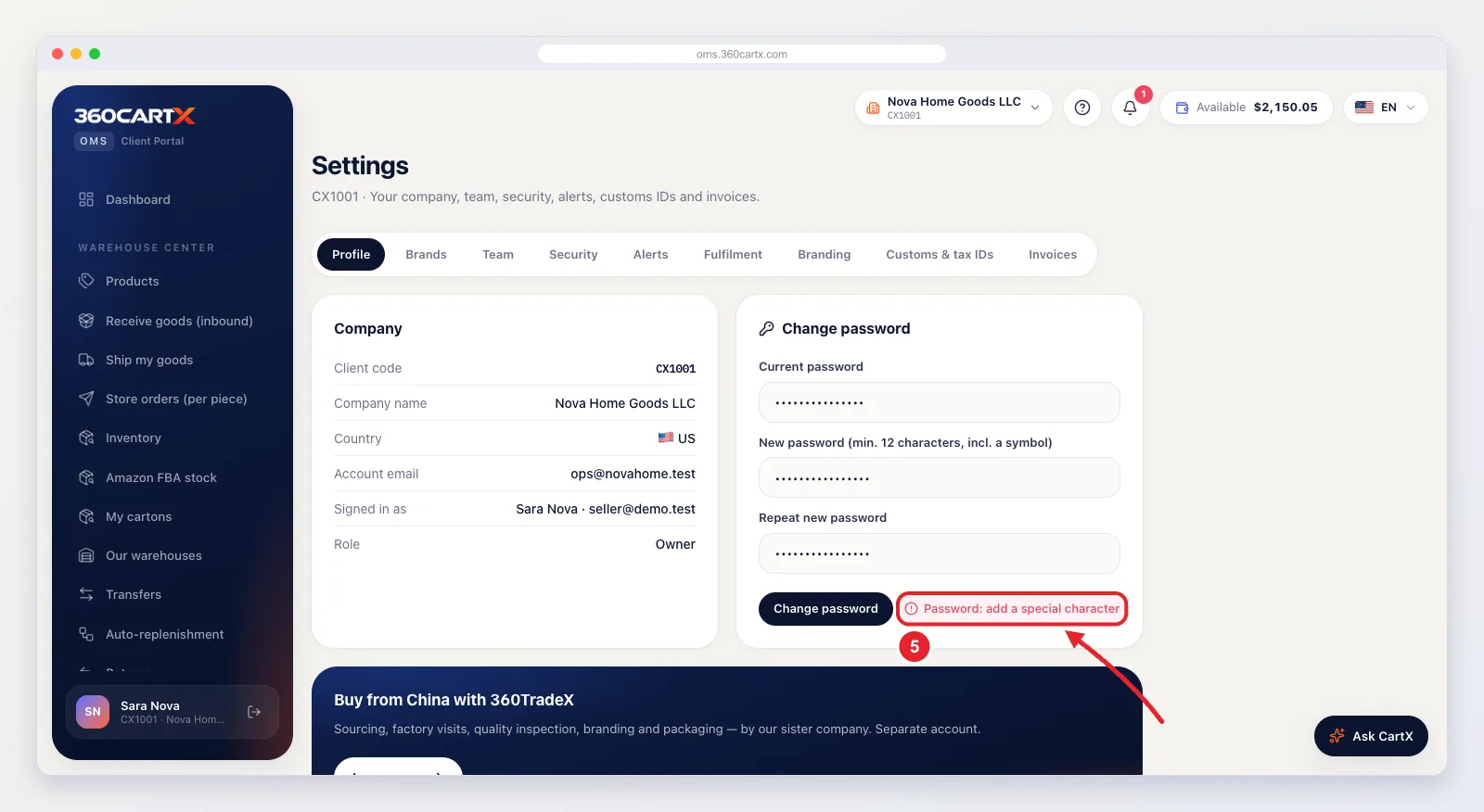
A password without a symbol is refused
A new password with 12 or more letters and numbers but no symbol is refused with Password: add a special character. Add one such as ! or # and try again. A password shorter than 12 characters is stopped by your browser before it is sent, with its own hint to lengthen the text. The server message for this case is New password: at least 12 characters.
- 6
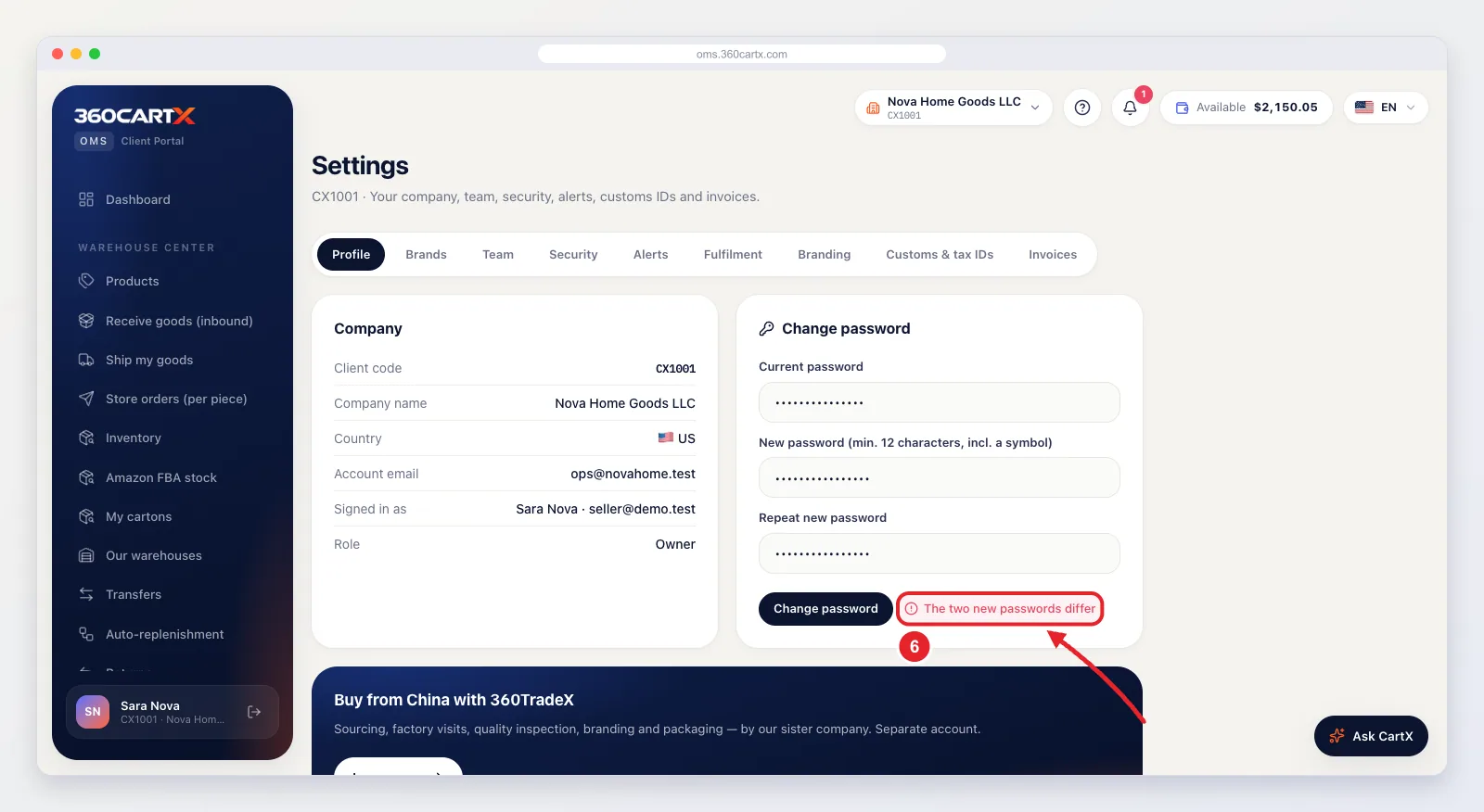
The two new passwords must match
If Repeat new password is not exactly the same as New password, you see The two new passwords differ. Retype both. If the new password is the same as the current one, you see Choose a different password.
- 7
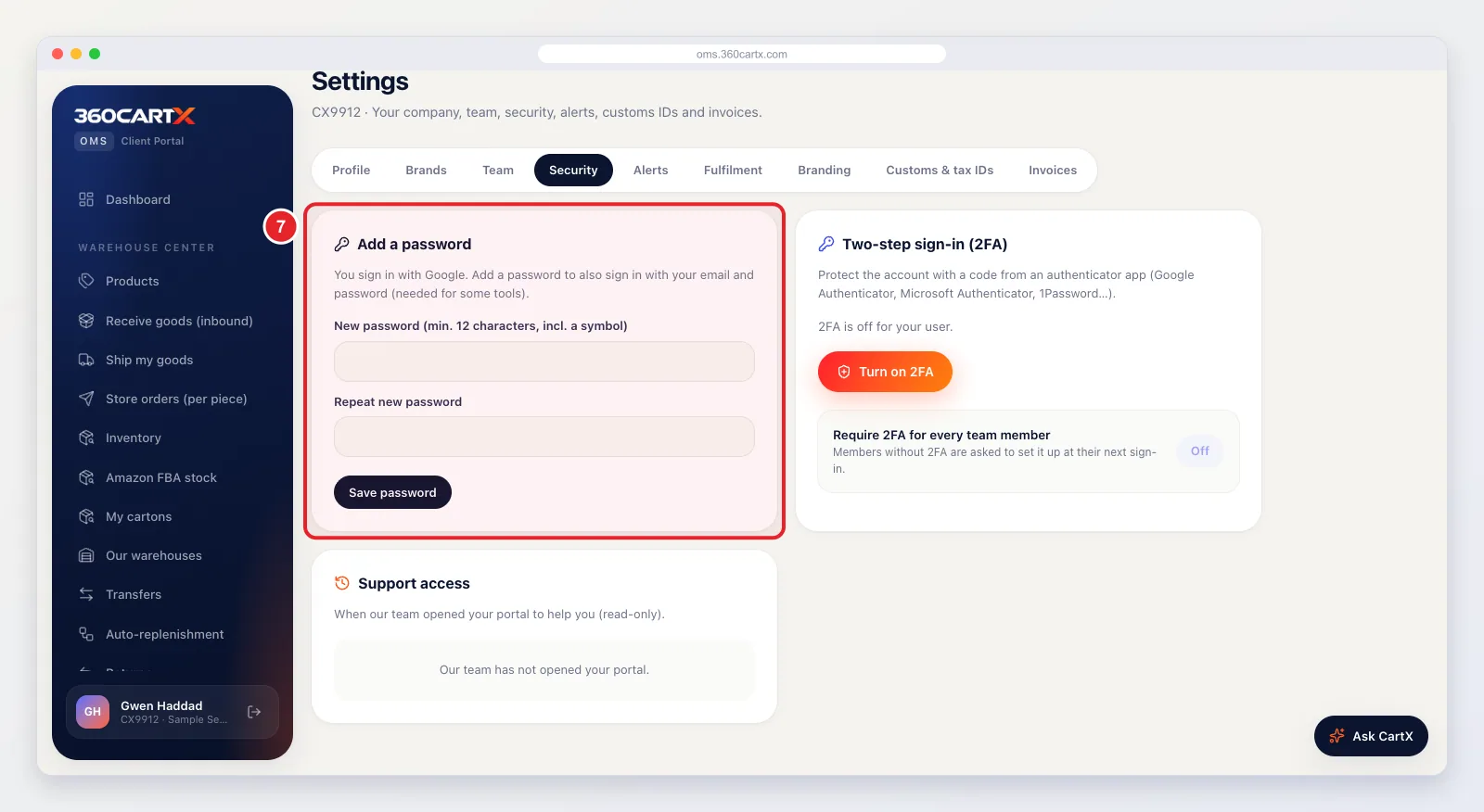
If you signed up with Google
A login created with Continue with Google has no password yet, so Current password would make no sense. Open the Security tab: the card is called Add a password and explains that you sign in with Google and can add a password to also sign in with your e-mail and password. It has only New password and Repeat new password, and the button Save password. After saving you see Password saved.
- 8
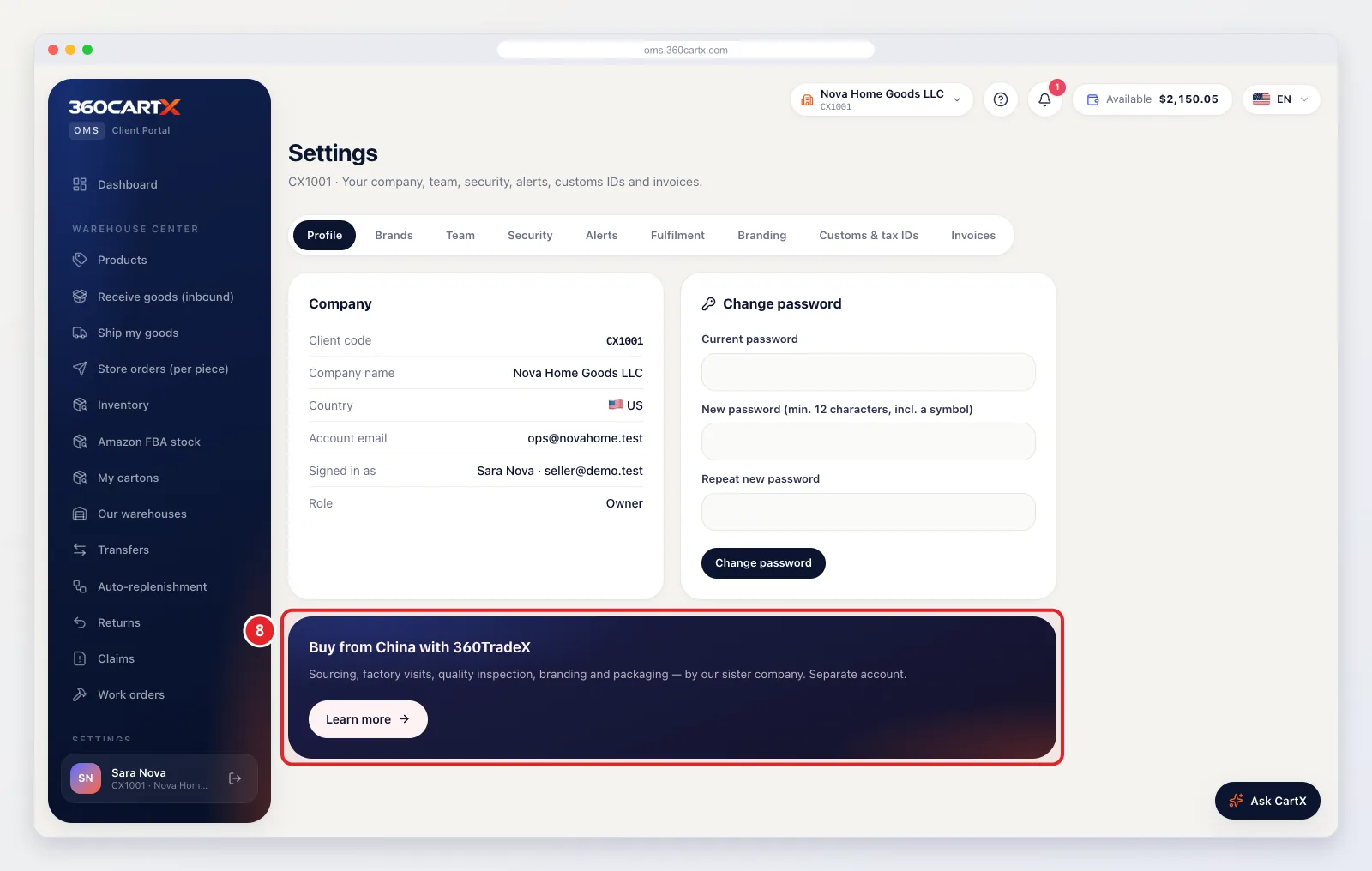
The 360TradeX card
The dark card at the bottom of the Profile tab, Buy from China with 360TradeX, is only an introduction to our sister company for sourcing, factory visits, inspection, branding and packaging. It is a separate account with a separate wallet. Learn more opens the 360TradeX page in your portal. Nothing on that card changes your 360CartX account.
Tips
- After a successful change you see Password changed and the boxes are emptied. Use the new password the next time you sign in.
- Use a password manager and a password you use nowhere else. Never share it: invite colleagues in Settings, Team so everyone has their own login.
- Forgot your current password? You cannot change it from here. Sign out and use Forgot password on the sign-in page.
- A teammate who was invited sets their first password with the link in the invitation e-mail. After that they change it here like everyone else.
- For extra safety also turn on two-step sign-in (2FA) in the Security tab.
Common problems
Current password is incorrect
The password in the first box is not your current one. Check the keyboard language and Caps Lock. If you do not remember it, sign out and use Forgot password.
Password: add a special character
Add a symbol to the new password, for example ! # $ % or a space.
New password: at least 12 characters
The new password is too short. Use 12 or more characters; a few random words with a number and a symbol work well.
The two new passwords differ
New password and Repeat new password are not identical. Retype them, or paste the same text in both.
Choose a different password
The new password is the same as the current one. Pick a new one.
I cannot change my name or e-mail
The profile is read only. Open a support ticket with the topic Account and tell us what to correct.
Related articles
Updated 2026-11-12
Open a ticket from Support in your portal and our team will reply.