Steps
- 1
Find the list of visits
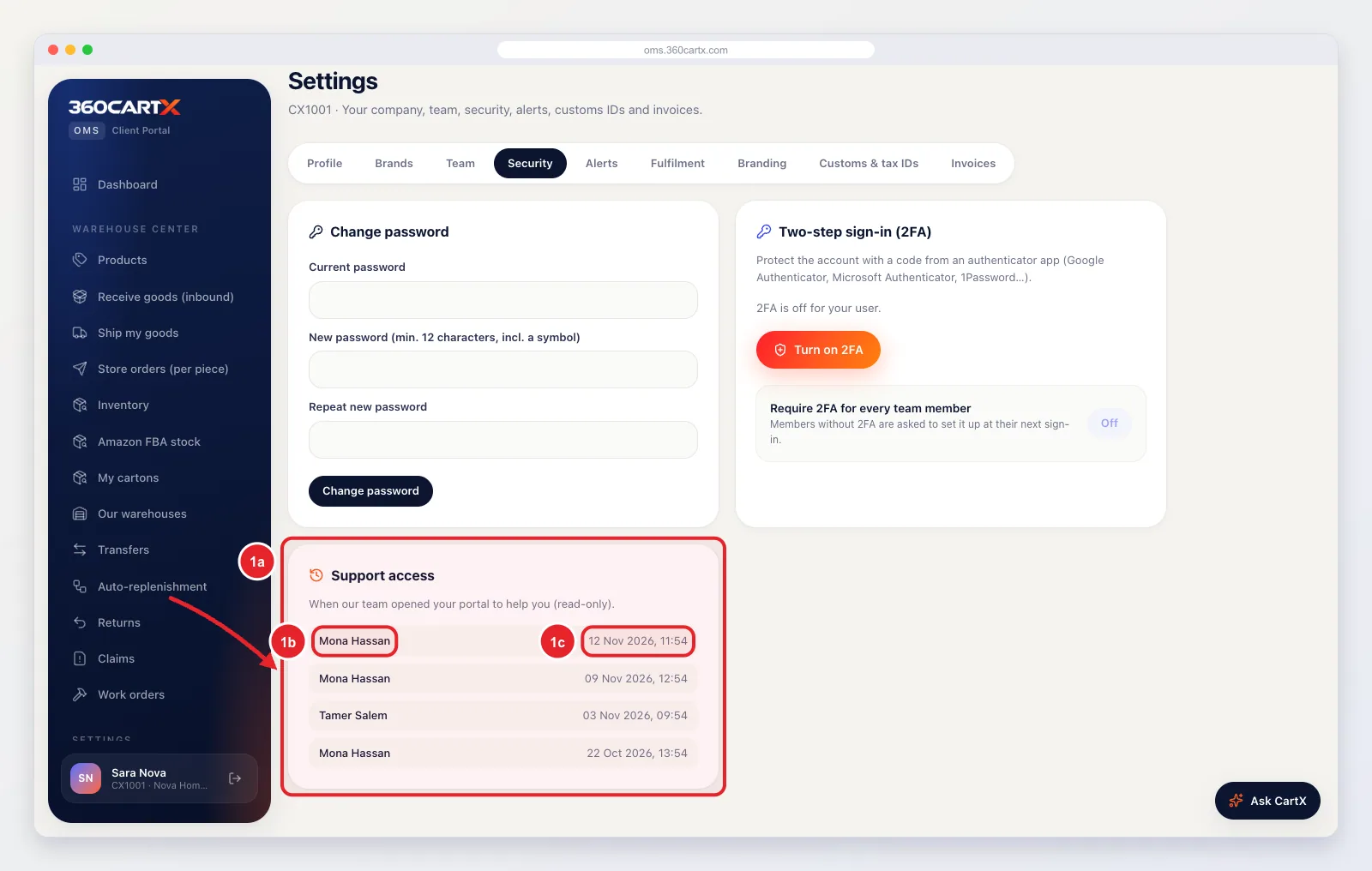
Open Settings, then the Security tab. The card Support access says When our team opened your portal to help you (read-only). Each line is one visit: the name of the 360CartX staff member on the left and the date and time on the right, newest first. The card shows up to the last 20 visits. Everybody who can open the Security tab sees this list (every role), not only the owner. It shows who opened the portal and when; it does not list the pages that were looked at.
- 1a Support access card
- 1b Staff member
- 1c Date and time
- 2
What the Preview bar looks like
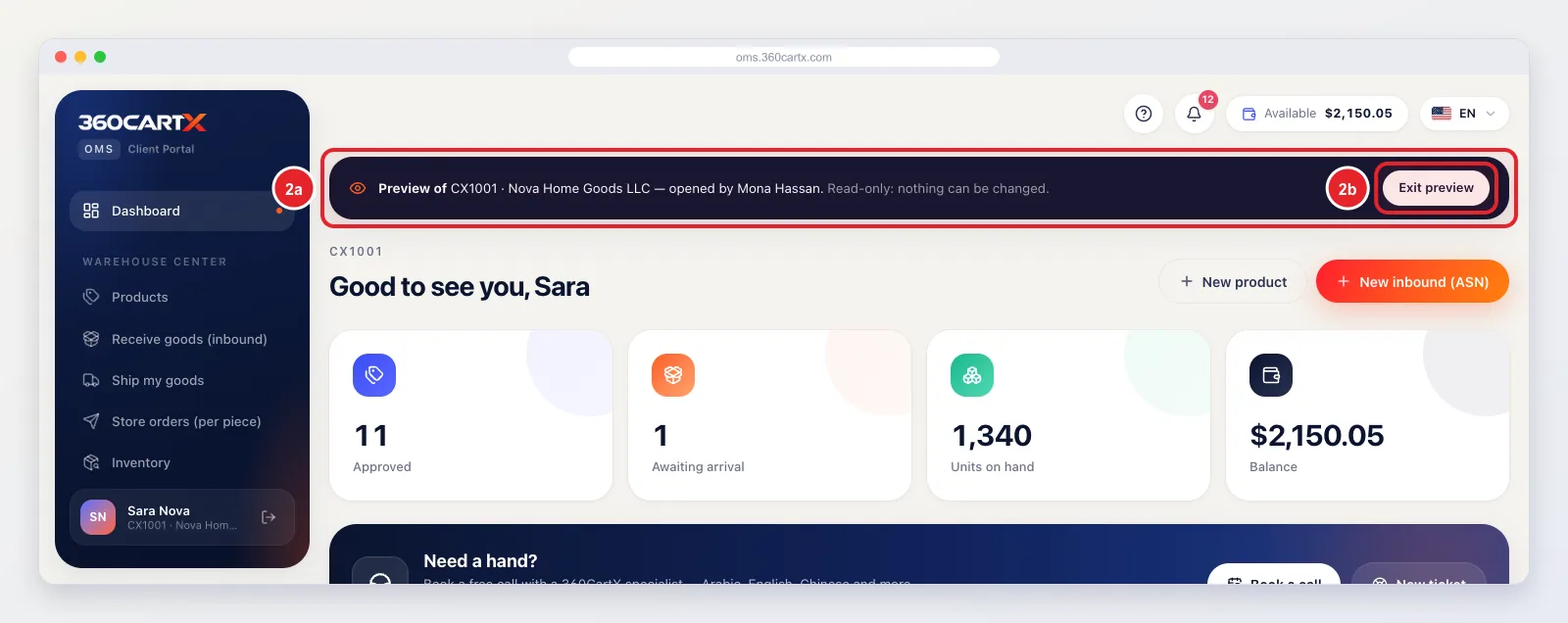
A preview runs in the staff member's own browser, so you only see it if the specialist shares their screen with you or sends you a screenshot. Every page then shows a dark bar at the top: Preview of, your client code and company name, then opened by and the staff member's name, then Read-only: nothing can be changed. The bar stays at the top when you scroll. The button Exit preview ends the preview and takes the staff member back to the 360CartX staff portal. The values in this picture are made-up examples.
- 2a Preview bar
- 2b Exit preview
- 3
What a preview can and cannot do
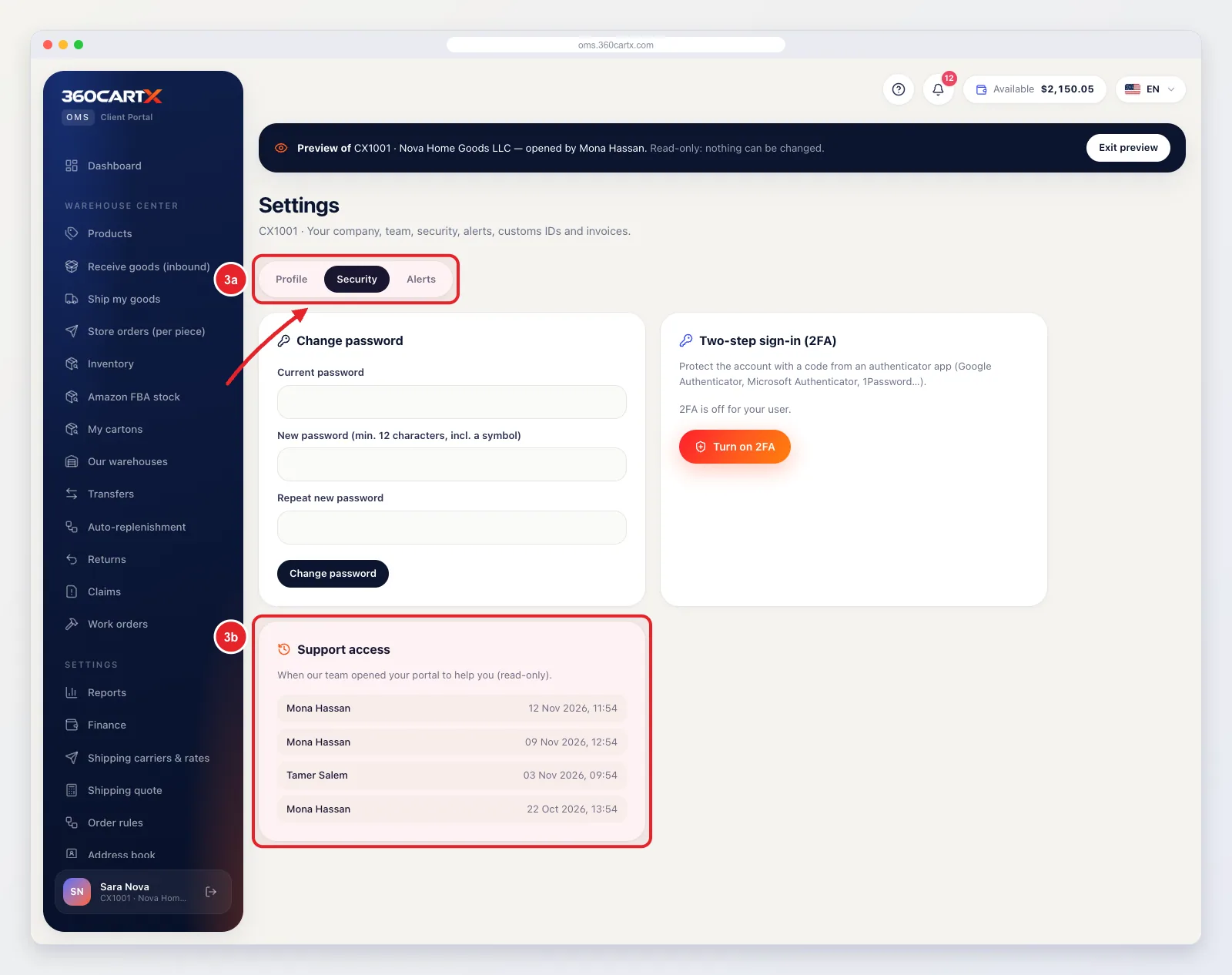
The preview opens your portal with the rights of a viewer: the person sees your pages (orders, stock, wallet, tickets) exactly as you see them, but cannot save, create, delete, pay or send anything. Every change is refused by the server, not only hidden, so nothing can be changed by mistake. In Settings a preview shows only the tabs Profile, Security and Alerts, as for any viewer, and the 2FA reminder is not shown to the staff member. A preview ends after one hour at the latest, and only members of our customer service, sales, finance and management teams can start one. Warehouse staff cannot.
- 3a Settings tabs
- 3b Support access
- 4
When nobody has opened your portal
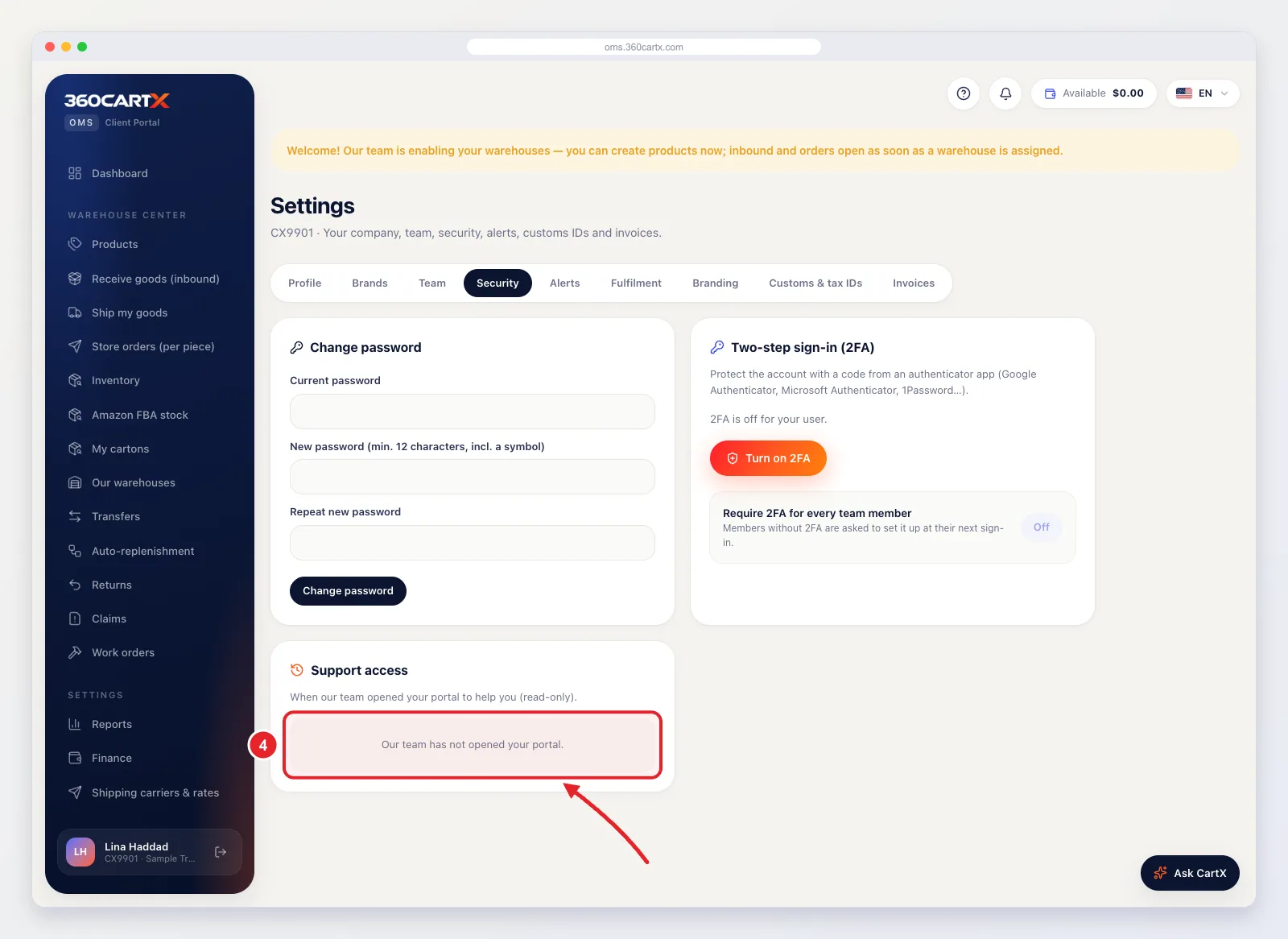
If our team never opened your portal, the card says Our team has not opened your portal. That is the normal state for most accounts. Visits only appear after a staff member really starts a preview.
Tips
- A preview does not sign you out and does not change your password or your 2FA. It is a separate, one-hour, read-only session in the staff member's own browser.
- If you do not recognise a name or a date in the list, open a ticket (Help & support) and ask. Visits are only started by our staff from the staff portal.
- Looking for something to show our specialist? Use Help & support to open a ticket or book a call instead of sharing your password. Nobody from 360CartX needs your password.
- You cannot switch the preview feature off from your side, but it can never change your data.
Common problems
I see a dark Preview bar and cannot change anything
You are looking at a read-only preview that a 360CartX staff member opened (for example on a shared screen). Everything works for viewing only. If you see it in your own browser and did not expect it, sign out, sign in again and check the Support access list in Settings, Security.
The Support access card is empty
Our team has not opened your portal yet. Visits are written to the list only when a staff member starts a preview.
I only see Profile, Security and Alerts in Settings
That is what a viewer sees, and also what a preview shows. In your own session, check your role in Settings, Team.
Can staff see my password or my 2FA code?
No. A preview opens your pages without your password. Passwords are stored as one-way hashes and cannot be read.
Related articles
Updated 2026-11-12
Open a ticket from Support in your portal and our team will reply.