Steps
- 1
Open Settings, Alerts
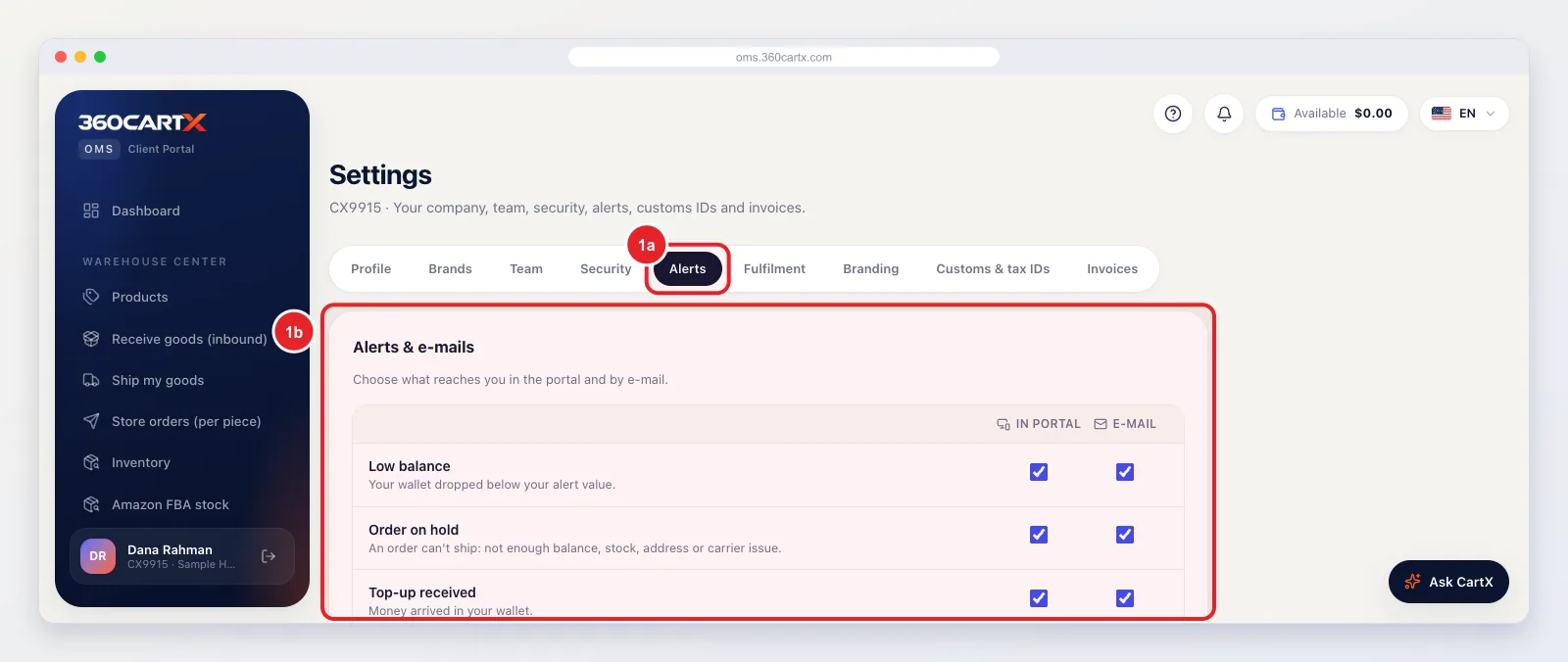
Click Settings in the left menu, then the Alerts tab. The card Alerts & e-mails says Choose what reaches you in the portal and by e-mail. Below it is a list of the notification types, and below the list a second card called E-mail with your extra addresses and alert values.
- 1a Alerts tab
- 1b Alerts & e-mails card
- 2
Read the list
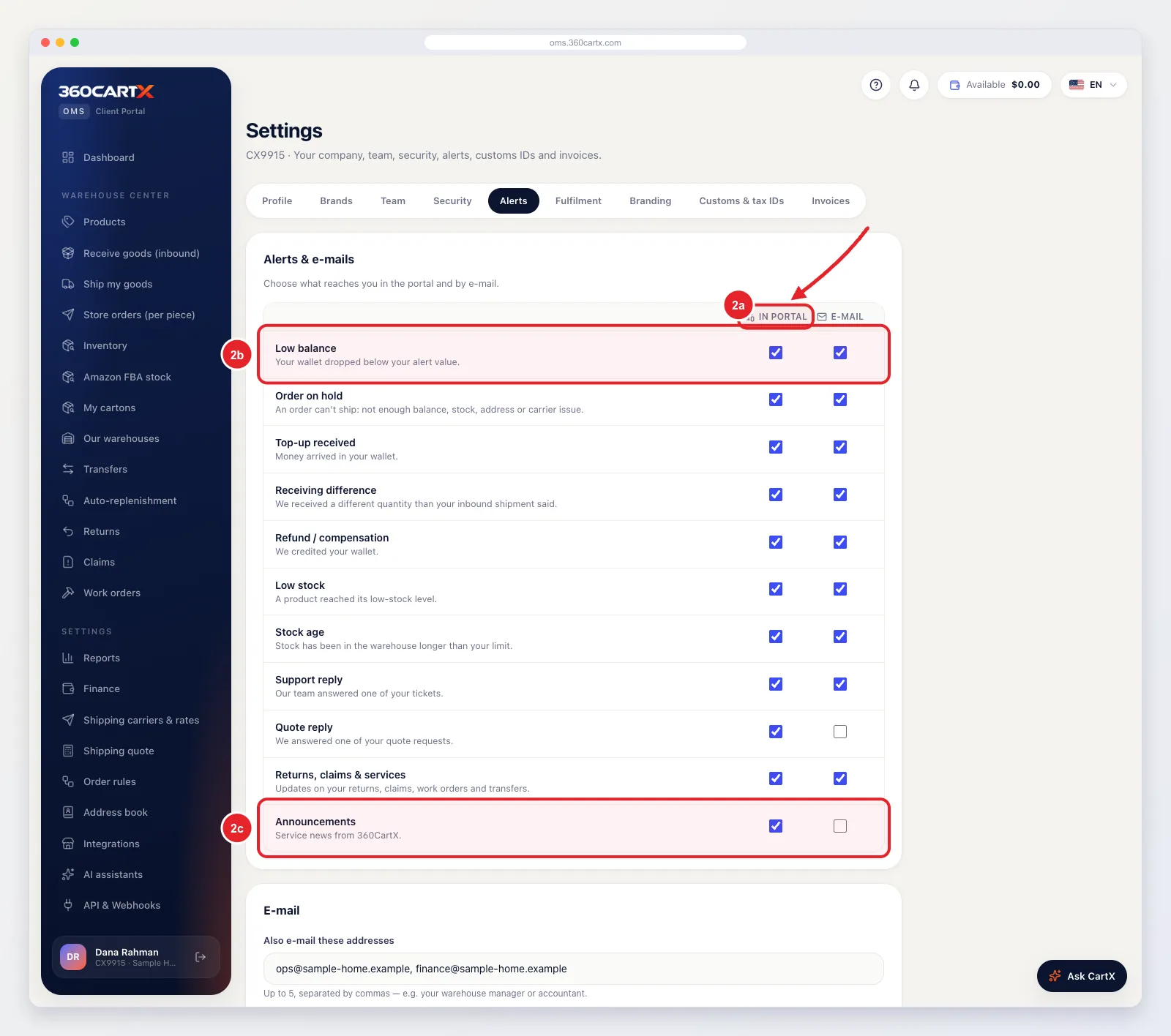
Each row is one type of notification, with a short explanation under its name (for example Low balance: Your wallet dropped below your alert value). Two columns of tick boxes sit on the right: In portal (the bell and the Notifications page) and E-mail. There are 11 types: Low balance, Order on hold, Top-up received, Receiving difference, Refund / compensation, Low stock, Stock age, Support reply, Quote reply, Returns, claims & services, and Announcements. What each one means is explained in Notifications.
- 2a In portal and E-mail columns
- 2b First type
- 2c Last type
- 3
Tick what you want
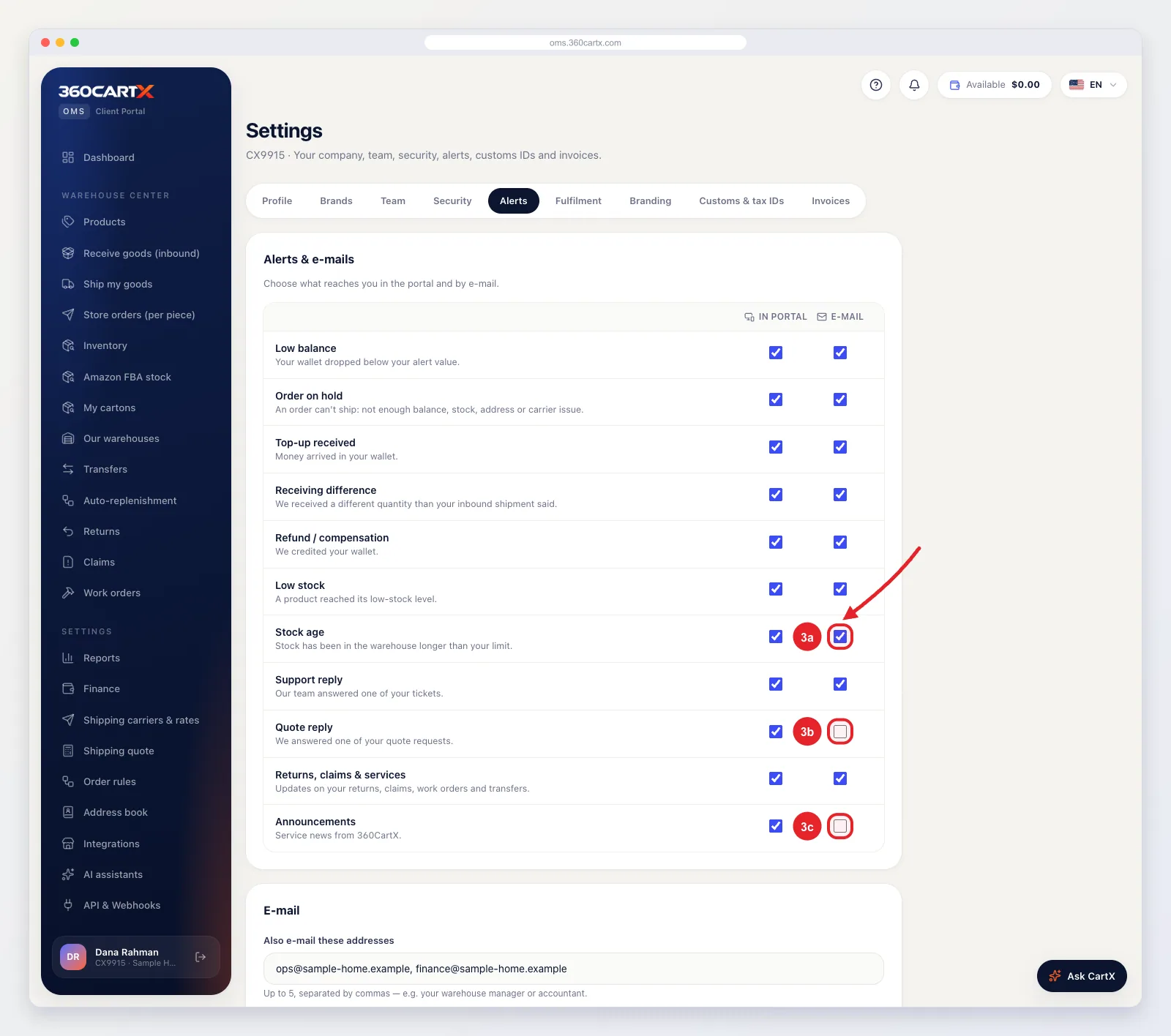
Tick In portal to see the message in the bell and on the Notifications page, tick E-mail to also receive it by e-mail, or both. A new account starts with In portal ticked for every type, and E-mail ticked for every type except Stock age and Announcements. In this example Stock age is also sent by e-mail, while Quote reply and Announcements show in the portal only. If you untick In portal but keep E-mail, the message is still created but marked as read, so it does not add to the red number on the bell. If both are unticked for a type, that type is not created at all.
- 3a Stock age by e-mail
- 3b Quote reply: portal only
- 3c Announcements: portal only
- 4
Add extra e-mail addresses
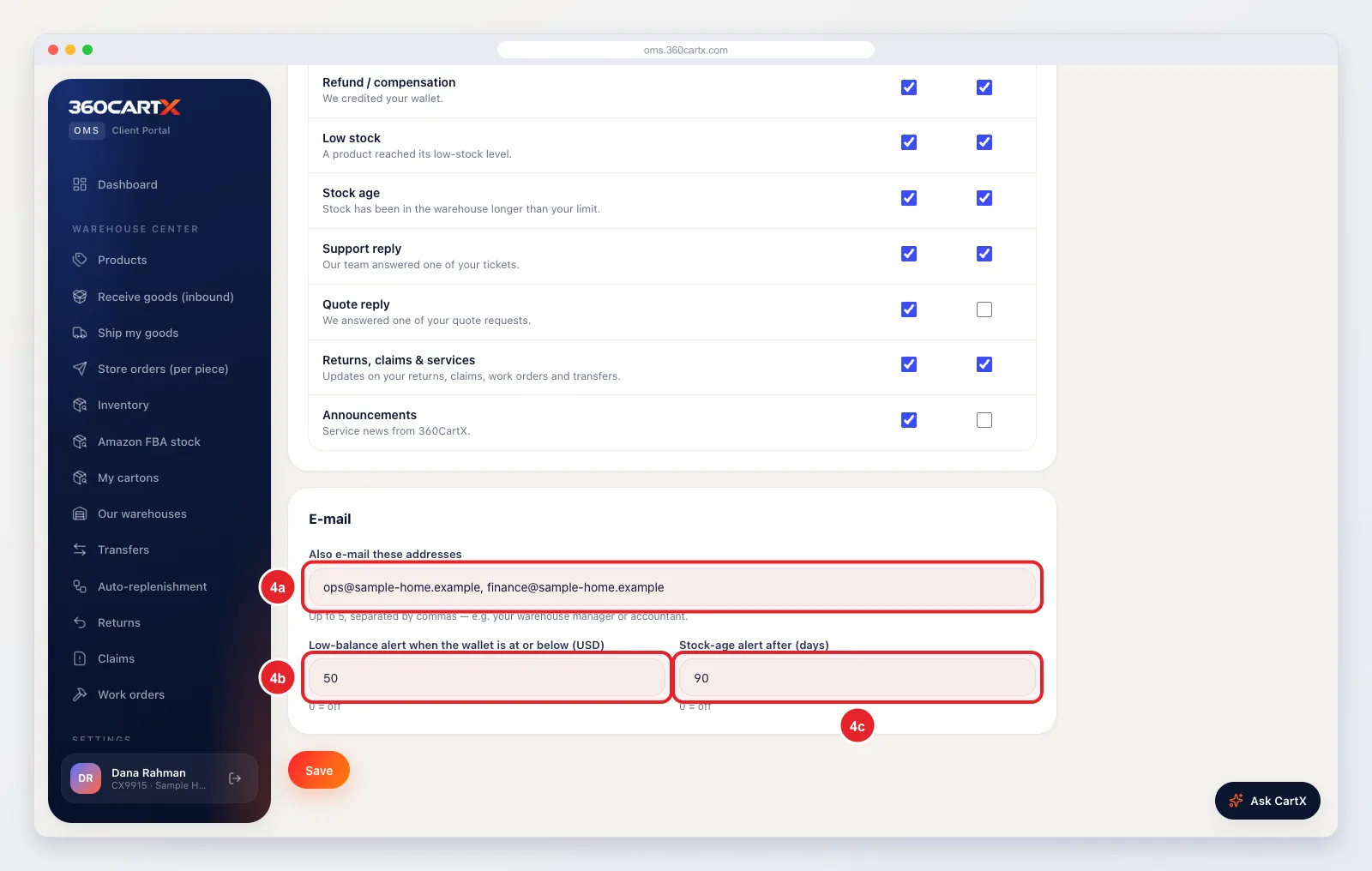
The card E-mail has a field Also e-mail these addresses with the hint Up to 5, separated by commas, for example your warehouse manager or accountant. Every address you add receives the e-mails of all the types that have E-mail ticked. Below it are two alert values. Low-balance alert when the wallet is at or below (USD): type an amount in dollars; the alert is sent when a charge leaves your wallet at or below this value (0 = off). Stock-age alert after (days): type the number of days; once a week you get a summary of stock that has been in the warehouse that long or longer (0 = off).
- 4a Extra addresses
- 4b Low-balance alert
- 4c Stock-age alert
- 5
Save
Click Save at the bottom of the page. When it worked, a green Save ✓ appears next to the button. Nothing is saved until you click it, and the page does not warn you if you leave first.
- 6
If you add too many addresses
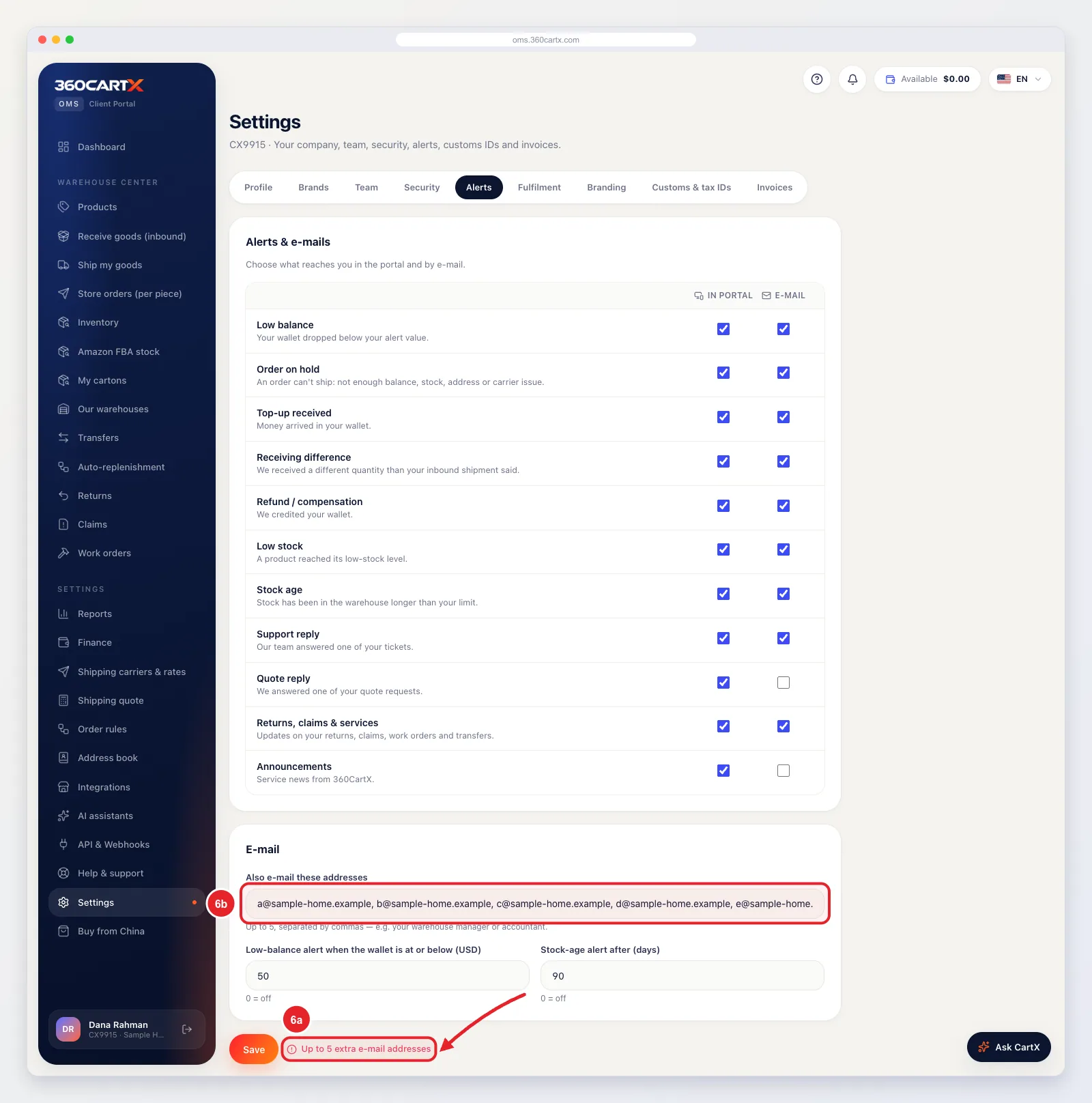
More than 5 extra addresses are refused with the red message Up to 5 extra e-mail addresses. Remove some and click Save again. Your other changes are not saved until the form is accepted.
- 6a Error message
- 6b Address field
- 7
If an address is not valid
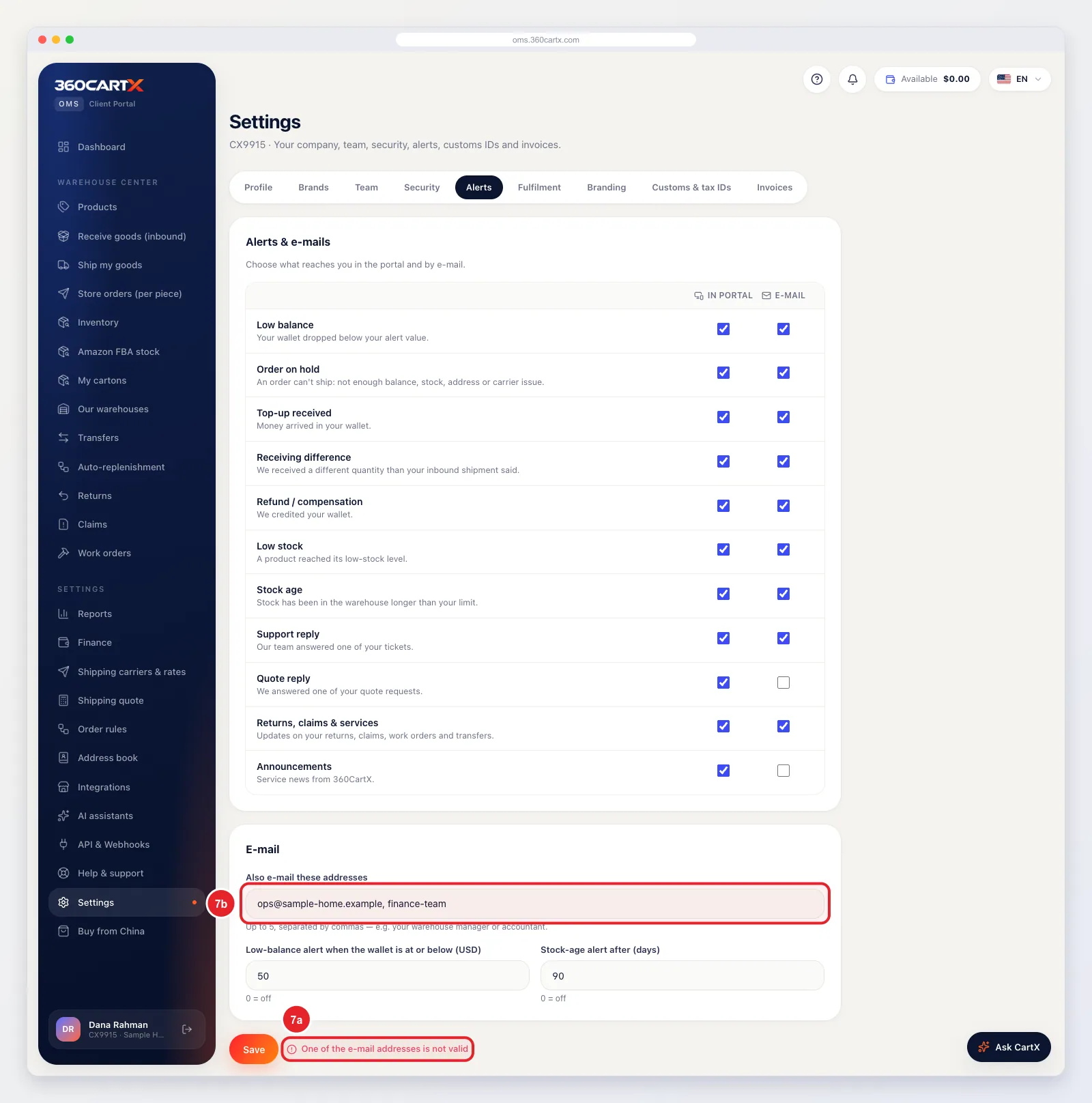
An address that has no @ sign or no dot in the domain is refused with One of the e-mail addresses is not valid. Separate addresses with commas, spaces or semicolons. Addresses are saved in lower case. A value that is not a number in the two alert boxes is refused with Check the alert values.
- 7a Error message
- 7b Address field
- 8
If you are not the owner or an admin
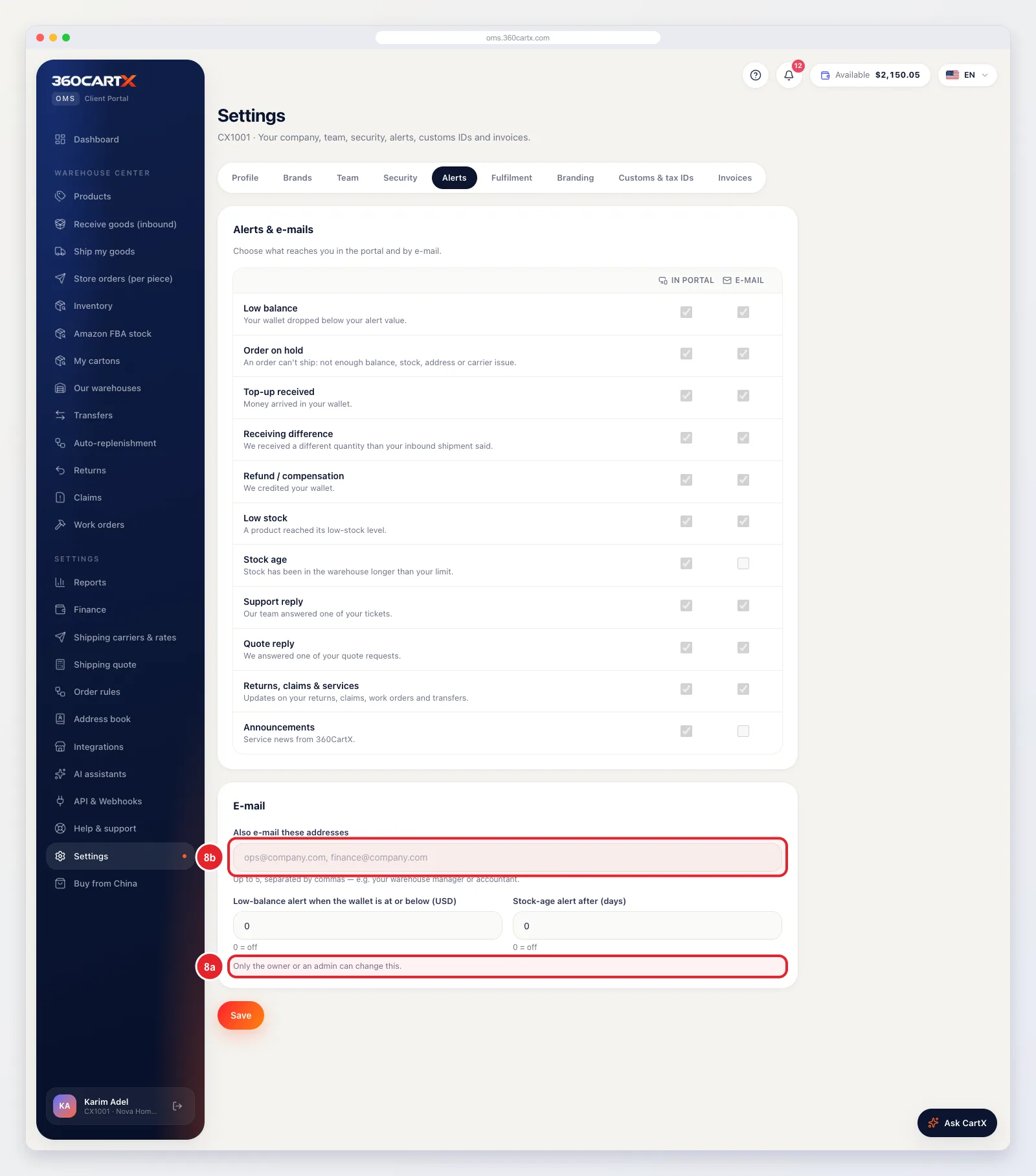
Operators, finance users, viewers and custom roles can open the Alerts tab but every box is greyed out, with the note Only the owner or an admin can change this. The Save button is still on the page, but it answers Only the account owner or an admin can change alerts and changes nothing. Ask the owner or an admin to change it.
- 8a Note
- 8b Greyed-out field
Tips
- Who receives an e-mail: every active owner, admin, finance and operator user of your company, plus your extra addresses. Money and order alerts (Low balance, Order on hold, Top-up received, Refund / compensation) are not sent to operators. Viewers and custom roles never get e-mails. If there are no users and no extra addresses, the e-mail goes to the company e-mail on the account.
- Extra addresses get the same e-mails as everybody else: every type that has E-mail ticked. You cannot give an extra address only some of the types, so use an address that may read all of them (a shared finance or operations mailbox works well).
- The low-balance alert is sent at most once per day, and only after a charge. Combine it with a top-up before your orders are held: see Low balance.
- Low stock is set per product (Products), not here. Here you only choose how the alert reaches you.
Common problems
Up to 5 extra e-mail addresses
You typed more than 5 addresses in Also e-mail these addresses. Keep the 5 that matter and click Save again.
One of the e-mail addresses is not valid
One address is missing the @ sign or the domain (for example finance-team instead of finance-team@sample-home.example). Fix it and save again.
Check the alert values
The low-balance amount or the stock-age days is not a valid number. The days must be between 0 and 3650.
Only the account owner or an admin can change alerts
Your role cannot change these settings. Ask the owner or an admin.
I see the note E-mail is being set up
An amber note with this text appears when e-mail sending is not switched on yet. Alerts still show in the portal meanwhile.
I ticked E-mail but nothing arrives
Check the spam folder first. Money and order alerts do not go to operators. Viewers and custom roles get no e-mails at all. Add your address under Also e-mail these addresses if you are one of them.
Related articles
Updated 2026-11-12
Open a ticket from Support in your portal and our team will reply.