Steps
- 1
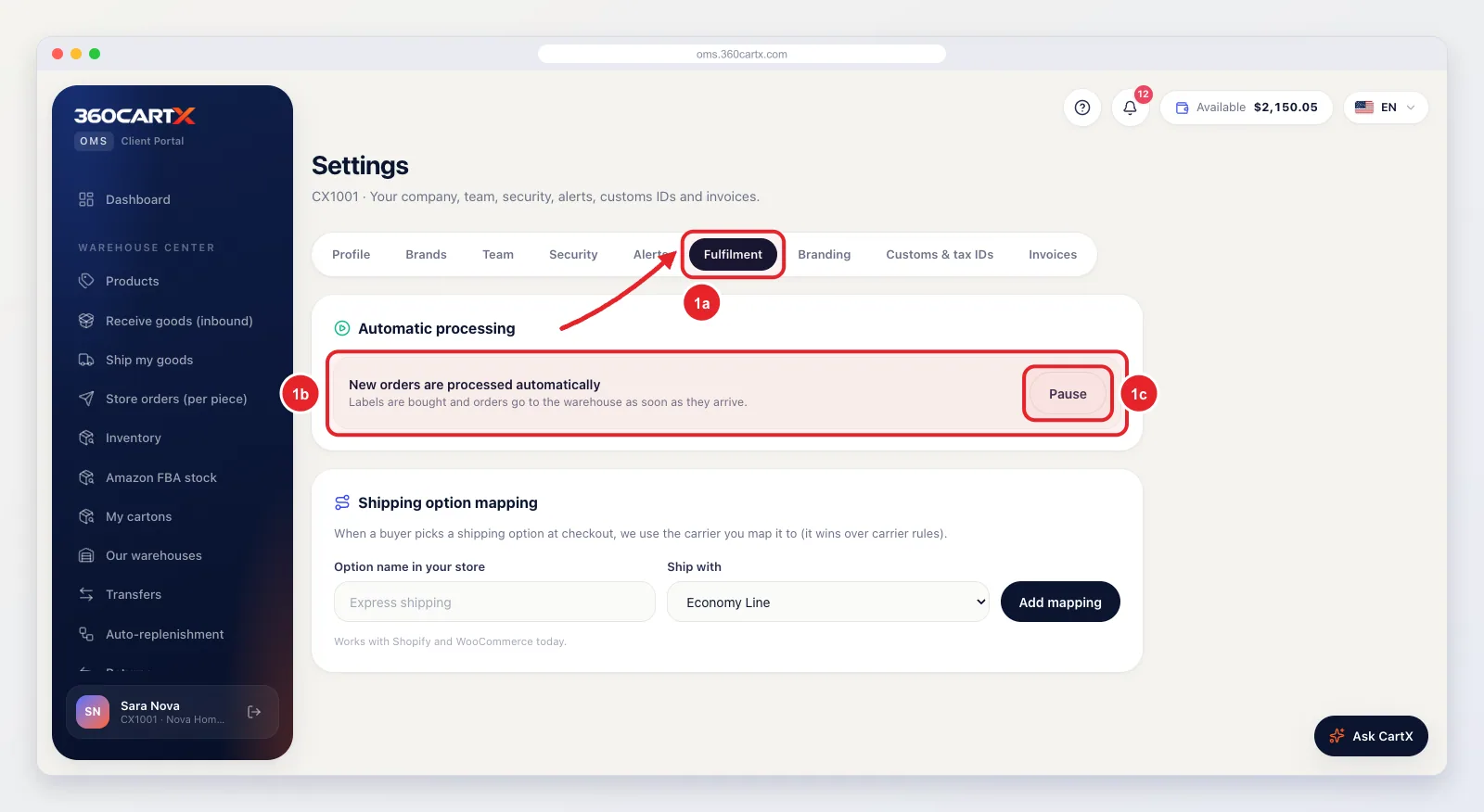
Open Settings, Fulfilment
Click Settings in the left menu, then the Fulfilment tab. The first card, Automatic processing, says New orders are processed automatically with the line Labels are bought and orders go to the warehouse as soon as they arrive. The button Pause is on the right. Owners, admins and operators see the button; other roles see the card only.
- 1a Fulfilment tab
- 1b Status
- 1c Pause button
- 2
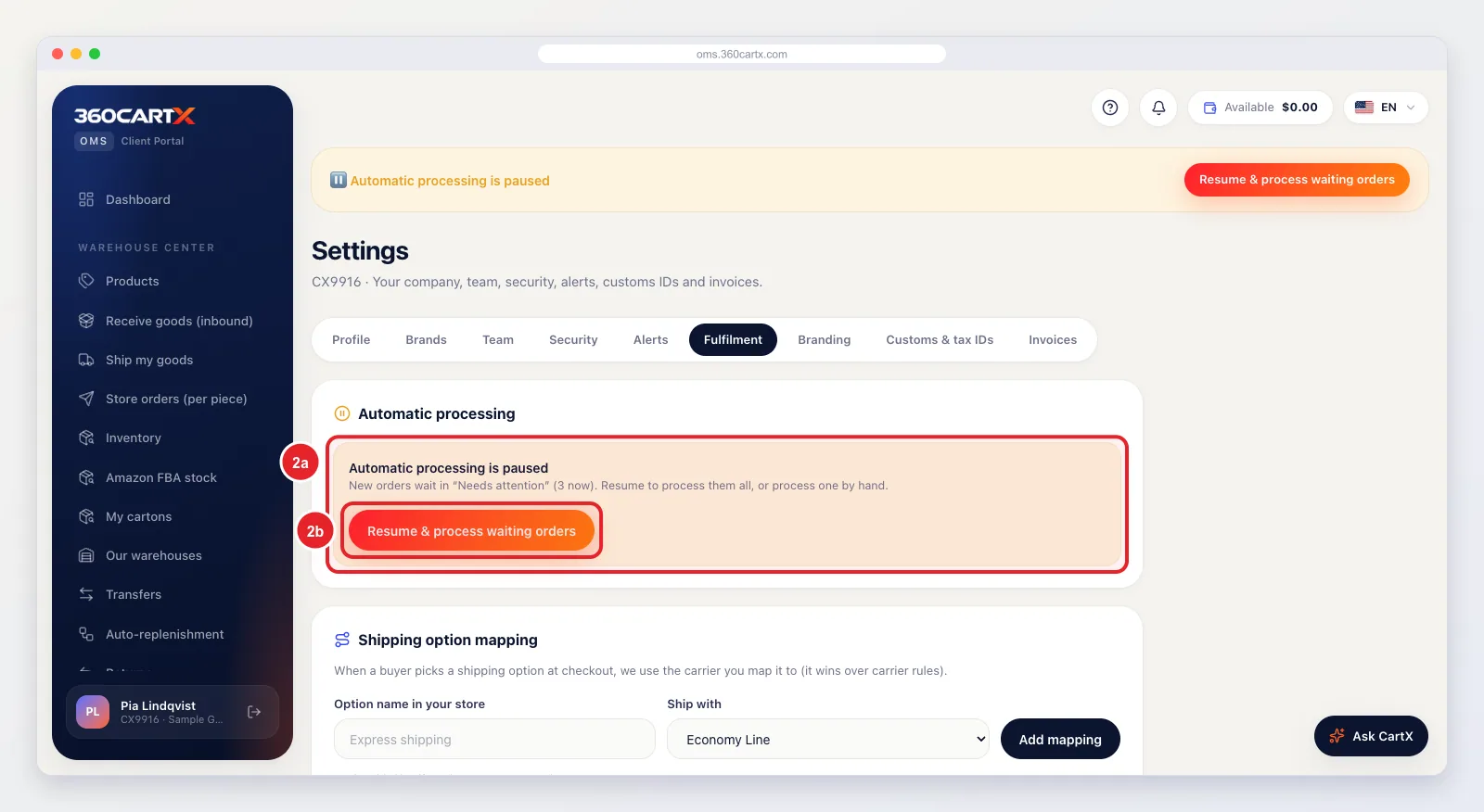
When processing is paused
After you click Pause, the card turns amber and says Automatic processing is paused. Under it: New orders wait in “Needs attention” (3 now). Resume to process them all, or process one by hand, where the number is how many orders are waiting right now. The button now reads Resume & process waiting orders. Pausing takes effect for orders that arrive from now on; orders that were already labelled are not touched.
- 2a Paused status
- 2b Resume button
- 3
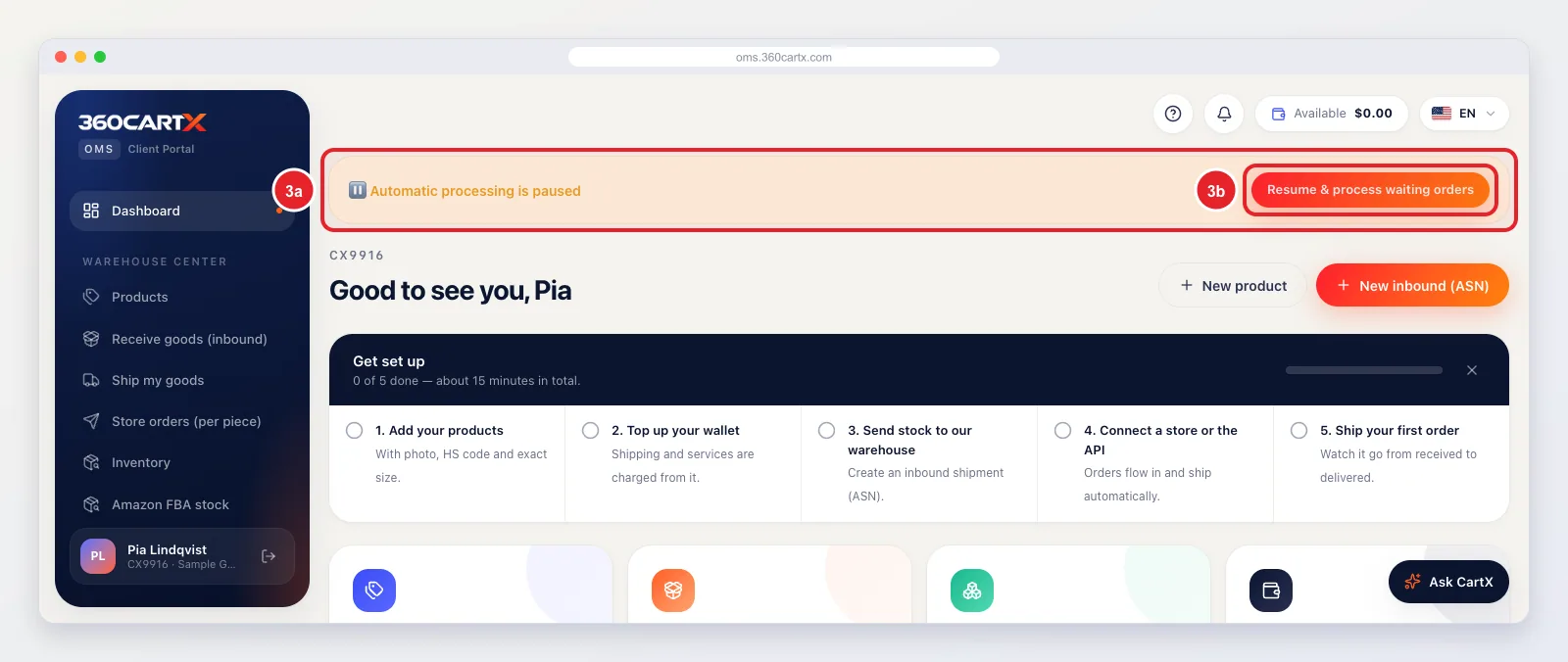
The reminder at the top of every page
While processing is paused, every portal page shows an amber bar with ⏸ Automatic processing is paused and the button Resume & process waiting orders. The button opens Settings, Fulfilment, where you click Resume. Pausing does not stop your stores from sending orders in: they are imported as usual and then parked.
- 3a Pause bar
- 3b Resume button
- 4
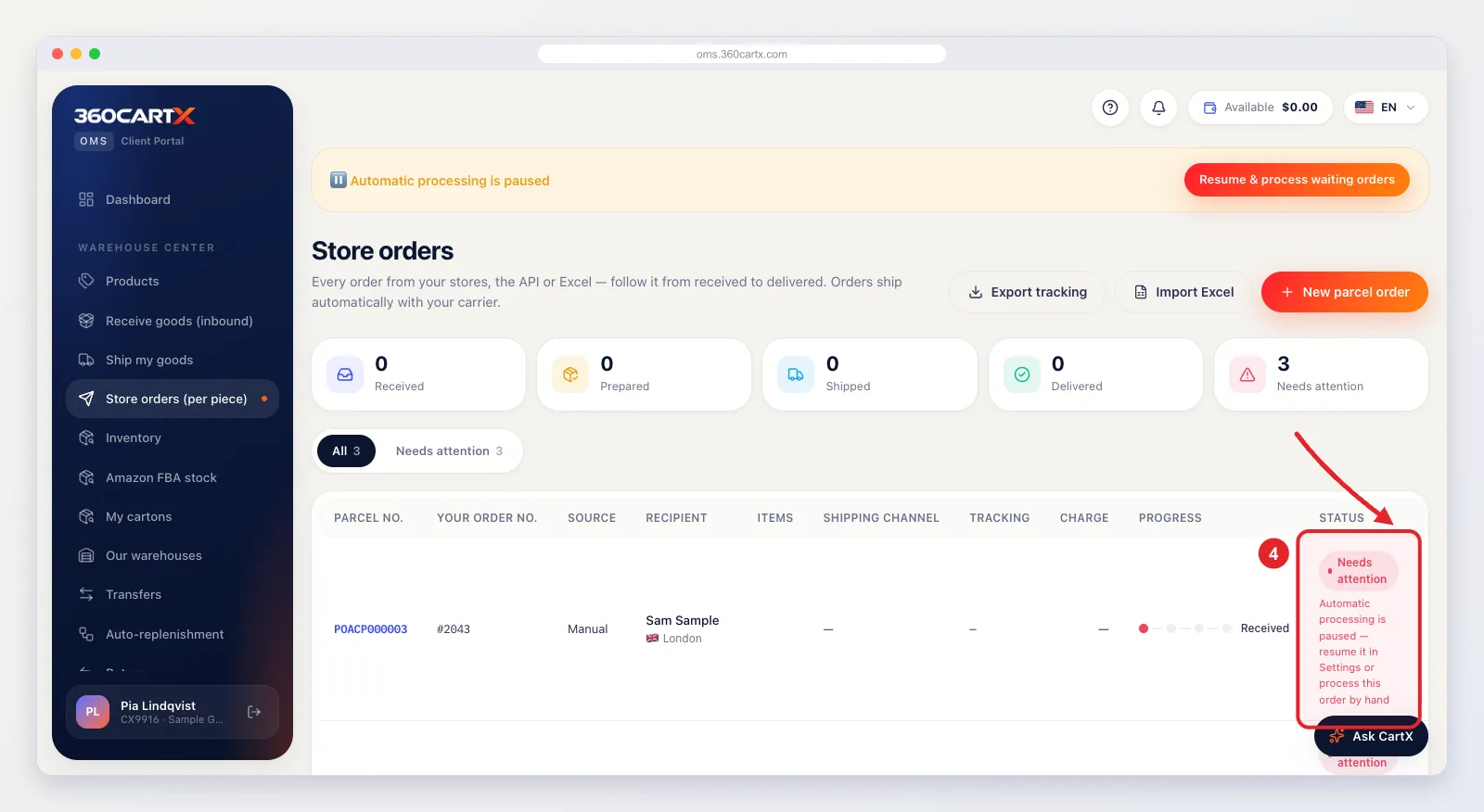
Where the waiting orders are
A waiting order is listed in Store orders with the status Needs attention. Its message says Automatic processing is paused, resume it in Settings or process this order by hand. You can open one and click Retry to process just that order now, without resuming everything (see Fix an order that needs attention).
- 5
Resume
Click Resume & process waiting orders. Processing is switched on again and every waiting order is run straight away, oldest first, up to 1000 in one go. Each order then goes through the normal checks, so one can still stop with its own reason, for example not enough wallet balance (see Orders waiting for money). The bar at the top disappears.
- 6
See the shipping option mapping
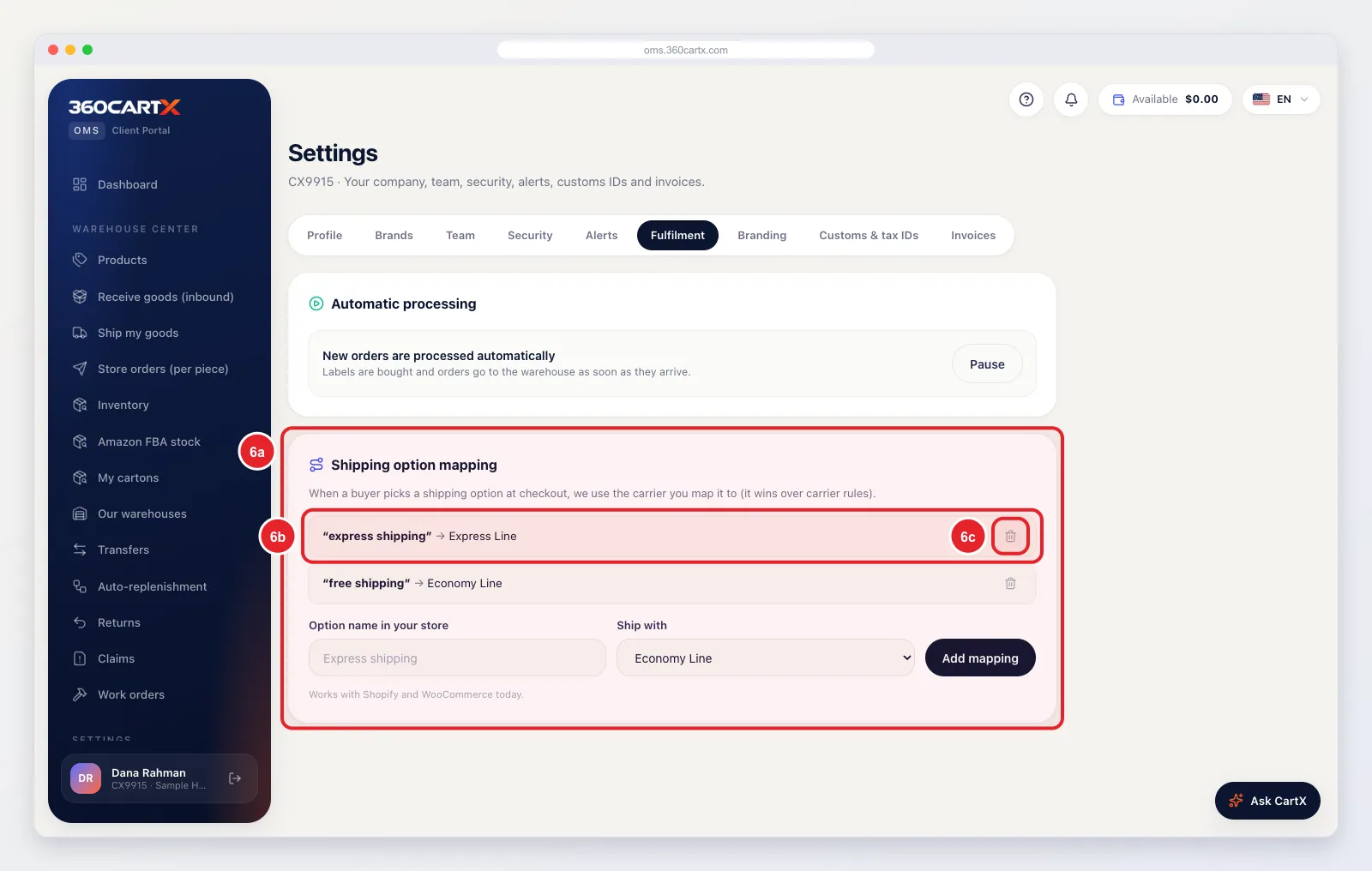
The second card, Shipping option mapping, explains: When a buyer picks a shipping option at checkout, we use the carrier you map it to (it wins over carrier rules). Each saved mapping is one line: the option name in quotes, an arrow and the carrier, for example “express shipping” → Express Line. The small bin on the right removes the mapping. Option names are saved in lower case, because matching ignores upper and lower case.
- 6a Mapping card
- 6b A saved mapping
- 6c Remove mapping
- 7
Add a mapping
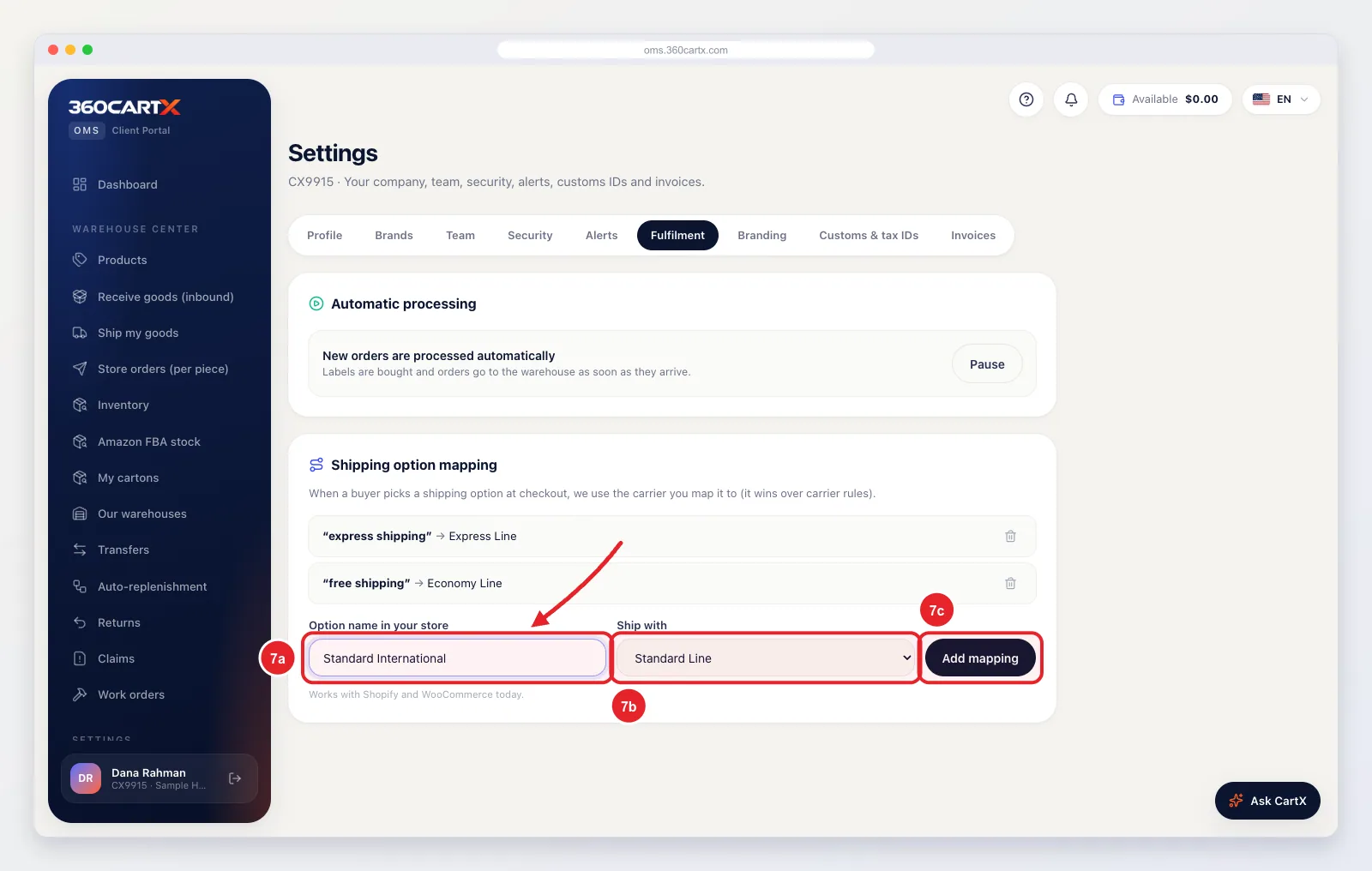
Fill in Option name in your store with the text exactly as your store shows it at checkout (the placeholder is Express shipping), choose the carrier in Ship with, and click Add mapping. The list shows the active carrier lines. If a mapping with the same option name exists, it is replaced by the new carrier.
- 7a Option name
- 7b Ship with
- 7c Add mapping
- 8
If the option name is empty
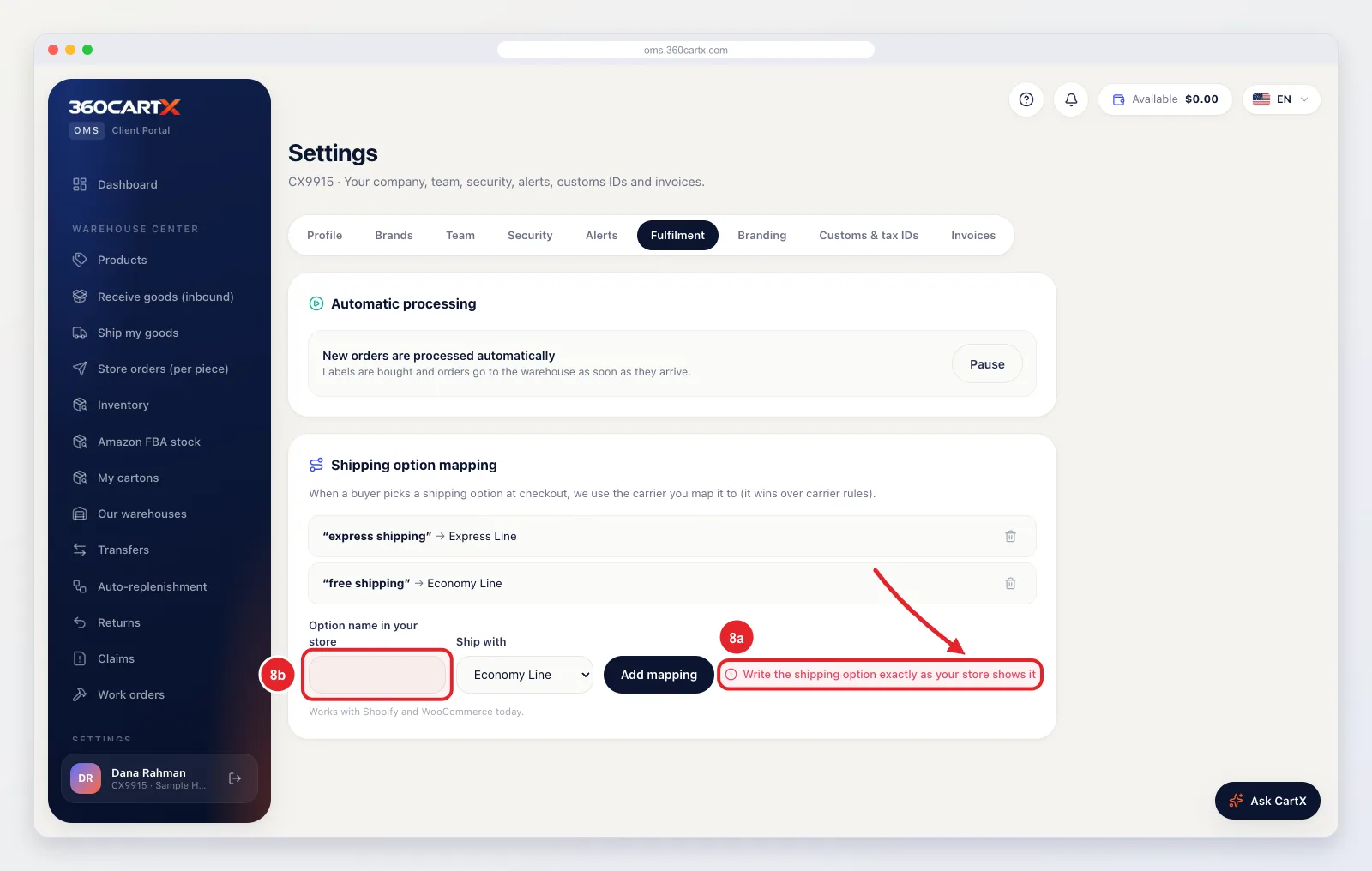
A name that is empty or only spaces is refused with Write the shipping option exactly as your store shows it. Nothing is saved.
- 8a Error message
- 8b Option name
- 9
If you do not see the form
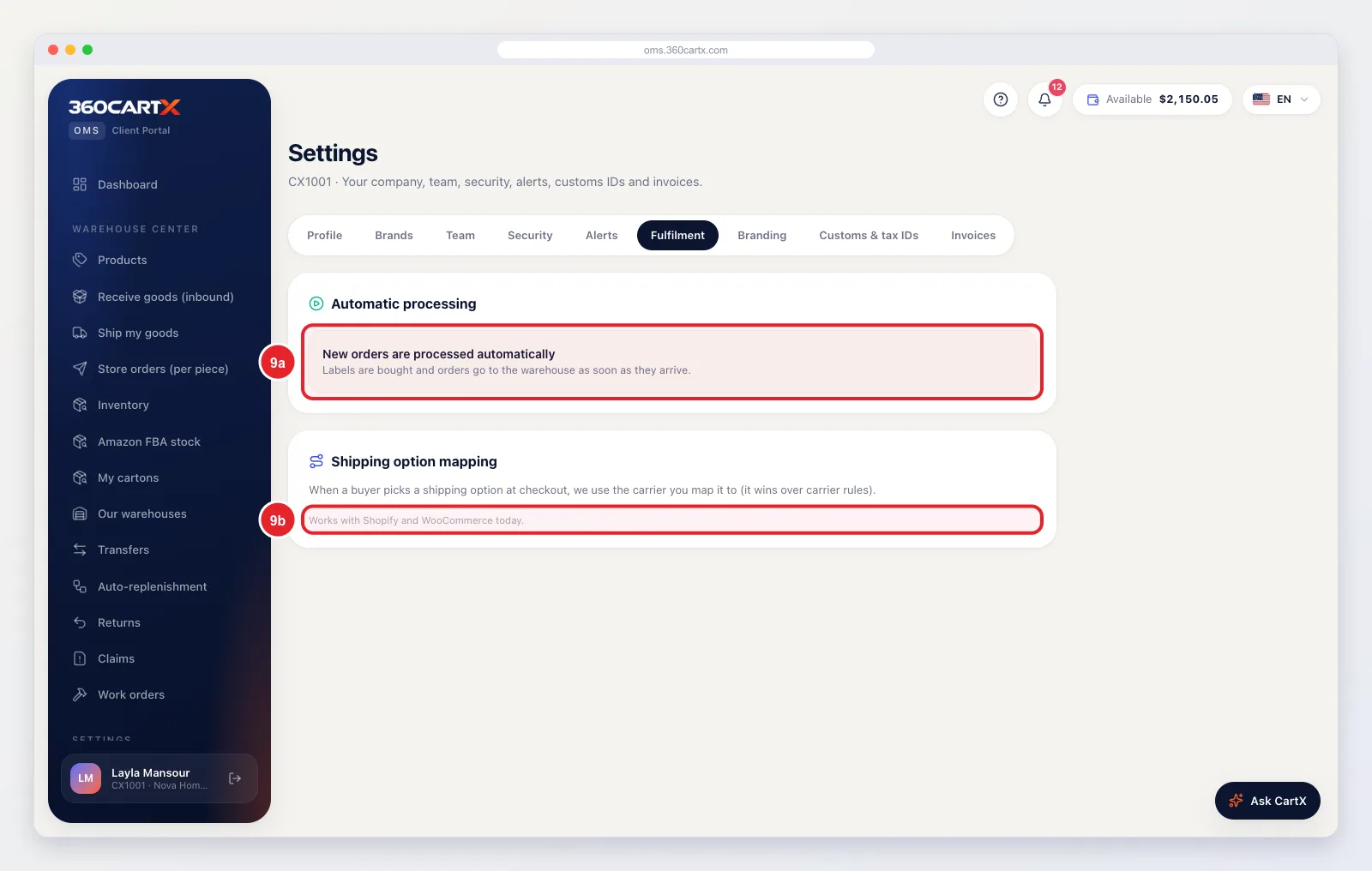
Only the owner, admins and operators can pause, resume and edit mappings. Finance users can open the Fulfilment tab and read the status and the list, but there is no button or form. Viewers and custom roles do not see the tab. Under the form the note Works with Shopify and WooCommerce today. tells you which stores send the checkout option.
- 9a Status without button
- 9b Note
Tips
- Use Pause when you want to check orders before they ship, for example during stock-taking, a sale you want to review or while you fix product data. For a permanent check on every order, use Manual approval in the store settings instead (see Approve orders before shipping).
- Mapping wins over your order rules and your default carrier. An order that has a mapped option always uses that carrier, even if a carrier rule would match (see Order rules).
- Type the option name as it appears on the order in your store: the same words, the same spelling, but case does not matter. A name that is only close (for example Express shipping 2-3 days) does not match.
- Orders from stores that do not send a checkout option, or whose option has no mapping, use your default carrier or your carrier rules.
- Resume does not skip the wallet check: if your balance is too low, the waiting orders become orders waiting for money instead.
Common problems
Write the shipping option exactly as your store shows it
The option name field was empty. Type the name from your store's checkout, for example Express shipping.
Choose a carrier
The carrier you picked is no longer available. Reload the page and pick another from the list.
Your role can't change this
Only the owner, admins and operators can use this tab. Ask one of them.
Orders are stuck on Needs attention with the message Automatic processing is paused
Processing is paused for your account. Click Resume & process waiting orders in Settings, Fulfilment, or open an order and click Retry.
My buyer picked an option but the order used another carrier
The name in your mapping must match the option on the order. Open the order in Store orders to see the option name, then add or change the mapping. Mappings only apply to orders that arrive after you save them.
The carrier list is empty
No carrier line is available to your account yet. Contact support.
Related articles
Updated 2026-11-12
Open a ticket from Support in your portal and our team will reply.